How to Download Pinterest Videos on Linux (Ubuntu, Fedora & Mint) — 2026 Guide
Practically every tutorial about saving videos from Pinterest assumes you are on Windows, a Mac, or a phone. If you run Linux — Ubuntu, Fedora, Mint — you get one throwaway line like “works in a browser” and nothing else. No distro-specific steps, no notes on where files land, no word about sandboxed-browser quirks. So I sat down at a Linux machine with Firefox and Chrome, a stopwatch, and one test pin, and ran the most useful method end to end. Below is a Linux-first walkthrough of every method that works in 2026 — starting with a browser-based pinterest video downloader that needs no install.
Quick Answer: The Fastest Way on Linux
If you just want the video on your hard drive: open the pin, copy its link, paste it into PintoDownload, hit download, and save the MP4. On any distro it lands in your ~/Downloads folder — about thirty seconds once you know the flow. On my test run, pasting the link produced an embedded video preview in about a second or two, and the pin offered a single option: a 720p MP4 straight from Pinterest’s CDN. No captchas, no popups, no login wall at any point.
Below are the four other working methods (extensions, yt-dlp in the terminal, VLC’s network-stream trick, OBS as a last resort), where your files land on each desktop, Linux-specific troubleshooting, and the copyright question.
Why Linux Users Deserve Their Own Guide
Pinterest does not ship an official desktop app, and the website itself has no download button for videos. Every mainstream guide then explains iPhone share-sheet steps and Windows download folders, and if Linux is mentioned at all, it is a single sentence. But Linux browsers have real differences: Ubuntu’s Firefox is a snap, which sandboxes downloads; Chrome, Chromium, and Firefox coexist with different default folders; and terminal tools like yt-dlp and VLC are one package-manager command away — which makes the “advanced” methods the easy ones here.
This guide treats all of that as the default. Method 1 is the one I ran end to end on Linux today; Methods 2–5 are the documented standard ways from their projects’ own docs, cited below.
Method 1: Use an Online Pinterest Video Downloader (Easiest)
For most people this is the whole answer. A free online pinterest video downloader does the fetching on its own servers, hands you the direct MP4 link, and you save it like any other file. Nothing to install. The steps are identical on Ubuntu, Fedora, and Mint — the only things that differ are your browser’s menus and your file manager’s name.
Step 1 — Copy the pin link
Open the video pin. Click the share icon and choose Copy link, or copy the URL straight from the address bar. Short pin.it links work too; reputable tools resolve them automatically.
Step 2 — Paste it into PintoDownload
Go to PintoDownload in your browser and paste the link into the input box. That is the entire “setup.”
Step 3 — Pick your quality and hit download
My test result, exactly: I pasted a cat-meme video pin, and the results — including an embedded video preview — rendered in about one to two seconds. The pin offered a single quality option: a 720p MP4 from Pinterest’s CDN (v1.pinimg.com). What you see is always capped by the original upload — no tool can pull a higher resolution than the uploader provided.
Step 4 — Save the MP4
One quirk worth knowing: the Download button opened the MP4 in a new browser tab rather than saving it directly — that is just how browsers handle direct media links. Save it from the video player instead: ⋮ menu → Download, or right-click and choose “Save video as.” The file drops into your ~/Downloads folder.
A note on the file you get: it is the raw file straight from Pinterest’s servers — no added watermark, no re-encoding. For my test pin that meant a 720p MP4 of a 10-second cat meme, crisp on a laptop screen.
Method 2: Grab the File with a Browser Extension
If you save pins regularly, an extension puts a download button right on the pin — no copy-paste. This works on Linux in Firefox (via Firefox Add-ons) and Chrome/Chromium (via the Chrome Web Store); extensions are browser-level, so the OS underneath does not matter.
Two Linux-specific caveats. On Ubuntu, Firefox runs as a snap — extensions work fine, but their local files live under ~/snap/firefox rather than the classic ~/.mozilla path. And extensions are the method most likely to break when Pinterest changes its page layout, since they hook directly into the site’s HTML. When that happens, wait for the extension author to update — or fall back to Method 1, which does not depend on the page’s markup at all.
Method 3: yt-dlp from the Terminal
This one is the Linux power-user favorite — and honestly it might be the best method here if you are comfortable with a terminal. yt-dlp is the community-maintained successor to youtube-dl and speaks Pinterest natively. I did not run this end to end today; what follows is the documented way, per the official project at github.com/yt-dlp/yt-dlp.
Install it on your distro
One command does it — sudo apt install yt-dlp on Ubuntu and Mint, sudo dnf install yt-dlp on Fedora. If your distro’s repo version is older than you would like, the project documents installing via pipx or pip instead — the GitHub page linked above keeps those commands current.
Download a Pinterest video
The basic form is about as simple as commands get:
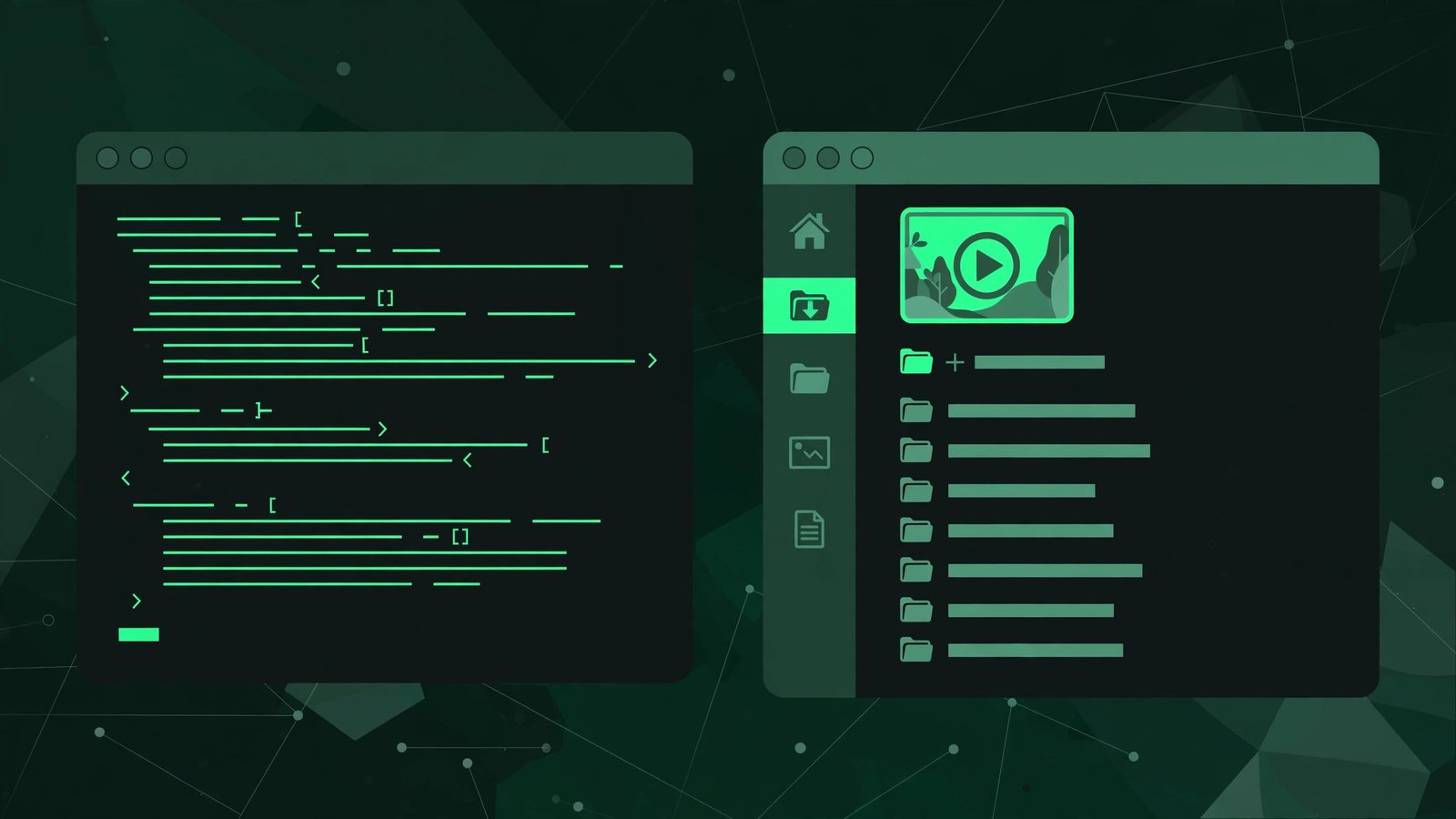
yt-dlp "https://www.pinterest.com/pin/<pin-id>/"That pulls the best available quality as an MP4 into your current directory. To see which formats a pin offers first, the documented flag is yt-dlp -F "URL", which lists every stream; -f then selects one. Passing a text file of URLs saves a whole batch unattended — the real advantage of this method over browser tools.
Grab just the audio, or another format
Per the project docs: -x extracts audio only, and --audio-format mp3 names the container. Full conversion support assumes ffmpeg is installed (sudo apt install ffmpeg on Debian-based distros).
Method 4: VLC’s Network Stream Trick
VLC is on virtually every Linux distro, and it can open a direct video URL as a network stream, then record or convert it to a local file — the documented approach from VLC’s own docs at videolan.org/vlc.
Install VLC from your package manager (sudo apt install vlc on Ubuntu/Mint, sudo dnf install vlc on Fedora — RPM Fusion may be needed on Fedora for the full codec set), then go to Media → Open Network Stream and paste the direct video URL — the same MP4 link an online downloader resolves. VLC plays it; the red record button saves what plays to disk, or the Convert/Save dialog writes it straight to an MP4 file.
Honest assessment: this method needs the direct MP4 URL first, which usually means using an online tool once to resolve it. It shines when you want to preview before saving; as a primary download method it is clunkier than Methods 1 or 3.
Method 5: Screen Recording with OBS Studio (Last Resort)
When nothing else works — a pin that refuses to resolve, a weird embed — you can always record the screen. OBS Studio is free, open-source, and has a proper Linux build, installable via sudo apt install obs-studio on Ubuntu/Mint or Flatpak on any distro.
The Linux wrinkle is Wayland versus X11. On modern GNOME (Ubuntu, Fedora Workstation), you are likely on Wayland, where screen capture goes through PipeWire — select Screen Capture (PipeWire) for the full screen or Window Capture (PipeWire) for just the browser. If capture shows a black screen, switching the source type resolves it. Set audio deliberately — desktop audio for the pin’s sound, microphone muted — because screen recording is a clear step down in quality: you are re-encoding already-compressed video, and any notification or stutter lands in the file permanently. Backup plan, not the plan.
Which Method Should You Pick?
Five methods is a lot. Whichever pinterest video downloader route you take on Linux, here is the honest tradeoff:
| Method | Ease | Install needed | Quality | Best for |
|---|---|---|---|---|
| Online tool (PintoDownload) | Copy-paste, ~30 seconds | None — any browser | Full source quality (720p MP4 on my test pin) | Casual users; one-off saves |
| Browser extension | One click per pin after setup | Extension from store | Full source quality | Frequent savers who hate copy-paste |
| yt-dlp | Terminal command | One package-manager command | Full source quality, format choice | Batches, automation, format control |
| VLC network stream | A few menu clicks | VLC (likely already installed) | Preview-then-save; VLC loyalists | |
| OBS screen record | Setup + record in real time | OBS Studio | Lower — re-encoded capture | Last resort when direct methods fail |
My take: start with the online tool — zero install, and my timed run resolved the pin in about two seconds. Move to yt-dlp when you want to save more than a handful — batching URLs in a terminal is where Linux users have the edge. Keep OBS in your back pocket for the odd pin that resists everything else.
Where Your Downloads Actually Land on Linux
This is the section no other guide writes. Every browser on every distro saves to ~/Downloads by default. To open it:
- Ubuntu / GNOME (Files, a.k.a. Nautilus): open Files and click Downloads in the sidebar.
- Kubuntu / KDE (Dolphin): open Dolphin; Downloads is in the Places panel.
- Linux Mint / Cinnamon (Nemo): open Nemo; Downloads sits in the sidebar.
- Anywhere: press
Ctrl+Lin your file manager and type~/Downloads, or runxdg-open ~/Downloadsin a terminal.
If you want files somewhere else: in Firefox it is Settings → General → Downloads; in Chrome, Settings → Downloads, where you can toggle “ask where to save each file.” Ubuntu-specific gotcha: the snap Firefox sandboxes its view of your home folder, so a download can appear to “vanish.” In testing the fix was simple — save from the video player’s ⋮ → Download or right-click Save video as, which hands the save to the normal file dialog.
A practical habit: make a ~/Downloads/pinterest folder for your saves. Pinterest file names are not descriptive — my test file arrived as a hash-like string — so rename clips on arrival.

When It Doesn’t Work: Linux Troubleshooting
The downloader shows nothing after you paste the link. Re-copy the link from the pin — a truncated URL fails silently. Then confirm it is a single public pin: private boards, deleted pins, and private accounts cannot be resolved by any third-party tool. If one pin fails, try a different public pin before blaming the tool.
The download will not start in Firefox. On Ubuntu’s snap Firefox, check where the file actually went before assuming failure (see the sandboxing note above). If the browser ignores the click entirely, try the same link in Chrome or Chromium — a second browser is the fastest diagnostic on Linux.
The video downloads but will not play. The classic missing-codec issue, most common on fresh Fedora installs. Install the full codec set — via RPM Fusion’s multimedia group, or VLC, which bundles its own codecs; on Ubuntu/Mint, sudo apt install ubuntu-restricted-extras. If VLC plays the file but your default player does not, it is codecs, not a corrupt download.
Everything is slow or the tool errors out. Online downloaders occasionally rate-limit — retry in a minute or switch to a different method. For the common failure modes, see Pinterest video not downloading fixes, and for what each quality tier means, Pinterest video quality settings explained.
A Note on Video Quality
Pinterest videos download as MP4 — the standard container, covered in full at Pinterest video MP4 format explained. The one rule that matters: you can never download higher quality than the original upload. My test pin offered exactly one option — 720p — because that is what the uploader posted. The tool does not choose; Pinterest’s servers do.
As a rough rule of thumb for planning disk space, short-form video runs on the order of a few megabytes per minute at 480p, around eight at 720p, and roughly fifteen at 1080p — ballpark numbers, since bitrate varies by content. If you also save stills, the image side has its own walkthrough at Pinterest image downloader.
Is Downloading Pinterest Videos Legal?
The short, honest version: saving a video for your own offline viewing — watching it later on your laptop, keeping a recipe clip for the kitchen — is the use case every downloader is built for. The line is redistribution: re-uploading someone else’s video as your own, posting it elsewhere, or using it commercially without the creator’s permission crosses into their rights. Assume every pin is copyrighted by whoever made it. PintoDownload’s own stance matches this — it hands you the file as Pinterest serves it and does not strip watermarks or alter the content.
Frequently Asked Questions
Does this work on Ubuntu, Fedora, and Linux Mint?
Yes. The browser method is identical on all three — I tested it on Linux in Firefox and Chrome. Only the install commands (apt vs dnf) and file-manager names differ per distro.
Do I need to install anything to download Pinterest videos on Linux?
No. The online method needs only your browser: copy the pin link, paste it into the downloader, save the MP4. You install software only for yt-dlp, VLC, or OBS.
Where do Pinterest videos save on Linux?
In your ~/Downloads folder by default, on every distro. Open it via Files/Nautilus (Ubuntu/GNOME), Dolphin (KDE), or Nemo (Mint/Cinnamon), or run xdg-open ~/Downloads in a terminal. You can change the destination in your browser’s settings.
Can I download videos from private Pinterest boards?
No. Online downloaders can only resolve public pins — private boards, deleted pins, and private accounts have nothing publicly fetchable, so no third-party tool can reach them. This is a hard limit of how Pinterest serves content.
Why did my pin only offer one quality option?
Quality is capped by the original upload. On my tested pin, Pinterest served a single 720p MP4 from its CDN — that was all the uploader posted, so that was all any tool could retrieve. No downloader can upscale beyond the source.
Is it safe to use an online Pinterest video downloader?
In my test there were no captchas, popups, or login requests, and the file arrived as a standard MP4 from Pinterest’s own CDN. Stick to tools served over HTTPS and never enter your Pinterest password into a downloader. And keep personal use personal — do not re-upload other creators’ videos without permission.