Save Pinterest Videos to Pinterest: Free Guide 2026
Yesterday morning I saved the same soap-making video three different ways, because I wanted to know exactly what each one actually does. The video is a 29-second DIY milk-and-honey soap clip, a public video Pin, 720 by 1440 pixels, vertical, with sound. First I tapped Save inside Pinterest and put it on a board. Then I downloaded the file itself — 3.9 MB, an MP4 that took about two seconds to land on my disk. Then I uploaded that file back to Pinterest as a brand-new Pin. Three actions, three completely different results, and most of the guides ranking for how to save Pinterest videos to Pinterest treat them as if they were the same thing. They are not, and the difference decides whether you can watch the video again next month, whether it works on a plane, and whether the person who made it ever knows you saved it.
Here is the distinction in one sentence: saving a video to Pinterest puts a bookmark on one of your boards, and the video stays on Pinterest’s servers. Downloading gives you the actual file. Everything in this guide follows from that, including the parts nobody else writes about — what happens to your saved copy when the original Pin is deleted, whether the creator gets told, and why the Save button sometimes simply is not there.
The short version: open the video Pin, tap Save at the bottom (app) or click the board selector next to Save (desktop), pick a board or create one on the spot, and it is saved. That keeps the video on Pinterest — it does not put a file on your phone and it does not work offline. If you need the actual MP4 file, copy the Pin link, paste it into PintoDownload, and download it free with no signup. The full steps, the secret-board rules, and the checks I ran this morning are below.
Save vs Download: The Difference That Decides Everything
Ask ten people what “save a Pinterest video” means and you will get two answers, and both of them are sure they are right. One group means tapping Save inside Pinterest so the video sits on a board. The other means getting the video file onto their phone. The guides ranking for this keyword are just as confused — most of them are download guides that mention board-saving in a paragraph and move on, and a few are board guides that never once say the word video. I read ten of them in full this morning before writing this. Only Pinterest’s own help page treats in-Pinterest saving as the subject, and it is forty lines long with no video-specific guidance at all.
So before the steps, here is the table I wish every one of those guides had printed at the top.
| What you get | Save to a Pinterest board | Download the video file |
|---|---|---|
| Where the video lives | On Pinterest’s servers, as a bookmark on your board | On your phone or computer, as an MP4 file |
| Works offline | No — it streams from Pinterest, so no signal means no video | Yes — it plays from your gallery or files app |
| Quality choice | None — it plays back at whatever quality Pinterest streams | You get the file Pinterest serves, usually the original quality |
| If the original Pin is deleted | Your saved copy usually goes with it — it points at the original | Your file is unaffected; it is already yours |
| Who can see it | Anyone who can see the board (or only you, on a secret board) | Only you, until you share or re-upload it |
| Needs a Pinterest account | Yes — saving is an account action | No — a public Pin link is enough |
| Creator’s link kept | Yes — the saved Pin keeps its title, video and source link | No — the file carries no link back to the Pin |
Read that table once and the rest of this guide is obvious. If you are collecting ideas to look at later inside Pinterest, save to a board. If you need the video in your camera roll, in an edit, or on a plane, download the file. Most people who search this keyword actually want the first one and get handed the second one by every guide on the page, which is why this article does the board-saving first and the download second.
How to Save Pinterest Videos to Pinterest on the App (iPhone and Android)
This is the flow I used on the soap video this morning, and it is the same on iPhone and Android — the buttons sit in the same places on both. You need to be logged in to your Pinterest account; saving is tied to your account, and there is no way to save a Pin without one.
- Open the Pinterest app and find the video. It can be in your home feed, in search results, or on someone’s profile. Tap it to open it in the full view, where the video starts playing.
- Tap Save at the bottom of the Pin. On the open Pin the red Save button sits at the bottom of the screen. (In the home feed you will also see a small Pin icon on the video itself — that is the quick-save shortcut, and it saves the video to the board Pinterest suggests, usually your most recent one. Use it when you are in a hurry; use the open-Pin route when you want to choose the board.)
- Choose a board. A list of your boards appears. Tap the one you want and the video is saved to it. That is the whole action — two taps.
- Or create a board right there. If none of your boards fits, tap Create board at the bottom of the list, type a name, and tap Create. The video goes straight onto the new board. There is a section on naming and the secret toggle below, because the name you pick is also what Pinterest’s search reads.
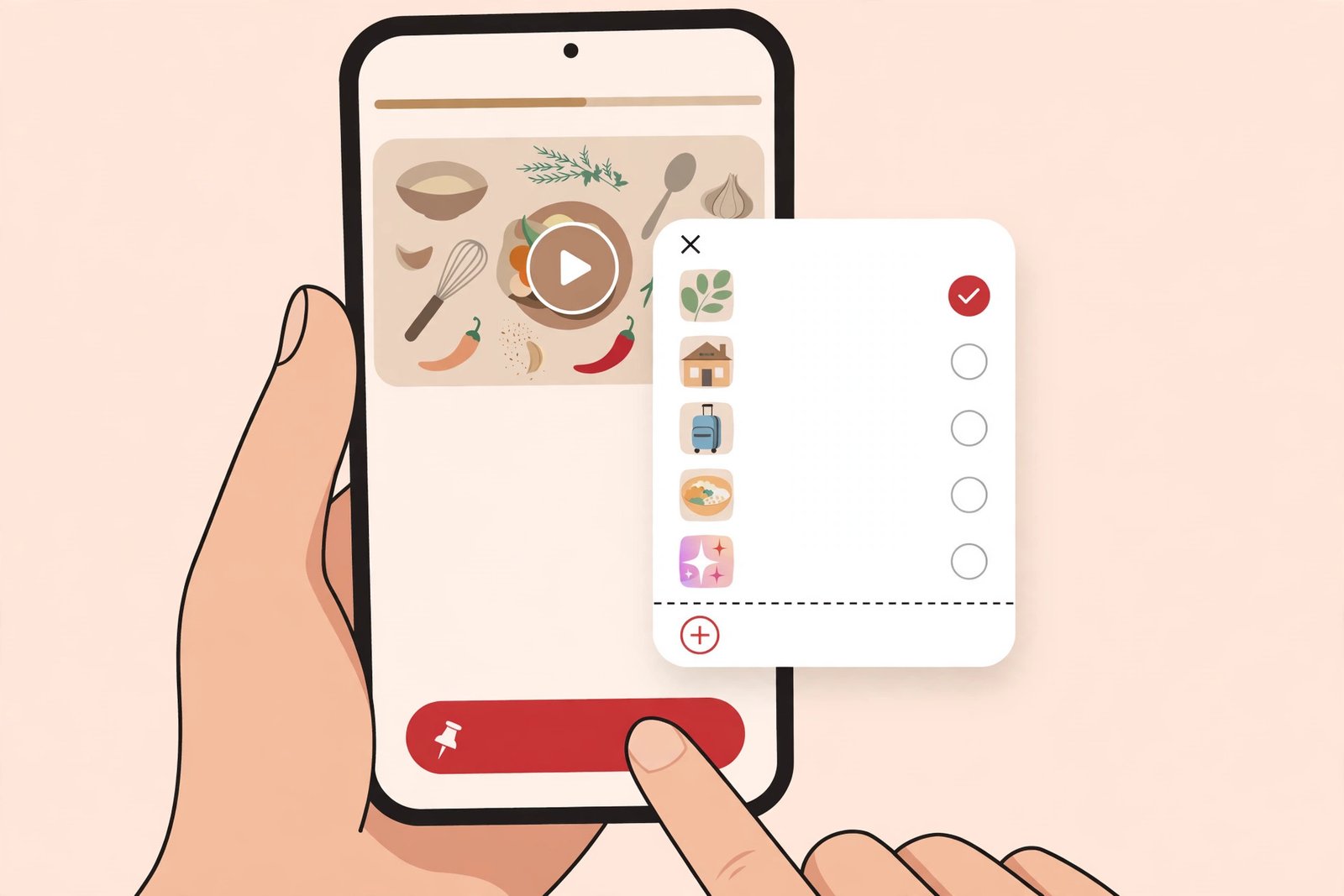
One more shortcut worth knowing, from Pinterest’s own creator pages: on mobile you can also long-press the video in your feed, tap the Pin icon, choose a board, and tap Save. It is the fastest way to save several videos in a row while you are scrolling, and it works on video Pins exactly the way it works on image Pins. The one thing to watch for is the quick-save in the feed: if you tap the Pin icon without choosing, Pinterest picks the board for you, and it is usually the last board you used. Check which board it landed on the first time you do it, or you will spend ten minutes later wondering where a video went.
How to Save Pinterest Videos to Pinterest on Desktop
The desktop website does the same job with a slightly different layout, and this is the part several competing guides describe wrong. On desktop there is no single Save button that also picks the board. There is a Save button and, next to it, a board selector, and the selector is where the choice happens. Here is the flow from Pinterest’s own help page, which I checked against the live site:
- Log in at pinterest.com and open the video Pin. Hover over it in your feed, or click it to open the closeup view where the video plays.
- Click the board selector at the top right, next to Save. This opens the dropdown with your boards. Pinterest suggests a board based on your activity — you can take the suggestion or ignore it.
- Hover over the board you want and click Save. The video is saved to that board.
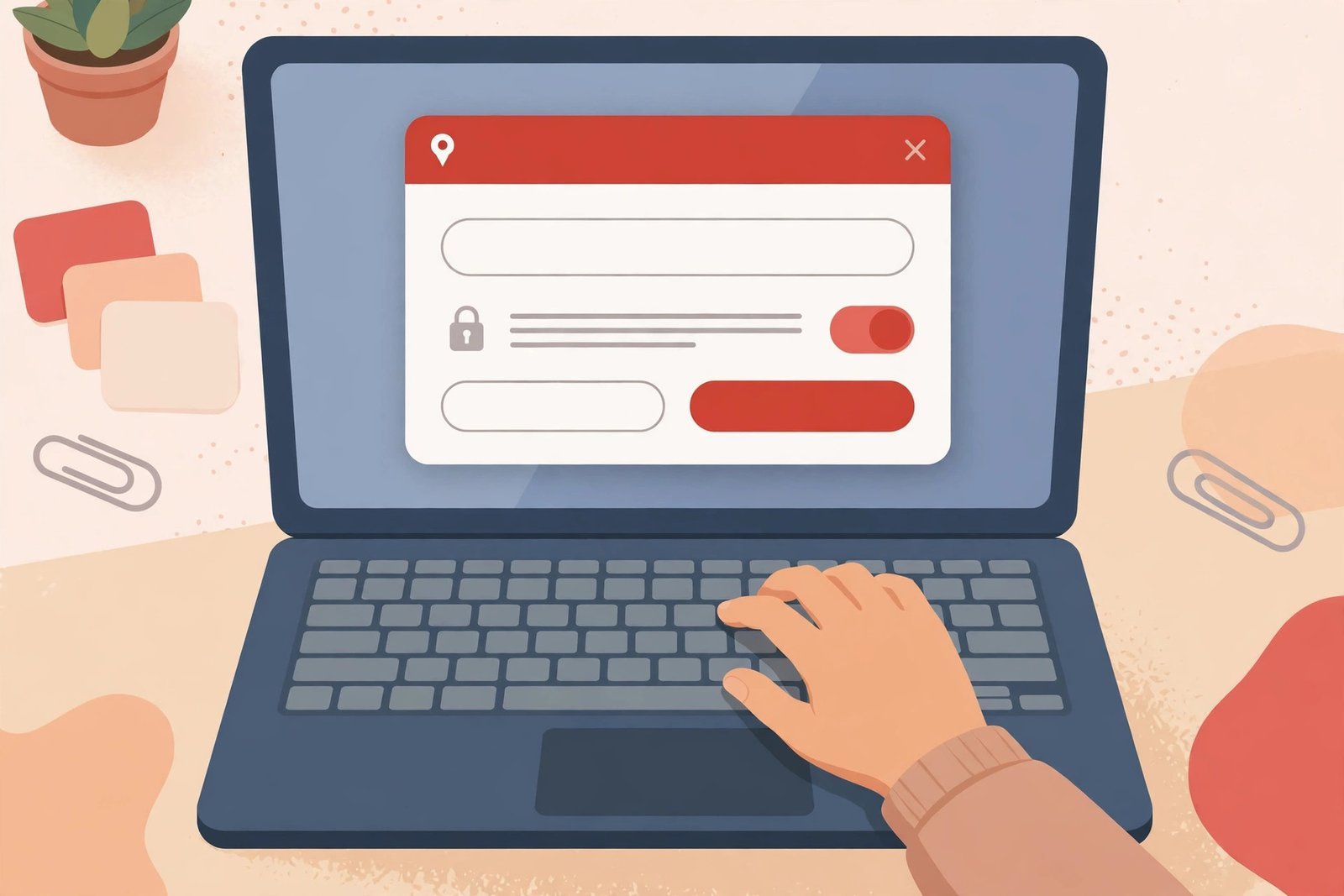
- Or create a board from the same dropdown. Click the create-board option, type a name (Pinterest may suggest one — edit it before you confirm), toggle Keep this board secret if you want it private, add collaborators if it is a shared board, and click Create. The video saves to the new board immediately.
The practical difference between app and desktop is small but real: on the app the Save button is the whole flow and the board list comes after, while on desktop the board selector comes first and Save confirms the choice. Either way it is under ten seconds. If you are saving a lot of videos in one sitting, the desktop site is faster, because the board dropdown stays where your mouse already is and you can work through a search-results page without opening every Pin.
How to Create a Board While You Save
Creating the board at the moment you save is the normal way boards get made — Pinterest built the flow for it, and the help page describes board creation during saving as a first-class path, not an afterthought. It works on both app and desktop, and the steps are the ones in the two sections above: choose Create board from the board list instead of picking an existing one.
Three choices in that moment matter more than they look:
- The name. Pinterest’s search reads board names, board descriptions and section titles. “Soap recipes” will surface your board in search; “Stuff I like” will not. Name it for what is in it, in the words someone would type to find it. You can rename a board later, but the saves you make today are filed under the name you pick today.
- The description. Add one line describing what the board collects, with the keywords that belong to it. It costs twenty seconds and it is the difference between a board Pinterest can recommend and a board nobody ever finds.
- Public or secret, decided now. The toggle is right there in the creation dialog — Keep this board secret on desktop, Make this board secret in the app. If you are saving gift ideas, a surprise party, or videos you are not ready to show anyone, decide here. You can flip a board between public and secret later from its settings, but a public board is visible from the moment you create it, so the private choice belongs at creation time.
One number worth knowing: Pinterest’s developer documentation puts the account-wide cap at 2,000 boards of any type — public, private and secret, including group boards you did not create — and 200,000 Pins. Archived boards still count toward the total, so archiving does not free up space; deleting or merging does. Most people will never touch 2,000 boards, but if you create a fresh board for every single video you save, you will get there faster than you think. A few broad boards with sections inside them age much better than a hundred one-video boards.
Saving Someone Else’s Video: What Repinning Keeps and What It Doesn’t
Saving another person’s video Pin to your board is what Pinterest used to call a repin, and marketers still use the word. Pinterest renamed the button from “Pin it” to “Save” back in June 2016, but the action is the same: you are taking someone else’s Pin and filing a copy of it on your board. It is the single most common thing people do on Pinterest, and it is also the thing most guides explain worst, because they never say what actually travels with the Pin.
What a repin keeps: the video itself, the Pin’s title, and the link to the original source — the blog, shop or video page the creator linked. That link is the reason repinning is good for creators; it sends traffic back to them. What you can change: the description on your copy, which is yours to write, and the board it sits on. What you cannot change: the video, the title, or the destination link. If the video itself is wrong for your board, saving it anyway and hoping to fix it later does not work — the video is the video.
Two points of etiquette that are also practical. First, a saved Pin is not your content. If you later download that video and post it somewhere else as if you made it, that is a different act with different consequences, and the download section below covers why. Second, if the Pin’s link is broken or goes somewhere irrelevant, think twice before saving it — Pinterest’s own guidance to creators notes that broken links quietly limit how far a repin travels, and your board ends up full of videos that lead nowhere.
Save a Video to a Secret (Private) Board
Pinterest now calls these private boards in its help pages; the app still says secret on some screens, and they are the same thing. A private board is visible only to you and anyone you invite as a collaborator. It does not appear on your profile, in search results, or in other people’s home feeds. Saving a video to one is the same two taps as any other save — pick the private board from the list, or toggle the secret switch while you create a board during the save.
Three behaviours change on a private board, and Pinterest states all three in its help pages, which is more than it says about public saves:
- The creator is not notified. Saving a Pin to a private board sends no notification to the person who posted it.
- The save count does not go up. A save to a private board does not add to the Pin’s public save count.
- Attribution is hidden on the way out. If you later save a Pin from your private board to another board, Pinterest does not show the name of the person you saved it from on the new Pin.
Private boards also cannot be promoted as ads, and the videos on them do not contribute to your public Pinterest stats. To make an existing board private later, open the board, tap the three-dot menu next to the board name, choose Edit board, and turn on Make this board private. To invite someone to a private board, add them as a collaborator — they will see everything on it, so a private board is private from the public, not from the people you invite.
The honest use case is simple: a private board is where videos go when you are not ready to be seen collecting them. Gift lists, a surprise, a business idea you have not announced, a video you want to study before you decide whether it belongs on a public board. The save itself is identical; only the audience changes.
Save One Video to More Than One Board, Move It, or Unsave It
This is the section none of the ten guides I read covers properly, and it is the one people actually get stuck on, because Pinterest’s answer is less tidy than they expect. There is no bulk-save button, no “save to all my boards” option, and no single “move” command. There are three separate actions, and they work like this:
To save one video to a second board, open the video Pin again — from your feed, from search, or from the first board — tap Save, and pick the second board. Pinterest saves a second copy. The two copies are independent; what you do to one does not affect the other. The same applies to saving your own Pin from one of your boards to another: open it, Save, pick the new board.
To move a video between boards, do it in two steps, because that is what Pinterest actually offers: save it to the new board first, then remove it from the old one. Open the board it sits on, open the Pin, use the three-dot menu, and remove it from that board. Do the save first and the removal second — if you remove first and then cannot find the video again, it is gone from your boards entirely.
To unsave a video, open the board it is on, open the Pin, and remove it from that board through the Pin’s menu. The video leaves your board. It stays on Pinterest, on the original creator’s account and on anyone else’s board who saved it. Unsaving is per-board: if you saved the same video to three boards, you have to remove it from all three.
One more thing nobody mentions: there is no way to save several videos from a board in one go. You save them one at a time. If you are collecting twenty videos from a single board, the long-press shortcut on mobile or the desktop board dropdown is the fastest route, and it is still twenty saves. Plan for that, or you will be annoyed halfway through.
Find Your Saved Videos Later
Saving is only useful if you can find the video again, and this is where a little organisation at save time pays for itself. Everything you save lives in the Saved tab on your profile, filed under the board you chose. Open your profile, open the board, and the video is there in the grid. Video Pins look different inside a board from image Pins: they show a play state and usually autoplay muted when you scroll past them, and the cover frame is whatever Pinterest picked from the video.
When a board gets big, three things help. First, sections: a board can be split into sections, so a “Recipes” board can have a “Weeknight dinners” section and a “Baking” section, and the videos file under the right one. Second, search within the board: open the board and use the search field at the top of it to find a video by the words in its title or description — which is another reason to write a real description on your copy when you save it, instead of leaving the creator’s text untouched. Third, video-only boards: if you save a lot of video, give video its own board instead of mixing it with images. A board that is all video is scannable at a glance in a way a mixed board never is, and it also tells Pinterest’s recommendations what you actually want more of.
If a video is not where you expected it, check the two usual suspects before assuming it is lost. The feed quick-save may have filed it under your most recent board instead of the one you meant — open your profile’s Saved tab and look at the most recent board first. And check whether you saved it to a private board: private boards sit at the bottom of your profile, easy to scroll past, and their contents do not appear in search.
What Happens to Video Quality When You Save to Pinterest
Nothing. That is the whole answer, and it is the answer no competing guide states plainly. Saving a video to a board involves no quality choice at all. There is no resolution menu, no HD toggle, no “save in original quality” option. The Pin is a bookmark pointing at the video Pinterest already has, and when you open it later it plays back at whatever quality Pinterest streams — which depends on the file the creator uploaded, the connection you are on, and Pinterest’s own compression, not on anything you chose at save time.
This is the exact opposite of downloading, where the file you get is the file you get. My test video this morning came down as a 720 by 1440 MP4, 29 seconds, 3.9 MB — that is the resolution the creator uploaded, and Pinterest does not upscale it into a 1080p version that does not exist. The same is true on the way back in: Pinterest never improves a video you save. If a video looks soft when you play it from your board, it looked soft when you found it, and saving it did not make it worse or better. If quality matters to you — for an edit, a presentation, a re-upload — you need the file, not the bookmark, and that is the download section below.
Does Saving Work Offline?
No. A saved Pin is a bookmark, and a bookmark needs the library. The video file lives on Pinterest’s servers, and when you open a saved video your app streams it — no connection, no video. Pinterest’s own help page is careful about this in a way most guides are not: it says you can download an image from a Pin and look at it offline, and it links to the image-download article. It says nothing of the kind about video, because there is nothing to say. Video Pins do not download themselves for offline viewing when you save them.
You can prove it to yourself in thirty seconds, and I recommend doing it once so the distinction sticks. Open a video you saved to a board, then switch your phone to airplane mode and open the board again. The board itself may still show — Pinterest caches the grid, the titles, the thumbnails — but tap the video and it will not play. That is the test, and it is the reason the Medium guide I read this morning, the only one of the ten that even tried it, found an empty board with no signal. If you need a video on a flight, on a train with dead zones, or anywhere the signal drops, save the file to your device. A board will not do it.
What Happens to Your Saved Video If the Original Pin Is Deleted
This is the question nobody in the top ten answers, and it is the one with the most practical bite. A saved Pin is a reference to the original Pin, not a copy of it. The video file was never on your account; your board holds a pointer to a video that lives on the creator’s Pin. When the creator deletes the original, or makes their account or board private, your saved copy usually goes with it — it either disappears from your board or sits there as a dead entry you cannot play. Pinterest does not document this clearly anywhere in its consumer help, which is probably why no guide covers it, but the logic of the system leaves no other sensible outcome: there is no file on your side to survive the deletion.
The practical rule follows directly. Save to a board when you are collecting ideas you can afford to lose — inspiration, references, things to look at this week. Download the file when the video is something you need to keep: a tutorial you will follow offline, a clip you are editing, a video you paid for or were given permission to use. The two actions exist for different jobs, and the deletion case is the clearest proof of it. I keep both habits: boards for browsing, files for keeping.
Does the Creator Know You Saved Their Video?
Not by name, and not by notification. Pinterest does not send a creator a message saying you saved their video, and there is no list anywhere of who saved what. What the creator can see is aggregate: the Pin’s save count goes up, and in Pinterest Analytics they can see how many saves a Pin earned, which boards it was saved to in general terms, and how it is performing. That is counting, not naming — the analytics show people, never names.
The one exception runs in the other direction. Save a video to a private board and even the count does not move: Pinterest’s help pages state plainly that saving to a private board does not notify the person who posted it and does not add to the Pin’s save count. So if you save someone’s video to a public board, you have quietly voted for it in public — the count rises, the creator’s analytics notice, and Pinterest’s recommendations notice too. If you save it to a private board, nobody knows, not even as a number. Neither one tells the creator it was you.
Can You Download the Video Too?
Sometimes the bookmark is not enough, and that is the other meaning of this keyword. If you need the actual file — for offline viewing, for an edit, for posting somewhere else — there are two honest routes, and one of them depends entirely on the creator.
First, check for Pinterest’s own Download option. Creators can allow downloads of their full-screen video Pins. The switch is Video Pin downloads in Settings, under Social permissions, and it is off by default. It applies only to full-screen (9:16) video Pins, and only to all of a creator’s published full-screen video Pins at once — there is no per-video choice. When it is on, the Download option appears in the Pin’s Share menu, and the file it gives you carries the creator’s username as a watermark at the bottom. The watermark cannot be removed, and that is deliberate: it is the credit, baked into the file. If the Download option is not in the Share menu, the creator has not enabled it, and Pinterest offers no other official way to get that video as a file. The full setting is documented in Pinterest’s help article on creating a Pin.
Second, use a downloader for a public Pin. This is the route I tested this morning. Open the video Pin, tap Share, tap Copy link, then paste the link into PintoDownload and download the MP4. No account, no signup, no watermark added by the tool — the file is the one Pinterest serves, exactly as the creator uploaded it. My test this morning: the soap video’s link took 2 seconds for the tool to resolve, and the MP4 — 720 by 1440, 29.23 seconds, 3.9 MB — downloaded in under 3 seconds. Only public Pins work; a video on a private board, a deleted Pin, or a region-locked video will not resolve, and you can check that yourself by opening the Pin in a logged-out browser window — if you cannot see it there, no downloader can fetch it either.
The difference between the two routes is worth stating once. The creator-enabled download is Pinterest’s own feature, watermarked, limited to full-screen Pins whose creators opted in. A downloader works on any public video Pin and gives you the clean file — and that is exactly why the responsibility shifts to you. Downloading a video for your own offline viewing is one thing; reposting it, selling it, or presenting it as your work is another, and the credit rules are in our guide to whether downloading Pinterest videos is legal. Keep the creator’s name on it, link back to the original Pin, and ask before you use someone else’s video anywhere public.
Saving a Downloaded Video Back to Pinterest
Here is the round trip no competitor covers: you downloaded a video, and now you want it on Pinterest again — as a Pin on your own board, not as someone else’s Pin you saved. Maybe it is your own video and you want it on a second account, or you downloaded your own clip from an old board and want to re-post it properly. The route is an upload, not a save, and the rules are Pinterest’s upload rules, not its save rules.
To do it, open Pinterest, tap the plus button, choose Create Pin, pick the MP4 from your device, add a title and description, choose a board, and publish. Before you upload, check the file against the limits Pinterest publishes for organic video Pins — and note the distinction most guides blur, because two different Pinterest pages give two different sets of numbers. The Pin specs page, which covers what you upload through the normal Pin creation tool, says: MP4 or M4V on the web (MOV is also accepted in the apps), H.264 or H.265 encoding, 4 seconds to 5 minutes long, with 9:16 full-screen (1080 by 1920) recommended and 1:2, 2:3, 3:4, 4:5 and 1:1 also accepted. The ad specs page says up to 2 GB and 4 seconds to 15 minutes — but those are the paid-video rules, not the organic ones, so do not plan an organic upload around 15 minutes.
I checked my test file against the organic limits this morning: 29.23 seconds is inside 4 seconds to 5 minutes, 720 by 1440 is 9:16, H.264 MP4 is accepted, and 3.9 MB is far under any size ceiling. It would upload as-is, no conversion, no re-export. Most videos downloaded from Pinterest already fit, because they were uploaded to Pinterest once already — but check the length first, because a 7-minute tutorial that played fine as a Pin will fail as a re-upload under the 5-minute organic cap, and Pinterest will not explain why in plain language.
Two warnings belong here. First, a re-upload is a new Pin. It has no link to the original creator, no connection to the original Pin’s save count, and no attribution unless you write it in yourself. If the video is someone else’s, uploading it as your own Pin is reposting, and you need their permission and their name in the description. Second, the quality survives the round trip only in one direction: Pinterest re-encodes what you upload, so the re-uploaded Pin is at best as good as the file you downloaded, and usually a fraction softer. Downloading and re-uploading the same video repeatedly is how quality dies — every pass through Pinterest’s encoder costs a little sharpness.
Troubleshooting: When the Save Button Is Missing or the Save Fails
Sometimes there is no Save button at all, and the reason is usually one of these. Work through them in order.
- You are logged out. Saving is an account action. Pinterest will let you browse without an account, but the Save button does nothing useful until you log in. Log in, reload the Pin, and the button appears.
- It is an ad. Promoted Pins — the ones labelled as ads — do not always offer the same Save flow as organic Pins. If the Pin is sponsored, the save option may be limited or absent.
- It is an Idea Pin, or a Pin type that does not save the usual way. Some multi-page Idea Pins behave differently from standard video Pins, and the Save button can sit in a different place or require opening the Pin first rather than saving from the feed.
- The Pin is gone. If the creator deleted it, or made their board or account private, the video will not save, and no error message will explain it properly. Open the Pin in a logged-out browser window: if it does not load there, it is gone or private.
- The app is out of date, or the feed is stale. Pinterest renames menu items between app versions, so a label in this guide may differ slightly from what is on your screen. Update the app, force-close it, and try again. On desktop, a hard refresh usually fixes a board dropdown that will not open.
- You are trying to save to a board that no longer exists. If you deleted or archived a board, it will not appear in the board list. Pick another board or create a new one during the save.
If the save goes through but the video does not appear on the board, give it a minute and pull to refresh — the board grid can lag behind the save, especially on a slow connection. If it still is not there, check your most recent board: the feed quick-save files videos under the last board you used, and that is the most common “lost video” in my experience.
Frequently Asked Questions
Is saving a Pinterest video to Pinterest the same as downloading it?
No. When you save Pinterest videos to Pinterest, you put a bookmark on one of your boards and the video stays on Pinterest’s servers — it streams when you open it, needs an internet connection, and disappears if the original Pin is deleted. Downloading gives you the actual MP4 file on your device, which plays offline and survives the original Pin being deleted.
Does the creator get notified when I save their video?
No. Pinterest does not notify a creator when you save their video, and there is no list of who saved it. On a public board the Pin’s save count goes up, which the creator can see as an aggregate number in analytics. On a private board even the count does not move.
Can I save a Pinterest video to a secret board?
Yes. Pick the secret (private) board from the board list when you save, or toggle the secret switch while creating a board during the save. Only you and anyone you invite as a collaborator can see it, the creator is not notified, and the save does not add to the Pin’s save count.
What happens to my saved video if the original Pin is deleted?
Your saved copy usually disappears with it, because a saved Pin is a reference to the original, not a copy of the file. If the video matters enough to keep, download the MP4 while the Pin is still public.
Can I save a Pinterest video without an account?
No. Saving is tied to your Pinterest account — you need to be logged in, and the video goes onto one of your boards. Without an account you can only view a public Pin, or download its file through a tool using the public link.
Can I save a video to multiple boards?
Yes, one board at a time. Open the video Pin again, tap Save, and pick the second board. Each save is an independent copy. To move it instead of copying it, save it to the new board first, then remove it from the old one.
Does saving change the video quality?
No. Saving involves no quality choice — the video plays back at whatever quality Pinterest streams. If you need the best available quality as a file, download the MP4; Pinterest does not upscale, so the downloaded file is the quality the creator uploaded.
Conclusion
To save Pinterest videos to Pinterest is a two-tap job — open the video, tap Save, pick a board — and the real skill is knowing what those two taps do and do not do. They file a bookmark on your board. They do not give you a file, they do not work offline, they do not protect the video if the original Pin disappears, and they do not tell the creator who you are. Used for what it is, board-saving is the fastest way to build a collection of videos you can come back to, especially on secret boards for the ideas you are not ready to share. Used for what it is not — as a way of keeping a video — it will let you down exactly once, on the day the Pin is gone.
So save the videos you are collecting, and download the ones you are keeping. For the keeping half, the tool is the same one I tested this morning: paste any public Pinterest video link into PintoDownload and save the MP4, free, with no signup. And if you want the image side of the same workflow, our Pinterest image downloader covers downloading Pinterest images in HD, while our guide to saving Pinterest videos to LinkedIn covers the same two-part job on another platform.