
Save Pinterest Videos to LinkedIn: Free Guide 2026
This morning I downloaded a 29-second soap-making video from Pinterest, measured the file, and posted the numbers against LinkedIn’s upload limits before writing a word of this guide. The video is a DIY milk-and-honey soap clip — a public video Pin, 720 by 1440 pixels, vertical, with sound. It took 2.3 seconds for PintoDownload to find it and 2.5 seconds to land on my disk as a 3.9 MB MP4. Every number on that file fits inside LinkedIn’s limits with room to spare, which is exactly the check most guides skip. If you want to save Pinterest videos to LinkedIn, the download is only half the job. The other half is getting the file onto LinkedIn in a form LinkedIn actually accepts, without a watermark, without the wrong aspect ratio, and without posting someone else’s work as if it were yours. This guide covers both halves, with the real measurements from the test I ran today.
There is no button for this anywhere. Pinterest will not send a video to LinkedIn, and LinkedIn will not fetch a video from Pinterest. So you do it in two parts: first you pull the real MP4 file off Pinterest, then you upload that file to LinkedIn as a native video post. The whole thing takes under five minutes once you know the steps, and most of that time is waiting for the upload to process.
The short version: open the video Pin, tap Share, copy the link, paste it into PintoDownload, download the MP4, check it is under 15 minutes and 5 GB, then open LinkedIn, hit Start a post, attach the video, write your text with credit to the creator and a link back to the original Pin, and post. The full steps — with the file-size and timing numbers I measured this morning — are below.
Why It Is Tricky to Save Pinterest Videos to LinkedIn
Pinterest and LinkedIn were never built to talk to each other. Pinterest wants you to keep videos inside Pinterest, on boards, inside its own feed. LinkedIn wants native video files uploaded through its own composer, and it quietly punishes posts that send people somewhere else. Between those two positions there is a gap, and every guide I read while researching this article falls into it: the download guides stop at the download, and the LinkedIn guides start with a file already sitting on your computer, as if files appear by magic.
That gap is where the real mistakes happen. I have seen all four of them in the wild, and three of them are invisible until after you have posted. The first is the watermark. If you save a video through the Pinterest app’s own download button, Pinterest stamps your username across the bottom of the video. On a personal phone that is harmless. On a professional LinkedIn feed, in front of clients and hiring managers, a watermark that says someone else downloaded this looks exactly like what it is: a repost dressed up as original work. The second is the length wall. Pinterest video Pins can run up to 15 minutes, and LinkedIn feed posts cap at 15 minutes too, so most Pins fit — but LinkedIn’s vertical video lane caps at 3 minutes, and video inside a LinkedIn article caps at 10 minutes on the mobile app. Post a 12-minute Pinterest clip as an article video from your phone and it will fail, and LinkedIn will not explain why in plain language. The third is the format trap. LinkedIn accepts a long list of formats on paper, but some of them upload and then never finish processing, and a GIF will not upload at all. The fourth is the credit problem, which is not technical at all: a video with no creator name, no link back, and no permission is a copyright complaint waiting to happen, and LinkedIn is a much worse place than Pinterest to learn that lesson, because your real name and your employer are attached to the post.
None of the ten guides I read before writing this one covers all four. Brandwatch gets the permission rules right for brands but gives no LinkedIn steps at all. The LinkedIn guides from Sendspark, Taplio, Lilach Bullock, Upshot and Lifast are thorough on specs and steps but start with a file you already have. The downloader roundups compare seven tools in detail and never once mention what happens after the file downloads. So this guide does the whole job in order: copy the link, download the file, check the file against LinkedIn’s real limits with measured numbers, post it natively, write the post text properly, and stay on the right side of the credit rules.
What You Need Before You Start
Three things, and the third one is the one people skip. First, the video Pin itself, and it has to be public. Private Pins and secret boards cannot be downloaded by any tool that does not have your Pinterest login, and any site that asks for your Pinterest password to “unlock” a private video is a site you should close immediately. Second, a decision about whose video it is. If it is your own video — you filmed it, you pinned it, you own it — you are done, post away. If it is someone else’s, you need their permission to repost it on LinkedIn, or at minimum a clear credit line and a link back to the original Pin. I go through the exact rules near the end of this guide, because “everyone reposts” is not a legal argument. Third, two minutes and a browser. No app to install, no account to create, no software to download. The whole download half of this job happens on a web page.
One more thing worth deciding up front: where on LinkedIn the video is going. A personal feed post, a company page post, or a LinkedIn article are three different surfaces with three different limits, and the choice changes what you need to check. A personal feed post is the default and the most forgiving: up to 15 minutes, up to 5 GB, any aspect ratio between 1:2.4 and 2.4:1. A company page post uses the same limits. A video inside a LinkedIn article is capped at 10 minutes when you upload from the mobile app. And if the clip is vertical and under 3 minutes, LinkedIn can also surface it in its vertical video lane, the swipeable strip of short video above the regular feed — which is the single best reason to keep a Pinterest video vertical instead of cropping it square. Decide the surface first, then check the file against that surface’s limit, not the other way round.
Step 1: Copy the Pinterest Video Link
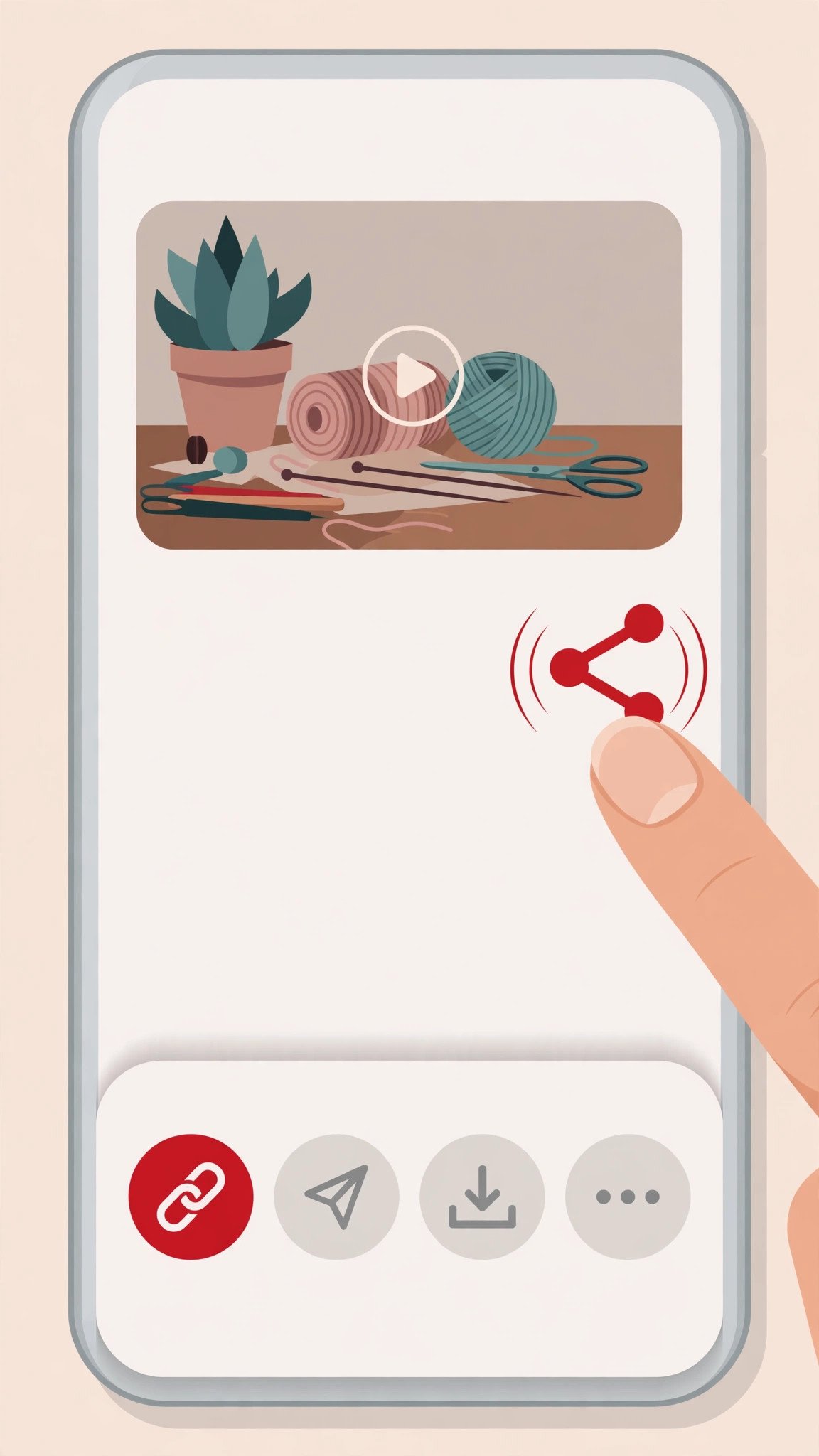
Everything starts with the link. On a computer, open the video Pin on Pinterest and copy the full URL from the browser address bar. It will look like pinterest.com/pin/ followed by a long number. On the Pinterest app, open the video Pin full-screen, tap the Share icon — the arrow pointing out of a box, usually at the bottom of the screen — and tap Copy link. The app gives you a short pin.it link instead of the full URL. Both work. Paste the short link exactly as it is; do not try to expand it or guess the full address, because the short link is the one the downloader expects from mobile copies.
Two quick checks before you move on. First, make sure you copied a video Pin and not a board, a profile, or a search page. A board link will not give you a single video file. Open the Pin itself first, let the video play for a second so you know it is the right one, then copy. Second, if the Pin is a carousel or an Idea Pin with several pages, the downloader may only return the first video or the cover image. That is a Pinterest limitation, not a tool bug: multi-page Pins do not always expose every page to signed-out visitors. For this guide, one video Pin, one file, is the reliable path.
The test Pin I used this morning is a good example of what to look for: a public DIY video, 29 seconds long, playing full-screen in the app. The link I copied was https://www.pinterest.com/pin/653233120954325160/ — the full desktop URL, because I was working on a computer. Your link will have a different number. The steps from here are identical either way.
Step 2: Download the MP4 With PintoDownload
Open PintoDownload in your browser. There is no account, no sign-up, no app to install. Paste the link you just copied into the box on the homepage and submit it. The tool fetches the video from Pinterest’s own servers and hands you the file. That is the whole interaction, and it is deliberately boring: a legitimate downloader should only need the URL and a couple of clicks. If a download site asks for your email, your Pinterest login, or permission to install something, close the tab. This is the download half of how to save Pinterest videos to LinkedIn — the upload half comes in Step 4.
Here is what happened when I ran it this morning, timed on a normal home connection. The homepage loaded in 1.06 seconds. I pasted the soap-video link and submitted it; the tool answered in 2.31 seconds with a preview of the right video and an MP4 link from Pinterest’s own CDN. The file downloaded in 2.52 seconds. Paste link to file on disk: under ten seconds, start to finish. The file that landed was 4,112,336 bytes — about 3.9 MB — which tells you something useful before you even open it: this is the real source file, not a screen recording, because a 29-second screen recording at phone resolution would be several times larger and would carry the Pinterest interface along with it.

One detail worth noticing on the results page: the tool shows you a preview of the video before you save it. Check it. If the preview is the wrong Pin, you pasted the wrong link, and it is much cheaper to find out now than after you have uploaded the wrong video to LinkedIn in front of your network. The preview is also how you confirm the quality: what Pinterest exposes is what you get. If Pinterest only serves a Pin at 720p, no downloader on earth can turn it into genuine 4K, and any tool that promises otherwise is lying to you.
Save the file somewhere you can find it again in two minutes. On a computer, that is usually your Downloads folder. On a phone, the browser will either save it to Downloads or ask you where to put it — on iPhone, Safari normally saves to Files, then Downloads, first. If you are planning to post from the LinkedIn mobile app, move the file into your phone’s local storage or camera roll now, because LinkedIn on iPhone cannot upload a video that lives only in iCloud. That single quirk has killed more LinkedIn uploads than any format error, and it is the kind of thing you only discover after the upload has already failed.
Step 3: Check the File Against LinkedIn’s Limits (60 Seconds That Save a Failed Upload)
Before you open LinkedIn, spend one minute checking the file you just downloaded. I ran the test file through ffprobe this morning — a free tool that reads a video file’s real properties instead of trusting the filename — and here is what it actually is, next to what LinkedIn allows. This is the check that decides whether your plan to save Pinterest videos to LinkedIn works on the first try, and it is the difference between a post that goes up first try and an upload that spins, fails, and leaves you guessing.
| What I measured | My test file (today) | LinkedIn’s limit | Pass? |
|---|---|---|---|
| Format | MP4, H.264 video + AAC audio | MP4 recommended; MOV, AVI, WEBM, MKV, WMV also listed | Yes |
| File size | 3.9 MB | 75 KB minimum, 5 GB maximum | Yes |
| Length | 29.23 seconds | 3 seconds to 15 minutes (feed post, desktop) | Yes |
| Resolution | 720 x 1440 | 256 x 144 to 4096 x 2304 | Yes |
| Aspect ratio | 9:16 vertical | 1:2.4 to 2.4:1 | Yes |
| Frame rate | 29.97 fps | 10 to 60 fps | Yes |
| Vertical video lane | 9:16, under 3 minutes | 9:16, under 3 minutes | Yes — eligible |
Every row passes, and that is not a coincidence. Pinterest video Pins are almost always vertical MP4 files with H.264 video and AAC audio, which is exactly the combination LinkedIn processes most reliably. A typical Pinterest download lands well inside every LinkedIn limit without any conversion at all. The two numbers that actually catch people are length and aspect ratio, and both are easy to check before you upload.
On length: Pinterest lets creators upload video Pins up to 15 minutes long, and LinkedIn feed posts cap at 15 minutes too, so in practice almost every Pinterest video fits a feed post. But the edges matter. If the clip is going into a LinkedIn article, the cap drops to 10 minutes on the mobile app. If you want the vertical video lane — the extra placement that can double a short clip’s impressions — the clip has to be under 3 minutes. My test clip, at 29 seconds, qualifies for all three. If your clip is longer than the surface you picked, trim it before you upload. A free tool like HandBrake will cut an MP4 to length in under a minute, and trimming is always faster than watching a 14-minute upload fail at 98 percent and starting over.
On aspect ratio: LinkedIn accepts anything between 1:2.4 and 2.4:1, which covers vertical, square and landscape. A 9:16 Pinterest video is 0.5625 in those terms, comfortably inside the range. Do not crop it square “to be safe” — you would be throwing away the vertical-lane placement for nothing. Keep the file vertical, keep the important text and logos away from the edges (LinkedIn’s own player controls and your profile photo circle sit on top of the bottom corners), and let the format do its work. One more check while you are here: if the file came back as a GIF or a looping animation instead of an MP4, convert it first, because LinkedIn’s video platform does not accept animated GIFs at all. And if the file is in ProRes or another editing codec, export it again as MP4 with H.264 — ProRes is the classic trap, because LinkedIn will let it upload and then never finish processing, with no useful error message.
A note on the numbers themselves, because the guides disagree and you deserve the honest version. Some 2026 guides say LinkedIn caps feed video at 10 minutes; others say 15. LinkedIn’s own help pages — “Share videos on LinkedIn” and “Video sharing troubleshooting” — list 15 minutes for a feed post from the share box, and 10 minutes is the cap that shows up for cover and body videos inside articles on the mobile app. The same kind of disagreement exists for MOV files: LinkedIn’s troubleshooting page still lists MOV as supported, while a few recent guides say it no longer is. I am not going to pretend the disagreement does not exist. The practical answer is simple either way: export as MP4 with H.264 video and AAC audio, keep it under 15 minutes and 5 GB, and you are inside the limit on every version of the documentation.
Step 4: Post the Video on LinkedIn
Now the upload itself — the second half of how to save Pinterest videos to LinkedIn. There are three ways in, depending on where you are, and they all end at the same composer. Pick the one that matches your device.
From a computer (desktop)
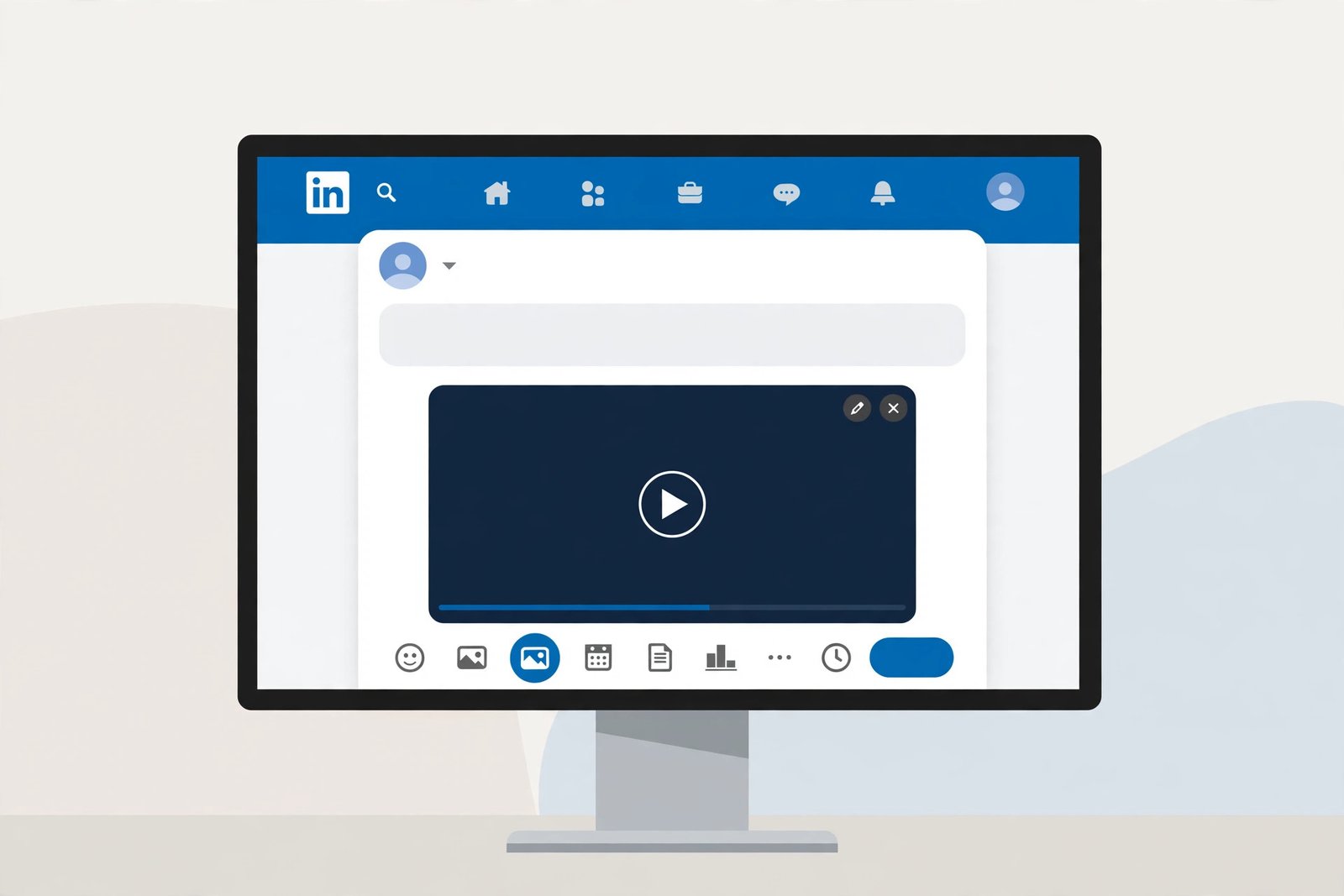
Go to LinkedIn and sign in. At the top of your feed, click Start a post. In the composer window, click the video camera icon in the toolbar at the bottom. Click Select video to share or Upload from computer — the wording varies slightly by account — and choose the MP4 you downloaded. You can also drag the file straight into the composer window. While it uploads, LinkedIn shows you options: pick a thumbnail frame or upload a custom thumbnail image, turn on auto-captions, and trim the clip if you need to. Then write your post text above the video, choose who can see it from the dropdown next to your name, and click Post. LinkedIn sends you a notification once the video has finished processing, which usually takes a few seconds for a short clip and a couple of minutes for a long one.
From the LinkedIn mobile app (iPhone or Android)
Open the LinkedIn app and tap the Post button — the plus icon, usually at the bottom centre of the screen. Tap the Video icon, then choose the video from your gallery, or tap the camera icon to record a new one. Trim the clip with the built-in tools, add text overlays if you want them, and turn on auto-captions when prompted. Tap Next, write your post text, and tap Post in the upper right. Two iPhone-specific warnings that the guides repeat because they keep biting people: keep the LinkedIn app open while the video uploads — if it goes into the background, the upload can stall — and move the video out of iCloud into your phone’s local storage first, because a video that lives only in iCloud will not upload from the app at all. On Android the upload carries on in the background while you use other apps, so the first warning does not apply, but the file still has to be on the device, not in a cloud-only folder.
From a company page
If you manage a company page, go to the page, click Start a post at the top of the page, and follow exactly the same steps as a personal post: video icon, upload the file, add text, post. Company pages follow the same specs as personal accounts — 5 GB, 15 minutes, the same resolution and aspect-ratio ranges — so there is no separate limit to learn. The one difference is strategic, not technical: getting employees to engage with the video in the first hour makes a real difference to how far a company page post travels, because LinkedIn reads early engagement as a signal to show the post to more people.
One rule that surprises people: LinkedIn only allows one video per post. You cannot attach a video and a photo together, and you cannot attach two videos. If you have two clips from the same Pinterest board, combine them into a single file in any free editor before you upload, or publish them as two separate posts. And do not paste a YouTube link into the post instead of uploading the file. LinkedIn’s algorithm treats a post with an outbound link as content designed to take people off the platform, and distributes it far less than a native upload. Socialinsider’s 2026 LinkedIn benchmark report puts video posts at a 6.00 percent average engagement rate against 3.25 percent for link posts — nearly double. The workaround creators use is to upload natively, then put the link in the first comment. The post keeps its reach, and the link is still one tap away.
Step 5: Write the Post Text That Actually Gets Watched
Uploading the video is the easy part. Getting people to press play is the work, and it is mostly done in the text above the video. LinkedIn video auto-plays on mute as people scroll, so you have about two seconds to make someone stop. Start with the most interesting part, a specific result, or a question — not with “Hi everyone” and not with a logo. The first line or two of your post text is doing the same job in writing: it is the reason someone stops scrolling, and “Check this out!” is not a reason.
For a Pinterest video reposted to LinkedIn, the post text has four jobs. First, the hook: one or two lines that say what the viewer will learn or see. Second, the context: one sentence on why this video matters to your audience — a technique, a result, a before-and-after. Third, the credit: name the creator and link back to the original Pin. Fourth, the conversation starter: a question that invites a comment, because comments are the strongest engagement signal LinkedIn has, and every reply you write counts as another comment on the post. A caption that does all four looks like this: “This 30-second soap-making method cut my curing time in half. Full credit to [creator name] — original Pin linked in the comments. Has anyone here tried milk-and-honey soap, and did it hold up in your climate?” That is a real post. It gives credit, it gives context, and it asks something only a person who watched the video can answer.
Captions deserve a paragraph of their own, because LinkedIn’s own marketing team reports that 92 percent of people watching video on mobile do so without sound, and most LinkedIn browsing happens on mobile. A video with no captions is a video most of your audience watches in silence and scrolls past. You have three options, in order of reliability. Burn the captions into the video file before you upload — they look exactly how you want on every device, and nothing depends on LinkedIn’s caption rendering. Upload your own SRT file on desktop, which gives you full control over timing and accuracy. Or toggle on LinkedIn’s auto-captions and review them before you post, because names, industry terms and numbers are frequently mis-captioned. Whatever you choose, do not skip this step. It is the single biggest reason otherwise good LinkedIn videos underperform.
Two smaller choices that pay off. First, the thumbnail: LinkedIn auto-selects a frame from your video, and it is often an awkward mid-sentence face. On desktop you can choose a different frame or upload a custom image — pick a clear, readable frame with the key moment visible. Second, the timing: post when your audience is actually online, because the first hour of engagement helps LinkedIn decide whether to show the video to more people. If you are posting regularly, a scheduling tool can queue the post, but for a one-off Pinterest repost, publishing it yourself at a time your connections are scrolling is enough.
All the Ways to Save Pinterest Videos to LinkedIn, Compared
There is more than one route from a Pinterest Pin to a LinkedIn post, and they are not equal. I have used or tested every one of these at some point, and the differences are practical, not theoretical: some leave a watermark on your video, some cost you the vertical video lane, some break LinkedIn’s rules without telling you. Here is the honest comparison.
| Method | How it works | Quality | Downside |
|---|---|---|---|
| Online downloader + native upload (this guide) | Copy link, download MP4, upload the file to LinkedIn | Original source quality, no watermark | Two steps; needs permission/credit for others’ work |
| Pinterest app download + upload | Share menu download in the app, then upload the saved file | Good, but username watermark stamped on the video | Watermark looks unprofessional on LinkedIn; only works if the creator allows downloads |
| Paste the Pinterest link into a LinkedIn post | Share the Pin URL as a link post | No file at all — just a preview card | Outbound-link suppression cuts reach roughly in half; video does not auto-play |
| Screen recording | Record the Pin playing on your phone or computer | Lower quality; captures UI, notifications, and playback stutters | Worst-looking option on a professional feed; needs trimming |
| Automation (Make / Zapier) | A workflow watches Pinterest and posts to LinkedIn automatically | File quality fine; the post itself is API-posted | Misses the vertical video lane; no human check on credit or content; permission is still your problem |
| Browser extension | Extension adds a download button on the Pin page | Original file, same as a downloader | Extensions need broad permissions; only install from the official store with good reviews |
The downloader-plus-native-upload route wins on every axis that matters for LinkedIn: clean file, full reach, no watermark, and you stay in control of what you post and what you write about it. The link-post route is the one to avoid if reach matters at all — it is the fastest option and the worst-performing one, because LinkedIn’s feed is built to keep people on LinkedIn, and a post that sends them to Pinterest is working against the algorithm, not with it. Screen recording is a last resort for a Pin that cannot be downloaded any other way, and it should be used for internal reference, not for a public post where your name is on it.
The Watermark Problem (and Why It Matters More on LinkedIn)
Here is the detail that makes the method choice matter. When you download a video through the Pinterest app’s own download button, Pinterest adds a small watermark with your username to the video. Pinterest does this deliberately: it is how the platform tracks where its content travels. On TikTok or Instagram, a watermark is normal background noise. On LinkedIn, it reads differently. LinkedIn is the one feed where your real name, your job title and your employer sit directly above everything you post, and a watermarked video tells everyone scrolling past that you took someone else’s clip and reposted it. It also tells the algorithm something: creators commonly observe that watermarked video from other platforms gets less distribution, because LinkedIn would rather surface original content than a clip that has already travelled through two other apps.
Downloading the clean MP4 through a downloader avoids the watermark entirely, because the file comes straight from Pinterest’s CDN without the app’s overlay. That is a real advantage — but it comes with a responsibility, and this is the part people get backwards. A watermark is not what makes a repost honest. Credit is. A clean file with no creator name and no link back is worse than a watermarked file with full credit, because at least the watermarked version tells the viewer where the video came from. If you use the clean file, you owe the creator a name and a link in the post text or the first comment. That is not a courtesy. On LinkedIn, where your professional reputation is the account, it is self-protection.
What About Automating It?
If you post Pinterest videos to LinkedIn every week, automation looks tempting, and tools like Make and Zapier do offer it: connect Pinterest as a trigger, connect LinkedIn as an action, and new Pins flow to LinkedIn as video posts without you touching anything. Make’s integration page lists both “Create a User Video Post” and “Create a Company Video Post” as actions, and the setup is five steps: log in, pick the apps, create the connection, authenticate both accounts, save. It works. It also has three costs that the integration pages do not mention.
First, API-posted video does not get the same treatment as a video you upload by hand. It will not enter the vertical video lane, and it misses the human touches — thumbnail choice, caption review, the first-hour engagement push — that decide how far a post travels. Second, there is no human in the loop. An automated workflow will happily repost a video you would not have chosen, with a caption you did not write, and no credit line at all. Third, and most important, automation does not transfer permission. If you did not have the creator’s permission to repost their video, an automated repost is still your repost, with your name on it, at whatever scale the workflow runs. For a business reposting its own Pinterest videos to its own LinkedIn page, automation is reasonable: it is your content, moving between your accounts. For anyone else’s content, do it by hand, one video at a time, with the credit line written by a person who actually watched the clip.
Troubleshooting: When LinkedIn Rejects Your Pinterest Video
Most failures have one of five causes, and they are all fixable in under five minutes. Work through them in order before you assume LinkedIn is broken.
The video is too long. Feed posts cap at 15 minutes on desktop. If your clip is longer, trim it in a free editor like HandBrake, or split it into parts and post them as a series. Remember the tighter caps too: under 3 minutes for the vertical lane, 10 minutes for article videos from the mobile app.
The file is too big or too small. LinkedIn accepts 75 KB to 5 GB. A Pinterest download will almost never be too big — my test file was 3.9 MB — but a very short clip at very low resolution can fall under the 75 KB minimum, and a 4K screen recording can sail past 5 GB. Compress or re-export at 1080p if you are over the cap.
The format is wrong. Export as MP4 with H.264 video and AAC audio. If your file is MOV, AVI or WMV, convert it first. If it is ProRes, or any editing codec, convert it — ProRes is the classic trap because LinkedIn lets it upload and then never finishes processing. If the file is a GIF, convert it to MP4, because LinkedIn’s video platform does not accept animated GIFs at all.
The upload stalls on iPhone. Two causes, both iPhone-specific. The app went into the background during the upload — keep it open until processing starts, then you can switch away. Or the video lives only in iCloud — move it to your phone’s local storage first, then try again.
The video is stuck processing. If the file is in a supported format and inside the size and length limits but processing never finishes, the codec is usually the problem. Re-export as MP4/H.264 and upload again. If everything checks out and it still fails, wait an hour and try again — LinkedIn occasionally has upload bugs on its own side, and no amount of re-exporting will fix a platform problem.
The Rules: Credit, Permission, and What Not to Post
This is the section that decides whether your LinkedIn post gets shared or reported, so I am going to be direct about it. The creator owns their video. Posting it publicly on Pinterest does not give up their rights, and Pinterest’s own policies say you should seek permission from the copyright holder before using an image or video you find there. Downloading a video for your own offline viewing is one thing. Republishing it on LinkedIn, under your name, in front of your professional network, is a different thing entirely, and it is where the risk lives.
The safe order is simple. Your own video: post it freely. Someone else’s video with their permission: post it, with credit and a link back to the original Pin. Someone else’s video without permission, but with full credit and a link back: a grey area many people work in, and the risk is yours — if the creator asks you to take it down, take it down immediately, no argument. Someone else’s video with no credit, no link, and no permission: do not post it. Stripping a watermark off a video to hide where it came from is the worst version of this, and it is the one that gets accounts reported. The same goes for monetising someone else’s clip, running it as an ad, or presenting it as your own work in a portfolio or a client pitch. Pinterest’s own policies say you should seek permission from the copyright holder before using an image or video you find there.
There is also a practical reason to credit properly, beyond the legal one. LinkedIn is a small world in every industry. The creator of a good video often has a LinkedIn profile, and a repost with credit and a link is how they find you, thank you, and sometimes become a connection or a client. A repost without credit is how they find you too — through a stranger’s message, or a DMCA notice. The credit line costs you one sentence. The repost without it can cost you a relationship.
If you want the full legal picture, read our guide on whether downloading Pinterest videos is legal — it covers the same rules in more detail, including fair use and what Pinterest’s terms actually say. And if you save Pinterest videos to other platforms too, the same two-step method works everywhere: our guides to saving Pinterest videos to X (Twitter) and saving Pinterest videos to Reddit use the same download half, with each platform’s own limits and rules on the upload half.
Frequently Asked Questions
Can you save a Pinterest video to LinkedIn?
Yes. To save Pinterest videos to LinkedIn, there is no direct button, so you do it in two parts: download the video Pin as an MP4 file first, then upload that file to LinkedIn as a native video post. The download takes seconds with a tool like PintoDownload, and the upload is the standard LinkedIn video flow from the post composer on desktop or mobile.
How do I post a Pinterest video on LinkedIn from my phone?
Download the MP4 to your phone first, making sure it is in local storage and not only in iCloud. Then open the LinkedIn app, tap Post, tap the Video icon, choose the video from your gallery, add captions, write your post text with credit to the creator, and tap Post. Keep the app open until processing starts, or the upload can stall on iPhone.
What video format does LinkedIn accept?
MP4 with H.264 video and AAC audio is the safest choice. LinkedIn’s help pages also list MOV, AVI, WEBM, MKV and WMV, but some 2026 guides report that MOV is no longer accepted, so MP4 is the one to use. Animated GIFs are not accepted at all, and ProRes may upload but will not finish processing — convert it to MP4 first.
How long can a LinkedIn video be?
A feed post video can be 3 seconds to 15 minutes on desktop, with a file size between 75 KB and 5 GB. The vertical video lane caps at 3 minutes, and a video inside a LinkedIn article caps at 10 minutes on the mobile app. Most Pinterest video Pins fit all of these easily — my test clip this morning was 29 seconds and 3.9 MB.
Will the Pinterest watermark show on LinkedIn?
Only if you download the video through the Pinterest app’s own download button, which stamps your username on the video. Downloading the MP4 through a downloader gives you the clean file with no watermark. Either way, credit the creator by name and link back to the original Pin — a watermark is not a substitute for credit, and a clean file without credit is worse than a watermarked one with it.
Can I automate posting Pinterest videos to LinkedIn?
Tools like Make and Zapier can do it, with actions for user and company video posts. It works best for your own content moving between your own accounts. API-posted video misses the vertical video lane and the human checks on credit and captions, and automation does not transfer permission — reposting someone else’s video without their say-so is still your responsibility, automated or not.
Conclusion
Saving a Pinterest video to LinkedIn is a two-part job, and the guides that only do one part are the reason so many attempts end in a watermarked clip, a failed upload, or a post with no credit on it. Copy the link, download the clean MP4, check it against LinkedIn’s limits — 15 minutes, 5 GB, MP4 with H.264 — and upload it natively instead of pasting a link. Keep the file vertical if it started vertical, because that is what gets you into the vertical video lane. Write two lines of real text above it, turn the captions on, and give the creator their name and a link back to the Pin. The whole thing takes under five minutes, and the file I tested this morning — 29 seconds, 3.9 MB, 720 by 1440 — sailed through every limit LinkedIn publishes. Do it that way and the video works for you on LinkedIn instead of working against you.
If you need the download half again for another platform, the tool is the same: paste any public Pinterest video link into PintoDownload and save the MP4. And if you want higher-quality source files, our guide to downloading Pinterest images in HD covers the image side of the same workflow.
