Save Pinterest Videos to Discord: Free Guide 2026
Yesterday morning I did the whole thing end to end, because I wanted to know exactly where it breaks. I found a 29-second DIY soap-making video on Pinterest — a public video Pin, vertical, with sound — downloaded it, checked the file, and worked out whether it would actually fit inside Discord. The download took about three seconds. The file was 3.9 MB. And that, it turns out, is the whole story in miniature: most Pinterest videos are small enough to drop straight into a free Discord account, no Nitro, no compression, no drama. But “most” is doing a lot of work there, and the guides ranking for how to save Pinterest videos to Discord either stop at the download and never mention Discord, or explain Discord uploads and never mention Pinterest. Nobody walks the full path, and the few that try are quoting file-size limits Discord changed months ago.
So this is the full path, in one place. Two steps, really: get the video off Pinterest as a file, then get that file into Discord. There is also a shortcut — pasting the pin link — and a third option, screen-sharing it live. They are not the same thing, and picking the wrong one is why people end up with a dead thumbnail in their server instead of a video their friends can actually watch. I will tell you which one to use, then walk through each.
The Three Ways to Share a Pinterest Video on Discord — Pick Yours First
Before you touch anything, decide what you want the people on the other side to experience. That decides the method.
| Method | Plays inside Discord? | Original quality kept? | Works in a DM? | Survives if the pin is deleted? |
|---|---|---|---|---|
| Upload the MP4 file | Yes, inline player | Yes, if under the size limit | Yes | Yes — the file lives on Discord now |
| Paste the pin link | Usually no — thumbnail card that opens Pinterest | N/A, it streams from Pinterest | Yes | No — dead link if the pin goes |
| Screen-share it (Go Live) | Yes, live only | Depends on your connection | Yes, in a call | No — nothing is saved |
For the usual case — you found a clip, your friends should be able to watch it whenever they open the channel — upload the MP4 file. It is the only method where the video stays in the chat, plays inline, and keeps working if the original pin disappears. Paste the link when you are in a hurry and do not mind sending people over to Pinterest. Screen-share it when the file is too big to upload and you only need people to see it once, right now, together. The rest of this guide follows that order.
Step 1 — Download the Pinterest Video (Official Way First)
Everything downstream depends on getting the actual file, so start here and do it properly. There are two ways, and the order matters: check for Pinterest’s own Download option first, because a file downloaded that way carries the creator’s name on it, and that credit matters when you re-share it somewhere else. Only if that option is not there do you use a downloader.
First, look for the Download option on the pin
Pinterest lets creators switch on downloads for their full-screen video Pins. It is a setting, not a per-pin choice: the creator goes to Settings, then Social permissions, and turns on “Video Pin downloads”, and it applies to all of their published full-screen (9:16) video Pins at once. It is off by default, which is why most pins you open will not show it. When it is on, the file you get carries the creator’s username as a watermark at the bottom. That watermark is the deal Pinterest made with creators, and honestly it is a good deal — it means the credit travels with the clip when you share it on Discord.
On the Pinterest app, open the video Pin, tap the Share button, and look for Download in the menu. If it is there, tap it and the file saves to your phone. On desktop web, the option is much less reliably present — Pinterest’s own community posts say downloading and sharing this way is primarily a mobile-app feature — so do not be surprised if the desktop menu does not offer it. One more wrinkle worth knowing: Pinterest’s own help pages contradict each other on this. The page about creating pins describes the download setting as live; another help page about downloading images still says downloading video Pins is “currently not possible”. The create-a-pin page is the current statement, and the setting is real — I have seen it described the same way in every up-to-date guide I read — but the contradiction tells you how unevenly this feature has rolled out. If the Download option is missing on your pin, it almost certainly means the creator never switched it on. Move on to the downloader; do not waste twenty minutes hunting through menus.
If there is no Download option, download the MP4 with PintoDownload
This is the part I tested myself this morning, with a stopwatch and a real pin, because “paste the link, get the video” is exactly the kind of claim that needs checking. The test pin was a public 29-second DIY milk-and-honey soap video — this pin, if you want to follow along with the same one.
On your phone or computer, open the pin in the Pinterest app or website, tap Share, then Copy link. That gives you either a short pin.it link or a full pinterest.com/pin/… address — both work, but copy the full address from the browser bar when you can, because a short link that has expired or been mangled is one of the commonest reasons a download fails. Then open PintoDownload, paste the link into the box, and hit Download. The site returned a preview and an MP4 link straight from Pinterest’s own servers, and the file landed on my disk in 2.9 seconds. Total time from pasting the link to having the file: under ten seconds.
Here is what actually came back, measured rather than guessed: an MP4, H.264 video with AAC audio, 720 by 1440 pixels (vertical 9:16), 29.23 seconds long, 29.97 frames per second, 4,112,336 bytes — about 3.9 MB. Nothing was added to it and nothing was stripped from it. That is the file Pinterest stores; a good downloader hands it to you as-is. Which also means something worth saying plainly: no downloader can give you 1080p or 4K out of a pin that Pinterest only stores at 720p. If a site promises to “enhance” your video to 4K, it is upscaling, not recovering detail that was never there.
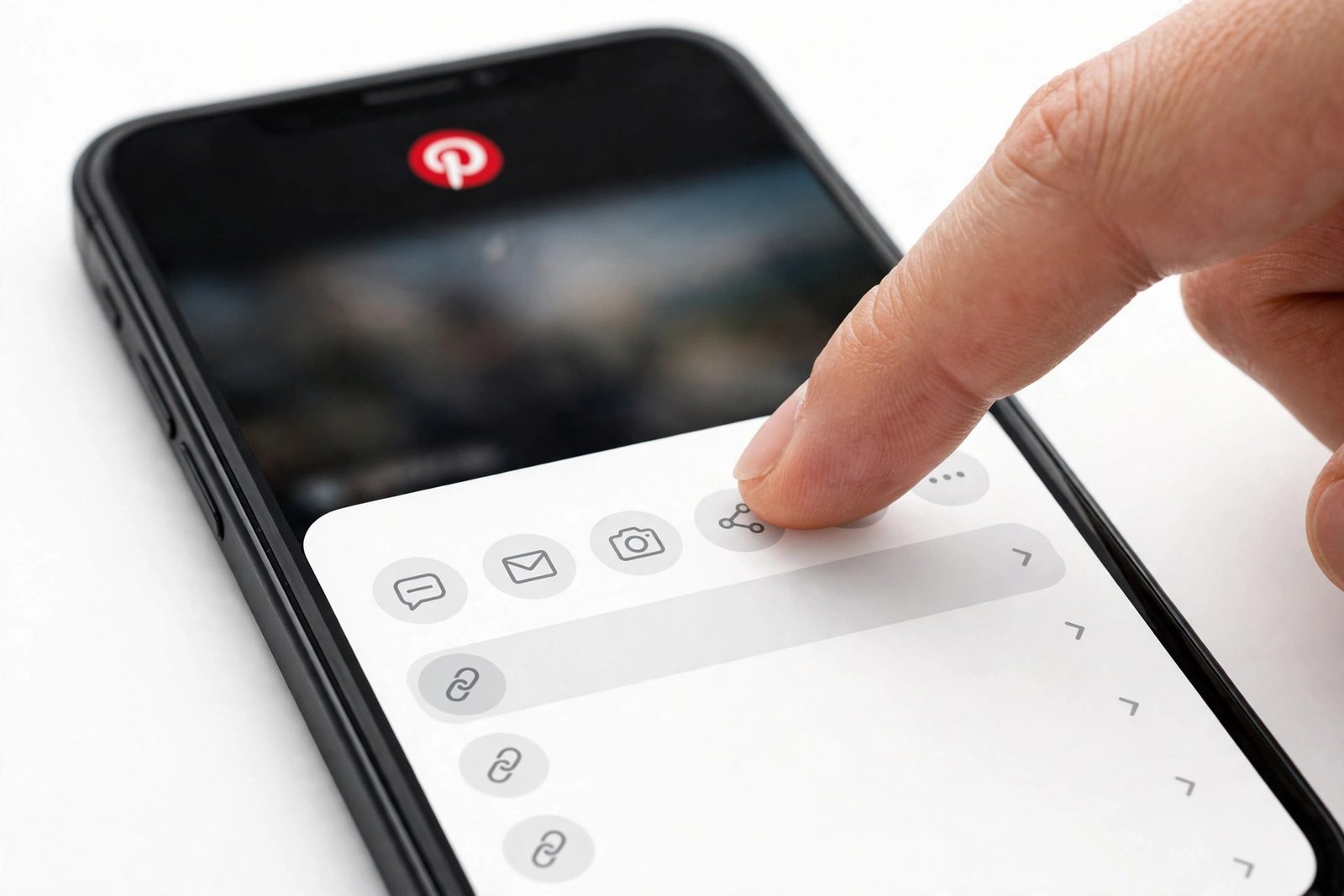
Where the file lands depends on your device, and this trips people up more than any other step. On iPhone, Safari saves it to Files, in the Downloads folder — not to Photos. Open Files, find the video, tap Share, then Save Video to move it into Photos. On Android it lands in the Downloads folder and usually shows up in your gallery in a Downloads album. On a computer it goes to the browser’s Downloads folder, and if the browser plays the video instead of downloading it, right-click the player and choose Save video as. If the download fails outright, the usual causes are a link to a board or profile instead of one specific pin, a pin from a secret board or private account, or a deleted pin — a downloader can only fetch public pins that still exist. Our troubleshooting section at the end covers each one.
A note on saving vs downloading: tapping Save inside Pinterest puts the pin on one of your boards. That is a bookmark — the video still lives on Pinterest’s servers, needs internet to watch again, and does nothing for Discord. Downloading gives you the file. If your goal is Discord, you need the file. The two actions look similar and do completely different things.
Step 2 — Will It Fit? Discord’s File-Size Limits in 2026
Here is where most of the guides currently ranking are wrong, and it is worth pausing on, because a wrong number here means your upload bounces and you have no idea why. Discord changed its limits twice in 2026. I checked this against Discord’s own File Attachments FAQ this morning rather than trusting any guide, including the ones I read for research.
| Account / situation | Max file size | Since |
|---|---|---|
| Free Discord account | 20 MB | August 2026 (up from 10 MB) |
| Nitro Basic | 50 MB | Current |
| Nitro | Up to 1 GB | October 2026 (up from 500 MB) |
| Server Boost Level 2 (everyone in that server) | 50 MB | Current |
| Server Boost Level 3 (everyone in that server) | 100 MB | Current |
Two details in that FAQ matter more than the numbers themselves. First, Discord now checks the file size before compression on every platform — desktop and mobile alike. It used to be that the mobile app would try to compress your video first and only then tell you it was still too big; now the number you see is the number that counts, and a file over your limit is rejected outright. Android users feel this most, because Android source files tend to run larger. Second, Discord says it is experimenting with larger limits for selected users — some accounts report seeing 25 MB with a BETA badge — but 20 MB is the documented free limit, and it is the number you should plan around. If your client shows you a higher limit, that is the one that applies to you; if it shows 20 MB, that is the wall.
If you are reading a guide that says the free limit is 8 MB, it is quoting a number from years ago. If it says 10 MB, it predates August 2026. If it says Nitro is 100 MB, it predates the October change. I found all three figures still live in ranking guides this week. Discord’s own docs are not immune either — the Nitro page and the account-caps page still say 10 MB and 500 MB in places, while the File Attachments FAQ says 20 MB and 1 GB. The FAQ is the current statement, and it is the one this guide follows.
How long a Pinterest video fits in 20 MB — real numbers
Limits are abstract until you map them onto actual clips, so here is the math from the file I downloaded this morning. That 29-second 720p vertical clip was 3.9 MB, which works out to roughly 1.07 megabits per second. At that bitrate, a typical Pinterest clip runs about 2 MB per 15 seconds, 4 MB per 30 seconds, 8 MB per minute, and hits the 20 MB free limit at roughly two and a half minutes. Pinterest’s organic video pins can run up to five minutes, so a long one will not fit — but the vast majority of pins people actually share are 15 to 60 seconds, and those fit with room to spare. A minute-long clip leaves you 12 MB of headroom. A 30-second clip leaves 16 MB.
The quick check before you upload: on iPhone, open Photos, tap the video, and the size is in the info panel; on Android, long-press the file in Files or Gallery and check Details; on a computer, right-click and check Properties or Get Info. If it is under 20 MB and it is an MP4, just upload it — do not compress a file that already fits, because every re-encode loses a little quality for no reason. If it is over, the compression section below shows how to shrink it, phone-first.
One more thing the FAQ settles: format. Discord accepts MP4 video encoded with H.264, HEVC/H.265, or AV1, and MOV files. The combination that plays inline for everyone is an MP4 with H.264 video and AAC audio — which is exactly what Pinterest stores and what PintoDownload hands you. WebM usually plays inline too; MOV is inconsistent, and MKV, AVI and WMV will upload but generally show up as download-only files instead of a player. And renaming a .mkv file to .mp4 does not convert it — the container is still MKV, and Discord will still treat it as one.
Step 3 — How to Save Pinterest Videos to Discord on Desktop
On a computer this is a thirty-second job, and Discord’s own help pages describe it in plain terms, which is reassuring — the steps below follow Discord’s File Attachments FAQ, which I read in full this morning, rather than a third-party guide’s memory of an older app.
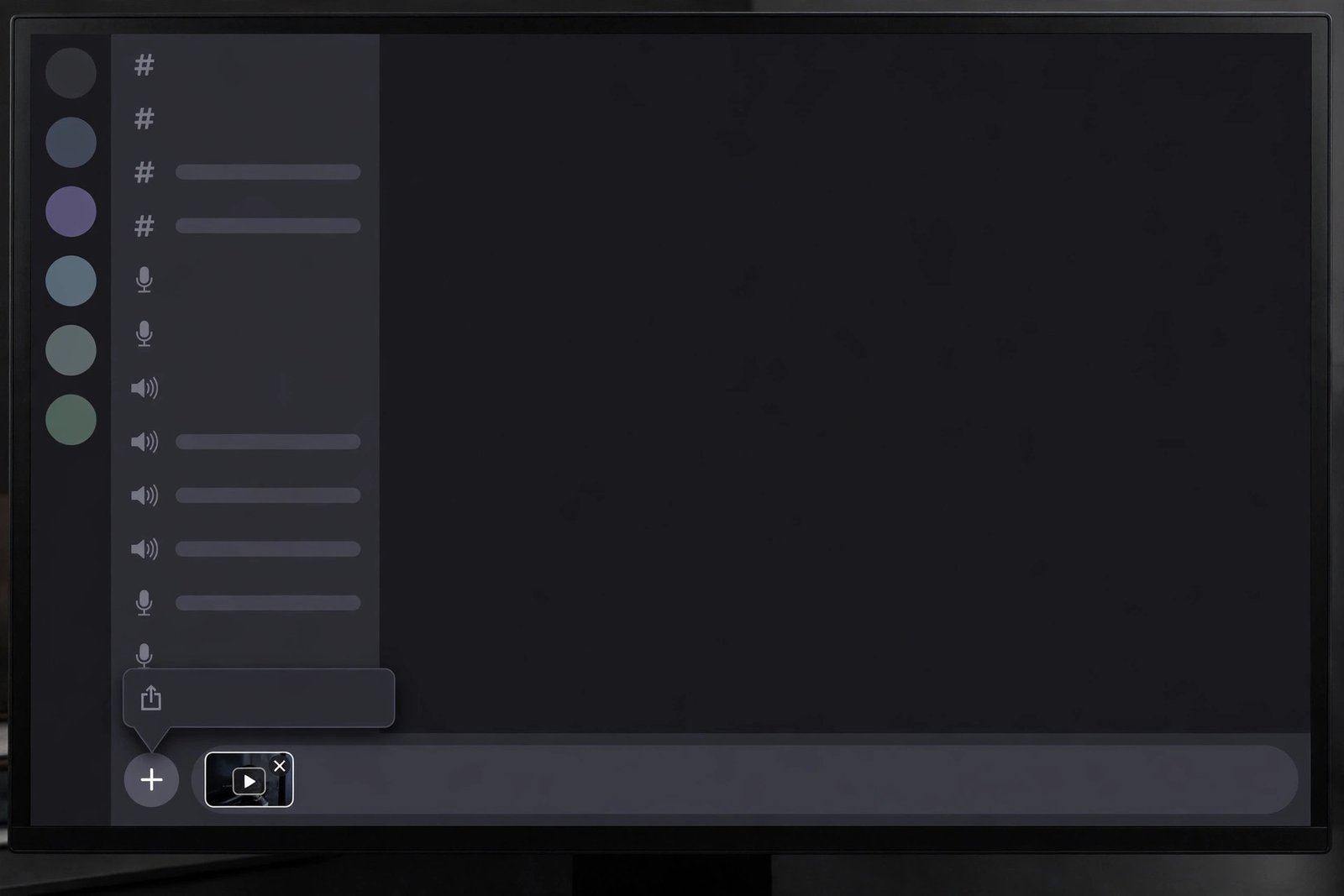
- Open Discord in the app or the browser and go to the server channel or DM where the video belongs.
- Click the + button beside the message box, then Upload a File. Or just drag the MP4 from your file manager and drop it into the Discord window — same result, one less click.
- Pick the video file. Before you send, you can type a message alongside it — this is the place to credit the creator, for example “Recipe video by @soapmaker on Pinterest” or a link back to the original pin. More on why that matters in the legality section.
- Hit Enter or click Send. The video appears in the chat with an inline player, and anyone in the channel can press play without leaving Discord.
A couple of details that save confusion later. If you upload several videos, images or GIFs in one message, Discord displays them together as a mosaic rather than a stack of separate players. And if your file uploads fine but shows up as a download-only attachment instead of a player, that is almost always the format: re-export it as an H.264 MP4 with AAC audio and upload it again. The file itself was accepted; Discord just cannot play that container inline. Also note that the “Attach Files” permission matters in servers: if the + button is greyed out or the upload fails with a permission error, the server’s roles do not allow attachments in that channel, and no amount of retrying will fix it — you need a moderator to change the role, or you use the link-paste route instead. In a DM there are no role permissions, so this problem does not exist there.
Step 3 — How to Save Pinterest Videos to Discord on Mobile (iPhone and Android)
Most people will do this entirely on their phone — download the pin on the phone, share it to Discord on the phone, never touch a computer — so this is the section to get right. The flow is the same on iPhone and Android, with one wrinkle on each side.
On iPhone
- First, make sure the video is actually in Photos, not just in Files. As noted above, Safari downloads land in Files > Downloads. Open Files, find the video, tap Share, then Save Video.
- Open Discord, go to the channel or DM, and tap the + button beside the message box.
- Choose the video from your Photos. You can add a caption with credit to the creator before you send.
- Tap Send. The video uploads and plays inline in the chat.
On Android
- The downloaded video is in your Downloads folder and usually appears in the gallery under a Downloads album. If you cannot see it in the gallery, open Files and check Downloads directly.
- Open Discord, go to the channel or DM, tap the + button, and pick the video from the gallery — or use the file picker if the video is not in the gallery.
- Add a caption with credit if you like, then tap Send.
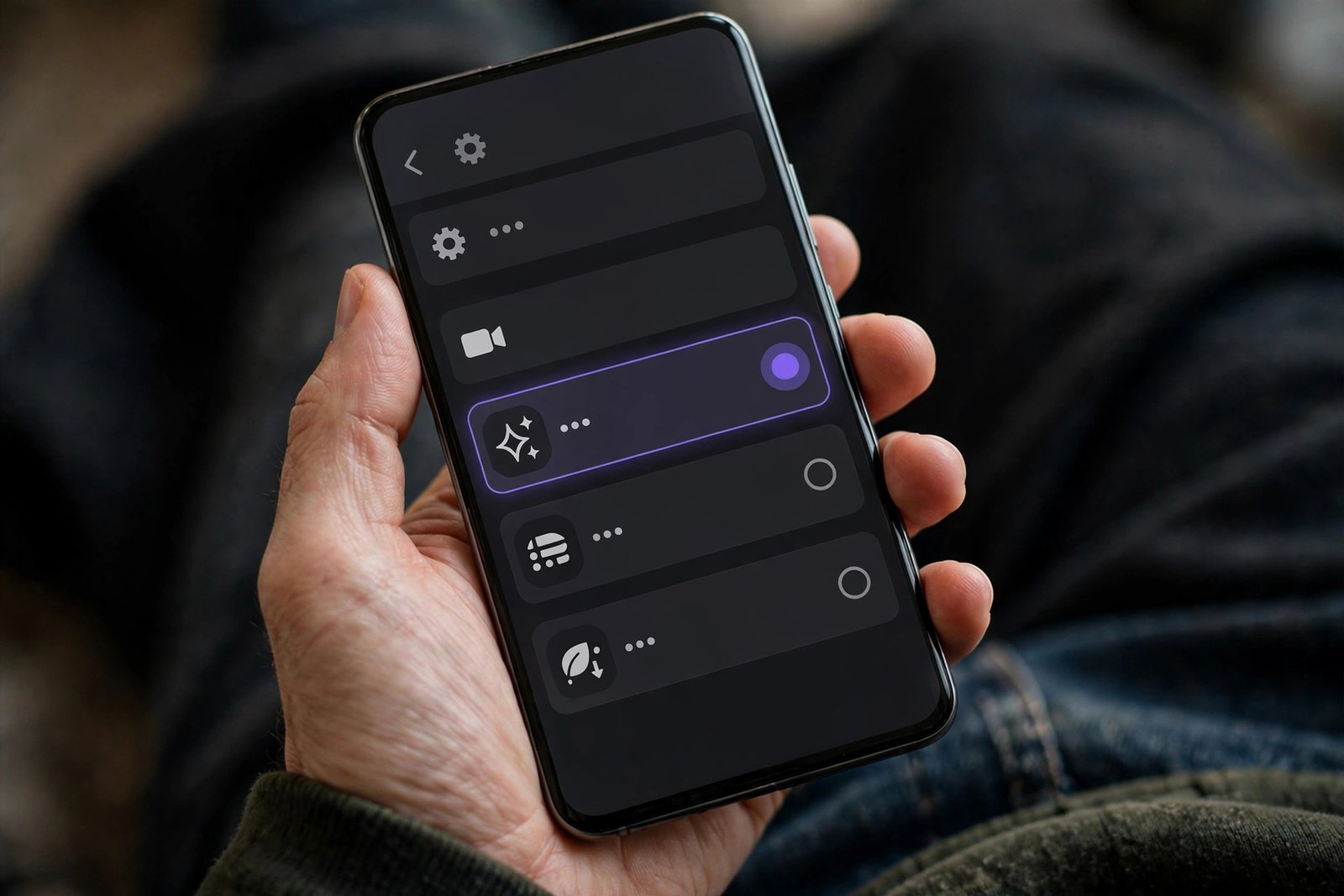
One thing worth checking on mobile before you send: Discord’s own video-upload quality setting. In Discord’s mobile settings, under Chat, there is a Video Uploads section with three options — Best Quality, Standard, and Data Saver. Best Quality uploads up to 720p for free accounts and 1080p for Nitro; Standard drops that to 480p free or 720p Nitro; Data Saver goes down to 360p and can kick in on its own over a cellular connection. Since a typical Pinterest clip is 720p to begin with, Best Quality keeps it as it is, while Data Saver visibly softens it — and the setting is per device, so the same file can look different depending on who uploads it and on what connection. If your video looks blurry after uploading from your phone, this setting is the first thing to check, before you blame the file. Also, Discord’s mobile app has a “Save to Device” behaviour worth knowing about from the other side: if someone sends you a video directly from their phone, it can be saved to your phone automatically — handy when a friend shares a clip with you and you want to keep it.
Sharing straight from the Pinterest app to Discord
There is a shortcut that skips the download entirely, and it is worth knowing even though it is not the same as sharing the video. On iPhone or Android, open the pin in the Pinterest app, tap Share, and pick Discord from the share sheet if it appears. What gets sent is the pin’s link, not the video file — Discord receives a URL and builds a preview card from it, exactly as if you had pasted the link by hand. Whether Discord appears in your share sheet depends on your phone and whether the app is installed; if it is not listed, copy the link in Pinterest and paste it in Discord yourself, which is the same result. This route is fast and it is fine for “look at this”, but remember the difference: the people in your server are watching it on Pinterest, not in Discord, and if the pin is ever deleted, the message goes dead with it.
Too Big for 20 MB? Shrink the Video (Phone-Friendly First)
A two-and-a-half-minute Pinterest clip at typical quality is right at the free limit, and anything longer is over it. Before you reach for a desktop tool, try the easy wins, in this order.
Trim it. Most clips people share have dead air at the start or end — the creator’s intro, a long outro, ten seconds of a finished dish sitting there. Trimming in Photos on iPhone or Gallery on Android takes seconds and is often enough on its own: cutting a 3-minute clip to 2 minutes at the same quality takes it from roughly 24 MB to roughly 16 MB. Keep the original file before you trim, so you can go back.
Let Discord’s quality setting do it. Switching the mobile Video Uploads setting from Best Quality to Standard re-encodes the video at a lower resolution on upload. It is the simplest compression there is, because Discord does the work — but it only helps if the file is a little over the limit, and the quality drop is visible on a 720p source.
Use a free phone compressor. There are free compressor apps and online compressors that take an MP4 and hand back a smaller one — pick one that processes on your device or a reputable site, never one that asks you to create an account or install a profile, and keep the original. Drop the resolution from 720p to 480p and the file roughly halves; drop the bitrate and it shrinks further. For a clip that is only meant to be watched in a chat window, 480p is honestly fine.
On a desktop, use ffmpeg and the bitrate math. This is the precise route, and it is simpler than it looks once you know the formula: file size equals bitrate multiplied by time. If your clip is 3 minutes (180 seconds) and your budget is 19.4 MB — that is 20 MB with a little headroom, because Discord’s own limit and the API’s 20 MiB are not quite the same number — then your total bitrate budget is about 865 kilobits per second. Set aside roughly 128 kbps for the audio and a little for the file’s index, and the video gets the rest, around 730 kbps. A two-pass encode at that bitrate lands predictably just under the limit; a one-pass encode can overshoot. The honest caveat, which Discord’s own documentation-adjacent guides state plainly: at 730 kbps a 3-minute clip looks soft, below what YouTube considers acceptable even for 360p. Compression has a floor. Past about two minutes, the better answer is usually not to squeeze harder but to host the video somewhere else — Google Drive, Dropbox, OneDrive, WeTransfer, or even a private YouTube upload — and paste that link into Discord instead. The video still plays for everyone who clicks it, and nobody has to watch a mushy encode.
And one more honest limit: if the pin cannot be downloaded at all — private account, secret board, deleted pin — no amount of compression helps, because there is no file. That is the hard edge of trying to save Pinterest videos to Discord: without a file, there is nothing to upload. The fallback then is the link route or a live screen share, covered next.
The Fast Route — Paste the Pin Link Instead
Sometimes you do not need the file at all. You found a clip, you want your server to see it, and thirty seconds from now is soon enough. Paste the link.
- In Pinterest, open the pin and tap Share, then Copy link.
- In Discord, paste the link on its own line in the message box — nothing else on that line — and send it.
- Discord fetches the pin page and builds a preview card from the page’s Open Graph data: usually the pin’s title, a thumbnail image, and a link back to Pinterest.
What your friends actually see is the part nobody states clearly, so let me state it as plainly as the evidence allows. Discord builds the card from whatever the pin page exposes. For an image pin, that is a proper thumbnail card. For a video pin, expect a still thumbnail card that opens Pinterest when clicked — not an inline video player inside Discord. Pinterest’s pages do not reliably expose a playable video to Discord’s crawler, and none of the guides I read could show a video pin embedding as a playable player. I could not verify a live embed myself either — that needs a Discord account and a live server, which I did not have for this test — so treat the thumbnail-card expectation as the safe assumption and be pleasantly surprised if a particular pin does better.
Three details make the difference between a link that previews and a bare URL sitting there. First, use the full pinterest.com/pin/… address rather than a shortened pin.it link; the full URL exposes the page data more reliably, so if all you have is a pin.it link, open it in a browser first, let it redirect, and copy the full address. Second, the preview needs two permissions switched on: your own “Show embeds and preview website links pasted into the chat” setting (User Settings, then Chat), and the server’s “Embed Links” permission for your role in that channel. In a DM there is no server permission to worry about, which is one reason link previews fail in servers and work fine in DMs. Third, Discord caches previews, so if you paste a link, delete it, and paste it again, you may keep seeing the same stale or broken card — send a brand-new message with a freshly copied link instead. And if nothing shows up at all, check the usual suspects in order: Discord’s status page first (an outage in the media proxy kills all embeds), then your own preview setting, then the channel’s Embed Links permission, then whether AutoMod is silently deleting messages with links. If you want no preview at all, wrap the URL in angle brackets — <https://www.pinterest.com/pin/…> — and Discord sends it as plain text.
Watch It Together — Screen Share and Go Live
There is a third way that fits a specific moment: you do not need the video to live in the channel, you need a group of people to watch it together, right now. Join a voice channel, click Screen, choose the window or display showing the Pinterest video, and hit Go Live. Everyone in the voice channel can watch as you play it. Up to 50 people can share video or screen at once, so a small group is no problem.
The trade-offs are obvious once you say them out loud. Viewers have to be present — there is no recording, no attachment, nothing to rewind tomorrow. The quality depends on your connection and on Discord’s streaming quality, not on the original file. And you are playing someone else’s video to a live audience, which is a different thing from sending a file to a friend; the legality section below applies doubly here. Use Go Live when the file is too big to upload and the moment matters more than the archive — a group watch, a reaction, a quick “look at this technique” — and use the upload route for everything else.
Automate It — New Pins Straight to Your Server (Optional)
If you run a server where new Pinterest finds should appear automatically — a recipe server, a craft server, a mood-board channel — you can wire Pinterest to Discord with an automation tool, and it is worth a short section because the guides that cover it get important things wrong.
The honest version: there is no native Pinterest integration inside Discord. One popular guide tells readers to look in Discord’s server settings for an Integrations option, log in to Pinterest, and authorise the connection. That integration does not exist. Another names MEE6, Dyno and Zira as bots that can “pull and display favourite pins” — none of those three bots has a Pinterest feature. What actually works is a webhook plus an automation service. Create a webhook in the Discord channel (channel settings, then Integrations, then Webhooks), copy its URL, and paste it into Zapier, IFTTT, Make, or Pabbly Connect. Set the trigger to “New Pin” on a Pinterest board and the action to “Send Channel Message” in Discord, mapping the pin’s title, description and image URL into the message. Test it with a real new pin before relying on it.
Know the limits before you build it. The automation posts a link and text, not the video file — nobody’s bot downloads a Pinterest video into Discord for you, and no well-known bot does this reliably, so the download-first route in this guide is still the way to get actual video into a channel. Free tiers cap how often it runs — Pabbly’s free tier, for example, allows 100 tasks a month — and polling triggers can take 15 to 20 minutes to notice a new pin, so it is not instant. For a quiet inspiration channel that is fine; for anything time-sensitive, post it yourself.
What the Other Side Sees — and What They Can Do With It
Sharing is only half the job; the other half is what happens on your friends’ screens. An uploaded MP4 shows up as an inline player they can press play on without leaving Discord, in the app or the browser. If the file was the wrong container — MKV, AVI — it shows up as a download-only attachment instead, and they have to download it and open it elsewhere. On mobile, they can save the video to their own phone: Discord’s “Save to Device” option in the attachment menu downloads it into their gallery, which is handy and also worth knowing if you would rather a clip did not travel further.
Two quieter facts. First, Discord’s attachment links are not permanent. The CDN links Discord generates carry an expiry timestamp, so a link copied out of a Discord message and pasted somewhere else will stop working after a while. If someone asks you for “the link to that video”, send them the file again or the original pin — not a Discord CDN URL. Second, once a video is in a channel, anyone who can see the channel can download it, forward it, or save it to their device. There is no recall. Share accordingly, especially with clips that are not yours.
Quality, Watermarks and Giving Credit
Quality survives the journey differently depending on the route. Uploading the MP4 keeps the file as Pinterest stored it — 720p in, 720p out — as long as it fits the size limit and Discord’s mobile quality setting is not quietly downgrading it. Pasting the link keeps nothing, because nothing is uploaded; your friends stream it from Pinterest at whatever quality Pinterest serves. Screen-sharing it depends on your connection. And remember the ceiling: a 720p source has no hidden 1080p version, so if the clip looks soft in Discord, the softness was already in the file.
Watermarks deserve a straight answer, because Discord is where the question actually matters. If you downloaded the video through Pinterest’s official Download option, the file carries the creator’s username watermarked at the bottom. Keep it there. It is the credit, and stripping it to make a clip look cleaner is exactly the kind of thing that turns a friendly share into a repost. If you downloaded it with a tool like PintoDownload, the file comes back exactly as Pinterest stored it — no watermark added, but also no credit attached, which means the credit has to come from you: a line in your message naming the creator and linking back to the original pin. A good habit is to paste the pin link underneath the video itself, so the credit and the clip travel together and nobody has to guess where it came from.
One special case: Pinterest “GIFs”. A lot of Pinterest GIF pins are not GIF files at all — they are short silent MP4s. If you download one and upload it to Discord as a video file, it keeps moving. If you save it as a still image first, it does not. Discord has its own Tenor and Giphy picker for GIFs, but for a Pinterest GIF the video-file route is the one that preserves the motion. Upload the MP4, not a screenshot.
Troubleshooting: When Saving Pinterest Videos to Discord Fails
The upload is rejected. Check the file size against the limit your own client shows — free accounts get 20 MB, and Discord checks the size before compression, so a 21 MB file bounces even if Discord could have shrunk it. Trim it, compress it, or host it elsewhere and paste the link. Also check the channel’s “Attach Files” permission if you are in a server.
The video uploads but will not play inline. Wrong container or codec. Re-export as an MP4 with H.264 video and AAC audio and upload it again. If it still will not play, try another client or the browser — occasionally it is a playback problem on one device rather than the file.
The pasted link shows no preview. Turn on “Show embeds and preview website links” in your Chat settings, check the channel’s “Embed Links” permission, check whether AutoMod is deleting link messages, use the full pinterest.com/pin/… URL instead of a pin.it short link, and send a fresh message with a freshly copied link — Discord caches previews, and a stale one will keep showing the old result.
The pin will not download at all. Private account, secret board, or deleted pin: no downloader can fetch it, and that is by design. Your options are to paste the pin link so people can watch it on Pinterest (if they have access), screen-share it live in a voice channel, or ask the creator for the original file. Do not pay a site that promises to download private pins — that promise is either a scam or a request for your password.
The video looks blurry after uploading from your phone. Check Discord’s mobile Video Uploads setting first — Data Saver drops a 720p clip to 360p. Switch to Best Quality and upload again. If it is still soft, the source was soft; compare it with the file on your computer before blaming Discord.
Discord says the file is too large but it looks small. Check the actual bytes, not the duration — a 3-minute clip at Pinterest quality is around 24 MB. Also remember that Discord’s limit is per file, so two 15 MB files in one message can fail together on bots and webhooks even if each one is under the limit; send them separately.
Is It Legal to Share a Pinterest Video on Discord?
Short version: downloading a video and posting it somewhere else are two different acts, and the second one needs more care than the first. Downloading a public pin for your own offline viewing is generally treated as personal use. Posting that same video into a public Discord server is redistribution — you are publishing someone else’s work to an audience — and public visibility on Pinterest is not permission to copy, repost, edit, or commercialise it. The full explanation, including what Pinterest’s terms actually say, is in our guide on whether downloading Pinterest videos is legal, and the same reasoning applies here with one extra layer: servers have their own rules, and many moderators will remove reposted videos even when the law would not care, because their community expects original posts or credited shares.
The practical rules are simple and they cover almost every case. Share your own videos freely. Share someone else’s video in a small private DM or a friends-only server with credit and a link back to the original pin, and you are on solid ground in practice. Share it in a large public server, or present it as your own, or strip a watermark, and you are asking for trouble — a takedown, a ban, or a moderator removing it. When in doubt, ask the creator; most small creators are delighted to be asked and will say yes. And never share a video from a private account or a secret board: if the creator kept it private, that choice deserves respect, and no downloader should be able to override it.
Frequently Asked Questions
Can I save a Pinterest video directly to Discord without downloading it first?
Not as a video file. Without downloading, your only route is pasting the pin link, and that gives your server a thumbnail card that opens Pinterest — not a video that plays inside Discord. To save Pinterest videos to Discord as a playable file, you have to download the MP4 first and upload it. There is no button, bot, or integration that moves the file for you.
What is Discord’s file size limit in 2026?
For a free account, 20 MB per file — Discord raised it from 10 MB in August 2026, and the size is now checked before compression on every platform. Nitro Basic allows 50 MB and Nitro allows up to 1 GB (raised from 500 MB in October 2026). Server boosts raise the limit for everyone in that server: 50 MB at Level 2, 100 MB at Level 3. Some accounts see a higher experimental limit, but 20 MB is the documented free number to plan around. Most guides still quoting 8 MB or 10 MB are out of date.
Why does my Pinterest link show only text in Discord?
Usually one of four things: your “Show embeds and preview website links” setting is off, the channel’s “Embed Links” permission is not allowed for your role, AutoMod is deleting messages with links, or you pasted a pin.it short link instead of the full pinterest.com/pin/… address. Paste the full URL on its own line in a fresh message and check the settings in that order.
Will the video play inside Discord or open Pinterest?
An uploaded MP4 plays inside Discord with an inline player. A pasted pin link normally shows a thumbnail card that opens Pinterest when clicked — Pinterest’s pages do not reliably expose a playable video to Discord’s preview system. If inline playback matters, upload the file.
Can I share a Pinterest video in a Discord DM?
Yes, and DMs are the simplest place to do it: the same upload steps work, there are no role permissions to fight with, and the 20 MB free limit is the same. Link previews also work in DMs without any server permission. The only difference is audience — a DM is private, a server channel is not, so the legality and credit rules matter more in a server.
Why is my uploaded video blurry or low quality?
Check Discord’s mobile Video Uploads setting first — Data Saver drops a 720p clip to 360p. Then check the source: a 720p Pinterest clip has no hidden 1080p version, and a file that was compressed to fit 20 MB will look softer than the original. If the file on your computer looks sharp and the Discord copy does not, the quality setting or a re-encode is the cause.
Can a bot auto-post my Pinterest videos to Discord?
A bot or automation tool can auto-post new pins as link-and-text messages — through a webhook plus Zapier, IFTTT, Make, or Pabbly Connect — but it posts the link, not the video file. There is no native Pinterest integration in Discord, and the well-known moderation bots like MEE6, Dyno, and Zira do not have Pinterest features despite what some guides claim. For actual video in the channel, download it and upload it yourself.
Is it legal to post someone else’s Pinterest video in my server?
Downloading for personal use and reposting to a public server are different things, and the second is redistribution. Credit the creator, link back to the original pin, keep any watermark, and check the server’s own rules — many servers remove reposts regardless. When in doubt, ask the creator first. Never share videos from private accounts or secret boards.
Conclusion
Saving a Pinterest video to Discord is a two-step job, and now you have both steps with real numbers attached. Download the MP4 — check for Pinterest’s official Download option first, and if it is not there, copy the pin link and use PintoDownload, which turned a 29-second test pin into a 3.9 MB file in under ten seconds this morning. Check the size against Discord’s 20 MB free limit — most Pinterest clips fit easily, a minute runs about 8 MB, and the limit bites at roughly two and a half minutes. Then upload the file to the channel or DM, where it plays inline and stays there even if the original pin disappears. Paste the link when you are in a hurry, screen-share it when the moment is live and the file is too big, and give the creator credit in the message either way. That is how you save Pinterest videos to Discord without Nitro, without an extra app, and without losing the video when the pin disappears. If you want to compare notes, the same series covers saving Pinterest videos to Telegram and saving them to WhatsApp, and our Pinterest image downloader handles the stills the same way.