Save Pinterest Videos to Slack: Free Guide 2026
If you need to save Pinterest videos to Slack, here is the short version: Pinterest will not do it for you. There is no share-to-Slack button, no “send to channel” option, and no integration that moves the actual video file. What you do instead takes about a minute. You download the video as an MP4, then you upload that file into Slack like any other file. I did it this morning with a real Pin, timed it, and the whole thing — copy the link, get the file, drop it in a channel — took just over five seconds of actual work once I knew the steps. The rest of this guide is the detail: the exact clicks on desktop and on your phone, the limits that decide whether a video goes through, and what to do when it doesn’t.
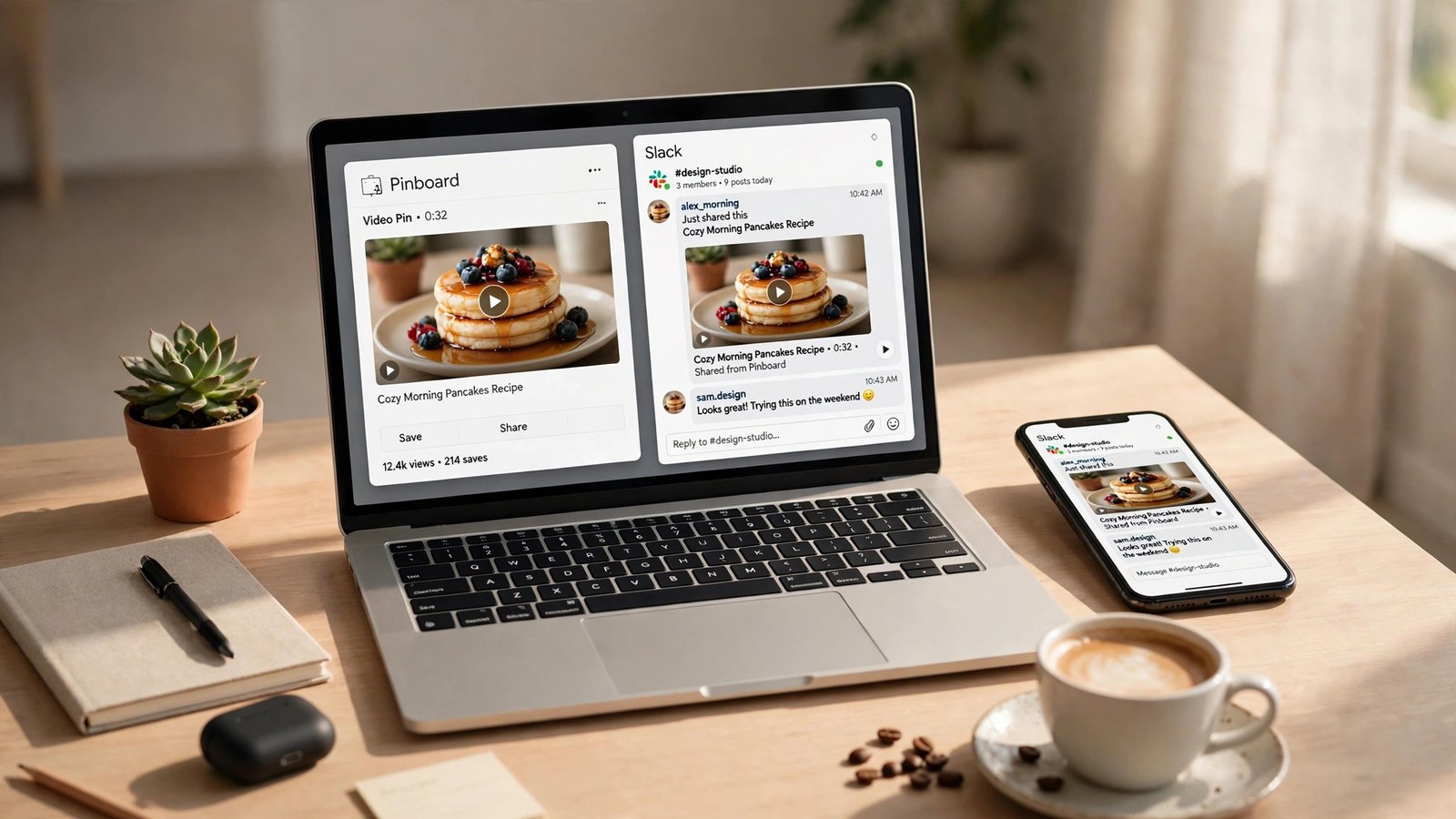
I write these guides because I kept running into the same wall myself. Someone on a team finds a video on Pinterest — a recipe, a DIY build, a design reference, a 30-second clip that explains something better than a paragraph ever could — and they want the team to see it in Slack. So they paste the Pinterest link into the channel. And then… nothing useful happens. Sometimes Slack shows a bare link. Sometimes it shows a thumbnail that goes nowhere when a teammate clicks it, because Pinterest wants a login. The video never plays inside Slack, nobody watches it, and the whole point of sharing it is lost. The fix is not complicated, but it is a two-step job, and every guide I found while researching this one only covered half of it — or tried to sell an automation tool that posts a link card instead of the video.
Why Pinterest Won’t Send a Video to Slack (and Why the Link Alone Fails)
Pinterest’s own help pages list the places you can share a Pin to, and Slack is not one of them. Pinterest’s sharing guide covers the big social networks, and on mobile it lets you share a screenshot of your feed or turn a whole board into a short video — but that board-video trick excludes video Pins entirely, only works for public boards with at least five Pins, caps out at fourteen Pins, and only runs on the Pinterest app. It was never built for what you are trying to do.
That leaves the link. Pasting a Pinterest URL into Slack is the obvious move and it is also the move that disappoints people most often. Slack will sometimes unfurl the link into a small preview card, and sometimes it will not, depending on the Pin, the workspace settings, and whether Pinterest’s servers feel like cooperating that day. Even when the preview shows up, clicking it takes your teammate out of Slack and into Pinterest, where they may hit a login wall or an age gate before the video plays. For a team channel where half the people do not even have Pinterest accounts, that is a dead end. A file upload, on the other hand, plays right there in the channel. Teammates can watch it without leaving Slack, without an account, and without waiting for a page to load. That is the whole reason Method 1 below exists.
There is one more thing worth saying before the steps. Saving a Pin to a board is not saving the video. A board is a list of bookmarks. The video still lives on Pinterest’s servers and your phone has to stream it every time you open it. If you are in a building with bad signal, or you want the clip inside Slack where the team can actually watch it, you need the file itself on your device. That is what the next section does.
Method 1: Save Pinterest Videos to Slack by Downloading First, Then Uploading
This is the method I recommend to everyone who wants to save Pinterest videos to Slack reliably, because it has no moving parts that can break. No accounts to connect, no automation to configure, no monthly task limit to burn through. You get the MP4 on your device, then you hand it to Slack. It works on a free Slack workspace, it works in a DM, it works in a private channel, and the video plays inline so people actually watch it. I tested every step below on November 18, 2026, with a real public video Pin, and I am going to give you the real numbers from that test instead of the vague “it only takes a moment” you get everywhere else.
Step 1: Copy the Pinterest video link
Open Pinterest — app or browser, it does not matter — and open the video Pin you want. Tap or click Share, then Copy link. On the phone app the Share button sits under the Pin; on desktop it is the arrow icon at the top of the Pin. If you are on a phone, Pinterest will often hand you a short pin.it link instead of the full address. That is fine. Paste it as-is; there is no need to expand it or strip anything off the end.
One quick check before you move on: if the Share menu shows a Download option, the creator has switched on downloads for that Pin and you can use Pinterest’s own button instead. The catch is that the saved file carries the creator’s username as a watermark across the bottom, and it only appears on full-screen (9:16) video Pins where the creator allowed it. Most of the time it will not be there, which is why you are reading this guide in the first place.
Step 2: Download the MP4 with PintoDownload
Open PintoDownload in your browser. It is a free online Pinterest downloader — no account, no app to install, no Pinterest login. Paste the link you just copied into the box on the homepage and hit Download Video. The page shows you a preview of the video and a download button. Click it, and the MP4 saves to your device.
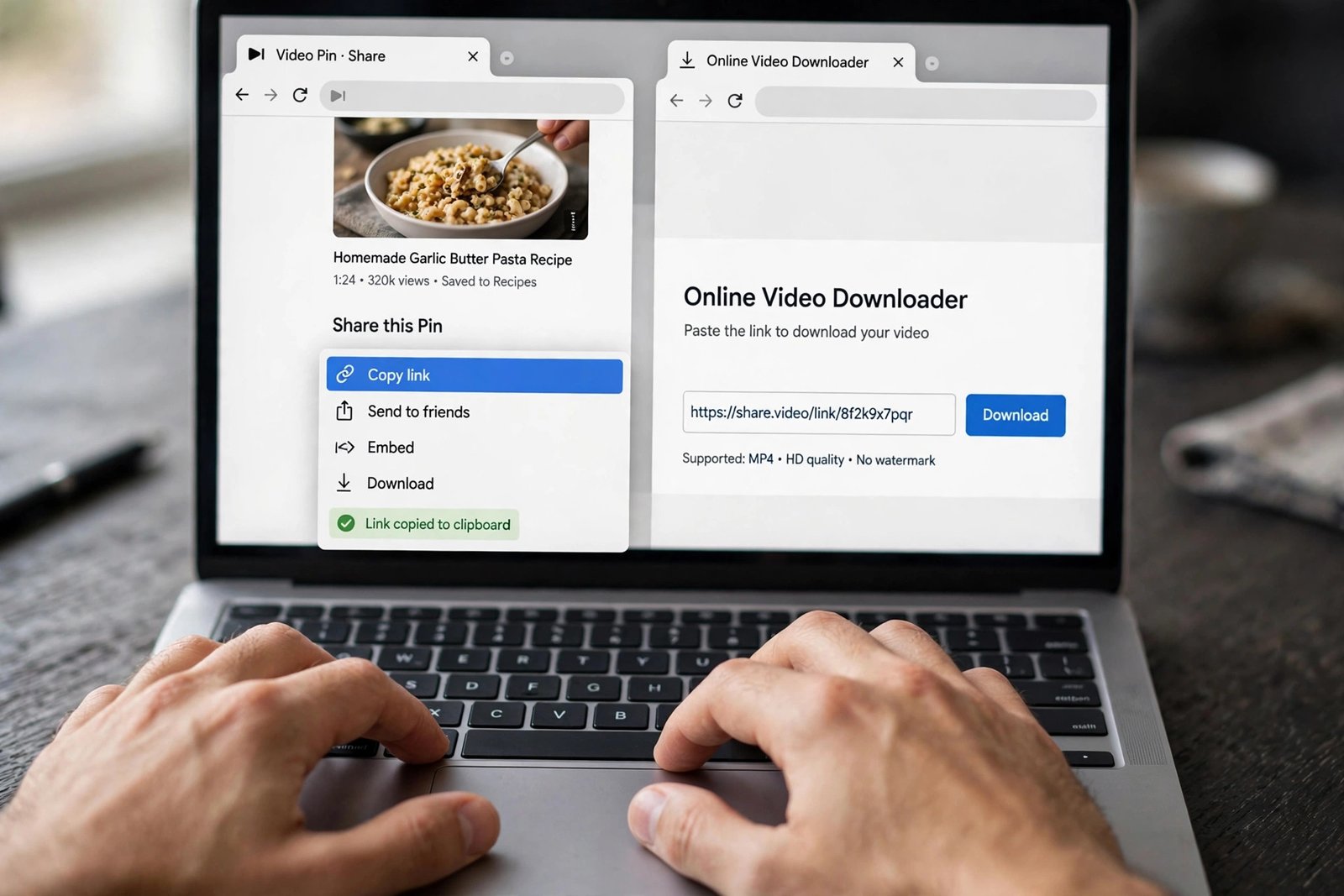
Here is what actually happened when I ran this test. The Pin I used was a public video Pin (https://www.pinterest.com/pin/653233120954325160/). I pasted the link into PintoDownload and the page came back with the video in 2.29 seconds. The file it returned was a 720p MP4 — 720 by 1440 pixels, vertical, H.264 video with AAC audio, 29.2 seconds long — served straight from Pinterest’s own video host. Downloading the file itself took another 2.88 seconds, and the finished file was 3,924,736 bytes, about 3.9 MB. From pasting the link to having the file on disk: roughly five seconds, end to end. No signup screen, no password prompt, no watermark added.
That 3.9 MB number matters, and I will come back to it in the limits section. A half-minute Pinterest clip is a small file. Most of the videos people share in Slack are in this range — a few megabytes, not a few hundred — which is why this method almost never hits a limit.
Where does the file land? On Windows and Mac it goes to your Downloads folder. On Android it goes to Downloads too — if your Gallery does not show it right away, open the file manager and look in Downloads instead of downloading it a second time. On iPhone and iPad, Safari drops it into Files, under Downloads. It will not appear in Photos on its own; open the file in Files, tap Share, and choose Save Video if you want it in your camera roll. That iPhone quirk trips up more people than anything else in this whole process, so if your video seems to have vanished, check Files before you assume the download failed.
Step 3: Upload the video to Slack on desktop
Now the Slack half. Open Slack on your computer and go to the channel or DM where the video belongs. The upload steps below follow Slack’s own file-upload guide, which I verified against the current app. Then do one of these:
- Drag and drop. Drag the MP4 from your file manager straight into the Slack message box. You can drop up to ten files at once this way.
- Use the plus icon. Click the + next to the message field, choose the file, and Slack attaches it.
Before you hit send, add a line of text with it. A bare video with no context gets scrolled past; a video with one sentence — “this is the shelving build I mentioned, the joinery starts at 0:12” — gets watched. If you are attaching an image as well, you can drag the previews to reorder them. Then press Enter, or click the paper-plane send icon. Slack uploads the file, scans it for malware (every file gets scanned; if Slack wrongly blocks one, that is a support ticket, not something you can fix from your side), and the video appears in the channel with a playable preview.
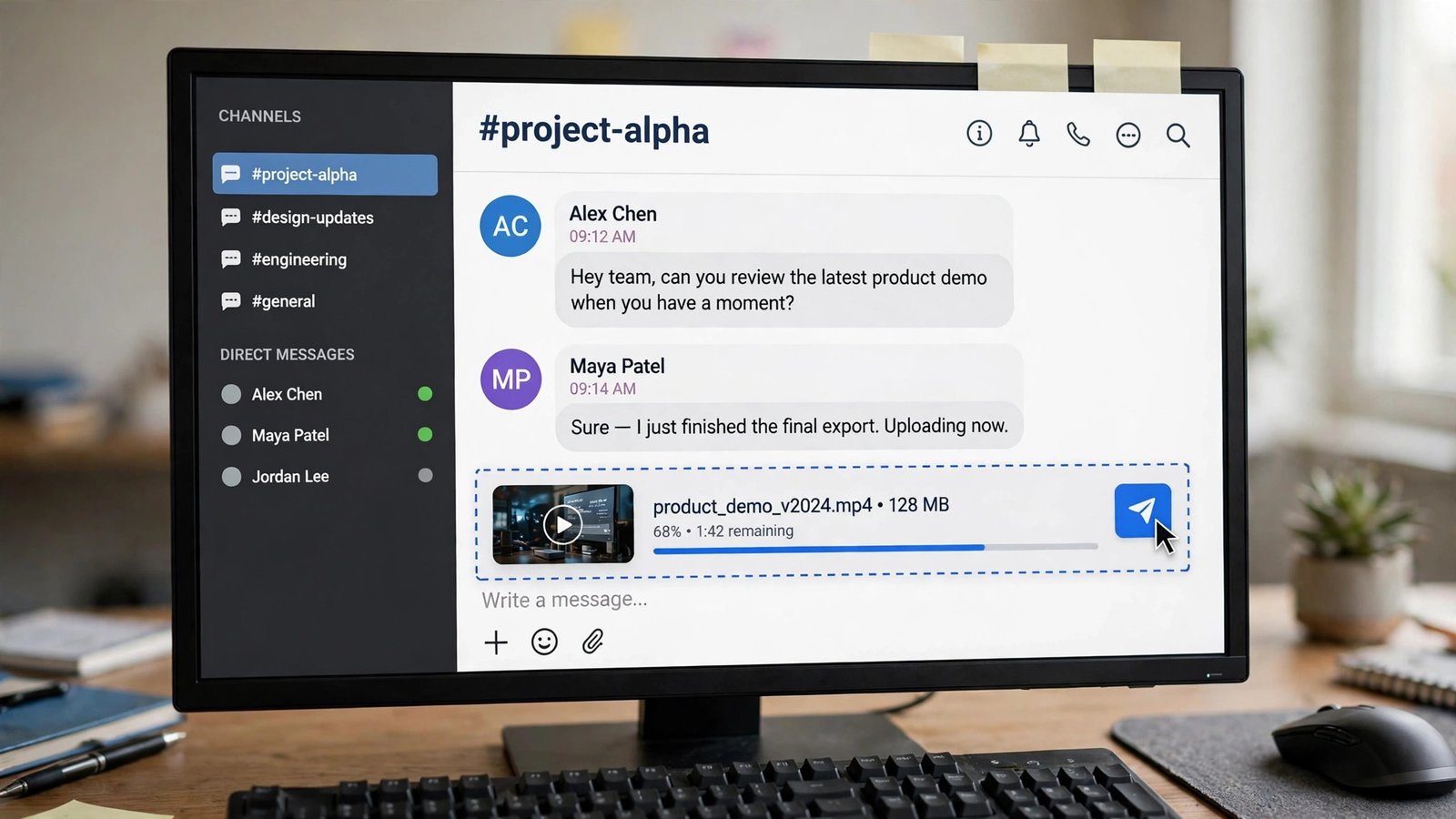
That is the entire desktop flow. Copy link, paste, download, drag into Slack, send. The first time you do it, it takes a minute because you are reading instructions. The third time, it takes about twenty seconds and you will wonder why you ever pasted bare Pinterest links into a channel.
Step 4: Upload the video to Slack on mobile
Doing this from your phone is just as quick, and honestly it is the version most people will use, because Pinterest is mostly a phone habit. The steps, straight from Slack’s own help pages and confirmed against the current app:
- Open the Slack app and go to the channel or DM.
- Tap the + icon next to the message field.
- To add a video from your gallery, tap a recent video or View library. To pick the file you just downloaded, tap Recent files or Upload file.
- If you want, tap the edit icon on the video first, then the checkmark to keep the change.
- Add a message about the video if you like.
- Tap the paper-plane icon to send.
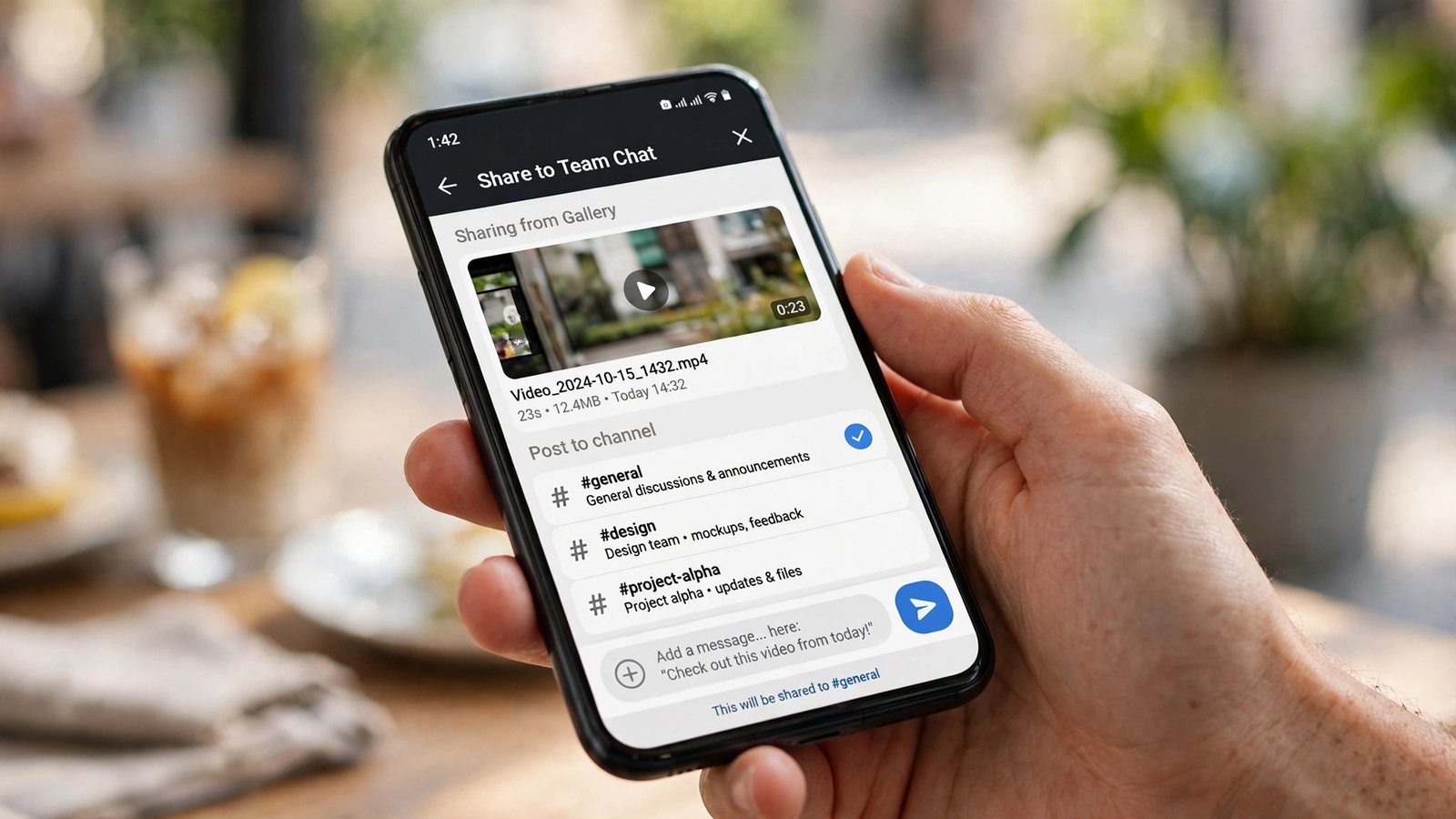
Two phone-specific gotchas. First, the iPhone Files problem from Step 2: if you downloaded the video in Safari, it lives in Files, not Photos, so use Upload file rather than the photo library, or save it to Photos first. Second, if you are on mobile data rather than Wi-Fi, a larger video will eat into your data plan on the upload — Slack does not compress the file for you, so what you send is what you downloaded. On a normal Pinterest clip of a few megabytes that is nothing. On a five-minute 1080p clip it can be a few hundred megabytes, and that is worth knowing before you tap send on a capped plan.
My honest take: skip the automation tools for this job. Zapier, IFTTT and the rest are fine products, but for one video you want in one channel, they are a cannon aimed at a mosquito — and they post a link card, not the video. The manual method above is faster than setting up any of them, and it is the only one that puts a playable file in front of your team.
Method 2: Share the Link Instead of the File (Fast, but Know What You Give Up)
Sometimes uploading the file is not what you want. Maybe the video is too big, maybe you are in a hurry, or maybe you just want to drop a reference in the channel without filling up the workspace’s history. In that case, paste the Pinterest link directly into the message box and let Slack unfurl it. Slack will usually turn the URL into a small preview card with a thumbnail and a title. It costs you nothing, there is no file-size limit to hit, and it takes two seconds.
The trade-off is real, though. A link is not a video. Your teammates have to leave Slack, open Pinterest, and possibly log in before they see anything move. If they do not have Pinterest accounts, some of them will not bother. And the unfurl itself is unreliable — it shows up for some Pins and not for others, and workspace admins can turn link previews off entirely. I use the link method when the video is just a passing reference (“saw this, thought of our project”) and the file method when I actually need people to watch the thing. If you are not sure which one applies, upload the file. A video nobody watches is worse than a video that took twenty extra seconds to send.
One more thing about links: if the Pin’s creator deletes it, or makes their board private, your link goes dead. A file you uploaded stays in the channel. That permanence is worth something in a work channel where people search old messages months later — which brings me to the limits section, because that permanence has a catch on free workspaces.
Automating Pinterest to Slack with Zapier, IFTTT or Albato
If your goal is different — you run a Pinterest board for a brand, and you want every new Pin announced in a Slack channel automatically — then automation is the right tool, and it is the only thing the top Google results for this topic actually cover. The setup is the same on all three services: pick Pinterest as the trigger (“new Pin on a board”), pick Slack as the action (“post to channel”), map the fields (title, link, thumbnail), and turn it on. Zapier’s most popular template is exactly this, IFTTT has a one-click applet for it, and Albato walks through the same flow with a free plan that allows five active automations.
But go in with your eyes open, because every one of these pages leaves out the same three facts. First, the automation posts a notification about the Pin — a title, a link, a thumbnail — not the video file. Your team still has to click out to Pinterest to watch anything. Second, only Pins added after you set the automation up will trigger it; your existing board stays silent. Third, the free tiers are slow: IFTTT checks for new Pins once an hour on its free plan, so a Pin can sit unannounced for up to 59 minutes, and Zapier’s free tier polls on a similar delay. If you need the video itself in Slack, automation does not do that job at all, and you are back to Method 1.
The Slack Clips option (when you are the one talking)
There is one more native option worth knowing about, though it solves a different problem. Slack Clips, launched in September 2021, let you record a short audio or video message — up to five minutes long — right inside Slack, on any plan. If you want to show your team a Pinterest video and talk over it (“here is the technique, watch the corners at 0:20”), you can record your screen as a Clip and send that instead. It is built for internal team chat, not for sharing someone else’s content as-is, so think of it as a companion to Method 1, not a replacement for it.
Slack File Limits: The Numbers That Decide Whether Your Video Goes Through
Here are the limits that actually matter, all verified against Slack’s own help pages on November 18, 2026. I am spelling them out because most guides either skip them or quote numbers from years ago.
| Limit | What it is | What it means for your Pinterest video |
|---|---|---|
| Max file size per upload | 1 GB, on every plan including free | A Pinterest video will essentially never hit this. My test clip was 3.9 MB — about 0.4% of the cap. Even a five-minute 1080p Pin stays far under 1 GB. |
| Files per message | Up to 10 files dragged in at once | You can drop a small batch of clips in one message instead of sending them one by one. |
| Free-plan visibility | Messages and files searchable for 90 days | A video shared in January stops appearing in search by April on a free workspace. If the team will need it later, keep a local copy. |
| Free-plan deletion | Data older than 1 year may be deleted on a rolling basis | Old shared videos can disappear entirely. Paid plans remove this limit. |
| External file links | Paid plans only | On a free workspace you cannot create a public link to a file you uploaded. Share it inside Slack instead. |
| App installs (free) | 10 third-party or custom apps | An automation app counts against this. The manual method uses none of your ten slots. |
| Video preview | MP4 uploads play inline in the channel | Pinterest videos download as MP4, which is exactly the format Slack handles best. No conversion needed. |
| High-volume sending | Free workspaces can be throttled if too many messages or files go out in a short burst | Do not blast fifty videos into a channel in one minute. Space them out. |
The 90-day visibility limit is the one that catches people off guard, so let me say it plainly: on a free Slack workspace, a Pinterest video you share today becomes unsearchable in three months, and may be deleted after a year. That is not a reason to avoid sharing videos in Slack — it is a reason to keep the original MP4 on your own drive if the clip matters long-term. I keep a folder for reference clips exactly for this reason, and it has saved me more than once when a channel’s history rolled past a video I needed again.
It is also worth knowing that your workspace admin can restrict who uploads files, and that uploads can be blocked entirely in Slack Connect conversations with outside organizations, and for Frontline members. If the plus icon is greyed out or your upload fails instantly, that is usually an admin setting, not a problem with your file — ask a workspace owner before you spend an hour troubleshooting your own device.
Slack vs Discord vs Telegram vs WhatsApp for Sharing Pinterest Videos
Slack is not the only place teams share videos, and the right choice depends on who you are sending to. A Pinterest clip that uploads cleanly to Slack would get rejected by Discord’s free tier, and would be overkill for WhatsApp. Here is how the four apps stack up for this exact job, using limits checked in November 2026. One honest caveat: Discord has changed its free limit four times in two years — it was 25 MB, then 10 MB in late 2024, then 20 MB in August 2026, with some accounts seeing 25 MB in an ongoing test — so treat Discord’s number as “check what your own client says” rather than gospel.
| App | Max video file (free) | Plays inline? | Best for a Pinterest video when… |
|---|---|---|---|
| Slack | 1 GB per file | Yes — MP4 plays in the channel | It is a work team, a project channel, or a DM with a colleague. The 1 GB cap means you never think about size. |
| Discord | 20 MB free (some accounts see 25 MB in testing); 50 MB Nitro Basic; 500 MB Nitro | Yes, under the cap | It is a community or gaming group and the clip is short. A 30-second 720p clip at ~4 MB fits; a five-minute 1080p clip does not. |
| Telegram | 2 GB per file (4 GB with Premium) | Yes | The file is huge or the recipient is on a phone. Telegram is the most generous of the four by a mile. |
| 16 MB as an inline video; up to 2 GB as a Document | Yes, inline under 16 MB; as a Document it arrives as a file to download, no preview | It is a quick share with family or friends. WhatsApp also compresses inline video, so quality drops — send as a Document if quality matters. |
The practical takeaway: my test clip at 3.9 MB fits everywhere, including Discord’s free tier and WhatsApp’s inline limit. That is typical for Pinterest — short vertical videos compress well. The apps only start disagreeing when a clip gets long. A five-minute video at 1080p can run to several hundred megabytes, and at that point Slack and Telegram take it without blinking, Discord wants a Nitro subscription, and WhatsApp wants you to send it as a Document. If your team lives in Slack, you picked the easy one — when you save Pinterest videos to Slack, the size question basically disappears. We have covered the same ground for the other apps too — our guides to saving Pinterest videos to Discord and saving Pinterest videos to Telegram walk through their exact steps and limits.
One more comparison that matters: quality. WhatsApp recompresses videos sent as media, so a crisp 720p Pinterest clip arrives softer on the other end. Slack does not recompress your upload, and neither does Telegram or Discord. If the video’s detail is the point — a recipe’s fine print, a design mockup, a DIY measurement — that alone is a reason to send it in Slack rather than WhatsApp.
Troubleshooting: When the Video Won’t Save or Won’t Send
Something will go wrong eventually. It usually goes wrong in one of these ways, and each one has a boring, fixable cause.
The downloader says “invalid link”
Nine times out of ten the link is the problem, not the tool. Open the Pin again and use Share, then Copy link — do not copy the address from a search-results page, your home feed, or a board page, because those are not Pin links. A pin.it short link is fine as-is. If the address belongs to TikTok or Instagram instead of Pinterest, you need a downloader built for that platform; a Pinterest tool cannot read it.
No result appears, or the tool returns nothing
The Pin is probably private, restricted, deleted, or login-only. Public tools can only read what Pinterest shows to the public, and they cannot bypass that by design. Test with a different public Pin: if that one works, the first Pin was the problem. If several public Pins fail in a row, Pinterest may have changed something on its side — wait an hour and try again before assuming the tool is broken.
The result is only an image, not a video
Play the Pin on Pinterest first and confirm it actually contains a video. Some Pins are static images with a video-looking cover, and some are carousels where only one card is a video. A downloader cannot recreate a video Pinterest never exposed. Also check whether the Pin links out to another site — some Pins are just previews of a video hosted on a blog or a streaming service, and those need a different tool entirely.
The video has no sound
Check the original Pin before you retry anything. Plenty of Pinterest videos are silent at the source — no music, no voiceover — and the download is faithfully reproducing that silence. If the Pin plays with sound on Pinterest but your downloaded file is mute, try the download once more; a failed mux on one attempt is rare but not unheard of.
Slack says the file is too large
Slack’s cap is 1 GB, so a Pinterest video basically never trips it — a five-minute clip would need to be enormous. If you do see this error, first check the actual file size: you may have downloaded the wrong thing, or a screen recording instead of the MP4. If the file genuinely is over 1 GB, compress it (HandBrake is free and does this well) or share the Pinterest link instead, per Method 2. And if the file is small and Slack still refuses it, check whether your workspace admin restricted uploads, or whether you are posting into a Slack Connect channel where file sharing is turned off.
The video uploads but won’t play in Slack
MP4 is the format Slack handles best, and Pinterest videos download as MP4, so this is uncommon. If it happens, the file may be an unusual variant — an MOV or M4V from an older Pin, or a file with an odd codec. Re-download it and check the extension; converting to MP4 with any free converter fixes it. Also confirm the file plays on your own device first. If it does not play locally either, the download itself was bad, not the upload.
The link preview is missing in Slack
Slack’s unfurling depends on the Pin’s page offering the right metadata, and Pinterest is inconsistent about it. If the preview does not appear, the link still works — teammates can click it — but it looks bare. Two fixes: upload the file instead (Method 1, which is why it is Method 1), or add your own one-line description so the message makes sense without the preview. Workspace admins can also disable link previews entirely, in which case no Pinterest link will ever unfurl for anyone in that workspace.
The file is missing on your phone after downloading
On iPhone, look in Files, under Downloads — Safari does not put web downloads in Photos. On Android, open the file manager and check Downloads; the Gallery app sometimes takes a while to index a new file, or never picks it up if it landed in an odd folder. Downloading the same video twice does not help; finding the first copy does.
Is It Legal to Save a Pinterest Video and Share It in Slack?
Short answer: saving a public video for your own use, and sharing it inside a private team channel so colleagues can watch it, is what most people do with this workflow every day — but the video still belongs to the person who made it, and “publicly viewable” does not mean “free to reuse however you like.”
Keep it simple and stay on the right side of the line. Save videos you own, videos you have permission to use, or public videos for personal and internal team reference — watching a tutorial together, discussing a design, following a recipe. Credit the creator when you share, ideally with the original Pin link alongside the file so people can find the source. Do not re-upload someone else’s video as your own content, do not use it in anything commercial without permission, and do not strip a creator’s watermark off a clip. Pinterest’s own terms say creators keep the rights to what they post, and a download tool does not change that.
Private content is a hard no. Pins on private boards, secret Pins, and anything Pinterest only shows after a login cannot be downloaded by a public tool, and that is by design — do not go looking for a tool that claims otherwise, because those are the tools that ask for your Pinterest password, and a real downloader never needs it. If a site or an app asks you to log in to Pinterest to download a video, close the tab. That is the single most reliable safety rule in this whole space, and it is worth repeating: never enter your Pinterest password into a downloader.
Frequently Asked Questions
Can I save Pinterest videos to Slack directly from Pinterest?
No. Pinterest has no share-to-Slack option — Slack does not appear in Pinterest’s share sheet on desktop or mobile. The working route is two steps: download the video as an MP4 with a tool like PintoDownload, then upload the file into your Slack channel or DM. If you want to save Pinterest videos to Slack on a regular basis, bookmark this flow — it takes about a minute the first time and seconds after that.
What is the largest Pinterest video I can send in Slack?
Slack accepts files up to 1 GB on every plan, including free workspaces. A typical Pinterest video is a few megabytes — the 29-second 720p clip in my test was 3.9 MB — so you will effectively never hit the cap with a Pinterest download. If a file ever does exceed 1 GB, compress it or share the Pinterest link instead.
Do I need a paid Slack plan to share videos?
No. File uploads up to 1 GB, including video, work on the free plan. What the free plan does limit is history: messages and files are only searchable for 90 days, and data older than a year may be deleted. Paid plans remove those limits and add external file links, which free workspaces cannot create.
Can I automate new Pinterest Pins to a Slack channel?
Yes, with Zapier, IFTTT or Albato — set Pinterest as the trigger (“new Pin on a board”) and Slack as the action (“post to channel”). But understand what you get: a notification with a title, link and thumbnail, not the video file. Only Pins added after setup will trigger, and free tiers poll slowly (IFTTT checks hourly on free). For the video itself, use the manual download-and-upload method.
Why does my Pinterest link show no preview in Slack?
Slack unfurls links when the linked page provides preview metadata, and Pinterest is inconsistent about providing it — some Pins unfurl, some do not. A workspace admin can also disable link previews entirely. Uploading the MP4 file instead guarantees a playable preview in the channel, which is the main reason the file method beats the link method.
Will the video still be in Slack months later?
On a paid workspace, yes. On a free workspace, it stays visible for 90 days, then stops appearing in search, and may be deleted once it is over a year old. If the clip matters long-term, keep the original MP4 on your own drive as well as in the channel.
Conclusion: The 60-Second Version
To save Pinterest videos to Slack, remember it is a two-step job because neither app will do it for you on its own — Pinterest cannot send to Slack, and Slack cannot fetch from Pinterest. Copy the Pin link, download the MP4, drop the file into the channel. That is the whole method, and it is the only one that puts a playable video in front of your team instead of a link they have to chase.
If you want to try it right now, open PintoDownload, paste a Pin link, and see the file appear in seconds — no signup, no watermark, no app to install. Then drag it into Slack and watch it play inline. If you mostly save videos on a computer, our guide to downloading Pinterest videos on PC covers the desktop flow in more detail, and if you want higher-quality stills from the same Pins, the Pinterest image downloader saves those at full resolution too.
One last piece of advice from someone who has now done this test for real: keep the file. Slack’s free plan will hide it from search in 90 days, Pinterest’s creator could delete the Pin tomorrow, and the clip you needed for a project in November has a habit of becoming the clip you need again in February. A small folder of reference videos on your own drive costs nothing and saves the exact kind of headache this guide exists to prevent.