How to Download Pinterest Videos on PC (5 Easy Methods – Windows & Mac, 2026)
How to Download Pinterest Videos on PC (5 Easy Methods – Windows & Mac, 2026)
Want to download Pinterest videos on PC but can’t find a save button anywhere? You’re not alone. Pinterest deliberately leaves out a download option for videos — the platform would rather keep you scrolling inside its app and website than let you take videos offline.
The good news: saving any Pinterest video to your Windows laptop or Mac takes less than a minute once you know how. A desktop actually gives you advantages phones don’t — a bigger screen for previewing, a real keyboard for organizing, and enough storage for entire collections. This guide walks you through 5 tested methods to download Pinterest videos on PC, ordered from easiest to most advanced, compares them honestly, and answers the most common questions at the end.
Quick answer: The fastest way to download Pinterest videos on PC is to copy the video’s URL from your browser’s address bar, paste it into a free online Pinterest video downloader, and click download. The MP4 file lands in your Downloads folder in under 30 seconds — no software to install.

Why Download Pinterest Videos on Your Computer?
Phones get all the attention, but a PC is often the better device for saving Pinterest content. Video editing software runs on desktops, organizing hundreds of saved videos into named folders is far easier with a mouse and keyboard, and a computer’s storage and backup options beat a phone’s for serious collections. Whatever your reason, the five methods below all work on both Windows (10 and 11) and macOS — and Method 1 covers roughly 95% of cases, so start there.
Before You Start: 60-Second Checklist
Run through this quick checklist before trying any method — it prevents the most common failures when you download Pinterest videos on PC:
- Update your browser. Chrome, Edge, or Firefox — whichever you use, make sure it’s the latest version. Outdated browsers mishandle video streams and downloads.
- Check your disk space. A 2-minute HD Pinterest video can be 50–100 MB. On Windows, check Settings → System → Storage; on Mac, Apple menu → About This Mac → Storage.
- Know your Downloads folder. Every method below saves there by default — This PC → Downloads on Windows, Finder → Downloads on Mac.
- Use a stable connection. Wi-Fi or ethernet beats mobile tethering for larger files — interrupted downloads are the #1 cause of corrupted files.
Method 1: Online Pinterest Video Downloader (Fastest – Under 30 Seconds)
This is the fastest and most reliable way to download Pinterest videos on PC without installing anything. You just need your browser and a free online tool like PintoDownload.

Step 1: Copy the video URL
- Open pinterest.com in your browser and click the video Pin you want to save.
- Click once in the address bar at the top — the full URL highlights automatically.
- Press Ctrl+C (Windows) or Cmd+C (Mac) to copy it. Alternatively, click the video’s Share icon and choose Copy link — both work.
Step 2: Paste the link into the downloader
- Open a new tab and go to your preferred online Pinterest video downloader.
- Click the input box, press Ctrl+V (or Cmd+V on Mac), then click the Download button.
- The tool fetches the video and shows available quality options — pick the highest (HD or original) for the best result.

Step 3: Save the MP4 file
- Click the download button next to your chosen quality. Your browser downloads the MP4 file.
- Find it in your Downloads folder, double-click to preview, and confirm it’s the right video.
- Rename it something descriptive right away (e.g., morning-workout-routine.mp4) — future you will be grateful.
Pros: Nothing to install, works on every PC, free, preserves original quality, no account needed.
Cons: Requires an internet connection; downloads one video at a time.
On a phone instead? Our step-by-step guides cover how to download Pinterest videos on iPhone and how to download Pinterest videos on Android with the same copy-paste approach.
Method 2: Browser Extension (One-Click Downloads)
If you download Pinterest videos on PC regularly, a browser extension removes the copy-paste step entirely — it adds a small download button directly onto video Pins as you browse. Pick one with strong ratings and a large user count in the Chrome Web Store, click Add to Chrome, and review the permissions it asks for (access to pinterest.com pages is legitimate; unrelated permissions are a red flag).

Pros: One-click downloads while browsing, no tab-switching, great for saving many videos in a session.
Cons: Requires an install; extensions can break when Pinterest changes its page layout; always vet permissions before installing.
Method 3: Browser Developer Tools (No Third-Party Tool Needed)
Every desktop browser ships with developer tools that can extract a video file directly from Pinterest’s page — no website or extension involved. It sounds technical, but it’s just five steps.

Steps (Chrome / Edge / Firefox)
- Open the Pinterest video Pin and press F12 (Windows) or Cmd+Option+I (Mac) to open Developer Tools.
- Click the Network tab, then in the filter bar type media (or select the “Media” filter).
- Reload the page and play the video. You’ll see network entries appear — look for one ending in .mp4 with the largest size.
- Right-click that entry → Open in new tab. The video plays alone in a blank tab.
- Right-click the video → Save video as… and choose your folder. Done.
Pros: Zero third parties, works even when downloader sites are having a bad day, teaches you a genuinely useful browser skill.
Cons: Slightly fiddly the first time; you must pick the right .mp4 entry (the biggest one is almost always the video).
Method 4: Download a Whole Pinterest Board at Once
Sometimes you don’t want one video — you want every video from a board. Desktop board-downloader applications handle exactly this: paste a board URL, and the app pulls every video (and image) it contains. Let it run unattended for a few minutes depending on board size.
Pros: Downloads dozens of videos unattended, ideal for archiving research or inspiration boards.
Cons: Requires installing desktop software; stick to public boards (private/secret boards can’t be fetched by third-party tools); keep volumes reasonable and personal.
Method 5: Screen Recording (The Universal Fallback)
When nothing else works — a stubborn Pin, a restricted video, a downloader that’s temporarily down — screen recording captures literally anything playing on your monitor.
On Windows 10/11 (Xbox Game Bar)
- Open the Pinterest video and play it fullscreen.
- Press Win+G to open the Game Bar, then click the Record button (or press Win+Alt+R).
- Let the video play through without touching the mouse.
- Press Win+Alt+R again to stop. The recording saves to Videos → Captures.
On Mac (Screenshot Toolbar)
- Open the Pinterest video fullscreen in your browser.
- Press Cmd+Shift+5 to open the screenshot toolbar and choose Record Selected Portion.
- Drag the selection over the video area and click Record.
- Click the Stop button in the menu bar when the video ends. The file saves to your Desktop (or your chosen screenshot location).
Pros: Works on every video with zero exceptions, no third party involved.
Cons: Real-time capture (a 3-minute video takes 3 minutes); quality is limited to your screen resolution; larger files than direct downloads.
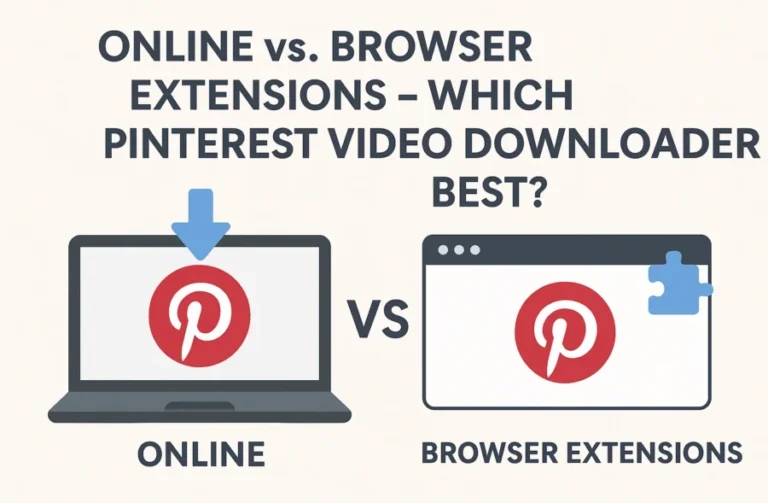
Comparison: Which Method Should You Use to Download Pinterest Videos on PC?
| Method | Time per video | Quality | Install needed? | Best for |
|---|---|---|---|---|
| Online downloader | ~30 sec | Original / HD | No | Most people, occasional downloads |
| Browser extension | ~5 sec | Original / HD | Yes (free) | Frequent savers |
| Developer tools | ~1 min | Original / HD | No | Privacy-conscious users |
| Board downloader app | Bulk | Original / HD | Yes (free/paid) | Archiving whole boards |
| Screen recording | Real-time | Screen quality | No (built-in) | Videos nothing else can fetch |
Our recommendation: Start with Method 1 — it’s the best balance of speed, quality, and simplicity for the vast majority of PC users. Add a browser extension (Method 2) if you download daily. Keep screen recording (Method 5) as your universal fallback.
Where Do Downloads Go on PC — and How to Organize Them
On both Windows and Mac, downloaded Pinterest videos land in your Downloads folder by default. That’s fine for one video, but a growing collection deserves better:

- Rename immediately. Downloader filenames are usually random strings. Rename to something searchable like pinterest-diy-shelf-idea.mp4.
- Sort into topic folders. Create folders like Recipes, Workouts, Home Decor, Travel Ideas inside a master Pinterest Saves folder.
- On Windows: right-click Downloads → Sort by → Date modified to find your newest saves fast; use File Explorer’s search with *.mp4 to list all videos.
- On Mac: use Finder tags (right-click → Tags) to label videos by topic without moving them, and Smart Folders to auto-collect all MP4s.
- Back up what matters. If a collection took hours to build, copy it to an external drive or cloud storage — Pinterest Pins get deleted more often than you’d think.
Getting the Best Possible Video Quality
Two things determine quality: what Pinterest stores, and the option you select. Always choose the highest resolution the downloader offers — HD, 1080p, or “original.” Avoid screen recording when quality matters, since it captures your display rather than the source file. One honest caveat: Pinterest compresses every upload, so “original” means Pinterest’s stored version (typically 720p–1080p), not the creator’s camera file. Our HD Pinterest video download guide explains the quality labels in detail.
Fun Ideas: What to Do With Your Downloaded Pinterest Videos
Once you’ve learned how to download Pinterest videos on PC, a saved collection becomes genuinely useful:
- Build an offline inspiration library — recipes, workouts, and DIY tutorials available with no internet.
- Use clips in presentations and mood boards — video references communicate ideas faster than screenshots.
- Edit compilations — with proper credit to creators, saved clips are great raw material for your own edits.
- Share the fun live. If you love discovering videos worth talking about, VidChat is a free random video-chat site where you can meet new people and share moments face to face in real time — a surprisingly fun way to show off your best finds.

Troubleshooting: Pinterest Video Won’t Download on PC?
- Downloader says “private video” or finds nothing: Pinterest blocks fetching of private Pins, secret boards, and some restricted videos by design — no tool can bypass that. Screen recording (Method 5) is your only option.
- Downloaded file won’t play: Re-run the download and explicitly choose the MP4 option; some players choke on other containers. VLC plays virtually everything.
- Can’t find the file: Check your browser’s download history (Ctrl+J in Chrome/Edge) — it shows exactly where each file landed.
- Download button does nothing: Temporarily disable your ad-blocker for the downloader site, or try a different browser.
- Everything suddenly stopped working: Pinterest occasionally changes its video delivery. Update your browser first, then retry. Our Pinterest downloader troubleshooting guide covers every known error in detail.
Is It Legal to Download Pinterest Videos on PC?
The short version: downloading a video for personal, offline use — watching later, saving inspiration, keeping a reference — is generally accepted and extremely common. Millions of people do it daily.
What crosses the line: re-uploading someone else’s video as your own, commercial use (ads, client work, monetized compilations) without the creator’s permission, and stripping watermarks or credits. Pinterest’s Terms of Service technically prohibit scraping and bulk downloading, so keep your downloads personal and reasonable in volume. We covered the full picture in our guide on whether downloading Pinterest videos is legal and safe.
Frequently Asked Questions

Can I download Pinterest videos on PC without installing anything?
Yes. Copy the video’s URL from your browser’s address bar, paste it into a free online Pinterest video downloader, and download the MP4 — Method 1 above takes under 30 seconds with zero installs.
Where do Pinterest videos save on Windows 10 and 11?
By default, everything lands in This PC → Downloads. Press Ctrl+J in Chrome or Edge anytime to see exactly where recent files went, and you can change the default location in browser settings.
Why does the downloader say “private video” or fail on some Pins?
Pinterest blocks third-party fetching of private Pins, secret-board content, and certain restricted videos. No downloader can access those — use screen recording (Method 5) as the fallback.
Can I download Pinterest videos in HD quality on PC?
Yes — select the highest quality option the downloader offers. Pinterest compresses uploads, so HD means Pinterest’s stored version (usually 720p–1080p). Our HD download guide explains the labels in detail.
Do these methods work on Mac as well as Windows?
Yes. All five methods work on macOS — the only differences are keyboard shortcuts (Cmd instead of Ctrl) and the screen-recording tool (Cmd+Shift+5 on Mac vs. Xbox Game Bar on Windows).
Is it safe to use online Pinterest video downloaders?
Reputable ones are — they only need the video URL and never ask for your Pinterest login. Avoid any downloader demanding account credentials or pushing executable (.exe) downloads for a simple video save.
Final Words
Learning how to download Pinterest videos on PC is a small skill with an outsized payoff: your best finds stop living only inside Pinterest’s app and start working for you — offline, organized, and editable. For the overwhelming majority of cases, the copy-URL + online downloader method puts a full-quality MP4 in your Downloads folder in under 30 seconds, with no installs and no accounts.
Found this guide useful? Bookmark it for the next time a must-save video crosses your feed — and whenever a download misbehaves, our troubleshooting guide has you covered.