Save Pinterest Videos to Teams: Free Guide 2026
If you need to save Pinterest videos to Teams, here is the short version: Pinterest will not do it for you. There is no share-to-Teams button, no “send to channel” option, and no integration that moves the actual video file. What you do instead takes about a minute. You download the video as an MP4, then you upload that file into Teams like any other file. I did it this morning with a real Pin, timed it, and the whole thing — copy the link, get the file, drop it in a channel — took just over five seconds of actual work once I knew the steps. The rest of this guide is the detail: the exact clicks on desktop and on your phone, the limits that decide whether a video goes through, where the file actually ends up living, and what to do when it doesn’t.
I write these guides because I keep running into the same wall myself. Someone on a team finds a video on Pinterest — a recipe, a DIY build, a design reference, a 30-second clip that explains something better than a paragraph ever could — and they want the team to see it in Teams. So they paste the Pinterest link into the channel. And then… nothing useful happens. Sometimes Teams shows a bare link. Sometimes it shows a thumbnail that goes nowhere when a teammate clicks it, because Pinterest wants a login. The video never plays inside Teams, nobody watches it, and the whole point of sharing it is lost. The fix is not complicated, but it is a two-step job, and every guide I found while researching this one only covered half of it — or tried to sell an automation tool that posts a link card instead of the video.
Why Pinterest Won’t Send a Video to Teams (and Why the Link Alone Fails)
Pinterest’s own help pages list the places you can share a Pin to, and Microsoft Teams is not one of them. Pinterest’s sharing guide covers the big social networks, and on mobile it lets you share a screenshot of your feed or turn a whole board into a short video — but that board-video trick excludes video Pins entirely, only works for public boards with at least five Pins, caps out at fourteen Pins, and only runs on the Pinterest app. It was never built for what you are trying to do.
That leaves the link. Pasting a Pinterest URL into Teams is the obvious move and it is also the move that disappoints people most often. Teams will sometimes unfurl the link into a small preview card, and sometimes it will not, depending on the Pin, the tenant settings, and whether Pinterest’s servers feel like cooperating that day. Even when the preview shows up, clicking it takes your teammate out of Teams and into Pinterest, where they may hit a login wall or an age gate before the video plays. For a work channel where half the people do not even have Pinterest accounts, that is a dead end. A file upload, on the other hand, plays right there in the chat or channel. Teammates can watch it without leaving Teams, without a Pinterest account, and without the video disappearing when the original Pin gets deleted.
There is one more reason the file beats the link, and it is specific to Teams: where the file lives. A video you upload to a channel is stored in the team’s SharePoint library, so it belongs to the team and stays put. A video in a one-to-one chat is stored in the sender’s OneDrive, in a folder called “Microsoft Teams Chat Files” — and if that person leaves the company and their account is deleted, every file they shared in one-to-one chats goes with them. I will come back to this, because it decides whether you should send the clip in a chat or post it in the channel. For now, the point is simple: the link is fragile, the file is not.
Method 1: Save Pinterest Videos to Teams by Downloading First, Then Uploading
This is the method that actually works, and it is the one I tested end to end this morning. Four steps on desktop, the same four on your phone. Nothing to install, no account to create, no money involved.
Step 1: Copy the Pinterest video link
Open the Pin — on the Pinterest website or in the app, it does not matter. Tap or click the Share icon (the arrow pointing up out of a box on mobile, the share arrow on desktop) and choose “Copy link”. You will get a URL that looks like pinterest.com/pin/653233120954325160/ or a short pin.it link. Both work; the short link is just a redirect to the same Pin.
Two things that will waste your time if you get them wrong. First, copy the link of the Pin itself, not the link of a board or a profile — a board link points at a collection, not a video, and no downloader can turn it into a file. Second, if the Pin is on a secret board or a private account, or if the Pin has been deleted, nothing downstream will work either. That is not a downloader failure; the video is simply not reachable from outside Pinterest. Check the Pin plays in your own browser first. If it plays for you, it will download.

Step 2: Download the MP4 with PintoDownload
Open PintoDownload in your browser and paste the link into the box on the homepage. Hit download. That is the whole step — no signup, no Pinterest login, no app to install, and nothing added to the file. What you get back is the video exactly as Pinterest stores it: an MP4, with the original sound, and no watermark added.
Here are the numbers from the test I ran this morning, 19 November 2026, because I do not trust a guide that has never actually done the thing it describes. The test Pin was a public 29-second video. The extractor answered in 3.21 seconds and returned Pinterest’s own CDN file: a 720p MP4, 720 by 1440 pixels, H.264 video with AAC audio, 29.23 seconds long, 4,112,336 bytes — about 3.9 MB. The file itself downloaded in 1.93 seconds. Paste link to file on disk: roughly five seconds in total.
That 720p figure deserves a sentence of its own, because it surprises people. Pinterest stores most video Pins at 720p, and no downloader on earth can hand you 1080p from a 720p source — anyone promising “HD 4K” for a Pinterest clip is selling you an upscale, not the original. A separate test by another site in late October 2026 ran the same 31-second public Pin through four different downloaders and got the identical 720p MP4 from all four, in under six seconds each. The file is the file. What differs between tools is the ads, the waiting, and the fake download buttons you have to dodge on the way to it.
On a phone the step is the same, with one difference at the end. On iPhone, Safari will drop the MP4 into the Files app under Downloads; open Files, find the video, tap Share, then “Save Video” to move it into Photos. On Android, Chrome puts it in the Downloads folder and the gallery usually picks it up on its own. If Safari opens a video player instead of downloading, long-press the download button and choose “Download Linked File”. If your browser plays the video instead of saving it, right-click the video and choose “Save video as”.
Step 3: Upload the video to Teams on desktop
Now the Teams half. Open Teams and go where the video belongs — a chat with one person, a group chat, or a channel. The clicks are nearly the same in all three, but the storage underneath is not, and that is worth knowing before you choose.
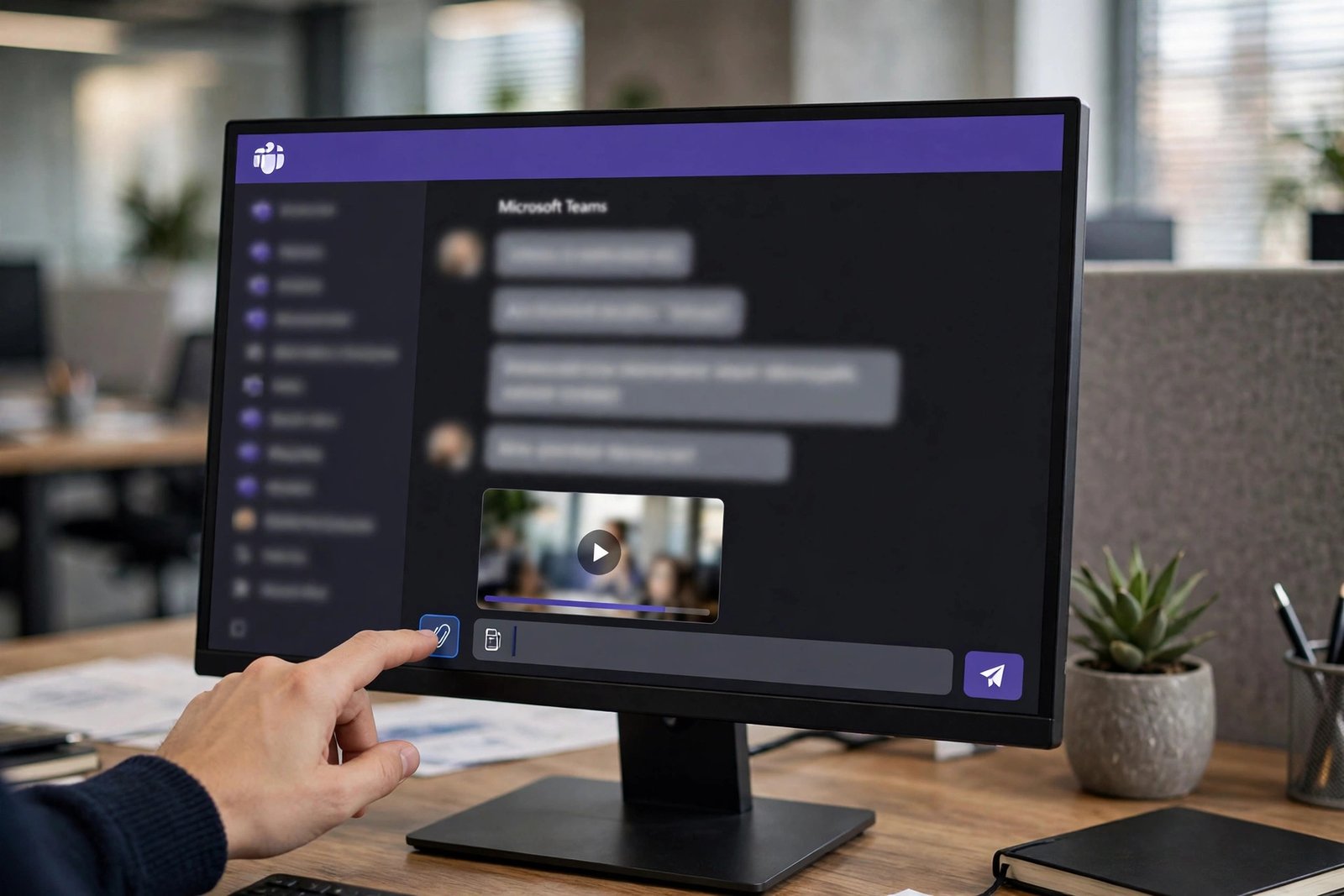
In a chat, click into the message box, then click “Actions and apps” (the plus icon) and choose “Attach file”. You can pick “Upload from this device” and select the MP4 you just downloaded, or “Attach cloud files” if the video is already in your OneDrive. In a channel, open the channel, click “New conversation” or “Reply” under an existing post, then the same “Actions and apps” and “Attach file”. Add a line of text with the file — a sentence saying what the clip shows and why it is there — then hit Send. The video gets an inline preview, and your teammates can press play right in the message without downloading anything.
A few details from Microsoft’s own support pages that save confusion later. You can attach up to 10 files in a single message. Large uploads keep going in the background with a progress indicator, so you do not have to sit and watch. Teams checks whether the recipients can actually open the file before it sends, and if someone lacks access you will see a “Give access” banner. And if you would rather share a file that is already in OneDrive, you can set its permission when you attach it — Can edit, Can review, Can view, or Can’t download — which matters if the clip is something you want people to watch but not pass on.
There is also a second route that is better for big files: the Files tab. In a channel, open the Files tab at the top and drag the MP4 straight in. In a chat, open the Shared tab, then Files, and upload there. The file lands in exactly the same storage as an attachment would — SharePoint for a channel, your OneDrive for a chat — but it skips the message-size question entirely. I will explain the two numbers behind that in the limits section below. For a Pinterest clip of a few megabytes, either route works; the Files tab is the one to remember for anything large.
Step 4: Upload the video to Teams on mobile
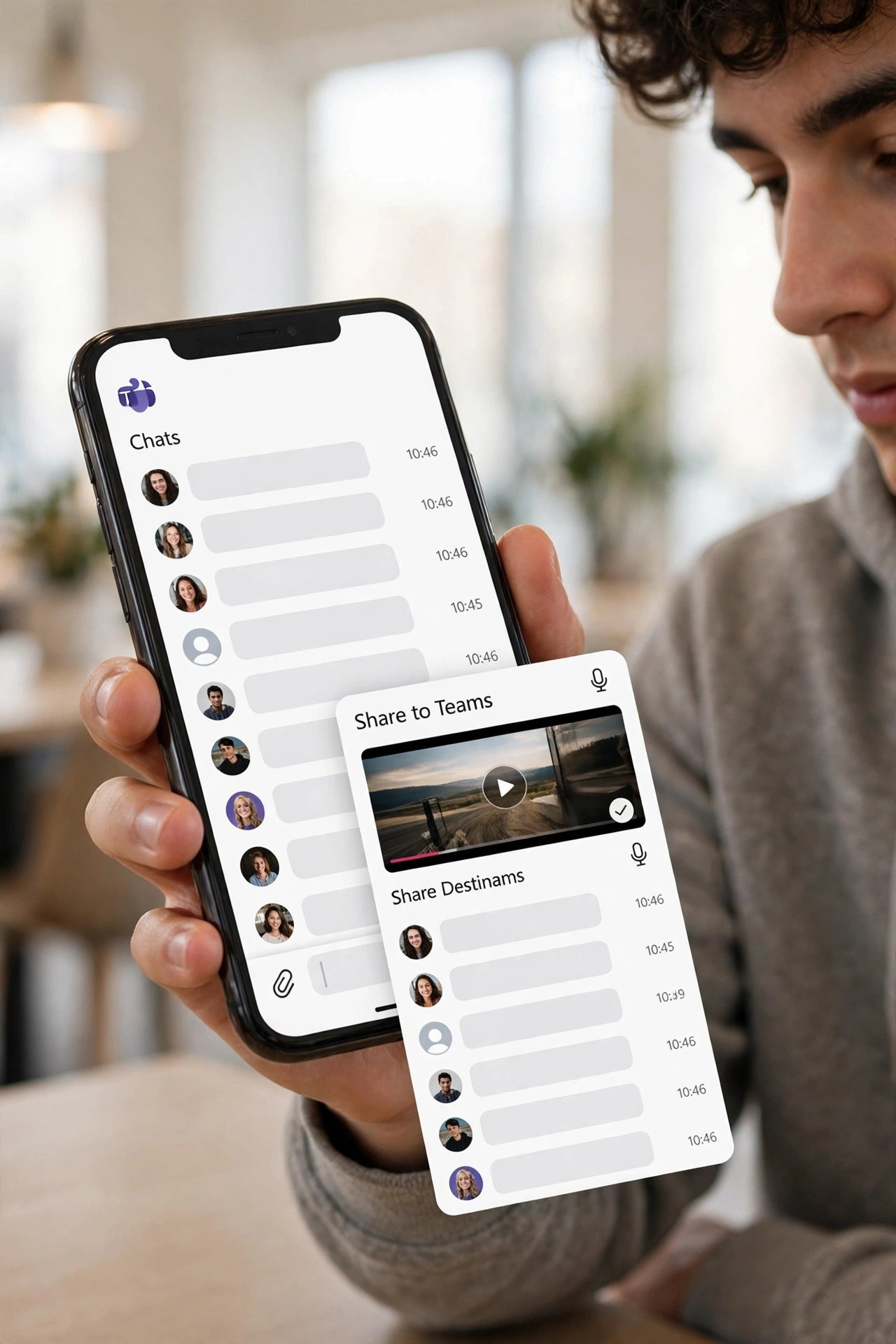
On the Teams mobile app the path depends on your phone, which is the kind of detail that wastes ten minutes if nobody tells you. On iPhone and iPad, open the chat or channel, tap the plus icon next to the message box, tap “Attach”, then pick the video from your photo library. On Android, open the chat or channel, tap the paperclip or attach icon, and choose the file from your gallery or file manager. Either way, add a line of text and send. The video plays inline in the message, the same as on desktop.
One practical note: make sure the video is actually in your photo library first. On iPhone, a file downloaded in Safari sits in the Files app, not in Photos, until you explicitly save it there — if you open Teams and the video is not in the library, that is why. On Android the gallery usually finds new downloads on its own, but if it has not, open the Files app, long-press the MP4, and share it directly to Teams from there. The share sheet works fine and skips the gallery step entirely.
Step 5: Share it in a meeting instead (when the team is live right now)
Sometimes the point is not to save Pinterest videos to Teams for later — it is to show it to the people who are in a meeting with you right now. Teams gives you two ways to do that, and they are not the same thing.
The quick one: drop the file into the meeting chat. Every Teams meeting has a chat panel, and it accepts file attachments the same way a normal chat does — Actions and apps, Attach file, pick the MP4. Everyone in the meeting can play it from the chat, and it stays in the meeting’s chat history afterwards. This is the right call when the clip is a reference people should be able to rewatch after the call ends.
The other way is to present it live. Open the video in your media player, click “Share” in the meeting controls, and share the window or your screen. The team watches it together, in real time, and you can pause it and talk over it. This is better when the clip is the subject of the discussion rather than a reference — a design mockup, a demo, a 30-second ad the team is reviewing. It is worse as a record, because nothing is saved in the chat unless you also upload the file. My rule of thumb: present it live if you are going to talk about it, upload it to the chat if people need to find it again tomorrow.
One more meeting detail worth knowing. If your meeting is recorded, Teams caps recordings at 4 hours or 1.5 GB, and the local download of a recording is available for 20 days. That has nothing to do with your Pinterest clip directly, but if you present a video in a long recorded meeting and someone later asks where the clip is, the answer is the meeting chat upload — not the recording.
Method 2: Share the Link Instead of the File (Fast, but Know What You Give Up)
If you want to save Pinterest videos to Teams in the loosest sense of the phrase — get the video in front of your team without downloading anything — paste the Pinterest URL straight into the message box and hit send. Teams may unfurl it into a preview card — title, thumbnail, a link out to Pinterest. It costs nothing, takes two seconds, and for a quick “look at this” between two people who both have Pinterest accounts, it is honestly fine.
But know what you are giving up. The preview is unreliable: Pinterest’s preview metadata is inconsistent, so some Pins unfurl and some show as a bare URL, and a tenant admin can disable link previews entirely. Anyone who clicks through lands on Pinterest, where they may hit a login wall before the video plays. And the link is only as durable as the Pin — if the creator deletes it, or makes the board private, your message points at nothing. The file method costs an extra minute and removes all three problems. Use the link when speed matters and the audience is small and Pinterest-savvy; use the file when the video needs to be there for everyone, later, without conditions.
Automating Pinterest to Teams with Zapier or Albato
If you search for a Pinterest-to-Teams connection, you will find automation platforms — Zapier and Albato both offer one. They are worth understanding, because they look like the answer and they are not. What they do is post a notification: when a new Pin is added to a board, a message appears in a Teams channel with the Pin’s title, a link, and a thumbnail. The video file itself never arrives in Teams, and neither page says that plainly.
The limits are worth knowing before you set one up. Albato’s free plan is a 7-day trial, then 100 transactions and 5 active automations. Triggers based on webhooks fire instantly; triggers based on API polling check every 1 to 15 minutes depending on your plan, so a Pin can sit unposted for a while. Only Pins added after setup will trigger — nothing already on the board gets sent. If what you want is a feed of “new Pins on this board” in a channel, an automation is the right tool. If what you want is the actual video in front of your team, use the manual download-and-upload method. The two solve different problems, and confusing them is the single most common disappointment in this whole topic.
The Teams video clip option (and its 60-second wall)
Teams has a feature called video clips — short recorded video messages, up to 60 seconds, sent directly in chats and channels, like a video voicemail for distributed teams. You open a chat or channel, click the camera icon in the compose box, choose “Video clip”, record, preview, and send. The clip is stored in your OneDrive for Business, in a folder called “Recordings”, with automatic captions and a searchable transcript.
It sounds like a shortcut for sharing a Pinterest video, and it is not one. A video clip is a recording you make — you talking to camera, or a screen walkthrough — not a file you upload. A Pinterest video longer than a minute cannot go in as a clip at all, because of the 60-second cap, and even a short one would have to be re-recorded by pointing your camera at a screen, which is a quality disaster. The clip feature is also admin-controlled: it has to be enabled under Messaging policies in the Teams admin center, and it is only available on Microsoft 365 Business, E3, E5 and frontline plans. So if you are the one who wants to talk about a clip — a 30-second “here is what I found and why it matters” to go with the file — record a video clip and send it alongside the upload. That is the combination that actually works: the file for the video, the clip for your voice.
Teams File Limits: 100 MB or 250 GB — Which Number Actually Applies?
Here is the part of this guide that took the most research, because Microsoft’s own documentation gives you two different answers on the same page — and every third-party guide I read picked one of them and pretended the other did not exist.
Microsoft’s official Limits and specifications for Microsoft Teams page lists, in its Chat section, a “file size limitation” of 100 MB, with a maximum of 10 file attachments per message. Then, in its Storage section on the same page, it lists a “file upload limit (per file)” of 250 GB, on every listed Microsoft 365 plan, with SharePoint storage of 1 TB per organization plus 10 GB per license. Both numbers are real. Neither page reconciles them. No competitor I read reconciles them either — one popular limits guide treats 250 GB as applying everywhere, including chats, with no caveat at all.
So which one bites when you attach a video in a chat message? Honestly, Microsoft does not say clearly enough to state one answer as fact, and I am not going to pretend otherwise. Here is what is certain: the 250 GB figure is the SharePoint/OneDrive storage limit — the ceiling on a file stored in the team’s SharePoint library or your OneDrive. The 100 MB figure sits in the chat table, attached to messages. The practical reading, and the one every experienced Teams admin I have seen describes, is that attaching a file inside a message is subject to the smaller chat limit, while uploading through the Files tab — straight into SharePoint or OneDrive — is governed by the storage limit. That is why the Files-tab route in Step 3 matters: it is not just a different set of clicks, it is a different ceiling.
For a Pinterest video, this whole argument is academic, and that is the good news. The clip I downloaded this morning is 3.9 MB — about 4 percent of the 100 MB chat figure, and a rounding error against 250 GB. Pinterest video Pins run from 4 seconds to 5 minutes, and at the 720p quality Pinterest actually serves, even a five-minute clip lands in the tens of megabytes at most. You would have to try very hard to hit either limit with a Pinterest download. The limits only start to matter if you are moving something else — a long screen recording, a raw camera file — and for those, use the Files tab and stop worrying.
Two more numbers from the same official page, because they catch people out. Emailing a channel — sending a file to a channel by email — caps at 20 attachments, each under 10 MB, so that route is far more restrictive than attaching in Teams itself. And a channel conversation post is limited to about 100 KB of text, which is why a long explanation belongs in a document, not in the post alongside the video.
What about the free plan? Teams free includes 5 GB of cloud storage. I should flag an ambiguity here rather than state a number I could not verify against Microsoft’s own pages: some 2026 guides describe that 5 GB as shared across the whole workspace, others describe it as 5 GB per user. Either way, a few megabytes of Pinterest clips barely dents it — a hundred clips at 3.9 MB each is still under 400 MB. Storage only becomes a real question when a whole team starts dumping raw footage into channels, and at that point the paid plans are the answer anyway: Business Basic at $6 per user per month brings 1 TB per user plus a SharePoint pool of 1 TB plus 10 GB per license, and a 50-person organization on that plan gets roughly 1.5 TB of pooled SharePoint storage.
Where Your Video Actually Lives (and Why It Matters)
Teams stores nothing itself. That sentence, from one of the limits guides I read, is the key to the whole storage question, and once you understand it, several confusing behaviours suddenly make sense.
When you upload a video to a channel, the file goes into the team’s SharePoint site, in a folder for that channel. Private channels get their own SharePoint site. The file belongs to the team: it follows the channel’s permissions, any member can find it in the Files tab, and it stays there if the person who uploaded it leaves. When you upload a video to a one-to-one or group chat, the file goes into the sender’s OneDrive for Business, in a folder called “Microsoft Teams Chat Files”. The file belongs to the sender. If that person leaves the organization and their account is deleted, every file they shared in one-to-one chats disappears with it.
This has a practical consequence for the question this guide answers. If a Pinterest clip is a team reference — a design idea, a recipe the whole group will use, a demo the project needs next month — put it in the channel, not in a chat with one colleague. The channel copy survives people leaving. The chat copy does not. If it is a quick one-to-one share, the chat is fine, but keep the original MP4 on your own drive as well. It costs nothing and it is the only copy you fully control.
There are two more traps in this area. The first is the personal-account trap: a personal OneDrive cannot be connected to Teams. File sharing in Teams needs a work or school account with OneDrive for Business, and without SharePoint enabled, file sharing in teams breaks entirely. If the attach button is missing or greyed out, that is the first thing to check — and it is an admin question, not a you question. The second trap is permissions. A channel upload is visible to channel members according to the channel’s permissions, and a chat upload is visible to the chat’s participants. Those are not interchangeable: sending a video to the wrong chat does not just embarrass you, it can put a file in front of people who were never meant to see it, and a file shared by link keeps the permission you set when you created the link — if you set the wrong one, you have to delete the link and make a new one, because you cannot flip it afterwards.
Finding the video later is the last piece. In a channel, open the Files tab. In a chat, open the Shared tab and look under Files. Teams also has a Shared view that collects files, links and media from your chats. If you remember roughly when it was sent but not where, the search box will find it by filename — which is one more reason to keep Pinterest’s original filename or give the file a descriptive name before you upload it, instead of leaving it as a string of numbers.
Teams vs Slack vs Discord vs Telegram vs WhatsApp for Sharing Pinterest Videos
Teams is not the only place people share Pinterest videos, and the limits differ enough that the choice matters. I have now written this same guide for Slack, Discord, Telegram and WhatsApp, and the numbers below are the ones I verified for each of them. The pattern is simple: Teams is the most generous of the lot on file size, and the most complicated on where the file lives.
| App | Max file size | Where the file lives | Free-plan catch | Best for |
|---|---|---|---|---|
| Microsoft Teams | 100 MB per chat attachment; 250 GB per file via SharePoint / OneDrive | Channel: team SharePoint. Chat: sender’s OneDrive | 5 GB cloud storage; chat files vanish if the sender’s account is deleted | Work teams, long-term references, big files |
| Slack | 1 GB per file | Slack’s own storage | Free workspaces only show/search messages and files for 90 days; data over a year old may be deleted | Fast team chat, short-lived shares |
| Discord | 20 MB free (Discord’s own FAQ, Aug 2026); 50 MB Nitro Basic; 500 MB Nitro | Discord’s CDN | A 3.9 MB Pinterest clip fits, but a long one may not | Communities, casual sharing |
| Telegram | 2 GB free; 4 GB with Premium | Telegram cloud | None that matters for a Pinterest clip | Large files, cross-platform sharing |
| 16 MB inline video; up to 2 GB sent as a Document | On the phones involved | Sending as a video caps at 16 MB — send as a Document for anything larger | One-to-one, friends and family |
Read the table as a decision, not a ranking. If your team lives in Teams, use Teams — the 250 GB ceiling through the Files tab is the highest of any mainstream chat app, and the SharePoint storage means a channel upload is the most durable home a Pinterest clip can have. If the video is for a friend rather than a team, Telegram or WhatsApp is simpler. Discord is the tightest squeeze: a typical 3.9 MB Pinterest clip fits comfortably under the 20 MB free cap, but a five-minute clip at higher quality might not, and then you are either compressing it or paying for Nitro. And Slack’s 1 GB cap is generous, but its free plan hides your file from search after 90 days — Teams has no equivalent visibility window, which is a genuine advantage for reference material that needs to be findable in six months.
Troubleshooting: When the Video Won’t Save or Won’t Send
Most failures in this two-step job happen in one of two places: the download half or the upload half. Work out which half failed before you start changing things, because the fixes are completely different.
The downloader says “invalid link”
You almost certainly copied the wrong URL. A board link, a profile link, or a search-results link will all fail, because none of them points at a video. Go back to the Pin itself, open it so the video is playing, and copy the link from the Share menu on that Pin. Short pin.it links work fine — they redirect to the same Pin — but a link copied from the address bar while you are looking at a board will not.
No result appears, or the tool returns nothing
First, check the Pin still exists and plays for you in your own browser. A deleted Pin, a Pin on a secret board, or a Pin from a private account cannot be downloaded by any tool, because Pinterest does not serve the file to anyone outside. Second, check you are pasting a Pinterest URL and not a link to some other site — some Pins link out to YouTube or a blog, and the video on the page is not a Pinterest video at all. Third, try again once: Pinterest’s servers occasionally hiccup, and a retry thirty seconds later often works.
The result is only an image, not a video
You picked a photo Pin, not a video Pin. Pinterest mixes the two in the same feed and they look similar at a glance. Open the Pin: if it plays, it is a video; if it just sits there, it is an image. If you actually wanted the image, use the Pinterest image downloader instead — it saves the still at full resolution. Idea Pins are a special case: they can contain several video pages, and a downloader returns each page as a separate video.
The video has no sound
Almost always, the source video was silent. Plenty of Pinterest clips are music-free loops or text-on-screen videos with no audio track at all. Play the Pin on Pinterest itself: if it is silent there, the download is correct and there is nothing to fix. If it has sound on Pinterest but not in your download, re-download it — a failed first attempt can occasionally produce a partial file — and then check the file in a different player before blaming the download.
Teams says the file is too large
With a Pinterest clip this should not happen — 3.9 MB is nowhere near either of Teams’ limits. If it does happen, you are probably attaching through a route with a smaller cap: emailing a channel caps each attachment at 10 MB, for example. Attach the file directly in the chat or channel instead, or use the Files tab. If the file genuinely is huge — a screen recording, not a Pinterest clip — the Files tab route is the answer, because it is governed by the 250 GB storage limit rather than the 100 MB chat figure. And check the file extension: Teams and SharePoint block certain types (.exe, .iso, .js and others on the tenant’s blocked list), and a misnamed file can trip that.
The video uploads but won’t play in Teams
Teams previews video attachments inline, and an MP4 from Pinterest should play without any trouble. If it does not, check three things. First, the file itself: play the MP4 on your own computer before uploading. If it does not play there, the download was incomplete — re-download it. Second, the format: if you converted the file to something unusual on the way, convert it back to MP4. Microsoft publishes no official list of which formats preview inline, so MP4 is the safe choice and the one Pinterest serves anyway. Third, the chat: Teams does not show previews in chats with external users, and files protected by certain sensitivity labels get no preview either. In both cases the file is still there and downloadable — only the inline player is missing.
The upload button is missing or greyed out
This is an admin or account problem, not a file problem. File sharing in Teams needs a work or school account with OneDrive for Business — a personal OneDrive cannot connect to Teams — and if SharePoint is disabled for your tenant, file sharing in teams breaks entirely. Your tenant admin may also have restricted uploads in a particular channel, or disabled external sharing. Ask your admin; there is no setting on your side that fixes it. Guests in a team can upload to channels if the tenant allows it, and guests in chats can attach to their own messages — so if a guest colleague cannot upload, the tenant setting is the first place to look.
The file is missing on your phone after downloading
On iPhone, a download from Safari lands in the Files app under Downloads, not in Photos. Open Files, find the MP4, tap Share, then “Save Video” to move it into Photos — only then will it appear in the Teams attach picker. On Android, Chrome puts it in the Downloads folder and the gallery usually picks it up, but if it has not, open the Files app and share the MP4 directly to Teams from there.
The link preview is missing in Teams
Teams unfurls links when the linked page provides preview metadata, and Pinterest is inconsistent about providing it. Some Pins unfurl, some show as a bare URL, and a tenant admin can disable link previews entirely. This is not something you can fix from your side. It is also the strongest practical argument for uploading the file instead of pasting the link: the file always gets a playable preview, the link only sometimes does.
Is It Legal to Save a Pinterest Video and Share It in Teams?
The short answer: saving a video for yourself and sharing it inside your team is generally fine; reposting it publicly as your own work is not. The longer answer is the one that keeps you out of trouble.
A Pinterest video belongs to whoever made it. Saving it to watch later, or to show your team as a reference — a design idea, a recipe, a competitor’s ad you are benchmarking — is personal or internal use, and that is what these tools are for. What crosses the line is taking someone else’s video and publishing it as yours: posting it on your own account, using it in a client presentation without credit, or building it into something you sell. If you are going to use a clip anywhere public or commercial, ask the creator first and credit them. Pins are often re-pinned, so the person whose name is on the Pin may not be the person who made it — check the original source when it matters.
If you save Pinterest videos to Teams as internal references, one habit covers most of the risk: keep the clip internal, keep the credit, and delete it when the project is done so a future colleague does not mistake it for in-house footage. That is the same advice brand teams follow, and it is the reason this guide exists — to get a reference clip in front of your team, not to help anyone pass someone else’s work off as their own.
Frequently Asked Questions
Can I save Pinterest videos to Teams directly from Pinterest?
No. Pinterest has no share-to-Teams option — Teams does not appear in Pinterest’s share sheet at all, and no automation moves the actual video file. The working method is two steps: download the video as an MP4 with a downloader like PintoDownload, then upload the file into Teams. It takes about a minute, and the video then plays inline in the chat or channel for everyone, with no Pinterest account needed.
What is the largest Pinterest video I can send in Teams?
Effectively, any Pinterest video. Microsoft lists a 100 MB file-size limit on chat-message attachments and a 250 GB per-file limit in SharePoint and OneDrive storage, on the same official limits page. A typical Pinterest clip is a few megabytes — the one I tested this morning was 3.9 MB — so it fits under either number with room to spare. For anything large, upload through the Files tab, which is governed by the storage limit. Emailing a channel is the one route to avoid for big files: it caps each attachment at 10 MB.
Do I need a paid Teams plan to share videos?
No. File sharing works on the free plan, which includes 5 GB of cloud storage — far more than a few Pinterest clips need. What the free plan does not give you is the storage headroom for a whole team dumping large files, or the admin controls that let an IT department manage uploads. For a Pinterest clip, free is fine. One requirement applies on every plan: you need a work or school account with OneDrive for Business, because a personal OneDrive cannot connect to Teams.
Can I automate new Pinterest Pins to a Teams channel?
Yes, with a tool like Zapier or Albato — but understand what you are getting. An automation posts a notification when a new Pin is added to a board: title, link, thumbnail. The video file itself never arrives in Teams. Albato’s free plan is a 7-day trial, then 100 transactions and 5 active automations, and polling-based triggers check every 1 to 15 minutes, so there is a delay. Only Pins added after setup will trigger. For the video itself, use the manual download-and-upload method.
Why does my Pinterest link show no preview in Teams?
Teams unfurls links when the linked page provides preview metadata, and Pinterest is inconsistent about providing it — some Pins unfurl, some do not. A tenant admin can also disable link previews entirely. Uploading the MP4 file instead guarantees a playable preview in the channel, which is the main reason the file method beats the link method.
Will the video still be in Teams months later?
It depends on where you put it. A video uploaded to a channel lives in the team’s SharePoint library, belongs to the team, and stays there even if the person who uploaded it leaves. A video uploaded to a one-to-one chat lives in the sender’s OneDrive, and if that person’s account is deleted, the file goes with it. So for anything the team will need again, post it in the channel — and keep the original MP4 on your own drive as well, because the creator could delete the Pin tomorrow and then Pinterest is no help at all.
Conclusion: The 60-Second Version
To save Pinterest videos to Teams, remember it is a two-step job because neither app will do it for you on its own — Pinterest cannot send to Teams, and Teams cannot fetch from Pinterest. Copy the Pin link, download the MP4, drop the file into the channel. That is the whole method, and it is the only one that puts a playable video in front of your team instead of a link they have to chase.
If you want to try it right now, open PintoDownload, paste a Pin link, and see the file appear in seconds — no signup, no watermark, no app to install. Then drag it into Teams and watch it play inline. If you mostly save videos on a computer, our guide to downloading Pinterest videos on PC covers the desktop flow in more detail, and if you want higher-quality stills from the same Pins, the Pinterest image downloader saves those at full resolution too. The same two-step method works for your other team apps as well — our guides to saving Pinterest videos to Slack and saving Pinterest videos to Discord cover those, with the limits that decide whether the file goes through in each one.
One last piece of advice from someone who has now done this test for real: put it in the channel, not the chat. A chat upload lives in your OneDrive and leaves with you; a channel upload lives in the team’s SharePoint and stays for the next person who needs it. A small folder of reference videos on your own drive costs nothing, and the clip you needed for a project in November has a habit of becoming the clip you need again in February.