Save Pinterest Videos to Messenger: Free Guide 2026
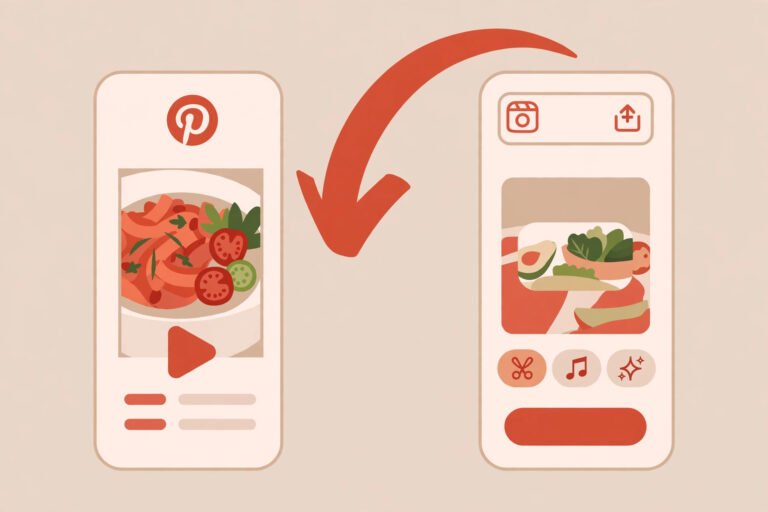
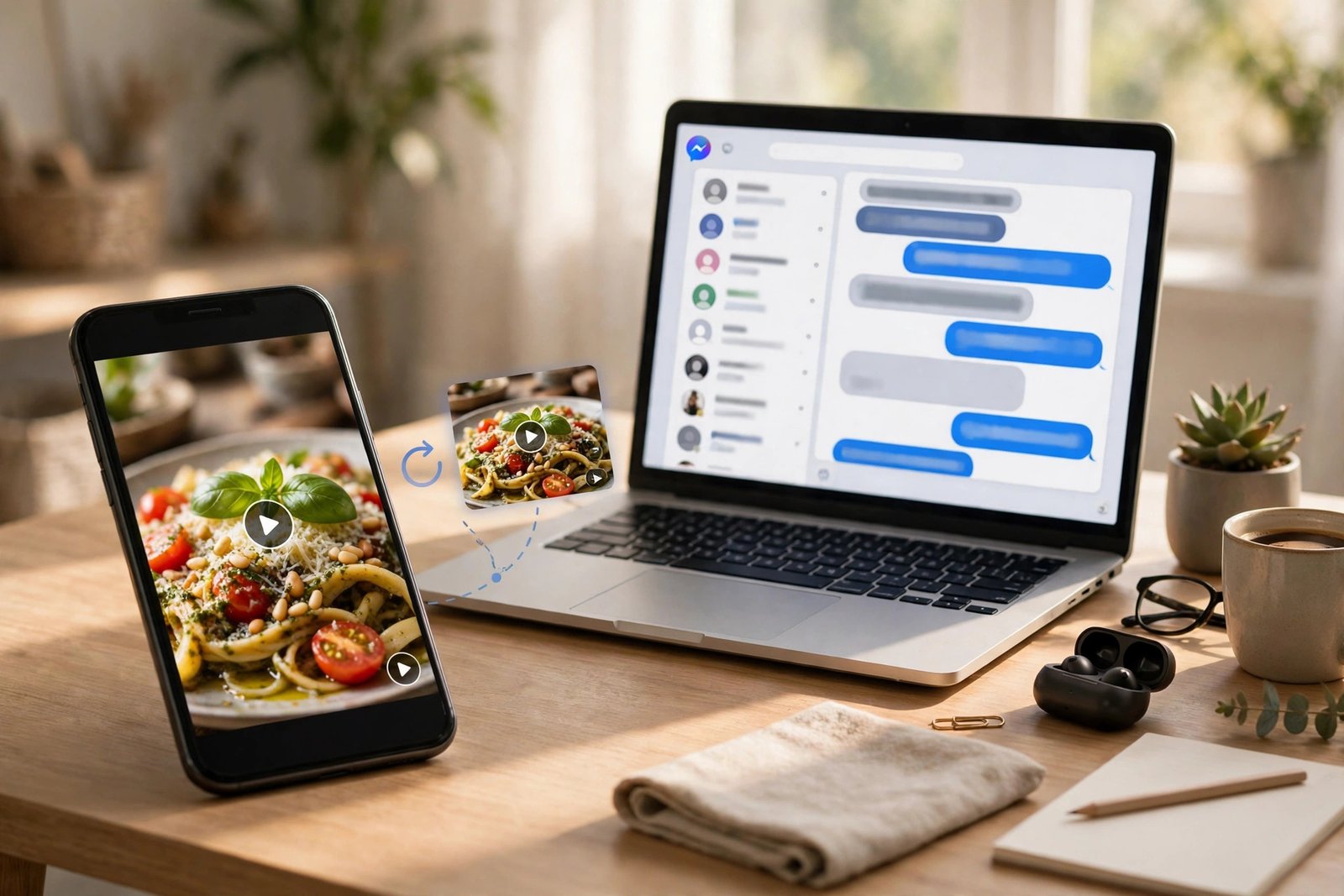
If you want to save Pinterest videos to Messenger, here is the short version: Pinterest will not do it for you. There is no share-to-Messenger button that sends the actual video file, no “send to chat” option, and no integration that moves the MP4 from Pinterest into a Messenger conversation. What you do instead takes about a minute. You download the video as an MP4, then you attach that file in Messenger like any other video. I did it this morning with a real Pin, timed it, and the whole thing — copy the link, get the file, send it — took under five seconds of actual work once I knew the steps. The rest of this guide is the detail: the exact clicks on desktop and on your phone, the size limit that decides whether a video goes through, what your friend actually sees on the other end, and what to do when it doesn’t work.
I keep writing these guides because the same scene keeps playing out in my own chats. Someone finds a video on Pinterest — a recipe that finally explains a technique in thirty seconds, a DIY build, a workout, a clip of a product working in real life — and they want a friend to see it in Messenger, where the conversation already is. So they paste the Pinterest link into the chat. And then… the friend taps it, leaves Messenger, lands on Pinterest, and either hits a login wall or watches a tiny preview that buffers. Half the time they never watch it at all. The fix is not complicated, but it is a two-step job, and every guide I found while researching this one only covered half of it: the Pinterest pages stop the moment the video is downloaded, and the Messenger pages start with a file already sitting on the device. Nobody writes the handoff. This guide does.
Why Pinterest Won’t Send a Video to Messenger (and Why the Link Alone Fails)
Pinterest’s own help pages list the places you can share a Pin to, and Messenger is not on the list as a file destination. Pinterest’s sharing guide covers the big social networks, and on mobile it lets you share a screenshot of your feed or turn a whole board into a short video — but that board-video trick excludes video Pins entirely, only works for public boards with at least five Pins, caps out at fourteen Pins, and only runs in the Pinterest app. It was never built for what you are trying to do.
That leaves the link. Pasting a Pinterest URL into Messenger is the obvious move and it is also the move that disappoints people most often. Messenger will sometimes unfurl the link into a small preview card, and sometimes it will not, depending on the Pin and whether Pinterest’s servers feel like cooperating that day. Even when the preview shows up, tapping it takes your friend out of Messenger and into Pinterest, where they may hit a login wall before the video plays. For a friend who does not even have a Pinterest account, that is a dead end. A file attachment, on the other hand, plays right there in the chat. Your friend taps the play button, the video runs, nobody leaves Messenger, nobody logs in anywhere. That is the whole reason the two-step method exists.
There is a piece of history worth one line here, because it still confuses people who Google this topic. In December 2017 Pinterest launched a Messenger chatbot and a chat extension that made shared Pins interactive inside Messenger — you could search Pins and see similar ideas without leaving the chat. About a million Pins a week were being shared to Messenger at the time. That extension is long gone. What remains in 2026 is the plain share sheet: you can send a Pin’s link to a Messenger contact, and that is all. The link is not the file, and this guide is about the file.
Method 1: Save Pinterest Videos to Messenger by Downloading First, Then Sending
This is the method that actually works, every time, on every device. Two steps: get the MP4 onto your device, then attach it in Messenger. I tested the first half this morning with a public video Pin — a 29-second clip — and here are the real numbers, not a marketing claim: I pasted the Pin link into PintoDownload, and the extractor returned the video file in 1.82 seconds. The file itself was a 720p MP4, 720 by 1440 pixels, H.264 video with AAC audio, 29.23 seconds long, 3.9 MB. Downloading it took another 2.55 seconds. End to end, link to file on disk, about four and a half seconds. No signup, no Pinterest login, no watermark added. The 720p ceiling matters and I will come back to it: Pinterest stores video Pins at up to 720p, so no tool on earth can hand you a 1080p copy of a Pinterest video. What you get is exactly the file Pinterest serves, unchanged.
Here is the download half, step by step. It is the same on every device, and it is the only part that changes depending on whether you are on a phone or a computer.
Step 1 — Copy the Pin link. Open the video Pin in the Pinterest app or on pinterest.com. Tap the Share icon (on desktop it is the three-dot menu) and choose Copy link. You will get either a long pinterest.com/pin/ link or a short pin.it link. Both work. Make sure you copied the link to the Pin itself, not to the board it lives on — a board link will not download, and this is the single most common reason the whole flow fails.
Step 2 — Paste it into a downloader. Open PintoDownload in your browser, paste the link into the box, and press Download. The tool reads the public Pin and shows you the video file. Press the download button on the result card and the MP4 saves to your device — Downloads folder on Android and PC, Files then Downloads on iPhone.
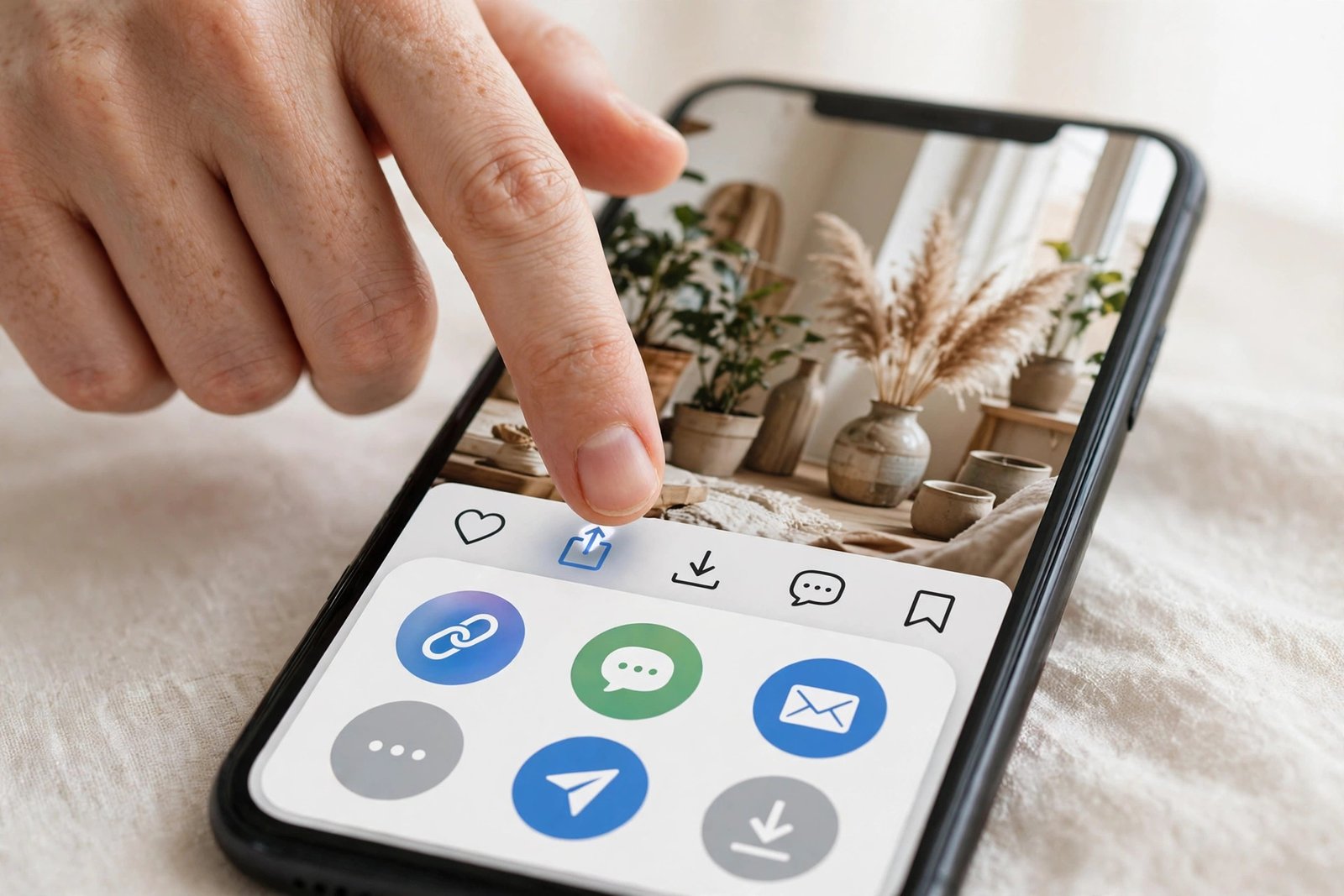
Step 3 — Move it where Messenger can see it (iPhone only). On Android and PC the file is already where it needs to be. On iPhone it lands in the Files app, and Messenger cannot attach from Files directly, so open the file in Files, tap Share, and choose Save Video. That puts it in Photos, which is where Messenger looks. This one extra tap is the step the Messenger guides never mention and the Pinterest guides never connect to Messenger — and it is the step most iPhone users get stuck on.
Now the sending half. Pick your device.
On Android or iPhone: open the Messenger app and the conversation you want. Tap the photo/video icon next to the message box — it is usually a small image icon at the bottom of the screen. Your gallery opens. Pick the video you just saved. Messenger shows a preview; you can trim the ends, add text or a sticker, and write a caption if you want. Tap send — the paper-plane or arrow button. The video uploads and appears in the chat as a playable message. Your friend taps it and it plays inline, with sound, without leaving Messenger.
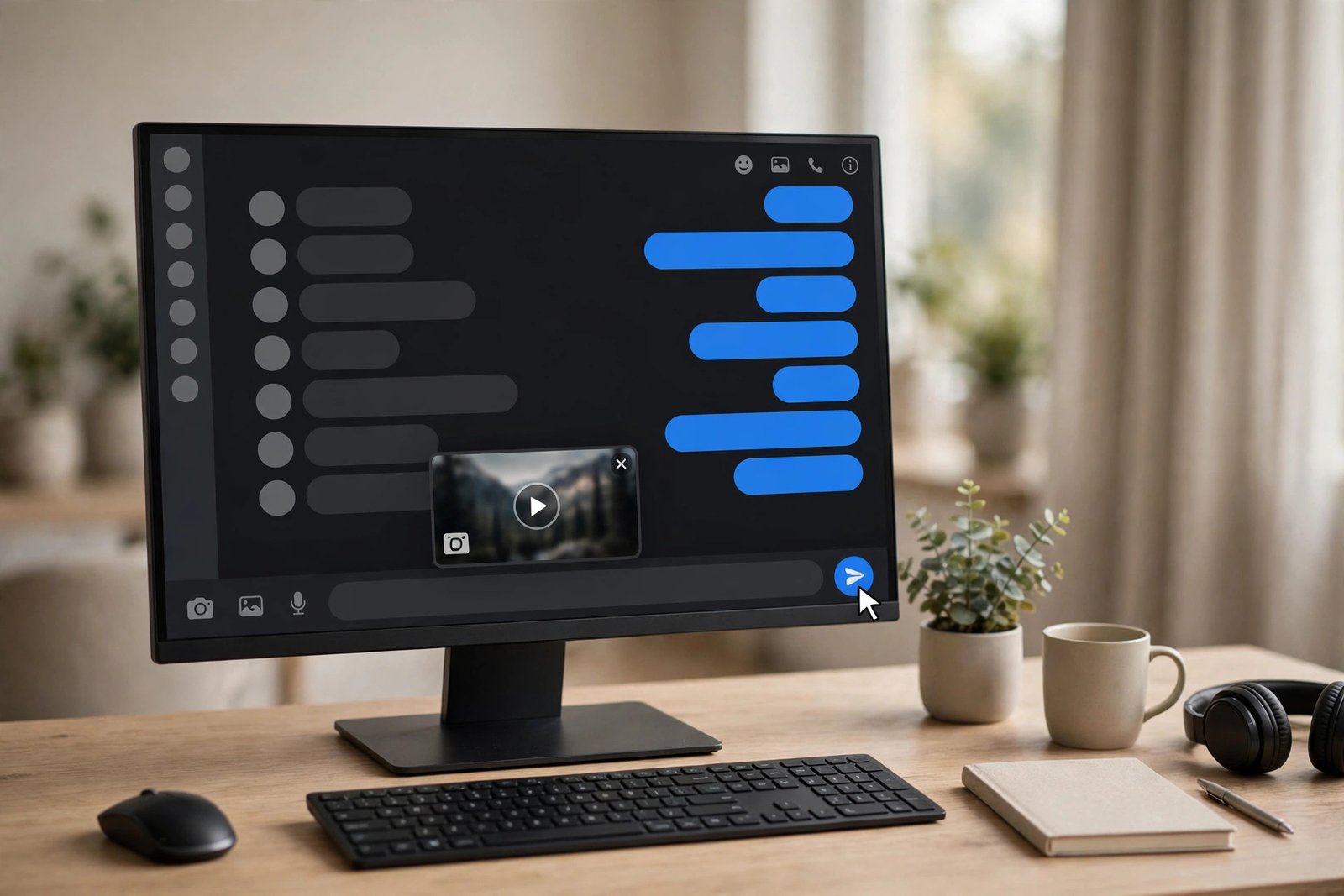
On desktop: open messenger.com or the Messenger desktop app and open the chat. Click the photo icon on the left side of the message box, or just drag the MP4 file straight from your Downloads folder and drop it into the chat window — drag-and-drop works and it is the fastest way to do this on a computer. A preview card appears in the message box. Press Enter or click send. That is it. The file uploads and plays inline for the recipient exactly as it does on mobile.
One thing worth knowing before you hit send: Messenger recompresses the video you attach. The file you send is not always the file your friend receives — Messenger re-encodes attachments to keep them small and fast, and a clip with fine detail or fast motion can look softer on the other end. For a 720p Pinterest clip this is rarely a problem, because the source is already modest. But if the video looks blurry after sending, that is Messenger’s compression, not a bad download. The workarounds are in the comparison table below: send it as a file attachment instead of a video, or send a link to the original instead.
Method 2: Share the Pin Link Straight to Messenger (Fast, but Know What You Give Up)
Sometimes you do not need the file at all. If your friend has a Pinterest account and you just want them to see the Pin, the link is enough — and it is the fastest option, because there is no download step. In the Pinterest app, open the Pin, tap Share, and look for Messenger in the share sheet. Pick the contact or group, add a message if you want, and send. Your friend gets a message with the Pin’s preview image and title. Tapping it opens the Pin — in Pinterest, not in Messenger.
That last sentence is the trade-off, and it is worth being honest about it. The link method costs you nothing and takes five seconds. It also hands the experience over to Pinterest: if your friend is not logged in, they hit a login screen; if the Pin is on a secret board or a private account, they cannot open it at all; if Pinterest’s preview fails to load, they get a bare URL and no idea what it is. For a quick “look at this” between two people who both use Pinterest, it is fine. For anything you actually need the other person to watch — a tutorial they will follow, a clip you want them to react to — send the file. Method 1 is the one that cannot fail on the recipient’s end, because the video is in the chat, not behind a link.
Messenger’s Video Size Limit: 25 MB or 100 MB — Which Number Is Real?
Here is the one genuinely confusing part of this topic, and I am going to lay it out straight instead of pretending there is a single clean answer. Most guides still say Messenger caps video attachments at 25 MB. I read six Messenger guides while researching this article, and five of them say 25 MB — including two updated in mid-to-late 2026, one from Wondershare updated in June 2026 and one from Vioo updated in September 2026. The in-app recording limit tells the same story: recording inside Messenger tops out at about 15 seconds, which works out to roughly 25 MB.
One source disagrees. A guide from CompressYourVideo, published in May 2026, claims Facebook Messenger raised the video upload limit from 25 MB to 100 MB in April 2025, unifying what used to be a confusing set of different limits for different chat types — about 25 MB in one-to-one chats, 50 MB in group chats, 10 MB in Messenger Lite — into a single 100 MB ceiling everywhere. It offers no link to a Meta announcement and no test as evidence, and it sells a compression tool with a 100 MB preset, so it has a commercial interest in the higher number. I could not verify the 100 MB claim with a live send of my own, and I am not going to present it as settled fact when five other sources, two of them updated after April 2025, still say 25 MB. The most recent of those, a Vioo guide updated in September 2026, still puts the attachment cap at roughly 25 MB and notes that a minute of 1080p phone video is already 100–150 MB — which is why long videos fail even when short ones sail through.
Here is the practical truth, and it is good news: for Pinterest videos, the argument barely matters. A typical Pinterest clip is short and 720p, and 720p video at Pinterest’s quality runs about 0.13 MB per second. My test clip this morning — 29 seconds, 720 by 1440 — weighed 3.9 MB. Do the arithmetic and a 60-second Pinterest video lands around 8 MB, a two-minute one around 16 MB, a three-minute one around 24 MB. Almost every Pinterest video you will ever want to send fits under even the lower 25 MB figure with room to spare. The limit only starts to bite on long clips, and Pinterest clips are rarely long. Plan for 25 MB — treat it as the safe number — and you will almost never hit it.
If you do hit it, you have three honest options, in order of how much quality you keep. First, compress the video: free tools like HandBrake on desktop or your phone’s built-in editor can cut a file’s size by lowering the resolution or bitrate, and a 720p Pinterest clip compresses well because there is not much detail to lose. Aim for a file comfortably under the cap, not exactly at it. Second, upload the file to Google Drive, Dropbox or OneDrive and paste the share link into Messenger — the recipient downloads the original file at full quality, and the size cap never comes into play. Third, send the Pinterest link itself, accepting that your friend watches it on Pinterest. What does not work is sending the file as a regular attachment and hoping Messenger makes an exception. It will not; you will get a “video too large” error and the message will not send.
How to Compress a Pinterest Video That Is Over the Limit
If you need to save Pinterest videos to Messenger and the clip you downloaded is over the cap, compression is the fix that keeps the video playing inline in the chat instead of turning it into a link. Here is the concrete version, with real settings, using HandBrake — free, on Windows and Mac, no account. Open HandBrake, drag in the MP4, and pick the Fast 720p30 preset. That preset keeps the resolution where Pinterest already is and targets a bitrate that fits a chat message. Then check the estimated file size in the bottom bar before you encode: for a clip that started at, say, 40 MB, the 720p preset typically lands it around 12–15 MB, comfortably under the 25 MB planning number. If it is still too big, drop the preset to Fast 480p30 — on a phone screen in a chat window, the difference between 720p and 480p is small, and the file roughly halves again. Encode, then attach the new file in Messenger exactly as in Method 1.
On a phone, you do not need HandBrake at all. On iPhone, open the video in Photos, tap Edit, then the crop icon, and trim the ends if there is dead air — a surprising amount of Pinterest clips have two or three seconds of outro card that nobody needs. On Android, the same trim lives in Google Photos under Edit, then Video. Trimming is the highest-value compression there is: it removes seconds nobody watches, and every second removed is about 0.13 MB gone. If trimming is not enough, your phone’s built-in screen recorder is not the answer — re-recording a video always loses quality — but free apps like Video Compress on Android or the Compress Videos option in the Files app on newer iPhones will do the same job HandBrake does, with a target-size slider. Pick 20 MB as your target and you have margin under either limit figure.
Every Way to Get a Pinterest Video Into Messenger, Compared
Five methods, one table. I have used all five; the differences are what your friend sees, what quality survives, and how much work it costs you.
| Method | What the recipient sees | Size cap | Quality | Effort |
|---|---|---|---|---|
| Attach the MP4 file (Method 1) | Video plays inline in the chat | 25 MB (safe planning number; one source reports 100 MB since Apr 2025) | Good — Messenger recompresses, but 720p source holds up | ~1 minute |
| Pinterest pin link (Method 2) | Preview card; opens in Pinterest | None — it is a link | Original, but only if the friend logs in to Pinterest | ~5 seconds |
| Cloud-drive link (Drive/Dropbox/OneDrive) | Link; recipient downloads the original file | None (drive storage limits apply) | Full original quality | ~2 minutes |
| Compress, then attach | Video plays inline in the chat | 25 MB after compression | Slightly softer than the original | ~3 minutes |
| Send as a file, not a video | File bubble; recipient downloads, then plays | Same cap as video attach | Original — skips Messenger’s recompression | ~1 minute |
For most people, most of the time, the first row is the answer: download the MP4, attach it, done. The cloud-link row is the one to remember for the rare long clip. And the last row — sending as a file — is the quiet trick for quality: when you attach a video through Messenger’s photo/video picker it gets recompressed, but attaching it as a document-style file skips that step. Your friend has to download it before watching, which is a small annoyance, but what they watch is the file you sent, byte for byte.
What Messenger Does to Your Video Quality (and How to Keep It Sharp)
Two facts decide how good your video looks on the other end, and both are outside your control unless you plan for them. The first is Pinterest’s ceiling: video Pins top out at 720p. My test file was 720 by 1440 — a vertical 720p clip — and that is the best quality Pinterest stores for that Pin. No downloader can improve on the source, so do not let any tool promise you “HD 1080p” from a Pinterest video. What you download is what Pinterest serves, and for a phone-screen chat that is plenty sharp.
The second is Messenger’s recompression. When you attach a video through the photo/video picker, Messenger re-encodes it to a smaller, lower-bitrate version before the recipient sees it. A short 720p clip with normal motion survives this fine — the difference is hard to spot on a phone. Where it shows is text-heavy clips, fast motion, and fine patterns: recipe text, DIY measurements on screen, a workout with quick cuts. If that matters, send the file as a document attachment instead of a video — on desktop, that means attaching through the file picker rather than the photo picker — or send a cloud-drive link to the untouched original. Both skip Messenger’s re-encode entirely.
One more quality note, because it trips people up: Messenger’s preview thumbnail can look worse than the video itself. If the still frame in the chat looks soft, tap play before judging — the thumbnail is a low-resolution frame grab, not the video. And if the video looks blurry only on mobile data, that is Messenger lowering playback quality to save data, not a problem with your file. On Wi-Fi it plays at full quality.
Group Chats, and Saving a Video Someone Sent You
Once you know how to save Pinterest videos to Messenger in a one-to-one chat, group chats work exactly the same way — Messenger does not treat group attachments differently. Open the group, attach the video, send. The one difference is the size question: if the 100 MB figure from the CompressYourVideo guide is right, it applies to groups too, and if the old fragmented limits are still real, groups were historically the more generous case at around 50 MB. Either way, a normal Pinterest clip fits.
The reverse direction is worth covering too, because it is the part your friend will ask you about five minutes after you send them a video: how do I save this to my phone? On both iPhone and Android, open the video in Messenger, tap the three dots on the message, and choose Save or Download. On iPhone it lands in Photos; on Android it lands in the gallery or Downloads, depending on the phone. From there they can forward it anywhere — another Messenger chat, WhatsApp, email — exactly as if they had downloaded it themselves. One warning worth passing on: a video saved from Messenger is a copy of the recompressed version, not your original file. If they want the sharp original, send them the cloud-drive link instead.
Troubleshooting: When the Video Won’t Save or Won’t Send
Most failures in this flow happen in one of two places — the download half or the send half — and the fix depends on which one. Here is the table I wish I had had when I started.
| Problem | Likely cause | Fix |
|---|---|---|
| Downloader says the link is invalid | You copied a board or profile link, not a Pin link | Open the Pin itself, then Share → Copy link |
| Downloader returns nothing | Private pin, secret board, or deleted Pin | Only public Pins can be downloaded — share the pin link instead, and only if the recipient can view it |
| Video downloads but has no sound | It was a silent Pin, or a GIF-style Pin | Check the Pin on Pinterest first — if it plays silently there, the file is silent too |
| Messenger says “video too large” | File is over the attachment cap | Compress it, or send a Google Drive / Dropbox link instead |
| Video looks blurry after sending | Messenger recompressed it | Send as a file attachment, or share a cloud-drive link to the original |
| Upload fails on mobile data | Weak or unstable connection | Switch to Wi-Fi, or compress the file smaller first |
| iPhone: video not in Messenger’s gallery | File is still in the Files app, not Photos | Files → open the video → Share → Save Video, then attach from Photos |
| Messenger won’t attach the file at all | Unsupported codec (H.265/HEVC or VP9) | Pinterest serves H.264 MP4, which Messenger handles — re-download from the Pin rather than converting, or convert to H.264 MP4 |
| Friend sees a bare link, no preview | You sent the pin link and Pinterest’s preview failed | Send the file instead — the link depends on Pinterest’s servers cooperating |
Is It Legal to Save a Pinterest Video and Share It in Messenger?
The short honest answer is the same one every Pinterest guide gives: downloading a video for your own personal use — watching it later, sending it to a friend in a private chat — is generally tolerated, and the creator keeps the copyright in every video. What crosses the line is reposting someone else’s video as your own, using it in paid work, or publishing it somewhere public without the creator’s permission. Sending a clip to one friend in Messenger is personal use. Posting that same clip to your own page, your own channel, or a public group as if it were yours is not, and Pinterest’s copyright policy is clear on that point. Credit the creator when you share, and if a video is clearly someone’s commercial work — a product demo, a course clip, a creator’s signature tutorial — think twice before sending it anywhere beyond a private chat. If you want the fuller legal picture, my guide on whether downloading Pinterest videos is legal goes through it in detail.
One privacy note, since Messenger is a private chat and people assume private means encrypted: Messenger chats do not have end-to-end encryption switched on by default. If the video is personal — a family clip, anything sensitive — either enable Secret Conversations for that chat or send it through a service that encrypts by default. Meta also keeps a copy of what you send for the life of the conversation plus a backup window. None of this matters for a recipe video. It matters for the things people forget are not actually private.
Frequently Asked Questions
Can I save Pinterest videos to Messenger directly, without downloading first?
No. Pinterest has no send-to-Messenger file option, and the share sheet only sends the Pin’s link. To get the actual video file into a Messenger chat you have to download the MP4 first — copy the Pin link, paste it into PintoDownload, save the file, then attach it in Messenger. The whole thing takes about a minute.
What is the video size limit on Messenger in 2026?
Most guides still say 25 MB, including two updated in June and September 2026. One guide from May 2026 reports the limit was raised to 100 MB in April 2025. I could not verify the higher figure with a live test, so plan for 25 MB — and note that almost every Pinterest video fits under it anyway: a 60-second 720p Pinterest clip is roughly 8 MB.
Does Messenger reduce the quality of videos I send?
Yes, when you attach a video through the photo/video picker Messenger re-encodes it to a smaller file, and fine detail can look softer. To keep the original quality, attach it as a file instead of a video, or send a Google Drive or Dropbox link to the untouched MP4.
Can I send a Pinterest video to a Messenger group chat?
Yes. Open the group, tap the photo/video icon, pick the video, and send — it works exactly like a one-to-one chat. A cloud-drive link is the easiest option if the same video has to go to several groups: paste the link once in each group instead of uploading the file repeatedly.
Why can’t I find the downloaded video in Messenger on my iPhone?
On iPhone, downloaded videos land in the Files app, and Messenger cannot attach from Files. Open the video in Files, tap Share, choose Save Video, and it moves into Photos — then it appears in Messenger’s gallery picker.
Can I download a video from a private Pinterest board and send it on Messenger?
No. Downloaders only work with public Pins — secret boards, private accounts and deleted Pins cannot be downloaded by any tool. Your only option is sharing the Pin link, and that only works if the recipient is logged in to Pinterest and allowed to view it.
Conclusion: The 60-Second Version
To save Pinterest videos to Messenger, download the video first and send the file second. Copy the Pin link, paste it into PintoDownload, save the MP4 — my test this morning took four and a half seconds end to end — then attach it in Messenger from your gallery on mobile or by drag-and-drop on desktop. The video plays inline in the chat, no login needed, no watermark. Plan for a 25 MB size cap and you will almost never hit it, because a typical Pinterest clip weighs a few megabytes. If a clip is too big, compress it or send a cloud-drive link. And if all you need is for a Pinterest-using friend to glance at a Pin, the link alone will do — just know that it opens in Pinterest, not in Messenger, and that is a worse experience for everyone who does not live on Pinterest. For the fuller picture of downloading on every device, see my guide on downloading Pinterest videos on PC and the rest of the series — Teams is the closest match if you send videos there too.