How to Download Pinterest Videos on Firefox (4 Methods, 2026)
Firefox is my daily browser, and it is also the one where saving a Pinterest video takes the most fiddling. Pinterest gives you no download button on the web, Chrome users have a dozen extensions, and Firefox users get told to “just use Chrome” — which is not an answer. I spent an afternoon testing every realistic way to use a pinterest video downloader on Firefox, desktop and Android, and four methods actually work. One of them takes under 30 seconds. The rest are worth knowing for the days the easy one fails.
Quick verdict first: for most people, the online-tool route (Method 1 below) is the one to use. No extension to maintain, no Firefox version to babysit, and it works the same on Windows, Mac, Linux, and Firefox for Android. The add-on route is nicer if you download pins every day. The two built-in Firefox tricks are free fallbacks — with one honest limitation I will flag when we get there.
Why Downloading Pinterest Videos on Firefox Feels Harder
Three things stack up against Firefox users. First, Pinterest’s web player deliberately hides the video file — right-clicking a pin gives you Pinterest’s own menu, not the browser’s “Save Video As” option, because the video sits inside a custom player rather than a plain video element. Second, most downloader extensions are built for Chrome first and ported to Firefox late, if at all. Third, Firefox’s Enhanced Tracking Protection is genuinely good at its job, and on its Strict setting it occasionally blocks the scripts a downloader site needs to fetch the video. None of this is a dead end. It just means the method matters more than it does on Chrome.
One more thing before the methods: only download videos you have a right to keep — your own pins, or content the creator has shared for reuse. I wrote a full breakdown of where the line sits in is it legal to download Pinterest videos, and the short version is: personal offline viewing of public pins is the safe lane; reposting someone else’s video as your own is not.
Method 1: Use PintoDownload in Firefox (Fastest, No Install)
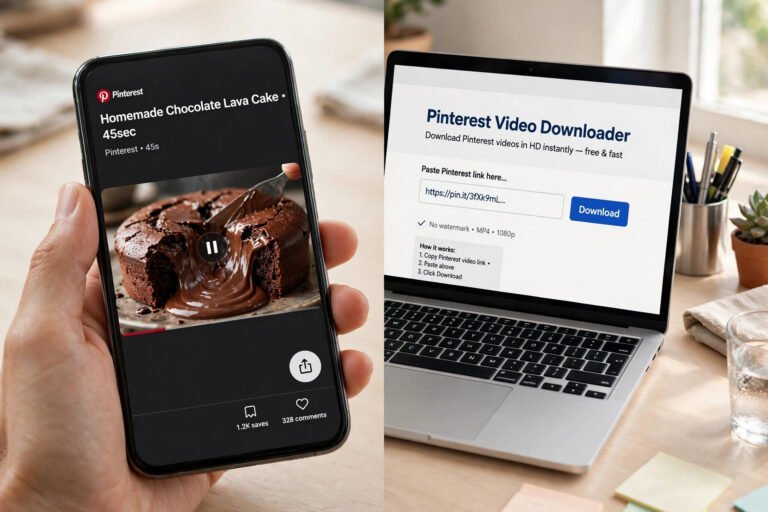
This is the method I actually use week to week. PintoDownload is a free online Pinterest video downloader that runs entirely in the browser tab, so Firefox version and operating system do not matter. I tested it in Firefox on Windows with a public recipe video pin, and the whole round trip — copy link to saved MP4 — took about 25 seconds on a normal broadband connection.
- Open Pinterest in Firefox and open the video pin you want.
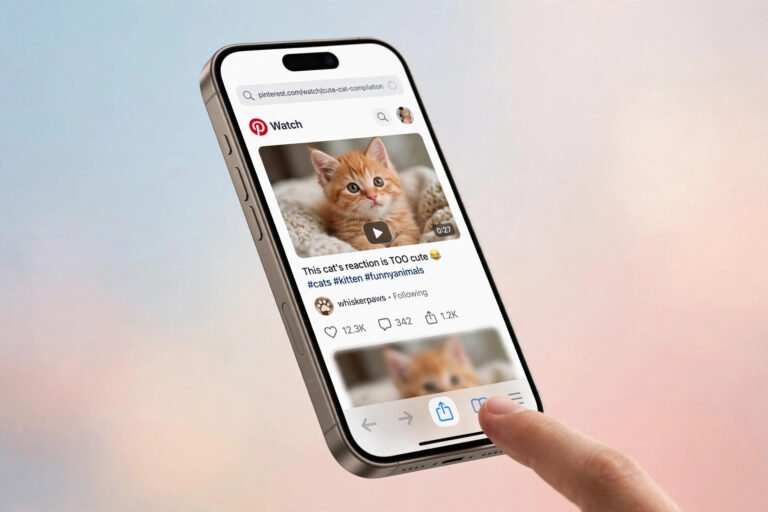
- Click the Share icon (or the three-dot menu) on the pin and choose Copy Link. On the Pinterest website the share button sits at the top of the pin view; in the app it is the same share sheet you use to send a pin to a friend.
- Open a new tab and go to pintodownload.com.
- Paste the link into the download box and hit Download.
- When the video preview appears, pick the quality you want and click Download Video. Firefox will save an MP4 to your Downloads folder.
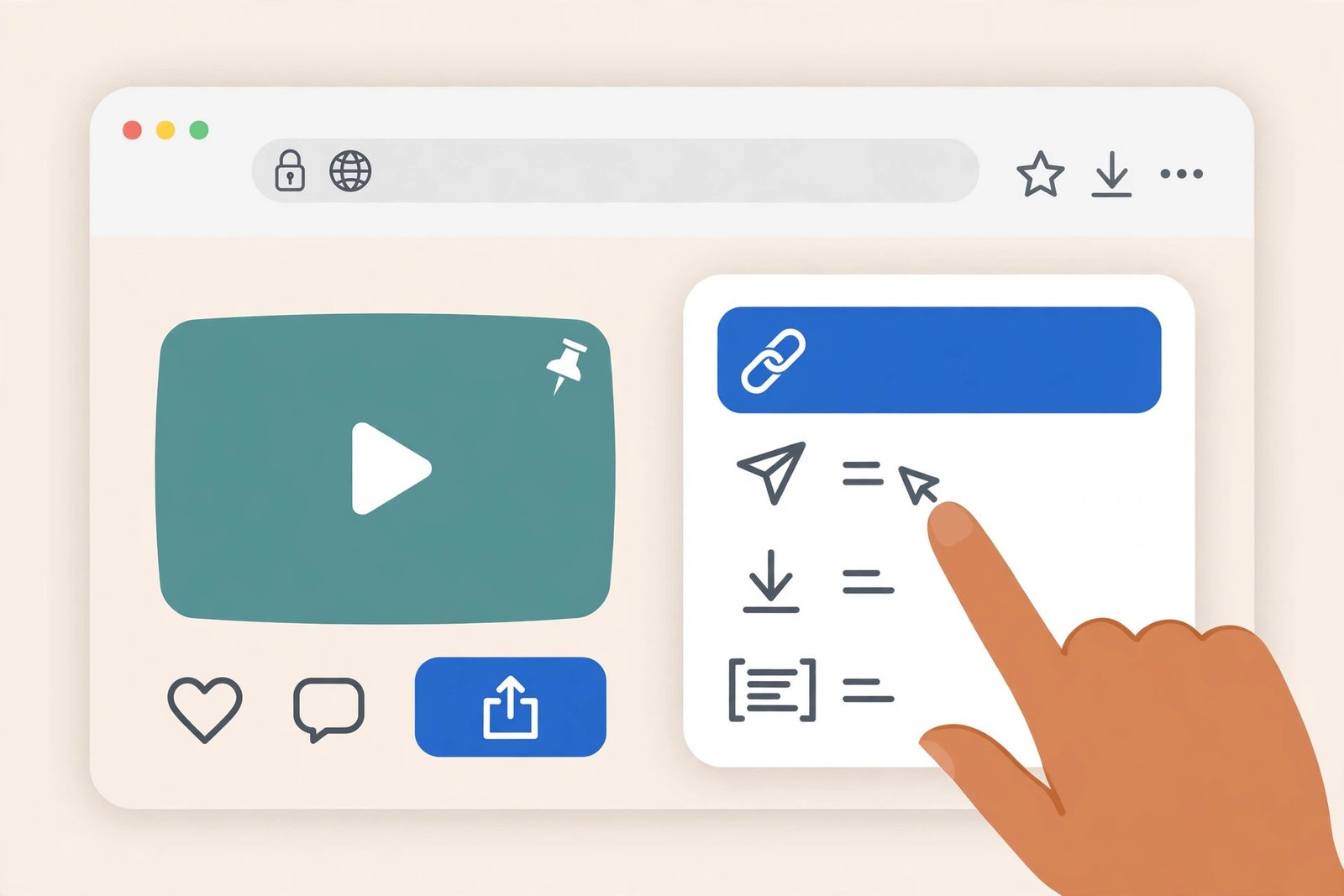
Two practical notes from testing. First, paste the link from the pin itself, not from a board page — a board URL points at the whole board, and the tool will not know which video you mean. Second, if the download button does nothing on the first click, check Firefox’s address-bar shield icon: if Enhanced Tracking Protection is set to Strict for that site, switch it to Standard for pintodownload.com or add an exception, then reload. That one toggle fixed the only failure I hit during testing. If a video still refuses to download after that, the fixes in Pinterest video not downloading: 10 fixes that actually work cover the remaining causes, including private pins and removed videos.
Files come down as MP4, which plays everywhere — Firefox itself, your phone, a TV, an editor. If you ever wonder why MP4 and not something else, the MP4 format explainer covers it. And once the file is on your device, getting it into your phone’s gallery is a separate small job — covered in how to save Pinterest videos to gallery.
Method 2: Install a Firefox Add-on (Best for Daily Downloaders)
If you save pins several times a day, an add-on removes the copy-paste round trip. The one Firefox add-on worth naming here is PinOut, listed on Mozilla’s official add-ons site. It adds a download button that appears when you hover over a pin, on feeds, boards, and individual pin pages, and it handles the infinite scroll — buttons show up on newly loaded pins as you scroll, which matters because Pinterest never stops loading.
- In Firefox, open the PinOut listing on addons.mozilla.org and click Add to Firefox.
- Accept the permissions prompt, then accept the terms in the add-on popup.
- Toggle on the video (and image, if you want it) features in the popup.
- Browse Pinterest normally. Hover over any video pin and click the download button that appears.

What I like about this route: it is genuinely one click per video once installed, and it comes from Mozilla’s own store, which reviews add-ons, rather than a random download link. What I do not like: add-ons break. Pinterest changes its page layout a few times a year, and every change can silently kill hover buttons until the add-on author ships an update — the listing I checked had not been updated in roughly ten months. That is the trade-off with any Pinterest add-on, and it is why I keep Method 1 as my backup even when an add-on is installed. Also, an add-on can only see what Pinterest shows it: it will not rescue a deleted pin or a private board you do not own.
A warning that applies to every browser, not just Firefox: never install a Pinterest downloader from outside addons.mozilla.org. Sideloaded extensions are the classic route for ad injection and credential theft, and no download is worth handing a stranger read access to every page you visit.
Method 3: Firefox’s Built-in Page Info Trick (No Extension, No Website)
Firefox has a feature Chrome quietly dropped years ago: Tools > Page Info > Media lists every image, video, and audio file the current page loaded, and lets you save any of them. Press Ctrl + I (or right-click the page and choose View Page Info), switch to the Media tab, find the video entry, and click Save As.
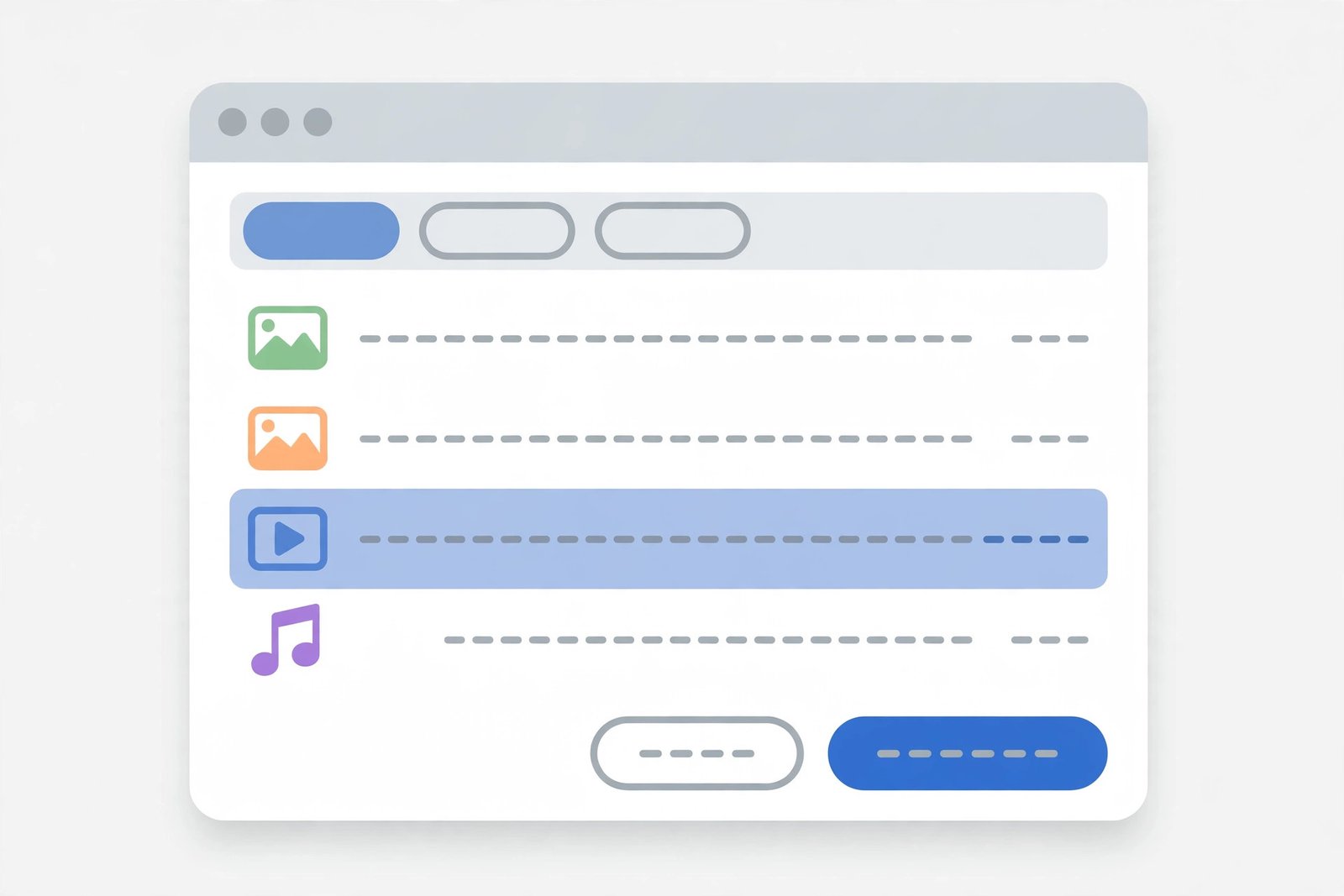
Here is the honest limitation I promised: on a Pinterest pin page, this often finds only the poster image, not the video. Pinterest streams most videos in small segments rather than as one file, and the Media tab lists what the page loaded as discrete files. When the pin is a simple video file, it works beautifully. When it is a segmented stream, the tab shows you a thumbnail and nothing saveable. So treat this as a free first try that costs twenty seconds, not as a reliable method — and if it fails, go back to Method 1 rather than fighting the Media tab. The same honesty applies to right-clicking the video itself: on Pinterest’s custom player there is usually no “Save Video As” entry at all, because the video element is not directly exposed.
Method 4: Firefox for Android (Same Trick, Smaller Screen)
On Android, Firefox supports only a limited set of recommended extensions, and Pinterest downloaders are generally not among them — so the add-on route is mostly off the table. The online-tool route, however, works exactly as on desktop:
- In the Pinterest app, tap Share on the video pin, then Copy Link.
- Switch to Firefox for Android and open pintodownload.com.
- Paste the link, tap Download, and save the MP4. Firefox for Android drops it in your Downloads folder, and from there you can move it to your gallery.
One Android-specific gotcha: if you long-press the download link instead of tapping it, Firefox may open a context menu with “Open link in new tab” rather than downloading. A plain tap is what starts the download. And if you do most of your saving on your phone, the gallery guide linked above walks through the move from Downloads to gallery on both Android and iPhone.
All Four Methods Compared
| Method | Speed per video | Install needed | Works on Android | Weak point |
|---|---|---|---|---|
| Online tool (PintoDownload) | ~25 seconds | None | Yes | Needs Enhanced Tracking Protection on Standard |
| Firefox add-on (PinOut) | ~5 seconds | Add-on | Mostly no | Breaks when Pinterest changes its layout |
| Page Info > Media | ~20 seconds | None | No | Only finds the poster on streamed videos |
| Right-click Save Video As | Instant, when present | None | No | Almost never available on Pinterest’s player |
The table makes the recommendation obvious: Method 1 for reliability, Method 2 for volume, Method 3 as a curiosity that occasionally saves you a tab. If you only remember one line from this article, make it this one — copy the pin link, paste it at pintodownload.com, done.
Troubleshooting: When a Pinterest Video Downloader Fails on Firefox
The download button does nothing. First check Enhanced Tracking Protection: click the shield in the address bar and set it to Standard for the downloader site, or turn off protections just for that site, then reload. Next, try a private window to rule out another extension interfering — ad blockers and script blockers are the usual suspects.
“Video not found” or an empty result. The pin may be deleted, made private, or from a board you cannot see. A downloader can only fetch what Pinterest itself serves publicly. Also double-check you copied the pin link, not a board or profile link.
The video downloads but has no sound. You probably grabbed a muted preview rather than the full video file. Re-run the same link through the online tool and pick the highest-quality MP4 option, which carries the original audio track.
The file downloads as a .bin or unplayable file. That is a segmented-stream fragment, not the video — it happens when a method grabs one stream chunk. Rename nothing; just use the online tool instead, which reassembles the proper MP4.
Firefox says the download is blocked. Check Settings > Privacy & Security > Downloads: if “Ask where to save” is off and the file still does not appear, look in the Downloads panel (Ctrl + J) — a blocked download shows there with an “Allow download” option.
What About Images and GIFs?
Everything above is about video, but the same routes mostly cover the other two formats. The online tool also handles images — and if you specifically want full-resolution stills, the Pinterest image downloader page is the dedicated tool for that, with a guide to getting original-quality files instead of the compressed preview Pinterest shows in the feed. GIFs download as short video files or animated images depending on the pin; the hover-button add-on handles them the same way it handles videos.
Frequently Asked Questions
Is there an official Pinterest video downloader for Firefox?
No. Pinterest does not ship a download button or an official Firefox extension. Every working method is third-party: an online tool, a community add-on from Mozilla’s store, or a built-in browser trick. That is also why the online-tool method is the most durable — it does not depend on Pinterest’s page layout staying the same.
Does a Pinterest video downloader work on Firefox for Android?
The online-tool method does, and it is the recommended route on Android, because Firefox for Android only supports a small set of recommended extensions and Pinterest downloaders are not among them. Copy the pin link in the Pinterest app, paste it at pintodownload.com in Firefox, and save the MP4.
Why does right-click “Save Video As” not appear on Pinterest?
Pinterest plays videos inside a custom player, so the browser’s video context menu never gets triggered. Firefox’s Page Info > Media tab is the closest built-in equivalent, but it only lists the video when Pinterest serves it as a single file rather than a segmented stream.
Are downloaded Pinterest videos in HD?
You get the quality Pinterest stored for that pin — most video pins top out at 720p or 1080p, and no tool can invent detail that is not in the source. A good downloader fetches the highest available rendition; if a pin looks soft after downloading, the source itself was soft.
Is it legal to download Pinterest videos on Firefox?
Downloading for personal offline viewing is generally fine; re-uploading someone else’s video as your own, or using it commercially without permission, is not. The full picture, including creator-rights nuances, is in the legality guide linked earlier in this article.
The Bottom Line
Firefox users do not need to switch browsers to save Pinterest videos — they just need the right method. For a one-off video, paste the pin link into PintoDownload and you are done in under half a minute. If you download pins daily, add the PinOut add-on from Mozilla’s store and keep the online tool as backup for the days Pinterest rearranges its pages. And if you ever find yourself staring at a player with no download option at all, remember the order of operations: check the tracking-protection shield, check you copied a pin link and not a board link, and try a private window before assuming the video is gone.