Pinterest Board Downloader: How to Download an Entire Pinterest Board at Once (2026 Guide)
You spent months curating the perfect Pinterest board — 300 pins of home-office ideas, wedding inspo, or recipe videos — and now you want all of it on your device. Opening every pin and saving it one by one would take a whole weekend.
That’s exactly what a Pinterest board downloader is for. Instead of saving pins one at a time, a board downloader grabs dozens or hundreds of pins from a whole board in one go. This guide covers the four realistic ways to do it in 2026 — a free online Pinterest downloader, bulk browser extensions, desktop apps, and Pinterest’s own export option — for PC, Mac, Android, and iPhone, plus quality tips and the legal basics.
What Is a Pinterest Board Downloader?
A Pinterest board downloader is any tool or method that saves multiple pins from a board at once, instead of one pin at a time. Depending on the tool, you get:
- Individual video files (usually MP4) and images
- A single ZIP archive containing the whole board
- A data export with links and metadata for every pin
Here’s the honest truth: Pinterest doesn’t offer a “download board” button. Every method below works around that in a different way, each with trade-offs in speed, quality, and convenience. If you only need a couple of videos from a board, the fastest route is still a simple online Pinterest downloader — paste the pin link, pick your quality, save the file. Our own free tool, PintoDownload, does exactly that for videos, images, and GIFs in HD with no sign-up and nothing to install. But with 100+ pins on a board, one-by-one downloading isn’t realistic — that’s where the bulk methods come in.
Method 1: Online Pinterest Downloader (Best for Small Boards or Individual Pins)
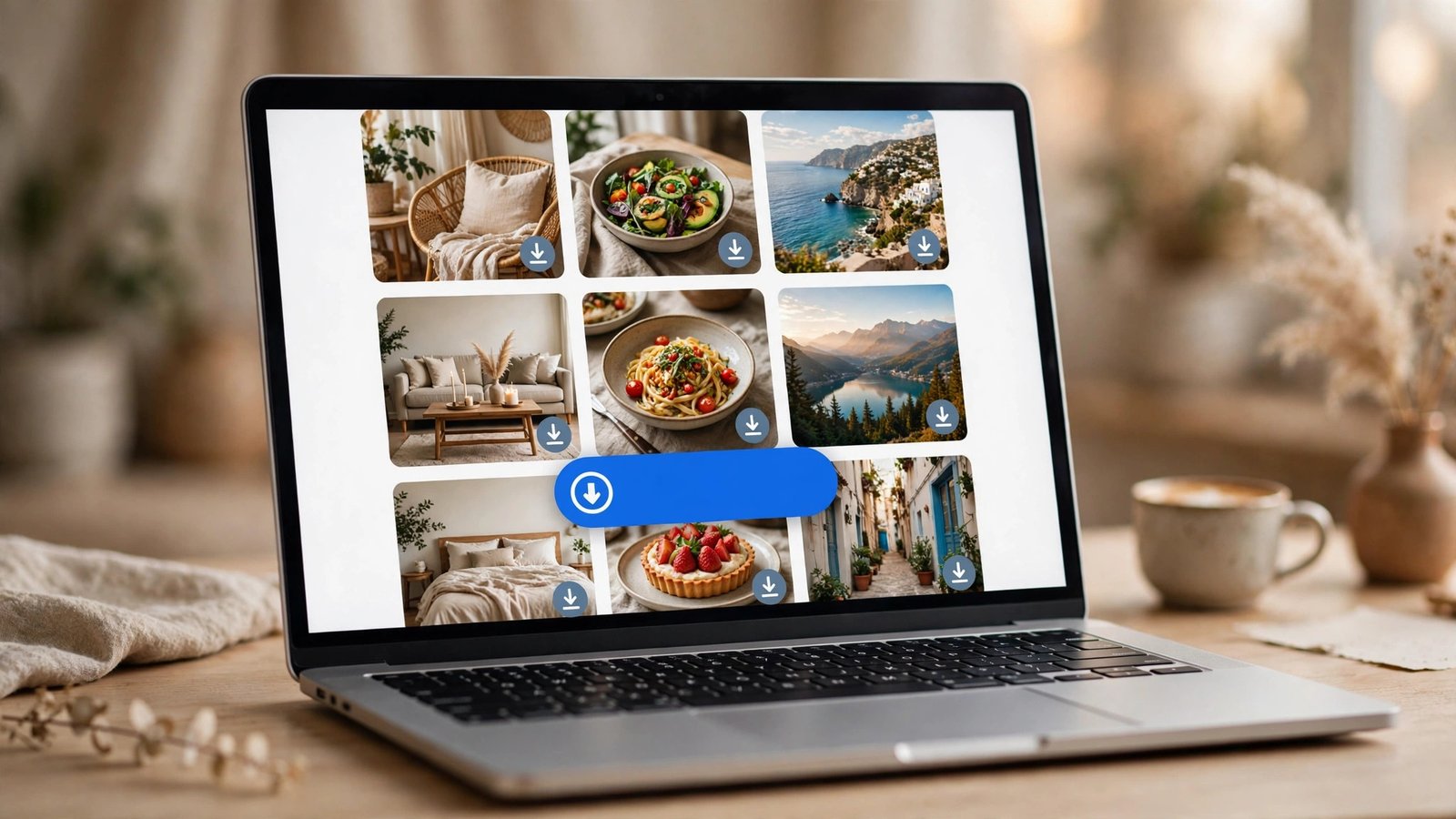
How it works: Copy the link to a pin (or, with some tools, to the board itself), paste it into the downloader’s input field, choose your quality, and download.
Step-by-step:
- Open Pinterest and go to the board.
- Open a pin and tap Share → Copy link (on desktop, copy the URL from the address bar).
- Go to PintoDownload, paste the link, and hit Download.
- Choose your quality — HD (1080p) when available — and the file lands in your Downloads folder. Repeat for the pins you want.
Pros: free, nothing to install, works on any device, great quality control per pin.
Cons: it’s one pin at a time — fine for 10 or 20 pins, painful for 500.
Best for: small boards, cherry-picking the best pins, or grabbing a few videos at full quality.
If you’ve never used one of these tools before, our step-by-step walkthrough How to Download Pinterest Videos with PintoDownload covers the whole process with screenshots.
Method 2: Bulk-Download Browser Extensions (Best All-Rounder for Full Boards)
How it works: A Chrome or Edge extension scans the board page you’re viewing, detects every video and image on it, and lets you download them all at once — usually as a ZIP file.
Step-by-step:
- Install a reputable bulk Pinterest downloader extension from the Chrome Web Store.
- Open the Pinterest board in your browser.
- Scroll all the way down first. Pinterest lazy-loads pins, so anything you haven’t scrolled past won’t be detected. This is the step most people skip — and then wonder why half their board is missing.
- Click the extension icon. It should show a list of every detected video and image.
- Select all (or filter to videos only) and hit Download selected.
Pros: genuinely one-click for the whole board; video-only filters save sorting time.
Cons: desktop browsers only; free extensions often show ads; you’re trusting a third party with your browsing.
Best for: medium-to-large boards (50–500 pins) on a PC or Mac.
One thing to watch: extension quality varies a lot. A good Pinterest downloader extension detects actual video streams (not just thumbnails) and offers HD options. If an extension only grabs tiny thumbnails, uninstall it and try another — life’s too short for 240p thumbnails of a board you love.
Method 3: Desktop Bulk-Download Apps (Best for Huge Boards)
How it works: You install a small program, paste the board URL into it, and it fetches every pin directly — images, GIFs, and videos — then converts everything into standard files like MP4.
Step-by-step:
- Download a desktop board-downloader app for your OS (Windows, macOS, or Linux).
- Open the app and paste the board URL, e.g.
https://www.pinterest.com/username/board-name/. - Choose what to grab: images, GIFs, videos, or all of them.
- Click Download and wait — a big board can take a while.
- Find the finished files in the app’s output folder, organized by board.
Pros: handles very large boards reliably; usually grabs full-resolution originals; runs locally so your pins stay private.
Cons: requires installing software; some apps paywall videos or GIFs behind a “Pro” tier; always download from the developer’s official page.
Best for: archivists, designers, and anyone saving boards with hundreds of pins.
Method 4: Pinterest’s Own Data Export (Best for Backing Up Your Own Boards)
Most people don’t know Pinterest will hand you your data. It won’t give you video files, but it’s the official way to back up everything you’ve saved.
- On Pinterest, go to Settings → Privacy and data → Request your data.
- Pinterest emails you a download link (usually within 24–48 hours).
- Unzip the archive: you’ll find a list of every pin across all your boards — board names, titles, descriptions, source URLs, and image URLs.
- Use those links to re-download the actual media.
Pros: official, free, covers all your boards at once, includes private boards.
Cons: no direct video files — you get metadata and links, not the media; only works for your own account.
Best for: backing up your own collections before deleting an account or switching profiles.
Which Method Should You Use? (Comparison Table)
| Method | Speed | Quality | Cost | Best for |
|---|---|---|---|---|
| Online Pinterest downloader (PintoDownload) | Fast (per pin) | HD / 4K selectable | Free | Small boards, single pins |
| Browser extension (bulk) | Very fast (whole board) | Varies by extension | Free / freemium | Medium boards on desktop |
| Desktop bulk app | Slow to start, fast after | Full resolution | Free / paid tiers | Huge boards, archivists |
| Pinterest data export | Slow (24–48h wait) | Metadata only | Free | Backing up your own account |
How to Download a Pinterest Board on PC or Mac
Desktop is where board downloading works best, since extensions and desktop apps need a real browser or OS.
- Under ~30 pins? Use PintoDownload pin by pin for the best quality control. Over that? Install a bulk extension.
- Open the board in Chrome or Edge and scroll to the very bottom so every pin loads.
- Run the bulk download (extension icon → select all → download), or paste pin links into the online downloader one by one.
- Check the results. Open a few videos and confirm they play in HD. Pinterest compresses uploads, so the file matches what Pinterest serves — not the creator’s original. Our guide on why Pinterest videos look blurry explains what to expect.
- Organize immediately. Rename the ZIP or folder with the board name and date, e.g.
home-office-ideas_2026-10.zip.
How to Download a Pinterest Board on Android or iPhone
Mobile is trickier — bulk extensions don’t exist on mobile browsers, so you have two realistic options:
- Pin-by-pin with an online Pinterest downloader. Open the pin in the Pinterest app, tap Share → Copy link, then paste it into PintoDownload in your mobile browser. On Android the file drops into Downloads and usually appears in your gallery; on iPhone, check Files → Downloads and use Share → Save Video to move it to Photos. (Per-device walkthroughs: Android and iPhone.)
- Use a desktop for the bulk part. For a 200-pin board on a phone, the practical answer is: don’t. Bulk-download on a computer, then transfer the ZIP to your phone via USB, AirDrop, or cloud storage.
4 Tips for Better Board Downloads
- Scroll before you scan. Bulk tools can only see pins that have actually loaded. Scroll the whole board first — slowly on huge boards.
- Filter by media type. If you only want videos, filter for video streams so you don’t bulk-download hundreds of static images by accident.
- Pick the highest quality offered. Some tools default to a smaller file to process faster. Always check for an HD or 1080p option before hitting download.
- Keep board structure in your folders. Save each board into its own folder with the board’s name — a flat folder of 800 files named
pin_29384.mp4is unusable.
Is Downloading a Pinterest Board Legal?
Short version: downloading for personal, offline use of content you can access is generally fine; reposting or redistributing other people’s pins without permission is not.
Most pins are copyrighted — the creator owns the rights. Saving a recipe video to watch offline in your kitchen is very different from re-uploading someone’s artwork or using it in a product you sell. Rules of thumb:
- Your own boards and pins: always fine.
- Personal offline use: widely accepted; this is what downloaders are built for.
- Reposting or commercial use: needs the creator’s permission.
- Private boards that aren’t yours: no legitimate tool can reach these — if one claims it can, that’s a red flag.
We covered the full picture in Is Pinterest Video Downloading Legal & Safe? — worth a read before archiving someone else’s board.
Troubleshooting: When a Board Won’t Download
- Extension finds nothing? You probably didn’t scroll the board fully. Reload, scroll to the bottom, and scan again.
- Only thumbnails downloading? The tool is grabbing previews instead of video streams — try another extension, or save the video pins individually with an online Pinterest downloader.
- Downloads stall halfway? Large boards can time out. Download in halves, or switch to a desktop app built for bulk jobs.
- Private board? Bulk tools can only see what your account can see, and most free tools only handle public boards.
Watch: Downloading an Entire Pinterest Board
Prefer to watch instead of read? This short tutorial walks through downloading Pinterest videos on PC and phone:
Frequently Asked Questions
Can I download an entire Pinterest board at once?
Yes. Pinterest doesn’t offer this natively, but bulk-downloader browser extensions and desktop apps can save every pin from a board in one batch. For smaller boards, an online Pinterest downloader like PintoDownload handles pins individually at full quality.
Is there a free Pinterest board downloader?
Yes. Online downloaders are free for individual pins, and free bulk extensions and desktop apps have generous free tiers. Paid tiers usually add faster processing, GIF/video support, or private-board access.
Can I download a private or secret board?
Only boards your account can see. No legitimate free tool can download someone else’s private board — treat any that claim otherwise as a scam.
What format do Pinterest videos download in?
Almost always MP4, which plays everywhere. Images come down as JPG or PNG.
Will the quality match what I see on Pinterest?
You’ll get the best version Pinterest currently serves for that pin — often HD or 1080p. No tool can restore quality Pinterest already compressed away, so a blurry pin downloads blurry.
Can I download a Pinterest board on iPhone?
Bulk extensions don’t work on mobile browsers. Use an online Pinterest downloader pin-by-pin in Safari or Chrome, or bulk-download on a computer and transfer the files to your phone.
The Bottom Line
Downloading a whole Pinterest board in 2026 comes down to picking the right method: a free online Pinterest downloader for individual pins and small boards, a bulk extension or desktop app for big archives, and Pinterest’s own export for backing up your account. Scroll fully, filter by media type, check your quality, and keep other creators’ work to personal use.
Ready to start? Grab the pins you want right now with PintoDownload — paste a pin link, pick HD, and you’re done in seconds. No sign-up, no app, no watermark.