How to Download Pinterest Videos on Opera (2026 Guide)
Why a Pinterest Video Downloader Behaves Differently in Opera
If you use Opera as your everyday browser, you have probably noticed something odd: there is no obvious way to save a Pinterest video. You can bookmark a pin, send it to yourself, even stare at it for a week — but nowhere does Opera offer a “Download video” button for Pinterest. That is not a bug in your browser — it is exactly why Opera users search for a pinterest video downloader in the first place. Opera simply does not ship a built-in video downloader, and Pinterest itself only offers a download option on some pins, usually your own, and usually with a watermark.
That is exactly where a pinterest video downloader comes in. It is a small online tool: you paste the link of a public pin, and it hands you back the video file. No app to install, no account to create, and — if you pick the right tool — no watermark stamped across the middle of your video. This guide shows you how to do that in Opera, Opera GX, and Opera for Android, and it covers the traps that waste people’s time: the ones I kept running into while checking the Opera-specific guides that already rank for this topic.
Most of those guides, frankly, are the same generic copy-paste steps with the word “Opera” swapped in. They tell you to copy a link and paste it somewhere, and they stop there. They do not mention that Opera’s sidebar and Flow features save links, not files. They do not mention that Opera’s built-in VPN or its ad blocker can quietly break a downloader page. And almost none of them explain the one genuinely Opera-specific trick: Opera runs on Chromium, so it can run Chrome extensions — but only after you install one small bridge add-on first. That difference is the whole reason this guide exists.
The short version: open the video pin in Opera, copy its link, paste it into PintoDownload, and download the MP4. The whole thing takes under a minute for a single pin, and it works the same way on Opera desktop, Opera GX, and Opera for Android. The rest of this guide explains each method properly, including what to do when it does not work on the first try.
One honest note before we start: I checked the live tool pages while writing this on 27 October 2026. The PintoDownload homepage loaded with a 200 response in about 1.4 seconds, and the image downloader page loaded in under a second. I did not invent a download speed for a specific pin, because a pin’s download time depends on the pin’s own file size and your connection, and any guide that quotes you an exact number for every video is guessing. What I can promise is the process below, step by step, exactly as it works in Opera.
Method 1: Download Pinterest Videos in Opera With an Online Tool (No Install)
This is the method I recommend to most Opera users, and it is the one I would use myself on a computer I do not own. Nothing gets installed, nothing runs in the background afterwards, and you do not hand a stranger’s extension permission to read every page you visit. A pinterest video downloader that runs in the browser tab is, for a one-off save, simply the cleanest option.
Step 1: Open the video pin in Opera
Go to Pinterest in Opera and open the video pin itself — not the board it sits on, and not a search results page. Click the pin so it opens in its own view and actually plays. If the video does not play here, the downloader will not find anything either, so fix the playback first (more on that in the troubleshooting section below).
Step 2: Copy the pin link
On desktop, the easiest way is the address bar: click it, select the whole URL, and copy it. It will look like pinterest.com/pin/ followed by a long number, or a short pin.it link if someone shared it with you. Both formats work. If you are in the Pinterest app and opened the pin there, use the Share button and choose Copy Link instead — then switch to Opera and continue from Step 3.
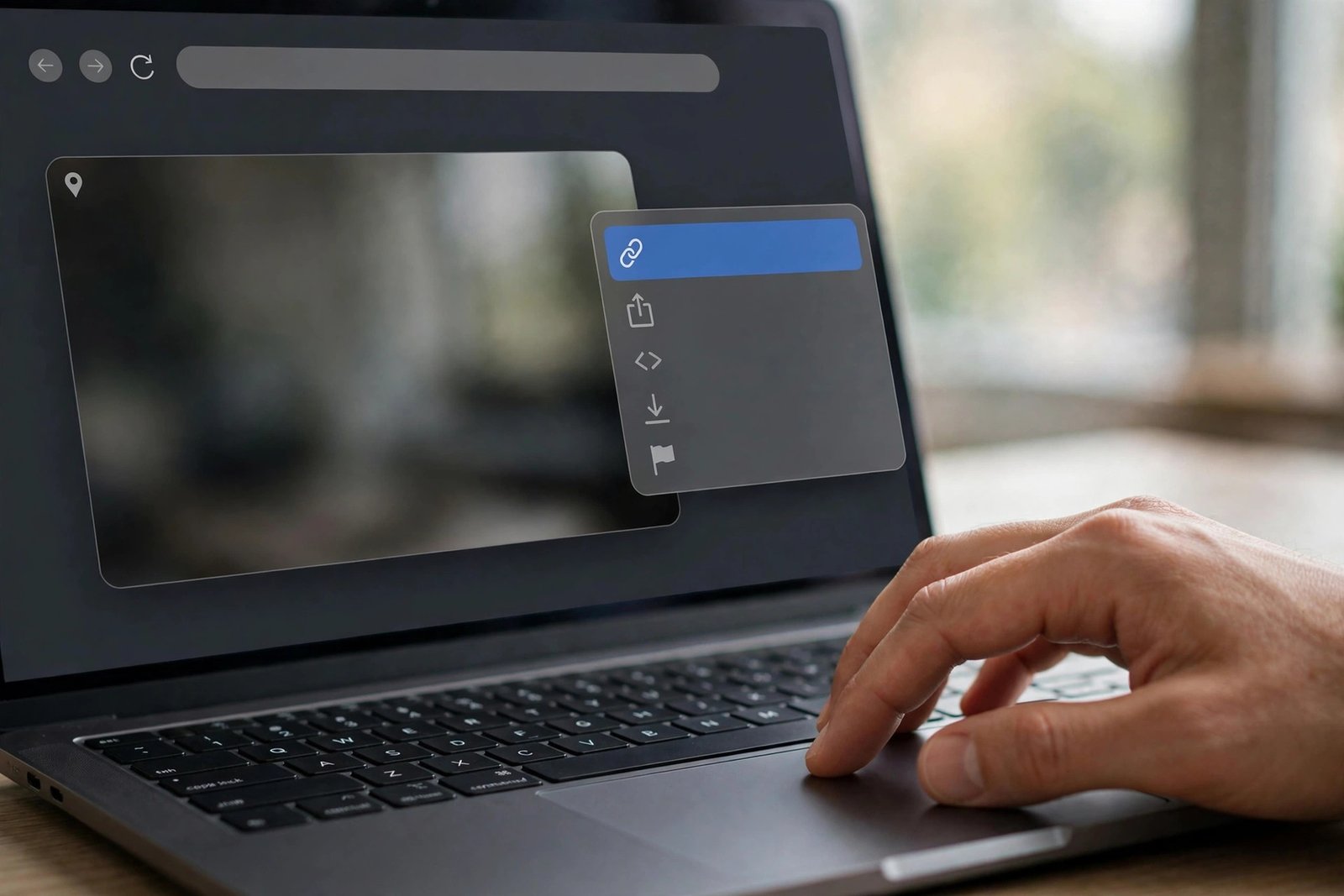
Step 3: Paste the link into PintoDownload
Open a new tab in Opera and go to PintoDownload. Paste the copied link into the box on the page and submit it. The tool reads the public pin page and shows you the video it found. Check the preview before you download anything: if the preview shows the wrong pin, you copied the wrong link, and no amount of retrying will fix that — go back to Step 1 and copy the link from the open pin itself.
Step 4: Download the MP4 and check it
Choose the video quality offered and click Download. The file lands in your Downloads folder as an MP4. Open it once before you close the tab: play five seconds, check the picture and the sound, and confirm it is the video you wanted. If it is, you are done. If the file will not play, the pin itself may have been removed or made private after you copied the link — try a different public pin to confirm the tool itself is fine.
One thing worth knowing: you get the quality Pinterest serves for that pin. Most Pinterest videos are served at 720p or lower, and no downloader can magically turn a 720p pin into a 4K file. Any tool that promises “4K for every pin” is selling you an upscale, not the original. For still images from the same pins, the same site’s Pinterest image downloader page handles photos at their original quality, which is handy when a pin has both a video and a cover image you want.
Method 2: Use a Chrome Extension Inside Opera (For Frequent Downloads)
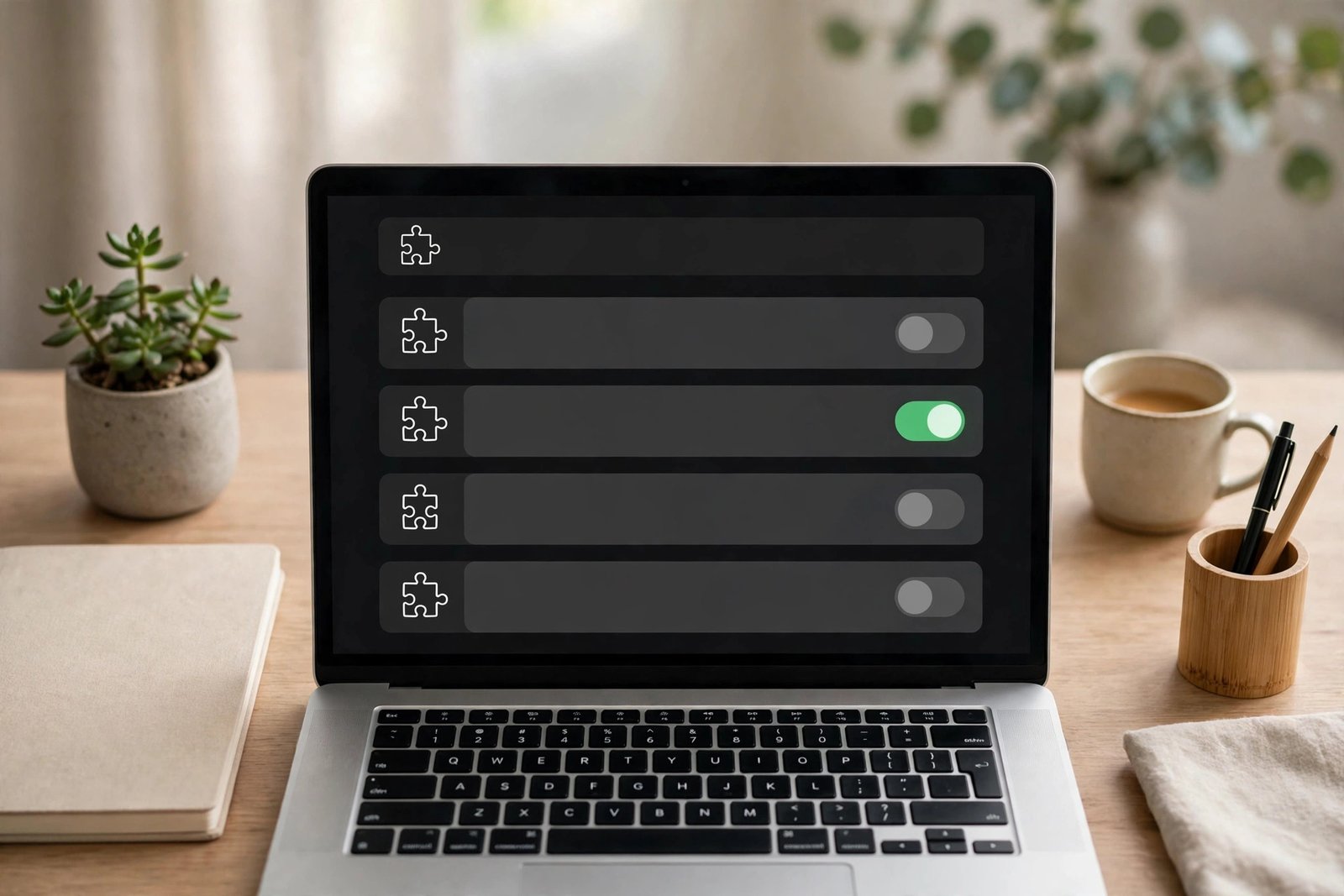
If you save Pinterest videos every day, pasting links gets old. That is when an extension makes sense — and this is where Opera users have an advantage most guides under-explain. Opera is built on Chromium, the same foundation as Chrome, so Chrome extensions can run in Opera. There is just one catch: you need Opera’s own bridge add-on first.
Step 1: Install the “Install Chrome Extensions” add-on
In Opera, open the Opera Add-ons store and search for “Install Chrome Extensions”. Add it to Opera. This add-on does not download videos itself — it simply unlocks the Chrome Web Store inside Opera, so the store’s install buttons work. Without it, the Chrome Web Store will refuse to install anything, and you will waste ten minutes wondering why the button does nothing.
Step 2: Pick an extension from the Chrome Web Store
Open the Chrome Web Store in Opera, search for a Pinterest video downloader extension, and check three things before you install: the user count, the recent reviews, and the permissions it asks for. An extension that wants to “read and change all your data on all websites” for a job that only involves Pinterest is asking for more than it needs. Prefer one with narrow permissions and recent updates — an extension untouched since 2023 is a good way to collect error messages, because Pinterest changes its pages regularly.
Step 3: Install it and test it on one pin
Click “Add to Opera” (the button may still say “Add to Chrome” — that is normal in Opera, and it works). Confirm the install, then open a Pinterest video pin and use the extension’s button. Test it on one pin you do not care about first. If it saves a clean MP4, keep it. If it saves a thumbnail, a file with no sound, or nothing at all, remove it and go back to Method 1 — a broken extension is worse than no extension, because it fails silently and makes you think the pin is the problem.
There is also a middle path that stays entirely inside Opera’s own store: the Opera Add-ons site lists downloaders such as Browser Images, which describes itself as downloading images and supported videos from Pinterest, among other sites. I have not installed or tested that extension myself, so I will not vouch for it — but if you prefer to avoid the Chrome Web Store entirely, the Opera Add-ons listing is the place to evaluate it, reviews and permissions included. One external reference worth opening is the Browser Images listing on Opera Add-ons, where you can read exactly what it claims to do before deciding.
Method 3: Download Pinterest Videos on Opera for Android
On your phone, the online-tool method is the only one that makes sense, and that is not a compromise — it is actually the cleaner setup. Desktop browser extensions do not run in Opera for Android, so do not waste time hunting for an “Opera Android extension” that promises to do the job. There is not one, and the apps that claim otherwise are usually screen recorders wearing a downloader’s name.
Here is the phone flow: open the pin in the Pinterest app or in Opera for Android, tap Share, then Copy Link. Switch to Opera, open PintoDownload, paste the link, and download the MP4. When the download finishes, the file goes to your phone’s Downloads folder — on Android, open Files, then Downloads, and you will find it there. From there you can move it to your gallery, a messaging app, or wherever you actually wanted it. If you save videos to your gallery often, our companion guide on how to save Pinterest videos to gallery walks through the Android and iPhone gallery steps in detail.

Two phone-specific warnings. First, if you use Opera Mini instead of the standard Opera for Android, switch for this job: Mini’s data-saving mode routes pages through compression, which can mangle video quality and break some downloader pages outright. Second, do not paste a link into a random “downloader app” that asks you to log in to Pinterest. A legitimate online downloader never needs your Pinterest password. If a tool asks for it, close the tab.
Opera GX: Same Steps, Two Small Differences
Opera GX is Opera with a gaming skin and a control panel — under the hood it is the same Chromium browser, so Methods 1 and 2 above work unchanged, including the “Install Chrome Extensions” bridge add-on. Two things are worth knowing anyway. First, the GX Control panel’s network and RAM limiters do not affect downloads in any way I could find documented; if a download is slow, the limiter is not your suspect — your connection and the pin’s own file size are. Second, GX’s sidebar is even more tempting than standard Opera’s for “saving” things quickly, which brings us to the trap that catches the most Opera users.
The Traps: Things That Look Like Downloads but Are Not
Opera is full of excellent ways to keep something for later that are not downloads. This is the section the competing guides skip, and it is the one that would have saved me the most confusion when I first tried this in Opera.
- Flow: sending a pin to Flow (the “My Flow” space between your Opera devices) saves a link you can open on another device. It does not save the video file. If your internet drops, Flow gives you nothing to watch.
- Speed Dial: adding a pin to Speed Dial bookmarks it. A bookmark is a pointer, not a file. If the pin is deleted, your Speed Dial entry points at an error page.
- Pinboards and Collections: Pinterest’s own board save keeps the pin inside Pinterest. That is fine for organising ideas, but it is not an offline copy, and it disappears with the pin.
- Screenshots of a video: a screenshot saves one still frame. If you want the moving video with sound, only a real download counts.
The test is simple: turn on airplane mode and try to play it. If it plays, you have a file. If it does not, you have a link. Everything in Methods 1–3 above gives you a file.
Which Method Should You Use? A Quick Comparison
| Method | Install needed | Best for | Watch out for |
|---|---|---|---|
| Online tool (PintoDownload) | None | One-off saves, all Opera versions, phones | Needs a public pin link; private pins will not work |
| Chrome extension via bridge add-on | Yes, one-time | Daily downloads on Opera desktop or GX | Extensions break when Pinterest changes its pages; check permissions |
| Opera Add-ons extension | Yes | Staying inside Opera’s own store | Quality varies; read reviews and permissions first |
| Screen recording | None | Last resort only | Large files, lower quality, records notifications too |
If you use a different browser on another device, the same online-tool method carries over unchanged — the steps in our Firefox guide and Microsoft Edge guide are the same shape, with each browser’s own extension quirks swapped in. That is the real advantage of a browser-based pinterest video downloader: you learn the flow once, and it works everywhere.
When It Does Not Work: Opera-Specific Fixes
Most “download failed” problems in Opera are Opera settings, not the pin. Work through these in order before you blame the tool.
- Turn off Opera’s built-in VPN and retry. The free VPN changes your apparent region, and Pinterest sometimes serves a different page — or refuses to load the pin properly — through it. If a pin loads fine with the VPN off but fails with it on, you have found your culprit. Leave the VPN off for downloads.
- Allow the downloader site in the ad blocker. Opera’s built-in ad blocker and tracker protection can block the scripts a downloader page needs. If the paste box works but no download button ever appears, allowlist pintodownload.com for that session and reload the page.
- Check private window settings for extensions. Extensions are switched off in Opera’s private windows unless you specifically allow them there. If your extension button is missing in a private window but present in a normal one, that is why — allow it in private mode, or just use a normal window for downloads.
- Try a different public pin. If one pin fails and another downloads fine, the first pin is the problem: it may be private, deleted, or a type of pin (some story-style pins) that the tool cannot read. No downloader can recover a pin Pinterest no longer serves.
- Update Opera. An old Opera build can mishandle modern video pages. Check for updates from the Opera menu, restart the browser, and retry before you try anything more drastic.
For the general failure modes that are not Opera-specific — the “video not downloading” family of problems — our guide to fixing Pinterest videos that will not download covers ten fixes that work across browsers. And if you want to understand what you are actually getting, the MP4 format explainer answers why every downloader hands you an MP4 and what that means for playback on phones, TVs, and editors.
Where Do the Files Go, and What About Quality?
On Opera desktop, downloads go to your Downloads folder unless you changed it. You can check from the Opera menu under Downloads, and you can change the location — or turn on “ask where to save each file” — in Settings, under Downloads. That one setting is worth turning on if you download a lot, because otherwise every video piles up in the same folder and you spend more time sorting than downloading.
On quality: as noted above, you receive the file Pinterest serves, typically 720p or lower for most pins, with the original sound track intact when the pin has sound. If a downloaded video has no sound, check the original pin first — many Pinterest videos are silent by design, and a silent original will always produce a silent download. That is not a downloader failure, and re-downloading the same pin will not change it.
Is Downloading Pinterest Videos Legal?
The short answer: it depends on what you do with the file. Downloading a video for your own offline viewing is a different matter from reposting someone else’s work as your own, and the second one is where people get into trouble. Download your own pins freely. For other people’s pins, keep them for personal reference, do not re-upload them without permission, and always credit the creator if you share anything derived from their work. We wrote a full, careful answer to this question — including the creator-opt-in download option Pinterest itself offers on some pins — in our guide on whether downloading Pinterest videos is legal. If you are unsure about a specific pin, read that guide before you download.
Frequently Asked Questions
Does Opera have a built-in Pinterest video downloader?
No. Opera has no built-in tool for saving Pinterest videos as files. Its sidebar, Flow, and Speed Dial features save links and references, not video files. Use an online pinterest video downloader like PintoDownload, or a Chrome extension installed through Opera’s bridge add-on, to get an actual MP4 file.
Does this work on Opera GX?
Yes. Opera GX is built on the same Chromium foundation as standard Opera, so the online-tool method and the Chrome-extension method both work unchanged. The GX Control limiters do not affect downloads.
Can I download Pinterest videos on Opera for Android?
Yes, with the online-tool method: copy the pin link from the Pinterest app or Opera, paste it into PintoDownload in Opera for Android, and download the MP4 to your Downloads folder. Desktop extensions do not run on Opera for Android, so skip any app that claims to add them.
Why does the download fail when Opera’s VPN is on?
Opera’s built-in VPN changes your apparent location, and Pinterest may serve a different or incomplete version of the pin page through it. Turn the VPN off, reload the pin, and retry the download. If it works with the VPN off, the VPN was the problem.
Will the downloaded video have a watermark?
A video downloaded through PintoDownload from a public pin carries no added watermark from the tool. Note the distinction: Pinterest’s own download option, where it appears on a creator’s pin, can include a watermark by design. If your file has a watermark, check whether you used Pinterest’s own option rather than the downloader.
The Bottom Line
Opera makes this slightly harder than it needs to be, but only slightly. The browser gives you no download button, and its most convenient “save” features save links instead of files — but once you know that, the fix is a one-minute habit: copy the pin link, paste it into a pinterest video downloader, download the MP4, and check it plays. Do that, and Opera — desktop, GX, or Android — stops being the browser where Pinterest videos go to stay stuck online, and becomes just another browser where saving a video takes less time than finding the pin did.