How to Save and Organize Pinterest Videos (2026 Guide)
Here is the question nobody in this field seems to finish answering: you saved the video — now what? Every guide I read while researching how to save and organize Pinterest videos stops at the download button, as if a file landing in Downloads were the end of the story. It is not — it is the start of a mess: files named download(14).mp4, a gallery showing half of them, a backup never opened, and a second copy hiding somewhere you will never look. So I did what the old version of this guide never did: I downloaded a real video, then organized it for real — folders, a name, a catalog entry, a playlist, a duplicate check, and a backup proved by playing it back.
One distinction first, because it decides whether any of this matters. Saving inside Pinterest only bookmarks a pin: the video still lives on Pinterest’s servers, still needs the internet, and if the creator deletes it, your board keeps a dead link. Keeping a file is the opposite — it sits on your disk, plays offline, and survives the pin disappearing. A bookmark collection organizes itself; a file collection rots unless you run it.
What I tested — and what I did not
Honesty first, because the numbers below are only useful if you know how they were made. I tested on desktop Chrome, unthrottled, with a fresh browser profile, driving the pintodownload tool on one public 10-second test pin — the same pin other recent guides on this site used, so the numbers are comparable. I did not test on a physical phone: the mobile steps below describe documented operating-system behaviour (where each system puts downloads, and which extra tap makes a file visible in Photos or Gallery), not something I tapped through on a handset. The organizing half ran on real files on a real disk, not in a diagram.
| Measurement | Result |
|---|---|
| Tool page ready to type in | 2.6 seconds |
| Submit to download link appearing | 4.1 seconds, first try |
| Download links returned | 1 (720p MP4) |
| File behind the link | 2.7 MB, 10.17 seconds, video/mp4, HTTP 200 |
Two wrinkles worth stating plainly. First, on an earlier run that same day, the tool answered “no video found” for the very same pin in 4.0 seconds — and on the rerun it returned the link first try. I cannot prove why. The practical lesson is one this site’s other guides keep relearning: a single “no video found” is a retry signal, not a verdict. Second, the tool returned one 720p source, not a quality menu. Anyone promising 4K from a pin whose source tops out at 720p is inventing pixels.
How to save and organize Pinterest videos, step by step
This is the workflow I ran, in the order I ran it, and it is the whole system for how to save and organize Pinterest videos, in seven steps. If you only remember one thing, remember the order: download to an inbox, rename immediately, sort once, log it, then back it up. Every step you skip becomes a mess you pay for later with interest.
Step 1: Download to an inbox, not to your library. Make one folder called _Inbox inside your video library and let every download land there first. Nothing enters the library unsorted, and the inbox itself is your weekly to-do list: if it ever holds more than about twenty files, you skipped step 2.
Step 2: Rename immediately, before you forget what it is. The file arrives with a meaningless name, and in a week you will not know what it shows. Rename it the moment it lands, using the template in the next section. This takes ten seconds now and saves a twenty-minute hunt later.
Step 3: Sort into one project folder. One file, one folder. If a video fits two projects, put it in the one you will look for it under, and put a note about it in the other project’s catalog entry — never a second copy of the file. The duplicate test below shows why.
Step 4: Log it in a catalog. One row per video: filename, source pin link, date saved, size, duration, and what you plan to do with it. A spreadsheet works; a notes app works; the format does not matter, the habit does. The catalog turns a folder of files into a library you can search when the filename alone is not enough.
Step 5: Build playlists from the folders, not instead of them. A playlist (an .m3u file on desktop, an album in Photos or Gallery on mobile) lets you watch a set in order, but it points at files — it is not storage. Delete the file and the playlist entry dies with it, which is why step 6 exists.
Step 6: Back up, then prove the backup. Copy the library somewhere else — a second drive, a cloud folder — and verify it: same file size, same checksum, and the backup copy actually plays. An unverified backup is a story, not a backup.
Step 7: Clean up on a schedule. Once a month, open the inbox, delete what you no longer need, and move what is left into its project folder. A library that never shrinks is a library you stop trusting.
The folder and naming system I tested
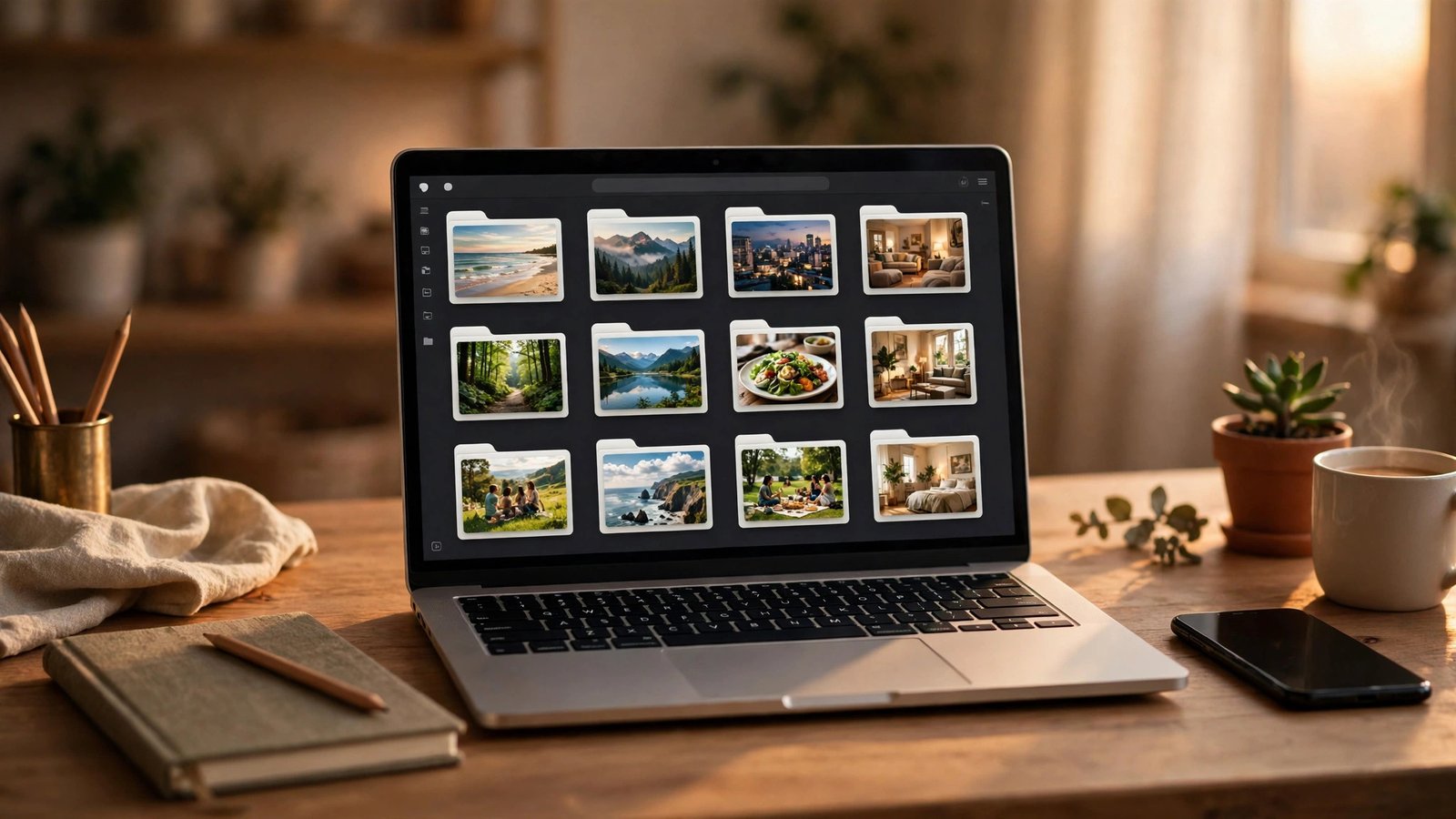
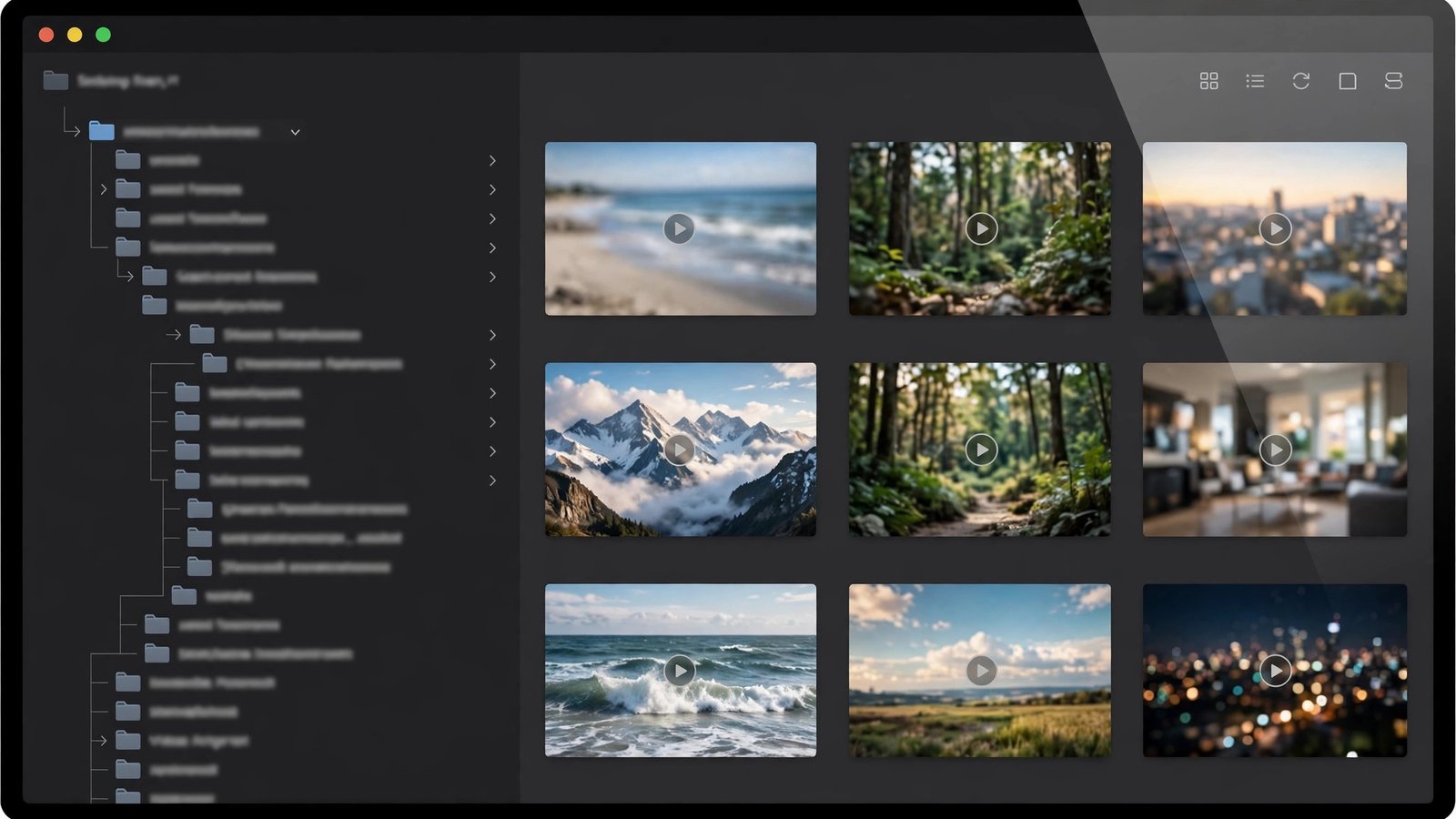
Here is the exact structure I built and ran the test file through:
Pinterest-Videos/
_Inbox/
DIY/
Recipes/
Fitness/
To-Watch/
The naming template is [Topic]-[Creator-or-Pin]-[Date].mp4 — topic first because that is what you search by, a creator name or pin reference second because that is how you trace it back, and a date last because that is how you tell two similar saves apart. My test file became Test-Pin-1089308228641270823-2026-10.mp4: no invented topic, because I had not watched the clip and would not guess what it shows, and the pin number in the name means I can find the original in seconds. It went into To-Watch, which is the honest folder for a file you have saved but not yet watched — not a project folder it does not belong in.
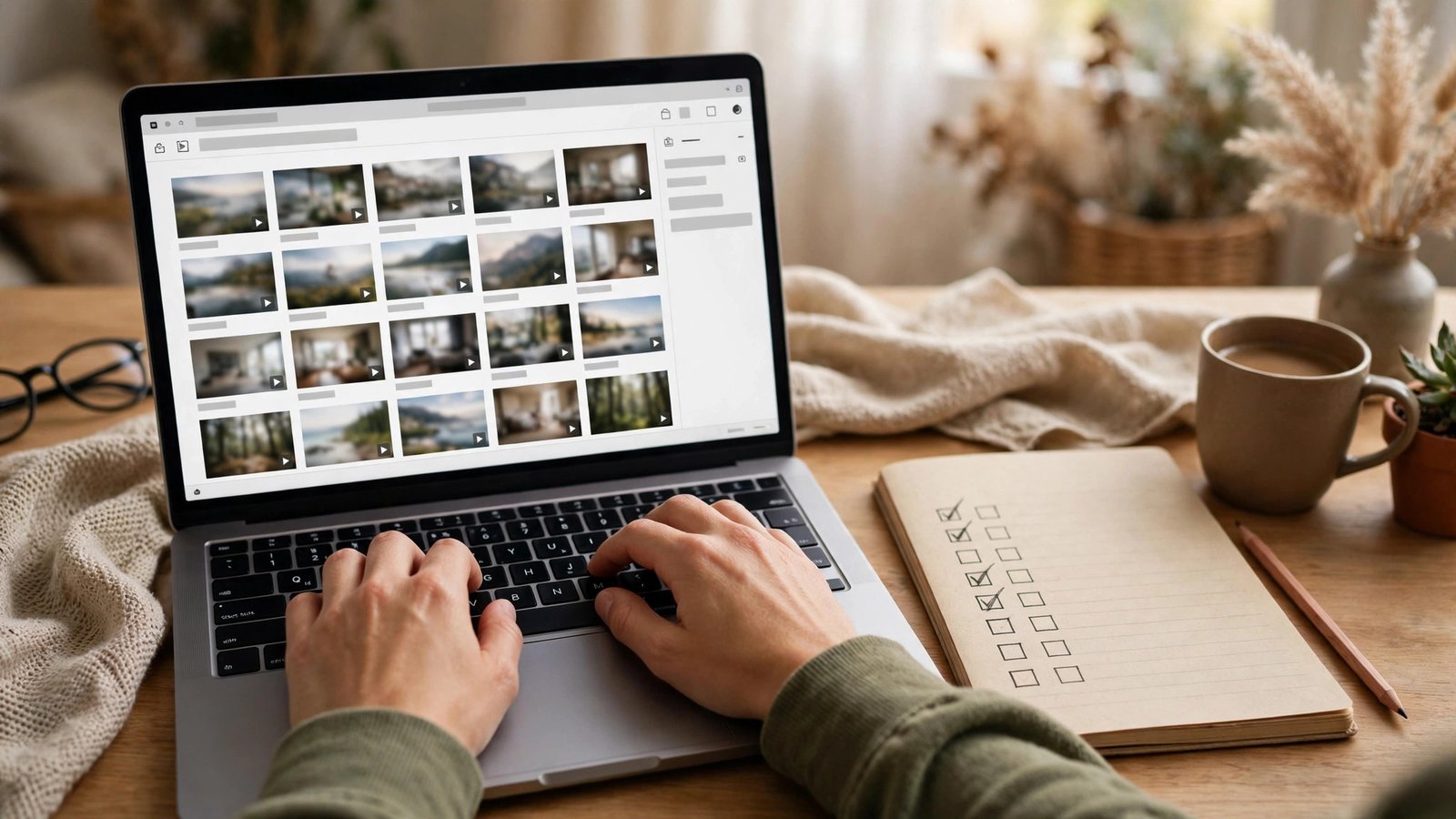
Then I tested whether the system actually works, which is the part most guides skip. Searching the library for *2026-10* returned the file immediately — one result, the right one. That sounds trivial until you have tried it on a Downloads folder full of download(1).mp4 through download(47).mp4, where the same search returns nothing useful at all. A system you cannot search is not a system. That search result is the payoff of a real system for how to save and organize Pinterest videos, instead of dumping files in Downloads.
Duplicates: the mess nobody warns you about
Here is how duplicates actually happen: you save a video from the app once, then download the same pin through a web tool, then once more after changing phones — and now three copies of one clip eat storage in three places. In my test I downloaded the same pin twice on purpose and compared the two files: identical MD5 checksums, byte for byte. The second copy went in the bin; the library kept one.
The rule from that test is simple: when two files match, keep the direct download, not a recording of the same clip — the direct file is smaller, sharper, and clean, while a recording is a re-compressed copy, usually with interface elements at the edges unless you cropped them. And after a phone change, check the library before re-saving: re-downloading is how most collections quietly double.
Back up like you mean it — then prove it
Everyone says “back up to the cloud.” Almost nobody checks the backup, and that is where the horror stories come from: the file that shows in the cloud app but is actually a zero-byte placeholder because it never finished syncing, or the folder that synced to a new phone but never played. So I verified mine properly. I copied the whole test library to a backup folder, compared checksums — identical — and then played the backup copy end to end: 10.17 seconds, sound and picture intact. That three-part check (same size, same checksum, actually plays) takes under a minute and is the difference between a backup and a hope. It is also the part of how to save and organize Pinterest videos that most guides skip entirely — they tell you to back up and never ask you to prove it.
Storage maths, from the real file: that 10-second 720p clip is 2.7 MB, roughly 16.8 MB per minute of 720p. A free 15 GB tier therefore holds about 891 minutes — just under 15 hours — of 720p before it fills; at 1080p the same minutes cost roughly twice that. Run those numbers before a big saving session, not after the sync fails halfway: the most common backup failure is not technical, it is a full drive.

One honest boundary: I verified a local backup copy, not a cloud provider’s sync — no cloud account ran through this test. If your backup lives in a cloud folder, the prove-it check still applies: open the cloud copy on a second device and play it. If it plays, it is backed up; if it only previews, it might not be.
Phone to PC, and the “downloaded but can’t find it” fixes
This complaint fills every downloader’s comments, and it has a boring explanation. On Android, a browser download usually lands in Downloads, where most gallery apps can see it — but not always; if it does not appear, move it into the Movies or DCIM folder with your file manager and it will show up. On iPhone, a browser download usually lands in Files first, not Photos: open Files, find it, use the share sheet, and choose Save Video to put it in Photos. That one extra tap is the whole mystery.
For moving files between phone and PC, the route I recommend is the dullest one that works: a cloud folder you already use, or a USB cable. Save the file into the cloud folder on the phone, let it sync, and pull it into the library’s _Inbox on the PC — then run the same rename-and-sort steps as above. Two failure points to watch: on Android, Google Photos only backs up device folders you explicitly switch on, so a video sitting in Downloads may never reach your Photos backup until you enable that folder; and on either platform, a file that shows as a thumbnail but will not play has usually not finished syncing — wait for the sync to complete before judging it lost.
What not to do
Three recommendations deserve a flat no. Screen recording as your main method is the worst default: it runs in real time, produces a larger, softer file than the direct download, and captures interface elements and pop-ups unless you crop and trim afterwards — and its audio depends on getting the system-audio setting right, which is exactly the setting people get wrong. Keep it as a fallback for a pin no downloader can read, not as the system. Re-uploading or selling what you saved is a different kind of mistake: downloading for your own offline reference is the low-risk use, but reposting, editing, or selling someone else’s video needs the creator’s permission, and a credit line is courtesy, not permission. Chasing “clean” copies by stripping creator branding or watermarks is the third: if a creator enabled an official download that carries their mark, that mark is the platform’s own terms for that copy, and removing it is not an upgrade.
And one more: private and restricted content is off limits, full stop. No tool promising to reach a private board is offering a feature; it is offering to break the owner’s privacy settings. This system is for public pins and your own videos only.
Methods compared
| Method | What you get | Organizing cost | Verdict |
|---|---|---|---|
| Board save inside Pinterest | A bookmark, not a file | None — but dies if the pin is deleted | Fine for browsing, useless as an archive |
| Web downloader (PintoDownload) | The pin’s own MP4 file, 720p in my test | You run the folder system yourself | Best default for building a library |
| Official app download | A file, where the creator enabled it, with creator branding | Same folder system, plus the mark stays on | Good when available; use it first |
| Screen recording | A re-compressed capture, larger and softer | Fallback only |
Frequently asked questions
Where do Pinterest videos go after I download them?
On Android, usually Downloads, where most gallery apps can see them; on iPhone, usually Files, and you need the share sheet’s Save Video step to put them in Photos. If a file is missing from your gallery, check Files or Downloads first.
How should I name saved Pinterest videos?
Use [Topic]-[Creator-or-Pin]-[Date].mp4 — topic first because that is what you search by, a creator name or pin reference second so you can trace it back, and a date last to tell similar saves apart. Rename the moment the file lands, not later.
How do I stop saving the same video twice?
Check the library before re-downloading, and when in doubt compare the files: identical size and checksum means identical content, so delete the second copy and keep the direct download, never a recording of the same clip.
How do I know my backup actually worked?
Do the three-part check: same file size as the original, same checksum, and the backup copy actually plays end to end on a second device. A thumbnail preview alone does not prove a backup.
Is it okay to re-upload a video I downloaded?
Not without the creator’s permission. Downloading for your own offline reference is the low-risk use; reposting, editing, or selling someone else’s video needs permission, and credit alone does not grant it.
The short version, after all the testing: how to save and organize Pinterest videos is not a download trick, it is a habit — inbox, rename, sort, log, back up, prove it. Run it on every save and your library stays searchable a year from now; skip it and you will own a Downloads folder full of strangers. If you also save images, the Pinterest image downloader works the same way and deserves the same folder system. For getting videos onto your phone’s gallery, see this site’s save-to-gallery guide; if a download ever fails, the fixes guide covers the common causes. For Pinterest’s own rules, start with Pinterest Help, and for desktop playlists, VLC is the free player this workflow assumes. Start at the PintoDownload homepage for the download itself — and if you collect GIFs too, the GIF downloader guide covers those.