Pinterest GIF Downloader: How to Download GIFs from Pinterest (2026 Guide)
Pinterest is packed with animated GIFs — reaction memes, aesthetic loops, cooking hacks, and DIY demos that play on repeat. But when you try to save one, Pinterest only lets you “Save” the pin to a board inside the app. There’s no download button. If you want the actual GIF file on your phone or computer — to share on WhatsApp, post on Instagram Stories, or use in a presentation — you need a Pinterest GIF downloader.
In this guide, I’ll show you exactly how to download GIFs from Pinterest in 2026: the fastest online method, step-by-step instructions for iPhone, Android, and PC, how to convert Pinterest’s video-format GIFs into real .gif files, and what to do when a download fails. Let’s get into it.
What Is a Pinterest GIF Downloader?
A Pinterest GIF downloader is an online tool that extracts the media file behind a Pinterest pin and lets you save it to your device. You paste the pin’s link, click download, and the tool gives you the file — no app installation, no account, no watermark.
Tools like PintoDownload work directly in your browser and handle Pinterest GIFs, videos, and images. Since everything happens online, it works the same on Android, iPhone, Windows, and Mac.
Why not just long-press and save? On most phones, long-pressing a GIF on Pinterest either does nothing or saves a single still frame instead of the animation. Pinterest deliberately keeps the animation inside its app. A dedicated downloader bypasses that limitation.
How to Download GIFs from Pinterest: The Fastest Method
This universal method works on every device with a browser. It takes under 30 seconds.
Step 1: Find the GIF on Pinterest
Open the Pinterest app or pinterest.com and find the animated pin you want. Make sure it actually animates when you open it — some pins that look like GIFs are just static images with motion-style thumbnails.
Step 2: Copy the pin link
- On mobile: tap the share icon (the arrow) on the pin, then tap “Copy link.”
- On desktop: click the pin to open it, then copy the URL from your browser’s address bar.
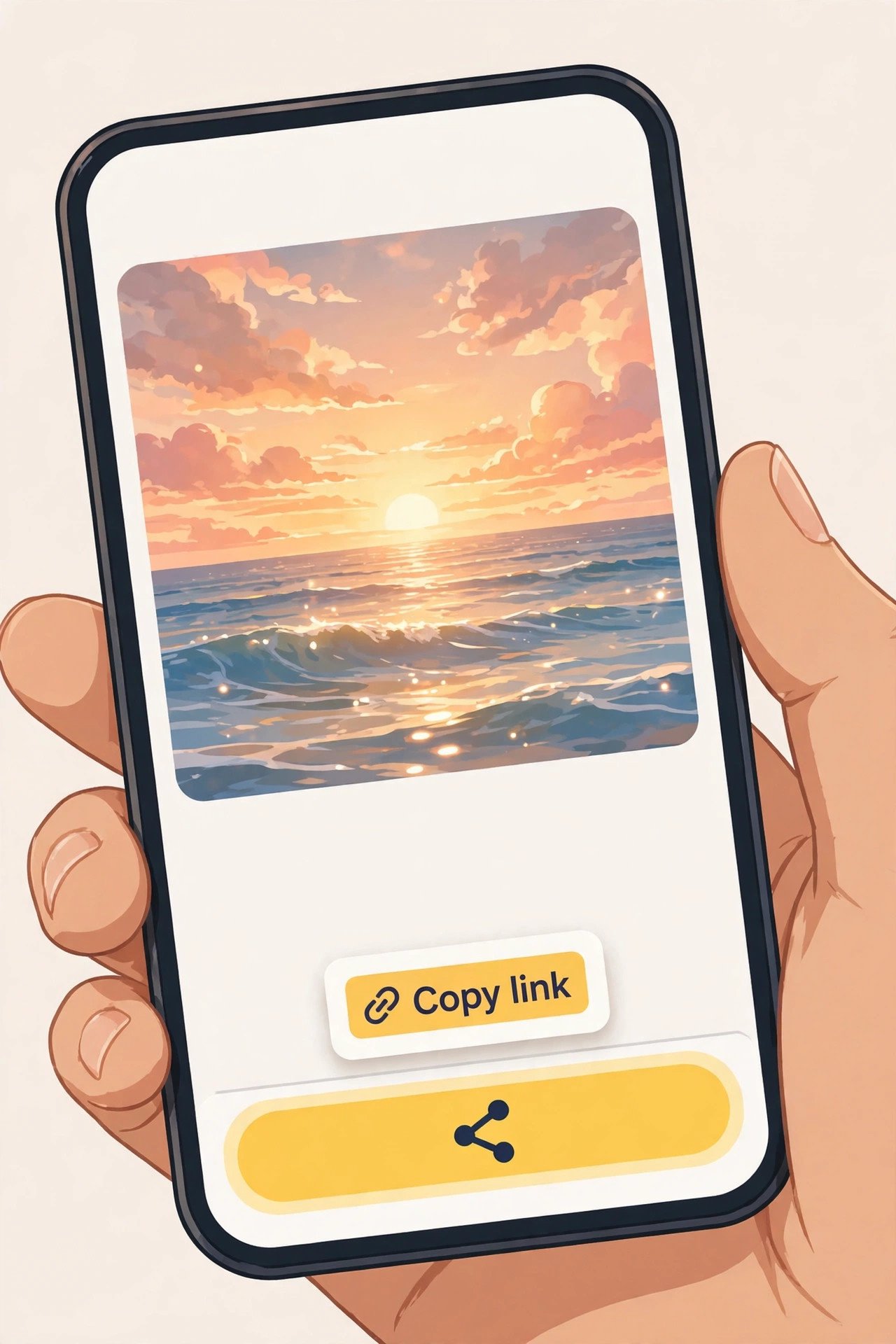
Step 3: Paste the link into a downloader
Go to PintoDownload, paste the copied link into the input box, and hit the download button. The tool will fetch the pin and show you the available file.
Step 4: Save the file
Tap/click the download button on the result. On phones, the file goes to your Downloads folder or Photos app; on a computer, it lands in your Downloads folder. That’s it — the full animation is now yours.
How to Download Pinterest GIFs on Android
Android users have the smoothest experience, since Android’s file system and sharing menu make copying links easy.
- Open the Pinterest app and find your GIF.
- Tap the share icon at the bottom of the pin and choose Copy link.
- Open Chrome and visit PintoDownload.
- Paste the link and tap Download.
- When the file appears, tap the download button again to save it.
- Find it in your Files → Downloads folder, or open it in your gallery app to confirm the animation plays.
Tip: If your gallery shows the file as a still image, open it with Google Photos or a browser — some gallery apps don’t preview animations in thumbnail view, but the animation is there.
For a deeper walkthrough of saving all Pinterest media types on Android, see our guide on how to download Pinterest videos on Android.
How to Download Pinterest GIFs on iPhone
Downloading GIFs on iPhone works fine with an online tool — you just need to know where iOS puts the file.
- In the Pinterest app, tap the share icon on the pin and select Copy Link.
- Open Safari and go to PintoDownload.
- Paste the link and tap Download, then tap the download button on the result.
- Safari shows a download arrow in the address bar — tap it, then tap the file to open it in the Files app.
- The GIF plays with full animation in the Files app preview.
Want it in your Photos app? Open the GIF in Files, tap the share icon, and choose Save Image. It will appear in Photos with the animation intact.
iOS 17/18 note: Safari sometimes asks “Do you want to download?” — tap Download to confirm. This is a standard iOS permission prompt, not a problem with the tool.
We cover iPhone-specific Pinterest downloading in more detail in our iPhone Pinterest video guide.
How to Download Pinterest GIFs on PC (Windows & Mac)
Desktop downloading is the easiest of all, and it’s ideal if you’re collecting GIFs for a project, presentation, or meme folder.
- Open the pin on pinterest.com and copy the URL from the address bar (Ctrl+L, Ctrl+C on Windows; Cmd+L, Cmd+C on Mac).
- Go to PintoDownload in any browser.
- Paste the link and click Download.
- Right-click the result and choose “Save link as…” (or click the download button) to save it to your computer.
- Open the file with any browser or image viewer to watch the loop.
On Mac, the file lands in your Downloads folder and plays in Preview or Quick Look (select it and press Space). On Windows, double-clicking opens it in your default viewer — if the animation doesn’t play, open it in Chrome or Edge instead.
If you also save videos, our PC Pinterest video download guide covers Windows and Mac methods in detail.
Pinterest GIFs vs. MP4: Why Some “GIFs” Download as Video Files
Here’s something that confuses a lot of people: many animated pins on Pinterest aren’t technically GIF files at all. Pinterest converts most animations to MP4 video behind the scenes, because MP4 loops look smoother and use far less data than true GIFs.
So when you download an animated pin, you may get an .mp4 file instead of a .gif. This is normal — and honestly, it’s better:
- MP4 files are smaller — often 5–10x smaller than the equivalent GIF.
- Quality is higher — MP4 supports more colors and smoother motion.
- They play everywhere — WhatsApp, Telegram, Instagram, and X all accept MP4.
But what if you specifically need a .gif file? For example, some forums, Discord emoji slots, or older platforms only accept the GIF format. In that case, convert the MP4 after downloading:
- Download the animation using the method above.
- Use a free converter (search “MP4 to GIF converter” — CloudConvert and Ezgif are reliable).
- Upload your MP4, choose your start/end points if you want to trim the loop, and convert.
- Download the resulting
.gif.
The conversion takes seconds, and you keep the full animation.
Pinterest GIF Downloader: Online Tool vs. App vs. Screen Recording
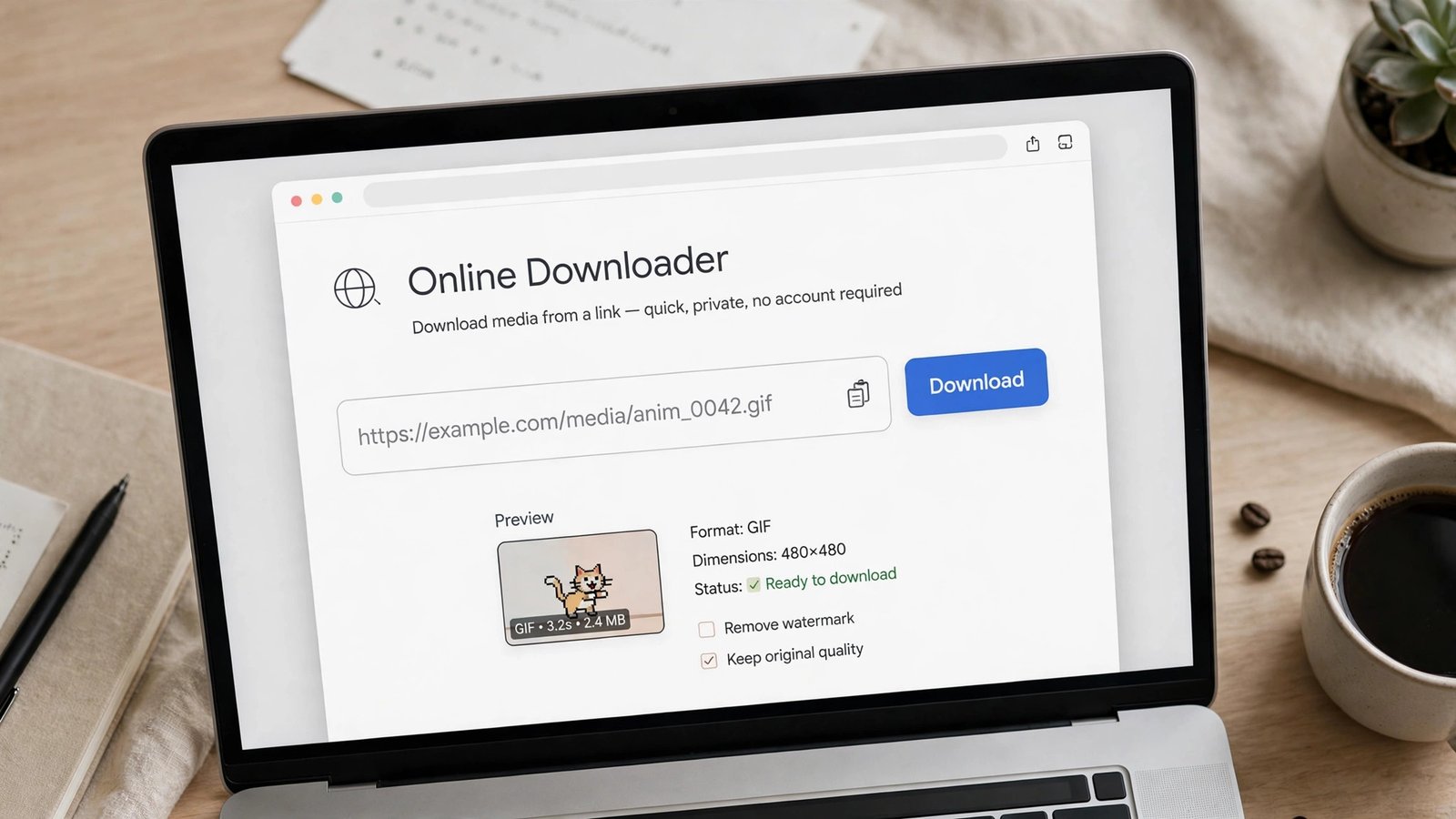
There are three ways to get a GIF off Pinterest. Here’s how they compare:
| Method | Quality | Speed | Animation preserved? | Watermark? |
|---|---|---|---|---|
| Online downloader (e.g. PintoDownload) | Original | ~30 seconds | Yes | No |
| Third-party downloader apps | Original | ~1 minute | Yes | Sometimes |
| Screen recording | Lower (screen resolution) | Slow (real-time) | Yes | No |
Online tools win for most people. There’s nothing to install, no permissions to grant, and no risk of a shady app harvesting your data. Screen recording works in a pinch, but you’re capturing at screen resolution with UI elements potentially visible, and you have to trim the clip afterward.
A word about downloader apps: many “Pinterest video downloader” apps on the Play Store are ad-heavy and request broad permissions. An online tool like PintoDownload does the same job in your browser with none of that baggage.
Troubleshooting: Pinterest GIF Not Downloading
If your download isn’t working, run through these fixes — they solve 95% of cases:
“Invalid link” or “Pin not found”
You probably copied the link incorrectly, or the pin was deleted. Go back to Pinterest, open the pin again, and copy the link fresh. Make sure you’re copying the individual pin’s link, not a board or profile URL.
The pin is from a private board
Downloaders can only access public pins. If the GIF is on a secret board, make the board public temporarily — or ask the board owner for the pin link.
Download starts but the file won’t play
The file may have downloaded with the wrong extension. Check that it ends in .gif or .mp4. If your phone’s gallery won’t animate it, try opening it in Chrome — instead, share it to Google Photos or open it in a browser-based viewer.
The button does nothing on iPhone
Check Safari’s download settings: Settings → Safari → Downloads should be set to “On My iPhone.” Also make sure you’re not in Private Browsing with downloads blocked.
Pinterest changed something
Pinterest occasionally tweaks its site structure, which can temporarily break third-party tools. If a downloader fails on every pin, wait a few hours and try again — reputable tools update quickly.
Is It Legal to Download GIFs from Pinterest?
Short answer: downloading for personal use is generally fine; reposting someone else’s work as your own is not.
Pinterest’s Terms of Service say you shouldn’t download content except through the features Pinterest provides — but millions of people save pins for personal collections, mood boards, and private sharing, and rights holders virtually never pursue individual personal-use downloads.
Where you need to be careful:
- Don’t re-upload someone’s GIF to your own social accounts or website without permission or credit. That’s copyright infringement, even if “everyone does it.”
- Commercial use is risky. Using a downloaded GIF in ads, products, or monetized content without a license can get you a takedown or worse.
- Give credit when you share. If a GIF has a visible creator watermark or source, keep it and credit them.
When in doubt, treat a Pinterest GIF like any other creative work: enjoy it personally, credit the creator publicly, and license it commercially.
FAQ: Pinterest GIF Downloader
Can I download GIFs from Pinterest without an account?
Yes. Online downloaders like PintoDownload don’t require a Pinterest account or any login. You only need the pin’s link.
Do Pinterest GIF downloads have a watermark?
No — not when you use a proper downloader. The file you get is the original animation without any added watermark. (Don’t confuse this with creator watermarks some artists bake into their GIFs — those are part of the artwork.)
Why does my downloaded GIF look blurry?
You may have downloaded a low-resolution preview. Make sure you copied the link of the full pin (opened, not the grid thumbnail). Pinterest serves higher quality on the pin’s own page.
Can I download multiple GIFs at once?
Most online tools process one link at a time. For bulk saving, repeat the 30-second process per pin — or save pins to a Pinterest board first so you have all the links in one place.
What’s the difference between a GIF and a video pin on Pinterest?
Technically, most “GIFs” on Pinterest are served as looping MP4 videos. True GIF files exist but are rarer. Both download the same way, and both loop when played.
Does downloading GIFs work on iPad?
Yes — follow the same steps as iPhone. Safari on iPad handles downloads identically.
Final Thoughts
Downloading GIFs from Pinterest doesn’t need to be complicated. Copy the pin link, paste it into PintoDownload, and save the file — that’s the whole process on Android, iPhone, and desktop. Remember that many Pinterest “GIFs” are actually MP4s under the hood (which is good news for quality and file size), and convert to true GIF format only if a specific platform demands it.
Keep your downloads personal, credit creators when you share, and you’ll have a never-ending supply of perfect reaction GIFs. Happy pinning!