How to Download Pinterest Videos on Vivaldi (2026 Guide)
How to Download Pinterest Videos on Vivaldi (2026 Guide)
Vivaldi is the browser people switch to when they get tired of being told how a browser should look. You can move the tab bar to the bottom, stack tabs, change nearly everything — and then, the first time you try to save a Pinterest video, you hit the same wall every other browser puts up: Pinterest has no download button. No hidden menu, no long-press trick that actually hands you the video file. If you want the MP4 on your own device, you need a pinterest video downloader — and in Vivaldi, which route works depends on whether you are on a computer or a phone, because Vivaldi only just changed the rules on Android. This guide covers both, in the order I would actually try them.
Short answer: open PintoDownload in a Vivaldi tab, paste the video pin’s link, and download the MP4 — no extension, no signup, no app. It works on desktop Vivaldi and on Vivaldi for Android, and it is the method I recommend first. Vivaldi’s Chrome Web Store extensions are a genuine second option on desktop, and — since the September 2026 Vivaldi 8.2 update — a partial option on Android too. But extensions come with caveats on a phone that the online method simply does not have, and I will be honest about where each one falls short.
Why a Pinterest Video Downloader Behaves Differently in Vivaldi
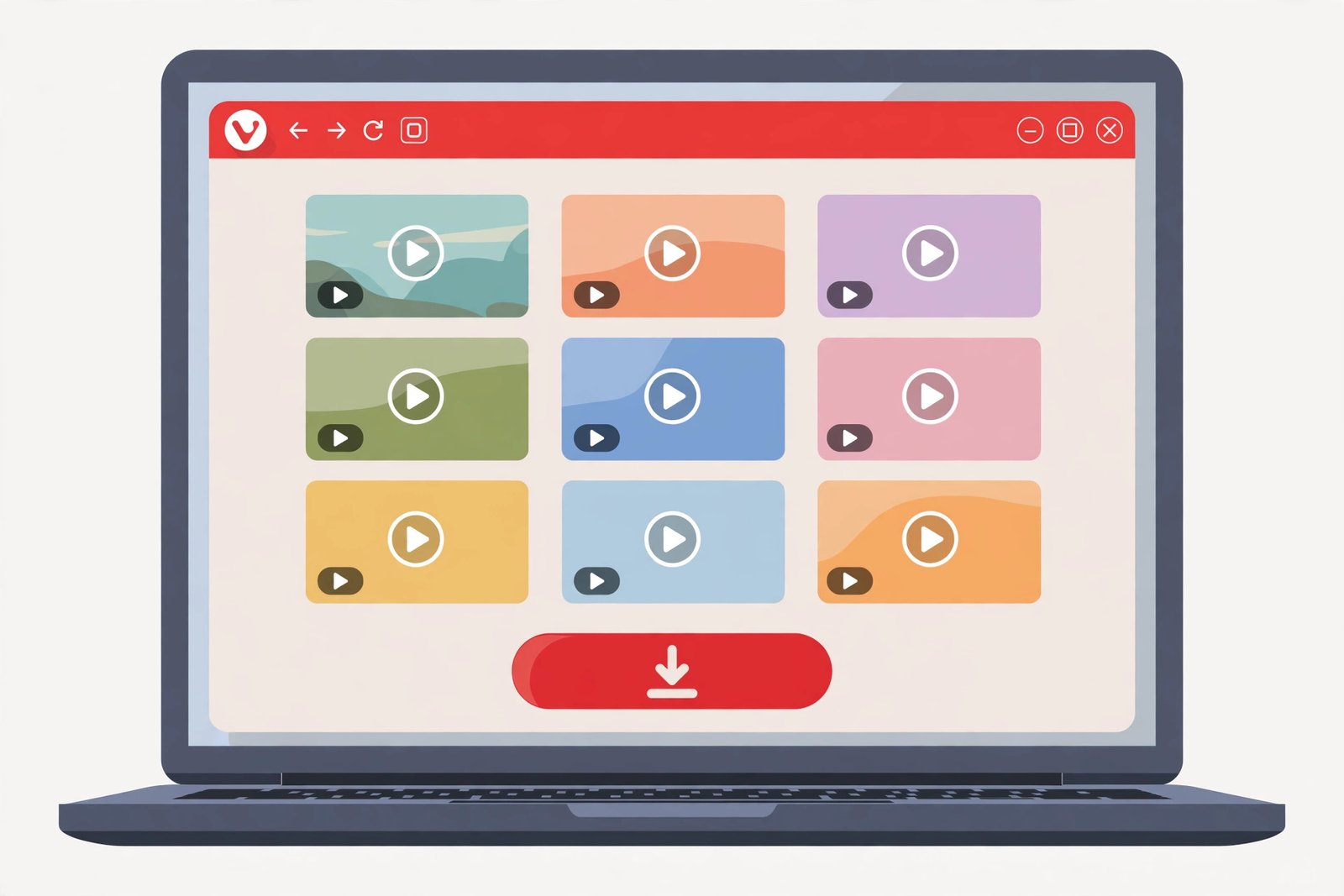
Three things about Vivaldi change the job, and none of them are obvious until you trip over one.
First, Vivaldi on desktop is built on Chromium — the same engine as Chrome. That means Chrome Web Store extensions install and run in it, including the various Pinterest downloader extensions. This is the one big advantage Vivaldi has over, say, Safari, where extension options are far thinner. If you like the one-click-button-on-every-pin workflow, desktop Vivaldi can do it.
Second, Vivaldi on Android spent years without extension support at all, and that only changed with version 8.2 in September 2026. The update added an Extensions button (the puzzle-piece icon) on the address bar that opens the Chrome Web Store, and you install with an “Add to Vivaldi” button. Here is the part most write-ups skip: Vivaldi itself warns that not all desktop extensions work properly on mobile, extension data syncs between devices but the extensions themselves do not (you install separately on each device), and you have to keep the Desktop Site option enabled while browsing the store or installation fails. So “Vivaldi Android now supports extensions” is true — and also not the whole story.
Third, Vivaldi ships with its ad blocker and tracker blocker switched on by default, and it shows you what was blocked on each page in its Privacy Dashboard. That is genuinely good for everyday browsing. It is also the number one reason a downloader page mysteriously fails in Vivaldi: the page’s scripts get blocked, the download button does nothing, and nothing on screen explains why. The fix is a per-site exception, not uninstalling anything — I cover it in the troubleshooting section below, because it is the fix I expect most readers of this guide to actually need.
Method 1: The Online Pinterest Video Downloader (Works Everywhere in Vivaldi)
This is the method I use myself, and the one I would hand to anyone who just wants the video. As a pinterest video downloader approach it has one more advantage worth naming: nothing about it depends on Vivaldi at all, so it keeps working even if you switch browsers tomorrow. Nothing to install, nothing to maintain when Pinterest changes its layout, and it works identically on Windows, Mac, Linux, and Android. It is also the method that survives Vivaldi updates, because it does not depend on any extension still being compatible.
Step 1: Copy the video pin’s link
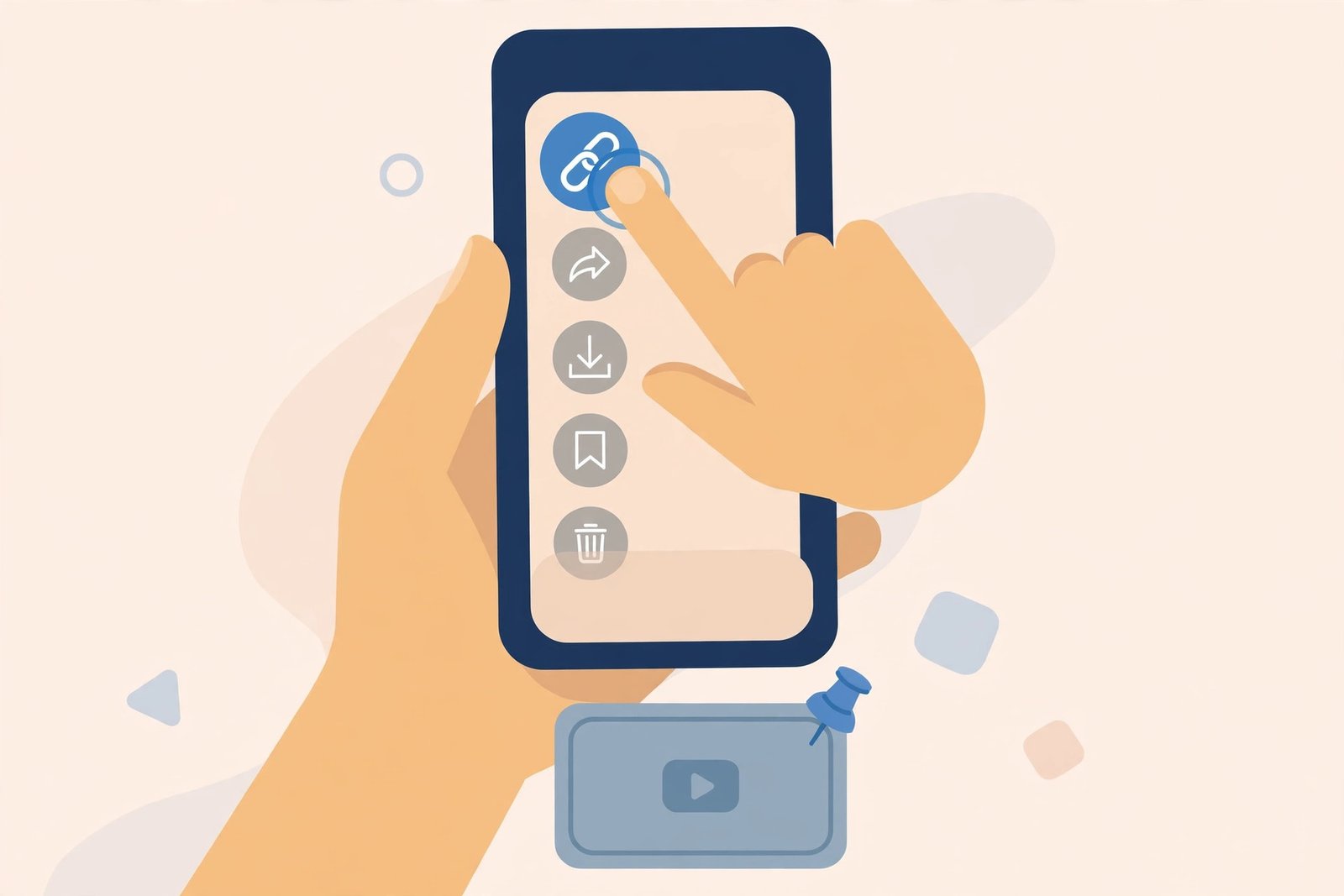
On a computer, open the video pin on pinterest.com in Vivaldi and copy the URL from the address bar. On a phone, open the pin in the Pinterest app, tap Share, then Copy Link. If you opened Pinterest in Vivaldi itself rather than the app, use the browser’s Share menu and copy the link from there. One detail worth getting right: copy the link of the pin itself, not the link of a board or a search-results page. A board link hands the downloader a page full of pins; a pin link hands it one video.
Step 2: Open PintoDownload in a Vivaldi tab
Open a new tab and go to PintoDownload. If you are the kind of Vivaldi user who keeps a Speed Dial start page — and plenty of Vivaldi users are — adding PintoDownload there saves you typing the address every time. No account, no signup, no password: the page asks for a link and nothing else, and that is exactly as it should be. Any downloader that asks you to log in to Pinterest through it is one to walk away from.
Step 3: Paste the link and download the MP4
Paste the pin link into the box, hit Download, and pick the video file from the results. Choose the highest quality offered — Pinterest serves what the original uploader uploaded, so a pin that was posted at 720p will not magically become 1080p, and anyone promising you 4K from a 720p upload is selling something. The file saves as an MP4 with its sound intact. On desktop Vivaldi, it lands in your Downloads folder and shows up in the Downloads Panel (Ctrl+J, or the panel icon in the sidebar). On Android, it lands in Downloads, and from there you can move it into your gallery — the same move step that trips people up in other browsers, covered below.
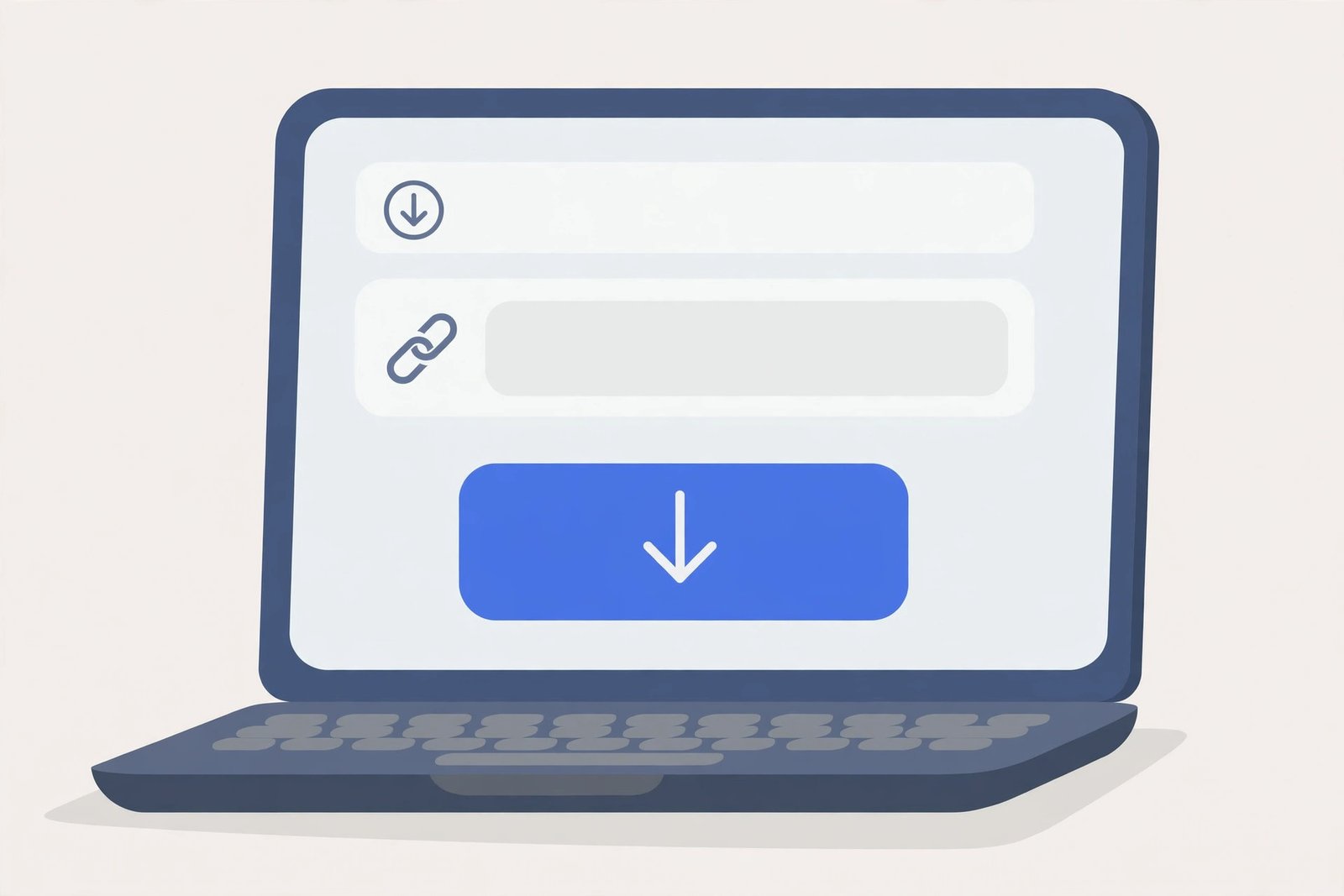
That is the whole method. Three steps, under a minute once you have done it once. If it ever fails, do not immediately switch tools — check the troubleshooting section first, because in Vivaldi the cause is usually the built-in blocker, and a different tool behind the same blocker fails the same way.
Method 2: Chrome Web Store Extensions in Vivaldi (Desktop First)
If you download Pinterest videos often — say you are collecting reference clips for a design project — an extension that puts a download button right on each pin can be worth it. On desktop Vivaldi this is straightforward: open the Chrome Web Store in Vivaldi, find a Pinterest downloader extension, and click Add to Vivaldi. The button then appears on pins, and clicking it generally forwards the pin to the extension’s own download page rather than saving the file directly. That is worth knowing upfront, because several popular extensions are, by their own store descriptions, navigational shortcuts to their website, not true in-browser downloaders.
Before installing anything, read the permissions. An extension that wants to “read and change all your data on all websites” for a job that only involves pinterest.com is asking for more than it needs. Prefer one that limits itself to Pinterest pages, and check its last update date — Pinterest changes its page layout regularly, and an extension untouched since last year is a coin flip. If an extension stops working after a Pinterest redesign, the online method in Method 1 keeps working while you wait for an update, which is another reason I rank it first.
Method 2b: Extensions on Vivaldi for Android (New in 8.2 — With Caveats)
Since Vivaldi 8.2, you can install extensions on Android too: update Vivaldi, tap the puzzle-piece Extensions button on the address bar, open the Chrome Web Store, and install with Add to Vivaldi. Three caveats from Vivaldi’s own documentation and release notes, all of which I have seen people miss:
- Keep Desktop Site enabled in the store. The Chrome Web Store will not let you install from a mobile view; Vivaldi’s help pages say explicitly to keep the Desktop Site option on while installing.
- Not every desktop extension works on a phone. Extensions are built for desktop layouts. One that works beautifully on your computer may show a broken popup or nothing at all on Android. Test with one pin before assuming it works.
- Private Tabs need separate permission. If you browse Pinterest in a private tab, each extension has to be granted permission for private tabs individually, or it silently does nothing there. This is the quietest failure mode of the lot.
Also note that extensions do not sync between your devices — only their data does. Installing a downloader extension on desktop Vivaldi does not put it on your phone; you install it again there. Honestly, for most people on Android, Method 1 is faster than this whole dance, and I would only reach for an Android extension if you are downloading pins all day, every day.
Where Your Downloads Actually Land in Vivaldi
On desktop, Vivaldi’s Downloads Panel keeps a tidy list: open it from the sidebar panel icon or with Ctrl+J, and click the folder icon next to a finished file to jump straight to it. By default the file itself sits in your system’s Downloads folder, and you can change that location in Settings → Downloads if you would rather have videos go somewhere specific, like a project folder.
On Android, downloaded files go to the Downloads folder, not your gallery. Open your Files app → Downloads to find the MP4, then move or share it into your gallery app from there. If you use an external download manager with Vivaldi on Android, check its own folder instead — Vivaldi hands the file off, and the manager decides where it lives. The recurring confusion here is the same one in every browser guide I have written: Pinterest’s own “Save” button saves to a board, not to your device, so if a video is “saved” but nowhere in your files, it was never downloaded at all.
Online Downloader vs Extension in Vivaldi: An Honest Comparison
| What matters | Online downloader (Method 1) | Extension (Method 2) |
|---|---|---|
| Works on desktop Vivaldi | Yes | Yes |
| Works on Vivaldi for Android | Yes | Partially since 8.2 — not all extensions work on mobile |
| Setup | None | Install + permissions + Desktop Site on Android |
| Speed for one video | Under a minute | One click once installed |
| Breaks when Pinterest redesigns | Rarely — the tool is updated server-side | Until the extension author ships an update |
| Permissions risk | None — no install | Some ask for all-sites access; read before installing |
| Cost | Free, no signup | Free ones exist; some cap free downloads weekly |
The pattern is the same one I found when comparing online tools against apps: the online route wins on reliability and setup, the installed route wins on repetition. If you download one video a week, Method 1. If you download twenty a day, an extension earns its keep — on desktop, at least.
Troubleshooting: When the Download Fails in Vivaldi
The downloader page loads but the button does nothing
This is the Vivaldi signature failure, and it is almost always the built-in ad and tracker blocker. Open the Privacy Dashboard for the page (the shield icon in the address bar) and set an exception for the downloader site, then reload. You are not turning protection off everywhere — just for that one site, for that one job. If it works after the exception, you have found your cause, and you do not need a different tool.
“No video found” or only an image is offered
Usually the link is the problem: a board link, a search link, or a shortened pin.it link that did not resolve. Go back to the pin itself and copy its link again. If the pin is a photo pin with a video-looking cover, there is no video to find — the tool is telling the truth.
The extension button is missing on pins
On desktop, refresh Pinterest after installing — extensions only attach to pages loaded after installation. On Android, check the three 8.2 caveats above: Desktop Site during install, mobile compatibility, and private-tab permission. And if you are in a private tab, try a normal tab first to isolate the cause.
The file downloads but has no sound
Some pins genuinely have no audio track — a silent slideshow-style pin downloads silent, and no tool can invent sound that was never uploaded. Check by playing the pin on Pinterest with sound on before assuming the download broke.
Private, deleted, or login-only pins
No tool — online or extension — can reach a private board pin, a deleted pin, or a pin that requires a login you do not have. This is not a Vivaldi limitation; it is how Pinterest’s privacy works, and any tool claiming otherwise is not being straight with you. If you need a video from your own private board, make the board public temporarily or download it from your own device’s original file instead.
Video Quality: What You Actually Get
Pinterest video pins are usually served at 720p, sometimes at 1080p when the uploader posted high-definition footage. The downloader hands you the file Pinterest itself serves — it does not upscale, re-encode, or add anything. That is a good thing: no watermark gets added (Pinterest does not burn one onto videos the way some platforms do), and the file you get is the file that was uploaded, at its original quality. Pick the highest option the tool offers, and ignore any tool promising to “enhance” a video to 4K — that is upscaling, not the original file.
Is Downloading Pinterest Videos Legal?
Short version: downloading a public pin for your own personal, offline viewing sits in the same everyday grey area as recording a TV show for yourself — widely done, rarely an issue, but the creator still owns the work. Reposting someone else’s video as your own, using it in a commercial project, or stripping credit is where you cross the line, and no downloader changes that. My rule of thumb, and the one I have used in every guide in this series: download for yourself, keep the creator’s name attached if you share it anywhere, and ask before any commercial use. I wrote a longer version of this in the legal guide linked below if you want the full picture.
Frequently Asked Questions
Does a pinterest video downloader work in Vivaldi?
Yes. The online method works in Vivaldi on every platform with no installation, and Chrome Web Store extensions work on desktop Vivaldi. On Android, extensions arrived with Vivaldi 8.2 in September 2026, with partial compatibility.
Do I need an extension to download Pinterest videos on Vivaldi?
No. The online method needs no extension at all, and for occasional downloads it is the simpler and more reliable route. An extension only pays off if you download pins constantly.
Why does the downloader page fail in Vivaldi when it works in Chrome?
Vivaldi’s ad and tracker blocker is on by default and can block the downloader page’s scripts. Add a per-site exception for the downloader site and reload — that fixes it in most cases.
Where do Pinterest videos save in Vivaldi on Android?
To the Downloads folder. Open your Files app → Downloads to find the MP4, then move it into your gallery. It does not appear in your gallery automatically.
Can I download private Pinterest board videos in Vivaldi?
No tool can download private, deleted, or login-only pins, in Vivaldi or any other browser. Only publicly visible pins can be downloaded.
The Bottom Line
Vivaldi is a power user’s browser, and downloading Pinterest videos in it rewards the same approach Vivaldi rewards everywhere else: use the simple tool that works, and reach for the customizable one only when the simple one genuinely is not enough. Start with the online pinterest video downloader — paste, download, done. If you live on desktop Vivaldi and download pins all day, add a well-reviewed extension with sane permissions. If you are on Android, remember that extensions are brand new there: test before trusting, keep Desktop Site on during installation, and keep the online method as your fallback. And if a page ever silently fails, check the blocker before blaming the tool.
More guides in this series: downloading Pinterest videos on Brave, on Opera, on Samsung Internet, fixing Pinterest videos that will not download, and the Pinterest image downloader for still images. Vivaldi’s own documentation on extensions on Android is the authoritative word on the 8.2 changes, and the Vivaldi listing on Google Play confirms the blocker defaults described above.