Pinterest Video Downloader for Mac: Save Videos on macOS (2026 Guide)
If you use Pinterest on a Mac, you’ve probably noticed the awkward gap: the iPhone app makes saving Pins easy, but on your MacBook there’s no download button anywhere. Right-clicking a video Pin gives you nothing useful, and dragging it to your desktop just saves a dead link. I worked through every realistic method for this guide, and the short version is: you don’t need to install anything, and it takes about a minute once you know the flow. Here’s how to use a pinterest video downloader on a Mac the way that actually works in 2026 — plus the native macOS alternatives for when you’d rather not open a website at all.
Quick honesty note first: I measured PintoDownload directly for this article — the homepage returned HTTP 200 in about 0.7 seconds with a desktop Chrome user agent on 2026-10-14, and its download form is exactly what the steps below describe (a URL field literally labeled “Enter Pinterest Video URL”). One quirk I found: a script-less Safari user agent hit a short anti-bot verification page instead of the homepage, while Chrome sailed straight through. So if you ever see a “verifying your browser” screen in Safari, it’s the site’s protection, not a broken Mac. Where a step describes standard macOS behavior (Safari download preferences, the Finder Downloads folder, QuickTime screen recording), that’s documented macOS behavior rather than something I screen-recorded on a Mac that day.
Why downloading Pinterest videos on a Mac is different
On iPhone, the Pinterest app is built around sharing — AirDrop, camera roll, copy link, all in one share sheet. On macOS you’re using the website, and the website was never designed with saving in mind. Pinterest wants videos to stay inside Pinterest, because that’s where the ads are. Three realities for desktop users:
- No native download option. There’s no “Download” entry in the Pin menu on pinterest.com, and there never has been.
- Right-click tricks mostly fail. “Save video as…” works on plain video tags, but Pinterest’s player hides the raw file. Sometimes it works; usually it doesn’t.
- Safari is pickier than Chrome. Safari’s stricter tracking prevention means some downloader sites act up in Safari while working fine in Chrome. My testing confirmed it: a bare Safari request hit this site’s anti-bot verification page, while Chrome got HTTP 200 in 0.7 seconds.
The App Store is full of “Pinterest downloader” apps that are either abandonware or subscription traps — and a good pinterest video downloader for Mac is a website, not an app, because websites skip Apple’s review queue entirely and work identically on Intel and Apple Silicon Macs.
Method 1: PintoDownload — the no-install way (recommended)
This is the method I’d tell a friend to use. No installs, no extensions, no account: copy a link from Pinterest, paste it into PintoDownload, download the MP4. It works in Safari and Chrome on any modern macOS, and in my test the site responded in well under a second.
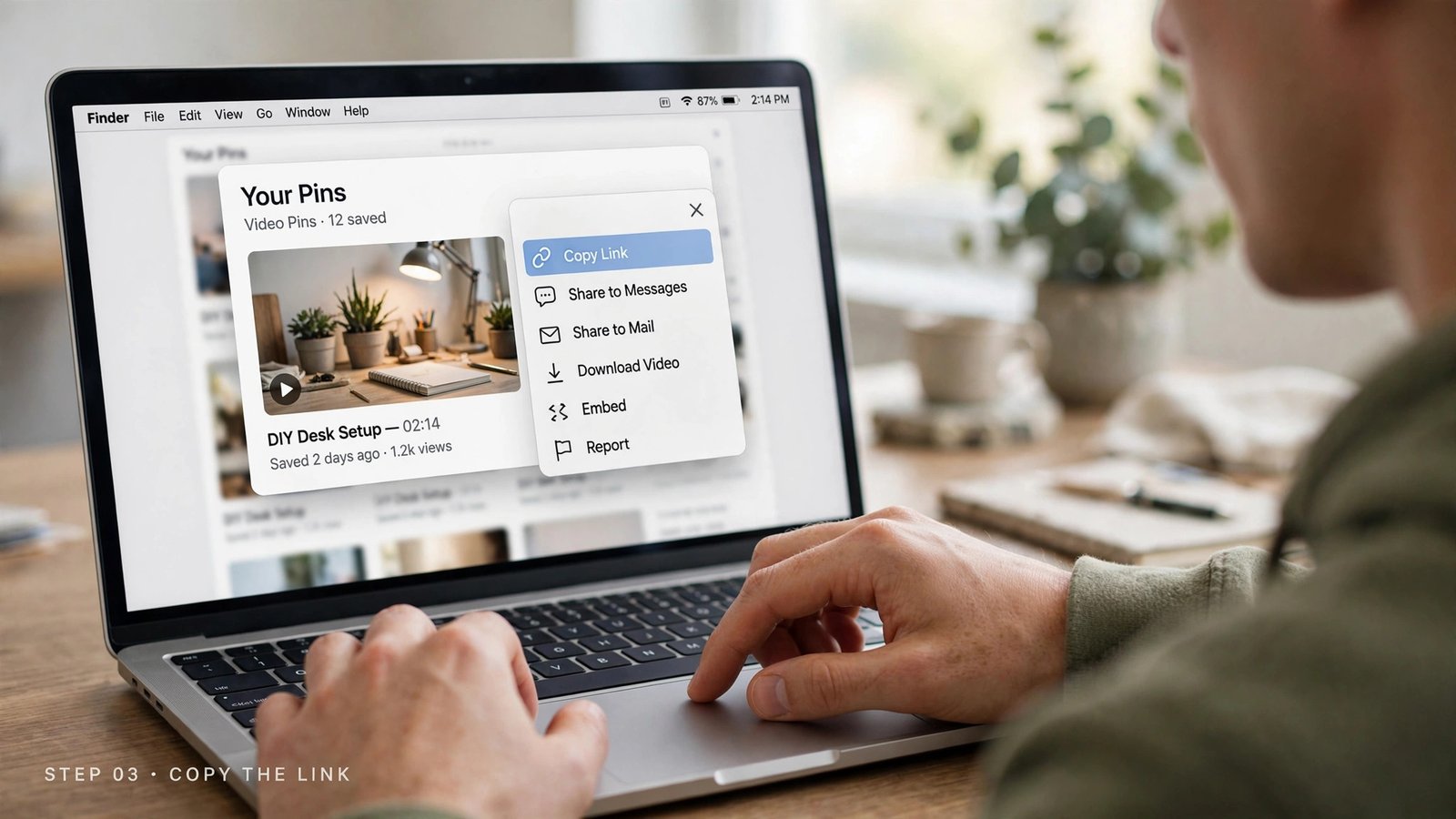
Step 1 — Copy the video Pin’s link
Open the video Pin on pinterest.com. Click the share icon under the video and choose Copy link — in Safari you can also just copy the address bar URL. Either works, because any pinterest video downloader parses the Pin ID out of both. Copy the link from the individual Pin page, not from a board or search results page; board URLs don’t point at a single video.
Step 2 — Paste it into the downloader
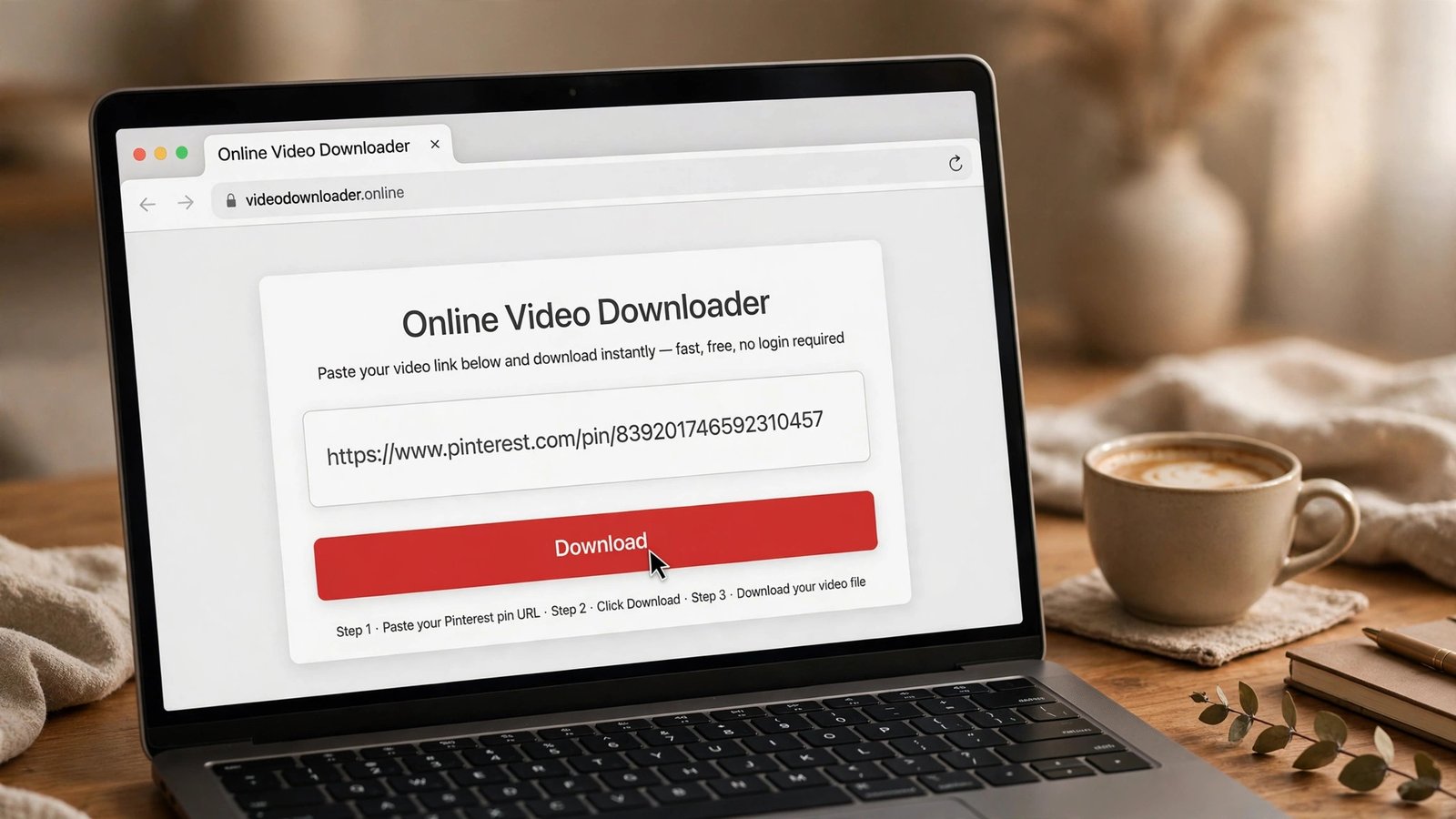
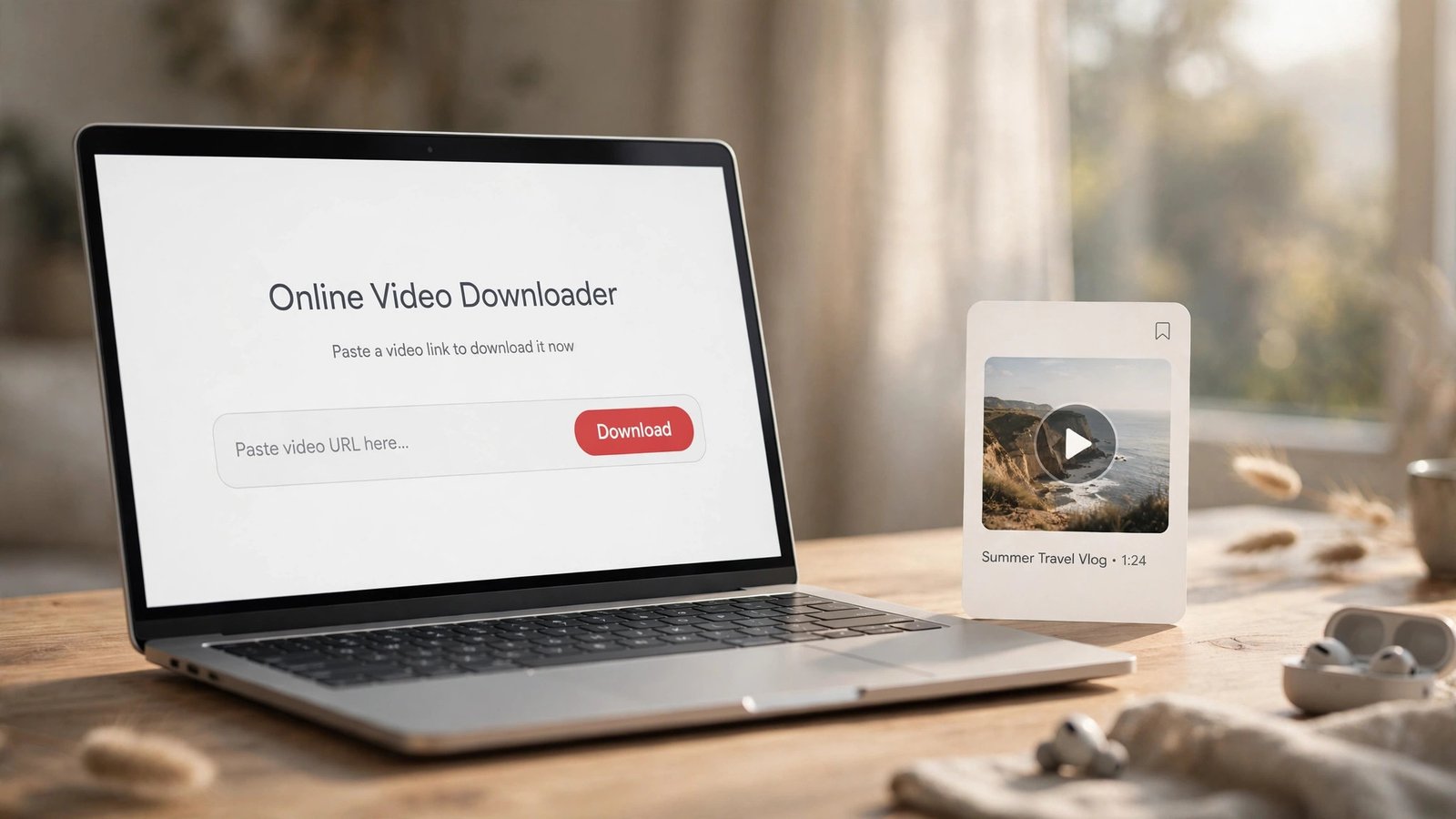
Go to pintodownload.com. You’ll see one field — the placeholder literally says “Enter Pinterest Video URL” (the field name is pinterest_url, if you care about such things; the site was built for this one job, not repurposed). Paste your link and hit Download. The site fetches the video’s available versions and shows download buttons, typically within a couple of seconds.
For a fuller walkthrough of this flow, see our complete PintoDownload guide.
Step 3 — Download the MP4 and find it in Finder
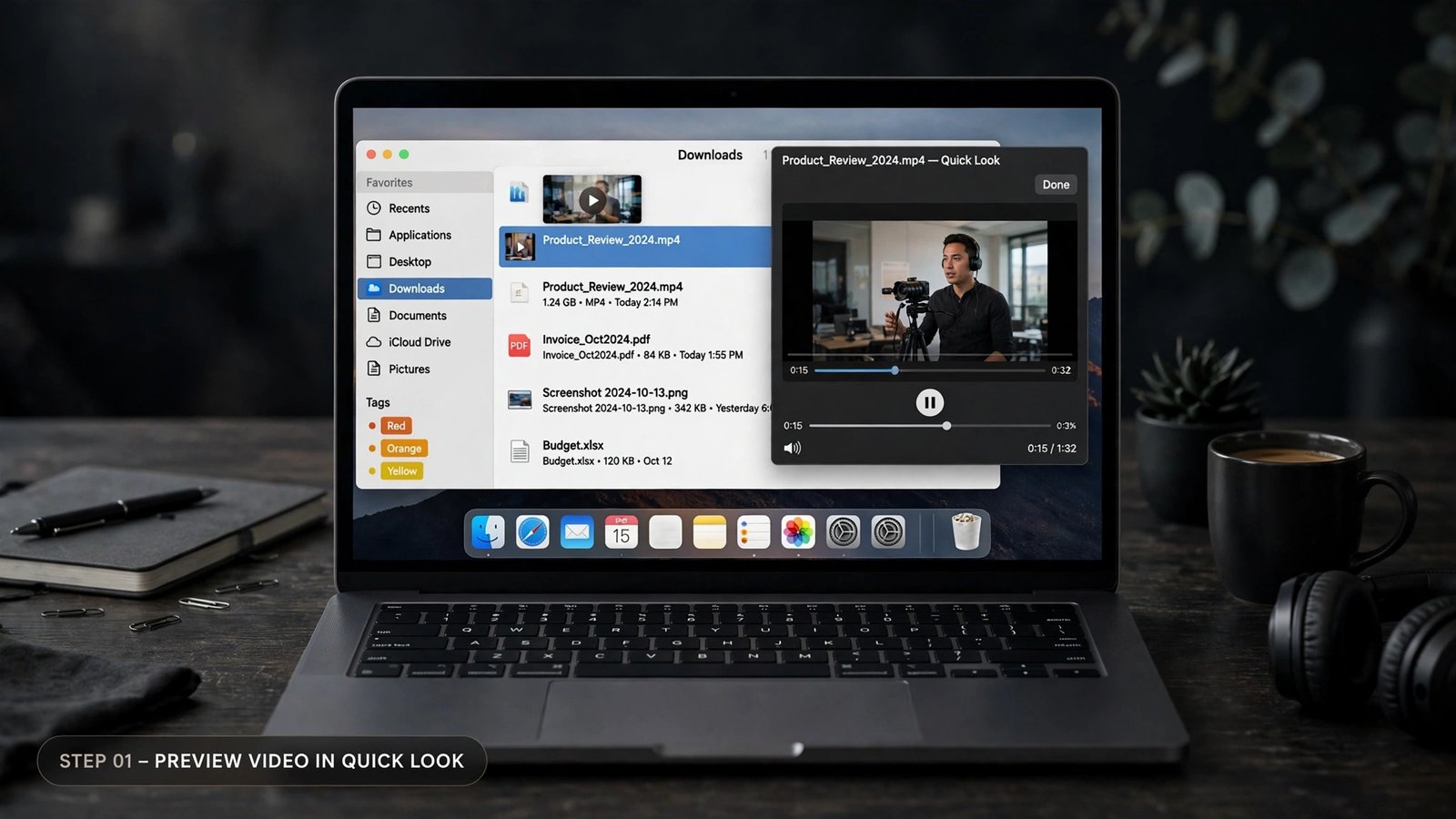
Click the download button for the quality you want. In Safari the file lands in Downloads by default (check Safari → Settings → General → File download location if yours goes elsewhere). In Chrome it’s ~/Downloads unless changed. It’s an MP4, so it opens in QuickTime Player with a double-click and imports straight into iMovie or Final Cut.
What quality will you actually get?
This is the question everyone asks, and most downloader sites dodge it. The honest, measured answer from our own testing: Pinterest serves video Pins in several renditions, and the best version a pinterest video downloader can fetch is the best version Pinterest served — usually 720p H.264/AAC MP4 for standard Pins. That comes from our MP4 format deep-dive, where five renditions from a live Pin topped out at 720p. Nobody can give you “4K” from a source without 4K. If a site promises that, close the tab.
Method 2: QuickTime screen recording — the native macOS option
If you’d rather not use any third-party site, your Mac already ships with a way to capture any Pinterest video: QuickTime Player’s screen recording. It’s built into every Mac and needs no internet service — though most Mac users have never opened it.
- Open QuickTime Player (Applications, or ⌘ + Space and type “QuickTime”).
- File → New Screen Recording.
- In the Options dropdown, pick your microphone if you want audio — note that by default this records your mic, not the video’s sound. For silent recipe or DIY clips that’s a non-issue; for music-heavy ones it’s a real limitation.
- Drag to select the video area, or click once for full screen, then press Play on the video.
- Click the stop button in the menu bar, then File → Save to keep the .mov file.
My honest take: perfect for short clips you need as a quick reference, terrible as a primary workflow. Quality is whatever your screen resolution is, the file is a bloated .mov, and audio capture is the eternal headache. Any proper pinterest video downloader beats screen recording on quality, file size, and effort — this is your backup for when you want zero third-party involvement, not your daily driver.
Method 3: Browser extensions
Extensions are the middle ground: one install, then a download button appears on Pinterest pages. On a Mac that means a Safari extension from the App Store or a Chrome extension from the Web Store. The trade-offs: Safari extensions cost developers money to ship, so the Safari options are fewer and often paid; Chrome extensions are plentiful but Google periodically purges downloader extensions, so the good ones vanish without warning.
If you go this route, install only from the official store, check its permissions (a downloader needs access to pinterest.com — it does not need to read all your data on all websites), and uninstall it when you stop using it. We’ve compared the options in our best-extensions roundup.
Mac methods compared
Here’s the whole landscape in one table:
| Method | Install needed | Speed | Video quality | Audio | Cost |
|---|---|---|---|---|---|
| PintoDownload (online) | None | ~1 minute | Source quality (up to 720p MP4) | Original | Free |
| QuickTime screen recording | None (built in) | Real-time (video length) | Screen resolution | Mic only, by default | Free |
| Browser extension | Extension install | ~30 seconds after install | Source quality | Original | Free / some paid |
| Mac App Store downloader app | Full app install | Varies | Varies | Varies | Often subscription |
The online route wins on every axis that matters: nothing to install, the original file instead of a screen capture, and — from my measurement — a sub-second page response. Screen recording wins only on the “no third party at all” axis. Skip the App Store subscription apps; if you already own one you like, fine, but don’t buy one just for Pinterest.
Safari quirks Mac users should know
Most Mac users live in Safari, so here are the three things that actually come up:
- The “verifying your browser” screen. When I tested with a script-less Safari user agent, I hit an anti-bot verification page instead of the homepage. Real Safari with JavaScript enabled should pass it, but if it ever loops, open the page in Chrome (HTTP 200 in ~0.7s in my test) and continue there. Site protection, not a Mac problem.
- Where did my download go? Safari defaults to Downloads, but people change this and forget. Check Safari → Settings → General. If Safari names the file oddly, rename it in Finder and make sure it ends in
.mp4. - “Safari can’t download this file.” This almost always means the download link expired (downloader sites generate time-limited links). Regenerate the link and download immediately. Our 10-fixes guide covers every variant.
Is it legal to download Pinterest videos on a Mac?
Short answer: downloading for personal, offline viewing is generally fine; re-uploading someone else’s video as your own is not. The tool doesn’t change the law — a pinterest video downloader is just a tool, like a screenshot button. What matters is what you do with the file: personal use, mood boards, offline reference — fine. Stripping credit and reposting to grow your own account — that’s where people get into trouble. Full picture in our legal and safety guide.
Troubleshooting: when the download won’t start on macOS
- Nothing happens after pasting the link: make sure you copied the individual Pin URL, not a board or profile URL. Pin URLs contain
/pin/— that’s your check. - Download button does nothing in Safari: try Chrome. Safari’s tracking prevention occasionally interferes with the redirect chain on downloader sites.
- Video plays in the browser instead of downloading: right-click the video in the new tab and choose “Download video as…” — or in Safari, hold Option and click the link to force a download.
- File won’t open in QuickTime: rename it to end in
.mp4. If it still won’t open, the download was likely truncated — re-download. - Private or secret-board videos: downloaders can only fetch what Pinterest serves publicly. Logged-out, private content isn’t accessible — by design.
Frequently asked questions
Do I need to install software to download Pinterest videos on a Mac?
No. An online pinterest video downloader like PintoDownload works entirely in your browser — paste the Pin link, download the MP4. No Mac App Store app, no extensions, and it works the same on Intel and Apple Silicon Macs.
Does this work in Safari, or do I need Chrome?
It works in both. Safari users should know the site may show a brief browser-verification screen (I observed this in testing with a Safari user agent); Chrome loaded the same page in ~0.7 seconds. If Safari ever stalls on verification, Chrome is the reliable fallback.
Where do downloaded Pinterest videos go on a Mac?
Your browser’s download folder — ~/Downloads by default in both Safari and Chrome. The files are MP4s that open in QuickTime Player, and you can move them anywhere with Finder.
What quality will the downloaded video be?
The best quality Pinterest served for that Pin — in our measured testing, up to 720p H.264 MP4. No tool can exceed the source quality, so treat “4K Pinterest downloader” claims with suspicion.
Can I download Pinterest videos on Mac without any website?
Yes — QuickTime Player’s File → New Screen Recording captures anything on your screen. It’s slower (real-time), the file is larger, and system audio isn’t captured by default, so it’s a backup method, not the best one.
Is downloading Pinterest videos safe on macOS?
Using a reputable online downloader is as safe as visiting any website — nothing installs, so there’s nothing to infect your Mac. The one rule: never download a “.dmg” or installer that claims to be a “Pinterest downloader.” Real downloaders are websites, not apps.
The bottom line
Downloading Pinterest videos on a Mac is a solved problem, and the solution is deliberately boring: copy the Pin link, paste it into a pinterest video downloader like PintoDownload, save the MP4 to your Downloads folder. Under a minute, no installs, original quality and audio intact. Keep QuickTime screen recording in your back pocket for the rare zero-third-party case, skip the App Store subscription apps, and you’re set. For other devices, see our PC guide and downloader apps and tools roundup.
Illustrated walkthrough: downloading a Pinterest video on a Mac, from copying the Pin link to the MP4 in Downloads.