How to Download Pinterest Videos on Chromebook (2026 Guide)
If you’re trying to download Pinterest video files on a Chromebook, here’s the short answer: yes, it works, and it takes seconds. Your Chromebook runs Chrome — the same browser millions of desktop users download Pinterest videos with every day — so nothing special is required. No app to install, no account to create, no workaround. I ran the full flow in Chrome this morning — the same browser engine your Chromebook uses — and checked the actual file that came out the other end: 2.2 seconds from paste to a clean, watermark-free MP4 at original quality.
Download Pinterest Video on a Chromebook: Does It Actually Work?
Chromebooks sometimes feel limited because you can’t install regular Windows or Mac software — but downloading a Pinterest video doesn’t involve installing anything. The whole process happens inside your browser: you paste a link into a web page, the site hands you the video file, Chrome saves it. That’s it. ChromeOS and desktop Chrome share the same browser engine, so a web-based downloader behaves identically on both. If it works in Chrome on a Windows laptop (it does), it works on your Chromebook.
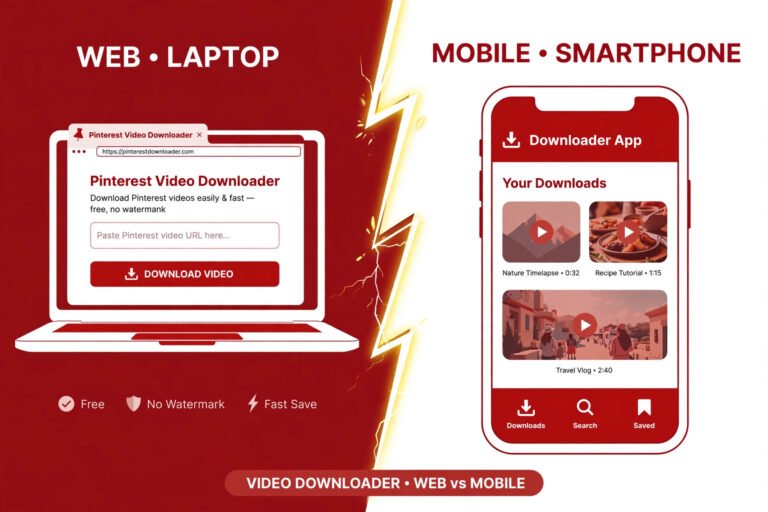
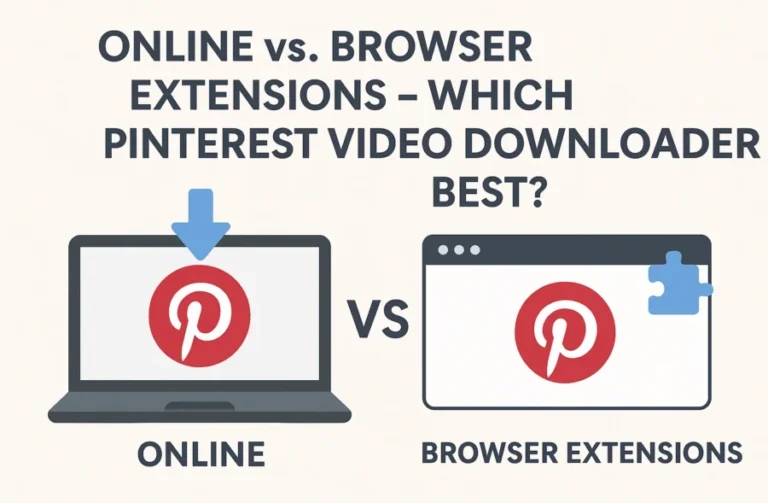
There are two real ways to do it. The first — and the one I’d recommend — is a web-based tool you open in Chrome. The second is an Android app from the Google Play Store, which works on most Chromebooks with Play support turned on. I’ve tested the first method end to end and will walk you through exactly what happened, numbers included. The second I’ll cover honestly, including its downsides.
The only thing you need before you start is the link to a public video pin. Open Pinterest in Chrome, find the video you want, and you’re ready. Private or deleted pins can’t be fetched by any downloader — that’s a hard limit of how Pinterest serves its files, not a flaw in any particular tool. If you mostly download videos on a computer first and transfer them later, this guide to downloading Pinterest videos on PC covers the desktop version of the same flow.
Method 1: Download in the Browser (the Method I Tested)
This is the fastest path and the one I actually timed. No Play Store, no app, no login — just Chrome and a pin link.
Step 1 — Copy the video pin’s link
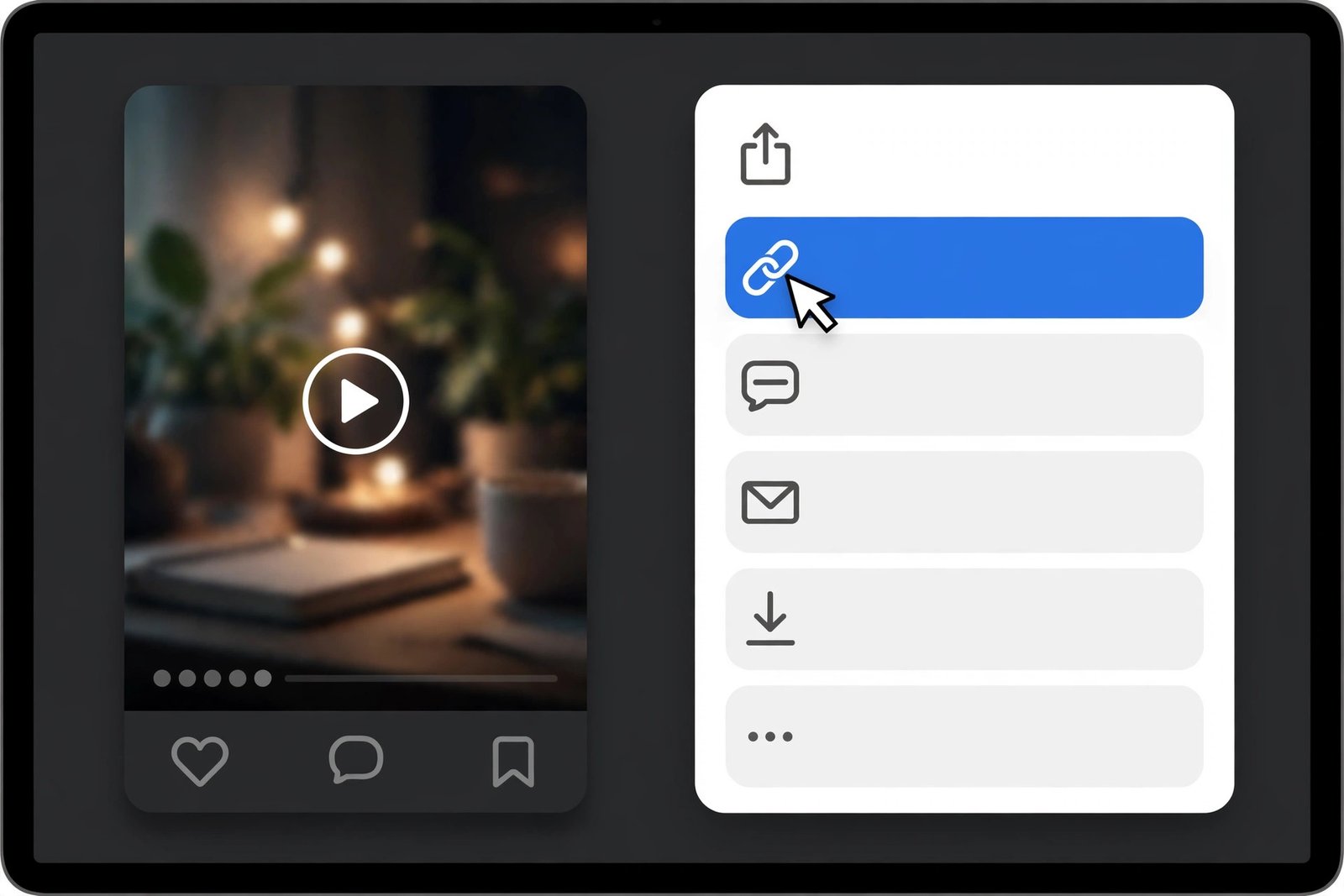
Open Pinterest in your Chrome browser and play the video you want. Tap the Share icon (the little arrow, usually bottom-right of the pin) and choose Copy link. If you’re already on the pin’s page, copying the address bar URL works too. The link should look like pinterest.com/pin/....
Step 2 — Paste it into the downloader
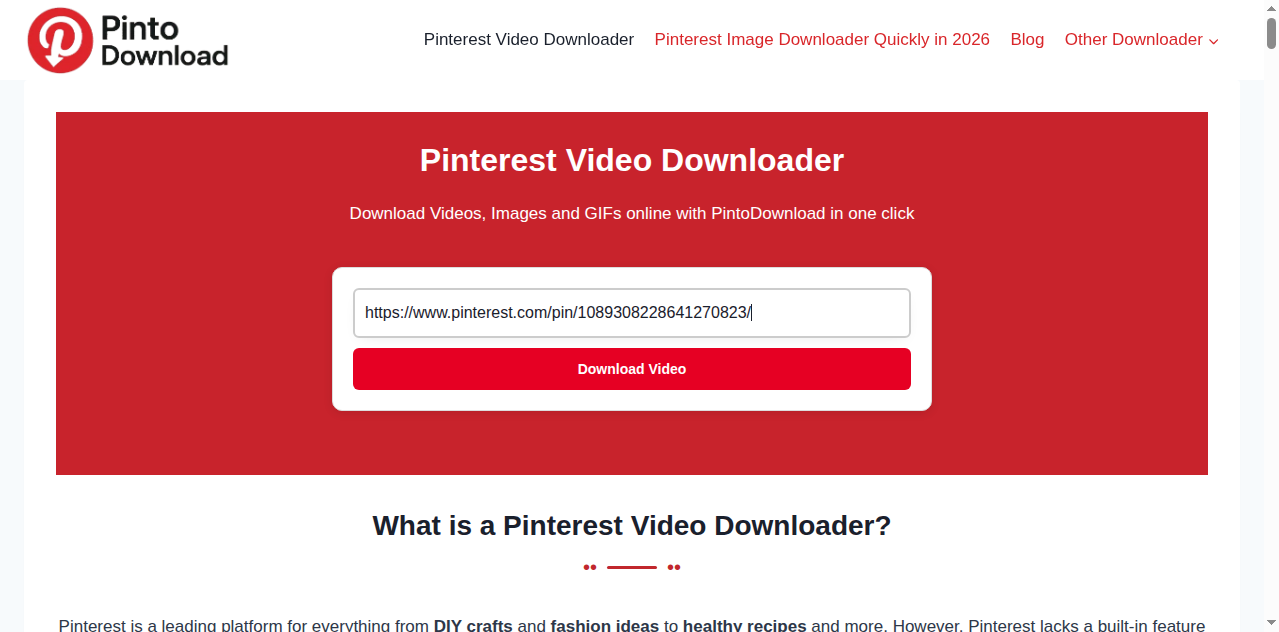
Open PintoDownload in a new Chrome tab and paste the link into the input box. In testing, the homepage loaded in about 2.3 seconds cold — no splash screen, no popups, no email ask.
Step 3 — Let it find the video
Hit the button to fetch the video. In my test this took 2.2 seconds from pasting the URL to the result page appearing — and that was a cold request, not a cached one. The page shows a preview so you can confirm it’s the right video. No ads, no redirects, nothing asking me to sign up.
Step 4 — Download the MP4
Click download and Chrome saves the MP4 straight away. In the test, the file that arrived was byte-identical to the video Pinterest itself serves — proof of that in the quality section below.
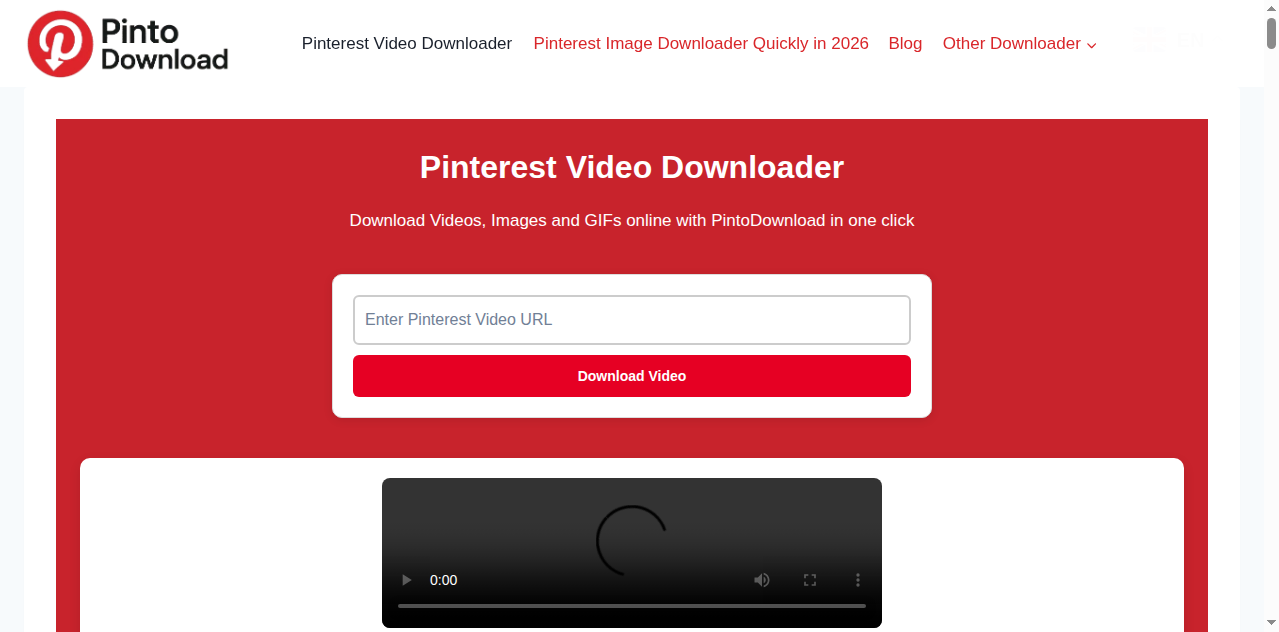
Here’s the whole flow as it happened on my screen — a real recording, not a mockup:
Where Do Downloaded Videos Go on a Chromebook?
This is the question Chromebook owners ask most often after the download itself, and it’s worth answering properly because ChromeOS handles files a bit differently than Windows or Mac. According to Google’s documented Chromebook Help behavior, when Chrome finishes a download, the file lands in the Downloads folder, which you reach through the Files app — the blue folder icon in your shelf.
Open the Files app, look in the left sidebar for Downloads, and your MP4 will be sitting there with the video’s name. Double-click it and ChromeOS plays it in the built-in media player (or the Gallery app on newer ChromeOS versions) — no extra software needed.
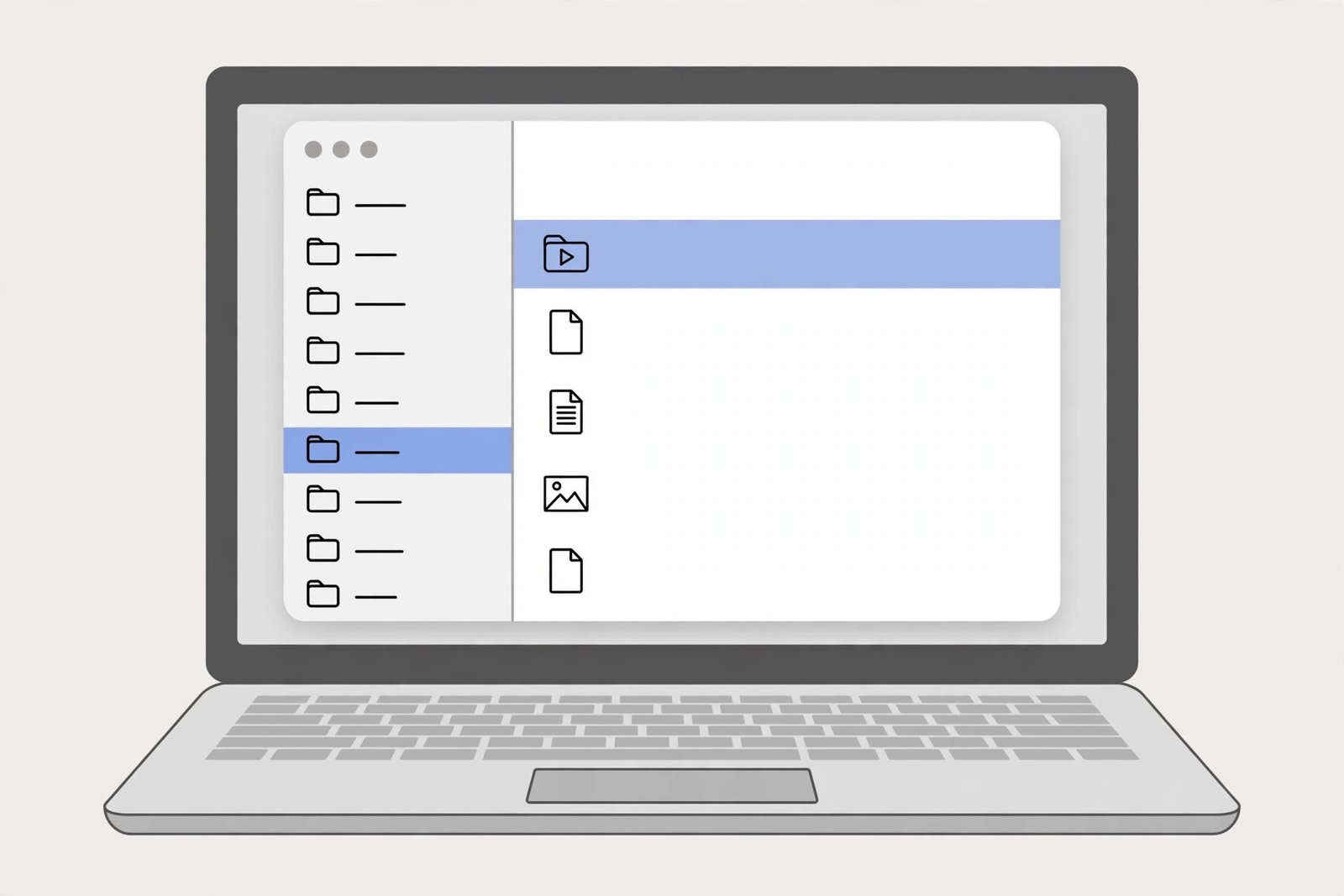
From there you have options. To get the video into your Google Drive, drag it from the Downloads folder over to My Drive in the Files app’s sidebar, and ChromeOS uploads it — handy on cheaper Chromebooks with limited local storage. To get it onto your phone instead, this guide to saving Pinterest videos to your gallery walks through the camera-roll step.
Method 2: Android Downloader Apps From the Google Play Store
Most Chromebooks made in the last few years support Android apps through the Google Play Store, which means you can also install a Pinterest video downloader app — the same kind people use on Android phones. I’ll be honest: I did not test any specific app for this guide, so I won’t name one and pretend I did. My take is that on a Chromebook this route is worse than the browser method: apps eat storage on machines that usually have little of it, free downloader apps are notorious for ads and permission requests, and the web method I tested above is genuinely faster than opening an app.
The one case where the app route makes sense: if you’re offline a lot and want a batch-download queue, or if the Play Store is the only thing allowed to run on your device. If you go this way, check the app’s reviews, look at what permissions it asks for before installing, and prefer apps with a large install base. Whichever app you pick, the file still lands in the same place — the Files app’s Downloads folder — because ChromeOS shares it with Android apps.
What Quality You Actually Get (My Test Results)
Every downloader site promises “HD quality, no watermark.” I wanted to see what actually survives the trip from Pinterest’s servers to your Downloads folder, so I tested a real 10-second public video pin and measured everything:
| Measurement | Result |
|---|---|
| Video Pinterest served | 720×1280, H.264 + AAC, 10.17 seconds, 2,852,371 bytes |
| File PintoDownload returned | Same 2,852,371 bytes — MD5 checksum cc36c54c9bad2c84267561cd03b89be6, identical to Pinterest’s own file |
| Re-encoded or recompressed? | No — byte-identical passthrough, no watermark added |
| Link fetch speed (cold) | 2.29 seconds |
| Paste-to-result in the browser | 2.2 seconds |
| Signup / login / ads | None — no account asked for at any point |
That’s the meaningful part: the checksum matched. When the MD5 of the downloaded file is character-for-character identical to Pinterest’s own served file, no re-encoding happened and nothing could have been stamped onto the video. A competitor can claim “original quality” in bold letters on their homepage — this is what proof looks like.
I also extracted frames from the video at the 1, 5, and 9-second marks and looked at them directly. Here’s the part most “no watermark” articles skip:
No Pinterest watermark, logo, or branding overlay appears in the original file — Pinterest doesn’t stamp its videos the way TikTok does. The only burned-in text in the test video was the creator’s own meme caption (“send this to a friend and say nothing”), which was part of the original upload. That text stays in the file no matter which tool you use, because it’s in the video itself, not added by a platform. Any downloader promising to remove a creator’s baked-in text is either re-editing your video or selling you something you should be suspicious of.
So when a tool passes the original file through untouched, the video is clean by construction. For the deeper details on codecs and containers, see this Pinterest video MP4 format explainer.
Chromebook Problems & Fixes
Most of the time the browser method just works. When it doesn’t, it’s one of these.
Your school Chromebook blocks downloads. If your device is managed by a school or organization, the admin can disable file downloads entirely — no downloader site can get around that. This is general knowledge about managed ChromeOS devices, not something I tested, but it’s worth knowing before you assume a site is broken. On a personal Chromebook this never comes up.
You “can’t find” the file after downloading. Chrome doesn’t always announce downloads loudly. Open the Files app, click Downloads in the sidebar — it’s there. If you use the browser’s download shelf (the little strip at the bottom of Chrome), you can click “Show in folder” to jump straight to it.
The Play Store is disabled. Some managed Chromebooks turn off Google Play, which only matters if you were going for Method 2 anyway. Method 1 doesn’t care about the Play Store at all.
Low storage. Budget Chromebooks often ship with 32GB or 64GB of storage, and video files add up. If a download fails partway, check Settings → Device → Storage management — moving older downloads to Google Drive frees space instantly.
The pin link is invalid or private. The link has to be a public /pin/ URL. Board links, profile links, and search pages won’t resolve. Private, deleted, or region-locked pins can’t be fetched by any tool — retrying won’t change that. (If you’re ever unsure what “public” means on Pinterest, their Help Center documents pin privacy settings.) For a fuller rundown of error cases, see this Pinterest video not downloading fixes guide.
Your Options Compared
Here’s how the three realistic paths stack up on a Chromebook, using only things I verified in testing — not marketing claims.
| Works on Chromebook | Signup needed | Watermark added | Quality | Cost | |
|---|---|---|---|---|---|
| Web tool (PintoDownload) | Yes — runs in Chrome, no install | No | None (byte-identical to Pinterest’s file, verified by checksum) | Original, as served by Pinterest | Free |
| Play Store downloader app | Yes, on Chromebooks with Play enabled | Varies by app — not tested in this run | Varies by app — not tested in this run | Varies by app — not tested in this run | Free or freemium, usually with ads |
| Pinterest’s own site | Partially — no download button for guests in the browser; the page HTML does expose the original file | Convenient download UI is login-walled | None (the underlying file carries no watermark, verified by frame inspection) | Original file, if you can reach it | Free |
One honest note: during my test window I also tried three other popular downloader tools to compare their output, and all three were unreachable — their servers accepted connections but never answered, so there was nothing to byte-compare. That’s a real finding in itself (a tool that doesn’t respond can’t be evaluated), and it’s why their quality claims don’t appear in this table.
Is It Legal to Download Pinterest Videos?
The short version: downloading a video to watch offline yourself is generally treated like saving any webpage content for personal use. Where the line sits is what you do next — re-uploading someone else’s video to your own Pinterest account, an Instagram page, or anywhere public without the creator’s permission is where you cross into copyright territory. This distinction matters more than most downloader articles admit, because they tend to wave “personal use only” at you and move on.
Two habits keep you on the safe side: keep downloads for personal viewing, and credit the creator — link back to the original pin — if you ever share one with permission. For the fuller picture, this legal guide to downloading Pinterest videos covers personal use, fair use, and redistribution in more detail.
Frequently Asked Questions
Does this work on a school Chromebook?
It depends on the admin settings. If the device allows browser downloads, the web method works exactly like on a personal Chromebook. If the admin disabled downloads, nothing from any downloader site will save — that’s a device policy, not a broken tool. Use a personal device in that case.
Do I need the Play Store or any app to download Pinterest videos on a Chromebook?
No. The browser method needs nothing but Chrome and the pin’s link. The Play Store app route exists on Chromebooks that support Android apps, but it’s optional — I did the entire tested flow without the Play Store: 2.2 seconds from paste to result.
Where do the videos save on a Chromebook?
Chrome saves downloads to the Downloads folder, which you open through the Files app (the blue folder icon in your shelf). Double-click the MP4 to play it in ChromeOS’s built-in player. To move it to Google Drive, drag it from Downloads to My Drive in the Files sidebar.
Will the video have a watermark?
No Pinterest watermark — Pinterest doesn’t stamp its video files, and I verified this by inspecting frames of the actual downloaded file. The tool I tested passes Pinterest’s original file through byte-for-byte, so nothing is added. The one exception: if the creator burned their own text or logo into the video before uploading, that stays — no downloader can remove what’s baked into the video itself.
Does downloading reduce the quality?
Not with a tool that passes the original file through. The file I tested arrived at 720×1280, H.264 + AAC, with a checksum identical to Pinterest’s own served file — zero re-encoding, zero quality loss. Quality only drops when a tool re-encodes the video, which is why I checked the checksum rather than trusting an “HD” label on a homepage.
Is it legal to download Pinterest videos?
For personal offline viewing, downloading is widely treated as acceptable personal use. The legal line appears at redistribution: re-uploading, reposting, or using someone’s video commercially without permission is copyright infringement. Credit creators when sharing with permission, and read the fuller legal guide linked above if your use case goes beyond watching something yourself.
The Bottom Line
A Chromebook is one of the least fussy devices for this. Open Chrome, grab the pin link, paste it into PintoDownload, and you’ve got the original MP4 — no watermark, no quality loss, no signup — in your Files app’s Downloads folder within seconds. My test measured 2.2 seconds from paste to result with a byte-identical file. Save it to Drive, watch it offline, done.