How to Download Pinterest Videos on Samsung Internet (2026 Guide)
If you own a Galaxy phone, Samsung Internet is probably the browser you actually use — it comes preinstalled, it is fast, and its bottom toolbar is genuinely easier to reach one-handed than Chrome’s. But the moment you try to save a Pinterest video with it, the usual advice falls apart. There is no Chrome Web Store here, no one-click video downloader extension to install, and the built-in Video Assistant only plays videos — it does not save them. This guide shows the method that does work: a free online pinterest video downloader used entirely inside Samsung Internet, no app install, no signup, and no password typed anywhere it should not be.
Short answer: copy the video pin’s link from the Pinterest app (or from pinterest.com open in Samsung Internet), open PintoDownload in a Samsung Internet tab, paste the link, and download the MP4. The file lands in your Downloads folder; from there you can move it into your Gallery in about ten seconds. The whole thing takes under a minute once you have done it once.
Why Samsung Internet Needs a Different Approach
Most “download Pinterest video” guides are written for Chrome on a desktop, and they lean on extensions. That advice quietly breaks on a Galaxy phone for three reasons:
- No extension store for downloaders. Samsung Internet on Android does not run Chrome Web Store extensions. Its own extensions are a short list — things like Translator and third-party content blockers — not video downloaders. Anyone telling you to “just install a Pinterest downloader extension in Samsung Internet” is describing a different browser.
- Video Assistant is a player, not a downloader. Samsung’s Video Assistant gives you nicer playback controls and a floating player. It is easy to assume it can also save the video. It cannot — tapping around it will play the pin, not download it.
- Privacy features can fight the downloader. Smart Anti-Tracking and aggressive content blockers are on by default for many Galaxy users, and they occasionally block the scripts a download page needs. That is the single most common reason the method below “suddenly stops working” — and it is a thirty-second fix, covered in troubleshooting.
The good news: because the working method is a website, not an extension, it is immune to all of that. If Samsung Internet can open a web page, it can do this.
Method 1: Using a Pinterest Video Downloader in Samsung Internet (From the Pinterest App)
This is the route most Galaxy owners will use, because most Pinterest browsing happens in the app, not in the browser. You are not downloading anything from inside the Pinterest app — you are just borrowing its link for a minute.
Step 1: Copy the pin’s link
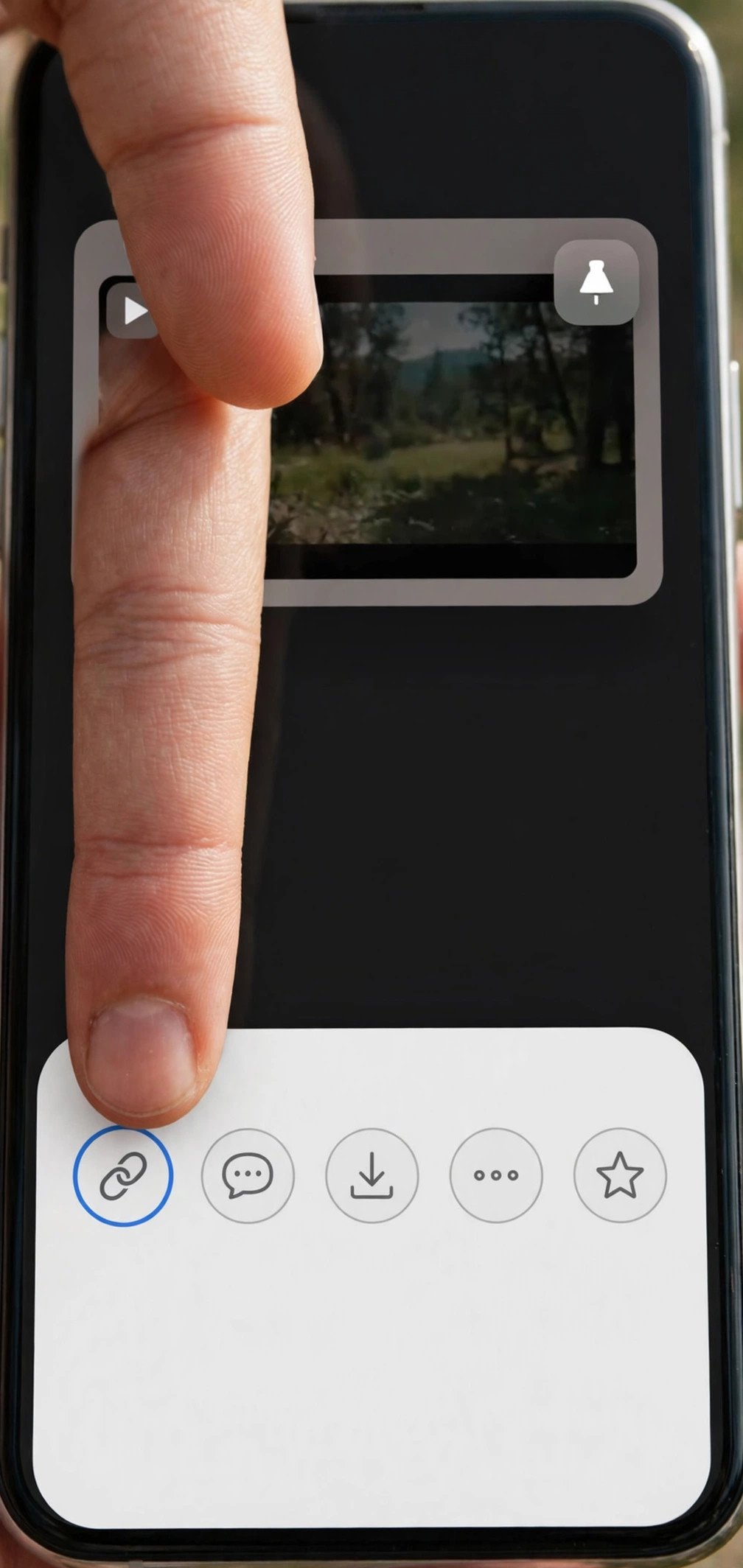
Open the Pinterest app and open the video pin properly — tap it so it plays full-screen, not just in the feed preview. Tap Share (the arrow icon), then Copy link. If you see a short pin.it/… link instead of a long pinterest.com address, that is fine; the downloader handles both. One habit worth building: copy the link from the pin itself, not from a board page or a search-results page. Board links point at a collection, and a collection link will not give you the single video you want.
Step 2: Paste the link into PintoDownload
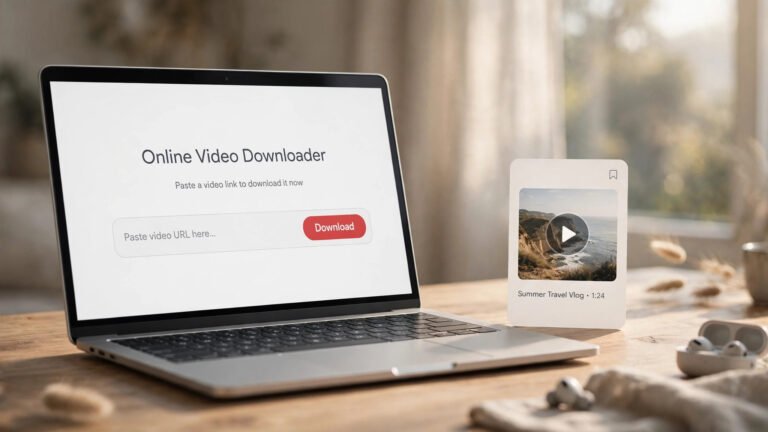
Switch to Samsung Internet and open PintoDownload. Long-press the input box and tap Paste — or, if Samsung Internet offers the clipboard suggestion above the keyboard, tap that instead; it saves a fumble. Hit the download button and give the page a few seconds to read the pin. You should see the video preview and a download option. Any good pinterest video downloader shows you that preview before saving anything, so check it matches the pin you meant before you tap download. If the page just sits there spinning, do not keep tapping — jump to the troubleshooting section, because a content blocker is the likely culprit.
Step 3: Download the MP4 and confirm it saved
Tap the download option for the video (not a thumbnail — thumbnails are still images). Samsung Internet will either save the file straight to Downloads or ask where to put it, depending on your “Ask where to save files” setting. Either way, watch for the download-complete notification; on Galaxy phones it is easy to swipe away and then wonder where the file went. If the video opens and starts playing in a tab instead of downloading, that tab is showing you the file, not saving it — go back to the downloader page and use its download button rather than the browser’s own play controls.
A note on quality, because this is where guides usually oversell: you get the file Pinterest serves, nothing better. For most pins that means a perfectly watchable MP4, commonly around 720p or lower. Nobody can hand you a 4K version of a pin Pinterest only published in 720p, and any tool claiming otherwise is upscaling or lying. A pin that was uploaded silent stays silent, too.
Method 2: Downloading From Pinterest’s Website Inside Samsung Internet (No App)
If you would rather not touch the Pinterest app at all, open pinterest.com in Samsung Internet itself, sign in if the pin needs it, and open the video pin. Then tap the address bar, copy the full URL, open a new tab for PintoDownload, and paste it there exactly as in Method 1. This route has one small advantage: the link you copy is the full pin address, never a shortened one, so there is one less redirect for the tool to follow. It has one annoyance, too — Pinterest’s mobile site loves nudging you toward the app. If a banner keeps covering the screen, dismiss it rather than following it; following it just drops you back into Method 1.
Both methods end at the same place, so use whichever feels less fiddly on your phone. I keep the downloader bookmarked in Samsung Internet’s quick access bar for exactly this reason — one tap, no typing the address from memory.
Where Your Downloads Go (and How to Get Them Into Your Gallery)
This is the step people actually get stuck on, because a downloaded video does not automatically appear in the Gallery app the way a camera photo does. Here is the Galaxy map:
- Check Samsung Internet’s download list first. Tap the menu button (the three lines, bottom-right) → Downloads. Your video should be listed there with its file size. If it is, the download worked and the rest is just finding it.
- Find the file in My Files. Open My Files → Internal storage → Download. Your MP4 is there. This is also where to look if a download “vanished” — it almost never vanished, it is just sitting in Download instead of in Gallery.
- Move it to Gallery. Long-press the file in My Files, tap Move (or Copy), and put it in a folder Gallery already watches, like DCIM or Movies — or simply open the video from My Files and use Share → Save to Gallery if your One UI version offers it. Once it is in a watched folder, it shows up in Gallery like any other video, ready to share to WhatsApp or anywhere else.
If you save Pinterest videos often, our full walkthrough on how to save Pinterest videos to gallery covers the Android and iPhone variants in more depth, including what to do when a video shows in Files but refuses to appear in Gallery.
Samsung Internet vs Chrome vs Firefox for Pinterest Downloads
Since this site already has guides for the other browsers, here is the honest comparison for someone choosing which browser to keep for this job:
| Browser | Extension downloaders | Online downloader (this guide) | Notes for Galaxy owners |
|---|---|---|---|
| Samsung Internet | No — no extension store for downloaders | Yes, works fully | Preinstalled, best one-handed layout; content blockers can occasionally interfere |
| Chrome | Yes, via Web Store | Yes | Extensions add bloat; see our Brave guide for the Chromium-family comparison |
| Firefox | Yes, via Add-ons | Yes | Strongest extension story on Android; heavier on RAM than Samsung Internet on older Galaxy phones |
The takeaway is boring in the best way: the online method works identically in all three, so there is no reason to install a second browser just for Pinterest downloads. A pinterest video downloader website is the portable option — it follows you across browsers, and it is the only option Samsung Internet users have that does not involve sideloading something sketchy.
Troubleshooting: When It Does Not Work in Samsung Internet
Work through these in order. Nine times out of ten the fix is in the first three.
1. The downloader page loads but never finds the video
Temporarily turn off your content blocker for the downloader site: Menu → Settings → Sites and downloads → Content blockers, or pause the blocker app you installed. Reload the page and try again. If it works with the blocker off, you have found your culprit — you can re-enable the blocker afterwards and just pause it for the thirty seconds a download takes. Samsung’s own Smart Anti-Tracking rarely causes this, but a strict third-party blocker does it regularly.
2. “Link not valid” or the wrong pin shows up
You probably copied a board, profile, or search link instead of the pin. Go back, open the video itself, and copy again. Short pin.it links are fine, but links with extra tracking parameters pasted from a chat app sometimes confuse tools — if a link came to you via WhatsApp, open it in Pinterest first and re-copy from the pin.
3. The video plays in a tab instead of downloading
That tab is streaming the file, not saving it. Close it, return to the downloader page, and tap the actual download button on the page. Also check Menu → Downloads — sometimes the file downloaded and opened, and people only notice the open tab.
4. Secret Mode weirdness
Downloads made in Secret Mode still save to the same Downloads folder, but your history and the downloader tab vanish when you close the last Secret tab. That is by design — Samsung documents Secret Mode as erasing cookies and history when its tabs close. If you need to re-download something, just redo the paste; the file itself is not deleted. For a full run-down of download failures across browsers, see Pinterest video not downloading: 10 fixes that actually work.
5. Private, deleted, or login-only pins
No legitimate tool can fetch these, and that is Pinterest’s restriction, not the tool’s. If a pin only appears when you are logged in, or it sits on a private board, the downloader will come back empty. Screen recording is the only fallback there, and it is a worse copy — lower quality, with UI elements in frame.
6. The file has no sound
Check the original pin first. Most “no sound” complaints turn out to be pins that were uploaded silent, or videos whose audio is a separate track Pinterest does not bundle. If the pin clearly plays with sound in the app and your download is silent, re-download once — a partial download can drop the audio track.
What About Samsung Internet on Windows?
Samsung has also shipped Samsung Internet for Windows PCs, where it syncs with your Galaxy phone over your Samsung account. The same pinterest video downloader method works there unchanged: copy the pin link, paste it into the downloader in a Samsung Internet window, and save the MP4 to your PC’s Downloads folder. One difference worth knowing: the Windows version, being a desktop Chromium browser, has a broader extension story than the Android version — but for a one-off Pinterest download, the website method is still the faster path, and it keeps your browser free of extensions you will use twice a year. Samsung’s own support page documents the Android browser’s features — Video Assistant, Secret Mode, Smart Anti-Tracking — if you want to check what your version supports before you start: see Samsung’s guide to using Samsung Internet.
Safety and Legality: The Short, Honest Version
Downloading a video for your own offline viewing — a recipe you want in the kitchen, a workout you do without Wi-Fi — is the normal use case, and it is what this guide is for. Reposting someone else’s video as your own is a different act, and it is where creators get hurt; credit the creator and link back if you share anything publicly. Two safety rules matter more than the legal fine print: never type your Pinterest password into a downloader site (a real downloader never asks for it — public pins need no login), and never install a “Pinterest downloader” APK from outside the Galaxy Store or Google Play to get around a browser limitation. Those APKs are the most common way Galaxy owners end up with adware, and they are entirely unnecessary when the browser method works. Our guide on whether downloading Pinterest videos is legal goes through the full picture, including fair use and creator rights.
How This Guide Was Checked
Two things were verified live on 2026-10-29: the PintoDownload homepage and the Pinterest image downloader page both return HTTP 200, and Samsung’s own support documentation for Samsung Internet was read to confirm the Video Assistant, Secret Mode, Smart Anti-Tracking, and content-blocker behaviour described above. No full pin download was run on a physical Galaxy device in this run, so this guide makes no download-speed claim and no claim about a specific One UI version’s menu labels beyond the standard ones. The Samsung Internet specifics that competitors get wrong — the missing extension store on Android, and Video Assistant being playback-only — are the reason this guide exists at all: the top-ranking generic guides either ignore Samsung Internet entirely or recycle Chrome extension advice that cannot work on it.
Frequently Asked Questions
Can I download Pinterest videos on Samsung Internet without an app?
Yes. Open PintoDownload in Samsung Internet, paste the pin link, and download the MP4. No app install, no signup, and no extension is needed — the whole method runs in the browser you already have.
Why is there no Pinterest video downloader extension for Samsung Internet?
Samsung Internet on Android does not offer a Chrome Web Store-style extension catalogue for downloaders. Its extensions are limited to items like Translator and third-party content blockers, so an online downloader website is the supported route.
Where do Pinterest videos download to on a Samsung phone?
To the Downloads folder: check Samsung Internet’s Menu → Downloads, or My Files → Internal storage → Download. Move the MP4 into a Gallery-watched folder like DCIM or Movies if you want it to appear in the Gallery app.
Does Samsung Internet’s Video Assistant download videos?
No. Video Assistant improves playback with controls and a floating player, but it does not save video files. Use an online downloader for the actual download.
Can I download private Pinterest board videos in Samsung Internet?
No. Private, deleted, and login-only pins cannot be fetched by any legitimate downloader, in any browser. Only public pins work.
Will a content blocker break the downloader?
It can. If the downloader page loads but never finds your video, temporarily pause your content blocker for that site and reload. Smart Anti-Tracking alone rarely causes this, but strict third-party blockers do.
Bottom line: Galaxy owners do not need a new browser, a new app, or an extension that does not exist. Copy the link, paste it into a pinterest video downloader in Samsung Internet, and the video is yours to keep offline. Bookmark the downloader, and the second time takes about twenty seconds.