Save Pinterest Videos to Facebook: Free Guide 2026
Save Pinterest Videos to Facebook: Free Guide 2026
Here is a small, very modern frustration: you find a video on Pinterest — a recipe your mum would love, a DIY fix for the exact thing that broke in your house this week, a workout you actually want to try — and the person who needs to see it does not use Pinterest. They use Facebook. They have used Facebook for fifteen years, they check it over breakfast, and if you send them a Pinterest link they will tap it, hit a login wall, and never watch the video. The fix is simple, but only if you do it in the right order: to save Pinterest videos to Facebook, you first pull the real video file out of Pinterest, and only then put it on Facebook — as a feed video, a Reel, or a Story, depending on who it is for. This guide walks through the whole move, including the one decision that decides whether your video looks crisp or comes out soft and blurry, and the copyright line you should not cross.
Short answer: copy the video pin’s link, download the MP4 with PintoDownload (free, no signup, no watermark, HD where the pin offers it), then upload that file to Facebook from your phone or computer — pick Feed, Reel, or Story first, because each one treats your video differently. The first video takes about four minutes; after that, each one takes under two. The rest of this guide explains how to choose the right placement, how to keep the quality Facebook would otherwise squeeze out of it, and what to do when an upload misbehaves.
Why Facebook Is Where Pinterest Videos Get Their Second Life
Think about who you actually want to show a Pinterest video to. For most of us it is not a Pinterest audience — it is a parent, a sibling, a friend from school, a group chat of people who plan things together, or the followers of a small business Page. More than three billion people use Facebook, which means the person you have in mind almost certainly already has it, already knows how to open a video in it, and does not need a new account, a new app, or a link that opens a browser tab they will close by accident.
There is a second reason, and it matters more than the first. Pinterest is a discovery app, not a sharing app. A video you “save” on Pinterest is a bookmark on a board inside the app, behind your login, on Pinterest’s servers. The day the creator deletes that pin, your saved video goes with it, and there is no file anywhere to show for it. A video you post on Facebook is a file you own a copy of, sitting where the people who need it can actually watch it — in their feed, in a group they check daily, or as a Reel they can share onward with one tap.
But honesty first, because this guide is only useful if you know what Facebook does to a video. Facebook recompresses every single upload. It does not matter how good the file was when you downloaded it — Facebook will squeeze it down to fit its own delivery system, and the squeeze is permanent. That is not a reason to avoid posting; it is a reason to start from the best possible file and to pick the right placement, because a sharp HD original still looks good after compression, while a low-quality original comes out looking like it was filmed through a window. The quality section below is the most important part of this guide for that reason.
Save Pinterest Videos to Facebook in 4 Steps
The whole workflow is four moves, and only the first two involve Pinterest at all. Once you have done it twice, it becomes muscle memory.
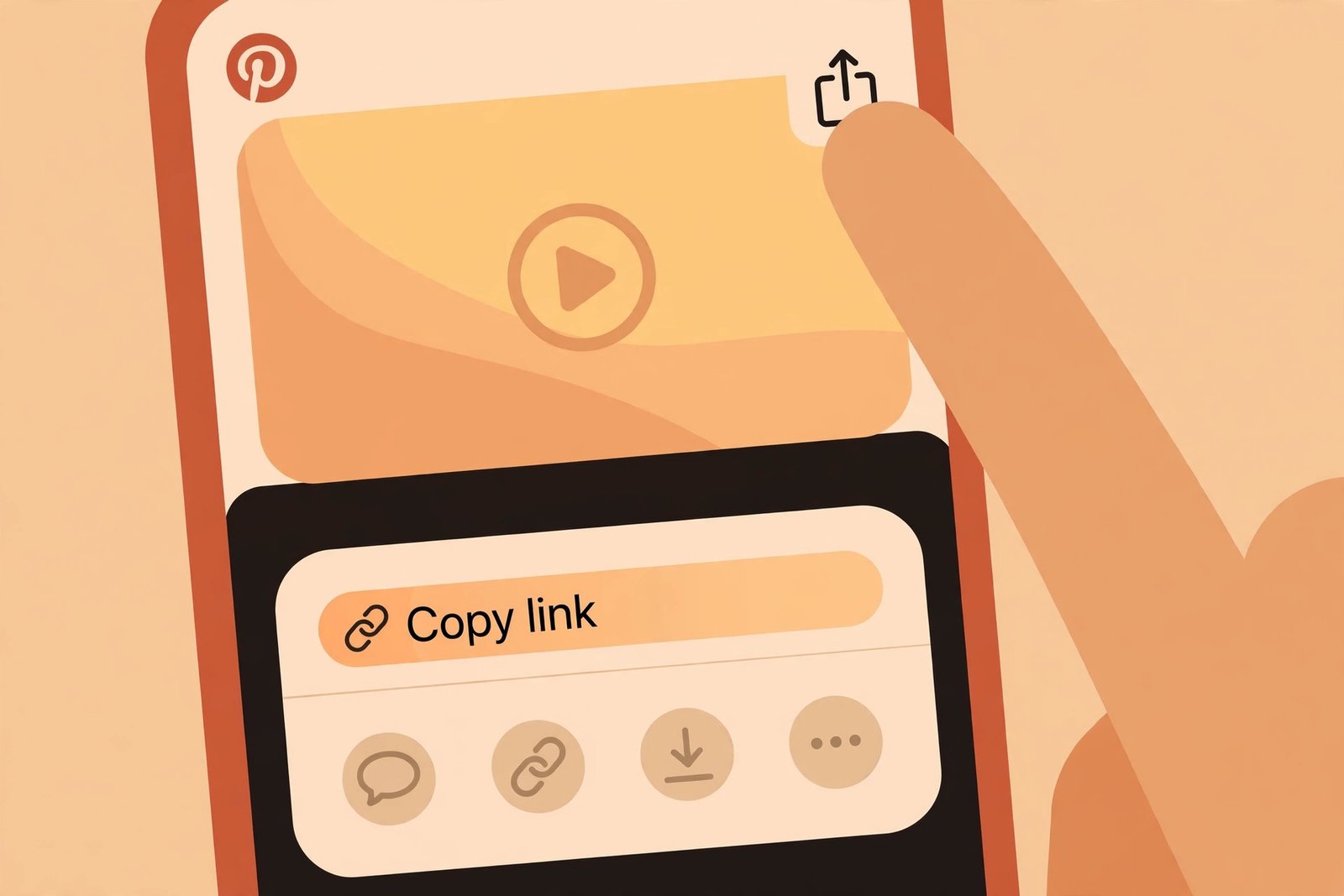
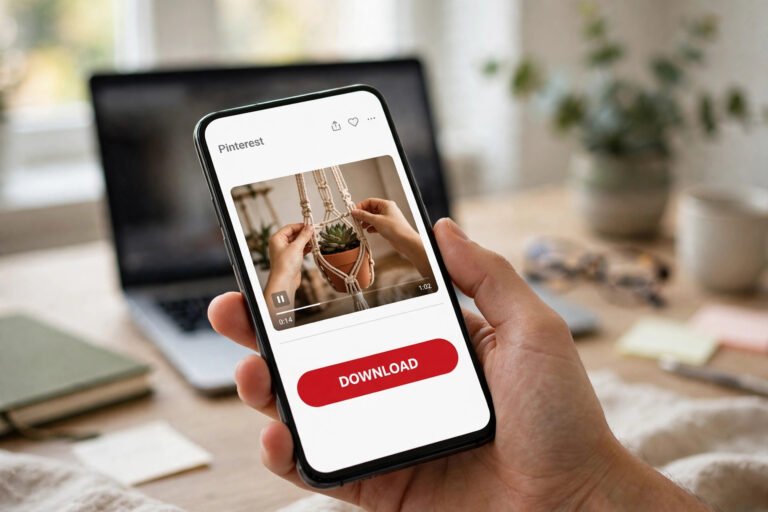
Step 1 — Copy the pin’s link. Open the video pin in the Pinterest app (or on the website) and tap Share, then Copy link. On the phone app this hands you a short pin.it link, which works exactly like the full pinterest.com/pin/... address — there is no need to expand it. Before you go further, glance at the Share menu: if it shows a Download option, the creator has allowed downloads, and you can use that instead — but expect their username watermarked onto the video. Most pins will not show it, which is why you are here.
Step 2 — Download the MP4 with PintoDownload. Open PintoDownload in your browser, paste the link into the box, and download the video. No app to install, no account, no signup. Pick the highest quality offered — a typical Pinterest video is 5 to 50 MB, small enough that the HD version costs you nothing in time or space, and you will be glad you grabbed it when you see the quality section below. The file lands in your gallery on a phone or your downloads folder on a computer. That is the file you are about to post — the actual video, not a link to it. (If the pin is an image rather than a video, the same tool handles that too — see the Pinterest image downloader.)
Step 3 — Pick where it goes: Feed, Reel, or Story. This is the step people skip, and it is the step that decides everything about how the video looks and who sees it. A vertical video posted as a feed video gets pillarboxed or cropped; a three-minute tutorial posted as a Story gets chopped into 60-second segments. The next section lays out the choice in one table so you can decide in ten seconds.
Step 4 — Upload it to Facebook and post. Open Facebook, tap “What’s on your mind?” (or Create Post on a Page), choose Photo/Video, pick the MP4 from your gallery or files, write a caption, check the audience, and tap Post. The detailed steps for your profile, a Page, and a group are below — they look similar, but the rules around them are not the same.
That is the whole thing. Four steps, no app installs, no accounts, no money. Everything after this is about doing it well instead of just doing it.
Feed, Reel, or Story? Pick the Right Home First
Facebook gives you three places to put a video, and they are not interchangeable. Since June 2025, Meta has been publishing most new video uploads as Reels, and says Reels have no length or format restrictions when you post inside the Facebook app — but the older limits still apply when you post through a scheduling app, and Stories still cap each segment at 60 seconds. The table below uses the numbers Meta’s own documentation and the 2026 spec guides agree on, checked in November 2026.
| Where you post it | Best shape | Length limit | Best for |
|---|---|---|---|
| Feed video | 16:9 landscape or 4:5; 1080p | Up to ~240 minutes; file up to 10 GB | Long tutorials, recipes, anything people rewatch |
| Reel | 9:16 vertical, 1080×1920 | No hard cap in the app; 3–90 sec via scheduling apps; 15–30 sec performs best | Short clips, quick tips, anything made to be shared |
| Story | 9:16 vertical, 1080×1920 | 60 seconds per segment; disappears after 24 hours | Something timely — “look at this today”, not “keep this forever” |
My rule of thumb, after moving dozens of videos between the two apps: if the video is vertical and under 90 seconds, post it as a Reel — that is where Facebook puts its discovery energy now, and it is where a Pinterest video looks most at home. If it is a longer tutorial or a landscape video, post it as a feed video, where it stays on your timeline and people can find it again next month. Only use a Story when the video is genuinely time-sensitive, because a Story deletes itself in a day and nobody can search for it afterwards.
The Vertical Problem: Most Pinterest Videos Are the Wrong Shape
Here is the mismatch nobody warns you about. Pinterest videos are almost always vertical — 9:16 full-screen clips, or 2:3 portrait pins. That is perfect for a Reel and perfect for a Story. It is not perfect for a feed video, where Facebook’s classic shape is landscape 16:9 or squarish 4:5. Post a vertical video as a feed video and Facebook will either pillarbox it — black bars on both sides, your video a thin strip in the middle — or crop the top and bottom off to fill the frame, which is worse, because that is usually where the text and the hands are.
So before you post, look at the video you downloaded and ask one question: is it taller than it is wide? If yes, it belongs in a Reel or a Story, not in the feed. If it is landscape, the feed is its natural home and a Reel will crop its sides. This sounds fussy, and it is the kind of thing you only learn by posting one video the wrong way and watching it come out looking broken — so learn it from this paragraph instead.
One more shape note, because it catches people out: a 2:3 Pinterest pin is vertical but not quite 9:16. Facebook will accept it as a Reel happily, and it fills most of the screen. Do not try to “fix” it by stretching or re-cropping it in an editor first — you will lose quality for no visible gain, and the small black bars at the top and bottom are something every Facebook user is used to seeing.
Posting to Your Profile, a Page, or a Group
The upload button is the same everywhere — “What’s on your mind?”, then Photo/Video, then pick the file — but the three destinations have different rules, and picking the wrong one is the most common reason a video ends up somewhere the poster did not intend.
Your personal profile. The simplest case. Open the Facebook app, tap “What’s on your mind?” at the top of your feed, tap Photo/Video, pick the MP4, write your caption, and check the audience before you tap Post. The audience selector is the part people rush: Public means anyone on Facebook can see it, Friends means only your friends, and Only me means it is effectively a private save. If you are posting someone else’s video — even with the best intentions — think hard before choosing Public. The copyright section below explains why.
A Facebook Page. If you run a Page — a small business, a recipe page, a community page — switch to the Page profile first (tap your profile picture, then the Page), then post from there. The video goes out under the Page’s name, not yours, and Page posts can be scheduled through Meta Business Suite, which personal posts cannot. One practical difference: Pages are public by nature, so everything in the copyright section applies at full strength. Never post a video to a Page unless it is yours or you have the creator’s permission in writing.
A Facebook group. Groups are where Pinterest videos arguably work best — a cooking group, a DIY group, a gardening group full of people who actually want the video. The catch is that you must be a member, and the group’s settings must allow member posts; many groups hold posts for admin approval, so your video may sit in a queue for hours before it appears. That is normal, not a bug — do not post it twice. And read the group’s rules before you post: some groups ban reposted content outright, and a video that gets you removed from a group you like is a bad trade.
Keeping the Quality: What Facebook Does to Your Video
Every video you upload to Facebook gets recompressed. Facebook takes your file, shrinks it, and serves the smaller version to everyone who watches. The original file you uploaded is not what people see. This is true on every platform, but Facebook is more aggressive about it than most, and it is the reason a video can look great on your phone and soft and smeary on Facebook an hour later.
You cannot stop the recompression. You can only give Facebook the best possible starting material, so that what survives the squeeze still looks good. That means three things. First, download the HD version from Pinterest — the highest quality PintoDownload offers for that pin. A 1080p original compressed once still looks like a 1080p video; a 480p original compressed once looks like a video from 2012. Second, do not re-compress it yourself first: do not run it through an editor, a converter, or a messaging app on the way to Facebook, because every extra compression step stacks. If you sent the video to yourself on WhatsApp first and then uploaded the WhatsApp copy, you have already lost a generation of quality before Facebook even touches it — send the downloaded file to Facebook directly. Third, check Facebook’s own HD setting: in the app, go to Settings & privacy, then Settings, then Media, and make sure video uploads are set to HD. It does not stop recompression, but it stops Facebook from downgrading your upload before the recompression even starts.
The one quality mistake I see constantly. People download a Pinterest video, share it to themselves on WhatsApp or Messenger to “get it onto their phone”, then upload the messenger copy to Facebook. That copy has already been re-encoded once at a lower quality. Upload the file you downloaded — the one sitting in your gallery or downloads folder — and skip the middleman entirely.
File size is almost never the problem. Facebook accepts feed videos up to about 10 GB and Reels up to around 4 GB in practice; a Pinterest video is typically 5 to 50 MB, which is a rounding error next to those limits. If an upload fails, it is almost never because the file is too big — check the troubleshooting table at the end before you start shrinking anything. And remember the order of operations that makes all of this work: when you save Pinterest videos to Facebook, the download quality is decided before Facebook ever sees the file, so the HD download in step two is doing more work than any setting inside Facebook ever will.
Facebook vs WhatsApp, Telegram, and Drive: Where Should the Video Live?
Facebook is not the only place you can send a Pinterest video, and for some jobs it is not the best one. The honest comparison is worth making, because the right answer depends on who the video is for. I have written the companion guides for the other destinations — the links below go to each one — and this is how they stack up for the same video.
| Destination | Who can watch it | Quality after upload | How long it stays | Best for |
|---|---|---|---|---|
| Anyone, friends, or a group — your choice | Recompressed, but HD original survives well | Forever (feed/Reel); 24 hours (Story) | Sharing publicly or with a community | |
| Only the people you send it to | Re-encoded as video; untouched as a document | Until someone deletes it | Sending privately to one person | |
| Telegram | Anyone in the chat or channel | Original file, no recompression | On Telegram’s servers, synced everywhere | Keeping the original file safe |
| Google Drive | Only people you share the link with | Original file, untouched | Until you delete it or run out of space | Archiving a collection |
The pattern is simple. Facebook is the best place to show a video to people — a group, a Page audience, your friends. Telegram and Drive are the best places to keep the original file, because Facebook’s recompression means the copy on Facebook is never the original again. WhatsApp is the best place to send a video to exactly one person, privately. Most people who do this regularly end up using two of them: Facebook for the audience, and one of the others for the archive. That is the setup I would recommend — post it on Facebook, and keep the downloaded MP4 in Drive or Telegram so you still own the original.
The Copyright Rule Nobody Reads (Read This One)
This is the part of the guide that saves you from a headache later, so read it even if you skip everything else. A video on Pinterest belongs to whoever made it. Downloading it for yourself — to watch offline, to keep a recipe, to follow a tutorial — is personal use, and that is what this guide is for. Posting it on Facebook is a different act entirely: you are publishing someone else’s work to an audience, and that is where the rules change.
Facebook runs automated copyright detection (its Rights Manager system) that matches uploaded videos against a database of protected content. If it flags your upload, the most common outcomes are: the video’s audio gets muted, the video gets taken down, or — if it happens repeatedly — your account gets a strike that limits what you can post. This can happen even if you credited the creator in the caption. Credit is polite; it is not permission. “I found this on Pinterest” in the caption does not make reposting legal, and neither does “no copyright intended” — that phrase has no legal meaning at all.
So the rule is blunt: only post videos on Facebook that you made yourself, or that you have the creator’s permission to share. If the video is yours — you filmed it, you posted it to Pinterest, now you want it on Facebook too — post away, it is your work. If it is someone else’s and you love it, the honest options are: share the Pinterest link instead of the file (a link is not a copy, and it sends people to the creator’s own page), or message the creator and ask. Creators say yes far more often than people expect, especially if you offer to tag them. And if you are posting to a Page, be doubly careful — Pages are public, monitored more closely, and a takedown on a business Page costs you reach you cannot get back.
One more thing worth knowing: Pinterest’s own terms say the same thing from the other side. The native Download option on Pinterest only appears when the creator has switched it on, and that is the creator telling you they are fine with downloads. The absence of that option is not an invitation to route around it for republication — it is a signal about what the creator wants. Downloading for yourself and reposting to an audience are two different decisions; make them separately.
Troubleshooting: When the Upload Goes Wrong
Most Facebook upload failures have boring causes. Work through this table before you assume the video is broken.
| Problem | Likely cause | Fix |
|---|---|---|
| Upload stuck at a percentage | Weak or switching connection (Wi-Fi to mobile data mid-upload) | Stay on one stable Wi-Fi network; do not switch networks mid-upload |
| “Video can’t be uploaded” error | Unsupported format (some downloads arrive as WebM) | Re-download as MP4 from PintoDownload; MP4 with H.264 is the safe format |
| Video looks blurry after posting | Facebook recompression + a low-quality original | Re-download the HD version; check the app’s HD upload setting; give Facebook time — HD processing can lag behind the post going live |
| No sound on the posted video | Copyrighted music muted by Facebook, or the video had no audio track | Check whether the original pin had sound; if Facebook muted it, that is a copyright match — do not re-upload it |
| Video plays sideways or cropped | Wrong placement for the shape (vertical video in the feed, or landscape in a Reel) | Delete and re-post in the right placement; do not try to fix it by re-cropping the file |
| Story cuts the video off at 60 seconds | Stories cap each segment at 60 seconds | Let Facebook split it into segments, or post it as a Reel instead |
| Post to a group never appears | Held for admin approval, or group settings block member posts | Wait for approval; check the group rules; do not post it a second time |
| “Download” button missing on the pin | Creator did not enable downloads — normal for most video pins | Copy the link and download via PintoDownload instead; see Pinterest video not downloading fixes if the download itself fails |
Frequently Asked Questions
Can I save Pinterest videos to Facebook directly, without downloading first?
No — there is no direct Pinterest-to-Facebook button. Facebook only accepts video files you upload, so the download step is unavoidable: copy the pin link, download the MP4 with PintoDownload, then upload the file to Facebook. Pasting the pin link into a Facebook post only shares a link preview, not the video itself, and anyone who taps it lands on Pinterest’s login wall.
Is it legal to save Pinterest videos to Facebook?
Downloading a video for your own offline viewing is personal use. Posting someone else’s video on Facebook is republication, and you need the creator’s permission for that — credit in the caption is not permission. If the video is yours, post it freely. If it is not, share the link or ask the creator first. The full explanation is in the copyright section above, and our guide on whether downloading Pinterest videos is legal covers the download side in detail.
What is the best format for posting a Pinterest video on Facebook?
MP4 with H.264 video and AAC audio, at 1080p, is the safest combination for every placement. For Reels and Stories, use vertical 9:16 at 1080×1920. For feed videos, 16:9 landscape or 4:5 both work. Avoid WebM — Facebook sometimes rejects it, and re-downloading as MP4 is faster than converting.
How long can a Pinterest video be on Facebook?
It depends on where you post it. Feed videos can run up to about 240 minutes. Reels posted inside the Facebook app have no hard length cap since Meta’s June 2025 change, but Reels posted through scheduling apps are limited to 3–90 seconds, and 15–30 seconds performs best. Stories cap each segment at 60 seconds and split longer videos automatically. Most Pinterest videos are under two minutes, so they fit a Reel or a feed video without any trimming.
Why does my Pinterest video look blurry on Facebook?
Facebook recompresses every upload, so some softening is normal — but a video that comes out properly blurry usually started from a low-quality download. Re-download the HD version, upload the file directly instead of via WhatsApp or Messenger, and check that HD upload is enabled in the Facebook app’s Media settings. Also give it time: Facebook sometimes publishes the low-quality preview first and finishes HD processing minutes later.
Can I post a Pinterest video to a Facebook Page or group?
Yes — switch to the Page profile before posting, or join the group and post from inside it. Groups may hold your post for admin approval, and Pages are public, so the copyright rule matters even more there: only post videos you made or have permission to share.
The Bottom Line
Saving a Pinterest video to Facebook is a four-step job — copy the link, download the MP4, pick Feed, Reel, or Story, and upload — but the quality of the result is decided by the choices around those steps. Start from the HD file, match the video’s shape to the placement, upload the downloaded file directly without routing it through a messaging app, and only post videos you have the right to share. Do those four things and the video your friends see on Facebook will look like the video you fell for on Pinterest — and the creator whose work it is gets the credit they deserve. If you want the same workflow for the other places your videos end up, the guides for WhatsApp, Telegram, Google Drive, and your phone’s gallery follow the exact same first two steps — only the destination changes.