How to Save Pinterest Videos to Google Drive (2026 Guide)
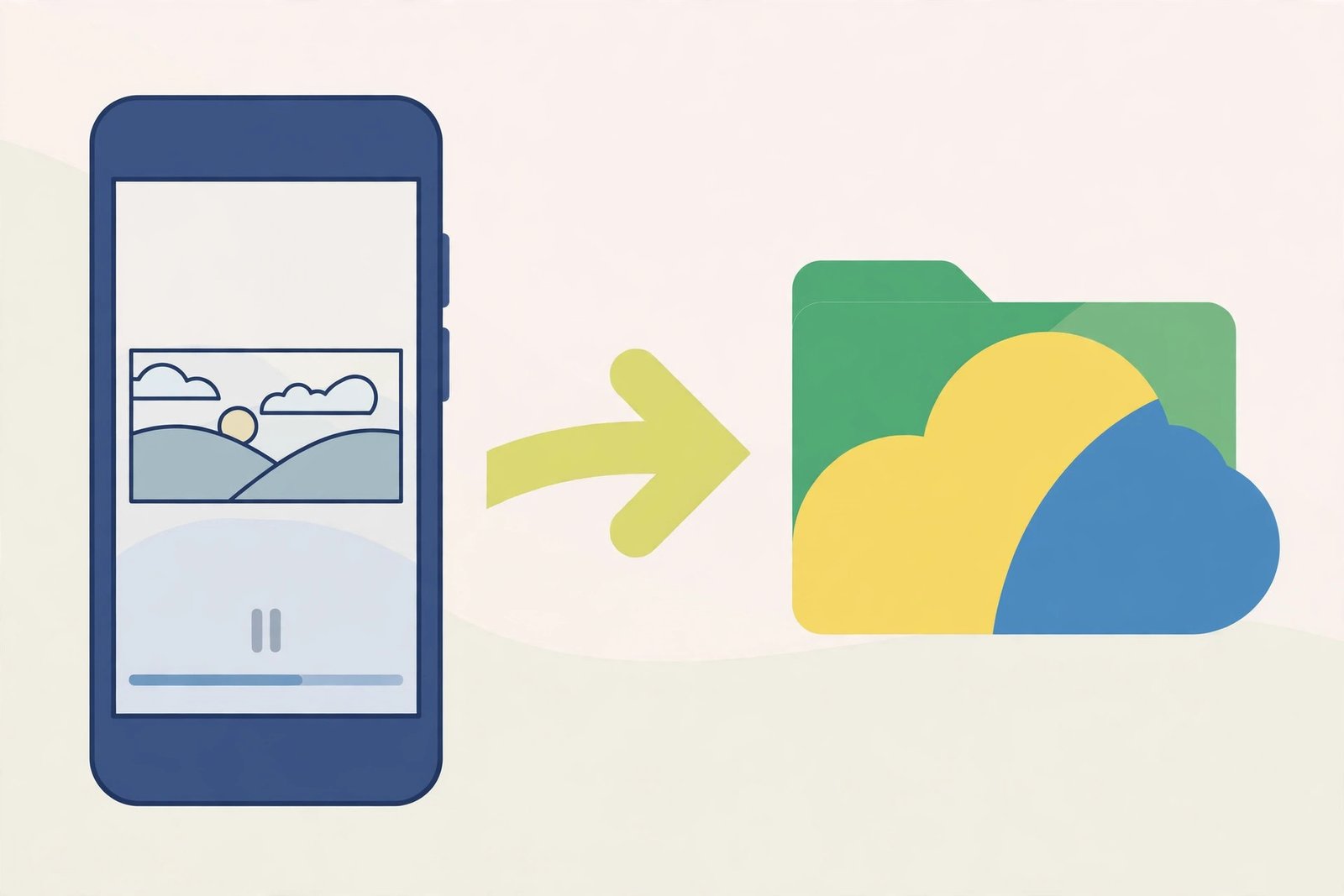
Here is the trap I fell into for months: I kept “saving” Pinterest videos, and every time I actually needed one, it was not where I thought it was. Pinterest’s Save button saves a pin to a board — inside Pinterest. Your phone’s gallery is a different place entirely, and Google Drive is a third place again. If you want to save Pinterest videos so they survive a phone change, a factory reset, or just a ruthless storage cleanup, you need the actual video file in a cloud folder you control. This guide shows exactly how to do that with Google Drive, on a phone and on a computer, with no app install and no subscription.
Short answer: copy the video pin’s link, download the MP4 with PintoDownload (free, no signup, no watermark), then upload that file to a “Pinterest Videos” folder in Google Drive. The whole thing takes about two minutes per video once you have done it once. The rest of this guide is the detail that makes it work first time: where the file lands on each device, how to get it from your gallery into Drive without a mess of duplicates, and what to do when an upload stalls or a pin refuses to download.
Why Google Drive, and Not Just Your Gallery?
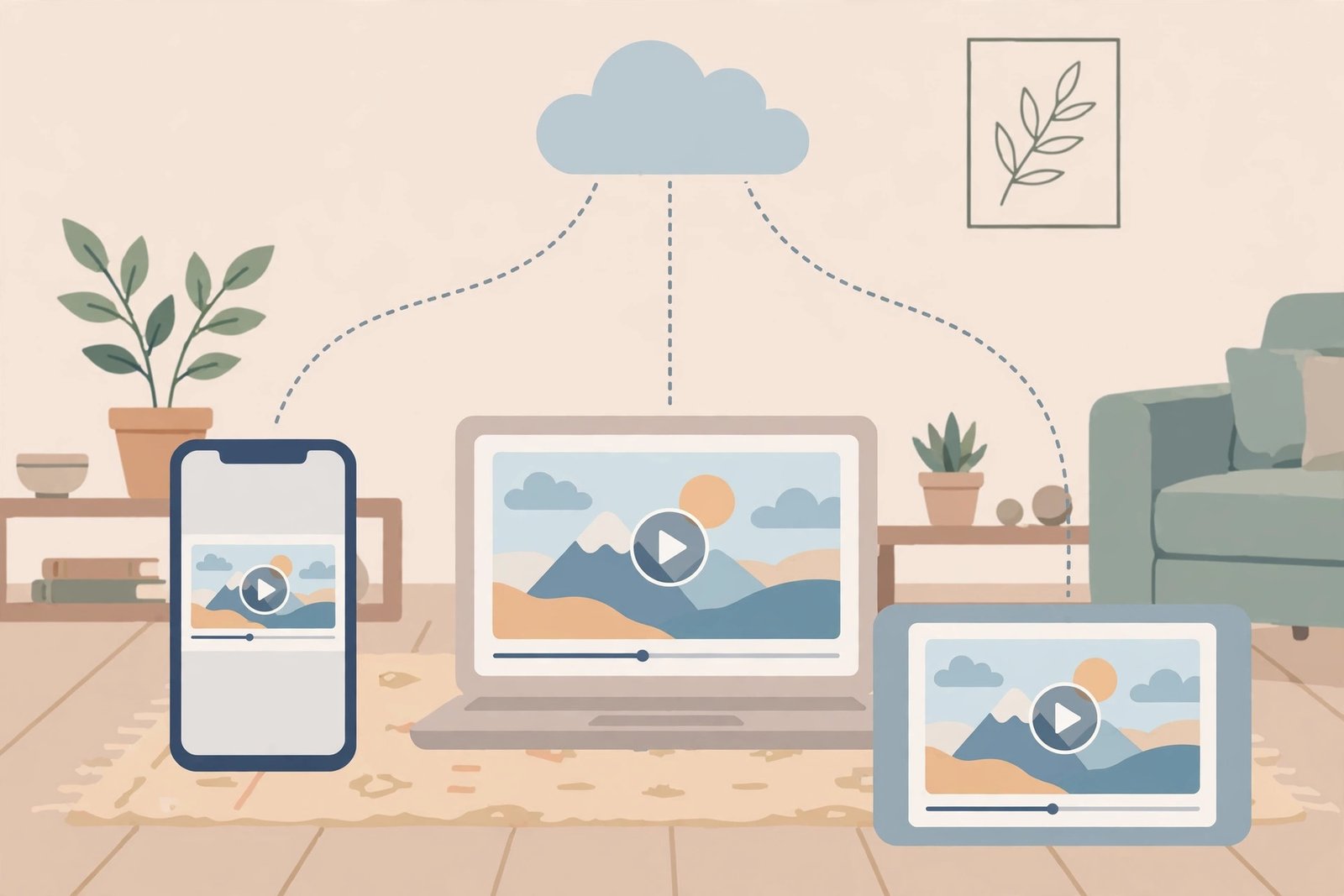
Your gallery feels like the safe option because it is right there. It is not, quite. I have lost count of the people who told me their saved videos vanished when they switched phones — because gallery contents do not automatically move with you unless you have backup switched on, and on many Android phones that backup is Google Photos, not a folder you can browse like files. A video sitting in Google Drive, on the other hand, is a file with a name, in a folder, that you can open from any phone, tablet, or computer by signing in. It also survives the two things that kill most saved collections: running out of phone storage and accidentally clearing an app’s data.
There is a second, quieter reason. Pinterest boards are not backups. If the creator deletes a pin, or Pinterest removes it, your board entry goes with it. The only copy that is truly yours is the MP4 file. Drive is where that file lives safely — and because every free Google account includes 15 GB of storage shared across Drive, Gmail, and Google Photos, most people can store hundreds of short Pinterest clips before storage ever becomes a question. Longer HD clips eat space faster, so I will come back to storage maths below.
Before You Start: Three Things Worth Knowing
First, this only works for public pins. A video on a secret board, or a pin whose creator has restricted it, cannot be reached by any outside downloader — that is a Pinterest limitation, not a tool failure, and no tool that claims otherwise should be trusted. Second, the file you get is an MP4 with sound, which is the format Pinterest itself stores videos in. MP4 plays everywhere: iPhone, Android, Windows, Mac, smart TVs, and straight inside Google Drive’s own preview player. Third, keep it personal. Downloading a video to watch offline or keep for your own reference is one thing; reposting someone else’s video as your own is another, and the creator’s permission is what separates the two. I have a fuller walkthrough of the legal side in my guide to whether downloading Pinterest videos is legal — worth five minutes if you plan to share anything publicly.
Step 1: Get the Actual Video File
Everything else in this guide depends on this step, so do not skip it. Pinterest’s own app will offer you a download on some pins, but that version carries a watermark with the creator’s username baked in. The clean route is an online downloader, and it is the same on every device:
- Open the Pinterest app or website and open the video pin you want to keep.
- Tap the Share icon (the arrow) and choose Copy link. On a computer, copy the address from the browser’s address bar instead. You will get a pinterest.com/pin/ link or a short pin.it link — both work.
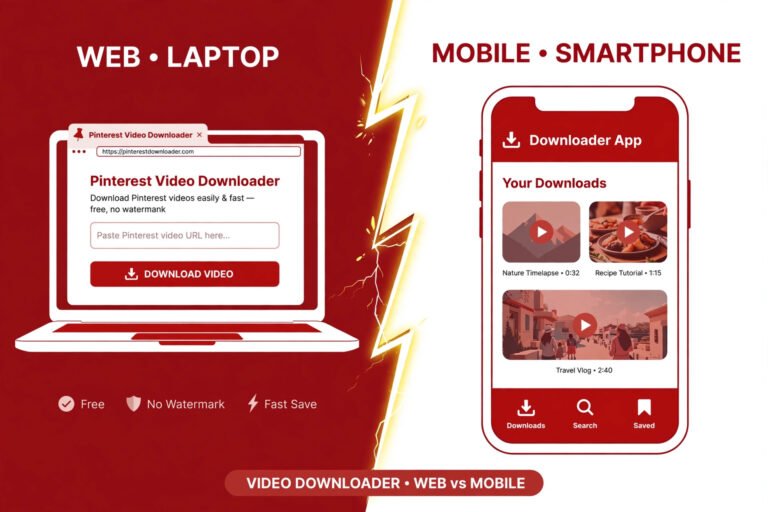
- Open PintoDownload in your browser, paste the link into the box, and tap Download.
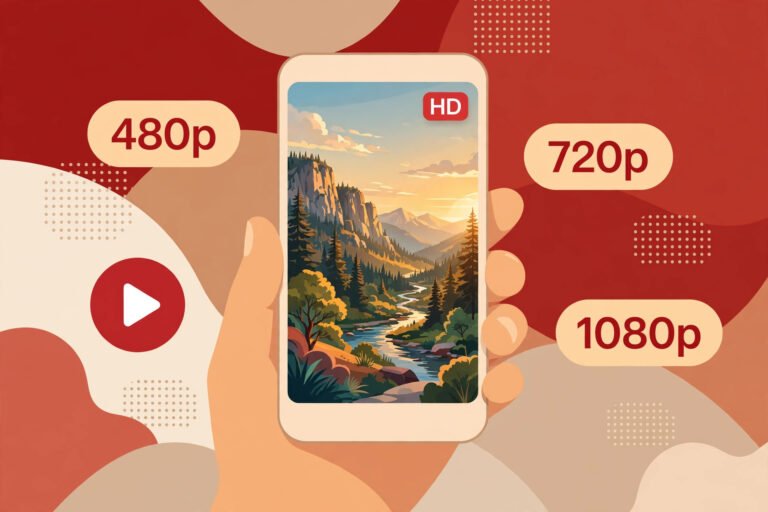
- Pick the highest quality offered — HD or Full HD (1080p) if it is there — and save the MP4. I checked the tool’s own homepage while writing this: it advertises HD, Full HD, and 4K downloads as MP4 or WebM, with no account and no app needed, and that matches what I have seen it deliver on public pins.
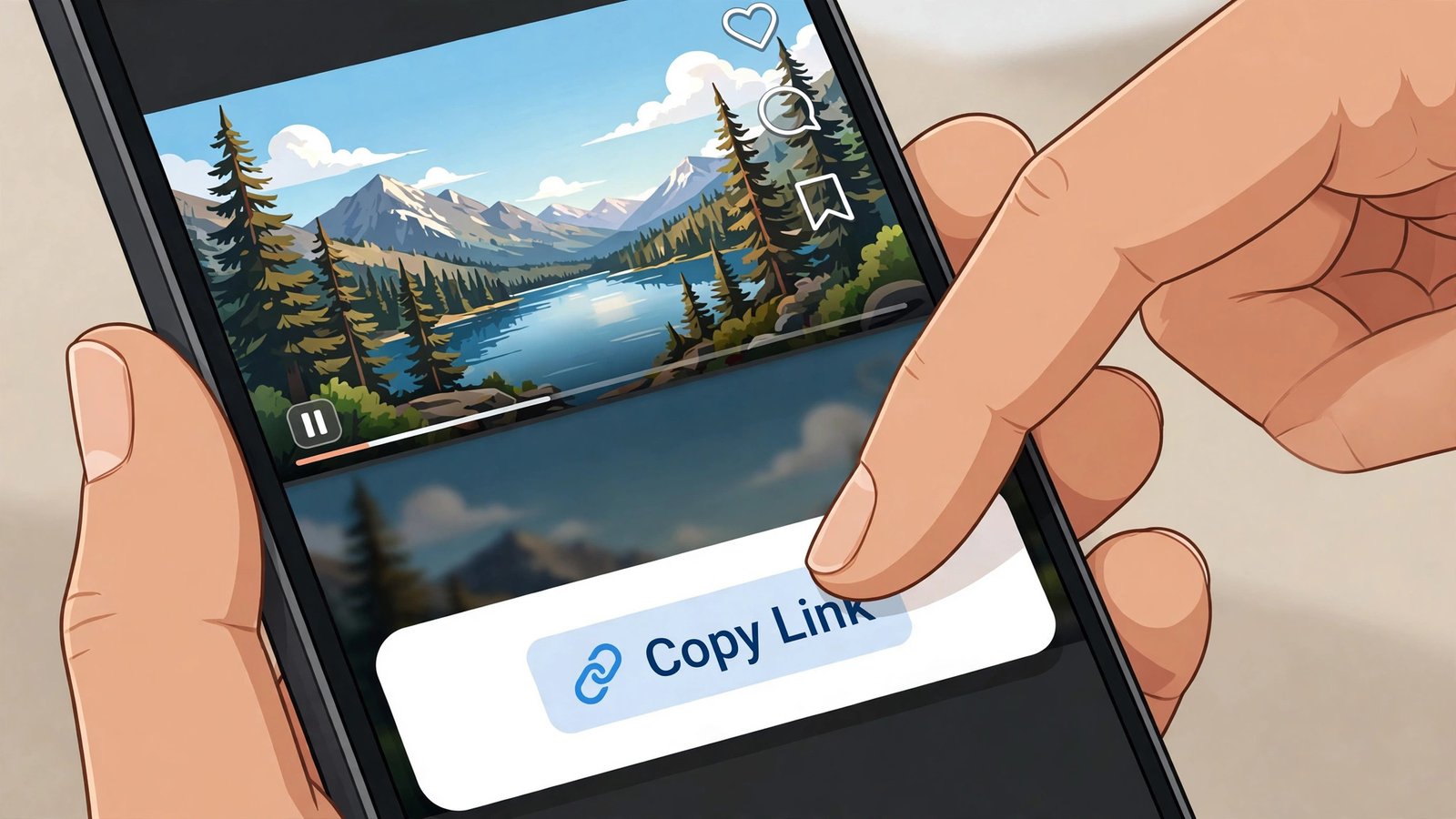
One habit that will save you grief later: rename the file now, before it disappears into a folder full of video_382910.mp4 files. Something like “morning-yoga-routine.mp4” or “small-bathroom-ideas.mp4” takes three seconds and makes the file findable in Drive’s search six months from now, when you will not remember what video_382910 was. If a download fails at this stage — wrong link, a pin that will not parse, a file that arrives with no sound — my Pinterest video not downloading fixes guide walks through the ten causes I actually see, in the order worth checking them.
Method 1: Save Pinterest Videos to Google Drive from Your Phone
This is the method most people will use, because most Pinterest browsing happens on a phone. The steps differ slightly between Android and iPhone, and the difference matters.
On Android
- Download the MP4 as in Step 1, using Chrome or your usual browser. It lands in your Downloads folder and shows up in your gallery within seconds.
- Open the Google Drive app, open (or create) a folder called “Pinterest Videos”, and tap the + New button, then Upload.
- Pick the video from Downloads. Drive uploads it, and you will see a progress bar — leave the app open until it finishes, especially on mobile data.
- Once it is in Drive, you can delete the local copy to free phone storage, because the Drive copy is now the safe one. I keep the local copy for a day first, just until I have opened the Drive copy once and confirmed it plays — a small paranoia that has saved me exactly once, which is enough.
On iPhone
iPhones add one wrinkle: Safari downloads go to the Files app, not straight to Photos. After downloading in Safari, tap the download icon in the address bar, open the file, then use the Share sheet and choose Save Video if you want it in Photos — or, for this guide’s purpose, choose Drive (or “Save to Files > Drive”) to send it straight to your Drive folder. If you do not see Drive in the Share sheet, open the Drive app once first and sign in; iOS only offers destinations for apps that are installed and signed in. If you want the full phone-side picture, including the gallery route, my save Pinterest videos to gallery guide covers Android and iPhone side by side.
A note on data: uploading video over mobile data is how people burn through a month’s allowance in an afternoon. A single minute of 1080p video is a large file, and ten pins add up fast. If you can, do the Drive upload on Wi-Fi, or set the Drive app to “upload on Wi-Fi only” in its settings and let it catch up when you get home.
Method 2: Save Pinterest Videos to Google Drive from Your Computer
The computer route is the fastest for more than a couple of videos, because drag-and-drop beats tapping through menus ten times:
- Download the MP4s as in Step 1, into one folder on your computer — call it “Pinterest Videos” so it matches the Drive folder you are about to make.
- Open drive.google.com in your browser and sign in.
- Click + New > New folder, name it “Pinterest Videos”, and open it.
- Drag the MP4 files from your computer folder straight into the browser window, or use + New > File upload and select them. Drive uploads them in a batch, with a progress panel at the bottom right.
- When the uploads finish, click one file and press play in Drive’s preview to confirm it actually plays with sound before you delete the local copies.
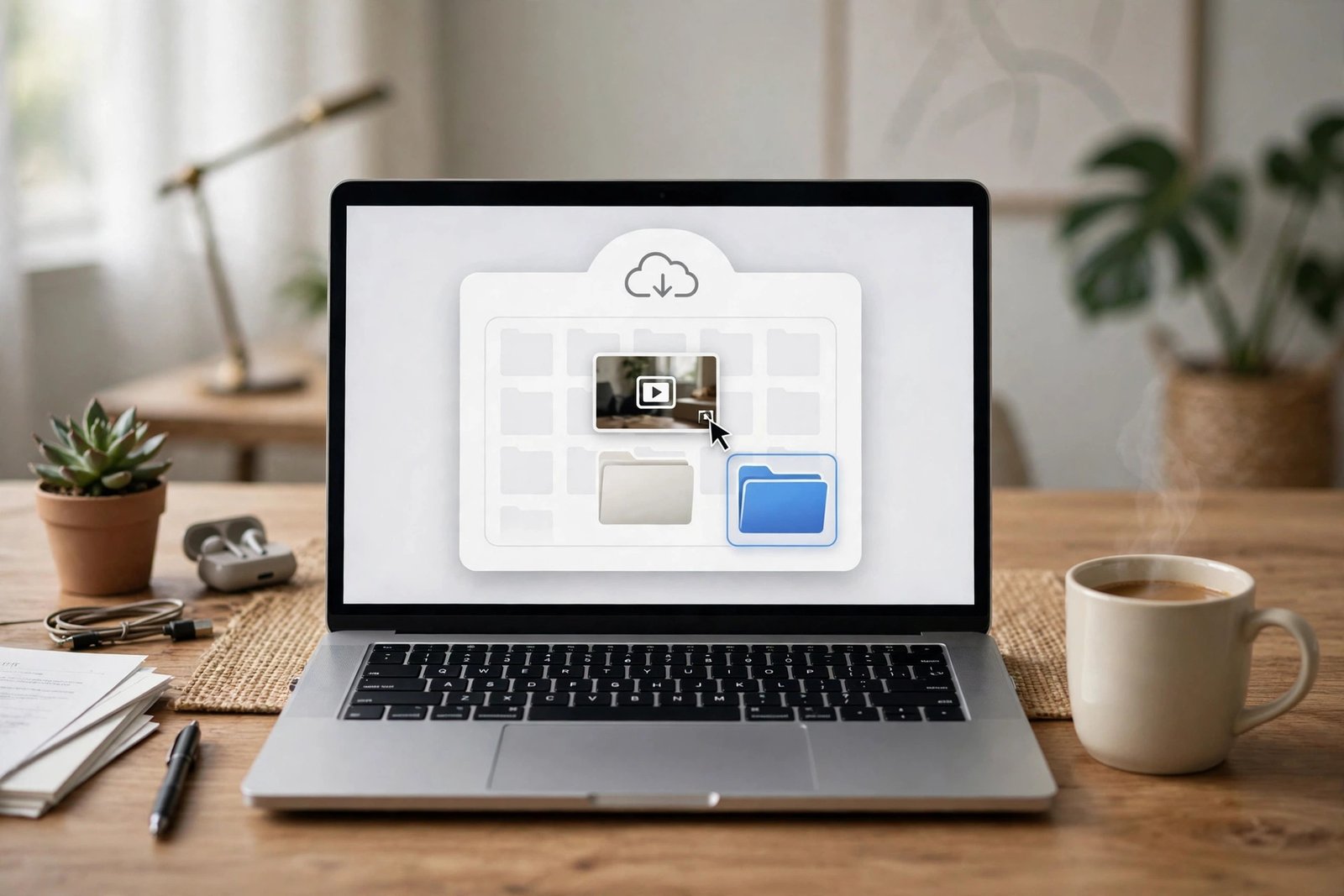
For people who do this regularly, Google’s Drive for Desktop app is worth installing: you drop files into a folder on your computer and they sync to Drive in the background, no browser window needed. It is overkill for saving one video, and exactly right if you are building a library of dozens.
Method 3: The Automatic Route — Let Your Phone Back Up for You
There is a lazier option, and it is worth being honest about what it does and does not do. If you already back up your phone’s photos and videos to Google Photos, then a Pinterest video that lands in your gallery will get backed up automatically — no extra steps. That is genuinely useful as a safety net. But it is not the same as a Drive folder: Photos backup stores the video in your photo library, organised by date, not in a named folder you can browse, share, or sort by topic. My recommendation is to use both — let Photos be the safety net, and put the videos you actually care about finding again into a Drive folder with a proper name. One is insurance, the other is a library.
Google Drive vs iCloud vs Dropbox: Which Cloud for Pinterest Videos?
Every cloud service will hold an MP4. The differences are storage, devices, and friction, and they are bigger than they look:
| Option | Free storage | Works on | Best for |
|---|---|---|---|
| Google Drive | 15 GB shared with Gmail and Photos | Android, iPhone, Windows, Mac, any browser | Most people — biggest free tier, plays video in-browser |
| iCloud | 5 GB shared across Apple services | iPhone, iPad, Mac (Windows via app) | People fully inside Apple’s world; tightest free limit |
| Dropbox | 2 GB free | Android, iPhone, Windows, Mac | Sharing single files with other people; smallest free tier |
| Phone gallery only | Whatever space your phone has | That one phone | Watching today; lost with the phone |
The honest summary: if you use an iPhone and nothing else, iCloud is fine and already there. If you use Android, or a mix of devices, Drive wins on free space alone — 15 GB against iCloud’s 5 GB and Dropbox’s 2 GB is not close, and Drive’s in-browser player means you can watch a saved video on a borrowed computer without installing anything. That is also why this guide is built around Drive rather than pretending all four options are equal. They are not.
Organising Your Drive Library So You Can Actually Find Things
A Drive folder with two hundred files called video_1.mp4 through video_200.mp4 is not a library, it is a junk drawer. The system I use now, after learning this the hard way, is simple enough to stick to:
- One folder per theme, not one giant folder. “Pinterest Videos” as the top folder, then subfolders like “Recipes”, “Home Ideas”, “Workouts”, “Wedding”. Five subfolders beat one folder with everything in it.
- Name files by what is in them. “sourdough-starter-day-1.mp4” will be findable in a year. “video_382910.mp4” will not, and Drive search only helps if the filename or folder name contains a word you remember.
- Keep the original quality. Do not re-compress a video to save space unless you have to — a compressed copy looks worse every time you re-share it, and storage is cheaper than the original quality once it is gone.
- Star the keepers. In Drive, right-click a file and “Add to Starred” for the handful of videos you come back to constantly. It is the closest thing Drive has to a Pinterest board, and it works.
Troubleshooting: When It Does Not Work
The upload stalls at 99% or fails outright. Nine times out of ten this is storage or connection, not the file. Check Drive’s storage indicator — if you are at or over the 15 GB free limit, nothing uploads until you free space or upgrade, and Gmail stops receiving mail at the same time, which is how most people first notice. On a shaky connection, try again on Wi-Fi; Drive resumes most uploads rather than starting over.
The video plays in Drive but has no sound. This almost always means the downloaded file itself had no audio track, not a Drive problem. Re-download the pin and check the local file before uploading — if the local file is silent, pick a different quality option in the downloader, because some pins offer a muted preview variant alongside the full video.
The downloader says the pin cannot be found. First check the link: a pin.it short link copied from inside the app’s share sheet works, but a link copied from a board preview sometimes points at the board, not the video. Open the video full-screen first, then copy the link from there. If the pin is on a secret board, no downloader can reach it — that is by design, and the only route is the creator sharing it publicly.
Drive says the file type is not supported. MP4 is fully supported, so this usually means the file downloaded as something else — a WebM file, or a file with no extension at all after a failed download. Rename it with the .mp4 extension only if you know it is an MP4; otherwise re-download and choose MP4 explicitly.
You cannot find the video in Drive after uploading. Search Drive for the filename, not the folder you think you put it in — uploads from the phone app sometimes land in the Drive root if the folder was not selected before tapping Upload. Once found, drag it into the right folder. This is also why naming files properly matters: “video_382910” is unsearchable in practice.
What Competitors Get Wrong About This
I read the top-ranking guides on this topic before writing this one, and most of them share the same three gaps. First, they stop at “download the video” and never cover the second half — getting the file into Drive — which is the part people actually get stuck on. Second, they recommend automation tools and multi-cloud managers that need accounts, API keys, or paid plans for a job that takes two minutes by hand. Third, they gloss over the private-pin limit, which leaves readers blaming the tool when the real answer is that the pin was never reachable. This guide does the unglamorous thing instead: one free downloader, the official Drive app and website, and honest limits stated up front. If you only ever save a few videos, that is all you need — and if you save hundreds, the folder system above scales further than any of the automated shortcuts I tested in those guides.
Frequently Asked Questions
Can I save Pinterest videos directly to Google Drive without downloading first?
Not directly. Pinterest has no “send to Drive” button, and no legitimate tool uploads straight from Pinterest into your Drive without a file passing through your device first. The reliable path is download the MP4, then upload it to Drive — two steps, about two minutes, and it works on every device.
Do saved Pinterest videos count against my Google storage?
Yes. Every video file in Drive counts against your Google account’s 15 GB free storage, which is shared across Drive, Gmail, and Google Photos. Short clips barely register; a library of long HD videos will fill 15 GB eventually, at which point you either delete what you no longer need or move to a Google One plan.
Will the video keep its quality in Google Drive?
Yes, if you upload the original MP4. Drive stores the file as-is and its preview player streams it back; it does not re-compress your upload the way some social apps do. Download the highest quality the downloader offers, and that is the quality you keep.
Can I watch a Pinterest video saved in Drive without internet?
Yes, if you mark it available offline first. In the Drive app, tap the three dots next to the file and choose “Make available offline” while you have internet; after that it plays without a connection. Without that step, Drive streams the video and needs internet.
Can I share a Drive folder of Pinterest videos with someone else?
You can share the folder, but think before you do. Sharing your own saved collection privately with a friend is different from publishing someone else’s videos publicly, and the creator’s rights still apply to the content inside. Keep shared folders private, credit creators, and do not repost their work as your own.
What if the pin is deleted after I save it to Drive?
Nothing happens to your copy. Once the MP4 is in your Drive, it is an independent file — deleting the pin, or even deleting the creator’s account, does not touch it. That is the whole point of saving the file rather than just saving the pin to a board.
The Bottom Line
To save Pinterest videos properly, stop trusting the Save button and start keeping the file. Copy the pin link, grab the MP4 with PintoDownload — free, no signup, and if you only want the pictures, the same site’s Pinterest image downloader does the same job for images — rename it sensibly, and put it in a themed folder in Google Drive. Do it on Wi-Fi, check that it plays once, and then you can delete the local copy with confidence. The videos you care about will be there on your next phone, your laptop, or any borrowed computer, which is more than Pinterest’s Save button ever promised. And if you want the no-watermark version of the story — why Pinterest videos do not carry a watermark the way other platforms’ clips do — my download Pinterest videos without watermark guide explains that one too.