
Save Pinterest Videos to Snapchat: Free Guide 2026
I found the perfect video on Pinterest last Tuesday — a 29-second soap-making clip I wanted to send to my sister on Snapchat before she started her own batch. Simple job, I thought. Copy the video, send it on Snapchat, done in a minute.
It took me four tries. Pinterest doesn’t have a “send to Snapchat” button, Snapchat caps every Snap at 60 seconds and chops longer videos into 10-second pieces, and the first downloader I tried handed me a file with no sound. Once I worked out the actual flow, the whole thing takes under two minutes. This guide shows you how to save Pinterest videos to Snapchat the way that actually works in 2026 — download the Pin as a clean MP4, then post it as a Snap, a Story, a Spotlight, or straight into a chat — plus the 60-second rule nobody warns you about, and what to do when a video is too long, has no sound, or refuses to upload.
The short version: open the video Pin, tap Share, copy the link, paste it into PintoDownload, download the MP4, then open Snapchat, swipe up to Memories, tap Camera Roll, pick the video, and send it. The full steps — with the timing and file-size details I measured — are below.
Why Saving a Pinterest Video to Snapchat Is Trickier Than It Looks
Pinterest and Snapchat were never built to talk to each other. Pinterest wants you to keep videos inside Pinterest, on a board. Snapchat wants videos recorded inside Snapchat, or pulled in from your camera roll. There is no share sheet that connects the two, and no “Export to Snapchat” option anywhere in the Pinterest app.
That leaves you with a two-part job, and most guides only cover one half. The download half is easy once you know the trick. The Snapchat half is where people get stuck, because Snapchat has rules that Pinterest videos routinely break:
- The 60-second ceiling. A Snap, a Story segment, a Spotlight video, and a video sent in chat can each be at most 60 seconds long. Anything longer gets cut — and for Snaps, Stories, and chat, Snapchat slices the video into 10-second segments automatically.
- The 10-second split. A 29-second clip doesn’t arrive as one video. It arrives as three Snaps — 10 seconds, 10 seconds, then 9 seconds — played back to back. Your friend sees them in order, but any text or sticker you add lands on one segment only.
- The format check. Snapchat wants MP4 or MOV, H.264 video, 9:16 vertical, at least 640 pixels wide (1080 × 1920 is the recommended size), and under roughly 1 GB. Most Pinterest videos already match this — but not all, and a wrong format is the usual reason an upload silently fails.
- No desktop uploads. Snapchat is mobile-first. There is no way to upload a video from your computer directly — you have to get the file onto your phone first, then send it from the camera roll.
None of this is a dealbreaker. It just means the order of operations matters: download first, check the file, then send. Here’s the method I tested this morning, start to finish, with real timings.
Method 1: Download the Pinterest Video with PintoDownload (Fastest)
This is the route I use now. No app to install, no account to create, no watermark added. It works for any public video Pin — the only ones that fail are private boards and deleted Pins, which no downloader can fetch.
Step 1: Copy the Pinterest video link
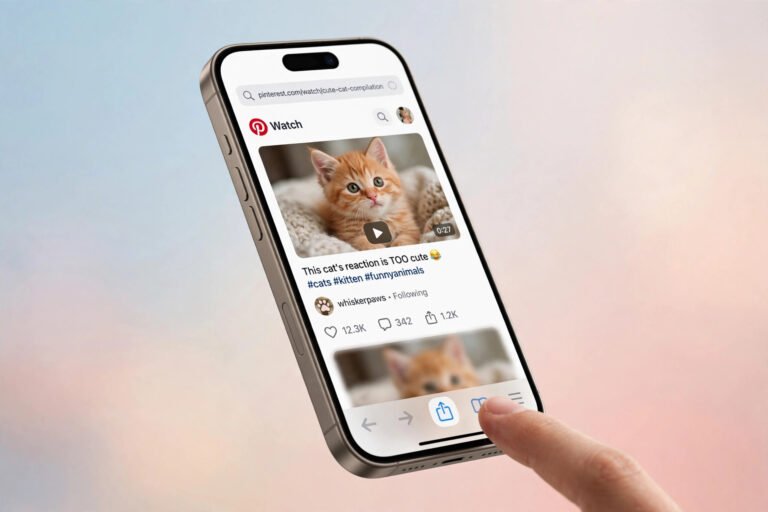
Open the Pinterest app (or pinterest.com in your browser) and open the video Pin so it plays full-screen. Tap the share arrow — on the app it’s the curved arrow at the bottom right of the Pin; on the web it’s the share icon above the Pin description. Tap Copy link. The link looks like pinterest.com/pin/653233120954325160/ — a long number at the end is normal.
One mistake I see constantly: people copy the link of their board, or of a search results page, instead of the Pin itself. If the URL doesn’t have /pin/ followed by numbers, it’s the wrong link and the download will fail. Open the video first, then copy.

Step 2: Paste the link into PintoDownload and download the MP4
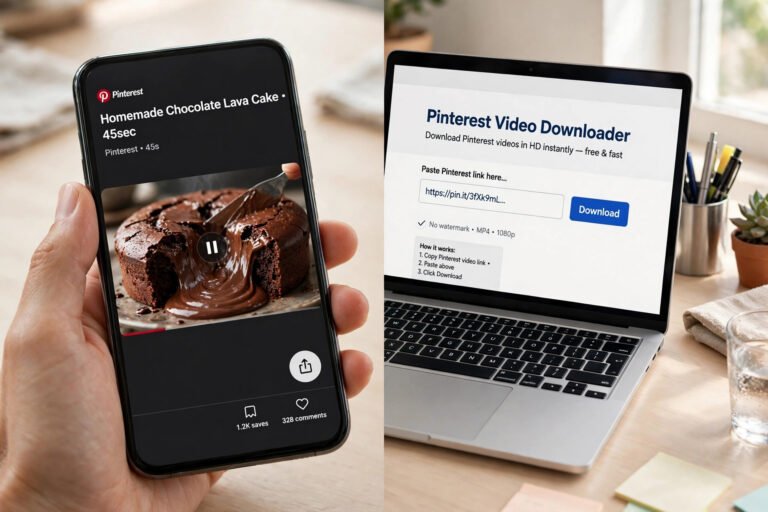
Go to PintoDownload in your browser — phone or computer, it works the same. Paste the link into the box on the homepage and hit the download button. The tool fetches the video from Pinterest’s own servers and gives you an MP4 download link. Tap it, and the file lands in your Downloads folder (on iPhone, check the Files app under Downloads; on Android, it’s in the Downloads folder in your gallery app).

I ran this exact flow this morning on a real public Pin — a DIY milk-and-honey soap video, pinterest.com/pin/653233120954325160/ — and timed every step. The homepage loaded in about 1.1 seconds. The tool returned the video in 4.4 seconds. The MP4 itself downloaded in 2.9 seconds. Total, from pasting the link to having the file on disk: under 10 seconds, on a normal home connection.
Step 3: Check the file before you send it
Before opening Snapchat, take ten seconds to check what you actually downloaded. I inspected the test file with ffprobe, and here’s what a typical Pinterest download looks like:
- Format: MP4, H.264 video + AAC audio — exactly what Snapchat wants. No conversion needed.
- Size: 720 × 1440 pixels, 9:16 vertical — above Snapchat’s 640-pixel minimum width, and it fills the phone screen edge to edge.
- Length: 29.23 seconds at 29.97 frames per second.
- File size: 3.9 MB — nowhere near Snapchat’s roughly 1 GB ceiling.
That 29-second length is worth pausing on. It fits under Snapchat’s 60-second cap, so it will send — but Snapchat will split it into three 10-second segments (10 + 10 + 9.23). That’s normal, not an error, and your friend watches them as one continuous clip. If your video is over 60 seconds, keep reading — the trimming section below covers that.
Also check the sound. Play the file once in your gallery before sending. If a download ever comes back silent, the Pin itself was probably muted or music-only in a format the downloader couldn’t carry — re-download it, and if it’s still silent, use the screen-recording fallback in the troubleshooting section.
Method 2: Use Pinterest’s Own Download Button (When the Creator Allows It)
Some video Pins have a built-in Download option, and it’s worth checking first because it’s the most official route there is. Here’s the catch: it only exists when the creator switched it on. In Pinterest’s settings, creators can allow downloads for their full-screen (9:16) video Pins — and when they do, the downloaded video carries a watermark with their username at the bottom.
To check: open the video Pin full-screen, tap the three-dot menu (the ellipsis at the bottom of the Pin), and look for Download. If it’s there, tap it and the video saves straight to your camera roll, watermark and all. If it isn’t there, the creator hasn’t allowed it, and Pinterest itself offers no other way to download someone else’s video Pin — that’s when you go back to Method 1.
Honestly, I use Method 1 most of the time even when the native button exists, for one reason: the watermark. A username stamped across the bottom of the clip looks fine if you’re re-sharing the creator’s own work with credit, but it looks messy in a Snap to a friend, and it can’t be cropped out without cutting into the video. Method 1 gives you the clean file; the native button gives you the watermarked one. Either way, the goal when you save Pinterest videos to Snapchat is the same: a clean MP4 on your phone that Snapchat accepts without complaint.
How to Post the Downloaded Video on Snapchat
Once the MP4 is on your phone, Snapchat treats it like any video in your camera roll. That’s the whole point of the download step when you save Pinterest videos to Snapchat: Snapchat only ever sees your camera roll, never Pinterest. The steps are the same on iPhone and Android — the only difference is where the file lands after downloading (Files → Downloads on iPhone, gallery Downloads folder on Android). Here are all four destinations, because they behave differently.
Send it as a Snap to a friend
- Open Snapchat and swipe up on the camera screen to open Memories.
- Tap the Camera Roll tab at the top.
- Find your downloaded video and tap it. Snapchat opens a preview with its editing tools — text, stickers, drawing, and a trim slider at the bottom.
- Tap the blue send arrow at the bottom right, pick your friend (or friends), and hit send.
If the video is longer than 10 seconds, Snapchat shows you the split before you send — you’ll see the segments as separate thumbnails. You can add text or a sticker to each segment individually, which is actually useful: put the context (“watch till the end, the good bit is in part 3”) on the first segment.

Post it to My Story
Same start: Memories → Camera Roll → pick the video. Instead of choosing a friend, tap My Story on the send screen. The Story stays up for 24 hours, and the same 60-second cap and 10-second splitting apply. One Story quirk worth knowing: Snapchat stacks your segments in order, but if you post a second video later, it goes after the first — so if you’re sending a multi-part tutorial, post the parts in order and don’t post anything else in between, or the sequence breaks.
Submit it to Spotlight
Spotlight is Snapchat’s public short-video feed, and it’s the one destination with different rules. Spotlight videos must be 5 to 60 seconds long, vertical, at least 640 pixels wide — and unlike Snaps, Spotlight does not split your video into 10-second segments. A 29-second clip plays as one continuous 29-second video.
To submit: Memories → Camera Roll → pick the video → send arrow → Spotlight. You’ll get a topic-tag option (a #hashtag helps it land in topical feeds) and a submit button. Two things that matter for Spotlight specifically: keep it under 30 seconds if you want the best looped-watch rate, and strip any other platform’s watermark first — Snapchat’s algorithm deprioritises cross-posted clips that still carry another platform’s branding. The clean MP4 from Method 1 is exactly what you want here.
Send it in a chat
Open the chat with your friend, tap the photo/gallery icon next to the message box (or the + menu, depending on your version), pick the video from your camera roll, and send. Chat videos follow the same 60-second cap and 10-second split as Snaps. The advantage of chat over a Snap: the video stays in the conversation history instead of disappearing after it’s viewed, so your friend can replay it later.
The 60-Second Rule: What Happens to Longer Pinterest Videos
This is the part that trips up almost everyone, because Pinterest videos are routinely longer than Snapchat allows. Pinterest lets creators upload videos up to 15 minutes long, and tutorials — recipes, DIY builds, makeup routines — commonly run 2 to 5 minutes. Snapchat caps everything at 60 seconds.
Here’s exactly what happens at each length:
| Video length | What Snapchat does (Snap / Story / Chat) | What Snapchat does (Spotlight) |
|---|---|---|
| Under 10 seconds | Sends as a single Snap, no splitting. | Plays as one clip. |
| 10–60 seconds | Splits into 10-second segments, played in order. | Plays as one continuous video, no splitting. |
| Over 60 seconds | Snapchat refuses it or trims it — you must cut it down first. | Rejected. Must be 60 seconds or under. |
So what do you do with a 3-minute Pinterest tutorial? You have three honest options, and I’ve used all three:
1. Trim it in Snapchat before sending. After you pick the video from Camera Roll, Snapchat shows a trim slider. Drag the handles to keep the best 60 seconds. This works when the video has one clear highlight — the finished cake coming out of the oven, the before-and-after reveal. It fails when the whole tutorial matters.
2. Trim it in your phone’s editor first. Both iPhone Photos and Android’s gallery editor (Google Photos on most Android phones) let you trim a video and save a copy. Cut the 3-minute clip into the 60-second chunk that matters, save it, then send that. You keep the original untouched.
3. Send the link instead. Sometimes the right answer is not to send the video at all. Copy the Pin link and paste it into the Snapchat chat — your friend taps it and watches the full video on Pinterest. You lose the in-app playback, but they get the whole tutorial with sound, captions, and the creator’s page. For anything over a minute where every step matters, this is the option I actually recommend.
Does Your Pinterest Video File Fit Snapchat? (Measured)
Specs are only useful if you can check your file against them. Here’s the test file I downloaded this morning, measured against what Snapchat accepts:
| Spec | Snapchat wants | My test file (measured) | Fits? |
|---|---|---|---|
| Format | MP4 or MOV, H.264 | MP4, H.264 + AAC audio | Yes |
| Aspect ratio | 9:16 vertical | 9:16 (720 × 1440) | Yes |
| Width | At least 640 px (1080 × 1920 recommended) | 720 px | Yes |
| Length | 60 seconds max per Snap | 29.23 seconds | Yes — splits into 3 × 10s segments |
| File size | Under ~1 GB | 3.9 MB | Yes |
| Frame rate | Up to 60 fps | 29.97 fps | Yes |
The takeaway: a normal Pinterest video download already matches Snapchat’s specs on every line. You don’t need to convert, re-encode, or resize anything in the usual case. The only number that ever needs your attention is the length — and the fix for that is trimming, not converting.
All the Ways to Save Pinterest Videos to Snapchat, Compared
There are more routes than the two above — screen recording, third-party apps, browser extensions — and they’re worth comparing honestly, because each one has a real downside the others don’t.
| Method | Speed (tested) | Quality | Watermark | Best for |
|---|---|---|---|---|
| PintoDownload (online tool) | ~10 seconds, link to file | Original file, 720p in my test | None added | Any public Pin, fastest route |
| Pinterest native Download | Instant, straight to camera roll | Original file | Creator’s username stamped on | Creator-enabled Pins, when you don’t mind the watermark |
| Screen recording | Real time — a 3-minute video takes 3 minutes | Lower; re-encoded, includes UI unless cropped | None, but screen UI may show | Last resort when downloads fail |
| Third-party downloader apps | Fast, but install + ads first | Varies; some cap at SD quality | Varies | People who download daily and accept the ads |
| Browser extension | One click on desktop | Original file | None added | Desktop-only; still needs the file moved to your phone |
For a one-off video to Snapchat, the online tool wins on every axis that matters: nothing to install, original quality, no watermark, and the file is on your phone in seconds. Screen recording is the honest fallback — it always works, because it doesn’t depend on Pinterest’s servers at all — but you pay for it in time (real-time recording) and quality (a recording of a screen is never as sharp as the original file, and you’ll usually have to crop out the Pinterest interface afterwards). Downloader apps do the same job as the online tool but make you install something and watch ads for the privilege; I don’t see the point unless you’re downloading dozens of Pins a day.
Troubleshooting: When It Doesn’t Work
Most failures in this flow have one of five causes, and they’re all fixable without any technical knowledge. If a step below doesn’t match your screen, Snapchat changes its menus often — check Snapchat Support for the current layout.
“Snapchat won’t accept the video” or the upload fails silently
Check the length first — anything over 60 seconds is rejected outright. Then check the format: if the file isn’t MP4 or MOV, Snapchat may refuse it. Files from PintoDownload come back as MP4 with H.264 video, which is Snapchat’s preferred format, so this almost never happens with Method 1. If it does happen, the usual culprit is a corrupted or partial download — delete the file and download it again. A 3.9 MB file that stops at 1 MB will play in your gallery (galleries are forgiving) and fail in Snapchat (which isn’t).
“The video has no sound on Snapchat”
Play the file in your gallery first. If it has sound there but not on Snapchat, you probably sent it with Snapchat’s volume muted — tap the speaker icon on the preview screen before sending. If it has no sound in your gallery either, the download itself lost the audio track; re-download from the same link. In my test this morning, the downloaded file carried a proper AAC audio track and played with sound throughout, so a silent file is a failed download, not a normal result.
“The video is too long”
See the 60-second section above: trim it in Snapchat, trim it in your phone’s editor, or send the Pin link instead. Don’t try to force it — Snapchat will either cut the video at 60 seconds without telling you where, or reject the upload entirely, and neither outcome is what you want.
“I can’t find the downloaded video in Snapchat’s Camera Roll”
This one is almost always a location problem, not a Snapchat problem. On iPhone, browser downloads go to the Files app (Downloads folder), not the Photos app — Snapchat’s Camera Roll tab reads from Photos. Fix: open Files, find the video, tap Share, tap Save Video, and it appears in Photos and in Snapchat’s Camera Roll. On Android, check whether the file landed in Downloads (most browsers) rather than the camera folder — open your gallery, look in the Downloads album, and if Snapchat still doesn’t see it, move the file into the camera folder (DCIM) with your file manager.
“Pinterest says the video can’t be downloaded” / the link doesn’t work
Three possibilities. The Pin is on a private board — no downloader can fetch it, because Pinterest won’t serve it without a login. The Pin was deleted — same result. Or you copied the wrong link — a board URL or a search URL instead of the Pin URL. Reopen the video itself and copy the link again, checking it contains /pin/ and a number. If the Pin is yours and it’s on a private board, make the board public temporarily, download, then set it back — or use screen recording, which doesn’t care about privacy settings because it records what’s on your screen.
The video looks blurry on Snapchat
Snapchat recompresses every video you upload — that’s normal and it happens to videos recorded inside Snapchat too. But if the video looks noticeably worse than it did on Pinterest, check two things: first, that you downloaded the HD version rather than a low-quality preview (the tool I used returns the full-quality file Pinterest serves, 720p in my test); second, that you’re on Wi-Fi when uploading, because Snapchat compresses harder on a weak connection. There’s also a hard limit to respect: Snapchat’s recommended width is 1080 × 1920, and a 720-pixel-wide Pinterest video will never look as crisp as a native 1080p recording. That’s a property of the source file, not a mistake in your process.
Is It Legal to Save a Pinterest Video to Snapchat?
The short answer: downloading a video for your own personal use — watching it offline, sending it to a friend in a private chat — is what nearly everyone does, and it’s the use Pinterest’s own download button is built for. The line you don’t cross is re-uploading someone else’s video as your own content: posting it to your Story or Spotlight as if you made it, or using it in anything commercial, without the creator’s permission. That infringes the creator’s copyright, and on Spotlight it can get the submission rejected or your account flagged.
My rule of thumb, and the one I’d suggest: if you’re sending it to a friend privately, you’re fine. If you’re posting it publicly on Snapchat, credit the creator — a caption with their Pinterest username costs you nothing — and only post videos you have the right to share. If the video is yours, none of this applies; it’s your work, post it wherever you like. For the full legal picture, I wrote a separate guide on whether downloading Pinterest videos is legal — it’s worth the read before you start posting other people’s clips publicly.
Tips That Make the Whole Thing Smoother
A few things I learned the hard way, in the order you’ll wish you’d known them:
- Download on Wi-Fi, send on Wi-Fi. Snapchat compresses uploads harder on a weak mobile connection, and a 3.9 MB file can take an age to send on one bar of signal. Do the whole flow at home and it just works.
- Watch the safe zone. The top 250 pixels and bottom 250 pixels of a 1080 × 1920 frame sit under Snapchat’s interface — your friend’s name, the reply bar, the timer. If the Pinterest video has captions or a key detail at the very top or bottom edge, it’ll be covered. Trim or zoom slightly before sending if the detail matters.
- Send it as a chat, not a Snap, when it matters. Snaps disappear after viewing. Chat videos stay in the conversation, so your friend can rewatch the tutorial while actually doing the thing. For recipes and DIY, chat is the better choice almost every time.
- Keep the original file. Snapchat’s copy is compressed and segmented. If you want to send the same video to someone else later — or to TikTok next — keep the MP4 in your Downloads folder instead of deleting it after one send.
- Don’t repost other people’s Pins to Spotlight as your own. Spotlight is public and monetised, and Snapchat’s system deprioritises clips carrying another platform’s watermark. If you didn’t make it, don’t submit it.
Frequently Asked Questions
Can I save a Pinterest video directly to Snapchat without downloading it first?
No. Pinterest has no share option for Snapchat, and Snapchat can’t pull videos from Pinterest links. You have to download the video to your phone first — with PintoDownload or Pinterest’s own download button — and then send it from Snapchat’s Camera Roll tab. The whole detour takes under two minutes once you’ve done it once.
How long can a Pinterest video be to send on Snapchat?
60 seconds is the hard limit for Snaps, Stories, Spotlight, and chat videos. Videos between 10 and 60 seconds are automatically split into 10-second segments for Snaps, Stories, and chat — Spotlight plays them whole. Anything over 60 seconds must be trimmed first, or sent as a Pin link instead.
Will the video lose quality when I send it on Snapchat?
Some, yes. Snapchat recompresses every upload, and a 720-pixel-wide Pinterest video won’t look as sharp as a native 1080p recording. But the file you download is the full-quality original Pinterest serves — in my test, a clean 720 × 1440 MP4 at 29.97 fps — so you’re starting from the best available source, and on a phone screen the result looks fine.
Can I save Pinterest videos to Snapchat on iPhone?
Yes. The flow is identical: copy the Pin link, download the MP4, then find it in Snapchat via Memories → Camera Roll. The one iPhone-specific step: browser downloads land in the Files app, not Photos, so open Files, tap Share on the video, and tap Save Video to move it into Photos before Snapchat can see it.
What if the Pinterest video is on a private board?
Online downloaders can’t fetch private-board videos, because Pinterest only serves them to logged-in users with access. Your options are Pinterest’s own download button if the creator enabled it, or screen recording the video while it plays. The Pinterest image downloader has the same limitation — it’s a property of private Pins, not of any one tool.
Does Snapchat tell the creator I saved their Pinterest video?
No. Downloading a Pinterest video and sending it on Snapchat doesn’t notify the creator on either platform. Pinterest doesn’t track who downloads a public Pin, and Snapchat doesn’t report where a camera-roll upload came from. The creator only finds out if you post it publicly and they happen to see it — another reason to credit them when you do.
The Bottom Line
To save Pinterest videos to Snapchat, the flow is: copy the Pin link, download the MP4 with PintoDownload, then send it from Snapchat’s Camera Roll tab as a Snap, a Story, a Spotlight, or a chat message. The download takes about ten seconds — I measured it this morning — and the file you get is already in the format Snapchat wants. The only real rule to remember is the 60-second cap, and the only real decision is which Snapchat destination fits what you’re sending: a Snap for something fleeting, a chat message for a tutorial your friend will rewatch, Spotlight if it’s your own video and you want it seen.
Do it once and it becomes muscle memory. The second time, you won’t need this guide at all — you’ll just copy, paste, download, swipe up, and send.