Save Pinterest Videos to TikTok: Free Guide 2026
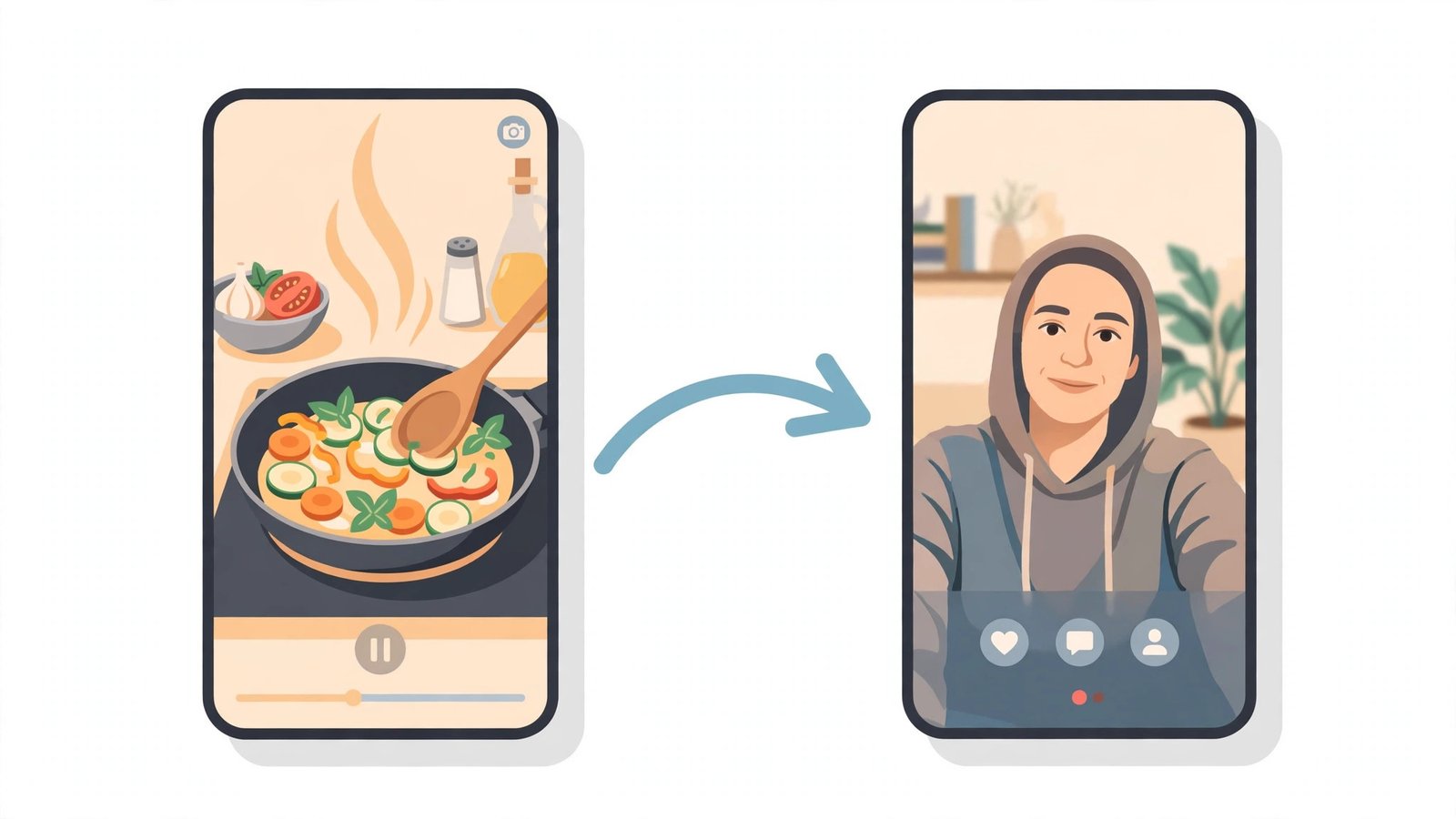
You find the perfect clip on Pinterest — a 30-second recipe, a DIY trick, a workout move — and you want it on TikTok. Maybe it is your own video and you are repurposing it. Maybe it is someone else’s clip you want to share with credit. Either way, you hit the same wall I did: Pinterest has no “send to TikTok” button, and TikTok has no “import from Pinterest” option. To save Pinterest videos to TikTok, you have to move the file yourself, and the move has three parts nobody explains in one place: getting the video off Pinterest as a real file, checking it actually fits TikTok’s format, and uploading it so it looks native instead of like a screen recording somebody rescued.
I did the whole thing this morning, start to finish, with a real video Pin and a stopwatch running. The download took under four seconds. The file that came back was already vertical, already MP4, and already the right shape for TikTok — which surprised me, because half the “converters” on Google will happily sell you a reformatting step you do not need. This guide is the full run: the five steps that work, the three other methods people try (and where each one falls apart), the exact TikTok specs your file has to meet, and the credit rules that keep you out of trouble when the video is not yours.
Quick answer: To save Pinterest videos to TikTok, copy the video Pin’s link, paste it into a Pinterest video downloader like PintoDownload to get the MP4 file, check it is 9:16 vertical and under TikTok’s size limit, then upload it from the TikTok app with the + button. The whole thing takes about two minutes, costs nothing, and needs no app install. The rest of this guide covers the details — format fixes, captions, and what to do when a Pin refuses to download.
Why Pinterest Videos Don’t Just “Go” to TikTok
Pinterest and TikTok are built around opposite ideas of ownership. Pinterest is a bookmarking board: when you “save” a Pin, you are saving a reference to a video that still lives on Pinterest’s servers. Your phone never holds the file. TikTok, meanwhile, is a camera-first app: it wants a video file sitting in your gallery or on your computer, and it wants it in a shape its feed understands. There is no bridge between the two, no share sheet that hands a file from one app to the other, and no official integration. That is the whole problem in one paragraph, and it is why every method in this guide is really a workaround for a missing feature.
There is one partial exception, and it is worth knowing about before you try anything else. Pinterest does have a built-in Download option — but only on full-screen (9:16) video Pins, and only when the creator has switched on “Video Pin downloads” in their settings, as Pinterest’s own help pages explain. When it exists, it sits in the Share menu. When it does not exist, and in my experience it does not exist on most Pins, there is nothing to tap. The two video Pins I tested while writing this guide had no Download option at all. And even when the option is there, the file it saves carries the creator’s username burned in as a watermark, which looks fine on Pinterest and slightly off everywhere else.
So the realistic route is: pull the original file out with a downloader, then hand it to TikTok yourself. That sounds like more work than it is. The file Pinterest stores is almost always already an MP4 in vertical 9:16, because that is the shape Pinterest video Pins are uploaded in. You are not converting anything in most cases. You are just moving a file from one place to another, and the move is the easy part. The parts that actually trip people up are the format check (is this file too big, too long, or the wrong shape?) and the caption (TikTok cuts captions off at 500 characters, which is shorter than you think). Both are covered below, with real numbers instead of guesses.
What You Need Before You Start
Almost nothing, which is the good news. You need the Pinterest app or the Pinterest website, a browser, and the TikTok app (or TikTok on the web, if you would rather upload from a computer). You do not need a Pinterest account to download a public Pin, you do not need to install a downloader app, and you do not need to hand your Pinterest password to any website — a real downloader never asks for it, and any site that does is one to close immediately.
One thing to decide before you start: whose video is this? If it is yours — you posted it on Pinterest and now you want it on TikTok — the rest of this guide is pure mechanics. If it is someone else’s, you can still download it for your own offline viewing, but reposting it publicly on TikTok is a different question, and the honest answer is in the legality section near the end. Short version: credit the creator in the caption and on screen, link back to the original Pin where you can, and never present someone else’s work as your own. TikTok’s community is quick to notice, and the creator can file a takedown.
It also helps to know roughly how long the video is. TikTok accepts uploads up to 10 minutes in the app on most accounts (some accounts can go up to 60 minutes), and Pinterest video Pins run anywhere from 4 seconds to 15 minutes. A 30-second recipe clip will sail through. A 12-minute tutorial might not, and you will want to trim it first. Check the length before you upload, not after TikTok rejects the file.
How to Save Pinterest Videos to TikTok in 5 Steps
Here is the method I tested this morning, in order, with nothing skipped. I used a public DIY video Pin — a milk-and-honey soap tutorial — because it was a real, ordinary Pin of exactly the kind people actually want to move. Total time from finding the Pin to having the file ready for TikTok: under two minutes, most of it waiting for the download.
Step 1: Copy the Video Pin’s Link
Open the video Pin in the Pinterest app and tap the share arrow on the right side of the screen, then tap Copy link. On a computer, open the Pin on its own page and copy the full URL from the address bar — it looks like pinterest.com/pin/653233120954325160/. Either way, you want the link to the individual Pin, not a board link, not a search-results page, and not a shortened pin.it link that you have not opened yet. Board and search links do not point at one video, and most downloaders will either fail on them or hand you the wrong thing.
Quick check while you are here: tap the Share menu and look for a Download option. If it is there, the creator allows downloads, and you can use it as a shortcut — but remember it adds the creator’s username as a watermark. If it is not there, which is the normal case, carry on to step 2. Do not waste time screen-recording yet; that is the last resort, not the first.
Step 2: Download the Video as an MP4 with PintoDownload
Open PintoDownload in your browser — phone or computer, it works the same in both — paste the Pin link into the box, and tap Download Video. The tool reads the public Pin, finds the original video file, and shows you a preview with a download button. Save the file. On iPhone it lands in Downloads in the Files app; move it to Photos if TikTok cannot see it. On Android it goes to your gallery or Downloads folder. On a computer it goes to your usual downloads folder.
Here is what actually happened when I ran this step with the soap-tutorial Pin this morning. I pasted the link, the tool returned the video in 3.67 seconds, and the file downloaded in another 3.36 seconds. The file was 3.9 MB, 29.2 seconds long, 720 x 1440 pixels — that is 9:16 vertical — encoded as H.264 video with AAC audio at 29.97 frames per second. In other words, the file Pinterest stored was already exactly the shape TikTok wants. No conversion, no quality loss, no watermark. That is the normal result for a video Pin, not a lucky one: Pinterest stores its video Pins as MP4, and the downloader hands you that original file rather than re-recording it.
Two things to watch for on this step. First, the preview matters: check that the video in the preview is the one you wanted before you download, because Pins sometimes link out to a video hosted on another site, and a blog video is not the same as a Pinterest video. Second, if the tool says it cannot find the video, the usual causes are a private or secret-board Pin, a deleted Pin, or a link copied from a board page instead of the Pin itself. Copy a fresh link from the individual Pin and try again.

Step 3: Check the File Against TikTok’s Specs
Before you upload anything, spend twenty seconds checking the file. Open it in your Photos app or file manager and look at three things: shape, length, and size. Most Pinterest videos pass all three without any work, but the ones that do not are the ones that produce the “why does my TikTok look wrong” posts. Here is the table I use — Pinterest’s side from Pinterest’s own video guidance, TikTok’s side from TikTok’s current specs:
| Spec | Pinterest video Pin | TikTok upload |
|---|---|---|
| Shape | 9:16 vertical, 1080 x 1920 recommended | 9:16 vertical, 1080 x 1920 recommended |
| Format | MP4 | MP4 or MOV, H.264 video, AAC audio |
| Length | 4 seconds to 15 minutes (6–15 seconds recommended) | Up to 10 minutes in the app; up to 60 minutes on some accounts |
| File size | No practical limit for viewers | About 72 MB on Android, about 288 MB on iOS in the app; up to 4 GB via the web uploader |
| Frame rate | Varies by upload | 23 to 60 fps |
The two columns line up so well that most Pinterest videos need no changes at all. My test file — 720 x 1440, 29.2 seconds, 3.9 MB, H.264/AAC — passes every TikTok limit with room to spare. The mismatches to watch for are a horizontal (16:9) video, which TikTok will show with black bars top and bottom and the algorithm will show to fewer people, and a file over the app’s size cap, which usually means a long, high-bitrate clip. Both have easy fixes in the next step.
Step 4: Fix the Format (Only If It Needs Fixing)
If your file is already vertical, short, and small — and most are — skip this step entirely. Do not let a converter app talk you into “optimizing” a file that is already fine; every re-encode costs a little quality for no benefit.
If the video is horizontal, crop it to 9:16 instead of uploading it sideways. The free way is CapCut, which is made by the same company as TikTok and exports without a watermark: import the clip, set the canvas to 9:16, pinch to frame the subject, and export at 1080p. The catch is that cropping a horizontal video throws away the sides, so if the important action happens at the edges — a wide cooking shot, say — you will lose it. In that case, the honest choice is to leave it horizontal and accept the bars, or to reframe it as a background-blurred vertical video, which looks more deliberate than plain black bars.
If the video is too long, trim it before uploading. TikTok’s own editor can trim, but it is easier to cut in CapCut or your phone’s Photos app, where you can see the waveform and the exact cut point. Aim for the strongest 15 to 60 seconds; TikTok ranks videos partly on completion rate, and a 30-second clip people finish beats a 3-minute clip people abandon halfway.
If the file is too big for the app — over roughly 72 MB on Android or 288 MB on iPhone — do not crush the bitrate to squeeze it in. Upload from a computer instead, through TikTok Studio or the web uploader at tiktok.com, which accepts files up to 4 GB. The quality stays intact and the upload is usually faster on Wi-Fi anyway.
Step 5: Upload to TikTok
From your phone, open TikTok, tap the + button at the bottom, tap Upload, and pick the video from your gallery. TikTok will show you a preview — check that the whole frame is filled, with no bars and nothing important hidden behind the like and comment buttons on the right side. Those buttons cover roughly the right-hand 15% of the screen, and the caption covers the bottom, so keep faces and text in the centre of the frame. That central area is called the safe zone, and it is the one thing people forget and then regret when their on-screen text is half covered.
On the posting screen, add your caption, hashtags, and a cover frame before you hit Post. Pick a cover frame from a moment where the subject is clear — TikTok lets you drag through the video to choose one — because the cover is what shows in your profile grid. Set the audience (public, friends, or private) and check the “allow downloads” toggle if you want other people to be able to save your TikTok the way you just saved the Pin.
On a computer, the flow is nearly the same: go to TikTok Studio or tiktok.com/upload, drag the MP4 in, and fill in the same fields. Desktop is the better choice for long videos and big files, and for anyone who types captions faster on a keyboard. One difference: scheduled posts go through TikTok’s posting API, which caps videos at 10 minutes even on accounts that can upload 60 minutes manually, so schedule a long video only after checking your account’s actual limit.
Writing a Caption That Actually Gets Watched
A caption on TikTok is limited to 500 characters, including hashtags. That is shorter than it sounds — about two short sentences plus three or four hashtags — and it is the first thing people hit when they compare this workflow with Instagram, where captions run long. My rule: one line saying what the video is, one line of credit if the video is not mine, then hashtags. Anything more gets cut off, and TikTok cuts it mid-word without apology.
Hashtags still matter, but less than they used to. Two or three specific ones beat ten generic ones. For a recipe clip, #easyrecipes and #soapmaking will find the right people; #fyp and #viral will find nobody in particular. And if the video came from Pinterest, say so in the caption — “Found on Pinterest, original by @creator” — not just because it is polite, but because TikTok viewers are good at spotting reposts, and a video that hides its source gets comments about the source instead of comments about the video.
Sound is the other half of the caption question. If the Pinterest video has its own audio — a voiceover, music, the sound of the thing being made — leave it alone; TikTok keeps the original audio track. If the video is silent, add a trending sound in TikTok’s editor. A silent video in the For You feed feels broken in a way a silent video on Pinterest does not, because Pinterest is a browsing app and TikTok is a watching app. Over 80% of Pinterest users watch with the sound off; on TikTok, sound is half the experience.
Other Ways to Save Pinterest Videos to TikTok
The downloader method above is the one I recommend, but it is not the only one. Here is how the four realistic methods compare, based on what each one actually does to the video and how much time it costs:
| Method | Quality | Watermark | Cost | Best for |
|---|---|---|---|---|
| Downloader tool (PintoDownload) | Original file, no re-encode | None | Free | One-off transfers, best quality |
| Pinterest native Download | Original file | Creator username burned in | Free | Quick saves when the option exists |
| Screen recording | Lower — re-recorded, includes UI | None, but UI buttons may show | Free | Last resort only |
| Automation (Nuelink crosspost) | Original file | None | Paid plan | Creators crossposting every Pin automatically |
Pinterest’s native Download is the fastest option when it exists, and it is the only one that comes from Pinterest itself. The trade-off is the watermark and the fact that it only appears on full-screen video Pins whose creator allowed downloads. In practice that means it works for maybe a third of the Pins you try, and the watermark is a real cost if you care how the TikTok looks.
Screen recording works on anything — private Pins, login-only content, videos that no downloader can reach — because it records what your screen shows. But the quality drops twice: once when your phone compresses the recording, and again when TikTok compresses the upload. You also get the Pinterest interface in the frame unless you crop it out, and the audio picks up notification sounds if you forget to silence the phone. I use it only when nothing else works, and I trim the start and end where the UI is visible.
Automation tools like Nuelink solve a different problem. They watch a Pinterest board and automatically crosspost new Pins to TikTok, which is genuinely useful if you publish ten Pins a day and want them all on TikTok without touching each one. The cost is a paid plan, a connected account on both platforms, and less control: the tool picks the caption, the timing, and the format, and scheduled Pins do not crosspost at all — only Pins published natively on Pinterest. For moving one video, it is the wrong tool. For moving a hundred, it is the right one.
There are also Android apps that do the same job as a browser downloader, and multi-platform tools that handle Pinterest and TikTok links in one box. They work, but they add an install and a permissions screen to a job a browser tab does in seconds, and some of them are ad-heavy enough to be slower than the website version. I keep one on my phone for the days I am away from a computer, and I use the browser the rest of the time.
Troubleshooting: When It Doesn’t Work
Most failures in this workflow have one of six causes, and five of them are fixable in under a minute.
“The downloader can’t find the video.” The Pin is private, on a secret board, or deleted — or the link came from a board or search page instead of the Pin itself. Open the Pin on its own page, copy a fresh link, and try again. If it still fails, the Pin may link out to a video hosted on another site; downloaders can only fetch what Pinterest itself hosts.
“TikTok says the file is too large.” You hit the in-app cap — about 72 MB on Android, about 288 MB on iPhone. Upload from a computer through TikTok Studio or the web uploader, which accepts up to 4 GB. Do not re-encode the file down to fit; you lose quality for nothing.
“The video uploads sideways / with black bars.” The source clip is horizontal (16:9) or square. Crop it to 9:16 in CapCut before uploading, or accept the bars. TikTok accepts 16:9 and 1:1, but they do not fill the screen, and videos that do not fill the screen get fewer completions.
“The video has no sound on TikTok.” The original Pin was silent, or the audio track was stripped by a converter. Check the file in your gallery first — if it is silent there, the problem is the file, not TikTok. Add a sound in TikTok’s editor, or re-download the original file instead of using a re-encoded copy.
“TikTok rejected the upload.” Check the length first: over 10 minutes in the app is the most common cause, and some accounts cap at less. Then check the format — TikTok wants MP4 or MOV with H.264 video and AAC audio. A WebM file or an unusual codec will bounce. Re-export from CapCut as MP4 and try again.
“The caption got cut off.” TikTok captions stop at 500 characters. Count before you post, not after — hashtags count too. Shorten the text, drop a hashtag or two, and keep the credit line: it is the part that matters most.
Is It Legal to Repost a Pinterest Video on TikTok?
Downloading a video and reposting it are two different acts, and the law treats them differently. Downloading a public Pin for your own offline viewing is widely accepted and is what every downloader tool is built for. Reposting someone else’s video publicly on TikTok is republication, and the video is still the creator’s copyrighted work — downloading the file does not transfer any rights in it. Pinterest’s terms and TikTok’s terms both say the same thing in different words: you need permission, a licence, or a fair-use reason to publish someone else’s content as your own.
In practice, here is what keeps you on the safe side. If the video is yours, repost freely — it is your work, and moving it between your own accounts is exactly what this guide is for. If it is someone else’s, get permission first when you can, and always credit the creator by name in the caption and, where the format allows it, on screen. Link back to the original Pin. Do not crop out a creator’s watermark or handle to make the video look like yours — that is the one thing that turns a careless repost into a deliberate one, and it is also the thing creators notice first. And do not monetize someone else’s video: running a reposted clip through TikTok’s creator rewards or a brand deal is where “I found it on Pinterest” stops being a defence.
If you want a deeper treatment of the rules, including the difference between personal use, fair use, and commercial use, our guide on whether downloading Pinterest videos is legal goes through them with examples. The short version is the one above: your own videos, repost freely; other people’s videos, credit clearly and get permission when it matters.
Frequently Asked Questions
Can I save Pinterest videos to TikTok without a watermark?
Yes. Download the original file with a browser downloader like PintoDownload, which returns the file Pinterest stored — no watermark is added. The watermark only appears if you use Pinterest’s built-in Download option (creator’s username) or TikTok’s own save button on a TikTok video. Avoid screen recording if you want a clean file, since it captures the Pinterest interface as well.
Do I need to convert a Pinterest video before uploading it to TikTok?
Usually not. Pinterest video Pins are already MP4 in 9:16 vertical, which is TikTok’s native format. Convert or crop only if the clip is horizontal, longer than 10 minutes, or larger than the app’s file-size cap (about 72 MB on Android, about 288 MB on iPhone).
How long can a Pinterest video be on TikTok?
TikTok accepts uploads up to 10 minutes in the app on most accounts, and up to 60 minutes on some accounts through the uploader. Pinterest video Pins can run up to 15 minutes, so a long Pin may need trimming before it will upload. Short clips — the 6 to 15 seconds Pinterest itself recommends — always fit.
Can I post a Pinterest video to TikTok from my computer?
Yes. Download the MP4 on your computer, then upload it through TikTok Studio or tiktok.com/upload. Desktop upload is the better route for long videos and large files, since the web uploader accepts up to 4 GB while the app caps out much lower.
Why can’t I download some Pinterest videos?
Private Pins, secret boards, deleted Pins, and Pins that link to a video hosted on another site cannot be downloaded through a public link — the tool can only see what an ordinary visitor can see. Copy a fresh link from the individual Pin first; if that fails, the Pin is almost certainly private or gone.
Will TikTok remove a video I reposted from Pinterest?
It can, if the creator reports it. TikTok removes reposted content on copyright complaints, and repeated complaints can restrict your account. Credit the creator, link to the original Pin, and get permission for anything you plan to monetize. Your own videos are never at risk.
The Bottom Line
To save Pinterest videos to TikTok, you do not need a converter, a paid app, or a complicated workflow. Copy the Pin link, download the MP4 with PintoDownload, check that it is vertical and under the size limit, and upload it from the TikTok app. I timed the download step this morning at under four seconds for a real 29-second video Pin, and the file that came back needed no changes at all — it was already the right shape, the right format, and the right size. That is the normal case, not the exception, and it is why the “converter” step most guides push is usually wasted effort.
The two things worth your attention are the ones this guide spent the most time on: the format check, because a horizontal or oversized file is the only thing that actually breaks the upload, and the credit line, because the video you are moving belongs to somebody. Get those two right and the rest is a two-minute job you will not have to think about again. If you also want the same clip as a still image for a thumbnail or a cover, our Pinterest image downloader pulls the full-resolution image from any public Pin the same way. And if you are moving videos to Instagram as well, the steps are nearly identical — the Instagram version of this guide covers the differences, which mostly come down to Reels’ own caption and cover rules.