Save Pinterest Videos to Google Photos: Free Guide 2026
I have a folder on my phone that I am slightly embarrassed by. It is full of Pinterest videos: a 40-second sourdough routine I have watched nine times, a bookshelf build I swear I will copy one weekend, three different ways to fold a fitted sheet. For months they lived as saved Pins, which meant every time I wanted one I had to open Pinterest, find the board, wait for the video to buffer, and hope the creator had not deleted it. Two of them are gone now — deleted by their creators, vanished from my board with nothing but a grey placeholder where the thumbnail used to be. That is the day I stopped “saving” Pins and started actually keeping the files. To save Pinterest videos to Google Photos, you download the video as a real MP4 file and then get that file into your Photos library, where it is backed up, searchable, and still there when you switch phones.
It sounds like two steps, and it is, but there is a trap in the middle that eats most people’s videos: on Android, a video you download lands in the Downloads folder, and Google Photos does not back up the Downloads folder unless you tell it to. I spent a week wondering why my clips showed up in my gallery but never in Photos before I found the one toggle that fixes it. This guide is the whole run, tested this morning with a real video Pin and a stopwatch: the download, the three ways into Google Photos (Android, iPhone, PC), the Downloads-folder toggle, how much storage Pinterest videos actually eat, and what to do when a video refuses to appear.
Quick answer: To save Pinterest videos to Google Photos, copy the video Pin’s link, paste it into a Pinterest video downloader like PintoDownload to get the MP4 file, then make sure Google Photos backs up the folder the file landed in — on Android, switch on backup for the Downloads folder in Photos settings. The video then appears in your Photos library on every device signed in to the same Google account. The whole thing takes about two minutes, costs nothing, and needs no app install. The rest of this guide covers the details — iPhone and PC routes, storage math, and the fixes for the five ways it goes wrong.
Why Google Photos, Not Just Your Gallery
Your phone’s gallery and Google Photos look like the same thing until something goes wrong. The gallery is a window onto files sitting on one device. Google Photos is a backup: once a video is backed up, it lives in Google’s cloud under your account, and you can open it from your laptop, your next phone, or a borrowed tablet without moving a file. That distinction is the whole reason to bother. A Pinterest video saved only to your gallery dies with the phone — dropped in a lake, stolen, traded in, storage wiped. The same video in Google Photos survives all of that.
There are three more reasons I moved my whole Pinterest collection into Photos. First, search actually works. Google Photos can find a video by what is in it — type “sourdough” or “bookshelf” and it surfaces the clip, no filenames or folders required. Second, it frees the phone. Once a video is backed up, Photos offers to delete the local copy, and the space comes back. Third, sharing gets easy: one link from Photos sends the video to a friend who does not have Pinterest, does not need an account, and does not have to install anything.
The catch is the one Google never advertises loudly enough: Photos only backs up what you tell it to back up. Your camera roll is backed up by default. Everything else — Downloads, Screenshots, WhatsApp, any folder a browser or a downloader writes to — is a separate switch. Pinterest videos land in Downloads. If you skip the switch, the video sits on your phone, unbacked-up, and the day you lose the phone you lose it anyway. That switch is the heart of this guide.
What You Need Before You Start
Almost nothing, which is the good news. You need the Pinterest app or the Pinterest website, a browser, and a Google account with Google Photos turned on. If you are on Android, Google Photos is almost certainly already installed. On iPhone, grab it free from the App Store — it takes a minute and signs in with the same Google account you use for Gmail. On a computer, everything happens at photos.google.com in the browser, no install at all.
One honest note about storage before we start: Google Photos is free, but the storage is not unlimited. Every Google account gets up to 15 GB shared across Gmail, Google Drive, and Google Photos. That has been true since June 2021, when Google ended the old unlimited “high quality” backups. Everything you back up now counts against that 15 GB, whatever quality you pick. I will do the exact math on what Pinterest videos cost you later in this guide, because the numbers are kinder than most people expect — but check your own usage first at one.google.com/storage so there are no surprises mid-backup.
You also need the video to be a public Pin. Private boards, friends-only Pins, and deleted Pins cannot be downloaded by any tool, including this one. If the Pin links out to YouTube or Vimeo instead of hosting the video on Pinterest itself, the download will not work either — Pinterest is just showing you somebody else’s player. The method below works on public video Pins hosted on Pinterest, which is the overwhelming majority of the recipe, DIY, and workout clips people actually save.
Step 1: Copy the Pinterest Video Link
Open the Pinterest app and tap the video Pin so it plays full screen. Tap the share arrow — on iPhone it is the box with the arrow pointing up, on Android it is the curved arrow on the right side of the screen. In the share sheet, tap Copy link. The link lands on your clipboard and looks like pinterest.com/pin/ followed by a long number, or a short pin.it link. Both work.
On a computer, the same job is one right-click: open the Pin on pinterest.com, click the address bar, and copy the URL. Do not copy the URL of a board or a search-results page — the downloader needs the individual Pin’s address, or it will not know which video you mean.
While you are in the share menu, look for a Download option. Some Pins have one. If yours does, that is Pinterest’s own download, and it is worth knowing about: it only appears on full-screen (9:16) video Pins whose creator has switched on “Video Pin downloads” in their settings, and the file it gives you carries the creator’s username as a watermark at the bottom. Most Pins do not have it, because most creators never turn the setting on. If yours does not, that is normal — the next step is the route that works for everything else.
Step 2: Download the Video as an MP4
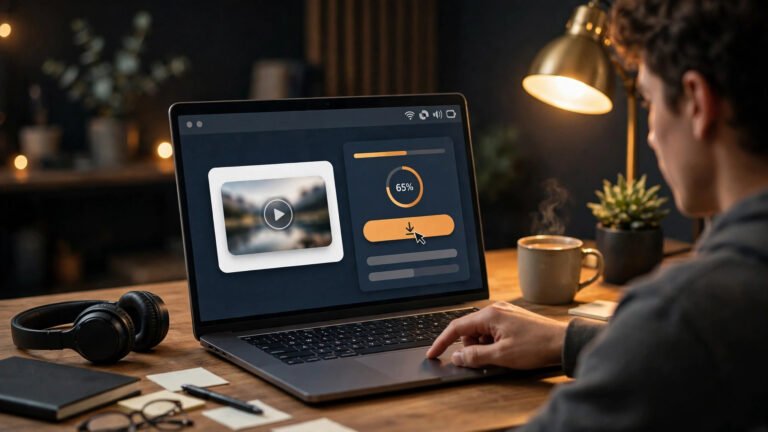
Open your browser and go to PintoDownload. Paste the link you just copied into the box on the homepage and hit the download button. The tool reads the Pin, finds the video file on Pinterest’s own servers, and gives you a download link for the MP4 — with sound, at the quality Pinterest serves, and no watermark added. No account, no app install, no email address. Tap the link and the file downloads to your phone or computer.
I ran this exact step this morning so I could give you real numbers instead of promises. The test Pin was a public DIY soap-making video, 29 seconds long. The homepage loaded in 0.83 seconds. The download request answered in 2.07 seconds. The MP4 that came back was 4,112,336 bytes — about 3.9 MB — and when I inspected it, it was H.264 video with AAC audio at 720 by 1440 pixels, vertical 9:16, running at 29.97 frames per second. That is a clean, standard file, and it matters for the next step: MP4 with H.264 video is one of Google Photos’ supported formats, and at 3.9 MB it is nowhere near Photos’ 10 GB per-video limit. Nothing needs converting. Nothing needs recompressing. The file Pinterest serves is already the file Google Photos wants.
Where did the file go? That is the question that decides everything next, so check now. On Android, open your Files app and look in Downloads — the MP4 is there, with a name like a string of numbers ending in .mp4. On iPhone, Safari drops it in Files > Downloads, not in the Photos app; you will move it in the next step. On a computer, it is in your browser’s Downloads folder. If your phone asks where to save it, pick Downloads and remember the choice — consistency here is what makes the backup step painless.
A quick warning while you are here: the internet is full of downloader sites with five giant DOWNLOAD buttons, three of which are ads. If a site asks for your Pinterest password, your email, or an app install before it will hand you the file, close the tab. A legitimate downloader for a public link needs none of those things. PintoDownload asks for the link and nothing else, which is exactly how it should be.
Step 3: Get the Video into Google Photos
The route depends on your device, because each one puts the downloaded file in a different place and Google Photos treats each place differently. Pick your device below. All three end in the same place: the video, backed up, in your Photos library.
On Android: Let Backup Do the Work
Android is the easiest case, because Google Photos is built into the phone and the Downloads folder is one toggle away from being backed up. The first time you do this, do the toggle once — I cover it in full in the next section — and after that every Pinterest video you download appears in Photos by itself, usually within a minute or two on Wi-Fi.
For a video you have already downloaded, the manual route is just as fast. Open Google Photos, tap Library at the bottom, then Photos on device, then the Download folder. Your video is there. Long-press it, tap the three dots or the share icon, and choose Back up now — or simply make sure backup is on for that folder and let it upload on its own. Either way, once the little cloud icon on the video changes to a tick, the file is in your Google account, not just on your phone.
One thing worth knowing: Android phones with a lot of free space sometimes delay the upload until the phone is charging and on Wi-Fi, to save battery and data. If you need the video in Photos right now — say you are about to delete it from the phone — open the video in Photos and pull down, or tap the cloud icon, to force the upload. Do not delete the local file until Photos says the backup is complete. Deleting a file before its backup finishes gives you a blurred or blank copy in the cloud, and Google’s own support threads are full of people who learned that one the hard way.
On iPhone: Upload It Yourself
iPhone is the one platform where nothing happens automatically, because Safari saves downloads to the Files app, and Google Photos on iOS does not watch the Files app. You have to hand the video over. It takes about thirty seconds.
Open the Files app, go to Downloads, and find your MP4. Tap and hold it, tap Share, and choose Google Photos from the share sheet — if you do not see it, scroll the app row sideways and tap More to switch it on. The Photos app opens with the video ready to upload. Tap Upload and wait for the progress circle to finish. The video is now in your library, backed up, and visible on your other devices.
There is a shortcut if you plan to do this often: in Safari, after the download finishes, tap the download arrow in the address bar, tap the file, and use the same Share > Google Photos path without ever opening the Files app. Either way, do not use the Files app’s “Save to Photos” option first and then wonder why Photos has two copies — saving to the Apple Photos app and uploading to Google Photos are two different destinations, and doing both gives you a duplicate to clean up later.
On a Computer: Drag, Drop, Done
The PC route is the most satisfying of the three, because the screen is big and there is nothing to configure. Go to photos.google.com in your browser and sign in to the Google account you want the video in. Click Upload at the top, choose Computer, and pick the MP4 from your Downloads folder. Or skip the menus entirely: drag the file from your file manager and drop it straight onto the Photos page. The upload starts immediately, with a progress bar in the corner.
Once it finishes, the video is in your library and — this is the part people forget — it is also on your phone, because the phone’s Google Photos app shows the same library. Download on the laptop on Monday, watch it on the phone on the train on Tuesday, no cable and no transfer app involved. If you download a lot of Pinterest videos, consider making a folder on your computer called “Pinterest” inside Downloads and always saving there, so the weekly upload becomes one drag of a whole folder instead of ten separate clicks.
The Step Everyone Skips: Turn On Downloads Folder Backup
This is the section I wish somebody had written for me a year ago. Google Photos backs up your camera folder automatically. It does not back up your Downloads folder automatically. Every Pinterest video you download goes to Downloads. So out of the box, your Pinterest videos are not in Google Photos at all — they are sitting on your phone, unbacked-up, and the only thing protecting them is the phone itself.
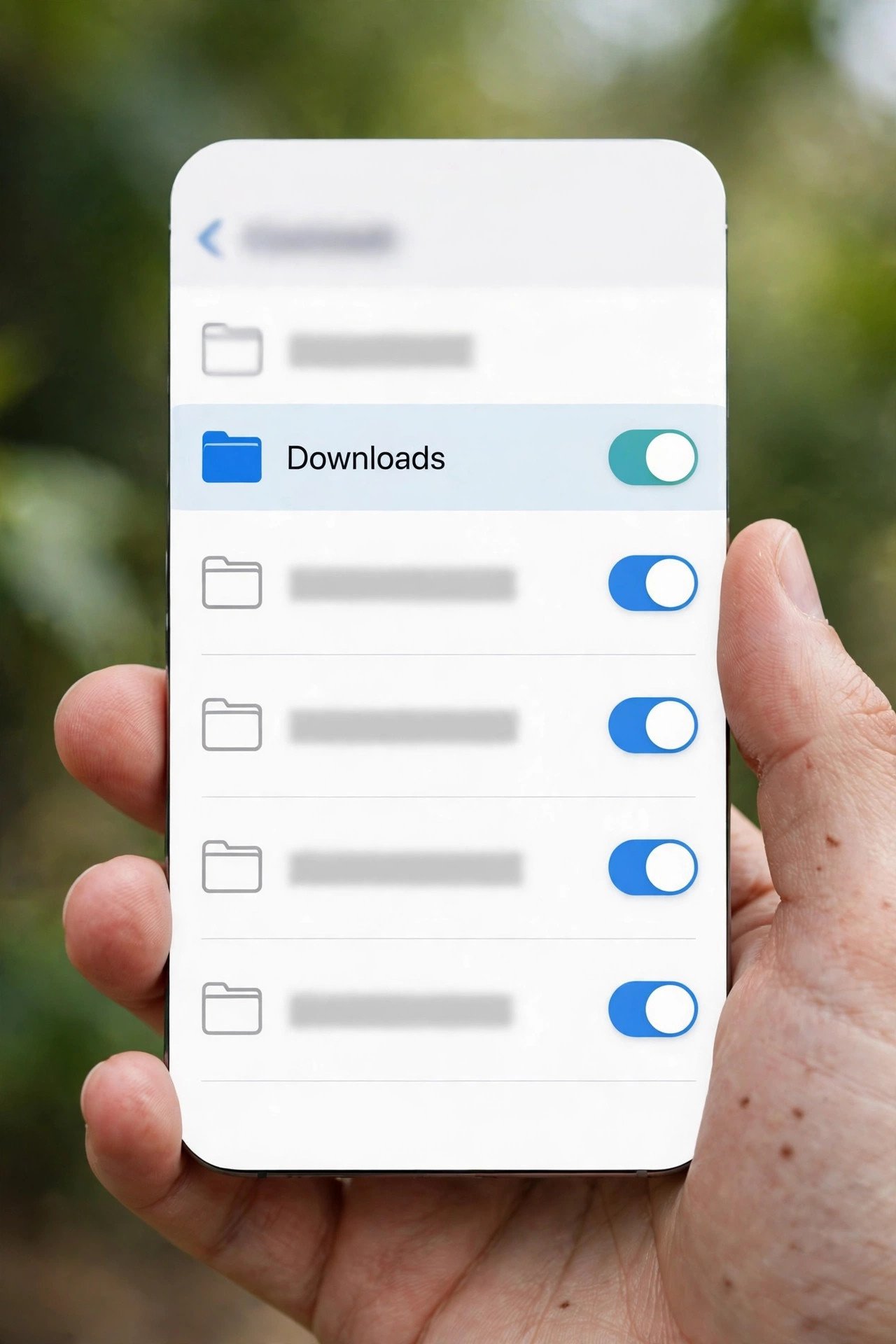
Fixing it is one toggle, and it takes less than a minute. On Android, open Google Photos, tap your profile picture or initial in the top right, then Photos settings, then Backup, then Back up device folders. You will see a list of every folder on the phone that holds media: Camera, Screenshots, WhatsApp, Instagram, Downloads, and whatever else your apps have created. Find Downloads and switch it on. If you would rather not think about it again, switch on Back up all device folders at the top of the same screen, and every new folder any app creates gets backed up too.
On iPhone, the same idea works differently, because iOS does not expose a Downloads folder to Google Photos at all. The iPhone version of this step is a habit, not a toggle: whenever you download a Pinterest video, share it to Google Photos from the Files app, as in the iPhone section above. It is one extra tap per video, and it is the only way, because Apple keeps each app’s files in its own sandbox and Google Photos cannot go looking in Files by itself.
How do you know it worked? Open the video in Google Photos and look at the bottom of the screen. A cloud icon with an upward arrow means it is still waiting. A cloud with a tick means it is backed up. Tap the three dots on any photo or video and the details panel says the backup status in plain words. If a video has been sitting for an hour with the waiting icon, something is stuck — the troubleshooting section at the end of this guide walks through the three usual causes in order.
How Much Room Do Pinterest Videos Actually Take?
This is the question that stops people before they start, because 15 GB sounds small and video sounds big. The real numbers are friendlier than the fear. My test download this morning — a 29-second Pinterest clip at 720p — was 3.9 MB. That works out to roughly 8 MB per minute of video, or about 480 MB per hour. At that rate, the free 15 GB holds roughly 30 hours of Pinterest video. Thirty hours. Most people save a handful of clips a week, a minute or two at a time, which means a year’s worth of Pinterest saving fits in about a gigabyte.
| Video length (720p Pinterest clip) | Approx. file size | Share of free 15 GB |
|---|---|---|
| 30 seconds | ~4 MB | 0.03% |
| 2 minutes | ~16 MB | 0.1% |
| 10 minutes | ~80 MB | 0.5% |
| 1 hour | ~480 MB | 3.2% |
| 30 hours (a year’s saving for most people) | ~14.4 GB | ~96% |
Two things make that math even better in practice. First, Pinterest videos are short. The platform’s own guidance to creators is 6 to 15 seconds for a video Pin, with a 15-minute maximum, so the clips people actually save cluster at the small end of the table. Second, the 15 GB is shared with Gmail and Drive, which is the real constraint — a mailbox full of ten years of attachments eats more of your quota than a year of Pinterest clips ever will. If your storage is tight, clean out Gmail’s large attachments and Drive’s old files before you blame the videos. You can see exactly where your storage is going at one.google.com/storage, and Photos has a built-in “Manage storage” view that finds large videos, blurry shots, and screenshots in bulk.
One more honest number: if your storage does fill up, Google Photos simply stops backing up new items. Nothing is deleted on the spot. Your existing library stays put, and new videos wait on the phone until you free space or buy more. Google only starts talking about deleting content if an account sits over quota for two years, with at least three months’ notice first. So a full account is an inconvenience, not a cliff edge — but it is also the most common reason a Pinterest video “never arrived” in Photos, which is why the troubleshooting section covers it first.
Original Quality vs Storage Saver: Which Should You Pick?
When you turn backup on, Google Photos asks you to pick a quality. The choice is permanent for future uploads — it does not recompress what is already backed up — so it is worth thirty seconds of thought now.
| Setting | What it does | Counts toward 15 GB? | Best for |
|---|---|---|---|
| Original quality | Keeps every file exactly as downloaded | Yes, full size | Videos you might edit or print from later |
| Storage saver | Photos capped at 16 MP, videos capped at 1080p | Yes, smaller size | Everyday Pinterest clips watched on a phone |
Here is the thing most guides get wrong: switching to Storage saver does not make backups free. Since June 2021, both qualities count toward your 15 GB. What Storage saver does is make each new file smaller, so the same 15 GB lasts roughly twice as long. And for Pinterest videos specifically, the choice barely matters: Pinterest serves most video Pins at 720p, which is already below Storage saver’s 1080p cap, so a Pinterest clip backed up on Storage saver is usually the exact same file, byte for byte, as it would be on Original quality. The cap only bites if you save a rare 4K Pin.
My recommendation is simple. If you mostly save Pinterest clips to watch and reference, pick Storage saver — it costs you nothing on these files and it stretches your quota for everything else. If you save videos you plan to edit into your own content later, pick Original quality and keep an eye on your storage. You change the setting in the app under your profile picture > Photos settings > Backup > Backup quality, and it applies to everything you upload from that moment on.
Organize What You Saved (So You Can Find It Again)
Saving the video is half the job. The other half is finding it three months later when you actually need it, and this is where Google Photos quietly beats a gallery folder full of files named 012b49fdabafc078e2312dec23da0a01.mp4.
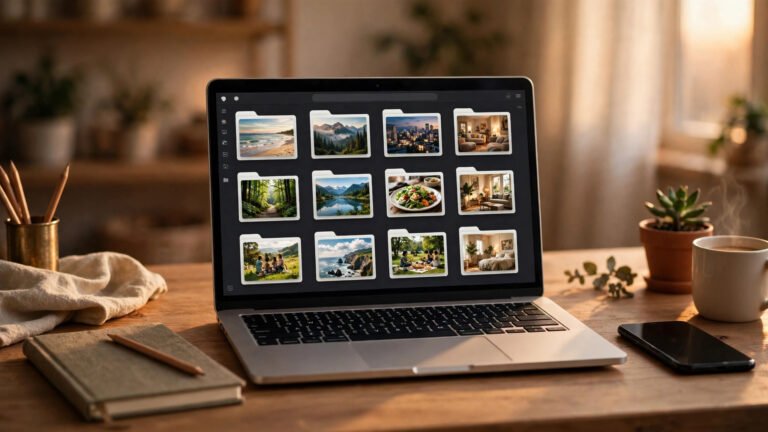
Start with an album. In Google Photos, tap Library > Albums > New album, name it something you will actually remember — “Pinterest Recipes”, “DIY Ideas”, “Workout Clips” — and add the videos to it. Albums do not move or duplicate the files; they are just labels, so one video can sit in three albums at once. I keep four: Recipes, Home DIY, Fitness, and a catch-all called “Pinterest Saves” for the ones I have not sorted yet. The weekly sort takes five minutes and it is the difference between a collection and a junk drawer.
Then lean on search, because it is genuinely good. Google Photos reads what is in your videos — objects, places, text on screen — so typing “sourdough”, “bookshelf”, or “yoga” surfaces clips you never tagged. It is not perfect, and it works better on clear, well-lit clips than on fast-cut montages, but for Pinterest’s recipe and DIY content it hits far more often than it misses. You can also search by date (“last month”) or by the word “video” to filter out photos entirely.
Two more tools worth knowing. Archive hides a video from your main timeline without deleting it — useful for the clips you want to keep but do not want scrolling past every time you open the app. And sharing from Photos is the cleanest way to send a Pinterest video to someone: open the video, tap Share, and send a link. The recipient watches it in their browser with no Pinterest account and no app install, and you never had to re-upload anything anywhere. Just remember that anyone with the link can watch it, so do not share links to videos you would not want passed on.
Four Ways to Save Pinterest Videos to Google Photos, Compared
There is more than one way to get a Pinterest video into Photos, and the right one depends on whose video it is and what device you are holding. Here is the honest comparison, including the two methods that sound good and disappoint.
| Method | Works on | Cost | Downsides |
|---|---|---|---|
| Downloader + folder backup (this guide) | Any public video Pin | Free | Needs the Downloads-folder toggle on Android |
| Pinterest’s own Download button | Only creator-enabled full-screen Pins | Free | Most Pins lack it; adds a username watermark |
| Screen recording | Anything that plays on screen | Free | Lower quality, captures UI and notifications, huge files, no clean audio on some phones |
| Third-party downloader apps | Most public Pins | Free, often ad-heavy | App install, ads, privacy risk, some ask for your Pinterest login — never give it |
Screen recording deserves a word of caution, because it is the method people reach for first and it is the worst of the four. A recorded clip is a re-filmed copy: it picks up the phone’s status bar, the like button, any notification that pops in mid-recording, and a generation of quality loss. It also records in real time, so a three-minute video costs you three minutes of staring at your phone. The downloader route gives you Pinterest’s own file, clean, in seconds. Use screen recording only for the rare Pin where nothing else works.
And the downloader apps: there are dozens in the Play Store and the App Store, and some of them are fine. But a browser-based downloader like PintoDownload does the same job with no install, no permissions, and no access to your photos or contacts. An app that wants your Pinterest login to download a public video is asking for something it does not need, and that is a red flag worth listening to. If you want to save Pinterest images too, the same site has a dedicated Pinterest image downloader that pulls the full-size original instead of the compressed copy the Pinterest app saves.
Troubleshooting: When the Video Never Shows Up in Photos
Most failures in this process are the same five problems, in roughly this order. Work through them in sequence and you will find yours.
1. The video is in Downloads but not in Photos. This is the Downloads-folder trap, and it is the cause nine times out of ten. On Android, open Photos > your profile picture > Photos settings > Backup > Back up device folders, and check that Downloads is switched on. If the toggle was off, switching it on starts the backup of everything already sitting in Downloads, so your missing videos should appear within a few minutes on Wi-Fi. On iPhone, there is no toggle — share the file from the Files app to Google Photos manually, as described above.
2. Backup says “complete” but the video is still missing. Google’s own support community sees this one constantly. The fix that works most often is the boring one: toggle Backup off, wait a few seconds, toggle it back on, and let Photos rescan. If that fails, check that the video is not a format Photos refuses — it backs up MP4, MOV, AVI, MKV, and most common formats, but it will not take a video over 10 GB, and a zero-byte file left behind by a failed download will jam the upload queue. A stuck queue often clears itself if you move the offending file out of the watched folder and restart the backup.
3. Storage is full. Open one.google.com/storage and look at the number. If you are at 15 GB, Photos has stopped backing up — new videos wait on the phone and nothing is lost, but nothing uploads either. The fastest fix is Photos’ own Manage storage screen, which finds large videos and blurry photos in bulk, then Gmail’s large attachments, then old Drive files. Empty the Trash afterwards: deleted files do not free space until the trash is emptied, and Google can take up to 48 to 72 hours to update the storage figure after a big cleanup.
4. The download gave you a picture, not a video. If the file you downloaded ends in .jpg or .webp, you downloaded the Pin’s cover image, not the video. This happens when you tap “Download image” in the Pinterest app, or when the Pin is a static image with a play button that leads elsewhere. Go back, copy the video Pin’s link properly, and run it through the downloader again. If the Pin links out to YouTube or Vimeo, Pinterest never had a video file to give you — download it from the original platform instead.
5. The video will not play after it uploads. Almost always a format or codec issue on an unusual file, not a Photos problem. Pinterest’s own MP4s play everywhere. If a clip plays on your phone but not in the browser at photos.google.com, or vice versa, download the file from Photos and play it locally to check whether the file itself is intact. A file that will not play anywhere was probably truncated mid-download — delete it, download the Pin again on stable Wi-Fi, and re-upload.
The Legal Bit: Whose Video Is It?
Downloading a video does not make it yours. Every Pin belongs to its creator, and saving a copy for yourself is a different thing from reposting it, selling it, or using it in your own content. The honest rule I follow, and the one that keeps you out of trouble, is this: downloading for personal, offline viewing — the recipe you want in the kitchen, the workout you follow at home — is what these tools are for. Reposting someone else’s video as your own, on TikTok or anywhere else, is not. Credit the creator when you share, ask before you use a clip commercially, and if a creator asks you to take their work down, take it down.
I wrote a separate guide on the legal side in detail, because the rules have more nuance than fits in one section: Is It Legal to Download Pinterest Videos? The short version is that personal-use downloads of public Pins are widely accepted, commercial reuse without permission is where people get into trouble, and Pinterest’s own help pages are the final word on what the platform allows. If you want to move a Pinterest video to another platform, the companion guide to saving Pinterest videos to TikTok covers the credit and reposting rules for that specific jump.
Frequently Asked Questions
Can I save Pinterest videos to Google Photos for free?
Yes. Downloading the video with a free tool like PintoDownload costs nothing, and Google Photos backup is free up to your account’s 15 GB of shared storage. A typical 30-second Pinterest clip is about 4 MB, so the free allowance covers roughly 30 hours of such clips before you would need to free space or buy more storage.
Why is my downloaded Pinterest video not showing in Google Photos?
On Android, the usual reason is that Google Photos is not backing up your Downloads folder. Open Photos > your profile picture > Photos settings > Backup > Back up device folders, and switch on Downloads. On iPhone, Google Photos cannot see the Files app, so you have to share the downloaded file to Google Photos manually from Files.
Does Google Photos back up Pinterest videos automatically?
Only if the video lands in a folder Photos is already backing up. Your camera folder is backed up by default; Downloads is not. Once you switch on backup for Downloads on Android, every Pinterest video you download there backs up automatically. On iPhone there is no automatic path — each video needs a manual share to Google Photos.
How much storage do Pinterest videos use in Google Photos?
About 8 MB per minute at the 720p quality Pinterest typically serves. A 30-second clip is roughly 4 MB, a 10-minute video about 80 MB. The free 15 GB is shared with Gmail and Google Drive, so check one.google.com/storage if your backups stop — a full mailbox is a more common culprit than the videos.
Can I save Pinterest videos to Google Photos on iPhone?
Yes, but not automatically. Download the MP4 in Safari — it lands in Files > Downloads — then open Files, long-press the video, tap Share, and choose Google Photos. The video uploads to your library and appears on your other devices. You can also upload from a computer at photos.google.com, which is often faster for a batch of clips.
Will saving a Pinterest video to Google Photos keep the original quality?
Yes, if your backup quality is set to Original. If you use Storage saver, videos above 1080p are capped at 1080p — but most Pinterest video Pins are served at 720p, which is already below that cap, so the file that arrives in Photos is the same file Pinterest served, either way.
The Short Version
To save Pinterest videos to Google Photos, copy the Pin’s link, download the MP4 with PintoDownload, and make sure the file ends up in a folder Google Photos backs up. On Android that means one toggle — Back up device folders, Downloads on — and after that the whole process runs itself. On iPhone it means a manual share to Google Photos per video. On a computer it means dragging the file onto photos.google.com. The video then lives in your account, not on one phone: searchable, shareable, and still there when the Pin itself disappears from Pinterest.
Do the toggle today, before you need it. I lost two videos to deleted Pins before I learned this, and the fix took less than a minute. Your future self, standing in a kitchen with flour on their hands trying to remember how that sourdough video went, will be glad you did.