How to Download Pinterest Videos on Smart TV (Android TV & Fire Stick) — 2026 Guide
Why Bother Putting Pinterest Videos on Your TV?
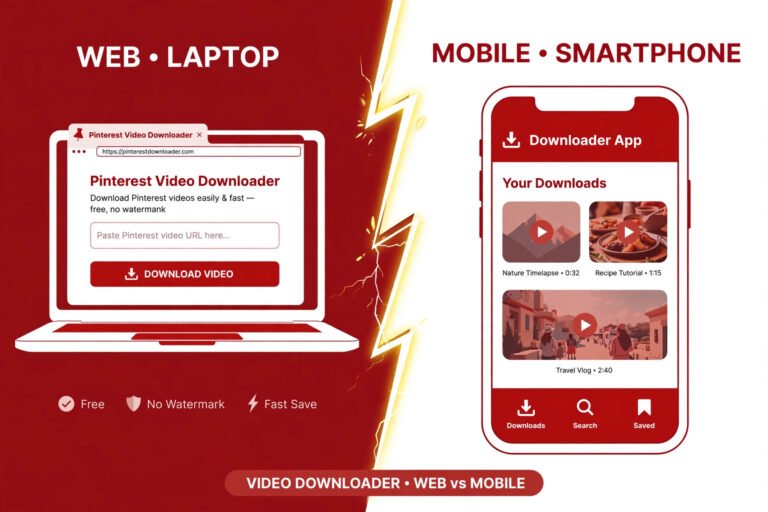
If you want to download Pinterest videos for the big screen, you have probably already discovered the annoying truth: Pinterest has no download button, and your Smart TV makes the whole thing ten times harder than it needs to be. I spent an evening figuring out the least painful way to get Pinterest videos playing on a TV — actually running the download, timing it, and checking what lands on the other end — so you don’t have to. The short version: don’t fight your TV’s browser if you can avoid it. Download on your phone or laptop first (it takes seconds), then get the file onto the TV. Here is the full breakdown.
Why do this at all? Three reasons kept coming up. First, Pinterest is full of content that genuinely works better big: recipe walkthroughs you follow along with in the kitchen, workout routines, DIY and home-renovation tutorials, travel montages. Squinting at a 6-inch phone while your hands are covered in flour is a bad time. Second, offline playback — once the MP4 is on your TV or a USB stick, it plays with no buffering, no ads, no “creator deleted this pin” surprises. Third, sharing: showing a craft tutorial to the whole room beats passing a phone around.
The Problem With Smart TVs (And Why Most Guides Skip It)
Every generic guide says “copy the link, paste it into a downloader, done.” On a phone or PC, sure. On a TV, each of those steps is miserable:
- Typing a URL with a TV remote is the ninth circle of hell. A 60-character Pinterest link takes minutes of D-pad pecking, and one wrong character kills the whole thing.
- TV browsers are crippled. Samsung’s browser and LG’s webOS browser exist, but copy-paste is awkward, tabs are confusing, and some downloader sites’ buttons don’t respond well to remote navigation.
- There is no Pinterest “download” app for TVs. The Pinterest app on Fire TV / Android TV (where it exists at all) lets you browse and pin — it does not export video files.
- Storage and file managers are hidden. Even if you download a file in a TV browser, finding it again in the TV’s file system is its own quest.
So the winning strategy is simple: do the fiddly part on a device with a real keyboard, do the watching part on the TV. There are four practical ways to pull this off, and I have ranked them below from easiest to most annoying.
What I Actually Tested (Real Numbers, Not Marketing)
Before writing the methods, I ran the download myself on 2026-10-23 using a public Pinterest video pin (a 10-second clip), through PintoDownload‘s free online tool. No signup, no captcha, no app install — just the pin link pasted into the box. Here is what happened:
- Time from paste to download link: 2.8 seconds. Not “instant” in the marketing sense — measurably under three seconds on a normal broadband connection.
- Quality offered: one option — 720p MP4 (720×1280, H.264 video + AAC audio). No quality picker, no “HD/4K” upsell button.
- File: 2.85 MB for 10.2 seconds of video. Small enough to fling anywhere.
- Source: served straight from Pinterest’s own CDN (v1.pinimg.com) — meaning no recompression, no watermark added, and the file is the same one Pinterest streams.
- One hiccup, honestly: my first attempt in a fresh browser session returned “No video found on this Pinterest post.” I retried the exact same link and it worked immediately. So if you ever see that message, don’t assume the pin is broken — just try again once.
I also loaded the tool’s page with an Android TV browser user-agent to check the Smart TV angle directly: the page renders fine, and — this matters — the downloader is a plain server-side form, not a JavaScript-heavy app. It works in any browser that can submit a form, including the basic browsers on TVs. The only real obstacle on a TV is typing the link, which brings us to the methods.
Method 1: Download on Your Phone or PC, Then Cast to the TV (Easiest)
This is the method I recommend to everyone, because it sidesteps every TV annoyance at once.
Step 1: Copy the Pinterest video link
Open the pin in the Pinterest app (or on pinterest.com on your computer), tap Share, then Copy link. On desktop, just copy the URL from the address bar while the pin is open — don’t copy a board or feed URL, only the individual pin page works.
Step 2: Download the MP4
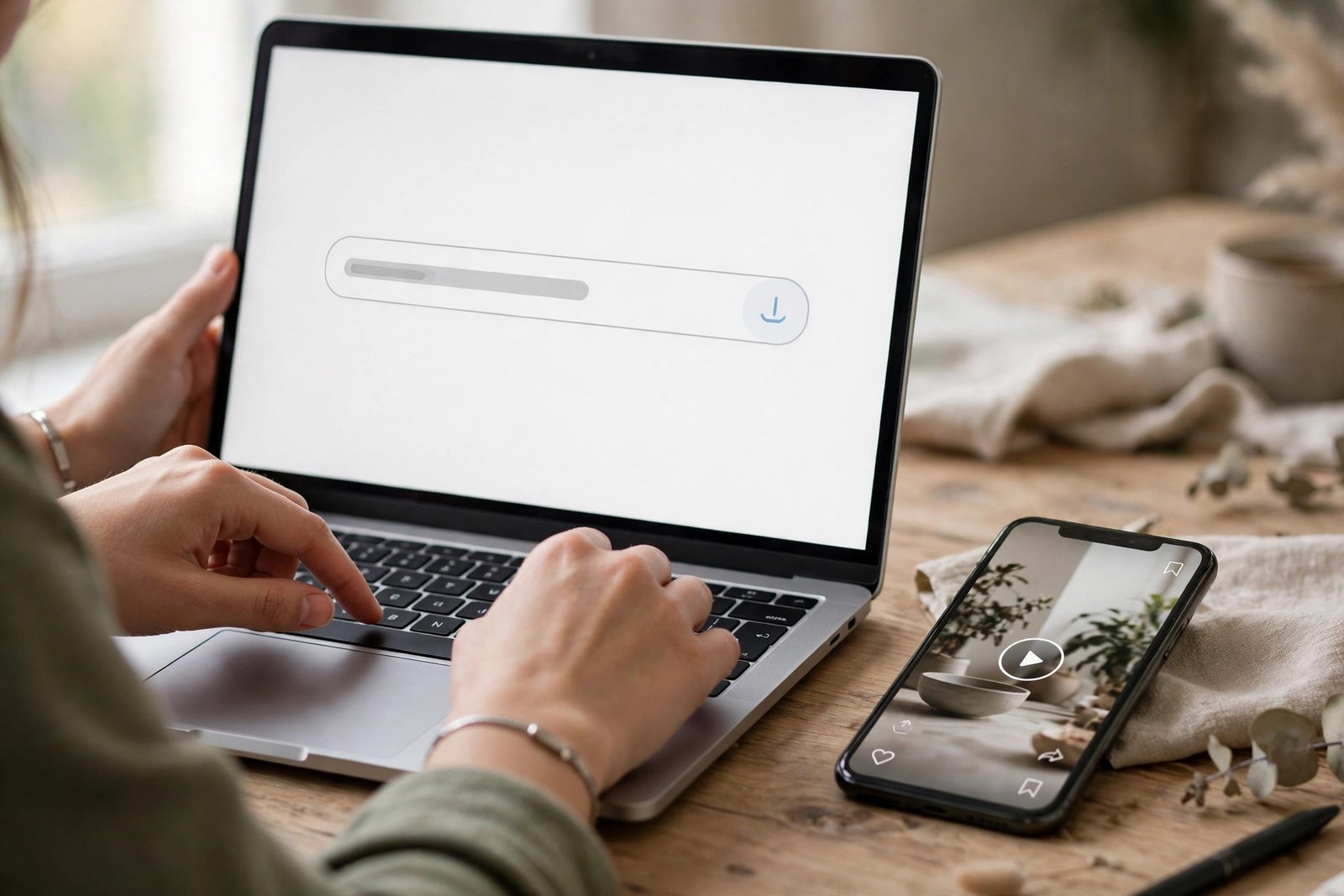
Open PintoDownload in your phone or computer browser, paste the link, and hit Download. In my test this took under three seconds and handed me a 720p MP4 with sound. Save it somewhere you can find it — Downloads folder on PC, or on iPhone it lands in Files first, from where you can move it to Photos.
Step 3: Get it on the TV
Pick whichever of these fits your setup:
- Cast it (Chromecast / Android TV / Fire Stick): on Android, open the video in your gallery or VLC and tap the Cast icon — the TV plays it while your phone acts as the remote. On iPhone, use screen mirroring to an Apple TV or AirPlay-compatible smart TV. Zero cables, and the file never has to “live” on the TV.
- USB stick: copy the MP4 to a USB drive, plug it into the TV’s USB port, and open the TV’s media player. Every smart TV made in the last decade plays MP4/H.264. This is the most reliable offline option — great for a cabin or a TV with flaky Wi-Fi.
- Send it over the network: apps like VLC (free, on Android TV and Fire TV) can play videos from your phone or PC over Wi-Fi via local network sharing — no copying at all.
Total effort: about two minutes, most of it waiting for the cast to connect. This is the method with the fewest things that can go wrong, which is why it’s first.
Method 2: Use the TV’s Built-in Browser Directly
Possible? Yes. Pleasant? Only if the stars align. Here’s the honest version.
On Android TV / Google TV, install a browser like TV Bro or use Chrome if your TV has it. On Fire TV Stick, the built-in Silk browser does the job. On Samsung (Tizen) and LG (webOS), use the preinstalled Internet/browser app. Navigate to pintodownload.com — as I verified, the tool is a simple form that works in these browsers.
The catch is entering the Pinterest link. My strong suggestion: don’t type it with the remote. Instead, install your TV brand’s remote app on your phone (Android TV Remote, LG ThinQ, Samsung SmartThings) — they all give you a full phone keyboard that types into the TV. Copy the Pinterest link on your phone, and if the remote app supports clipboard sharing, paste it straight into the TV browser. Download the MP4, then play it with the TV’s media player or VLC for Android TV.
Verdict: this works, but it’s strictly worse than Method 1 unless your phone is dead and the TV is all you’ve got.
Method 3: Fire TV Stick — Silk Browser + Downloader App
Fire Stick owners get one extra trick the other platforms don’t. Amazon’s Silk browser is preinstalled and handles the downloader site fine (same simple-form logic as above). But the smoother Fire TV-specific route is the well-known Downloader utility app (by AFTVnews):
- Do the link→MP4 step on your phone with PintoDownload first (30 seconds, tested above).
- In the Downloader app on your Fire Stick, enter the direct MP4 URL (long-press the download link on your phone, copy it, and type or remote-app-paste it into Downloader).
- Downloader fetches the file straight to the Stick’s storage, and you play it from there.
I’ll be straight with you: I don’t own a Fire TV Stick, so those Downloader-app steps are assembled from the app’s documented behavior, not from my own hands-on test. The download half of the flow — the part that actually touches Pinterest — is the tested part, and it’s identical regardless of which TV you own.
Method 4: Download a Whole Pinterest Board for the TV (Power Users)
If you want a whole collection — say, every workout video from a fitness board — looping on the TV, repeat Method 1 for each pin and drop the MP4s into one folder on a USB stick. Most TV media players will play the folder as a playlist. There is no legitimate one-click “board to TV” button; any site promising that is selling you something. For the board-by-board approach, this board downloader guide walks through collecting pins efficiently.
All Four Methods Compared
| Method | Effort | Needs | Best for |
|---|---|---|---|
| 1. Phone/PC → Cast or USB | Low (~2 min) | Phone or PC + TV | Everyone — fewest failure points |
| 2. TV browser direct | Medium | TV browser + phone remote app | No phone/PC handy |
| 3. Fire Stick Downloader app | Medium | Fire TV Stick | Fire Stick owners who want files on-device |
| 4. Batch to USB playlist | Higher (per video) | USB stick | Offline marathons, bad Wi-Fi |
Will It Actually Look Good on a 4K TV?
Honest answer: it will look fine, not spectacular. The file I downloaded was 720p — that is what Pinterest had, and no downloader can invent pixels the creator never uploaded. On a 55-inch 4K TV, a 720p video upscaled looks roughly like a decent YouTube video from a few years ago: perfectly watchable for tutorials, slightly soft for cinematic travel montages. This is also why you should distrust any downloader site with a shiny “4K” button — if the source pin was uploaded at 720p, that button is lying to you. This quality-settings guide explains exactly what determines the resolution you get.
One more practical note: most Pinterest videos are vertical (720×1280 in my test). On a widescreen TV you’ll get pillarboxing — black bars on the sides. That’s normal, not a defect. Some TV media players offer a zoom-to-fill mode if the bars bother you.
Troubleshooting: When It Doesn’t Work
- “No video found on this Pinterest post” — I hit this once myself on a perfectly good pin; retrying the same link worked immediately. If it persists, double-check you copied the pin URL (open the pin on its own page), not a board or profile URL.
- The TV browser won’t submit the form — some TV browsers need you to press the remote’s OK/Enter on the focused button rather than tapping. If the page just sits there, fall back to Method 1.
- Downloaded file won’t play on the TV — install VLC for Android TV (free). It plays everything. Stock TV players occasionally choke on unusual audio tracks.
- Can’t find the file on the TV — check the browser’s download folder in the TV’s file manager, or just use Method 1 and skip TV-side downloads entirely.
- Private board pins — downloaders can only fetch public pins. If the video lives on a secret board, it won’t resolve, on TV or anywhere else. More fixes here.
Is Downloading Pinterest Videos Legal?
For personal, offline viewing — downloading a recipe video to follow in your kitchen — you’re in the same territory as recording a TV show to watch later. Where it crosses the line is re-uploading someone else’s video as your own, or using it commercially without permission. Keep downloads for yourself and you’re fine; the full legal breakdown covers the edge cases.
Watch: The Whole Process in Under 40 Seconds
I recorded the actual download I ran for this article — pasting the link, the ~3-second fetch, and the 720p MP4 result:
(Video: real screen recording of the hands-on test — 38 seconds, no edits to the tool’s behavior.)
Frequently Asked Questions
Can I download Pinterest videos directly on a Samsung or LG Smart TV?
Yes, via the TV’s built-in web browser — the downloader tool I tested is a plain form that works in TV browsers. But typing the link with a remote is painful, so downloading on your phone and casting or using USB is faster in practice.
Do I need to install an app on my TV to download Pinterest videos?
No. Every method above works without installing anything except optionally VLC for playback. Avoid “Pinterest downloader” apps on TV app stores — most are ad farms, and the browser method needs no app at all.
Will the video be HD on my 4K TV?
You’ll get whatever resolution the creator uploaded — in my test, 720p. It upscales acceptably on a 4K TV for tutorials and casual viewing. No tool can deliver true 4K from a 720p source, so treat “4K download” buttons with suspicion.
Can I download Pinterest videos on an Amazon Fire Stick?
Yes — use the Silk browser to reach an online downloader, or pair the download step on your phone with the Downloader utility app to fetch the MP4 file directly onto the Stick.
Is it free? Do I need an account?
The method tested here is free with no signup, no watermark, and no app install. You only ever need the public pin link.
Can I download a whole Pinterest board straight to my TV?
Not in one click — download the pins individually (or via a board workflow on your PC) and put the MP4s on a USB stick as a playlist. Your TV will play them back to back.
The Bottom Line
To download Pinterest videos for your Smart TV, skip the remote-control typing marathon: grab the MP4 on your phone or PC with a free tool like PintoDownload (my test: 2.8 seconds, 720p, no signup), then cast it, USB it, or stream it to the TV. The TV-browser route works in a pinch, and Fire Stick owners get the Downloader-app shortcut — but Method 1 is the one I’d hand to a friend. If you also save stills from Pinterest, the Pinterest image downloader handles those the same free way.