Save Pinterest Videos to Email: Free Guide 2026
Save Pinterest Videos to Email: Free Guide 2026
Here is a situation I have been in more times than I can count: I find a video on Pinterest — a recipe, a woodworking trick, a workout I actually want to try — and the person who needs to see it does not use Pinterest. They check their email. That is it. That is their whole internet, more or less, and if I send them a Pinterest link they will tap it, hit a login wall, and never watch the video. The fix is to save Pinterest videos to email as a real file: download the video first, then send it as an attachment or a link from your own inbox. It takes about three minutes the first time and under one minute after that — unless the video is too big, which is where most people get stuck, because email was never built for video and the size limits are smaller than they look. This guide walks through the whole thing, including the exact limits for Gmail, Outlook, Yahoo, and iCloud Mail in 2026, and what to do when the file will not fit.
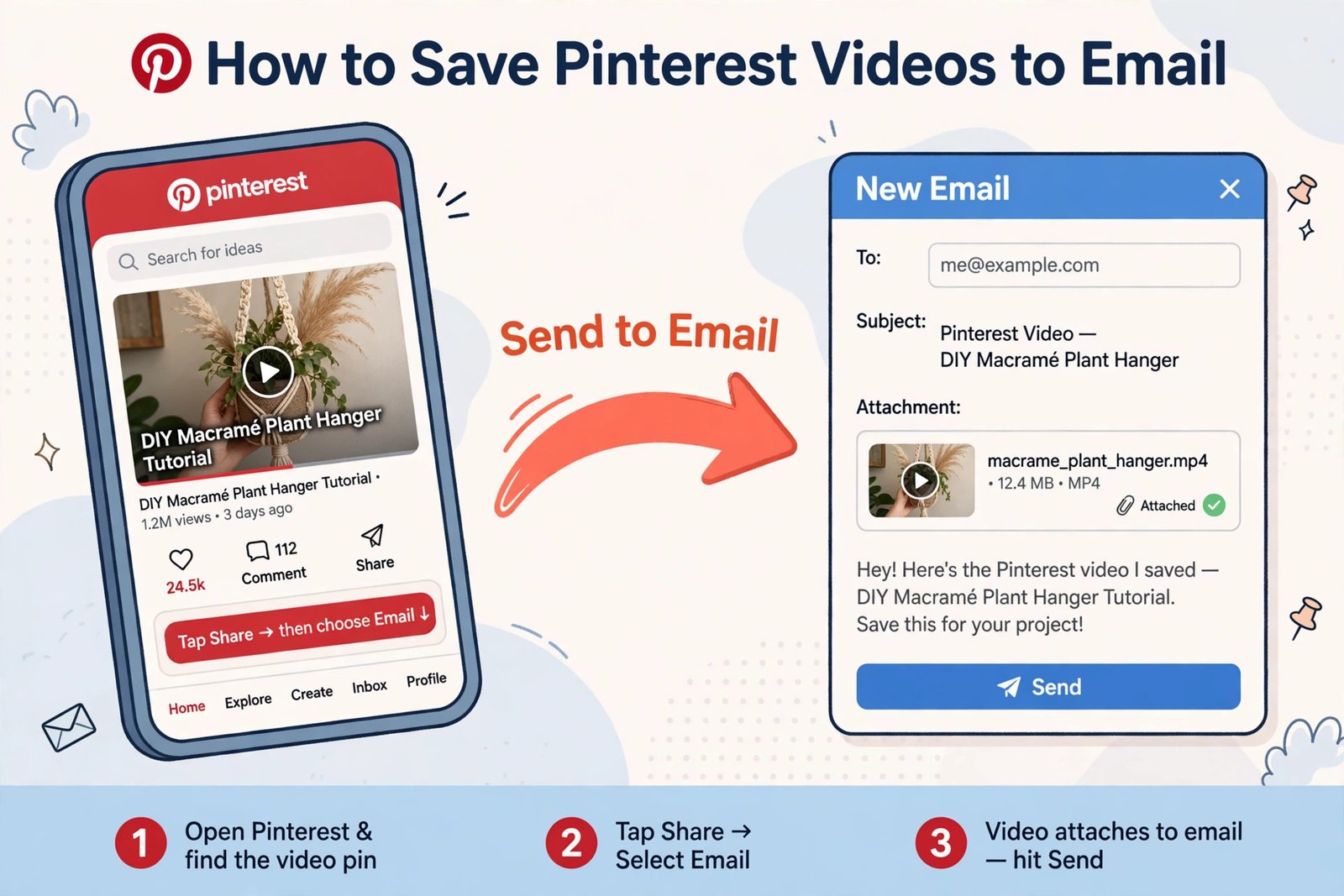
Short answer: copy the video pin’s link, download the MP4 with PintoDownload (free, no signup, no watermark, HD where the pin offers it), then attach that file to an email — or, if it is over about 18 MB, send a cloud link instead. Gmail caps messages at 25 MB, Outlook and iCloud at 20 MB, and the encoding email uses quietly eats a third of that. The rest of this guide explains how to check your file size before you hit send, what each provider does when the file is too big, and the email-to-yourself trick that turns your inbox into a Pinterest archive.
Why Email Is Still the Simplest Way to Send a Pinterest Video
Email is the least fashionable way to share a video, and that is exactly why it works. Everyone has it. Nobody needs to install anything, create an account, or learn a new app. The person you are sending to does not need Pinterest, does not need to know what a pin is, and does not need to tap through a login screen. They open an email, they see a video, they press play. I have sent Pinterest videos to my mum this way for years, and she has never once asked me what Pinterest is — the email just works, and that is the whole point.
There is a second reason, and it is the one that makes email worth a whole guide rather than a throwaway line. Email is the only sharing method that is also an archive. A video you send to yourself by email sits in your inbox forever, searchable by subject line, readable on any device you will ever own, with no app to keep installed and no cloud account to keep paying for. A video you save on Pinterest is a bookmark on someone else’s servers, and the day the creator deletes that pin, your saved video goes with it. A video in your inbox is a file you own a copy of. That distinction matters more than it sounds like it should, and it is the reason the email-to-yourself section below exists.
But honesty first, because this guide is only useful if you know where email fails. Email was designed in the 1970s for short text messages, and the attachment system was bolted on later. Every provider caps the size of a message, and the cap is lower than the number on the help page suggests, because attachments get re-encoded in transit and grow by about a third. A typical Pinterest video is 5 to 50 MB. That means roughly half the videos you find on Pinterest will not fit as a direct attachment at all. That is not a reason to give up on email — it is a reason to understand the limit before you hit it, because every provider has a built-in escape hatch for oversized files, and this guide covers each one.
Save Pinterest Videos to Email in 4 Steps
The whole workflow is four moves, and only the first two involve Pinterest at all. Once you have done it twice, it becomes muscle memory.
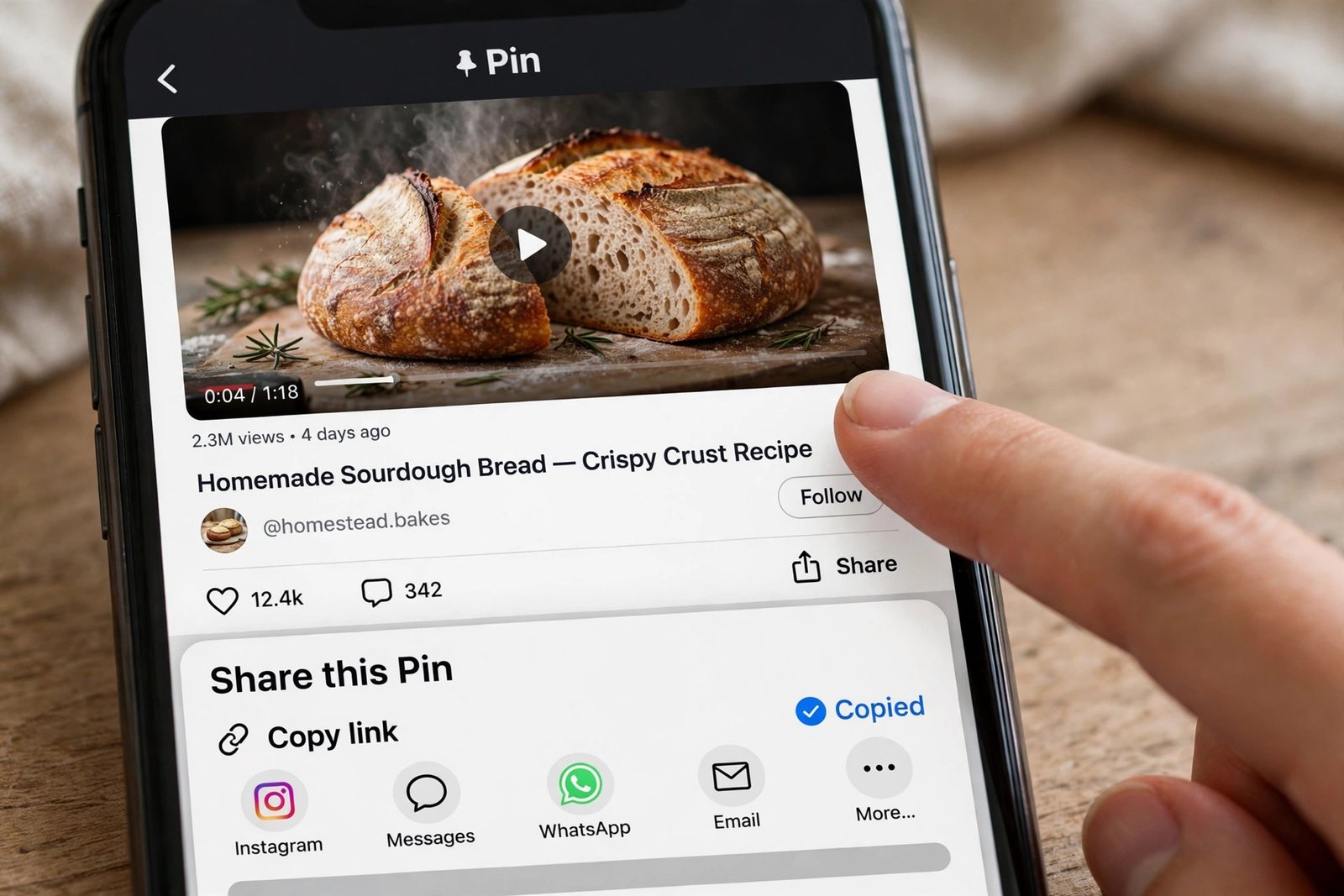
Step 1 — Copy the pin’s link. Open the video pin in the Pinterest app (or on the website) and tap Share, then Copy link. On the phone app this hands you a short pin.it link, which works exactly like the full pinterest.com/pin/... address — there is no need to expand it. Before you go further, glance at the Share menu: if it shows a Download option, the creator has allowed downloads, and you can use that instead — but expect their username watermarked onto the video. Most pins will not show it, which is why you are here.
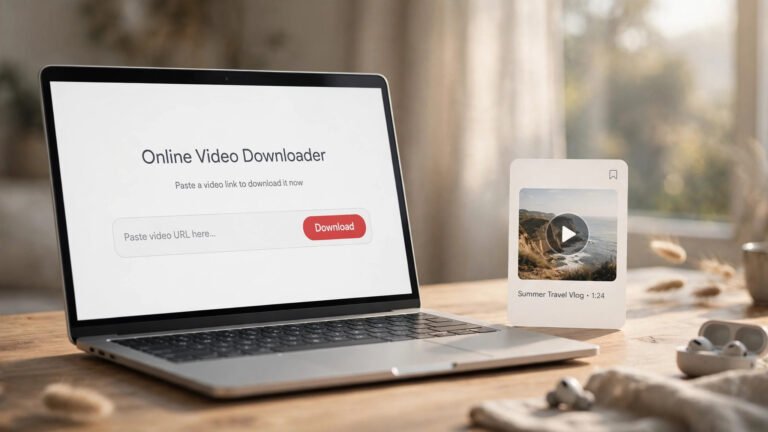
Step 2 — Download the MP4 with PintoDownload. Open PintoDownload in your browser, paste the link into the box, and download the video. No app to install, no account, no signup. Pick the highest quality offered — a typical Pinterest video is 5 to 50 MB, and you want the best original you can get, because everything after this step can only make the video smaller, never bigger. The file lands in your gallery on a phone or your downloads folder on a computer. That is the file you are about to email — the actual video, not a link to it. (If the pin is an image rather than a video, the same tool handles that too — see the Pinterest image downloader.)
Step 3 — Check the file size. This is the step people skip, and it is the step that decides whether the next thirty seconds go smoothly or end in an error message. On a phone, long-press the video in your gallery or Files app and look at the size. On a computer, right-click and check Properties or Get Info. If it is under 18 MB, attach it directly and you are done. If it is over 18 MB, do not attach it — read the limits table below first, because the right move depends on which email provider you use.
Step 4 — Attach it and send. Open a new email, attach the MP4 (the paperclip icon on a computer, or Share → Mail from your phone’s gallery), write a subject line that says what the video is — “That sourdough recipe you asked about” beats “Video” every time — and send it. If the file is too big for your provider, your mail app will offer a cloud link instead; accept it. The detailed steps for each provider are below.
That is the whole thing. Four steps, no app installs, no accounts, no money. Everything after this is about the size limit, which is the one thing that can turn a two-minute job into a frustrating afternoon if you do not understand it.
The 25 MB Wall: Why Your Video Might Not Attach
Here is the number that causes nearly every failed send. Gmail advertises a 25 MB attachment limit, and most people read that as “my file can be 25 MB”. It cannot. Email attachments are converted into text before they travel — a process called Base64 encoding — and that conversion makes every file about a third bigger. A 25 MB limit holds roughly 18 to 19 MB of actual file. A 20 MB limit holds roughly 14 to 15 MB. And the limit covers the whole message, not each file: two 10 MB videos plus a signature and a couple of inline images count together toward one cap, so a message with two attachments fails even when each attachment on its own would fit.
The second trap is that the smaller limit wins. Email has two ends, and a message has to clear both of them. If you send a 22 MB message from Gmail to someone on Outlook.com, Gmail will happily send it and Outlook will refuse it, because the recipient’s limit is the one that matters at the receiving end. If you do not know what email service the other person uses, plan for 15 MB and you will almost never get a bounce.
These are the limits for personal accounts, checked against the providers’ own help pages and the 2026 roundups that track them. Work and school accounts are set by an administrator and can be higher or lower — if you send from a company address, ask IT rather than assuming.
| Email provider | Message limit | Real file that fits | What happens over the limit |
|---|---|---|---|
| Gmail (personal + Workspace) | 25 MB send / 50 MB receive | ~18 MB | Gmail uploads it to Google Drive and inserts a link automatically |
| Yahoo Mail | 25 MB total, both ways | ~18 MB | The send is blocked — no automatic fallback |
| Outlook.com | 20 MB (Microsoft’s pages disagree — one says 25 MB, another says 20 MB) | ~14 MB | Outlook offers to share it from OneDrive as a link |
| iCloud Mail | 20 MB per message | ~14 MB | Apple Mail offers Mail Drop — a download link, files up to 5 GB, 30 days to download |
One note on Outlook, because it confused me when I checked it: Microsoft’s own documentation disagrees with itself. The “Sending limits in Outlook.com” page says the attachment limit is 25 MB, while the desktop-app help page says the email size limit for internet accounts is 20 MB, and several 2026 roundups report 20 MB for free Outlook.com accounts. I have used 20 MB in the table above because it is the safe figure — a file that fits a 20 MB limit fits everywhere, and a file that only fits a 25 MB limit might bounce. If you are sending from Outlook, assume 20 MB and you will not be wrong.
My rule of thumb, after years of emailing videos to people who do not use the same apps I do: if the video is under 15 MB, attach it directly and do not think about it again. If it is between 15 and 18 MB, attach it only if you know the recipient uses Gmail or Yahoo. If it is over 18 MB, send a link instead of the file — the next section explains how each provider does that, and it takes about ten seconds.
Sending It in Gmail: The Easiest Case
Gmail is the most forgiving provider for this job, and not by a small margin. It has the joint-highest limit at 25 MB, it can receive messages up to 50 MB (so someone can email a bigger video back to you than you can send to them), and — the part that saves the most time — it handles oversized files for you instead of failing. If you attach a file that pushes the message over 25 MB, Gmail does not bounce the email. It uploads the file to your Google Drive in the background and inserts a sharing link into the message instead. The recipient gets a “Shared via Google Drive” link card, taps it, and watches or downloads the video. From their side it looks almost identical to an attachment, and from your side it required no extra step at all. Google documents this behavior on its own Gmail attachments help page, which confirms the 25 MB send limit and the automatic Drive-link fallback.
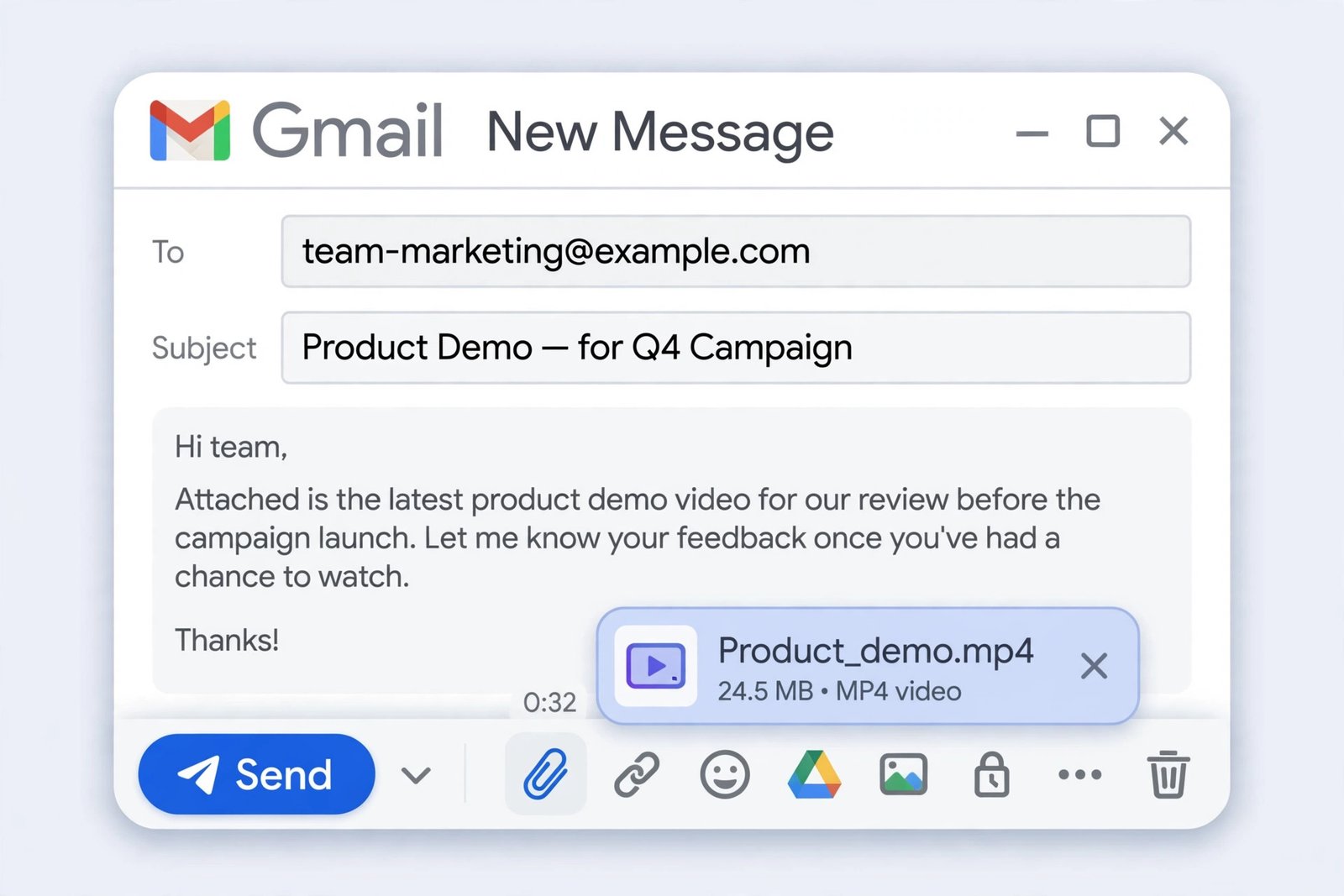
On a computer. Open Gmail and click Compose. Click the paperclip icon at the bottom of the compose window, pick the MP4 from your downloads folder, and wait for the upload bar to finish before you hit Send — this is the step people rush, and sending before the upload completes is the most common reason an attachment arrives corrupted or missing. Write your subject line, add a sentence in the body saying what the video is and where it came from, and send. If the file is too big, Gmail will show a prompt about uploading to Drive instead; accept it. The link it inserts works for anyone with the link, so the recipient does not need a Google account to open it.
On a phone. The fastest way is from the gallery, not from Gmail. Open the video in your Photos app, tap Share, choose Gmail (or Mail, if that is what you use), and a new message opens with the video already attached. Add the recipient and a subject line and send. If you start from inside Gmail instead, tap Compose, tap the paperclip, and choose “Attach file” — then browse to the video in your files. Either route works; the gallery route is faster because it skips the file browsing.
One Gmail quirk worth knowing: the Drive link Gmail creates counts against your Google storage, and the file stays in your Drive until you delete it. If you email a lot of videos this way, check your Drive every few months and delete the ones nobody needs anymore. The 15 GB free tier fills up faster than anyone expects, and a full Drive is the reason Gmail eventually stops accepting new mail at all.
Outlook, Yahoo, and iCloud Mail: Three Different Answers
Gmail handles the oversized case gracefully. The other three providers do not all behave the same way, and the difference matters — one of them simply blocks the send, which is the worst possible outcome if you only discover it after writing the email.
Outlook.com. Attach the video the same way — new mail, paperclip, pick the file — and if it is over the limit, Outlook offers to upload it to OneDrive and share a link instead. Accept that offer. The link works like Gmail’s Drive link, and OneDrive files can be up to 2 GB, so the video size stops being a problem entirely. The one thing to watch: Outlook’s offer only appears if you are signed in with a Microsoft account that has OneDrive attached, which is the default for Outlook.com addresses but not always true for a work address. If you are sending from a work Exchange account, the default limit can be as low as 10 MB, and your IT department controls it — in that case, send from a personal address instead.
Yahoo Mail. Yahoo is the strict one. Its limit is 25 MB total per message, sending and receiving, and when a file is over the limit Yahoo simply refuses the send — there is no automatic cloud fallback, no prompt, no link. You have to solve it yourself before you hit Send, which means either trimming the video, compressing it, or uploading it to a cloud service and pasting the link into the message by hand. Of the four providers, Yahoo is the one where checking the file size first actually matters, because the error message arrives after you have already written the email. If the recipient uses Yahoo and you do not know that, the 15 MB rule of thumb from the table above is what keeps you safe.
iCloud Mail and Apple Mail. Apple has the most elegant answer of the four, and it is called Mail Drop. If you attach a file over the 20 MB limit in Apple Mail — on iPhone, iPad, or Mac — the app offers to send it with Mail Drop instead. Accept, and Apple uploads the file to iCloud and sends the recipient a download link. Files can be up to 5 GB, they do not count against your iCloud storage, and the recipient has 30 days to download them before the link expires. The 30-day expiry is the part people forget: Mail Drop is not an archive, it is a delivery method. If the person you sent it to does not download it within a month, the link dies and you have to send it again. For anything you want to keep, send the file to yourself as a real attachment as well, or keep the original in your Drive — the email-to-yourself section below covers that.
On an iPhone specifically, the flow is the same whichever provider you use, because it runs through the share sheet. Open Photos, select the video, tap the Share icon, and choose Mail. A new message opens with the video attached. Add the recipient, write a subject line, and tap Send. If the video is too large, the phone will offer to compress it or, in Apple Mail, to use Mail Drop. Do not accept the compression offer if you care about quality — a compressed copy is a worse copy, and the Mail Drop link preserves the original file exactly.
The Trick Nobody Uses Enough: Email the Video to Yourself
Here is the use case that makes this whole guide worth writing, and it has nothing to do with sending videos to other people. Email the video to yourself.
Think about what your inbox actually is: a searchable, backed-up, cross-device filing cabinet that you already check every day, that syncs to every phone and computer you will ever own, and that no app update or account deletion can take away from you. A video you email to yourself is a video you can find again in five seconds by searching for a word in the subject line. It is there on your phone, on your laptop, on a borrowed computer in a hotel lobby. It does not depend on Pinterest still hosting the pin, on a cloud app still being installed, or on a messaging app still having the chat history.
The method is almost embarrassingly simple. After you download the video, open a new email, put your own address in the To field, attach the file (or paste a Drive link if it is too big), and write a subject line that describes the video in words you would actually search for later: “Sourdough starter day 3 — Pinterest”, “Bookshelf brackets DIY — Pinterest”, “Morning stretch routine — Pinterest”. Then send it. The email arrives in your own inbox, and from then on it is filed under that subject line forever. I have a folder in my Gmail called “Pinterest saves” where every one of these lands, and it has quietly become the most useful archive I own — faster to search than Pinterest itself, because Pinterest search shows you what Pinterest wants you to see, while my inbox shows me exactly what I saved.
A few practical notes from doing this for years. First, the subject line is the whole system — “Video” as a subject line is useless, and “FW: FW: video.mp4” is worse. Write the subject line as though you are writing it for future-you, who has forgotten what the video was. Second, if the video is over the attachment limit, do not fight it: let Gmail turn it into a Drive link, or paste a Drive or Dropbox link into the email yourself. The link in your own inbox works exactly the same way as an attachment for finding it later, and the file itself lives in Drive where it belongs. Third, this works best as a habit, not a project — one email per video, sent the moment you download it, takes thirty seconds and saves the ten-minute hunt later when you actually need the video.
There is one more advantage to the email-to-yourself trick that nobody mentions: it is the only method in this whole series that works identically on every device and every platform without a single app. No cloud account, no messaging app, no social network. Just an email address. If you have ever lost a saved video because an app changed its design, deleted your history, or locked you out of an account, you know exactly why that matters.
When the Video Is Too Big: Three Fixes That Actually Work
Sooner or later you will find a video that will not fit in an email no matter which provider you use — a three-minute tutorial in HD, a 4K clip, a long recipe walkthrough. A typical Pinterest video is 5 to 50 MB, and the long ones sit at the top of that range. When it happens, you have three real options, and they are not equal.
Fix 1 — Trim it to the part that matters. This is the fix I reach for first, and it is the one people underestimate. Most videos you save are longer than the part you actually need — thirty seconds of introduction, a minute of the thing you wanted, a minute of outro. On an iPhone, open the video in Photos, tap Edit, and drag the start and end points to the part that matters. On Android, the same trim tool lives in Google Photos. Trimming a two-minute video down to the thirty seconds that matter does more than any compression setting, because it removes data instead of squeezing it — what you keep is untouched, full quality, and the file shrinks by two thirds. If the part you need is under a minute, trimming alone usually brings the file under the limit.
Fix 2 — Compress or re-encode it. If the video is short but high-resolution, compression is the answer. Re-encoding a 1080p clip at a lower bitrate, or converting it from 4K to 1080p, can cut the file size by half or more with no visible difference on a phone screen. Free tools like HandBrake on a computer, or a video compressor app on a phone, do this in a few taps. One warning: do not compress a video by sending it through WhatsApp or Messenger first and then emailing the messenger copy — those apps re-encode aggressively, and the copy you email will look noticeably worse than the original. Compress the downloaded file directly, and keep the original somewhere safe.
Fix 3 — Send a link instead of the file. This is the honest answer for anything genuinely large, and it is what every provider now builds in: Gmail’s automatic Drive link, Outlook’s OneDrive link, Apple’s Mail Drop. Upload the video to Google Drive, OneDrive, or Dropbox, and paste the sharing link into the email. The recipient taps the link and downloads or watches the video, and the size limit stops applying entirely — Drive links can reference files up to 5 TB. I have written a full guide to the Drive version of this workflow — save Pinterest videos to Google Drive — and the same idea works for Dropbox and OneDrive. The tradeoff is that a link is not a file in the recipient’s inbox: if the link expires or you delete the file from Drive, the email becomes useless. For anything you want to last, keep the file.
My order of preference, after doing this hundreds of times: trim first, because it costs nothing and loses nothing. Compress second, if trimming is not enough. Link third, if the video is genuinely long and needs to stay whole. And if you are emailing the video to yourself as an archive, skip straight to the link — the file lives in Drive, the email is just the pointer, and nothing is lost.
Email vs Drive, Telegram, WhatsApp, and Facebook
Email is not the only place you can send a Pinterest video, and for some jobs it is not the best one. The honest comparison is worth making, because the right answer depends on who the video is for. Before comparing, it helps to remember what you are actually doing when you save Pinterest videos to email: you are moving a file you downloaded into the one inbox every person on earth already has. I have written the companion guides for the other destinations — the links below go to each one — and this is how they stack up for the same video.
| Destination | Who can watch it | Size limit | Quality | How long it lasts | Best for |
|---|---|---|---|---|---|
| Anyone with an email address | ~18 MB attached; unlimited as a link | Original file, untouched | Forever in the inbox (links expire: Mail Drop 30 days) | Reaching anyone, and archiving to yourself | |
| Google Drive | Only people you share the link with | Up to 5 TB per file | Original file, untouched | Until you delete it or run out of space | Archiving a collection |
| Telegram | Anyone in the chat or channel | 2 GB per file | Original file, no recompression | On Telegram’s servers, synced everywhere | Keeping the original file safe |
| Only the people you send it to | 2 GB as a document; 16 MB as a video | Re-encoded as a video; untouched as a document | Until someone deletes it | Sending privately to one person | |
| Anyone, friends, or a group — your choice | Up to 10 GB (feed video) | Recompressed — the copy on Facebook is never the original | Forever (feed/Reel); 24 hours (Story) | Sharing publicly or with a community |
The pattern is simple. Email is the best place to reach someone — it works for literally anyone with an inbox, and it is the only method that doubles as a searchable archive. Drive and Telegram are the best places to keep the original file, because email’s size limit means the file often travels as a link rather than an attachment. WhatsApp is the best place to send a video to exactly one person, privately. Facebook is the best place to show a video to an audience. Most people who do this regularly end up using two of them: email for the delivery and the archive, and Drive for the file itself. That is the setup I would recommend — email the video (or its link) to the person who needs it, and keep the downloaded MP4 in Drive so you still own the original.
The one mistake I see constantly. People download a Pinterest video, email it to themselves on WhatsApp or Messenger to “get it onto their computer”, then attach the messenger copy to an email. That copy has already been re-encoded once at a lower quality. Email the file you downloaded — the one sitting in your gallery or downloads folder — and skip the middleman entirely.
The Copyright Line for Email (Read This One)
This is the part of the guide that saves you from a headache later, so read it even if you skip everything else. A video on Pinterest belongs to whoever made it. Downloading it for yourself — to watch offline, to keep a recipe, to follow a tutorial — is personal use, and that is what this guide is for. Emailing it to someone else is a different act: you are distributing someone else’s work to another person, and that is where the rules change.
Emailing a video to yourself is personal use. You are moving your own copy from one of your devices to another, and no law or platform rule objects to that. Emailing the same video to a friend is distribution, even if you only send it to one person and even if you meant well. The law does not have a “just one friend” exception, and neither does Pinterest’s terms of service. In practice, nobody is going to come after you for emailing a recipe video to your mum — but the line is real, and it is worth knowing where it sits, because the same act at a larger scale (emailing a creator’s video to a mailing list, or to a work team, or to a class) is unambiguously republication.
So the rule is blunt: email videos to yourself freely, and email other people’s videos to other people only when the video is yours or you have the creator’s permission. If the video is yours — you filmed it, you posted it to Pinterest, now you want it in someone’s inbox — send away, it is your work. If it is someone else’s and you love it, the honest options are: email the Pinterest link instead of the file (a link is not a copy, and it sends people to the creator’s own page), or message the creator and ask. Creators say yes far more often than people expect, especially if you offer to credit them. And if you are sending to a work mailing list, be doubly careful — a corporate inbox is the one place where a forwarded video can turn into a real complaint. Our guide on whether downloading Pinterest videos is legal covers the download side in detail.
Troubleshooting: When the Email Won’t Send
Most email failures with video attachments have boring causes. Work through this table before you assume the video is broken.
| Problem | Likely cause | Fix |
|---|---|---|
| “Attachment too large” error | File over the provider’s limit once Base64 encoding is counted | Check the real file size — keep it under ~18 MB for Gmail/Yahoo, ~14 MB for Outlook/iCloud; or send a Drive/OneDrive/Mail Drop link instead |
| Email sent but recipient never got it | Bounced on the recipient’s incoming limit (the smaller limit wins) | Check your Sent folder for a bounce notice; resend as a cloud link, which has no size limit on either side |
| Attachment arrives corrupted or won’t play | Sent before the upload finished, or the file was a WebM, not MP4 | Wait for the upload bar to complete before hitting Send; re-download as MP4 from PintoDownload — MP4 with H.264 plays everywhere |
| Recipient can’t open the video | Their device or mail app doesn’t support the format, or the file is HEVC/MOV from an iPhone | Send the MP4 you downloaded from Pinterest (not a screen recording or an iPhone export); MP4/H.264 is the universal format |
| Mail Drop link expired | Apple’s Mail Drop links die after 30 days | Resend the video; for anything permanent, send a Drive link or a real attachment instead |
| Video looks blurry for the recipient | The file was compressed by a messaging app on the way to the email | Attach the downloaded MP4 directly; never route it through WhatsApp or Messenger first |
| “Download” button missing on the pin | Creator did not enable downloads — normal for most video pins | Copy the link and download via PintoDownload instead; see Pinterest video not downloading fixes if the download itself fails |
| Can’t find the video in your inbox later | Vague subject line (“Video”, “FW: video.mp4”) | Resend with a descriptive subject line; search your inbox for the pin’s title or the creator’s name |
Frequently Asked Questions
Can I save Pinterest videos to email directly, without downloading first?
No — there is no direct Pinterest-to-email button. Email only carries files you attach, so the download step is unavoidable: copy the pin link, download the MP4 with PintoDownload, then attach the file to your email. Pasting the pin link into an email only shares a link, not the video itself, and anyone who taps it lands on Pinterest’s login wall.
How big a video can I email?
It depends on your provider, and the real number is smaller than the advertised one because attachments grow by about a third in transit. Gmail and Yahoo allow 25 MB messages, which fits a file of about 18 MB. Outlook.com and iCloud Mail allow 20 MB, which fits about 14 MB. If you do not know the recipient’s provider, keep the file under 15 MB. Anything bigger should travel as a cloud link instead — Gmail, Outlook, and Apple Mail all offer one automatically.
Is it legal to save Pinterest videos to email?
Downloading a video for your own offline viewing is personal use, and emailing it to yourself is personal use too. Emailing someone else’s video to another person is distribution, and you need the creator’s permission for that — credit in the email is not permission. If the video is yours, send it freely. If it is not, send the link or ask the creator first. The full explanation is in the copyright section above.
Why does Gmail turn my attachment into a Google Drive link?
Because the file pushed the message over Gmail’s 25 MB limit. Gmail uploads the file to your Drive and inserts a sharing link instead of failing the send. The recipient taps the link and watches or downloads the video exactly as they would an attachment. The link counts against your Google storage, and the file stays in your Drive until you delete it.
Can I email a Pinterest video from my iPhone?
Yes. Download the video first with PintoDownload in Safari, then open Photos, select the video, tap Share, and choose Mail. A new message opens with the video attached. If the video is too large, Apple Mail will offer Mail Drop — a download link that works for files up to 5 GB and lasts 30 days. Do not accept an offer to compress the video if you care about quality.
What is the best way to keep Pinterest videos forever?
Email them to yourself with a descriptive subject line, and keep the original MP4 in Google Drive as well. The email is your searchable index — you can find any video in seconds by searching your inbox — and Drive is where the file actually lives, safe from Pinterest deletions, expired Mail Drop links, and full inboxes. That two-part setup is the one I use myself, and it has not lost a video yet.
That is the whole guide. Email is the oldest sharing method on this list and still the most reliable one — it reaches anyone, it needs no app, and when you send the video to yourself it becomes the simplest archive you will ever own. The next time you find a video worth keeping, save Pinterest videos to email before you do anything else: download it, check the size, and send it. If you want to keep the videos you save, the companion guides linked above cover Drive, Telegram, WhatsApp, and Facebook — and the gallery guide covers getting the file onto your phone in the first place.