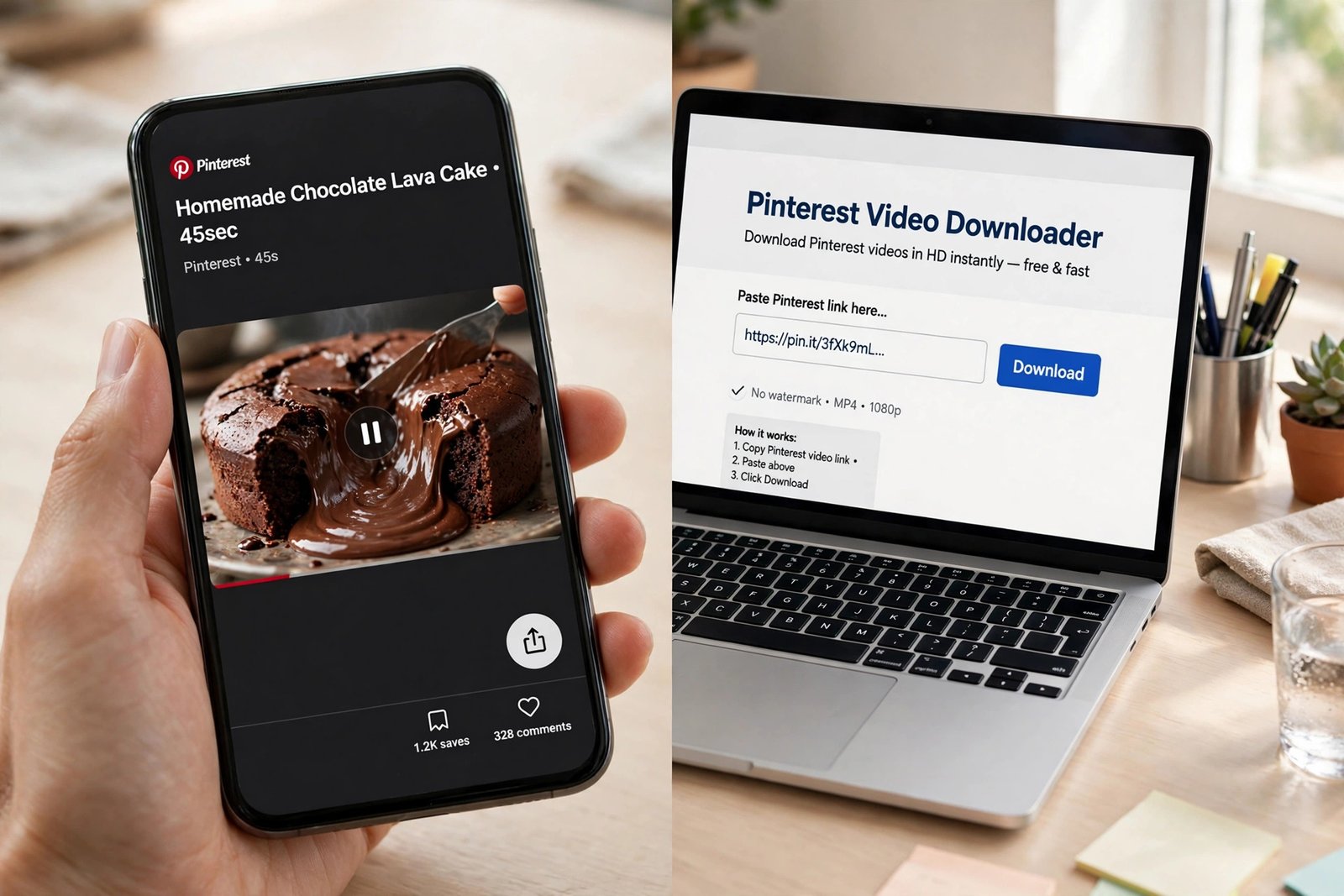
Download Pinterest Video: Native App Button vs Online Downloader — Which Is Better? (2026)
There’s a Download Button Hiding in the Pinterest App (With Strings Attached)
If you want to download Pinterest video clips to your phone, almost every guide on Google gives you the same answer: copy the link, paste it into some third-party downloader, done. What most of those guides get wrong — five of the top ten ranking articles I read this week state it as fact — is the claim that Pinterest has no download feature of its own. It does. Open a video pin in the Pinterest app, tap the share icon, and on many pins you’ll see a plain Download button sitting right there. I spent this week figuring out exactly what that button does, where it falls short, and how it stacks up against an online downloader — including running a real download myself, timing it, and measuring what comes out the other end. The short version: the built-in button is convenient but comes with four catches that matter. Here’s the full, honest comparison.
What I Actually Tested (So You Don’t Have To Take My Word For It)
Before the comparison, here’s the hands-on part. I took a real public video pin and ran it through PintoDownload today, the way any visitor would:
- Resolve time: 2.4 seconds from pasting the pin URL to getting a direct MP4 link. No signup, no captcha, no paywall at any point.
- What came back: a single MP4 — 2.85 MB, 10.2 seconds, 720×1280, H.264 video with AAC audio, served straight from Pinterest’s own CDN (v1.pinimg.com). No recompression, no watermark burned in.
- Quality options: one — the source quality. The pin I tested was published at 720p, so 720p is what you get. There’s no quality picker and no fake “4K” upsell, which I actually prefer to tools that promise 4K and deliver an upscale.
I screen-recorded the whole flow so you can see there’s no trickery — the form, the paste, the result page with the video preview and download button:
One honest caveat up front: I could not hands-on test Pinterest’s native button the same way — that requires the mobile app and a creator who opted in. Everything below about the native route comes from Pinterest’s own official announcement plus the handful of guides that document it accurately, and I’ve flagged where that’s the case.
Method 1: Pinterest’s Own Download Button
Here’s what Pinterest itself says. In its official announcement “Introducing Video Pin Downloading + Sharing” on the Pinterest Business Community, the company describes the flow: open a video pin full-screen in the Pinterest mobile app, tap the share icon, tap Download. The video saves to your phone’s gallery or Photos app. After downloading, Pinterest can even hand the clip straight to the Facebook or Instagram app with the Story composer open.
That sounds ideal — no third-party site, no link copying. And for image pins it genuinely is: images download with no watermark and no restrictions. Video is where the strings attach. Four of them:
Catch 1: Most creators never turned it on
This is the big one. Video downloading is opt-in and off by default. A creator has to go to Settings → Permissions and toggle “Allow video downloads and sharing” — and it’s all-or-nothing across every pin they’ve ever posted; there’s no per-pin switch. In practice, that means the Download button simply doesn’t appear on most video pins you’ll encounter. If you’ve ever tapped share on a video pin and wondered why there’s no download option, this is why. It’s not a bug; the creator just never enabled it.
Catch 2: The watermark is mandatory and permanent
When the button does appear, the downloaded video carries a burned-in watermark showing the creator’s name and username. Pinterest’s official line on removing it: “No, the watermark can’t be removed. It’s important to credit the creator of the content.” I actually respect this — creators deserve credit — but if you wanted a clean clip for a mood board, a presentation, or an edit, the native route can’t give you one.
Catch 3: Mobile apps only — desktop gets nothing
There is no download option on pinterest.com at all. On desktop, the share menu offers sharing and copy-link, period. If you do most of your Pinterest browsing on a laptop — and a lot of people do — the native button might as well not exist. This is the single strongest argument for the online-tool route.
Catch 4: It doesn’t work on every video
Videos embedded from external sources — YouTube or Vimeo links posted as pins — don’t download; you get redirected to the source instead. Pinterest also notes that “some Idea full-screen video Pins are downloadable, some are not,” without a clear rule. And a subtle one for creators: views of a downloaded video watched off-platform don’t count in the pin’s stats, which is part of why many creators leave the toggle off.
Method 2: Download Pinterest Video With an Online Tool
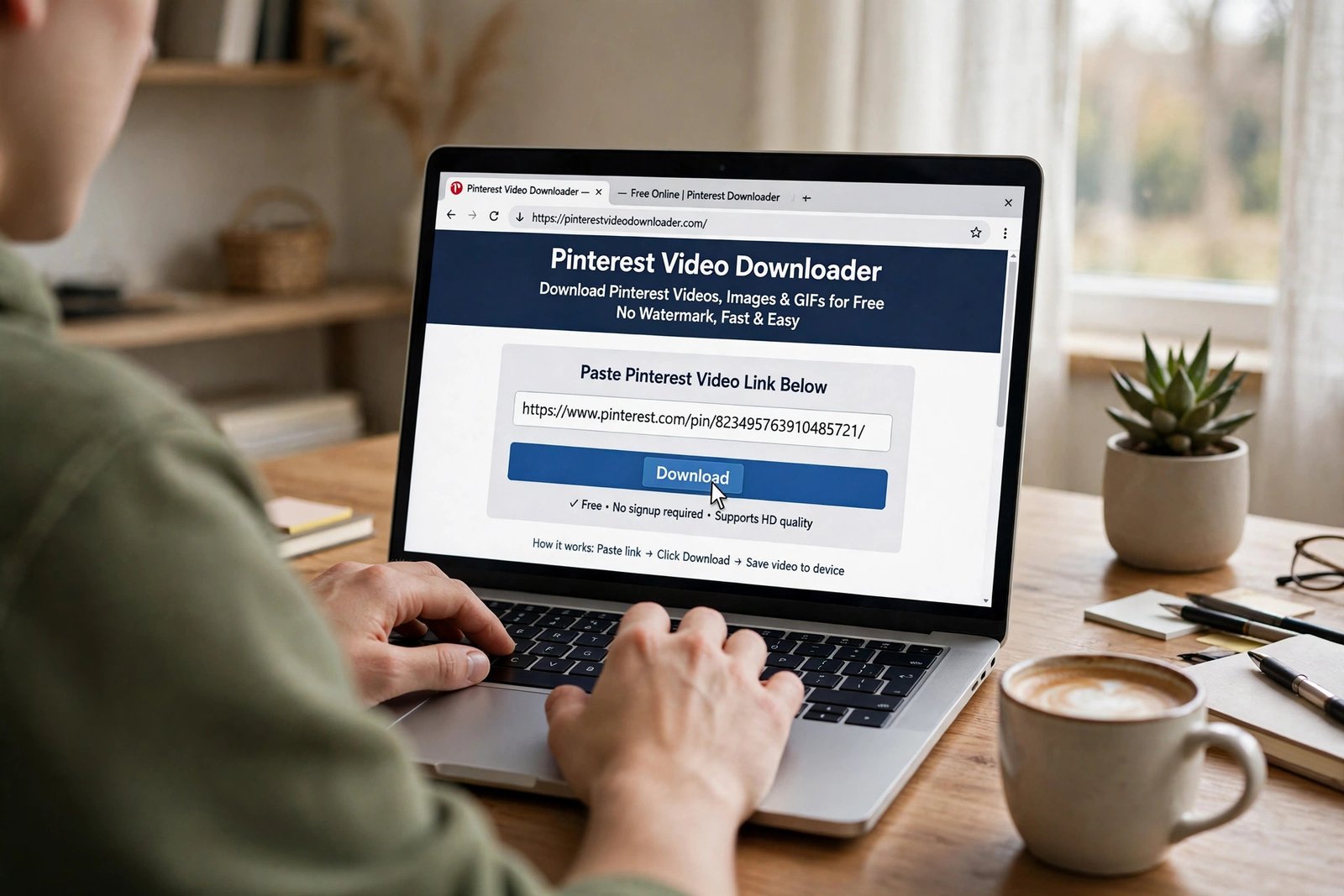
The alternative is a web-based Pinterest video downloader — no app install, works on any device with a browser, including desktop. It’s the fastest way to download Pinterest video files on a computer, where the native button doesn’t exist at all. Here’s the exact flow on PintoDownload, which is the tool I tested above:
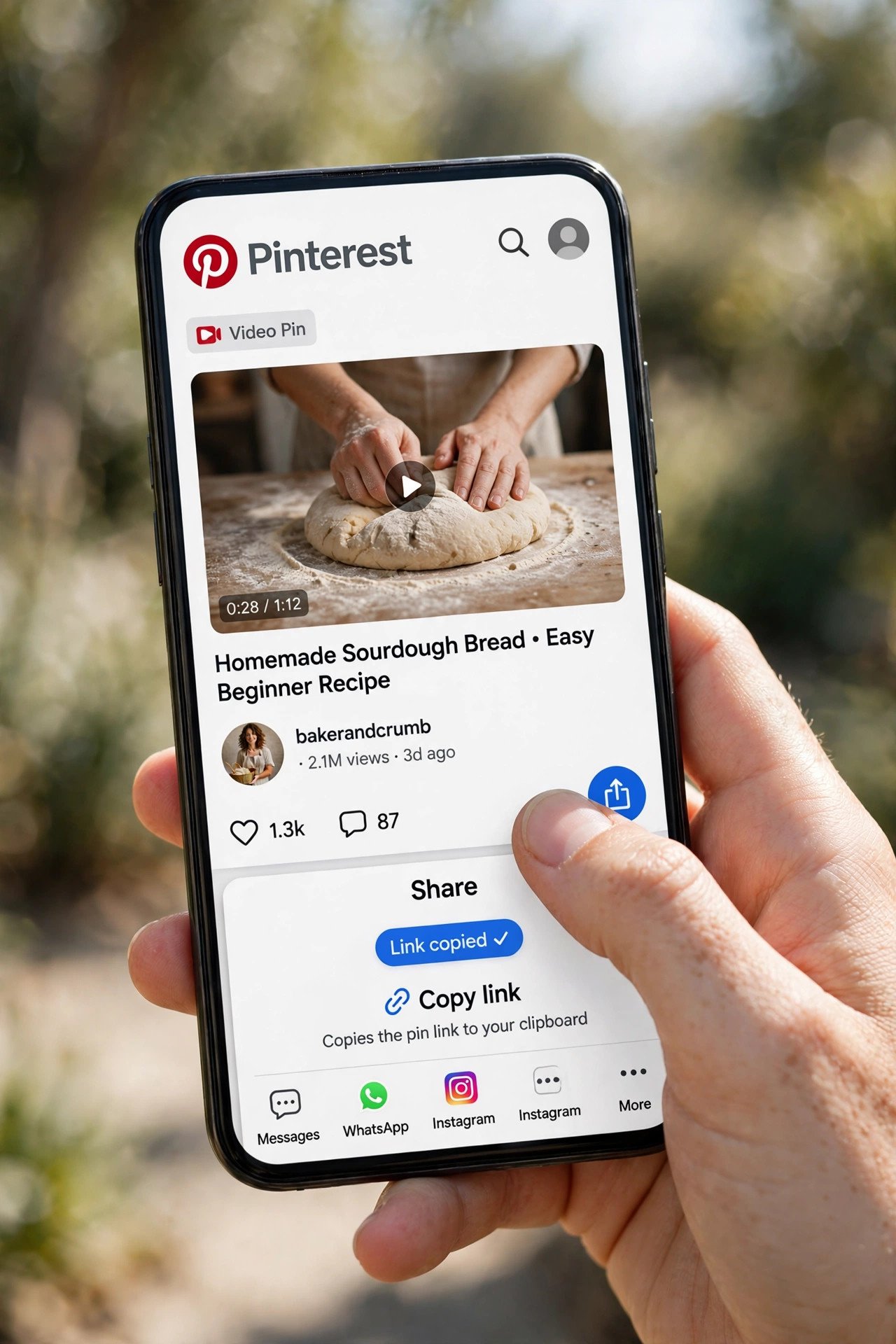
- Copy the pin link. In the Pinterest app or on pinterest.com, tap the share icon on any video pin and choose Copy link. This works on desktop too, where the native button doesn’t exist.
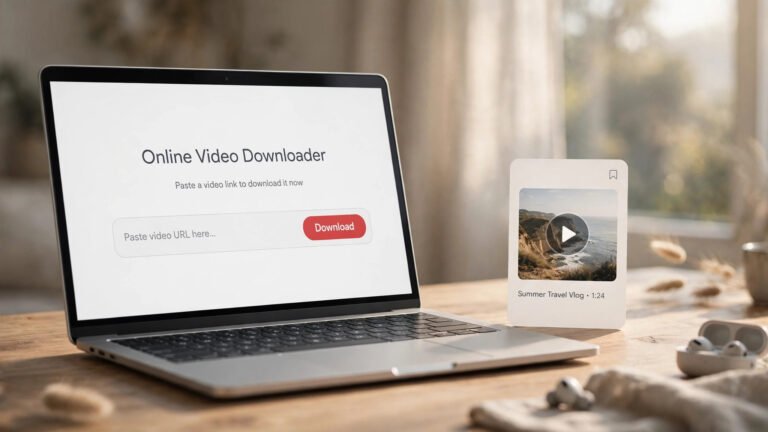
- Paste it into the downloader. Open pintodownload.com, paste the link into the box, and hit Download Video.
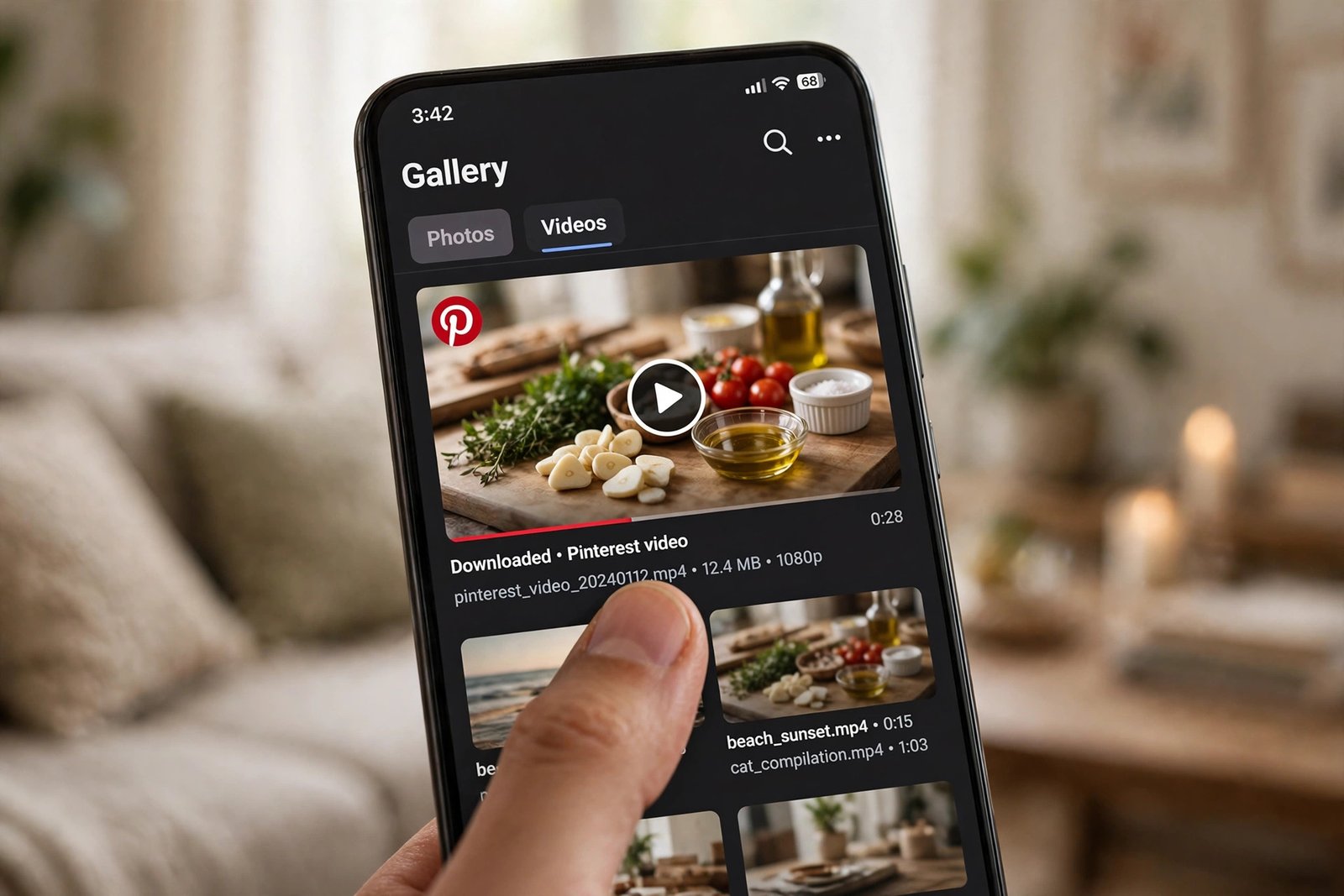
- Save the MP4. The tool resolves the direct video file (about 2–3 seconds in my test) and gives you a download link. On desktop it lands in your Downloads folder; on mobile, long-press or use your browser’s download manager.
What you get is the source file from Pinterest’s CDN — in my test, a clean 720×1280 MP4 with no watermark. That “no watermark” part is the practical difference people care about most: the file is exactly what the creator uploaded, nothing burned into the corners. One thing the tool can’t do is invent quality that isn’t there — if the original pin is 720p, you get 720p. Any site promising to “enhance” that to 4K is selling you an upscale, not the real thing. (I wrote a deeper explainer on how Pinterest video quality actually works here.)
Head-to-Head: Native Button vs Online Downloader
Here’s everything that matters, side by side:
| Pinterest’s native Download button | Online downloader (PintoDownload) | |
|---|---|---|
| Watermark | Mandatory — creator name + username burned in, can’t be removed | None — clean source file |
| Works on desktop | No — mobile apps only | Yes — any browser |
| Works on all video pins | No — only if the creator opted in (off by default) | Yes — any public video pin via its link |
| Signup / app install | Needs the Pinterest app + account | None — paste link in browser |
| Quality | Platform-encoded MP4 (~720p typical) | Source file from Pinterest’s CDN (720p in my test) |
| Speed | Instant (in-app) | ~2.4 seconds to resolve the link (measured) |
| Where it saves | Phone gallery / Photos | Downloads folder or gallery, your choice |
| External embeds (YouTube/Vimeo pins) | Redirects to source — no download | Same limitation — no file to grab |
| Creator credit | Forced via watermark | On you — credit the creator when you share |
Which Should You Use? My Honest Take
Use the native button when it appears and you just want a quick personal copy — a recipe to follow in the kitchen, a workout to do offline. It’s one tap, it’s official, and the watermark is a fair price for that convenience. The problem is reliability: most of the time, the button won’t be there at all.
Use an online downloader when the button is missing (the common case), when you’re on a desktop, or when you need to download Pinterest video clips without a watermark — for a presentation, a compilation, or offline viewing where burned-in text would be distracting. The tradeoff is one extra step: copy the link first. At ~2.4 seconds of resolving plus the copy-paste, the whole thing takes under half a minute.
What I’d skip: screen recording. Half the guides I read still suggest it as a fallback, and it’s the worst of both worlds — you lose resolution, you capture UI clutter and notifications, the file is huge, and then you’re editing. If a pin is worth saving, grab the actual file.
Troubleshooting: When Downloads Don’t Work
Two failure modes cover nearly everything:
- “There’s no Download button in the app.” Not a bug — the creator hasn’t enabled video downloads (it’s off by default). Your only route for that pin is copying the link and using an online downloader.
- “The online tool says no video found.” This happened to me once during testing — the identical link worked on an immediate retry. Pinterest’s CDN hiccups; wait a few seconds and try again. If it persists, double-check the link is a video pin (not an image pin or an external YouTube embed) and that the pin is public. I keep a fuller list of fixes here.
One platform quirk worth knowing: on iPhones, files downloaded through Safari land in the Files app, not Photos — you have to move them over yourself. Android’s Chrome usually offers to save straight to the gallery. Small thing, big confusion the first time.
A Quick Word on Legality
Downloading a video for personal, offline use — watching a tutorial on a flight, keeping a recipe handy — is what these tools are for, and Pinterest’s own terms tolerate personal use. Re-uploading someone else’s video as your own, especially commercially, is where you cross the line. When in doubt, credit the creator (the native watermark does this automatically; with a clean download it’s on you). I covered the legal side in detail in this post.
Frequently Asked Questions
Does Pinterest have a built-in download button for videos?
Yes — in the mobile app, some video pins show a Download option in the share menu. But it only appears if the creator enabled “Allow video downloads and sharing” (off by default), it adds a permanent watermark with the creator’s name and username, and it doesn’t exist on desktop at all.
Can I download a Pinterest video without a watermark?
Not with the native button — Pinterest states the watermark can’t be removed. An online downloader gives you the clean source MP4 from Pinterest’s CDN with nothing burned in.
Why is there no download option on some Pinterest videos?
The creator hasn’t opted in to video downloads. The setting lives under Settings → Permissions in the creator’s account and applies to all their pins at once. Copy the pin link and use an online downloader instead.
Can I download Pinterest videos on my computer?
Yes, but only with an online downloader — the native button is mobile-only. Copy the pin link from pinterest.com, paste it into the downloader in any desktop browser, and save the MP4.
Is it free to download Pinterest videos?
Both routes are free. The native button costs nothing, and the online tool I tested had no signup, no captcha, and no paywall — the link resolved in about 2.4 seconds.
What quality do downloaded Pinterest videos come in?
Whatever the creator uploaded — typically 720p. In my hands-on test the file was 720×1280 H.264. Neither the native button nor online tools can produce higher quality than the source.
The Bottom Line
Pinterest’s native Download button is real, and the guides claiming otherwise are out of date — but between the opt-in requirement, the unremovable watermark, and the total absence of a desktop option, it’s a convenience feature, not a complete solution. For everything else — desktop, missing buttons, clean files — an online Pinterest video downloader like PintoDownload fills the gap in about thirty seconds, and my test this week confirmed it does exactly what it promises: paste link, get MP4, no watermark, no signup. If you regularly download Pinterest video content for offline viewing, it’s worth bookmarking. And if you mostly save images rather than video, the Pinterest image downloader handles those the same way.