Save Pinterest Videos to WhatsApp: Free Guide 2026
Save Pinterest Videos to WhatsApp: Free Guide 2026
Here is the small frustration that starts most people’s Pinterest collections: you find a video you love — a recipe, a workout, a DIY trick you will actually need next weekend — you tap Save, and you feel organised. But you have not saved anything you can use outside Pinterest. Saving pins the video to a board inside the app, behind your login, on Pinterest’s servers. The day the creator deletes that pin, your “saved” video goes with it, and there is no file on your phone to show for it. If you want to save Pinterest videos to WhatsApp instead, you get something different and very practical: the real MP4 file, sitting in the chat app you already open fifty times a day, ready to forward to anyone — including people who have never opened Pinterest in their lives. This guide walks through the whole move: get the file out of Pinterest, put it into WhatsApp the right way, and get it back out again whenever you need it.
Short answer: copy the video pin’s link, download the MP4 with PintoDownload (free, no signup, no watermark, HD where the pin offers it), then send that file to WhatsApp — either to yourself, to a chat, or straight to Status. The first video takes about three minutes; after that, each one takes under a minute. The rest of this guide explains the one choice that decides your video quality, the three places you can keep videos inside WhatsApp, and the catches nobody mentions — including why WhatsApp is the worst “cloud storage” of the bunch and the best sharing tool of the bunch, at the same time.
Why WhatsApp Is Where Your Videos End Up Anyway
Think about the last time someone sent you a video you actually kept. It probably arrived on WhatsApp. That is the whole case for this guide in one sentence: WhatsApp is where videos go to be watched. More than two billion people use it, which means the person you want to show a Pinterest video to almost certainly already has it installed, already knows how to open a video in it, and does not need a Pinterest account, a new app, or a link that opens a browser tab they will close by accident.
There is a second, quieter reason. Pinterest has no download button on most video pins. The creators who allow downloads are the exception, and their downloads carry a watermark with the creator’s username. So the normal path — find a video, want to keep it, want to send it to your sister or your group chat — is blocked at step one unless you pull the file out yourself. A downloader does that part. WhatsApp does the rest: it is the delivery van, the viewing room, and the filing cabinet, all in one app you already have.
But honesty first, because this guide is only useful if you know what WhatsApp is bad at. WhatsApp is not cloud storage. Unlike Telegram, where files live on a server and sync to every device, WhatsApp media lives on your phone. Lose the phone without a backup and the videos go with it. WhatsApp backups count against your Google Drive or iCloud quota, and the videos you receive pile up in your phone’s storage until you clean them out. So the right way to think about WhatsApp is: the best place to send a Pinterest video, and a perfectly good place to keep a few — but not the place to store a thousand of them. The comparison table later in this guide makes that trade-off concrete.
Save Pinterest Videos to WhatsApp in 4 Steps
The whole workflow is four moves, and only the first two involve Pinterest at all. Once you have done it twice, it becomes muscle memory.

Step 1 — Copy the pin’s link. Open the video pin in the Pinterest app (or on the website) and tap Share, then Copy link. On the phone app this hands you a short pin.it link, which works exactly like the full pinterest.com/pin/... address — there is no need to expand it. Before you go further, glance at the Share menu: if it shows a Download option, the creator has allowed downloads, and you can use that instead — but expect their username watermarked onto the video. Most pins will not show it, which is why you are here.
Step 2 — Download the MP4 with PintoDownload. Open PintoDownload in your browser, paste the link into the box, and download the video. No app to install, no account, no signup. Pick the highest quality offered — a typical Pinterest video is 5 to 50 MB, small enough that the HD version costs you nothing in time or space, and you will be glad you grabbed it when you see the quality section below. The file lands in your gallery on a phone or your downloads folder on a computer. That is the file you are about to send — the actual video, not a link to it.
Step 3 — Open WhatsApp and pick the destination. This is the step people rush, and it matters more than it looks: where you send the video decides whether it survives, whether it stays findable, and whether it gets compressed. The three options are covered in full below, but the quick version is: send it to your own “Message yourself” chat if it is for you, to a one-person group if you want a private shelf, or straight to a friend or family chat if it is for them.
Step 4 — Send it the right way: as a document. Tap the attach button (paperclip on Android, + on iPhone), choose Document — not Photos & Videos — and pick the MP4. This is the single most important habit in this guide, and the next section explains why it is worth the extra tap. The video arrives as a file, untouched, at its original quality.
That is the whole thing. Four steps, no app installs, no accounts, no money. Everything after this is about doing it well instead of just doing it.
The One Choice That Decides Your Video Quality: Video vs Document
WhatsApp gives you two ways to send the same file, and they do not do the same thing. This is the part almost every “download and share” guide skips, and it is the difference between a crisp video and a soft, blurry one your friend has to squint at.
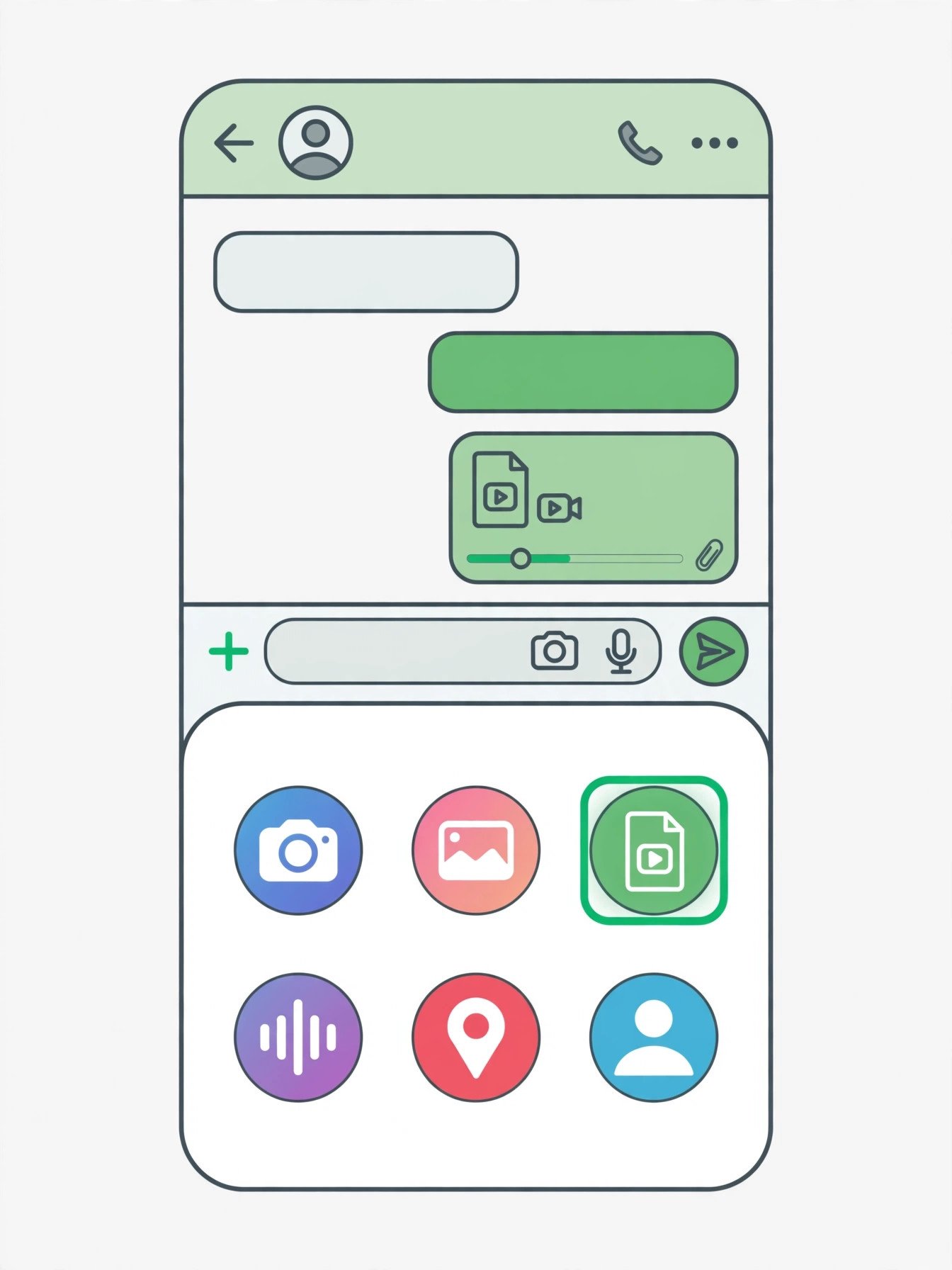
Send a video the normal way — through the gallery picker, as Photos & Videos — and WhatsApp re-encodes it before it leaves your phone. It squeezes the file down to fit its own limits: standard quality lands around 480p, and even the HD toggle only gets you to 720p. WhatsApp’s own help pages put the ceiling for videos sent or forwarded at 64 MB on all platforms, or 100 MB at 720p on a fast connection. A Pinterest video that started life in sharp 1080p arrives noticeably softer, and the change is permanent — re-encoding is irreversible, and the smaller copy is a new file. The original only exists on your phone, if you kept it.
Send the same file as a Document and WhatsApp leaves it alone. Documents can be up to 2 GB each, and WhatsApp sends them without compression — the file that arrives is the file you sent, bit for bit, at its original resolution. The trade-off is the experience: the recipient sees a file icon instead of a video bubble that plays in the chat, and they have to tap to download it before it plays. For a video you care about — a recipe you will follow step by step, a workout where form matters, anything with text on screen — that trade is worth it every time.
| How you send it | What happens to quality | Size limit | How it looks in chat |
|---|---|---|---|
| As a video (gallery picker) | Re-encoded: ~480p standard, 720p with HD toggle | 64 MB (100 MB on a fast connection) | Plays inline in the chat |
| As a document (attach → Document) | Untouched — original file, original resolution | Up to 2 GB per file | File icon; recipient taps to download |
| As a link (paste the pin URL) | No file sent at all — opens Pinterest in a browser | No limit | Link preview; needs a Pinterest login to watch |
My rule of thumb, after doing this dozens of times: if the video is for watching once in a chat — a funny clip, a quick look — send it as a video and do not think twice. If the video is for keeping — a tutorial, a recipe, anything you or the recipient will rewatch or follow along with — send it as a document. And never send just the pin link when you mean to send the video: a link is not a file, it opens Pinterest in a browser, and the person on the other end may not even have an account.
The HD toggle is not a free lunch. Tapping HD before you send a video does make it clearer — 720p instead of 480p — but it is still a re-encode, still compressed, and still not the original. HD is the better of the two video options; the document route is the only option that sends the original at all.
Where to Keep Videos Inside WhatsApp: 3 Homes Compared
WhatsApp has no folders and no Saved Messages shelf like Telegram. So where does a video you want to keep actually live? There are three realistic homes, and they are not equal.
Message yourself. WhatsApp has a built-in chat with yourself — open a new chat and tap your own name at the top, or search “Message yourself”. It is the simplest shelf: one chat, only you in it, searchable, and it syncs to WhatsApp Web and desktop the same as any chat. Send your Pinterest videos here as documents and you have a personal collection that is one search away. The catch is the same as WhatsApp itself: the files live on your phone, not in a cloud. Back up WhatsApp and they are covered by the backup; skip the backup and they are not.
A group with only you in it. Create a group, add one friend, then remove them — you are left with a group of one that works like a private channel. The advantage over Message yourself is organisation: you can make several of them (“Recipes”, “Workouts”, “DIY”) and sort videos by topic, which Message yourself cannot do. The disadvantage is the setup dance and the small risk that a removed member’s old messages linger in the group’s history. It works, and plenty of people swear by it, but it is a workaround, not a feature.
A chat with a friend or family member. This is the honest default for most people: you send the video to the person it is for. It is also the least reliable as storage. The other person can delete the chat, their phone can die, and if you sent it as a video rather than a document, the compressed copy in that chat is the only copy either of you has. Use chats for sharing, not for archiving. If a video matters to you, send it to yourself first, then forward it to them.
| Home | Best for | Searchable / organised | Weakness |
|---|---|---|---|
| Message yourself | Your own collection, one place | Searchable; no folders | On your phone only; needs backup |
| Group of one | Sorting by topic (“Recipes”) | One shelf per topic | Fiddly setup; a workaround |
| Chat with someone else | Sharing, not storing | Searchable in that chat | They can delete it; not yours alone |
One habit makes any of these work far better: caption the video the day you send it. A file called video_482910.mp4 is unfindable six months from now; the same file with the caption “sourdough starter day 3 — feed twice daily” is one search away. WhatsApp’s search covers captions, so a few words now save a scroll through hundreds of messages later.
Posting a Pinterest Video as a WhatsApp Status
Status is the other reason people save Pinterest videos to WhatsApp at all: a 24-hour clip your contacts can watch without you sending it to anyone directly. It has its own rules, and most of the guides ranking on this topic get them wrong, because they quote numbers from years ago.
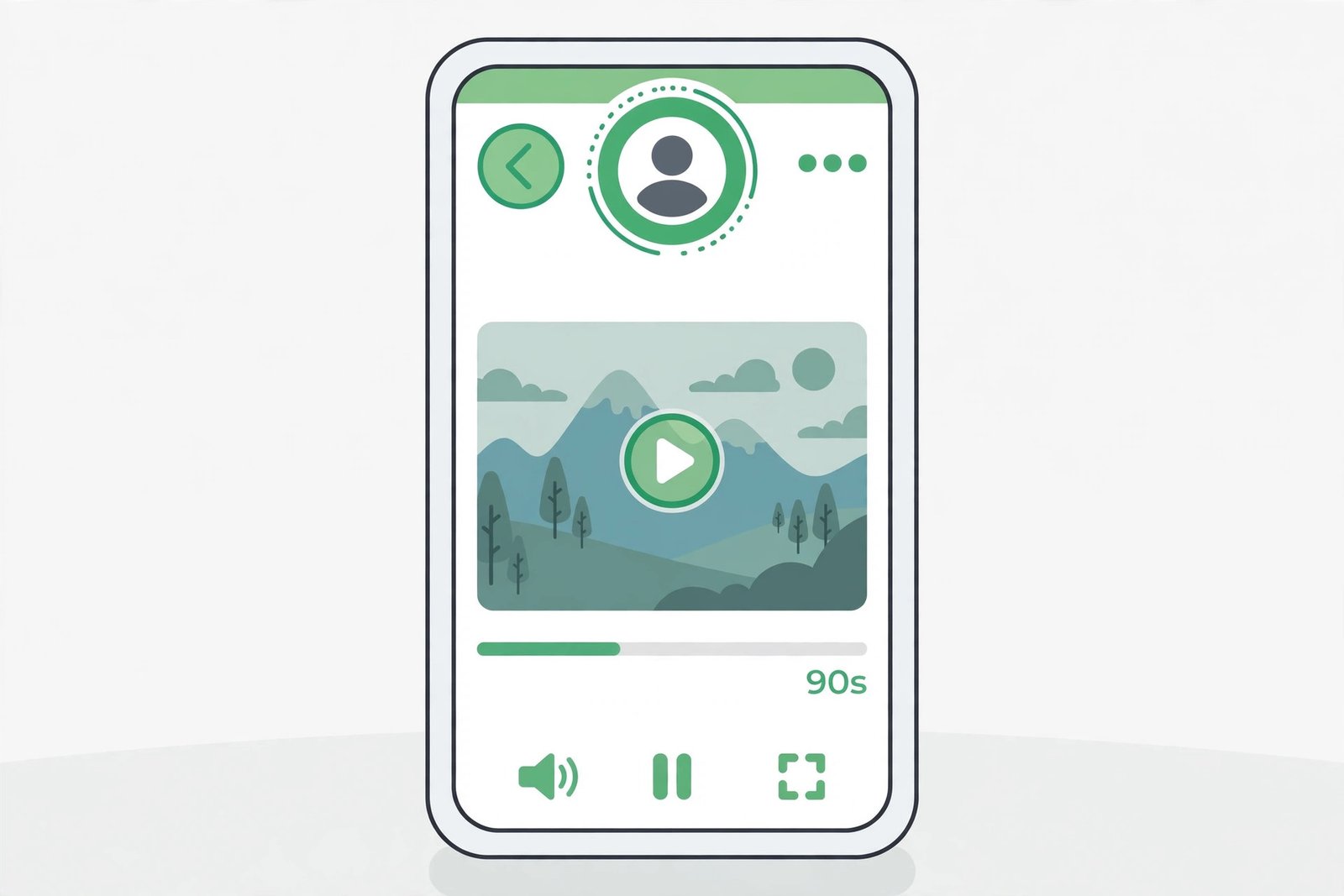
The limit is 90 seconds. WhatsApp extended status videos from 60 to 90 seconds during 2025, and the current app caps a single status video at 90 seconds. Older guides still say 30 seconds — that figure is years out of date — and some say 60, which was true until the extension. If your phone still stops at 60 or 30 seconds, your WhatsApp is out of date; update it and the 90-second limit appears. A status video also disappears after 24 hours, and there is no HD option for status at all — WhatsApp says HD media is not currently available for status updates, so what you post is a re-encoded copy whatever you do.
If the video is longer than 90 seconds, you have three honest options. First, trim it: when you pick the video for Status, WhatsApp shows a trim slider at the top — drag it to the best 90 seconds and post that. Second, split it: cut the video into 90-second parts (your phone’s built-in editor does this, or any free trimmer) and post them as a series, in order, so contacts watch part 1, then part 2. Third, do not use Status: send the full video to a chat as a document instead, where there is no length limit beyond the 2 GB file cap. Status is for a moment, not for a full tutorial — a three-minute recipe walkthrough chopped into two status clips is a worse experience than the same file sent once to the group chat.
A few status details worth knowing before you post. Status is only visible to your contacts, and you can narrow that further in Settings → Privacy → Status (My contacts, My contacts except…, or Only share with…). A Pinterest video you post is still someone else’s work, so keep it to personal sharing — a status is public to your contacts in a way a private chat is not. And remember the 24-hour expiry cuts both ways: it is great for sharing something timely, and useless as storage. If you want the video tomorrow, keep the original file on your phone; Status will not give it back.
Getting Videos Back Out of WhatsApp
Saving a video into WhatsApp is only half the job. The other half is getting it back out as a file on your phone or computer, and this is where people get tripped up — because playing a video inside WhatsApp is not the same as saving it.
On Android: open the chat, tap the video, then tap the three dots and choose Save. Or go to Settings → Storage and data → Media auto-download and decide what WhatsApp saves by itself: on mobile data, on Wi-Fi, and while roaming. Most people leave auto-download on for Wi-Fi only, which is the sane default — videos you receive on Wi-Fi land in your gallery automatically, and you save mobile data. One warning: if auto-download is on, every video anyone sends you lands on your phone, and group chats can fill a phone in weeks. Check Settings → Storage and data → Manage storage every month or two; it shows which chats are eating your space, biggest first.
On iPhone: open the video in the chat, tap the share icon, and choose Save Video — it goes to Photos. Or turn on Save to Camera Roll in Settings → Chats, which saves incoming photos and videos to Photos automatically. If you would rather have a file than a Photos entry, use Save to Files instead, which puts the MP4 in the Files app where you can move it, rename it, or AirDrop it. The distinction matters: Photos is for viewing, Files is for keeping.
On WhatsApp Web or Desktop: open the chat in your browser or the desktop app, hover over the video message, click the download arrow, and the file saves to your computer — same 2 GB document limit, same untouched quality if it was sent as a document. This is the easiest route for a video you want on your laptop: send it to yourself on your phone, open WhatsApp Web, download it. No cable, no AirDrop, no emailing it to yourself.
Exporting a whole chat is the nuclear option: open a chat, tap the name, choose Export chat, and WhatsApp bundles the messages (and, if you choose, the media) into a file you can email or save. It is clumsy for a single video — use Save for that — but it is the right tool when you want everything from a chat at once, for example before switching phones.
WhatsApp vs the Other Shelves: An Honest Comparison
This is the sixth guide in our save-to series — after Google Drive, iCloud, Dropbox, OneDrive, and Telegram — so the fair question is where WhatsApp actually stands. The answer depends on what you want the shelf to do.
| Where you save it | Free storage | Max file size | Where the file lives | Best for |
|---|---|---|---|---|
| WhatsApp (as document) | Your phone’s storage | 2 GB | On your device | Sending to people who already use it |
| Telegram Saved Messages | Unlimited total | 2 GB per file | Telegram’s cloud | A big personal collection |
| Google Drive | 15 GB shared | 5 TB per file | Google’s cloud | Folders + sharing links |
| iCloud | 5 GB | 50 GB per file | Apple’s cloud | iPhone owners |
| Dropbox | 2 GB | 2 GB (free web) | Dropbox’s cloud | Simple sync |
| OneDrive | 5 GB | 250 GB per file | Microsoft’s cloud | Windows users |
Read the table as a trade-off, not a ranking. WhatsApp wins on reach: the person you are sending to is already there, and the video plays the moment it arrives. It loses on storage: there is no cloud shelf, no folders, and every video you keep eats phone space and backup quota. Telegram wins for a big personal collection — unlimited total storage, synced everywhere. The drives win for organisation — real folders, real sharing links, and files that survive a lost phone. My own setup, for what it is worth: WhatsApp for sending, Telegram for keeping, and Google Drive for anything I might need to link to from a laptop. One tool per job, and no single point of failure.
The Catches Nobody Mentions
Every method has a fine print, and WhatsApp’s is longer than most guides admit. Here is the full list, in one place.
Compression is irreversible. This is the catch that costs people their best copy. The moment a video goes through WhatsApp as a video, the original quality is gone from that copy — you cannot “uncompress” it, and WhatsApp does not keep the original. If you sent the only copy of a video as a video and deleted the original from your phone, the soft 480p version is all that exists now. Send as a document first, delete later.
WhatsApp is not a backup. Media in WhatsApp lives on your device. If the phone is lost, stolen, or factory-reset without a backup, the videos go with it. WhatsApp’s own backup (Google Drive on Android, iCloud on iPhone) covers chats and media — but it counts against the same 15 GB or 5 GB free quota as everything else, and a video-heavy backup fills that quota fast. Keep a second copy of anything irreplaceable somewhere that is not WhatsApp. The gallery guide covers keeping the original file on your phone as the first copy.
Disappearing messages delete the media too. If a chat has disappearing messages turned on, videos in it vanish with the messages — 24 hours, 7 days, or 90 days, depending on the setting. That is a feature when you want privacy; it is a disaster when you treated that chat as storage. Never use a disappearing-messages chat as your video shelf.
Forwarding has a limit. A forwarded message can go to at most five chats at once. If you need to send the same Pinterest video to eight group chats, you will do it in two rounds — or send it once to your own chat and forward from there. It is a small limit, but it surprises people who share in bulk.
Your phone’s storage fills up quietly. Every video you receive, every video you send, and every auto-downloaded group-chat clip lands on your device. A few hundred Pinterest videos at 5 to 50 MB each is several gigabytes before you notice. Use Settings → Storage and data → Manage storage to see the damage and clear the chats you do not need. Turn off auto-download for groups if you are in a lot of them.
Private pins do not work. The same rule as every other guide in this series: a downloader can only fetch public pins. A video on a private board, a secret board, or an account that requires login cannot be downloaded by any tool, because the tool has no login to fetch it with. If it is your own video, upload the original file instead. And the usual line that bears repeating: saving a video for your own use is one thing; reposting someone else’s work as your own is another. Ask the creator, or credit them, before you share their video beyond your own circle. The full picture is in our legal guide.
Troubleshooting: When Saving Pinterest Videos to WhatsApp Goes Wrong
| Problem | Likely cause | Fix |
|---|---|---|
| Video will not send | File over the limit, or weak connection | Send as a document (2 GB cap); switch to Wi-Fi; check the file size |
| Video looks blurry after sending | Sent as a video — WhatsApp re-encoded it | Re-send as a document; the blurry copy cannot be repaired |
| Status cuts the video off | Over the 90-second limit | Trim to the best 90 seconds, split into parts, or send to a chat instead |
| Video plays in WhatsApp but is not in the gallery | Playing is not saving — it is only cached | Use Save (Android) or Save Video / Save to Files (iPhone); then check the gallery |
| Download from Pinterest fails | Private pin, or the pin links to another site | Only public pins work; check the pin opens logged-out in a browser. See the fixes guide |
| Phone storage full after saving videos | Auto-download + group chats | Manage storage per chat; turn off auto-download for groups; move old videos to Drive |
| Video sent, but the recipient cannot open it | They have not downloaded the document yet, or an old WhatsApp version | Ask them to tap the file to download it; update WhatsApp on both ends |
Frequently Asked Questions
Can I save Pinterest videos to WhatsApp for free?
Yes. Downloading the MP4 with PintoDownload is free with no signup, and WhatsApp itself is free. The only limits are WhatsApp’s own: 64 MB (or 100 MB on a fast connection) for videos sent as media, and 2 GB per file when sent as a document. The pin must be public.
Does WhatsApp reduce the quality of Pinterest videos I send?
Only if you send them as videos. Send the MP4 as a document (attach → Document) and WhatsApp delivers the exact original, with no compression, up to 2 GB. Send it through the gallery picker and WhatsApp re-encodes it to around 480p, or 720p with the HD toggle — and that quality loss is permanent.
How long can a Pinterest video be on WhatsApp Status?
Up to 90 seconds per status video in the current app, and it disappears after 24 hours. There is no HD option for status. Longer videos need trimming, splitting into 90-second parts, or sending to a chat as a document instead.
Where do Pinterest videos I save to WhatsApp actually live?
On your phone — WhatsApp stores media on the device, not in a cloud. They are covered by your WhatsApp backup (Google Drive on Android, iCloud on iPhone) if backup is turned on, and they count against that backup quota. Unlike Telegram, there is no server-side copy you can fetch after losing your phone.
Can I send a Pinterest video to someone who does not use Pinterest?
Yes — that is the whole point. Once you have the MP4 file, the recipient only needs WhatsApp. They never see Pinterest, never need an account, and never have to open a browser. Send it as a document if you want them to get the full-quality file.
The Bottom Line
To save Pinterest videos to WhatsApp well, remember four things: the file, not the link, is what you are saving; send it as a document, never as a video, when quality matters; caption it the day you save it or you will never find it again; and never treat WhatsApp as your only copy — it lives on your phone, and phones get lost. Do those four and you get the most useful sharing shelf there is: a video in the app everyone already opens, at full quality, in under a minute. If you also want a proper cloud shelf for the collection itself, start with our Telegram guide or the Google Drive guide — and for still images, the Pinterest image downloader handles those the same way.