Save Pinterest Videos to Dropbox: Free Guide 2026
Save Pinterest Videos to Dropbox: Free Guide 2026
Here is the gap that swallows most saved Pinterest videos: Pinterest’s Save button does not save a video anywhere you can actually use it. Tap Save and the pin lands on a board — inside Pinterest, behind your login, gone the day the creator deletes it or your account has a bad week. If you want to save Pinterest videos to Dropbox so the file itself sits in a folder you control, watchable on your phone, your laptop, and your tablet without opening Pinterest at all, you need two moves: get the actual video file out of Pinterest, then put it in Dropbox the right way. This guide does both, step by step, and it also covers the one Dropbox trap that catches almost everyone — the free plan’s 2 GB limit — before it eats your uploads.
Short answer: copy the video pin’s link, download the MP4 with PintoDownload (free, no signup, no watermark, HD and 4K where the pin offers it), then upload that file to Dropbox from the mobile app, the desktop folder, or dropbox.com. The whole thing takes about two minutes per video once you have done it once. The rest of this guide explains which upload route fits your device, how to stay inside the free 2 GB, and how to organise the files so you can still find them in a year.
First, the Save Button Problem Nobody Spells Out
Pinterest has two completely different ideas of “saving,” and mixing them up is how videos disappear. Saving a pin to a board is bookmarking. You own nothing; you hold a pointer to someone else’s upload. The creator can delete the pin, make the board private, or close their account, and your board entry goes with it. Downloading is the opposite: you hold the MP4 file. It plays offline, it survives a deleted pin, and you can drop it into any app you like.
That distinction decides everything that follows. A board full of saved pins is not a video library. A Dropbox folder full of MP4s is. And Dropbox is a particularly good home for them, because unlike a phone gallery it does not vanish when you switch handsets, and unlike a USB stick it is on every device you own at once. The catch — and it is a real one — is that Dropbox’s free plan is small, and its rules about going over are harsher than most people expect. More on that below, because it changes how you should organise things from day one.
The 2 GB Trap: Read This Before You Upload Anything
Dropbox Basic is free and gives you 2 GB of storage, per Dropbox’s own Basic plan page. That sounds fine until you do the maths. A single HD Pinterest video is usually somewhere between 10 and 50 MB, depending on length and quality — a 15-minute tutorial at 1080p can be several times that. Fifty short recipe clips will fit comfortably. Five hundred will not, and neither will a board archive you bulk-downloaded on an enthusiastic afternoon.
Two other free-plan rules matter just as much. First, Basic lets you stay signed in on up to three devices at a time — phone, tablet, and laptop is exactly three, so a second phone or a work computer tips you over, and signing in on dropbox.com in a browser does not use a slot. Second, and this is the one people learn the hard way: when a Basic account goes over its limit, Dropbox can stop syncing, uploading, sharing, and even previewing files, and if the account stays over the limit, Dropbox says it may delete files you own to bring the account back under. Deleted files stay recoverable for 30 days, but only if you have enough free space to restore them into.
None of that means the free plan is a bad deal. It means the system matters: download at the quality you actually need, rename files as you go, and check your usage meter before a big batch, not after. If your collection grows past 2 GB, the honest options are trimming it, or Plus at $9.99 a month billed yearly for 2 TB and unlimited devices. What you should not do is keep uploading into a full account and hope for the best — that is the one route that ends with files disappearing.
Method 1: Save Pinterest Videos to Dropbox from Your Phone
This is the route most people will use, and it needs no computer at all. You download the video on your phone, then hand it to the Dropbox app.
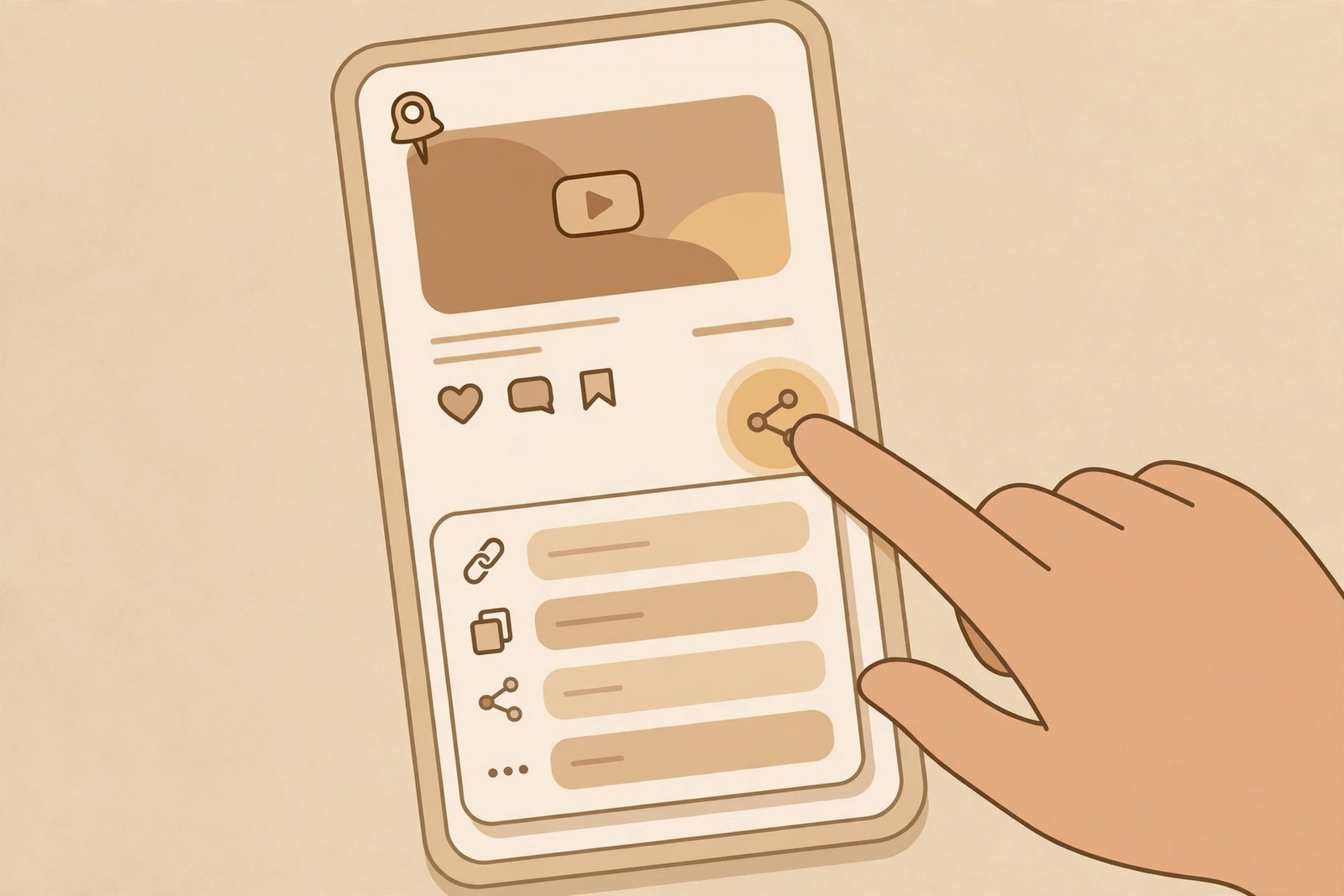
- Copy the pin’s link. Open the video pin in the Pinterest app, tap Share, then Copy link. On a computer browser the same link sits in the address bar. Make sure you copied a link to one single pin — a board link or a profile link will not work, and a shortened pin.it link is fine, it resolves to the same pin.
- Download the MP4. Open PintoDownload in your browser, paste the link, and download the video. Pick the highest quality offered if you plan to keep the video long-term; Pinterest stores most video pins up to 1080p, and some at 4K. The file arrives as an MP4 (occasionally WebM), which plays on every phone, tablet, and computer without conversion.
- Rename it immediately. Downloads usually arrive with a meaningless name. Before you upload, rename it to something you will search for later — morning-yoga-flow-15min.mp4 beats video_382910.mp4 every single time, and this thirty-second habit is what separates a library from a junk drawer.
- Upload to Dropbox. Open the Dropbox app, go to the folder you want (create a Pinterest Videos folder first if you have not), tap the + button, choose Upload photos or videos, and pick your file. On iPhone you can also find the video in Files or Photos, tap Share, and send it straight to Dropbox. Wait for the upload to finish on Wi-Fi before closing the app — a half-uploaded video looks complete in the list and is not.
- Check it on another device. Open dropbox.com or the app on a second device and play the video. If it plays there, it is really in your Dropbox, not just sitting in your phone’s upload queue. This one check has saved more videos than any other step in this guide.
One phone-specific warning: do not let your camera-upload setting do this job for you by accident. Dropbox’s camera uploads feature copies everything from your camera roll into Dropbox, which sounds convenient until your saved Pinterest videos arrive mixed in with screenshots, memes, and forty near-identical photos of your lunch. Upload deliberately, folder by folder, and your 2 GB goes about three times further.
Method 2: Save Pinterest Videos to Dropbox from Your Computer
If you do most of your Pinterest browsing on a laptop, this route is faster, because the Dropbox desktop app turns the whole thing into dragging a file into a folder.
- Copy the pin link from your browser’s address bar and download the MP4 with PintoDownload, same as above.
- Install the Dropbox desktop app if you have not (Windows, Mac, and Linux are all supported). It creates a Dropbox folder on your computer that behaves like any other folder.
- Drop the renamed MP4 into the Dropbox folder — into a subfolder like Dropbox/Pinterest Videos/Recipes if you organise by topic. The app syncs it in the background; a green tick means it is safely in the cloud.
- That is the whole method. The file is now on your phone, your tablet, and dropbox.com without you touching any of them.
The desktop route has one quiet advantage: selective sync. If your collection ever outgrows your laptop’s hard drive, you can tell Dropbox to keep some folders online-only, so they still show up in your file list but do not eat local disk space. It is the grown-up version of the phone storage panic, and it is worth knowing about before your drive fills up, not after.
Method 3: Upload at Dropbox.com Without Installing Anything
On a borrowed computer, a work machine, or any device where you cannot install apps, the browser route works fine. Sign in at dropbox.com — remember, a browser sign-in does not count against your three-device limit — open your folder, and drag the MP4 straight from your desktop into the browser window. Uploads in a browser can struggle with enormous files (hundreds of gigabytes), but a Pinterest video is a rounding error at that scale, so this is never the bottleneck here.
The browser route is also the fastest way to check your storage meter: your usage sits right there on the page, and if a batch upload failed, the over-quota warning is usually staring at you from the top of the screen. Check it before you start a big upload session, not after three videos have silently failed.
Method 4: The Direct-to-Cloud Shortcut (and Why I Don’t Lead With It)
Tools like MultCloud offer a Video Downloader that pastes a Pinterest link and sends the file straight to a connected cloud account, Dropbox included, without the file ever touching your device. It works, and if you move dozens of videos a week it saves real time. I still do not lead with it, for two plain reasons: it needs an account with yet another service, and it puts a middleman between you and a file you could have downloaded directly in under a minute. For most people, download-then-upload is simpler, more private, and easier to troubleshoot when something goes wrong. Use the shortcut if your volume justifies it; do not adopt it just because it sounds cleverer.
Dropbox vs Google Drive vs iCloud for Saved Pinterest Videos
All three will hold your videos. They differ in the details that decide whether a growing collection stays usable, so here is the honest comparison rather than a “they’re all great” shrug.
| Feature | Dropbox Basic | Google Drive | iCloud |
|---|---|---|---|
| Free storage | 2 GB | 15 GB (shared with Gmail and Photos) | 5 GB (shared across Apple services) |
| Device sign-in cap | 3 devices | No cap | No cap (Apple devices) |
| Works on Android, iPhone, Windows, Mac | Yes, all four | Yes, all four | Best on Apple devices; Windows via app, Android via browser only |
| Watch offline on your phone | Yes — mark files available offline | Yes — make available offline | Yes — via Files or Photos |
| Share with someone who has no account | Yes — shared link opens in a browser | Yes — link sharing | Yes — iCloud link, clunkier for non-Apple recipients |
| Deleted file recovery | 30 days | 30 days in Trash | 30 days in Recently Deleted |
The takeaway is not that one service wins. It is that Dropbox is the best pick when your devices are mixed — an Android phone and a Windows laptop, say — because it treats every platform as a first-class citizen. If you live entirely inside Apple hardware, the iCloud route in our Save Pinterest Videos to iCloud guide may suit you better, and if free space is your only concern, Google Drive’s 15 GB is triple the room — see our Save Pinterest Videos to Google Drive guide. Pick the one that matches your devices, then stick with it; a video library split across three clouds is a library you will never search.
Organising Your Dropbox So You Can Actually Find Videos Later
Downloading is the easy half. Finding a video six months later is the hard half, and it is decided by three habits.
Name files like a human will search for them. Topic first, then detail: recipes-garlic-noodles.mp4, workout-10min-core.mp4, wedding-centerpiece-ideas.mp4. The moment you leave a file named video_382910.mp4 in a folder, you have lost it; search cannot help you because there is nothing to search for.
One folder per board or topic, not one giant folder. A single Pinterest Videos folder with 400 files in it is barely better than no folder at all. Mirror your Pinterest boards — Recipes, Workouts, Home Ideas — and your future self will browse instead of scrolling. For Idea Pins with several slides, give the pin its own folder and number the files in order (Slide_1, Slide_2, Slide_3) so the original sequence survives, because a downloader that only grabs the first slide will otherwise quietly lose the rest.
Keep a small “watch later” folder separate from the archive. Videos you intend to watch this week live in Watch Later; videos you are keeping for reference live in their topic folders. Every month or so, move anything still sitting in Watch Later into its topic folder or delete it. This one routine is what keeps a 2 GB free account alive — it forces the “do I still need this” decision before the quota forces it for you.
Watching and Sharing From Dropbox
Once a video is in Dropbox, watching it is the least interesting part, which is exactly how it should be. Open the app on any device, tap the file, and it plays — Dropbox previews over 175 file types, MP4 included, with no extra player needed. For offline viewing, mark the file available offline before you leave Wi-Fi; on a plane or a patchy connection, that one toggle is the difference between watching and staring at a spinner.
Sharing is where Dropbox earns its keep over a gallery folder. Tap Share on any video, send the link, and the recipient watches it in their browser without needing a Dropbox account at all. That is genuinely useful for a recipe video you want to send your sister or a reference clip for a client. Just remember the flip side: anyone with the link can watch it, so do not share links to anything private in a public place, and if a link has served its purpose, remove it from the sharing settings.
Troubleshooting: When Saving Pinterest Videos to Dropbox Goes Wrong
The upload stalls or fails. First check your storage meter — over-quota is the commonest cause and it fails silently on some devices. Then check the file size and your connection; switch to Wi-Fi for anything large, and re-upload rather than trusting a half-finished entry.
The video appears on your phone but not your laptop. Sync is paused, the desktop app is signed out, or the account is over quota. Open the Dropbox app on the missing device and look for a sync error banner; nine times out of ten the app will tell you exactly what is wrong if you look.
The downloaded video looks blurry. You downloaded the wrong quality tier. Pinterest stores videos in several quality levels and some tools default to the smallest file, not the best one. Re-download and pick the highest quality offered — 1080p where available — because a blurry file uploaded to Dropbox stays blurry forever.
The tool says the media cannot be found. The pin is private, restricted, or deleted. No third-party tool can reach a pin that is not publicly visible — open the link in a private browser window and if you cannot see the pin there, no downloader can either. Your options are asking the creator for the file, or, for your own pins, temporarily making the pin public, downloading it, and switching it back. Our guide to private board videos walks through that in detail.
The video will not download at all. Check that you copied a single pin’s link, not a board link, and that the link is complete — a truncated link from a share sheet fails in confusing ways. If it worked yesterday and fails today, the tool’s parsing may have changed; wait a day or try again, and our Pinterest video not downloading fixes cover the rest.
Is It Legal to Save Pinterest Videos to Dropbox?
Downloading a video for your own personal viewing — a recipe you want to cook offline, a workout you follow at home — is the normal, accepted use, and every guide on this topic says the same. What crosses the line is redistribution: re-uploading someone else’s video as your own, selling it, or posting it elsewhere without the creator’s permission. Dropbox makes sharing easy, which makes this worth saying plainly: keep other creators’ work for personal use, credit and ask before anything public, and read our full legal guide if you plan to use saved videos in anything beyond your own screen.
Frequently Asked Questions
Can I save Pinterest videos to Dropbox for free?
Yes. Dropbox Basic is free with 2 GB of storage, which holds dozens of HD Pinterest videos, and PintoDownload downloads them free with no signup. You only need a paid plan if your collection grows past 2 GB or you need more than three signed-in devices.
Does Dropbox have a Pinterest integration that saves pins automatically?
No. There is no official Pinterest-to-Dropbox button. You download the video file first, then upload it to Dropbox using the app, the desktop folder, or dropbox.com. Any tool claiming one-click automatic saving is going through the same two steps behind the scenes.
How much space do Pinterest videos take in Dropbox?
A short HD clip is typically 10–50 MB; a long 1080p tutorial can be several times that. On the free 2 GB plan, a library of a few dozen videos is comfortable, while a few hundred needs trimming or the Plus plan’s 2 TB.
Can I watch saved Pinterest videos offline from Dropbox?
Yes. In the Dropbox mobile app, mark a file or folder available offline while you are on Wi-Fi, and it plays without a connection. Note that offline copies still count against your phone’s storage, just not against streaming.
Why is my video in Dropbox but not playing on my other device?
Usually sync is paused, the second device is signed out, or the account is over its storage quota. Open Dropbox on the missing device, check for a sync error, and confirm the file has a green synced tick on the uploading device.
Can I save Pinterest videos to Dropbox from an iPhone?
Yes. Download the MP4 in Safari with PintoDownload, then share it from Files or Photos into the Dropbox app, or upload it from the app’s + button. Our iPhone guide covers the download half in detail, and the gallery guide covers keeping a local copy too.
The Bottom Line on Saving Pinterest Videos to Dropbox
To save Pinterest videos to Dropbox and actually keep them, the recipe is short: copy the pin link, download the real MP4 with PintoDownload, rename it like a human, upload it to a topic folder in Dropbox, and verify it plays on a second device. Respect the free plan’s 2 GB and three-device limits, keep your watch-later pile honest, and your saved videos stop being bookmarks that can vanish and start being a library that follows you across every device you own. If you would rather keep your videos in pictures form too, our Pinterest image downloader handles stills the same way.