Save Pinterest Videos to OneDrive: Free Guide 2026
Save Pinterest Videos to OneDrive: Free Guide 2026
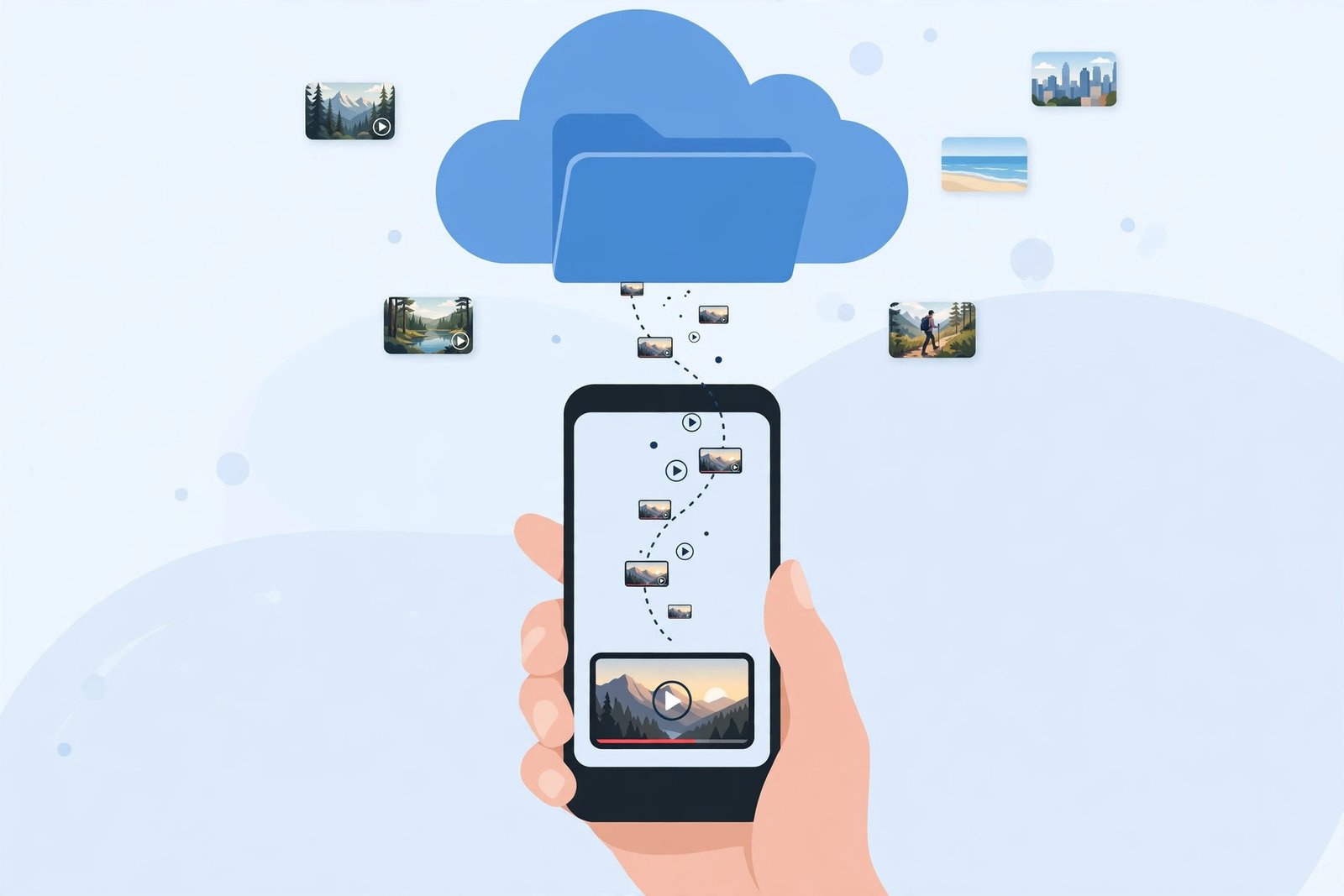
Here is the trap most Pinterest users walk straight into: tapping Save on a video pin does not save the video at all. It bookmarks the pin on a board, inside Pinterest, behind your login — and the day the creator deletes that pin, your saved video is gone with it. If you want to save Pinterest videos to OneDrive so the actual MP4 file sits in a folder you control, playable on your phone, your Windows PC, and your tablet without opening Pinterest, you need two moves: get the real video file out of Pinterest, then put it in OneDrive the right way. This guide does both, step by step — and it starts with the one OneDrive catch nobody warns you about, because it decides how much you can actually store for free.
Short answer: copy the video pin’s link, download the MP4 with PintoDownload (free, no signup, no watermark, HD where the pin offers it), then upload that file to OneDrive from the mobile app, the OneDrive folder on Windows, or onedrive.com. The whole thing takes about two minutes per video once you have done it once. The rest of this guide explains which upload route fits your device, how to live inside the free 5 GB without hitting the wall, and how to organise the files so you can still find them in a year.
First, the Save Button Problem Nobody Spells Out
Pinterest uses one word, “save,” for two completely different things, and mixing them up is how videos disappear. Saving a pin to a board is bookmarking. You own nothing; you hold a pointer to someone else’s upload. The creator can delete the pin, make the board private, or close their account, and your board entry goes with it. Downloading is the opposite: you hold the MP4 file. It plays offline, it survives a deleted pin, and you can drop it into any app you like.
That distinction decides everything that follows. A board full of saved pins is not a video library. A OneDrive folder full of MP4s is. When you save Pinterest videos to OneDrive, the file itself is yours to keep, move, and play anywhere. And OneDrive is a particularly good home for them if you live in the Microsoft world — it is baked into Windows, it comes free with every Microsoft account, and it syncs to every device you sign into. The catch, and it is a real one, is that the free plan is small and it is shared with things you might not expect. Read the next section before you upload anything, because it changes how you should organise from day one.
The 5 GB Trap: Read This Before You Upload Anything
A free Microsoft account gives you 5 GB of OneDrive storage, per Microsoft’s own OneDrive page. That sounds workable until you do the maths — and until you learn what else eats into it. A single HD Pinterest video is usually somewhere between 10 and 50 MB, depending on length and quality; a longer tutorial at 1080p can be several times that. A hundred short recipe or workout clips will fit comfortably. A few hundred will not.
Here is the part most guides skip: that 5 GB is not yours alone for videos. It is shared with Outlook.com attachments and files from Microsoft 365 apps. If your inbox carries years of large attachments, your real headroom for videos is smaller than 5 GB — and when OneDrive goes over quota it turns read-only, which means uploads stop until you free space or upgrade. Outlook.com can also stop sending and receiving mail in that state, which is a much worse surprise than a failed upload.
The rule I use: keep your free OneDrive video library under about 4 GB, not 5. Check your usage first at onedrive.com (click the gear, then storage), clear out old email attachments if you are already close to the line, and only then start moving videos in. If your collection is going to pass 5 GB — and a serious Pinterest habit will get there — Microsoft 365 Basic at 100 GB is the cheapest honest upgrade, and Personal at 1 TB is the one that ends the conversation entirely.
None of this makes OneDrive a bad choice. It makes it a choice you should go into with your eyes open. Used deliberately — a curated folder of the videos you actually rewatch, not a dumping ground for everything you ever tapped — the free plan lasts a long time. And if you already pay for Microsoft 365, the storage question disappears completely: you have a terabyte, which is effectively unlimited for Pinterest clips.
How to Save Pinterest Videos to OneDrive in 4 Steps
The process is the same on every device. Only the last step — the upload — changes shape depending on whether you are on a phone, a Windows PC, or a Mac. Get the first three steps right and the upload is trivial.
Step 1: Copy the video pin’s link
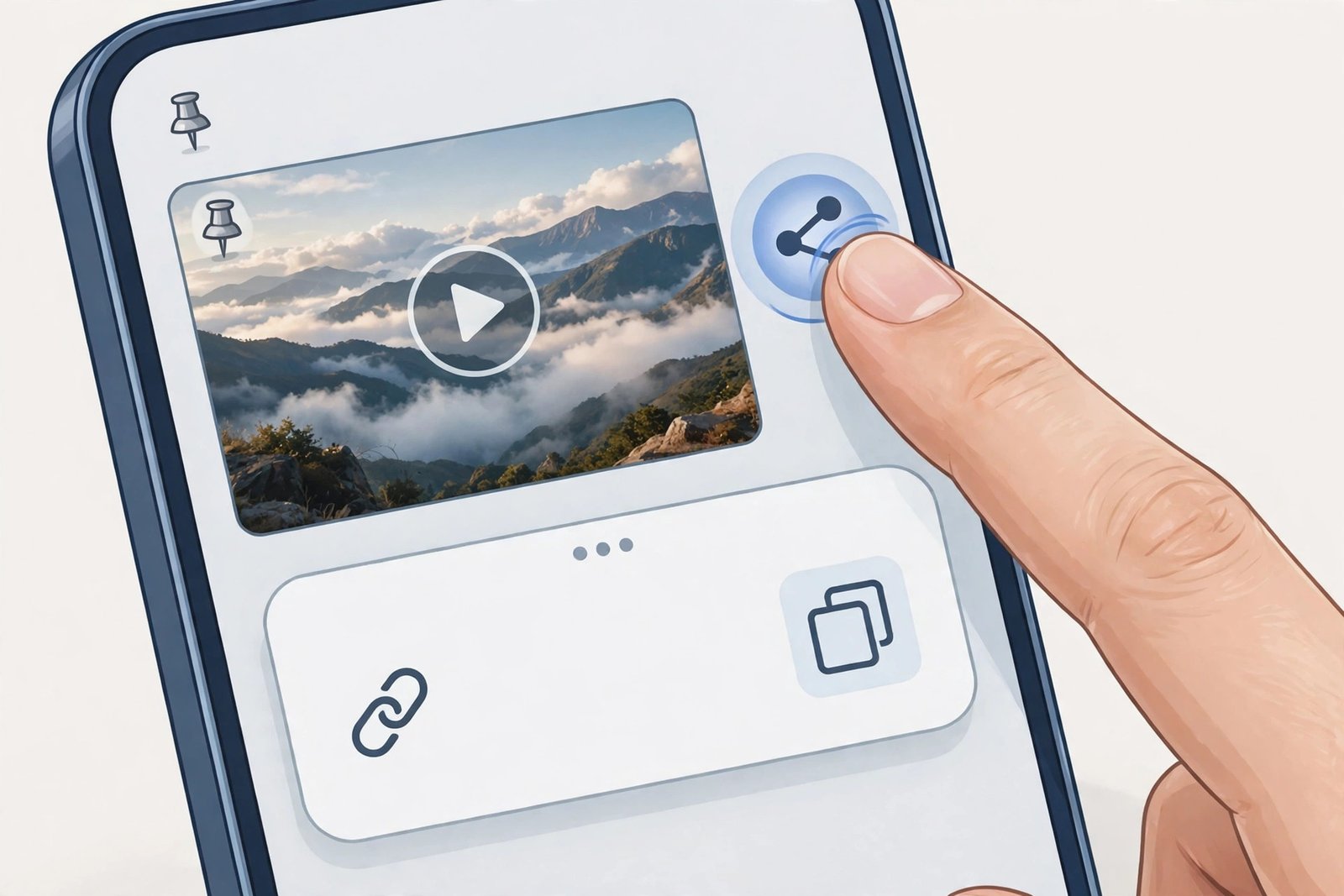
Open the video pin in the Pinterest app or on pinterest.com. Tap the Share button (the arrow) or the three-dot menu, then choose Copy link. On a desktop browser you can also just copy the URL from the address bar — but make sure it is the link to one specific pin, not a board or a profile page. A board link will not give you a single video; a pin link will.
Step 2: Download the actual MP4 file
Pinterest does not offer a download button for most video pins, so this is the step where a downloader earns its keep. Open PintoDownload in your browser, paste the link into the box, and download the video in the best quality offered — usually up to 720p HD, sometimes higher if the creator uploaded it that way. No account, no app install, no watermark added. The file lands in your Downloads folder as an MP4, which is the format OneDrive, Windows, Android, and iOS all play without fuss.
One honest note: a downloaded file can only be as good as what the creator uploaded. If a pin was posted small or soft, no tool can sharpen it. What you get from PintoDownload is Pinterest’s source file exactly as served, with sound included — which is also why you should check the video plays once before you upload it. A ten-second playback check now saves you discovering a broken file months later when the pin is gone.
Step 3: Name it like you will need to find it
This sounds fussy. It is the difference between a library and a junk drawer. Before uploading, rename the file from whatever the downloader gave it to something descriptive: morning-yoga-15-min.mp4, garlic-butter-pasta-recipe.mp4, bookshelf-diy-measurements.mp4. Do it now, while you still remember what the video is. In six months, video_8472.mp4 tells you nothing, and you will re-download things you already own.
Step 4: Upload it to OneDrive
Pick the route below that matches your device. They all end in the same place: the file in your OneDrive, synced everywhere.
Upload Route 1: The OneDrive App (iPhone and Android)
This is the route most people will use, and it is the simplest — the standard way to save Pinterest videos to OneDrive from a phone. Install the OneDrive app and sign in with your Microsoft account, then:
- Open the OneDrive app and go to the folder where you want the video (create a Pinterest Videos folder first if you have not already — tap the + button, then Create folder).
- Tap the + button and choose Upload, then Videos (or Files, then browse to your download).
- Pick the MP4 you downloaded. The upload starts immediately; a progress bar shows in the app.
- Wait for the checkmark before you close the app. On a slow connection, a big file uploaded halfway does not count — let it finish.
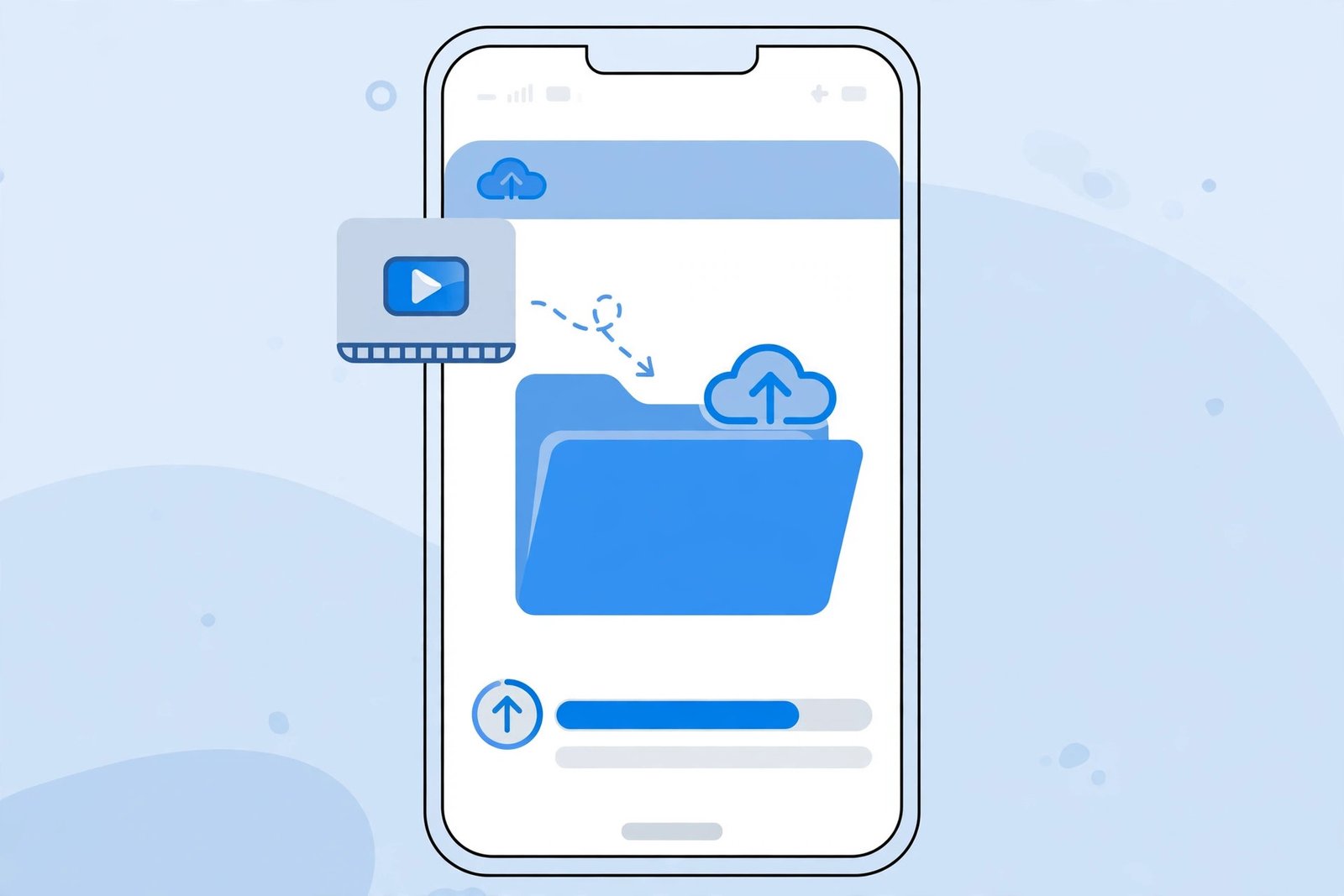
Two practical details. First, OneDrive uploads over mobile data by default only if you allow it — if a large video seems stuck, check you are on Wi-Fi or that the app’s “upload using mobile data” setting is on. Second, on iPhone the downloaded MP4 first lands in the Files app, not Photos. That is normal: Safari and Chrome save downloads to Files, and the OneDrive app picks the file up from there. If you want the video in your camera roll as well, open it in Files, tap Share, then Save Video — but that is a copy, not a move, so it costs you storage twice.
Upload Route 2: The OneDrive Folder on Windows (the Fastest Route)
If you use a Windows PC, this is the route I actually recommend, because it removes a step entirely. OneDrive is built into Windows 10 and 11: there is already a OneDrive folder in File Explorer, and anything you drop into it syncs automatically.
- Download the video with PintoDownload as above.
- Open File Explorer and find the OneDrive folder in the left sidebar (it carries a blue cloud icon).
- Drag the MP4 into your Pinterest Videos folder inside OneDrive — or, better, set your browser to ask where to save each download and point it straight at that folder, so there is no dragging at all.
- Watch for the sync icons: a blue spinning arrow means uploading, a green tick means it is safely in the cloud.
The green tick matters. Files in the OneDrive folder can look “there” while they are still uploading, and if you shut the laptop mid-upload you will find a half-synced file on your phone later. Wait for the tick on anything longer than a minute or two. The same folder then shows up, identical, on your phone’s OneDrive app and at onedrive.com — that is the whole point.
Upload Route 3: Onedrive.com in a Browser (Any Computer, Including Mac)
On a Mac, or any computer where you do not want to install the OneDrive app, the website does the job:
- Go to onedrive.com and sign in with your Microsoft account.
- Open (or create) your Pinterest Videos folder.
- Click Upload, then Files, and pick the MP4 from your Downloads folder.
- Leave the tab open until the upload finishes — closing it early cancels the transfer.
This route is also the one to use when you are on someone else’s computer: nothing is installed, nothing is left behind except the file in your cloud, and you sign out when you are done. One warning for Mac users — Safari sometimes opens a downloaded MP4 in a preview tab instead of saving it. If that happens, right-click the video and choose Download Linked File, or switch to Chrome for the download step.
Watching Your Videos Anywhere (and Offline)
Once a video is in OneDrive, watching it is the easy part. Open the OneDrive app on any device, tap the file, and it streams — no Pinterest login, no pin that might have been deleted, no hunting through boards. On Windows it opens in your default media player straight from the synced folder, which means it also plays with no internet at all once synced.
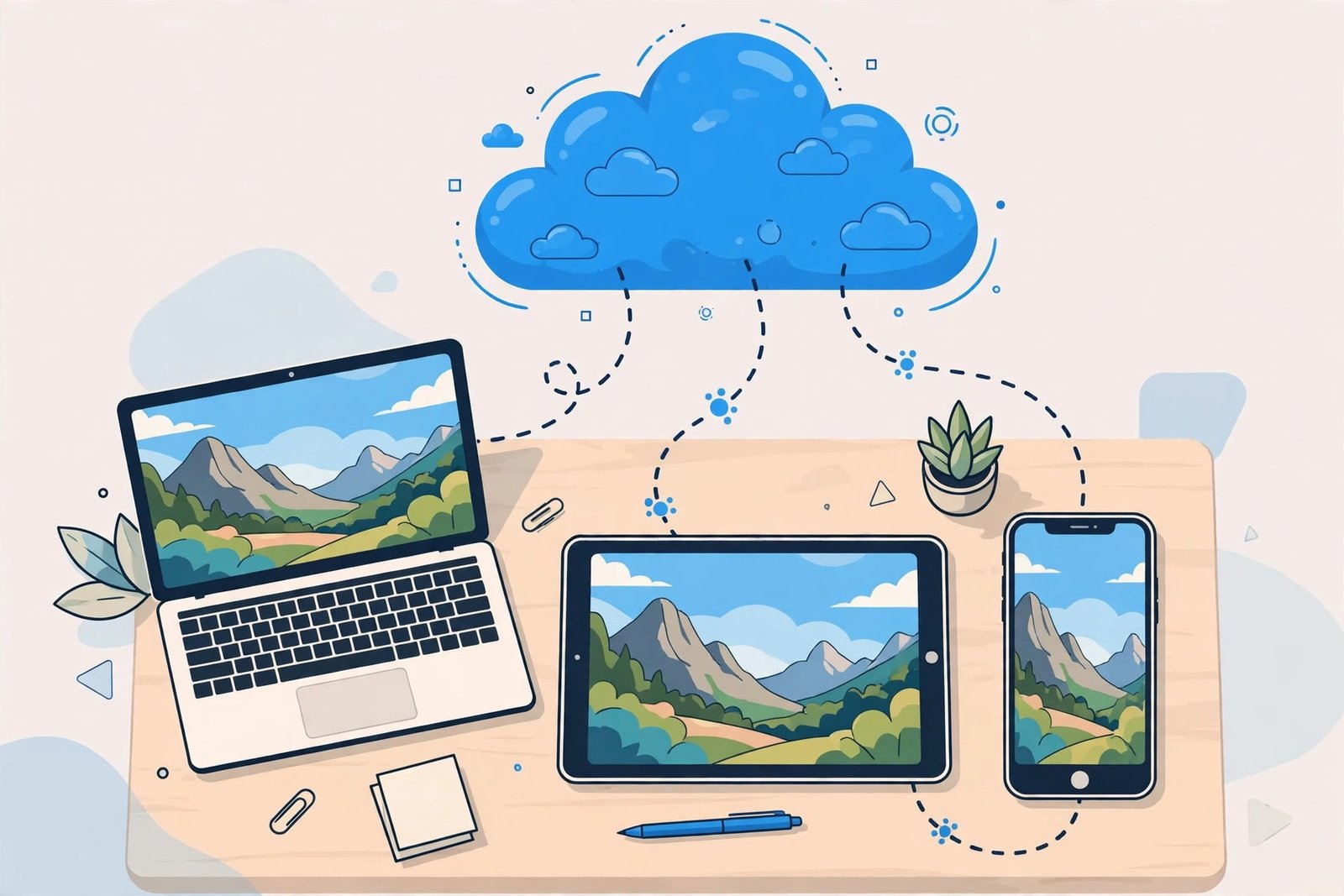
For genuinely offline viewing — a flight, a commute with dead zones — mark the file “Available offline” in the OneDrive app before you leave Wi-Fi. On iPhone and Android, long-press the file and choose Make available offline; on Windows, right-click and choose Always keep on this device. Otherwise OneDrive may keep only a placeholder on your phone and try to stream the rest when you press play, which fails exactly when you need it most. This is the single most common “my video won’t play” complaint, and it is a settings issue, not a broken file.
OneDrive vs Google Drive vs iCloud vs Dropbox for Pinterest Videos
Every cloud service does this job, but they are not interchangeable — the right one depends on the devices you already own. Here is the honest comparison, including the free-storage numbers that actually decide it:
| Service | Free storage | Best for | Watch out for |
|---|---|---|---|
| OneDrive | 5 GB | Windows PCs, Microsoft 365 users | Free 5 GB shared with Outlook attachments |
| Google Drive | 15 GB | Android phones, Gmail users | 15 GB shared with Gmail and Google Photos |
| iCloud | 5 GB | iPhone, iPad, Mac owners | Device backups eat the 5 GB fast |
| Dropbox | 2 GB | Simple sharing, any device | Smallest free plan of the four |
If you are choosing purely on free space, Google Drive’s 15 GB wins and it is not close — I covered that route in my guide to saving Pinterest videos to Google Drive. If you are on Windows or already pay for Microsoft 365, OneDrive wins on convenience: the folder is already in File Explorer, the 1 TB plan removes the storage question entirely, and Personal Vault gives you a second, identity-checked folder for anything private. iPhone owners should read my iCloud guide before committing, because iCloud’s 5 GB is under the most pressure from backups. And if sharing links matters more than space, the Dropbox guide covers the service with the cleanest sharing — just on a smaller free plan.
The deeper point: pick one home and stick with it. Videos scattered across OneDrive, Drive, iCloud, and a phone gallery are worse than videos in any single one of them, because you will never remember which service holds which clip. If OneDrive is your home, make it the only home.
Organising a Library You Can Actually Find Things In
A flat folder with 400 MP4s is a junk drawer with a cloud logo on it. The system that survives real use is boring and small: one top folder, a handful of subfolders by topic, and descriptive filenames. Mine looks like this:
- Pinterest Videos / Recipes — cooking, baking, meal prep.
- Pinterest Videos / Home & DIY — builds, repairs, organisation.
- Pinterest Videos / Fitness — workouts, yoga, form guides.
- Pinterest Videos / Style — outfits, hair, makeup tutorials.
- Pinterest Videos / To Try — unsorted, reviewed monthly, moved or deleted.
The To Try folder is the trick. New downloads go there first, not straight into the “real” folders, because half of what you save in a burst of enthusiasm you will never watch again. Once a month, spend ten minutes moving the keepers into their topics and deleting the rest. That monthly pass is also what keeps you inside the free 5 GB: without it, the folder only ever grows, and one day uploads start failing and you will not know why.
One more organisational habit worth stealing: keep a short text note in the folder — sources.txt — with the original pin link next to each video’s filename for anything you might ever want to credit. It costs nothing, and it turns a legally grey folder into one where you can always find the creator. Which brings us to the part every guide has to say out loud.
Is It Legal to Save Pinterest Videos to OneDrive?
Short version: saving a video for your own private viewing is widely treated as personal use; reposting it, editing it into your own content, or selling it is not. The creator owns the video, and downloading it does not transfer any rights. Keep downloads private, do not upload them anywhere public, and if you ever want to use a clip in your own project, ask the creator first — a short message on Pinterest usually gets an answer, and a yes in writing ends the question. I go deeper on the legal lines in my guide on whether downloading Pinterest videos is legal, including the difference between personal copies and redistribution.
OneDrive adds one wrinkle worth knowing: its Personal Vault folder, protected by an extra identity check, is the right place for anything you would not want visible if someone borrowed your phone unlocked. Regular OneDrive folders open with the app; the Vault asks again. Use it for the small handful of clips that are genuinely private, not for everything — that is what it is designed for.
Troubleshooting: When Saving Pinterest Videos to OneDrive Goes Wrong
| Problem | Most likely cause | Fix |
|---|---|---|
| Upload fails or stalls | OneDrive is full (remember the shared 5 GB) | Check storage at onedrive.com, delete old files or clear large email attachments, retry |
| Video won’t play on your phone | Only a placeholder synced, not the file | Mark it “Available offline” on Wi-Fi, then play it |
| Downloader shows no video | You pasted a board or profile link, not a pin link | Open the single pin and copy that link; see also Pinterest video not downloading fixes |
| File lands in Files, not Photos (iPhone) | Normal Safari/Chrome behaviour | Upload from Files to OneDrive, or Share > Save Video for a camera-roll copy |
| Video quality looks worse than on Pinterest | The pin itself was uploaded at low quality | Nothing to fix — downloaders return the source file as served; pick the highest quality offered |
| Half-synced file on a second device | Laptop closed mid-upload | Wait for the green tick in File Explorer before shutting down |
What Competitors Get Wrong About This Topic
I read the top-ranking guides before writing this one, and the gap is striking: almost none of them is actually about OneDrive. They are general “how to download Pinterest videos” guides that mention cloud storage in a single line — “consider backing up to Google Drive, Dropbox, or OneDrive” — and then move on. None of them walks through the three upload routes, none of them warns you that the free 5 GB is shared with Outlook attachments, and none of them explains the offline-placeholder problem that causes most “my video won’t play” complaints.
That is why this guide is structured the way it is: download first, then the upload route for your actual device, then the storage maths, then the organisation system that keeps the whole thing working a year later. If you only need the quick version, the four steps near the top are the whole method. Everything after them is what stops it breaking later — and that is the part worth reading once.
Frequently Asked Questions
Can I save Pinterest videos directly to OneDrive without downloading first?
No — Pinterest has no “send to OneDrive” button. You download the MP4 file first (with a tool like PintoDownload), then upload that file to OneDrive. It is two steps, but each one takes under a minute once you know where the buttons are.
How much free space does OneDrive give me for Pinterest videos?
5 GB with a free Microsoft account, shared with Outlook.com attachments and Microsoft 365 app files. A typical HD Pinterest video is 10–50 MB, so the free plan holds roughly a hundred short clips before you need to tidy up or upgrade to 100 GB or 1 TB.
Will my OneDrive videos survive if the Pinterest pin is deleted?
Yes. Once the MP4 is in your OneDrive, it is your file — deleting the pin, the creator closing their account, or Pinterest changing its rules cannot touch it. That is the entire reason to download instead of just saving pins to a board.
Can I watch OneDrive videos on my TV?
Yes, in two easy ways: cast from the OneDrive app on your phone to a Chromecast or AirPlay-compatible TV, or open onedrive.com in the TV’s browser and play the file there. For regular TV watching, the Windows route is smoothest — play the synced file from the OneDrive folder on a PC connected to the TV.
Do downloaded Pinterest videos have a watermark?
Not when you download the source file. PintoDownload returns Pinterest’s own file with nothing added, and OneDrive does not watermark uploads. If a video arrives with a watermark, it was burned into the original upload by the creator, and no downloader can remove it.
The Bottom Line
To save Pinterest videos to OneDrive: copy the pin link, download the MP4 with PintoDownload, rename it something you will recognise, and upload it through the app, the Windows folder, or onedrive.com. Keep the library under 4 GB on the free plan, mark files available offline before a trip, and run a ten-minute tidy-up once a month. Do that, and your Pinterest videos stop being bookmarks that can vanish — they become a library that is actually yours, on every device you own. If you want the same method for your phone’s gallery instead, my guide to saving Pinterest videos to your gallery covers it, and iPhone owners can start with downloading Pinterest videos on iPhone for the device-specific steps.