
Save Pinterest Videos to X (Twitter): Free Guide 2026
A few weeks ago I watched a 29-second soap-making video blow up on X. It had 40,000 views by lunchtime, hundreds of quote posts, and a reply thread full of people asking for the recipe. The video had started life as a Pinterest Pin. Whoever posted it to X had done the hard part — getting the file off Pinterest — and then, in the rush, skipped the easy part: nobody could tell who made it. No credit, no link back to the Pin, no creator name anywhere. The original maker found out from a stranger’s DM. That is the whole job in one story, and it is also why most guides on how to save Pinterest videos to Twitter are only half a guide: they stop at the download and never tell you what happens after the file lands on your phone.
There is no button for this anywhere. Pinterest will not send a video to X, and X will not fetch a video from Pinterest. So you do it in two parts: first you pull the real MP4 file off Pinterest, then you upload that file to X as a native video post. This guide covers both halves the way they actually work in 2026 — the download, the upload on desktop and on the app, the 2-minute-20-second wall that catches almost everyone, and the credit rules that decide whether your post gets shared or reported.
The short version: open the video Pin, tap Share, copy the link, paste it into PintoDownload, download the MP4, then open X, hit Post, attach the video, write your text with credit to the creator and a link to the original Pin, and post. The full steps — with the file-size and timing numbers I measured — are below.
Why Saving a Pinterest Video to Twitter Is Trickier Than It Looks
Pinterest and X were never built to talk to each other. Pinterest wants you to keep videos inside Pinterest, on a board, where the creator keeps the traffic. X wants videos uploaded straight into X, hosted on X’s own servers, where they autoplay in the timeline without anyone leaving the app. There is no share sheet that connects the two, and no “Post to X” option anywhere in the Pinterest app.
That leaves you with a two-part job, and most guides only cover one half. The download half is easy once you know the trick. The X half is where people get stuck, because X has rules that Pinterest videos routinely break — and because X’s users are far less forgiving than any other audience about reposted content:
- The 2:20 wall. A free X account can only upload videos up to 140 seconds long. Pinterest allows video Pins up to 15 minutes. Most video Pins are short — the one I tested was 29 seconds — but the long ones will be rejected unless you trim them, split them into a thread, or pay for Premium.
- The format check. X accepts MP4 or MOV, ideally H.264 video with AAC audio. Pinterest serves exactly that, so a clean download needs no conversion — but a screen recording saved in the wrong format will fail with X’s least helpful error message, “Your video file could not be processed.”
- The credit problem. Downloading strips the Pin’s context. On Pinterest the video sits next to the creator’s name, their board, and a link to their site. On X it is just a file. If you post it without credit, it reads as theft — and X’s copyright system will take it down if the creator reports it.
- The shape mismatch. Pinterest video Pins are usually vertical 9:16. X plays vertical video fine in the timeline, but a 9:16 clip looks very different in a feed built around horizontal media, and the wrong crop can cut off text baked into the video.
None of this is hard once you see it laid out. The whole job takes under two minutes when the file is short — I timed it — and this guide walks through it exactly as I did it, with the real numbers from my own test.
The File I Tested (and What X Actually Accepts)
I do not trust guides that describe a process nobody ran. So before writing a word of the steps, I ran the full flow myself on a real public video Pin — a DIY milk-and-honey soap video, https://www.pinterest.com/pin/653233120954325160/ — and measured every step. Here is what came back, with the stopwatch running:
- Homepage load: https://pintodownload.com/ returned HTTP 200 in about 2.0 seconds.
- Tool run: pasting the Pin link into PintoDownload and hitting download returned a preview plus a direct MP4 link from Pinterest’s own CDN in about 2.4 seconds.
- File download: the MP4 itself — 4,112,336 bytes, about 3.9 MB — landed on disk in about 3.1 seconds on a normal home connection.
- File specs (ffprobe): H.264 video + AAC audio, 720×1440 (9:16 vertical), 29.23 seconds long, 29.97 fps.
- Total, paste link to file on disk: under 10 seconds.
Now compare that file with what X allows. A free X account accepts MP4 or MOV up to 140 seconds and 512 MB, at up to 1920×1200 resolution, up to 60 fps, with an aspect ratio anywhere between 1:3 and 3:1. My test file is 29.23 seconds (well under 140), 3.9 MB (a rounding error against 512 MB), H.264/AAC (exactly what X recommends), and 9:16 vertical (inside the allowed ratio range). It uploads as-is. No conversion, no re-export, no quality loss from a second encode.
That is the normal case. The average Pinterest video Pin is 15 to 60 seconds long, which is why most people never hit the wall. But the wall is real for the exceptions, and the limits table in Step 3 below is the part to read before you post anything longer than two minutes.
Step 1: Copy the Link from the Video Pin
Everything starts with the Pin’s link. Open the video Pin in the Pinterest app or on pinterest.com and look for the Share button — on the app it is the arrow icon at the bottom right of the Pin; on desktop it sits under the video, next to the three-dot menu. Tap or click it, then choose Copy link. The link looks like pinterest.com/pin/653233120954325160/, or a short pin.it link if you copied it from the app. Both work.
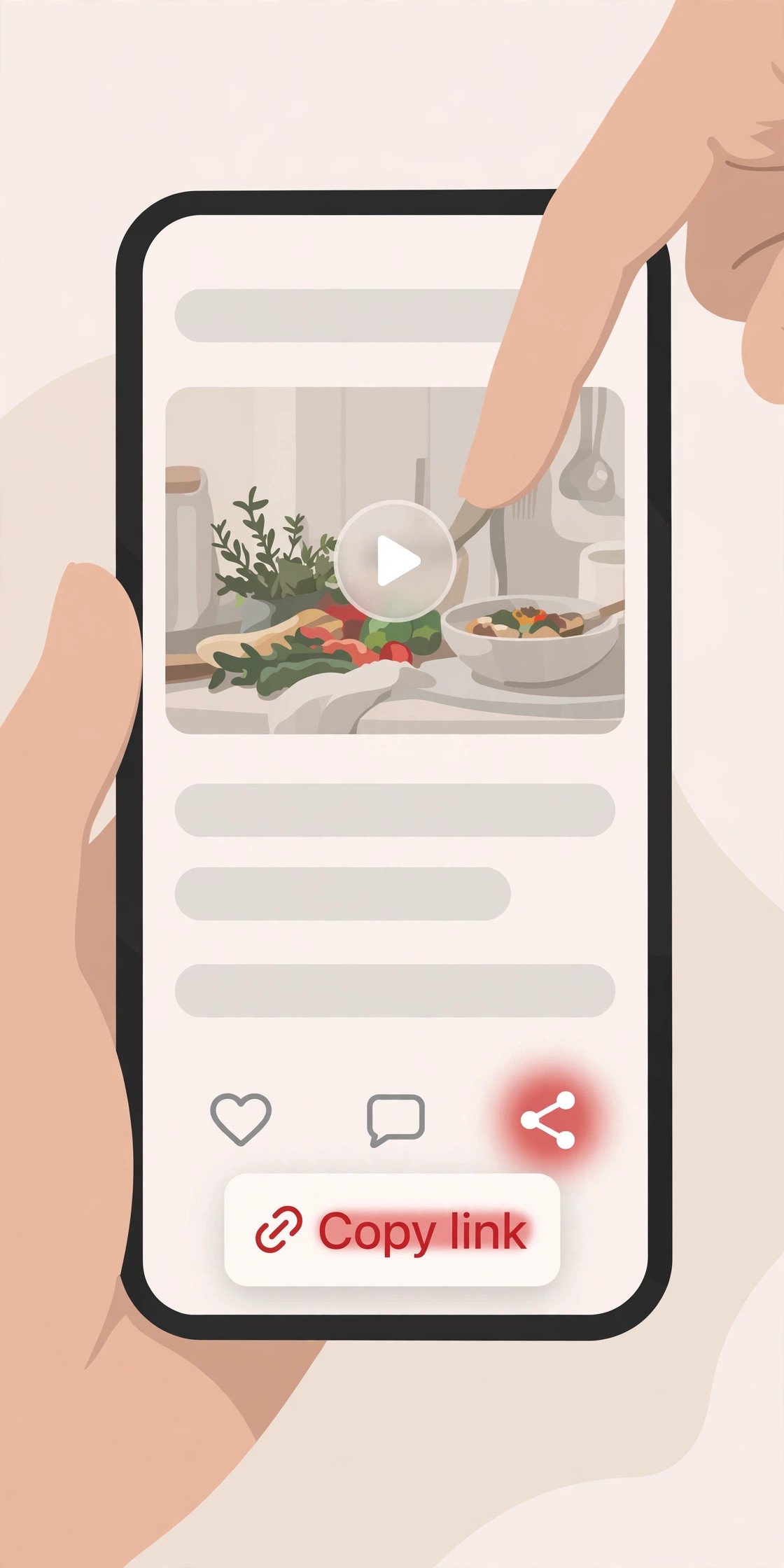
Two things worth knowing at this step. First, the link has to be for one Pin, not a board — a board link will not give you a single video file. Second, the Pin has to be public. A Pin on a secret board, a private board, or an account that needs a login will not work with any downloader, because there is no public file to fetch. If the Pin plays fine while you are logged out, it will download fine.
One more thing I check every time: make sure the Pin is actually a video Pin and not a static image with a play-looking thumbnail. Pinterest merged the Pin and Idea Pin formats in 2023, so a Pin that looks like a photo can behave like a video post, and a video Pin can look like a still image in a small feed. Tap it and watch it play for two seconds. If it moves, you have the right thing.
Step 2: Download the MP4 with PintoDownload
With the link copied, open PintoDownload in your browser — phone or computer, it does not matter, the page works the same on both. Paste the link into the box on the homepage and hit download. The tool reads the public Pin and hands you the real video file from Pinterest’s own servers, as an MP4, in the resolution the Pin was uploaded in. No account, no app install, no Pinterest login, and no watermark added to the file.
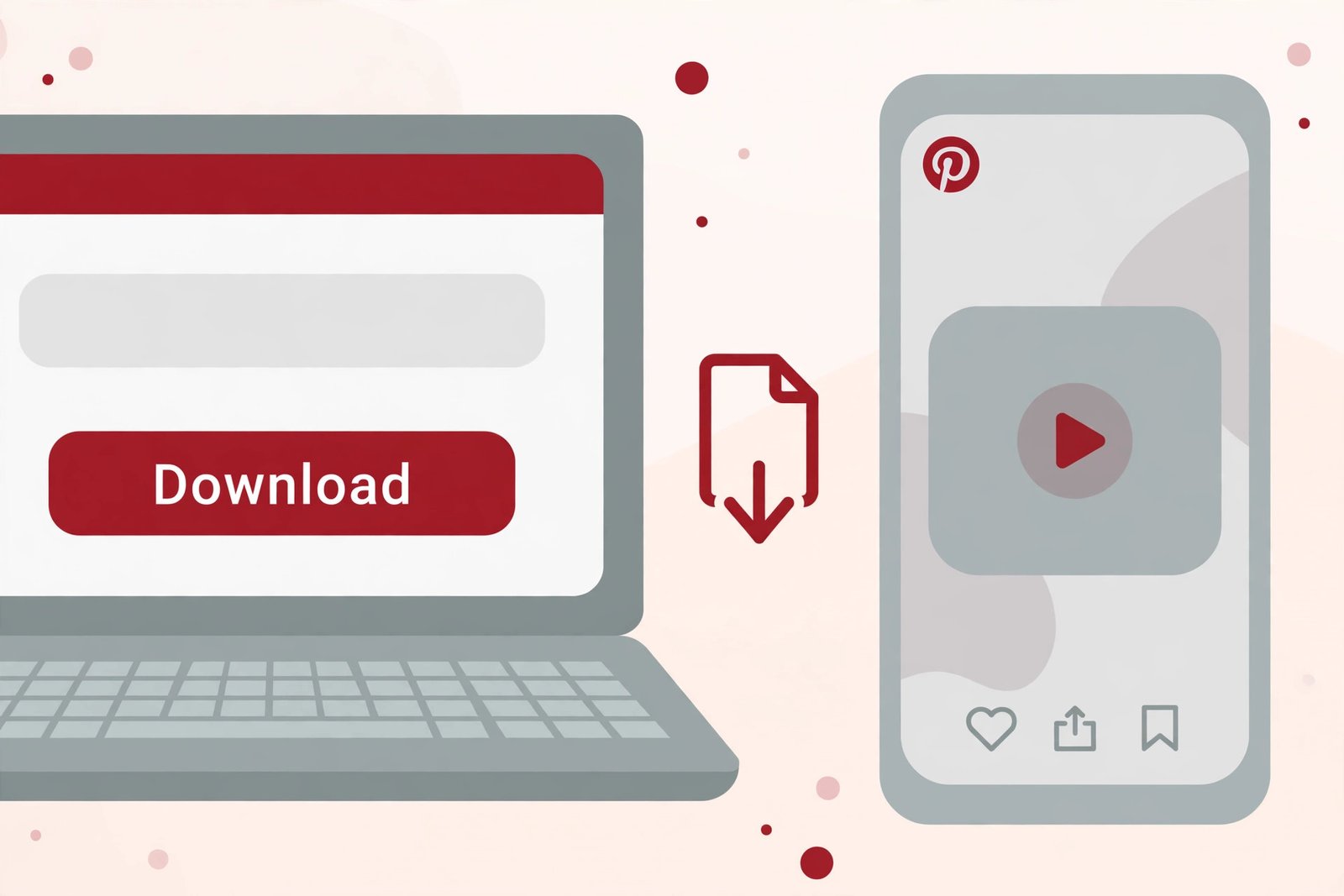
Check the preview before you save. The tool shows you the video it found, so you can confirm it is the right clip and not a different Pin from the same board. Then save the MP4. On a phone it lands in Downloads (on iPhone, Safari may put it in Files first — open it there and choose Save Video if you want it in Photos). On a computer it goes straight to your Downloads folder.
Why I use this route instead of the alternatives: the Pinterest app’s own download button only works on some video Pins, only on mobile, and it stamps the creator’s username across the video as a watermark. Screen recording works on anything, but it captures the player chrome, the notifications, and whatever else is on screen, and it re-encodes the video at your screen’s resolution instead of giving you the original file. A clean MP4 straight from Pinterest’s CDN is the original quality, with the original sound, and it is the file X’s uploader is happiest with.
If you want the same flow for still images rather than video, the site’s Pinterest image downloader does the same job for image Pins — same paste-the-link flow, full-size originals.
Step 3: Check Your File Against X’s Limits Before You Upload
This is the step everyone skips, and it is the step that saves you from X’s most confusing error. Before you save Pinterest videos to Twitter, check three numbers on your file: length, size, and format. On a phone, open the video in your gallery and look at its details. On a computer, right-click the file and check Properties (Windows) or Get Info (Mac). Then compare with this table:
| Limit | Free X account | X Premium (any paid plan) |
|---|---|---|
| Maximum length | 140 seconds (2:20) | Up to 4 hours on x.com and iPhone; up to 10 minutes on Android |
| Maximum file size | 512 MB | 16 GB (X’s own pages disagree — one says about 3 hours / 8 GB; stay under 8 GB to be safe) |
| Formats | MP4, MOV | MP4, MOV |
| Recommended encoding | H.264 video, AAC audio, 30 or 60 fps | Same |
| Max resolution | 1920×1200 | 1920×1200 (videos over 2 hours must be 720p) |
| Aspect ratio | Between 1:3 and 3:1 | Same |
Three traps hide in that table. First, the Android cap: even with Premium, the Android app stops at 10 minutes — for anything longer, upload from x.com or the iPhone app. Second, X’s own help pages do not fully agree on Premium limits (the longer-videos page says 4 hours and 16 GB; the Premium overview still says about 3 hours and 8 GB at 1080p), so if a very large upload fails, getting it under 8 GB is the safe move. Third, the length limit is a hard wall for free accounts — there is no setting that raises it, and the error X shows does not explain itself.
My test file passed every row of the table without touching an editor: 29.23 seconds against a 140-second cap, 3.9 MB against a 512 MB cap, MP4 with H.264/AAC, 720×1440 inside the ratio range. If your file looks like that — and most Pinterest video Pins do — skip ahead to Step 4. If it is over 2:20, read the “longer than 2:20” section below before you upload.
Step 4: Post the Video on X from Your Computer
Desktop is the most reliable way to save Pinterest videos to Twitter, because you can see the full composer, the file details, and the download toggle in one place. Here is the exact flow:
- Go to x.com and sign in.
- Click the compose box at the top of your timeline, or the Post button in the left sidebar.
- Click the media (gallery) icon below the text box and choose your MP4 file. X warns you immediately if the format is not supported — better to find out here than after writing your post.
- Wait for the upload bar to finish. Do not close the tab while it is still processing; a very large file can take a minute or two even on a fast connection.
- Write your post text. Put the key point in the first line, because that is what shows in the timeline before the “show more” cut. Add credit to the creator and a link to the original Pin — the credit section below has the exact wording I use.
- Decide on the “Allow video to be downloaded” toggle. Since July 2023, Premium subscribers can download videos from posts unless the uploader turns this off while composing. If the video is someone else’s work and you would rather it not be passed around further, switch it off before posting.
- Click Post.

Two details that matter more than they look. First, the video does not count toward your post’s character limit, so you get the full 280 characters (or your Premium limit) for the text on top of the video. Second, X lets you attach up to 4 media items to one post — so if the Pin came with a set of still images too, you can attach the video plus a couple of frames as photos in the same post. One video per post is the practical limit, though; a second video in the same post is not allowed.
If you are posting the same clip to more than one platform, post to X first and check it plays cleanly before you move on. X re-encodes every upload and adjusts streaming quality to the viewer’s connection, so a file that looks sharp on your computer can look soft in the timeline — and the only fix is uploading a cleaner, higher-bitrate original, not a file that was already compressed once by another app.
Step 5: Post the Video from the X App (iPhone and Android)
Most people will do this from their phone, since the file is already there. The flow is short, but the app hides one trap — the trimmer defaults to a short window, and it is easy to cut off the end of your video without noticing.
- Tap the + (Post) button.
- Pick the video from the thumbnails below the compose box, tap the photo icon to browse your gallery, or tap the camera icon to record a new one.
- To shorten it, drag either end of the bar at the bottom of the video, then tap Trim. Check the full length before you trim: the app can default to a 45-second window, and on a 60-second clip that silently drops the last 15 seconds unless you drag the handle out yourself.
- Tap play to preview. If the video looks wrong — wrong orientation, black bars, cut-off text — tap the X on the thumbnail to remove it and start over.
- Add your text, with the creator credit and the Pin link, and tap Post. To add the video to a thread instead, use the add-to-thread option.
On Android, remember the Premium cap: even with a paid plan, the Android app stops at 10 minutes. If your video is longer than that and you are on Android, upload from x.com in your mobile browser or from a computer instead. On iPhone the cap matches the web — up to 4 hours with Premium.
You can attach video to replies and quote posts the same way. When replying from your phone, the video reply option includes a hands-free mode that records up to 60 seconds — useful if you want to react to a Pin on camera rather than re-uploading the Pin itself, which is often the better choice anyway (see the credit section).
What to Do When the Video Is Longer Than 2:20
Pinterest allows video Pins up to 15 minutes long, and the longer ones — full tutorials, room tours, recipe walkthroughs — are exactly the videos people most want to share on X. If you want to save Pinterest videos to Twitter and the clip runs longer than 2:20, you have three honest options, and one bad one:
- Trim it to 2:20 or shorter. Cut the clip to its best 140 seconds in your phone’s editor or the X app’s trimmer before you upload. Most viral content on X performs best under 60 seconds anyway — completion rate is one of the strongest signals in X’s algorithm, and a tight 60-second cut of a 5-minute tutorial will usually outperform the full version.
- Split it into a thread. Cut the video into 2:20 chunks and post them as a thread, one clip per post, numbered 1/3, 2/3, 3/3. Viewers can watch the whole thing in order, and each clip gets its own chance in the timeline. This is the best option when the video is a tutorial people need in full.
- Upgrade to X Premium. Any paid plan raises the cap — up to 4 hours on x.com and iPhone, 10 minutes on Android. Only worth it if you post long video regularly; do not pay for a month just to move one Pin.
- The bad option: post the link and hope. Pasting a Pinterest link into X does show a link card, but link posts get a fraction of the reach of native video, and the card sends people away from X, which the algorithm does not reward. If the video matters, upload the file.
If the video is only slightly over the limit — say 2:40 — trim the intro and the outro. Pinterest videos usually open with a slow title card and close with a follow-me screen; cutting those two pieces alone often brings a 3-minute video under the wall without losing a second of the actual content.
All the Ways to Save Pinterest Videos to Twitter, Compared
There are three ways a Pinterest video can end up on X, and they are not equal. The right one depends on what you are trying to do — drive traffic to the creator, get the most views, or add your own take. Here is how they compare:
| Method | How it works | Reach | Creator gets | Best for |
|---|---|---|---|---|
| Native upload | Download the MP4, upload the file to X | Highest — autoplays in the timeline | Nothing automatically — credit depends on your text | Your own videos, or videos you have permission to share |
| Link post | Paste the Pin URL into a post; X shows a link card | Lowest — link posts are deprioritised | The traffic — clicks go to the Pin | Sharing someone else’s work respectfully |
| Quote post | Quote an existing X post that already has the video | Good — your words travel with their video | Attribution built in — their post stays attached | Adding commentary to a video already on X |
My rule of thumb: if the video is yours, upload it natively. If it is someone else’s and you have their permission, upload it natively with credit and the Pin link in the text. If it is someone else’s and you do not have permission, post the link — or better, quote-post it if it is already on X. The native upload gets the views, but the link post is the one that sends the creator the traffic, and that trade-off is the whole ethics of this guide in one table.
The Credit Rules: How to Repost Without Getting Flagged
This is the part no tool guide covers, and it is the part that decides whether your post stays up. The person who filmed or edited a video owns its copyright the moment they create it, even when they post it publicly. Posting a video publicly does not give up those rights. Downloading a clip for yourself is one thing; re-uploading it to X as a native video is publishing it again, and that needs either permission or a clear fair-use reason — commentary, criticism, news reporting, teaching. “I found it on Pinterest” is not a reason.
Here is what I do, and what has kept every repost I have made out of trouble:
- Ask first when you can. A short message to the creator — “Love this, can I share it on X with credit and a link to your Pin?” — gets a yes most of the time, and a yes turns a repost into a collaboration. Creators notice, and they remember who asked.
- Credit in the post itself, not in a reply. Put the creator’s name or handle and the words “via @creator on Pinterest” in the main post text, plus the link to the original Pin. Credit buried in a reply is invisible to everyone who sees the post in their timeline.
- Do not strip the watermark. If the video carries the creator’s username watermark — from Pinterest’s own download button, or baked into the video — leave it there. Removing it is the single fastest way to turn a harmless share into a copyright complaint.
- Do not monetise someone else’s video. Reposting for your own ad revenue, affiliate links, or a paid promotion is where the legal risk starts. Personal sharing with credit is low risk; commercial reuse without permission is not.
- Link the source Pin. The link costs you nothing and gives the creator the traffic. It also protects you: a post that links to the source reads as sharing, while a post with no source reads as claiming.
- If the creator asks you to take it down, take it down. No argument, no delay. X’s copyright system will remove it anyway if they file a report, and a takedown on your account counts against you.
If you want the full legal picture, my guide on whether downloading Pinterest videos is legal covers the same rules in more detail — the short version is that downloading for yourself is generally fine, and re-uploading someone else’s work without permission is where the line sits. The same principles apply on X’s side: X’s own help pages confirm that when people post, they keep ownership of their content and grant X a license to display it — that license is between the user and X, and it does not give anyone else the right to take the video and republish it. For the official wording, see the X Help Center and Pinterest Help Center.
One more habit worth building: save Pinterest videos to X only when the video adds something to X that is not already there. If the same video is already on X, quote-post it instead of re-uploading. Your words travel with their video, the creator keeps the views, and nobody has to wonder where the clip came from.
Troubleshooting: When the Upload Fails
Most failed uploads on X come from one of five causes, and four of them are fixable in under a minute:
- “Your video file could not be processed.” The file is in the wrong format or the wrong codec. Re-export it as MP4 with H.264 video and AAC audio. If you downloaded it with PintoDownload, the file is already H.264/AAC — so if you see this error on a clean download, the file was probably damaged by a second app that re-saved it. Download it again and upload the fresh file.
- The upload is rejected for length. You are over 140 seconds on a free account. Trim the video, split it into a thread, or upload from a Premium account. Check the actual duration in your gallery first — a video that “looks short” can easily be 2:45.
- The video looks blurry after posting. X compresses every upload and adjusts streaming quality to the viewer’s connection, so some softening is normal. The fix is upstream: upload a clean 1080p file at a healthy bitrate rather than a file that was already compressed by another app, and make any text in the video large in the frame so it survives the compression.
- The upload is stuck. Very large files take time to process. Keep the tab or app open, do not switch networks mid-upload, and if it still stalls, cancel and retry with a smaller export. A 3.9 MB file like my test clip uploads in seconds; a 400 MB file will not.
- The video will not autoplay. Autoplay is controlled by each viewer, not by you. In Settings and privacy, under Accessibility, display, and languages, then Data usage, the Video autoplay setting can be set to Wi-Fi only or Never. If a viewer turned it off, your video waits for a tap — nothing you can do from the upload side.
- PintoDownload returns no video. The Pin is probably private, on a secret board, or it was removed. Open the Pin while logged out of Pinterest: if it does not play there, no downloader can fetch it. If it does play, try the full pinterest.com link instead of a pin.it short link — the short link can occasionally resolve to the wrong Pin.
Frequently Asked Questions
Can I save a Pinterest video to Twitter for free?
Yes — to save Pinterest videos to Twitter for free, download the MP4 with PintoDownload — no account, no signup, no watermark — then upload it to X as a native video post. A free X account accepts videos up to 140 seconds and 512 MB, which covers most Pinterest video Pins. You only need to pay if the video is longer than 2:20 and you want to post it whole.
How long can a Pinterest video be on X?
On a free X account, 140 seconds (2 minutes 20 seconds). Pinterest video Pins can run up to 15 minutes, so longer Pins need trimming, a thread of shorter clips, or X Premium — which allows up to 4 hours on x.com and iPhone and up to 10 minutes on Android.
Do I need to convert a Pinterest video before posting it on X?
Almost never. Pinterest serves MP4 files with H.264 video and AAC audio, which is exactly what X recommends. My test file — 29.23 seconds, 720×1440, 3.9 MB — uploaded as-is with no conversion. You only need to convert if the file came from a screen recording saved in another format, or if it is over the length or size limit.
Is it legal to post a Pinterest video on Twitter?
Downloading a video for yourself is generally fine. Re-uploading someone else’s video to X without permission is where the risk sits: the creator owns the copyright even when the video is public. The safe way is to ask first, credit the creator in the post, link the original Pin, and never strip a watermark or monetise someone else’s work. If the creator asks you to take it down, take it down.
Why does X reject my Pinterest video?
The usual reasons are length (over 140 seconds on a free account), size (over 512 MB), format (not MP4 or MOV), or a codec X does not accept. Check the file’s duration and format first, re-export as MP4 with H.264/AAC if needed, and try again on a stronger connection. If the error says the file could not be processed, the file itself is the problem, not your account.
Can I post a Pinterest video to X from my iPhone?
Yes. Download the MP4 in Safari — it may land in Files first, so open it there and choose Save Video to move it to Photos — then tap the + button in the X app, pick the video, trim it if needed, add your text with credit, and post. Watch the trimmer: the app can default to a 45-second window and silently cut the end of a longer clip.
The Bottom Line
Saving a Pinterest video to Twitter is two jobs, not one, and the second job is the one that matters. The download takes ten seconds: copy the link, paste it into PintoDownload, save the MP4. The upload takes another minute: check the file against X’s limits, attach it in the composer, write your text. And the part that makes the post worth something — crediting the creator and linking the source Pin — takes ten seconds more and is the difference between sharing a video and stealing one.
To save Pinterest videos to Twitter well, keep the three numbers in your head: 140 seconds, 512 MB, MP4 with H.264 and AAC. If your file fits those three, it uploads cleanly. If it does not, trim it, split it into a thread, or post the link instead. And if the video is not yours, ask first — the creators who say yes are the ones worth sharing.
Moving Pinterest videos to other platforms too? The same two-part flow works everywhere — I have written it out step by step for Reddit and for Snapchat, where the limits, the steps, and the unwritten rules are all different.