How to Download Pinterest Images in HD (Full-Resolution Guide, 2026)
You found the perfect image on Pinterest — a wallpaper, a recipe photo, a design reference — and you hit download. Then you open the file and… it’s a blurry, pixelated mess. Sound familiar?

Here’s the thing: Pinterest almost always has a high-resolution version of that image sitting on its servers. Most people just never reach it. They grab the small feed thumbnail instead of the full-size file, or they screenshot a compressed preview, and they end up with a fraction of the quality the pin actually offers.
This guide fixes that. You’ll learn exactly how to download Pinterest images in HD — true full resolution — on your phone, tablet, or computer, with four proven methods ranked by quality. No tech skills required.
What “HD” Actually Means on Pinterest
Before we touch any download button, it helps to know how Pinterest stores images. When someone uploads a pin, Pinterest keeps the original file and generates several smaller versions for fast loading: tiny feed thumbnails (often around 236 pixels wide), medium previews, and the full-size original.
What you see scrolling through your feed is the small version. What you get when you tap a pin to open it is bigger. And the actual original upload — the HD file — is one more step away. That’s the version you want.
“HD” here simply means the highest resolution Pinterest has for that pin. For a photo uploaded from a modern phone or camera, that’s often 1080p, 2K, or even 4K. For an older pin uploaded years ago, the “HD” version might only be 800 pixels wide — because that’s all that was ever uploaded. The method matters, but so does the source: no downloader can invent pixels that were never there.
Why Your Pinterest Downloads Sometimes Look Blurry
If your saved Pinterest images keep coming out soft or blocky, one of these is almost certainly the reason:
- You saved the feed thumbnail. Long-pressing an image in the scrolling feed usually grabs the small preview version, not the full pin.
- You screenshotted it. Screenshots capture your screen’s resolution, plus Pinterest’s interface, plus compression — triple quality loss.
- You used “Save” and thought it downloaded. Pinterest’s Save button stores the pin to one of your boards inside Pinterest. It does not put a file on your device at all.
- The pin itself is low quality. Some pins are re-uploads of re-uploads. If the source file is 400 pixels wide, nothing will make it HD.
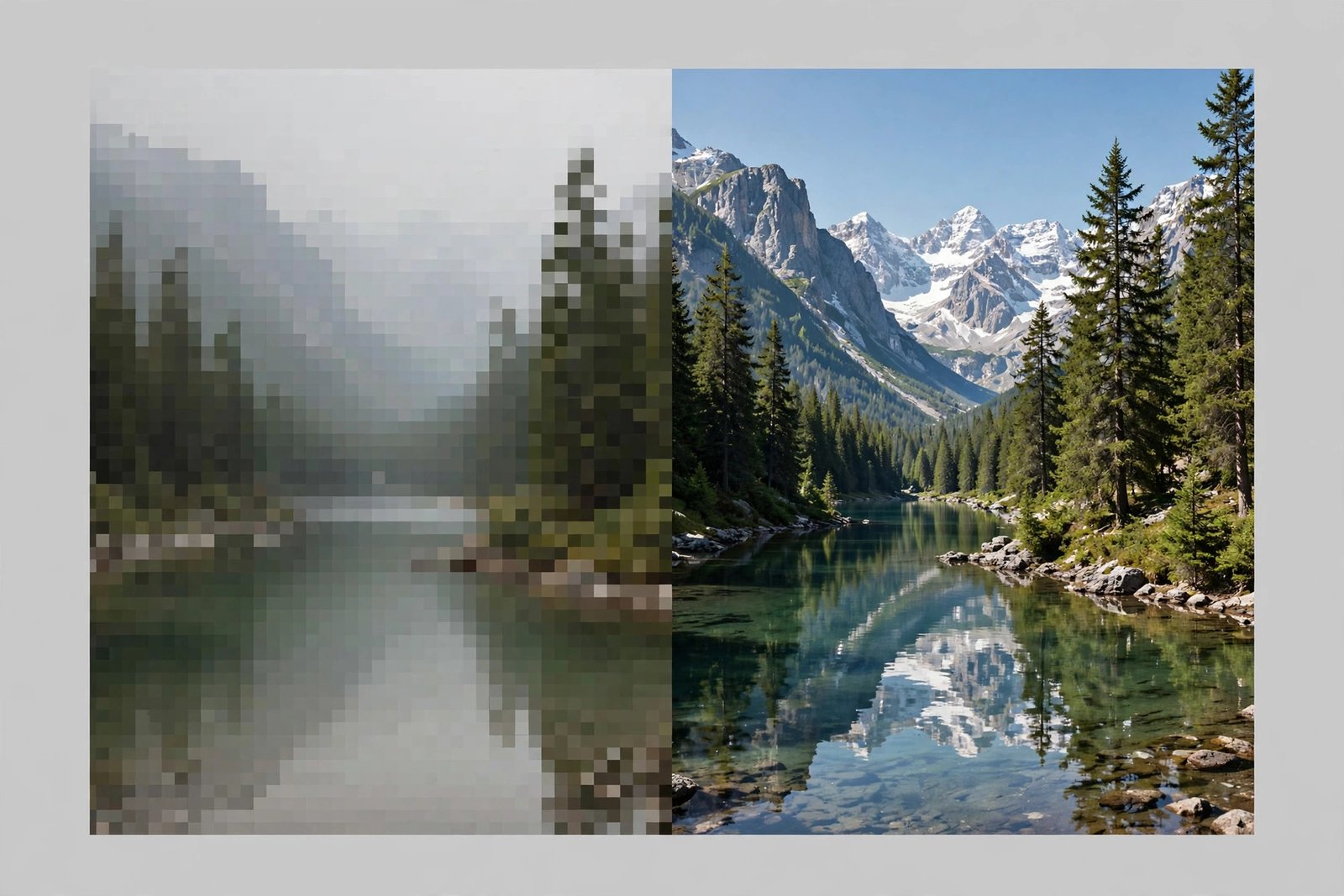
The good news: once you know where the full-resolution file lives, getting it takes about 30 seconds.
Method 1: Use an Online HD Image Downloader (Fastest and Easiest)
The most reliable way to download Pinterest images in HD is an online downloader that fetches the original file directly from Pinterest’s servers. PintoDownload does exactly this — it detects the highest-resolution version of any pin and lets you save it in one tap, with no app to install and no account to create.
Here’s how:
- Open Pinterest and find the image you want. Tap it so the pin opens in full view — this confirms you’re grabbing the right pin.
- Copy the pin link. On mobile, tap the Share icon and choose “Copy link.” On desktop, copy the URL from your browser’s address bar while the pin is open.
- Go to PintoDownload. Open https://pintodownload.com/ in your browser — it works on phones, tablets, and computers.
- Paste the link into the download box and hit the download button.
- Choose the HD/original quality option and save the file. That’s it — the full-resolution image downloads straight to your device.
Why this method wins: it skips every thumbnail and preview layer and pulls the source file Pinterest stored at upload. It works identically on iPhone, Android, Windows, and Mac, and you never have to install anything. Need video pins too? See our guide on downloading Pinterest videos in HD.
Method 2: Download the Original from Your Desktop Browser
If you’re on a computer and prefer doing things manually, your browser can get you the HD file too. The trick is making sure you’re saving the opened pin — not the feed preview.
- Click the pin to open it in Pinterest’s full view (the URL should show
/pin/...). - Click the image once more if Pinterest shows a zoomed or expanded view — you want the largest version on screen.
- Right-click the image and choose “Save image as…”.
- Check what you got. Before you close the tab, look at the file: on Windows, right-click the downloaded file, choose Properties, and check the dimensions under Details. On Mac, use Get Info. A true HD download will show dimensions like 1080×1350, 1920×1080, or larger.
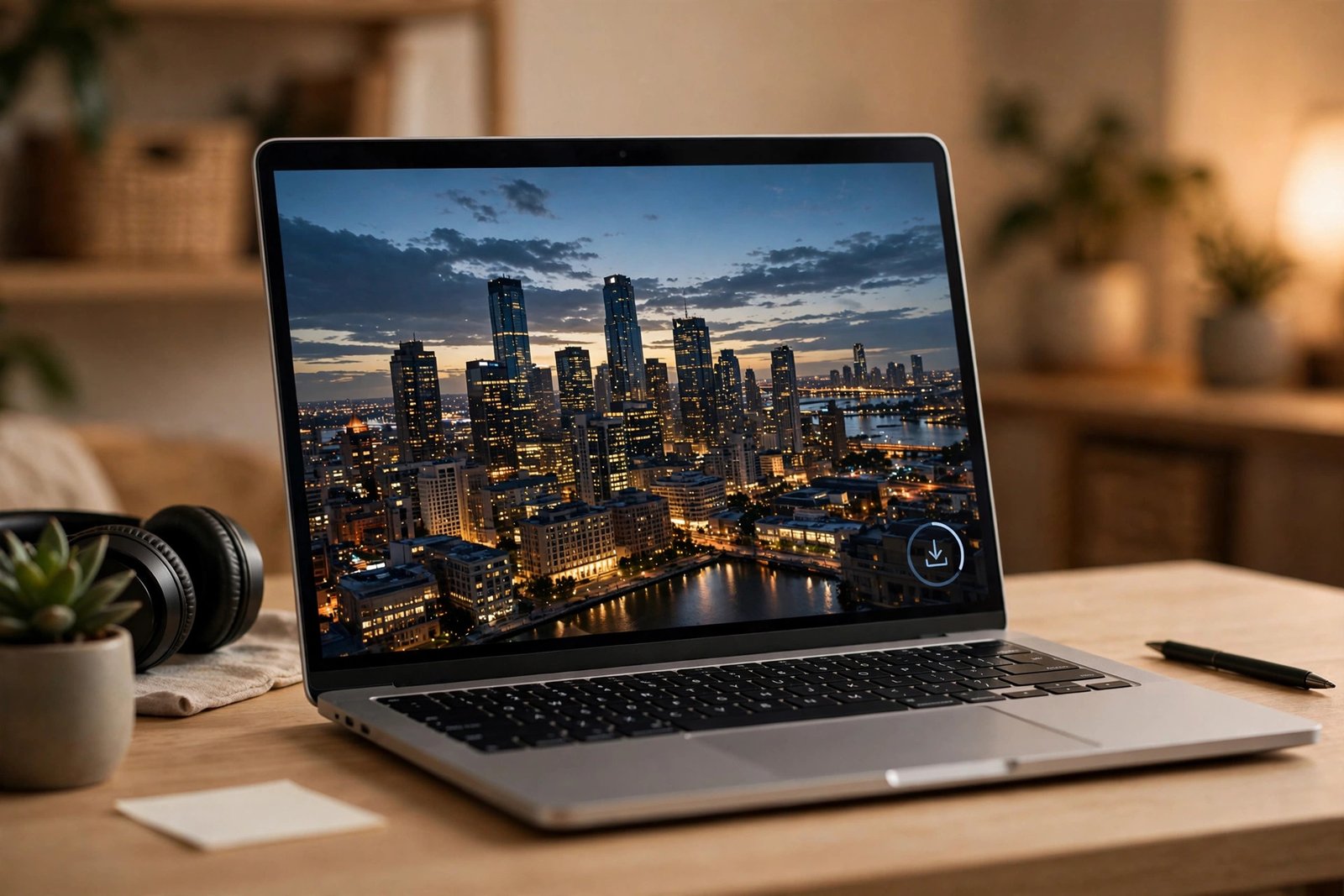
If the dimensions look small (under 600 pixels wide), you probably saved a preview. Go back, make sure the pin is fully opened, and try again — or switch to Method 1, which handles this automatically.
This method is free and needs no tools, but it’s a few clicks longer, and Pinterest’s interface changes occasionally, which can move things around.
Method 3: Save in Full Quality on Mobile (iPhone and Android)
On phones, the built-in options are a mixed bag, so the order of operations matters.
On iPhone:
- Open the pin in the Pinterest app (or in Safari).
- Tap the Share icon, then look for a download or “Save image” option.
- If the saved file looks soft, don’t settle — copy the pin link instead and run it through PintoDownload in Safari. The online tool consistently returns a sharper file than the in-app save.
On Android:
- Open the pin fully in the Pinterest app or Chrome.
- Long-pressing the image and choosing “Download image” grabs whatever resolution is currently displayed — so open the pin first, let the full image load, then long-press.
- For guaranteed full resolution, copy the link and paste it into PintoDownload in Chrome. Same 30-second process, better result.
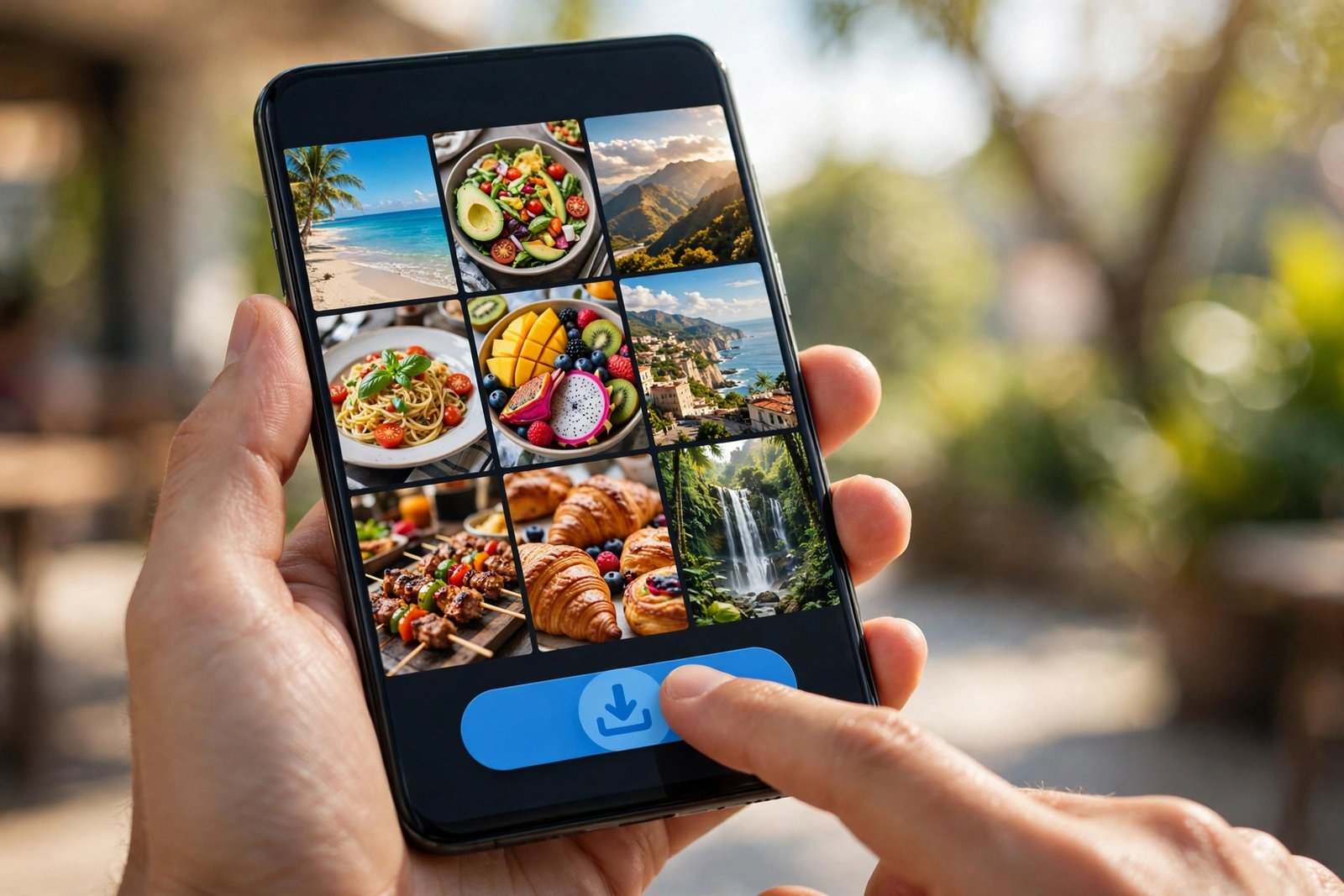
A note on the Pinterest app’s own download: when the app offers a download, it sometimes serves a compressed version to save bandwidth. If maximum quality matters — for printing, wallpapers, or design work — the online-downloader route (Method 1) is the safer bet.
Method 4: Pinterest’s Built-In Save Button (Know What It Does)
This one isn’t a download method at all, but it causes so much confusion it deserves a section. Pinterest’s red Save button organizes pins into your boards inside Pinterest. It’s bookmarking, not downloading — no file lands on your phone or computer.
That’s genuinely useful for collecting ideas, and your boards stay in full quality inside the app. But if you need the actual image file — for a mood board in another app, a presentation, or your camera roll — you need one of the download methods above. Don’t waste ten minutes wondering why your “saved” images aren’t in your gallery: they were never downloaded.
Comparison: Which Method Gets You True HD?
| Method | Image Quality | Speed | Devices | Install Needed? |
|---|---|---|---|---|
| Online downloader (PintoDownload) | Highest available (original file) | ~30 seconds | Phone, tablet, PC, Mac | No |
| Desktop browser manual save | High (if you open the pin fully) | ~1 minute | PC, Mac | No |
| Mobile in-app / long-press save | Medium–High (sometimes compressed) | ~20 seconds | iPhone, Android | Pinterest app |
| Pinterest Save button | N/A (no file downloaded) | Instant | All | Pinterest app |
Bottom line: if quality is the priority, the online downloader wins. If you just need something quick and “good enough,” the manual methods work fine. Saving other formats? See our full guide to downloading Pinterest GIFs, images, and audio.
7 Pro Tips to Guarantee Full Resolution Every Time
- Always open the pin fully first. Never download from the scrolling feed. The feed shows thumbnails; the pin page holds the real file.
- Check the file after downloading. A 50 KB file is not HD. A true full-resolution photo is usually several hundred KB to a few MB. Dimensions don’t lie — check them.
- Prefer the original format. If you’re offered a choice between formats, the original upload (usually JPG) beats any converted or recompressed version.
- Watch out for re-uploaded pins. If a pin looks slightly soft even at “full size,” someone may have re-uploaded a compressed copy. Click through to the source link on the pin — the original site often hosts a sharper version.
- Let images finish loading. On slow connections, downloading mid-load can capture a half-rendered preview. Wait for the pin to sharpen fully, then download.
- Avoid screenshots for anything important. Screenshots are fine for quick references, but they cap quality at your screen resolution and bake in the app’s interface.
- For whole boards, go pin by pin. Pinterest doesn’t offer a one-click “download entire board in HD” button. Work through the pins that matter with Method 1 — it’s fast enough that a dozen pins take just a few minutes.
Troubleshooting: When HD Downloads Go Wrong
“The downloaded image is still blurry.”
The source pin is probably low resolution itself. No tool can upscale a 400-pixel image into HD. Look for the same image uploaded as a fresher pin, or check the pin’s source website for the original.
“The download won’t start / the link isn’t recognized.”
Make sure you copied the full pin URL (it should contain /pin/). Links to boards, profiles, or search pages won’t work — only individual pin links. Also check that the pin is public; private-board pins can’t be fetched by any external tool.
“I got a file but it’s tiny.”
You grabbed a thumbnail. Open the pin in full view and repeat the process — or paste the pin link into PintoDownload, which targets the original file automatically.
“The image saved in a weird format.”
Some pins are PNGs or WebPs. Any modern phone or computer opens these fine, and free converters can switch them to JPG if you need it. The format doesn’t affect the resolution.
A Quick Word on Copyright
Downloading an image for personal use — a phone wallpaper, a private mood board, a recipe you want to try — is generally fine. Republishing someone else’s photo on your own site, social accounts, or products without permission is not, even if you downloaded it in perfect HD. When in doubt, credit the creator, link back to the original pin, and check whether the image is labeled for reuse. Creators upload to Pinterest to be discovered — a little attribution goes a long way.
Frequently Asked Questions
Does Pinterest reduce image quality?
Pinterest compresses the previews it shows in feeds and search, but it stores the original upload. The trick is downloading the original file rather than a preview — which is exactly what the methods above do.
Can I download Pinterest images in 4K?
If the original upload was 4K, yes — an HD downloader will fetch that exact file. If the pin was uploaded at a lower resolution, 4K isn’t available for that pin. Quality depends on the source.
Why is my downloaded Pinterest image blurry?
Almost always because a thumbnail or preview was saved instead of the full pin. Open the pin fully and download again, or use an online downloader that targets the original file.
Is it legal to download Pinterest images?
Downloading for personal use is widely accepted. Redistributing, selling, or claiming others’ images as your own can infringe copyright. Credit creators and respect reuse labels.
What’s the difference between Save and Download on Pinterest?
Save bookmarks the pin to your Pinterest boards (stays inside Pinterest). Download puts an actual image file on your device. They do completely different things.
Can I download a whole Pinterest board in HD at once?
Pinterest has no built-in bulk HD download. The practical approach is copying individual pin links for the images you want and running them through a downloader one by one.
Final Thoughts
Getting HD images off Pinterest isn’t about hacks or sketchy software — it’s about reaching the original file instead of settling for a thumbnail. Open the pin fully, grab the source-quality version, and verify what you downloaded. Do that, and you’ll never squint at a blurry Pinterest save again.
For the fastest route, keep PintoDownload bookmarked: paste any pin link, pick the HD option, and you’re done in about 30 seconds — on any device, with nothing to install.