How to Download Pinterest Videos on Android (4 Easy Methods – No App Needed, 2026)
Want to download Pinterest videos on Android and watch them offline? Good news: Android makes this easier than any other platform. Between Android’s open file system and a few clever free tools, you can save any Pinterest video to your phone in under a minute — usually in full HD, with no watermarks, and without installing sketchy apps.
The catch? The Pinterest app itself has no download button for videos — Pinterest wants you watching inside their app. The four methods below are all free, tested on modern Android phones (Samsung, Pixel, Xiaomi, OnePlus, and more), and ordered from easiest to most powerful.
Quick answer: The fastest way to download Pinterest videos on Android is to tap Share → Copy link on the video in the Pinterest app, paste that link into a free online downloader like PintoDownload in Chrome, and tap Download. The video lands in your Gallery within seconds, ready to watch offline.
On an iPhone instead? Follow our iPhone guide — the steps are different.
Why Android Is the Easiest Phone for Pinterest Downloads
Unlike iPhone, Android gives you direct access to your files. When you download a video, it goes straight to your Downloads folder or Gallery — no workarounds. Chrome has a built-in download manager, and most phones ship with a screen recorder and file manager out of the box. Three of the four methods below need zero installs.
The only thing Android can’t fix on its own is Pinterest’s missing download button. Every method below works around that in a different way — pick the one that fits how often you download.
Before You Start: 60-Second Checklist
Run through this once and you’ll avoid nearly every failed download:
- Update Chrome (or your default browser) and the Pinterest app from the Play Store. Outdated apps cause most “download failed” errors.
- Free up storage. A 2-minute HD Pinterest video can be 50–100 MB. Check Settings → Storage before a batch download session.
- Allow downloads in Chrome. The first time a site tries to download a file, Chrome may ask for permission — tap Allow.
- Use Wi-Fi for long videos. Large files can stall on weak cellular connections and eat your data plan.
- Keep your screen unlocked during the download. Aggressive battery-saving modes on some brands (Xiaomi, Huawei) can pause background downloads.

Method 1: Online Downloader via Chrome (Easiest – 30 Seconds)
This is the fastest, cleanest way to download Pinterest videos on Android — nothing to install, works on every Android phone, and preserves the video’s original quality. You just need Chrome and a free online downloader.
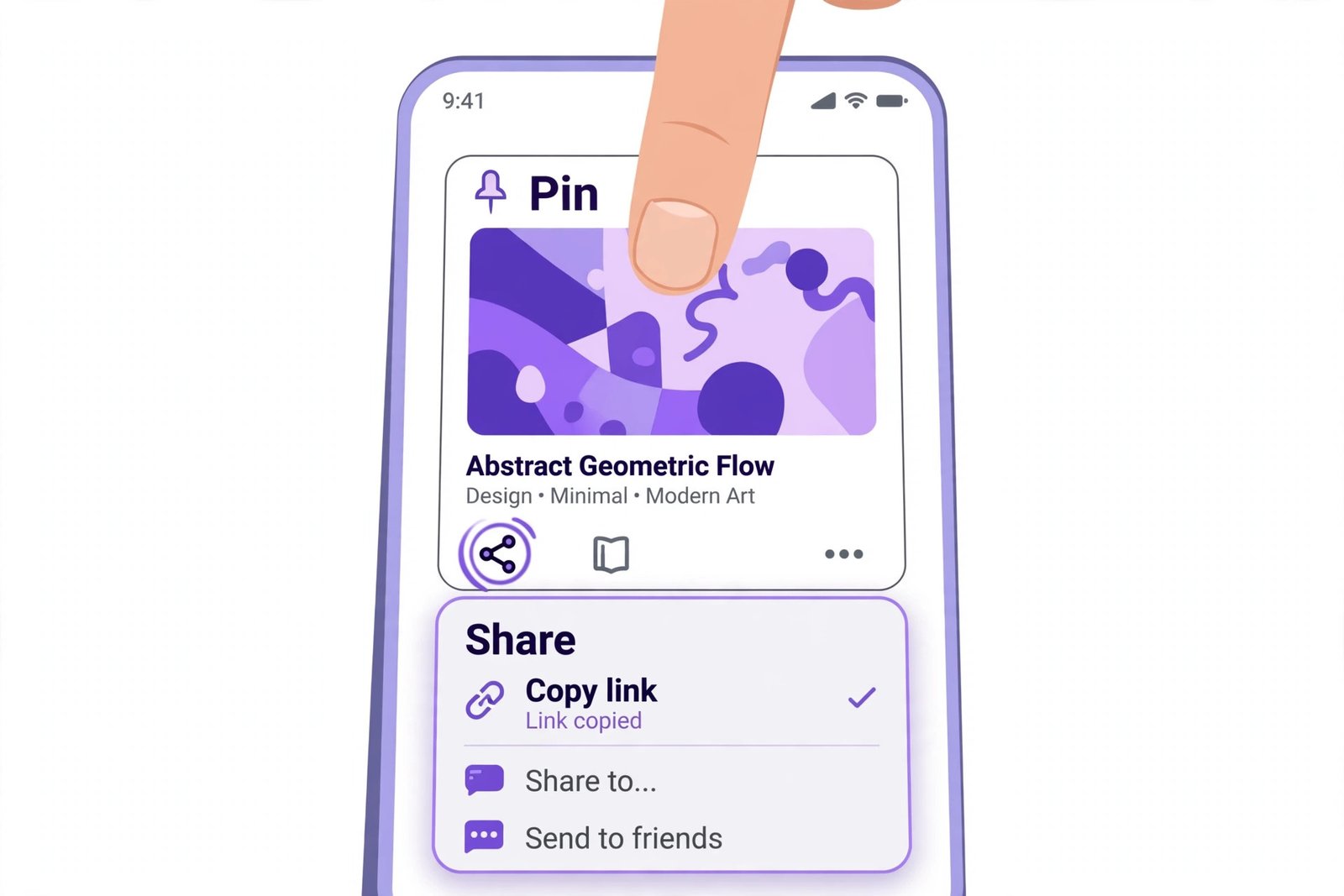
Step 1: Copy the video link in the Pinterest app
- Open the Pinterest app and find the video you want to save.
- Tap the Share icon (the arrow) below or beside the video.
- Tap Copy link. The video’s URL is now on your clipboard.
Step 2: Paste the link into the downloader
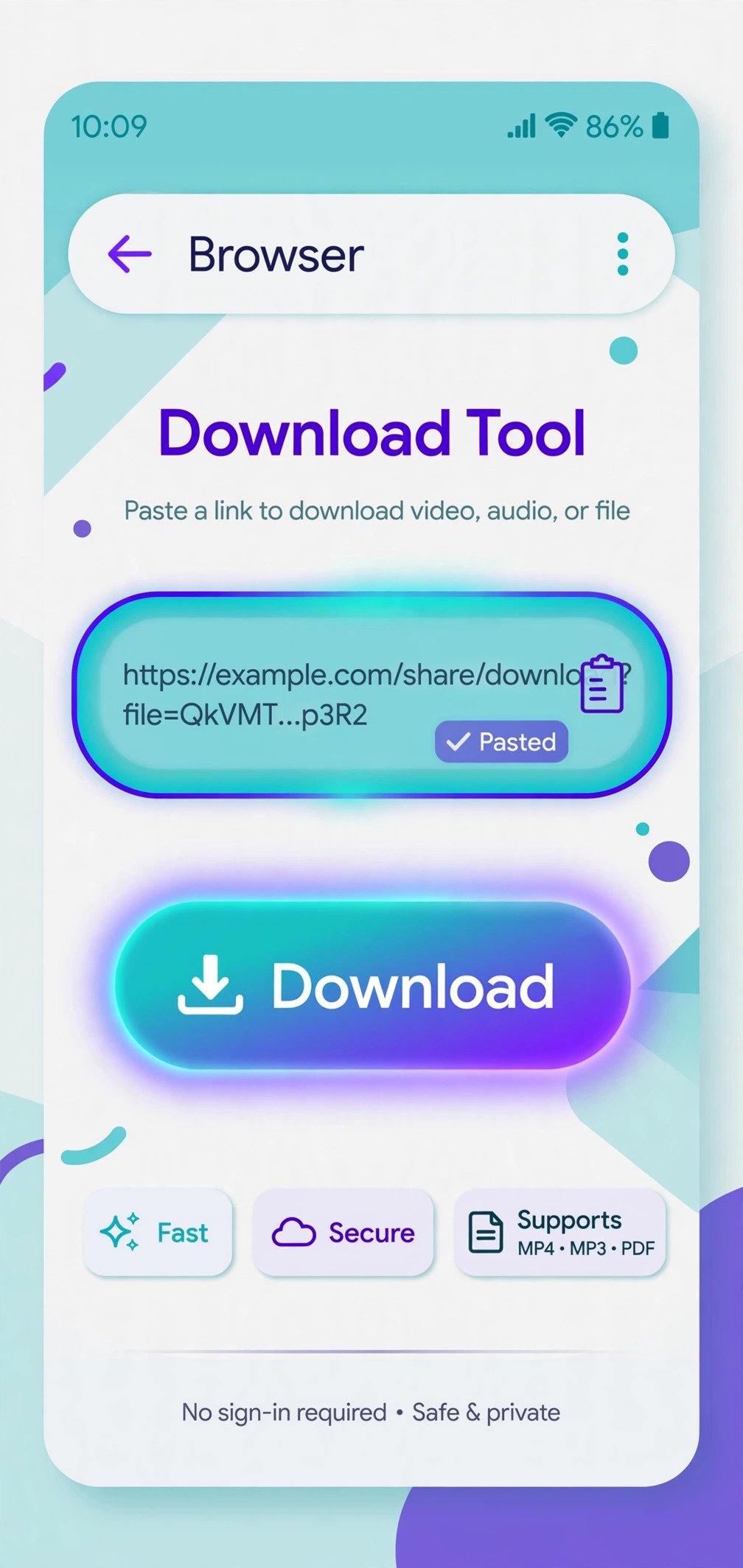
- Open Chrome and go to PintoDownload — a free Pinterest video downloader that works right in your browser.
- Long-press the input box, tap Paste, then tap the Download button.
- The tool fetches the video and shows the available quality options — pick the highest one (HD or original) for the sharpest result.
Step 3: Save the video to your Gallery
- Tap the download link. Chrome shows a progress notification at the top of your screen.
- When it finishes, pull down the notification shade and tap the file — it opens in your video player.
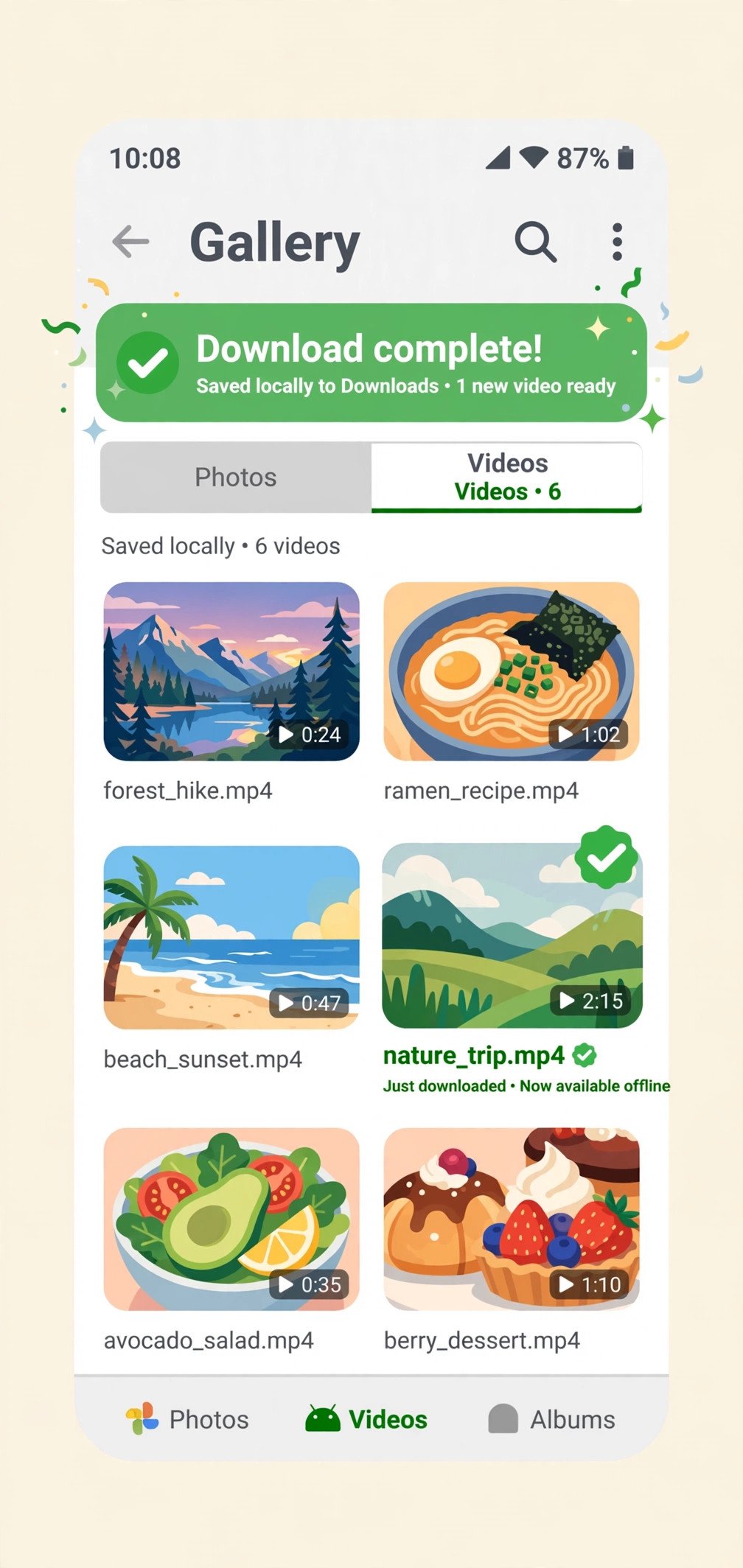
- The file is stored in your Downloads folder, and most Gallery apps (Google Photos, Samsung Gallery) pick it up automatically. To move it somewhere memorable, open it in your file manager and move it to the DCIM or Movies folder.
Pros: Nothing to install, works on every Android device, free, keeps original quality, no account needed.
Cons: Requires internet; downloads one video at a time.
If you also save still images from Pinterest, the same copy-paste workflow grabs photos and GIFs too — see our guide to downloading Pinterest GIFs, images & audio for details.
Method 2: Downloader Apps (Best for Frequent Downloads)
If you download Pinterest videos daily, a dedicated downloader app saves you from opening Chrome every time. These apps hook into Android’s share sheet: you tap Share on a Pinterest video, pick the app, and the video downloads in the background.
How to do it
- Open the Play Store and search for a well-reviewed Pinterest video downloader. Stick to apps with 4+ stars and recent updates — the Play Store removes abandoned ones regularly.
- Check the app’s permissions before installing. A downloader needs storage access; it does not need your contacts, location, or SMS. Skip anything asking for more than it should.
- Once installed, go back to the Pinterest app, tap Share on a video, and choose the downloader app from the share sheet. It grabs the link automatically and starts downloading.
- Find your videos in the app’s own library, then move them to your Gallery or SD card from there.
Pros: Fastest repeat workflow (~15 seconds per video), background downloads, built-in library of saved videos.
Cons: Extra app on your phone; many free downloader apps show ads or push notifications — disable notifications for the app after installing (Settings → Apps → Notifications).
A word of caution: avoid “Pinterest downloader” APKs from random websites outside the Play Store — sideloaded APKs are the single biggest source of adware on Android. If you want zero-install convenience, Method 1 (a web tool like PintoDownload) is the safer choice.
Method 3: Built-in Screen Recording (Works When Everything Else Fails)
Every modern Android phone — Samsung, Pixel, Xiaomi, OnePlus, Motorola — ships with a built-in screen recorder. It’s the universal fallback: it captures literally any Pinterest video, including private or restricted ones that link-fetching tools can’t reach.
Steps
- Swipe down twice from the top of your screen to open Quick Settings, and look for the Screen record tile. (Don’t see it? Tap the pencil/edit icon and drag it in.)
- Open the Pinterest video and play it fullscreen. Crank brightness to max and volume up for the cleanest capture.
- Tap Screen record, toggle Record audio on, and tap Start. Wait out the countdown.
- Let the video play from start to finish without touching the screen.
- Pull down the notification shade and tap Stop. The recording saves to your Gallery automatically.
- Trim the countdown off the start: open the clip in Google Photos → Edit → drag the trim handles → Save copy.
Pros: Works on every video with zero exceptions, no third party involved, no link copying, free.
Cons: Real-time capture (a 3-minute video takes 3 minutes), captures on-screen UI if you’re careless, bigger file sizes than direct downloads, audio comes through your speaker.
Method 4: File Manager + SD Card (Best for Organizing Big Collections)
Downloading dozens of Pinterest videos for a project — mood boards, recipes, DIY references? Don’t let them pile up in your camera roll. Android’s built-in file manager plus an SD card turns your phone into a proper video library.
Steps
- Download videos using Method 1 — they land in the Downloads folder.
- Open your file manager (Files by Google, Samsung My Files) and create folders by topic (“Home Decor,” “Workouts,” “Recipes”) — long-press in the folder view → Create folder.
- Select your downloads and Move them into the right folders.
- If your phone has a microSD card slot, move the collection to the card to free up phone space. A 128 GB card holds thousands of Pinterest videos.
Pros: Total control over organization, keeps your Gallery clean, SD card gives near-unlimited cheap storage, everything stays offline.
Cons: A few extra taps per video; SD cards can be slower than internal storage for 4K playback.
Comparison: Which Method Should You Use?
| Method | Time per video | Quality | Install needed? | Best for |
|---|---|---|---|---|
| Online downloader (Chrome) | ~30 sec | Original / HD | No | Most people, occasional downloads |
| Downloader apps | ~15 sec | Original / HD | Yes (Play Store) | Daily downloaders |
| Screen recording | Real-time | Screen quality | No (built-in) | Videos nothing else can fetch |
| File manager + SD card | ~1 min | Original / HD | No | Organizing big collections |
Our recommendation: Start with Method 1. PintoDownload in Chrome is the best balance of speed, quality, and safety for the vast majority of Android users — no app, no account, no ads in your face. Graduate to a share-sheet app (Method 2) only if you’re downloading several videos a day. Keep Method 3 as your universal fallback for tricky videos, and use Method 4’s folder system once your collection grows.
Want the sharpest possible files? Read our guide on how to download Pinterest videos in HD quality — it covers resolution options and what “HD” actually means on Pinterest.
Troubleshooting: Pinterest Video Not Downloading on Android?
- “Download failed” in Chrome: Update Chrome and the Pinterest app, then retry. If it persists, clear Chrome’s cache (Settings → Apps → Chrome → Storage → Clear cache).
- Can’t find the downloaded file: Open your file manager → Downloads. Chrome saves everything there. If your Gallery doesn’t show it, restart the Gallery app or move the file to the DCIM folder.
- Download notification disappeared: Pull down the notification shade — Chrome sometimes groups download notifications. The file is still in Downloads even if the notification is gone.
- “Couldn’t download – SD card” error: Your SD card may be full, corrupted, or mounted as portable storage with write issues. Try downloading to internal storage first (Chrome → Settings → Downloads → Download location).
- Video downloads but has no sound: The source video itself may be muted (many Pinterest videos are). Test by playing the original pin with volume up before downloading.
- Pinterest link won’t paste / “invalid link”: Make sure you copied the link from the Share → Copy link button inside the Pinterest app — not from your browser’s address bar on a Pinterest web page, which sometimes copies a tracking URL that downloaders reject. If errors keep repeating, our Pinterest downloader troubleshooting guide covers every known error with fixes.
Is It Legal to Download Pinterest Videos?
Short version: downloading for personal, offline viewing is generally fine; re-uploading someone else’s video as your own is not.
Pinterest’s Terms technically prohibit downloading outside their app, but they don’t pursue individuals saving videos for personal use. The real line is copyright: the creator owns their video. Saving a recipe to watch offline = fine. Re-posting it on your own TikTok or YouTube without permission = infringement, and that’s where takedowns come from.
Rule of thumb: download for yourself, and always credit (ideally ask) the creator before sharing their work publicly. We covered the full picture in our guide on whether downloading Pinterest videos is legal and safe.
FAQ
Can I download Pinterest videos on Android without any app?
Yes — that’s Method 1 above. Copy the link in the Pinterest app, paste it into an online downloader like PintoDownload in Chrome, and tap download. No app install needed at all.
Where do Pinterest videos save on Android?
To your Downloads folder by default (Internal storage → Download). Most Gallery apps detect new videos automatically; if yours doesn’t, open the file manager and move the video to the DCIM or Movies folder.
Can I download Pinterest videos in HD quality on Android?
Yes. Online downloaders fetch the highest quality Pinterest serves — often 720p or 1080p. Always choose the highest quality option shown before downloading, and download over Wi-Fi so the larger file completes reliably.
Why can’t I just long-press and save a Pinterest video?
Pinterest deliberately doesn’t offer a save/download button for videos in its app — it keeps you watching inside Pinterest. All four methods in this guide work around that limitation.
Do downloader apps steal my Pinterest login?
They shouldn’t need it. A legitimate downloader works from the shared video link alone. Never enter your Pinterest username and password into a third-party downloader — that’s a classic credential-theft setup.
Can I download videos from private Pinterest boards?
Link-based methods (1 and 2) generally can’t reach private-board videos because the downloader can’t authenticate as you. Screen recording (Method 3) works on anything you can play on your own screen.
Final Thoughts
For 95% of people, the 30-second Chrome workflow with a trusted online tool like PintoDownload is all you’ll ever need: copy link, paste, download, done. Bookmark this guide, and the next must-save Pinterest video that crosses your feed will be offline before your coffee cools.