
How to Download Pinterest Videos on iPhone in 2026 (4 Easy Methods – No App Needed)
Want to download Pinterest videos on iPhone but can’t figure out how? You’re not alone. Unlike Android, iPhones don’t let you simply long-press and save videos from most apps — and Pinterest is no exception: the Pinterest app has no built-in download button for videos.
The good news: there are several reliable ways to save any Pinterest video straight to your iPhone’s Photos app — most of them completely free, and none require installing shady third-party apps full of ads. This guide walks you through 4 tested methods step by step, compares them honestly, and answers the most common questions at the end.
Quick answer: The easiest way to download Pinterest videos on iPhone is to copy the video’s link in the Pinterest app, paste it into a free online downloader in Safari, and save the file to Photos. The whole thing takes under 30 seconds.
Why Downloading Pinterest Videos on iPhone Is Tricky
Apple’s iOS is a closed system — apps like Pinterest run in a “sandbox” and can’t freely write video files to your Photos library the way Android apps can. Pinterest also deliberately leaves out a download button; they’d rather you keep watching inside their app.
The four methods below are ordered from easiest to most advanced. Method 1 works for roughly 95% of people — start there.
Before You Start: 60-Second Checklist
Run through this quick checklist before trying any method — it prevents the most common failures:
- Update iOS to the latest version (Settings → General → Software Update). Older iOS versions handle downloads poorly.
- Free up storage. A 2-minute HD video can be 50–100 MB. Check Settings → General → iPhone Storage.
- Use Safari, not Chrome or the in-app browser, for any web-based method. Safari’s download manager is the most reliable on iOS.
- Connect to Wi-Fi for longer videos — cellular downloads of large files can stall or eat your data plan.
- Allow Photos access when prompted. iOS will ask permission the first time any method tries to save a video.
Method 1: Online Downloader via Safari (Easiest – 30 Seconds)
This is the fastest and most reliable way to download Pinterest videos on iPhone without installing anything. You just need Safari and PintoDownload — our free online Pinterest video downloader.
Step 1: Copy the video link in the Pinterest app
- Open the Pinterest app and find the video you want to save.
- Tap the Share icon (the arrow pointing up) below the video.
- Tap Copy link. The video URL is now on your clipboard.
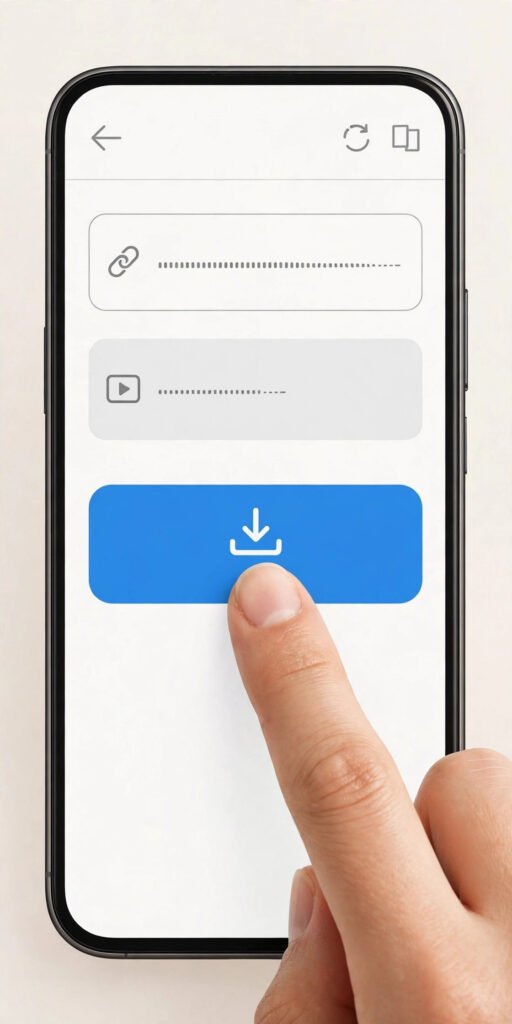
Step 2: Paste the link into the downloader
- Open Safari and go to PintoDownload.
- Long-press the input box, tap Paste, then tap the Download button.
- The tool will fetch the video and show quality options — choose the highest available (HD or original) for the best result.
Step 3: Save the video to your Photos app
- Tap the download icon in Safari’s address bar, then tap Downloads to see your file.
- Tap the video file to preview it and confirm it’s the right one.
- Tap the Share icon → Save Video. It’s now in your Photos app — watchable offline, shareable anywhere.
Pros: Nothing to install, works on every iPhone model, free, preserves original quality, no account needed.
Cons: Requires an internet connection; downloads one video at a time.
If you also save still images from Pinterest, our Pinterest image downloader works the same copy-paste way for photos, GIFs, and Idea Pins.
Method 2: iOS Shortcuts (Best for Frequent Downloads)
If you download Pinterest videos regularly, spending five minutes setting up an iOS Shortcut will save you from opening a website every single time. Shortcuts is Apple’s own automation app — free, private, and already on your iPhone.[IMAGE 2]
How to set it up (one time)
- Open the Shortcuts app (reinstall it free from the App Store if you deleted it).
- Tap the + button to create a new shortcut.
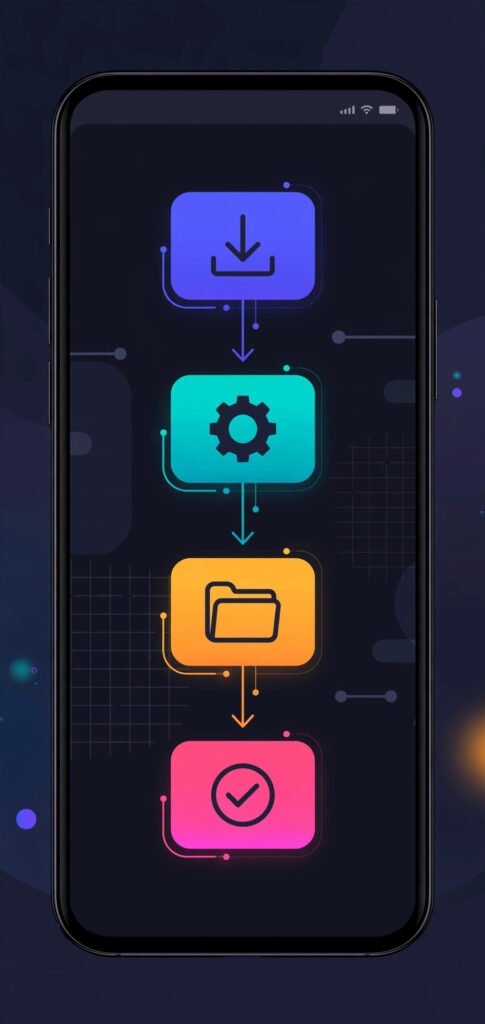
- Add these actions in order: Get URLs from Input → Get Contents of URL → Save to Photo Album.
- Name it “Pinterest Video Saver” and tap Done.
- Optional: tap the shortcut’s settings and check Show in Share Sheet so it appears when you share from Pinterest.
How to use it (every time after)
- In the Pinterest app, tap Share on any video → choose your “Pinterest Video Saver” shortcut.
- The shortcut fetches the video and drops it straight into Photos. Two taps, done.
Tip: Don’t want to set up a shortcut? You can skip all of this and just use PintoDownload in Safari — paste the link, tap download, done (see Method 1).
The first run will ask permission to access the web and your Photos — tap Allow / Allow Always. After that it’s fully automatic.
Pros: Fastest repeat method (~10 seconds per video), no website needed, runs on-device so it’s private, no ads.
Cons: 5-minute one-time setup; occasionally needs a tweak after major iOS updates change how actions behave.
Method 3: Screen Recording (Works When Everything Else Fails)
Every iPhone since iOS 11 has a built-in screen recorder. It’s not elegant, but it captures literally any Pinterest video — even private, restricted, or otherwise un-downloadable ones that fetch tools can’t reach.
Steps
- Open Settings → Control Center and make sure Screen Recording is added.
- Open the Pinterest video and play it in fullscreen. Turn your brightness up and volume to max for the cleanest capture.
- Swipe down from the top-right corner (or up from the bottom on older iPhones with a Home button) and tap the Record button. Wait out the 3-second countdown.
- Let the video play from start to finish without touching the screen.
- Tap the red status bar/pill at the top and choose Stop. The recording saves to Photos automatically.
- Trim the countdown and the control-center swipe out: open the video in Photos → Edit → drag the yellow sliders → Done → Save as New Clip.
Note: Screen recording is the fallback for videos nothing else can fetch. For normal videos, the faster option is downloading the original file directly via PintoDownload as described in Method 1.
Pros: Works on every video with zero exceptions, no third party involved, no link-copying.
Cons: Real-time (a 3-minute video takes 3 minutes to capture), captures UI elements if you’re careless, larger file sizes than direct downloads, and audio quality is limited to what your speaker plays.
Method 4: Files App + Documents Browser (Best for Organizing)
If you download a lot and like keeping things tidy, a file-manager workflow beats dumping everything into Photos.
- Install the free Documents app by Readdle from the App Store.
- Copy the Pinterest video link exactly as in Method 1.
- Open the Documents app’s built-in browser, paste the link into PintoDownload, and download — the file lands in the app’s Downloads folder.
- Create folders (e.g., “Recipes,” “DIY,” “Workouts”) and sort videos as you go.
- To move a keeper into Photos: long-press the file → Share → Save Video.
Pros: Excellent organization with folders and tags, files stay out of your camera roll until you want them, works offline once downloaded.
Cons: Requires an extra app install; a few more steps than Method 1.
Comparison: Which Method Should You Use?
| Method | Time per video | Quality | Install needed? | Best for |
|---|---|---|---|---|
| Online downloader (Safari) | ~30 sec | Original / HD | No | Most people, occasional downloads |
| iOS Shortcuts | ~10 sec | Original / HD | Shortcuts (built-in) | Daily downloaders |
| Screen recording | Real-time | Screen quality | No | Videos nothing else can fetch |
| Files/Documents app | ~1 min | Original / HD | Yes (free) | Organizing large collections |
Our recommendation: Start with Method 1. It’s the best balance of speed, quality, and simplicity for the vast majority of iPhone users. Graduate to Method 2 if you find yourself downloading daily. Keep Method 3 in your back pocket as the universal fallback.
Want the sharpest possible files? Read our guide on how to download Pinterest videos in HD quality — it covers resolution options and what “HD” actually means on Pinterest.
Troubleshooting: Pinterest Video Not Downloading on iPhone?
- “Download failed” or nothing happens in Safari: Make sure you’re using Safari itself — not Chrome, not Pinterest’s in-app browser. Also verify Settings → Safari → Downloads points to a location you can find (iCloud Drive or On My iPhone).
- Video downloads but won’t play: The file may have saved in an unsupported container. Re-run the download and explicitly choose the MP4 option.
- Can’t find the downloaded file: Open the Files app → Browse → Downloads. Safari stores everything there until you move it.
- “Storage almost full” error: iPhone needs roughly double the video’s size free during a download. Offload unused apps or move old videos to iCloud first.
- Shortcut asks for permission every time: Go to Settings → Shortcuts → Advanced and allow the network and Photos actions your shortcut uses, or set them to “Allow Always.”
- Screen recording has no sound: Long-press the Record button in Control Center and make sure the Microphone toggle matches what you want (off for pure video audio via speaker is fine; the video’s own audio is captured from playback).
- Downloader says “private video”: Pinterest blocks fetching of private, secret-board, and some restricted videos by design — no tool can bypass that. Screen recording (Method 3) is your only option there.
- Everything suddenly stopped working: Pinterest occasionally changes its video delivery. First update the Pinterest app and iOS, then retry. Our downloader not working fixes cover every known error in detail.
Is It Legal to Download Pinterest Videos on iPhone?
The short version: downloading a video for personal, offline use — watching later, saving inspiration, keeping a reference — is generally accepted and extremely common. Millions of people do it daily.
What crosses the line:
- Re-uploading someone else’s video as your own on any platform.
- Commercial use (ads, client work, monetized compilations) without the creator’s permission.
- Stripping watermarks or credits from a creator’s work.
Pinterest’s Terms of Service do technically prohibit scraping and bulk downloading, so keep your downloads personal and reasonable in volume. And if you ever share a saved video, credit the original creator — it’s both the right thing and good karma. We covered the full picture in our guide on whether downloading Pinterest videos is legal and safe.
Frequently Asked Questions
Can I download Pinterest videos on iPhone without installing any app?
Yes. Copy the video link from the Pinterest app, paste it into a free online downloader in Safari, then save the downloaded file to Photos. No app install is required at any step.
Where do downloaded Pinterest videos go on iPhone?
They first land in the Files app → Downloads folder. From there, open the file, tap Share → Save Video, and it moves into your Photos app library.
Why can’t I just long-press to save Pinterest videos like images?
Pinterest doesn’t expose a save option for video content, and iOS sandboxes apps so they can’t write video files to Photos on a long-press. The copy-link + downloader workflow (Method 1) is the standard workaround the entire iPhone community uses.
Does downloading via Safari keep the original HD quality?
Yes — as long as you select the highest quality option the downloader offers. Pinterest compresses uploads, so “original” means Pinterest’s stored version, which is typically 720p–1080p. Avoid re-compressing or screen-recording if quality matters to you.
Does screen recording Pinterest videos reduce quality?
Somewhat. Screen recording captures at your display resolution rather than the video’s source file, produces larger files, and audio is limited to speaker playback. For maximum fidelity, prefer Method 1 or 2.
Can I download Pinterest Story videos and Idea Pins on iPhone too?
Yes. Stories, Idea Pins, and standard video Pins all work with the same methods — copy the link and run it through the downloader as in Method 1.
Final Words
Downloading Pinterest videos on iPhone doesn’t have to be frustrating. For the overwhelming majority of cases, the copy-link + Safari downloader method puts a full-quality video in your Photos app in under 30 seconds — no apps, no subscriptions, no watermarks. Set up the iOS Shortcut if you download daily, and keep screen recording as your universal fallback for stubborn videos.
Found this guide useful? Bookmark it — and if a download ever fails, our troubleshooting guide walks through every common error with fixes.