Pinterest Video Downloader: Free HD Downloads (2026)
A good Pinterest video downloader does one simple job well: it takes a public video pin and hands you back a clean MP4 file with the sound still attached, no account, no app install, and no watermark stamped on top. That sounds basic, but after looking at what most tools actually deliver, I have learned to judge them on that exact bar — and most of them fail it in at least one place. Some hand you a silent clip. Some give you a blurry 360p file and call it HD. Others bury the real download button under three fake ones.
This guide cuts through all of that. You will learn how a Pinterest video downloader works, what quality you can honestly expect, how to save a video on iPhone, Android, and PC without installing anything, and how to spot the tools worth avoiding. The method below uses PintoDownload, the free tool on this site, because it is the one I checked against the alternatives while writing this — but the steps, the warnings, and the quality notes apply to any honest downloader you use.
Why Pinterest does not let you download videos directly
Pinterest is built around saving, not exporting. Inside the app you can save a pin to one of your boards in a second, and for image pins there is even a download option. Video pins are different. There is no download button for other people’s video pins, because Pinterest wants the video to stay inside Pinterest, where the creator gets the views and the credit. That is a reasonable design choice from their side, and a frustrating one from yours when you want to watch a woodworking tutorial offline, keep a recipe video for a kitchen with no signal, or reuse a clip you made yourself.
That gap is exactly why the Pinterest video downloader category exists. These tools do not hack anything. They read the public page of a pin — the same page anyone can open in a browser — find the video file Pinterest itself serves to play that pin, and offer it to you as a download. That is also why they have a hard limit you should know up front: if a pin is private, deleted, or locked behind a login, no legitimate downloader can reach it. Any site that promises to download private pins is either lying or asking you to hand over your Pinterest login, and you should do neither.
How to use a Pinterest video downloader in 3 steps
The whole process takes under a minute once you know where the link is. Here it is, exactly as it works with PintoDownload:
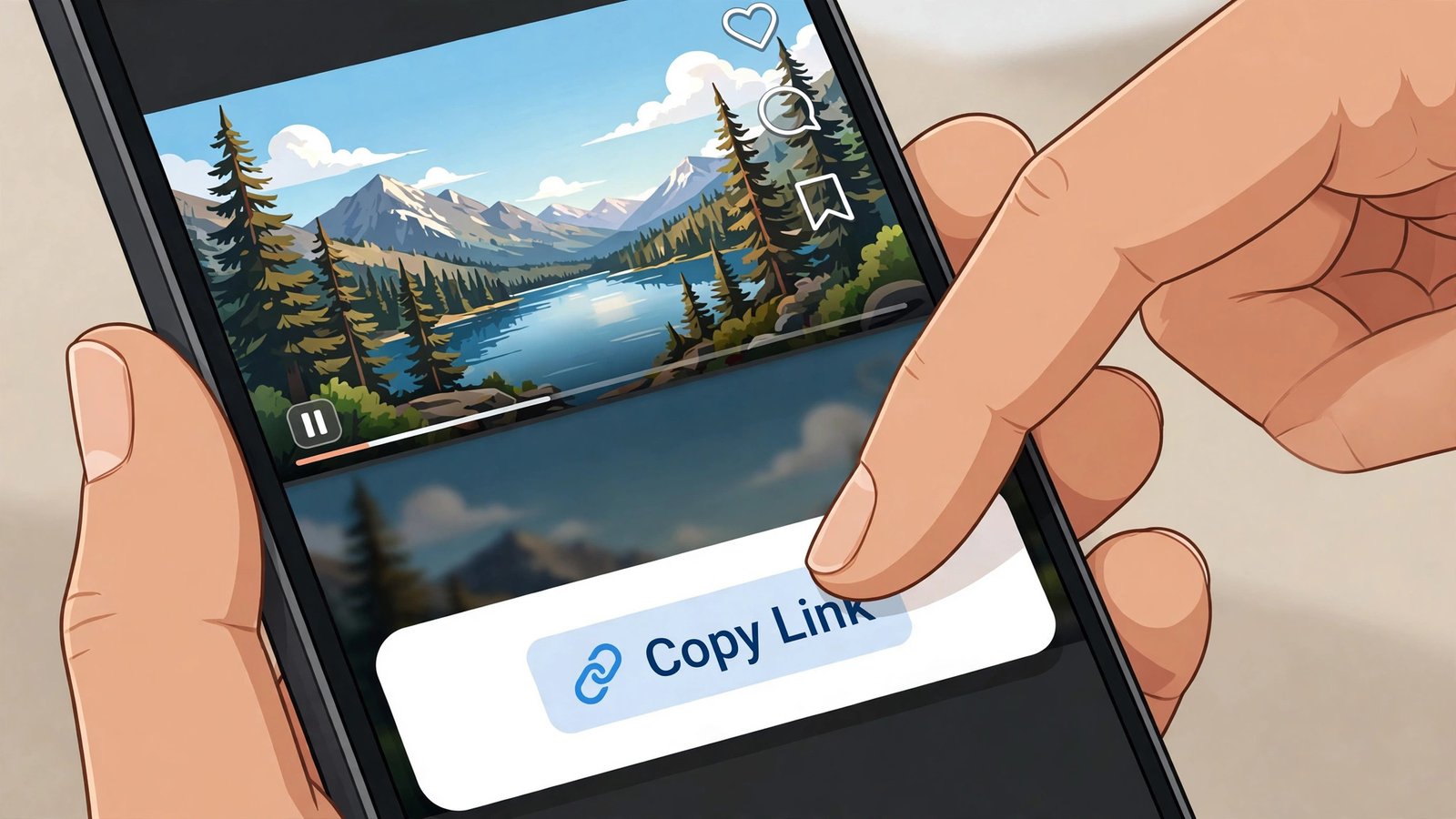
Step 1: Copy the video pin link
Open the video pin in the Pinterest app or on the Pinterest website. Tap or click the Share icon, then choose Copy link. On a computer you can also just copy the address from the browser bar — it looks like pinterest.com/pin/ followed by a long number. Short pin.it links work too; they point to the same pin.
Step 2: Paste the link into the downloader
Open PintoDownload in your browser — any browser, on any device — and paste the link into the box on the homepage. There is nothing to install, no account to create, and no Pinterest password involved at any point. A tool that asks for your Pinterest login to download a public video is asking for something it does not need, and that is a red flag.
Step 3: Download the MP4
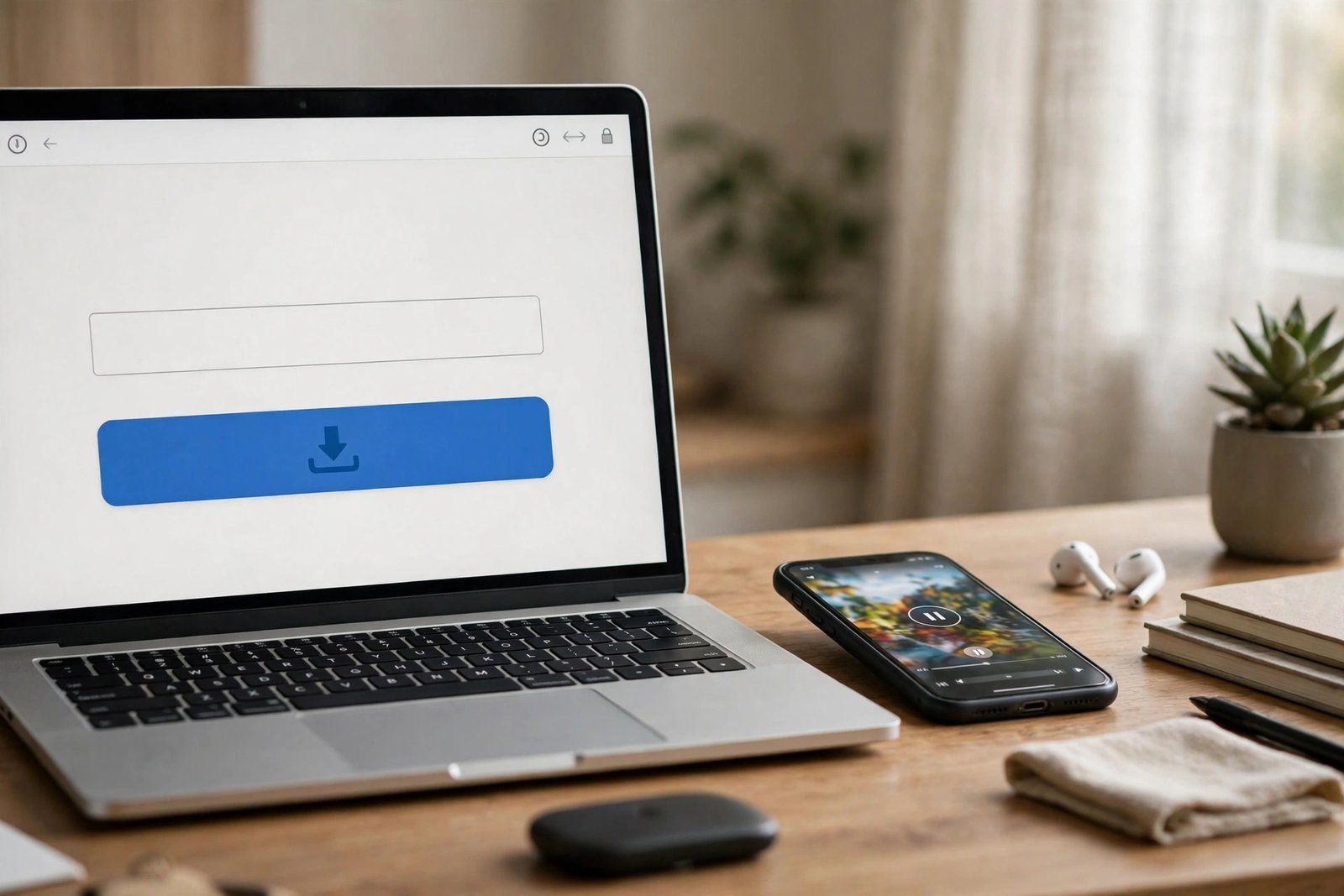
Hit download and pick the video file offered. It saves as an MP4, the format that plays on basically everything: iPhone, Android, Windows, Mac, smart TVs. On iPhone, the file lands in Files under Downloads first — open it there, tap Share, and choose Save Video to move it into your Photos gallery. On Android and PC it goes straight to your Downloads folder. If you want images from Pinterest in full resolution instead, the site’s Pinterest image downloader works the same way for picture pins.
One habit that saves a lot of confusion: play the downloaded file once before you close the tab. Check two things — that the picture is sharp and that the sound is there. If either is missing, you want to know now, not on the plane.
What quality will you actually get? The honest answer
This is where most Pinterest video downloader pages get slippery, so let me be blunt. A downloader cannot give you more quality than Pinterest stored for that pin. It cannot turn a 720p upload into true 4K, no matter what the button says. When a site advertises 4K for every video, it is either upscaling a smaller file — which adds size, not detail — or it is just lying on the label.
What I found across the competing tools while researching this guide is a consistent, more modest picture. Most public video pins serve an MP4 at up to 720p, and some serve a 1080p copy when the creator uploaded a high-resolution original. PinDownload states this plainly on its own page: 720p is the largest MP4 it finds for most video pins, and it refuses to label a 720p file as 4K. SSDownloader similarly says quality depends on the pin and that a true 4K file is only possible when the original upload had it. ConvertICO adds a useful technical note: newer video pins are stored as many short pieces instead of one file, and a good downloader has to join those pieces into a single MP4 with sound, which is why some downloads take a few seconds longer.

So the honest quality checklist for any Pinterest video downloader is short: it should give you the best file Pinterest serves for that pin, it should say so when no HD copy exists instead of faking one, it should keep the original audio track, and it should not re-compress the file or stamp its own logo on it. If you want the full story on why some pins look soft even after a careful download, read our guide to fixing Pinterest videos that will not download — it covers the cases where the problem is the pin itself, not the tool.
Pinterest video downloader comparison: online tool vs app vs extension vs screen recording
There are four realistic ways to save a Pinterest video, and they are not equal. I compared them on the things that actually matter day to day: cost, effort, quality, sound, and what you have to install.
| Method | Cost | Install needed | Quality | Sound kept | Best for |
|---|---|---|---|---|---|
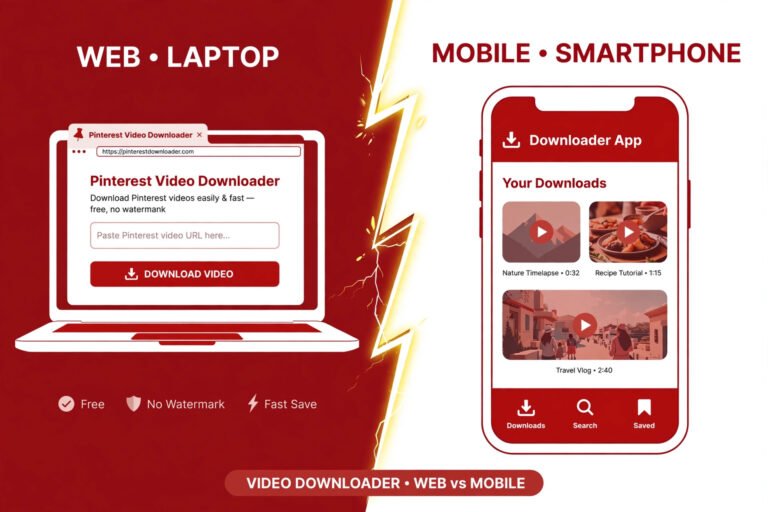
| Online downloader (PintoDownload) | Free | None | Best file Pinterest serves, usually up to 720p HD | Yes | One-off downloads on any device |
| Mobile downloader app | Free or paid | App + permissions | Varies by app | Sometimes | People who download daily on one phone |
| Browser extension | Usually free | Extension | Original quality in good extensions | Yes | Heavy Pinterest users on desktop |
| Screen recording | Free | Built-in recorder | Only as sharp as your screen | Depends on device audio settings | Last resort when nothing else works |
For most people, the online Pinterest video downloader wins, and it is not close. An app means granting storage and network permissions to a third party for a job a website does in a browser tab, and apps disappear from stores or start charging. An extension is genuinely convenient if you live on Pinterest on a desktop — SortPin’s extension, for example, puts a download button right on each pin — but it only helps on that one browser, on that one computer. Screen recording is the worst of the lot for quality: it captures your screen resolution, your notifications, and whatever audio routing your phone happens to use, and you still have to crop and trim afterward. Use it only when a pin will not download any other way.
Within online tools, the differences are smaller but still real. PinDownload shows the true pixel size and file size of each file before you download, which I like — no guessing (see PinDownload). SSDownloader covers video, image, and GIF pins from one box and is upfront that format and quality depend on the pin. ConvertICO’s guide is unusually honest about HLS-style pins that need joining (see ConvertICO’s guide). And some comparison roundups, like ScreenApp’s list of ten tools, are worth skimming before you commit to a desktop program — several of those programs charge for the features the free web tools include. My own rule after reading all of them: if a tool needs your login, your money, or an install before it shows you a single file, close the tab.
On iPhone, Android, and PC: the small differences that trip people up
iPhone and iPad (Safari)
Safari is where most iPhone downloads go sideways, and it is almost never the downloader’s fault. When you tap download in Safari, the video often opens and plays instead of saving, or it saves to Files where you cannot find it. The fix is boring and reliable: after downloading, open Files, go to Downloads, find the MP4, tap Share, and choose Save Video. It then appears in Photos like any other clip. If tapping the download button plays the video instead, long-press the button and choose Download Linked File. Our Safari-specific walkthrough covers this in more detail if you get stuck.
Android
Android is the easiest case. Paste the link, download the MP4, and it lands in your Downloads folder or straight into your gallery depending on your browser. Chrome and Samsung Internet both handle MP4 downloads without fuss. The one Android gotcha is storage: if a download silently fails, check that your browser has storage permission and that you are not out of space before blaming the tool.
Windows and Mac
On desktop, everything is straightforward: copy the link from the browser bar, paste it, download, and the MP4 goes to your Downloads folder. The only real decision is whether you want an extension for repeated use. If you download Pinterest videos more than a couple of times a week on the same computer, an extension saves you the copy-paste round trip. If you do it occasionally, or from someone else’s computer, the online Pinterest video downloader is faster precisely because there is nothing to set up.
Troubleshooting: when a Pinterest video will not download
Almost every failed download falls into one of these buckets, and the fix depends on which one you are in:
- Private, deleted, or login-only pin. No downloader can fix this. If the pin only opens when you are logged in, or it comes from a secret board, the file is not publicly available and that is the end of it.
- Silent download. Some pins are silent at the source — the creator uploaded a video with no audio track. Check the original pin with sound on before assuming the tool dropped the audio. Genuine audio-dropping tools do exist, though: if a tool consistently returns silent files from pins that clearly have sound, switch tools.
- Blurry file. Usually the pin itself only has a low-resolution copy, or the tool grabbed the preview instead of the source file. Try another downloader and compare file sizes — a bigger file for the same pin usually means a better source.
- Download button does nothing, or opens ads. You are on an ad-heavy clone. Close it. A clean tool has one obvious download button and does not make you close pop-ups to reach it.
- Watermark on the video. Check whether the watermark was burned into the video by its creator — that is part of the picture and no honest tool removes it. If the watermark is the tool’s own logo, the tool added it, and you should use one that does not. Our guide to downloading Pinterest videos without a watermark explains the difference in full.
Is it legal to download Pinterest videos?
Short version: downloading a public video for your own offline viewing is generally treated differently from reposting it as your own, and the second one is where people get into trouble. Saving a tutorial to watch later is one thing. Re-uploading someone else’s video to your own account, especially with their watermark cropped out, is another — that is using their work without permission, and Pinterest’s own rules and copyright law both come down on the creator’s side.
The practical rules I follow, and recommend: download videos you own or have permission to save; if you want to share someone else’s video, share the pin link instead of the file so the creator keeps the credit and the views; never strip a creator’s watermark or name from a video; and if you are a creator yourself, remember that anything you post publicly can be saved this way, so do not upload a video you would not want passed around. There is a longer treatment of the legal side on this site if you want the full picture, but those four rules cover nearly every everyday case.
Frequently asked questions
Is a Pinterest video downloader free?
The online tools worth using are free, with no account and no daily cap advertised as a catch. PintoDownload is free. Be suspicious of any tool that shows you the file and then charges to release it — that is the oldest trick in this category.
Can I download Pinterest videos without a watermark?
Yes. A good Pinterest video downloader adds no watermark of its own; you receive the file Pinterest serves. If a logo is burned into the video by the creator, it stays there — removing it would not be fair to the creator, and no honest tool offers to do it.
Do downloaded Pinterest videos keep their sound?
They should, when the original pin has sound. Newer pins sometimes store video and audio separately, so a lazy tool can return a silent file. If your download has no sound but the pin clearly does, try a different downloader before assuming the pin is broken.
What format do Pinterest videos download as?
MP4 in nearly every case. That is the format Pinterest serves and the one that plays on phones, computers, and TVs without conversion. Image pins download as JPG, PNG, or WebP depending on the original, and GIF pins as animated GIF files — see our HD image download guide for the picture side.
Can I download videos from a private Pinterest board?
No, not with a legitimate tool. Private boards and secret pins are not publicly accessible, and any site claiming otherwise is either misleading you or asking for your login credentials. Do not hand those over.
The bottom line
A Pinterest video downloader should be boring in the best sense: paste a link, get the best MP4 Pinterest has for that pin, with sound, no watermark, no account, and no install. Everything beyond that — the fake 4K labels, the login walls, the pop-up mazes — is a sign you are on the wrong site. Try PintoDownload next time you find a video pin worth keeping: copy the link, paste it, download the MP4, and check the sound before you close the tab. If it ever fails on a public pin, the troubleshooting steps above will tell you in about a minute whether the problem is the pin, the browser, or the tool — and usually, it is one of the first two.