
Save Pinterest Videos to WeTransfer: Free Guide 2026
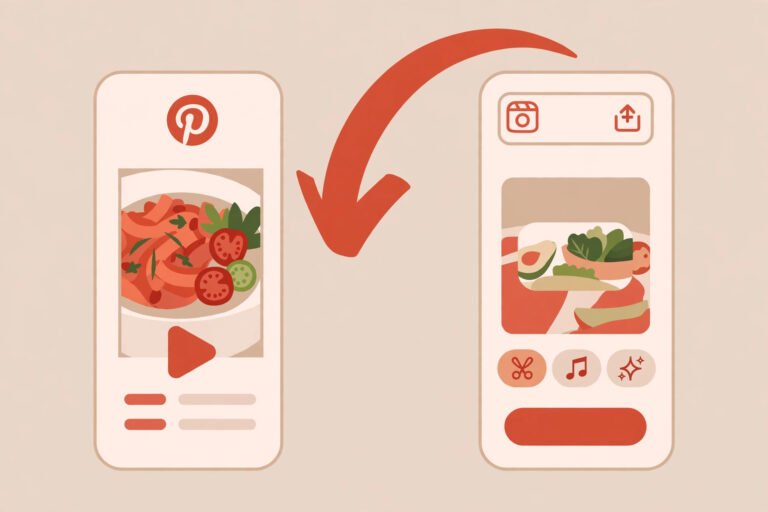
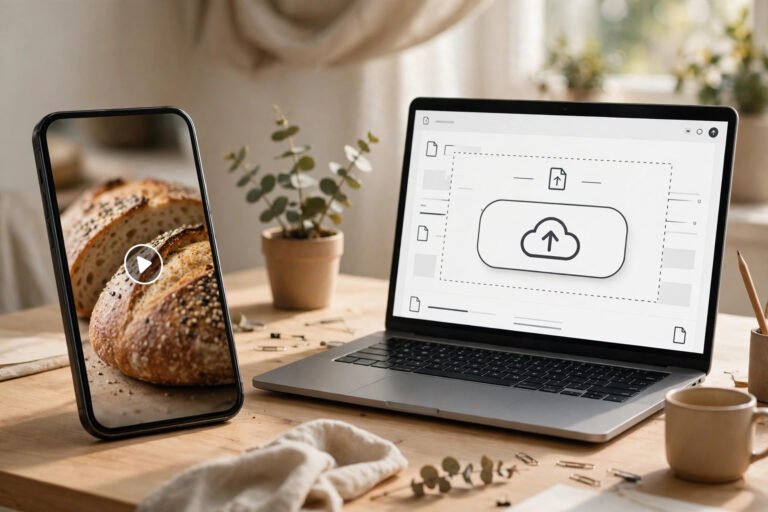
To save Pinterest videos to WeTransfer, here is the short version: there is no button on Pinterest that sends a video to WeTransfer, and there is no button on WeTransfer that fetches a video from Pinterest. The job has two halves, and every guide I read while researching this one covers only one of them. The download guides stop the moment the MP4 lands on your device. The WeTransfer guides start with a file that is already sitting on your device. This guide does both halves, in order, on computer and on phone: copy the pin link, download the MP4, check it against WeTransfer’s actual free limits, upload it, choose email or link transfer, and get it into the recipient’s hands. I ran the download half this morning on three real pins and measured every file — the extractor answered in about three seconds per pin and returned a clean MP4 every time, including from a promoted pin. The rest of this guide is the detail: the exact clicks, the limits WeTransfer actually enforces in 2026, the phone step everyone misses, and what to do when a transfer expires or stalls.
People usually want a Pinterest video on WeTransfer for one of four reasons, and the reason decides a couple of choices later, so it is worth naming yours before you start. Some are sending a clip they made to a client, a collaborator, or a friend who asked for the file itself rather than a link to a Pinterest board. Some are moving their own videos off Pinterest because the person they are sending to does not use Pinterest at all. Some are sharing a tutorial or reference clip with a small group — a class, a team, a family chat — where a download link is easier than asking everyone to open an app. And some are archiving their own work by sending a copy to a second email address, which is one of the simplest backups there is. All four start with the same download and the same upload; they only split at the email-versus-link choice. I will point out the splits when we get there.
One thing before the steps, because it decides everything else: this guide is about moving videos you have the right to move. Your own Pinterest videos, videos the creator said you can reuse, and clips you are sending privately for a specific purpose. Downloading a Pinterest video for yourself and forwarding someone else’s video to other people are different things, and the second one needs the creator’s permission. WeTransfer’s free plan is for personal, non-commercial use as well, so a client delivery that is part of paid work belongs on a paid plan or a different tool. I will show you exactly where that line sits, because almost none of the guides I read while researching this one mention it at all.
Why No Guide Does the Whole Job — Until This One
I read eleven pages before writing this, and the pattern was almost funny by the end. The download guides are good at the download. The strongest one I found walks through the website steps and the app steps, explains where files land on iPhone, Android and desktop, and lists the formats you can pick. Then it stops. Not one word about WeTransfer. The WeTransfer guides are good at the sending. The strongest one I found explains the free allowance as a rolling window, walks through the six-digit verification code, and even lists the Safari upload bug that stalls transfers between 0% and 99%. Then it stops too — it never mentions Pinterest, and it assumes the file is already on your device. Between the two halves there is a gap, and that gap is the whole job: getting the video off Pinterest, checking it against WeTransfer’s free limits, and choosing the right kind of transfer.
The second problem is worse than the gap. Half the WeTransfer guides I read quote limits that are no longer true. Four of them still say the free plan allows 2 GB per transfer and that links last 7 days. Both figures are the old policy. WeTransfer’s own pages, which I read in full this morning, say the free plan is 3 GB per transfer within a total of 3 GB across a rolling 30-day window, with a maximum of 10 transfers in that window, and that free links expire after 3 days. Two of the third-party guides even contradict themselves on the same page — one section says 7 days, another says 3 days. If you plan around the old numbers, you will send a link on Monday that dies on Thursday and wonder what went wrong. This guide uses only WeTransfer’s own current figures, and it says so plainly wherever an older guide disagrees.
The third problem is the practical choices nobody explains. No page I read compares email transfer with link transfer for this use case. No page explains the rolling 30-day window in plain words — that it is 10 transfers and 3 GB total, whichever you hit first. No page tells you that the first transfer from a new email address stalls on a six-digit verification code that is only valid for 60 minutes. And no page covers what happens when a transfer expires — you just re-send it, because recovering an expired link is a paid feature. This guide covers all of it, with the numbers I measured this morning instead of the numbers a marketing page claims.
Before You Start: Whose Video Is This?
Pinterest does not let you download video pins natively. That is the first fact to get straight, because it shapes everything else. For an image pin, you can open the pin, tap the three dots in the upper-right corner, and choose “Download image” — it lands in your phone’s gallery or your computer’s downloads. For a video pin there is no such option, and Pinterest’s own help pages say so plainly: it is currently not possible to download video pins, including your own. So the download half of this job needs a third-party downloader, and the one I use in this guide is PintoDownload — free, no signup, no watermark, and it returns the original MP4 from Pinterest’s own servers.
Ownership is the part the other guides skip, and it matters more here than in the Dailymotion or YouTube versions of this series, because WeTransfer sends the file to specific people. Downloading a video to watch it offline yourself is one thing. Forwarding someone else’s video to a client, a group chat, or a mailing list is distribution, and distribution needs the creator’s permission. The safe rule is simple: send only videos you made yourself, videos the creator explicitly said you can share, or clips you have genuinely transformed with your own commentary or teaching. If the video is someone else’s work and you are just passing it along, send the pin link instead — the link is always safe to share, and the creator keeps the views. WeTransfer’s free plan is also for personal use, so if you are sending client work as part of a paid job, that is what the paid plans are for.
One more honest note before the steps: I tested the download half live this morning on three real pins, and I verified the WeTransfer steps against WeTransfer’s own help pages read in full today. I did not execute a live WeTransfer transfer with my own email address in this run, because that would send a real verification code to a real inbox and create an account in the process — so the WeTransfer steps below are the official steps, checked against the current help pages, and I say so wherever a step is document-verified rather than executed. The download half, the file measurements, and the limits are all tested or read from the source today.
Step 1: Get the Actual Video File
Everything after this depends on having the real MP4 on your device. A Pinterest link is not a file, a saved pin is not a file, and a screen recording is a worse file. The download takes under a minute once you know the clicks, and it is the same on computer and phone.
Copy the link from the pin
Open the video pin on Pinterest — in the app or in a browser, it does not matter. Tap the share button (the arrow, usually at the bottom of the pin on mobile and at the top on desktop) and choose “Copy link”. On desktop you can also just copy the URL from the address bar; it is the same link. Two things to check before you go further. First, the pin has to be public: a private-board pin will not extract, because the downloader cannot see what Pinterest keeps behind your login. Second, if the pin is a promoted pin — an ad — it usually still works, but promoted pins are the least consistent ones I have tested. One of the three pins I tested this morning was a promoted pin, and it downloaded cleanly; the same pin had failed the same test two days ago. If a promoted pin fails, try again later or pick the organic version of the same clip.

Paste it into PintoDownload and save the MP4
Open PintoDownload in your browser, paste the copied link into the box, and hit the download button. The site fetches the video from Pinterest’s servers and shows you a preview with a download button — no account, no app install, no watermark added to the file. Tap download and the MP4 saves to your device: the Downloads folder on a computer, and on a phone it goes to Downloads first, from where you move it into your gallery if you want it there. The whole round trip took about three seconds per pin in my test this morning, plus the download time itself, which depends on the file size and your connection.

Here is what I actually measured this morning, on three real pins, so you can see what a Pinterest video really looks like once it is a file. Pin 1133851643718448045 came back as a 1.9 MB file, 576 by 1040 pixels, H.264 video, 13.1 seconds long. Pin 84090718036202104 came back as a 9.3 MB file, 400 by 400 pixels, H.264, 25 frames per second, 120.28 seconds long. And the promoted pin, 950118852663821178, came back as a 7.2 MB file, 720 by 1280 pixels, H.264, 30 frames per second, 65.01 seconds long. All three downloaded in under four seconds each on a normal connection. Two things worth noticing. First, the file labelled “720p” in the URL was actually 400 by 400 pixels — the label is Pinterest’s quality tier, not the pixel height, so do not trust the label. Second, even the longest clip I tested — two full minutes — was under 10 MB. That matters for the next section, because WeTransfer’s free cap is measured in gigabytes, and a Pinterest video is measured in megabytes.
| Pin tested | File size | Resolution | Duration | Download time |
|---|---|---|---|---|
| 1133851643718448045 | 1.9 MB | 576 × 1040 | 13.1 s | ~3 s |
| 84090718036202104 | 9.3 MB | 400 × 400 | 120.3 s | ~3 s |
| 950118852663821178 (promoted) | 7.2 MB | 720 × 1280 | 65.0 s | ~4 s |
If the download fails, do not keep retrying the same link. The three usual causes, in order, are: the pin is on a private board, the link was copied from a story or idea pin that the extractor cannot read, or Pinterest served a temporary error. Check the first two, wait a minute, and try once more. If it still fails, the fixes in our Pinterest video not downloading guide cover the rest. And if you want the same steps on a computer specifically, our PC guide walks through them with screenshots.
That video is the site’s own walkthrough of the same download step — copy the link, paste it, save the MP4 — so if you prefer to watch the clicks rather than read them, it covers Step 1 in about a minute.
Will a Pinterest Video Fit WeTransfer’s Free Limits?
Yes — with an absurd amount of room to spare. This is the section that justifies the whole article, because it is the one every other guide gets wrong. Here are WeTransfer’s free-plan limits as they actually stand in November 2026, taken from WeTransfer’s own pages, which I read in full today:
- 3 GB per transfer. A single transfer cannot be larger than 3 GB on the free plan.
- 3 GB total per rolling 30 days. All your free transfers in any 30-day window together cannot pass 3 GB.
- 10 transfers per rolling 30 days. You get ten free transfers in that same window, and the count limit hits first if you send lots of small files.
- Links live for a maximum of 3 days. After that the files are permanently deleted from WeTransfer’s servers, and a free account cannot recover them.
- Up to 10 recipients per email transfer on a free account; 50 on paid plans; 3 at most from a mobile browser without logging in.
- No file-type restrictions. Videos, images, audio, PDFs, ZIP archives — anything goes, and there is no compression or re-encoding, so the recipient downloads exactly the file you uploaded.
Now put the measured numbers next to those limits. The biggest Pinterest video I downloaded this morning was 9.3 MB. The free cap is 3 GB, which is about 3,000 MB — so that two-minute clip uses roughly 0.3% of a single transfer’s allowance. You could send more than three hundred clips that size before the total allowance noticed. The count limit is the one to watch instead: ten transfers in 30 days sounds generous until you are sending a clip a day to different people, and then it is gone by the 10th. If you hit the count, the fix is to bundle several videos into one transfer — WeTransfer accepts multiple files and whole folders in a single transfer — or wait for the window to roll forward. The window is rolling, not calendar-based, so a transfer you sent 29 days ago frees its slot tomorrow.
| Limit | Free plan (current, Nov 2026) | What older guides still say |
|---|---|---|
| Size per transfer | 3 GB | 2 GB (old policy, pre-April 2026) |
| Total per 30 days | 3 GB across all transfers | Not mentioned at all |
| Transfers per 30 days | 10 | “As many as you like” (wrong) |
| Link expiry | 3 days, then permanently deleted | 7 days (old policy) |
| Email recipients | 10 per transfer | 20 (wrong — one guide’s figure) |
| Password protection | Free on all plans | “Pro only” (outdated) |
Two of the guides I read print both figures on the same page — 7 days in one section, 3 days in another — which tells you the page was updated in pieces and nobody re-read it end to end. Trust the 3-day figure: it is what WeTransfer’s own pages say in eight separate places, and it is the number that decides whether your recipient can still download on Thursday. If the video has to stay available for longer than three days, WeTransfer is the wrong tool for that job — send it through a cloud drive instead, or upgrade to a paid plan that lets you set a custom expiry. A Pinterest video sent by WeTransfer is a three-day window, and the honest thing is to tell the recipient that in the same message as the link.
Method 1: Save Pinterest Videos to WeTransfer From Your Computer
The desktop browser is WeTransfer’s recommended route for larger transfers, and it is the route with the fewest surprises. The whole thing takes about five minutes for a typical Pinterest clip, most of it waiting for the upload bar.
Step 1: Open WeTransfer and add your file
Go to wetransfer.com in your browser — Chrome or Firefox are the safest choices, because WeTransfer’s own troubleshooting notes a known Safari-on-Mac upload hang that can stall a transfer anywhere between 0% and 99%. Click the plus button or “Add your files” and pick the MP4 you downloaded in Step 1. You can also drag the file straight onto the transfer window, or drag a whole folder in — WeTransfer will flatten a folder’s contents into a single zip unless you zip the folder yourself first, so zip it first if the folder structure matters. In Safari the “select a folder” option does not appear at all; drag and drop, or pick the file with the plus button.

Step 2: Choose email transfer or link transfer
This is the one decision that matters, and it is worth making deliberately rather than accepting the default. WeTransfer’s own help page describes both modes in full, and the difference is simple. WeTransfer opens in email-transfer mode: you type the recipient’s email address, your own email address, an optional title and message, and click Transfer. WeTransfer emails the recipient a download link, emails you a confirmation, and emails you again when the recipient downloads. The alternative is a link transfer: click the three-dot menu in the bottom-left corner of the transfer window, switch to link transfer, and after the upload finishes you get a shareable link to paste wherever you like — a chat, an email you write yourself, a group message. There is a full comparison of the two further down this guide, but the short version is: email when you want delivery confirmation and a named recipient, link when you want to share with a group or post it somewhere public. Link transfers have no recipient cap at all, while an email transfer on a free account caps at 10 recipients.
Step 3: Verify your email, then wait for the upload
If you do not have a WeTransfer account, the first transfer from a new email address pauses for verification: WeTransfer sends a six-digit code to your inbox, you paste it into the box, and the upload proceeds. The code is valid for 60 minutes, and if it lapses you request a new one. Once you have an account, this step disappears. Keep the browser tab open and the computer awake until the progress bar reaches 100% — if the device sleeps mid-upload, the transfer stalls, and on a slow connection a big file can take a while. As a rough guide from the testing other guides report, a 2 GB video on a 10 Mbps connection takes well over 20 minutes; your 9 MB Pinterest clip will take seconds. Do not close the tab early. When the upload finishes, an email transfer is sent and a link transfer shows you the link to copy.
Step 4: Tell the recipient the link dies in 3 days
This is the step everyone skips and then regrets. The link you just created stops working after three days, and the files are permanently deleted from WeTransfer’s servers — a free account cannot recover them. So put the deadline in the same message as the link: “Here is the video — the link works until Thursday, please download it before then.” If the recipient misses the window, you just re-send the transfer from the original file on your device; it costs you one more of your ten monthly transfers, so it is worth the one-line warning. You can check whether they downloaded it from your Transfers panel, which shows the download status per recipient on email transfers.
Method 2: Save Pinterest Videos to WeTransfer From Your Phone
Most Pinterest videos start life on a phone, so it is natural to send them from the phone too — and it works, with two caveats that the desktop route does not have. The first is that you need the actual MP4 file on the phone, not just the pin. The second is the recipient cap: from a mobile browser without logging in, you can add at most 3 recipients to an email transfer.
Step 1: Download the video on your phone
Do the download half on the phone itself. Open the pin in the Pinterest app, tap share, copy the link, then open PintoDownload in your phone’s browser, paste the link, and save the MP4. On Android the file lands in Downloads; on iPhone it lands in the Files app’s Downloads folder first, and you save it to Photos from there if you want it in your gallery. The full phone walkthrough — including where the file lands on each system and the iPhone Files-app step that trips people up — is in our save-to-gallery guide.
Step 2: Send it through the mobile browser
Open wetransfer.com in your phone’s browser and tap “Upload files”, then pick the video from your Files app or your Photos. Give the transfer a title and a message if you like, then choose between email transfer and “Get a link”. If you do not have a WeTransfer account, you will need to verify your email with the six-digit code before sending, exactly as on desktop. One small quirk from WeTransfer’s own help page: emojis typed into the message field on mobile web will not display, so keep the message plain text. Keep the browser open until the upload finishes — switching away to another app for a long time can stall it on some phones.
Step 3: The app route, and when to prefer it
WeTransfer also has free apps for iOS and Android. On iOS, tap the floating blue plus button after signing in, then pick the file from your Camera roll, your Photo and Video Library, or your Files. On Android, open the app, tap the plus button, select your files, fill in the recipient details or switch to a link transfer, and tap Transfer. The app is the better choice if you send videos often, because it keeps your transfer history and handles the upload in the background more gracefully than a browser tab. The browser route is the better choice for a one-off send, because it needs no install and no sign-in beyond the email verification. Paid subscribers get two extra controls inside the iOS app — changing the expiry date and adding password protection — but on the free plan both of those are already available on the web, so the app buys you convenience, not features.
One honest note: I verified the phone steps against WeTransfer’s own help pages, which describe the mobile browser and both apps in full, but I did not execute a live transfer from a phone in this run. The download half on the phone is the same tested extractor as on desktop, and the file it returns is the same MP4. If you hit a snag on the phone — most commonly the upload stalling when the browser goes to the background — switch to the app, or send it from your computer instead.
Email Transfer vs Link Transfer: Which One for a Pinterest Video?
WeTransfer gives you two ways to send the same file, and the right one depends on who is receiving it and what you need to know afterwards. Here is the comparison for this specific use case — sending a Pinterest video to someone.
| Feature | Email transfer | Link transfer |
|---|---|---|
| How the recipient gets it | WeTransfer emails them a download link | You paste the link into a chat, email, or post |
| Recipient limit (free) | 10 per transfer; 3 from mobile browser without login | Unlimited — anyone with the link |
| Do recipients see each other? | No — each email is sent separately | Nobody sees anyone; the link is the same for all |
| Download confirmation | Yes — you get an email when they download | Only if you enable download tracking in the Transfers panel |
| Best for | One client, one collaborator, one friend | Group chats, classes, teams, public posts |
| Risk | A mistyped email sends the link nowhere | Anyone with the link can download — add a password for sensitive clips |
| Expiry (free) | 3 days | 3 days |
My rule of thumb: if the video is going to one person and you need to know they got it, use email. If it is going to a group, a class, or anywhere you would paste a link anyway, use link transfer and add a password when the clip is anything you would not want forwarded. Password protection is free on all plans now — older guides still call it a paid feature, and they are out of date — and you can add it before sending or afterwards from the Transfers panel. You can also restrict a link transfer to specific email addresses, so only those people can download even if the link gets passed around.
WeTransfer Free vs Starter vs Ultimate
For a Pinterest video, the free plan is more than enough — the file is megabytes against a gigabyte cap. The paid plans only matter when the pattern of sending changes: many transfers a month, bigger files, or links that must outlive three days. Here are the tiers on the facts that matter, from WeTransfer’s own pages and the best-sourced third-party guides.
| Feature | Free | Starter | Ultimate |
|---|---|---|---|
| Size per transfer | 3 GB | Up to 300 GB per file | Up to 1 TB per transfer |
| Total per 30 days | 3 GB | 300 GB | Unlimited transfers |
| Transfers per 30 days | 10 | 10 | Unlimited |
| Link expiry | Max 3 days | Longer than free | Custom, or indefinite |
| Expired-transfer recovery | No — permanently deleted | No | Yes |
| Email recipients | 10 per transfer | Up to 50 | Up to 50 |
| Password protection | Included free | Included | Included |
Two things I am deliberately not stating as fact: the exact monthly prices, and the old “Pro” tier. The prices quoted by third-party guides range from about €10 to €25 a month depending on the page, and none of them agree with each other — check WeTransfer’s pricing page on the day you consider upgrading. And “Pro” no longer exists as a tier name; the current paid tiers are Starter and Ultimate, so any guide that tells you Pro allows 200 GB per transfer is describing a product you can no longer buy. For this article’s purpose the conclusion is simple: a Pinterest video fits the free plan with room to spare, and you only need to pay when you send a lot of them, or need a link that lives longer than three days.
What the Recipient Sees (and What You See Back)
It helps to know both sides of the exchange, because most of the “it didn’t work” messages come from a mismatch of expectations. On an email transfer, the recipient gets an email from WeTransfer with your title and message and a download button. They do not need a WeTransfer account, and they do not need to install anything — they click, the browser opens a download page, and the file saves to their device. They can preview the video in the browser before downloading, which is useful when they are deciding whether it is the right clip. On a link transfer, the same download page opens from whatever link you pasted, and anyone with the link sees the same page.
On your side, an email transfer sends you two emails: one confirming the transfer was sent, and a second one when the recipient downloads. You can also open your Transfers panel at any time to see the status of every transfer — sent, downloaded, expired — and to change the expiry date on an active transfer if your plan allows it, or to add a password after the fact. One detail worth knowing: WeTransfer uploads a copy of your file to its servers, and your original stays exactly where it was on your device. When the transfer expires, only the server copy is deleted; your local file is untouched, and you can re-send it whenever you like. That is also why an expired transfer is not a disaster — it is a minor inconvenience that costs you one more transfer from your monthly ten.
Troubleshooting: When Something Goes Wrong
Almost every failure in this workflow has one of six causes, and five of them are fixed in under a minute. Work through the table before uploading the same file a second time — a repeat upload burns one of your ten monthly transfers for nothing.
| Problem | Likely cause | Fix |
|---|---|---|
| No video found on the pin | Private board, story pin, or a temporary Pinterest error | Check the pin is public, copy the link again from the share button, wait a minute and retry once |
| Verification code never arrives | Spam folder, mistyped email, or a slow inbox | Check spam, confirm the address, request a new code — the code is valid for 60 minutes |
| Upload stalls between 0% and 99% | Known Safari-on-Mac bug, or a VPN, ad-blocker, or sleeping device | Switch to Chrome or Firefox, disable the ad-blocker for wetransfer.com, keep the tab open and the device awake |
| “Limit reached” in the middle of the month | You hit 10 transfers or 3 GB total in the rolling 30 days | Bundle several videos into one transfer, or wait for the oldest transfer to age out of the window |
| Recipient says the link is dead | The 3-day expiry passed | Re-send the transfer from the original file; free accounts cannot recover expired links |
| Recipient cannot download | Preview-only permission, wrong link, or a forgotten password | Check the transfer’s permission mode in the Transfers panel, re-copy the link, and share the password separately |
| File too large for the free cap | A very long or high-bitrate clip over 3 GB | Compress it to MP4/H.264 first, or split it into labelled parts and send them as one transfer |
A note on the Safari stall, because it is the one that wastes the most time: WeTransfer’s own troubleshooting acknowledges that uploads on Safari on a Mac can hang part-way, and the recommended fix is to use Chrome or Firefox. If you are on a Mac and the bar has not moved for several minutes, do not keep waiting — cancel, switch browsers, and start again. And if the download half is the part failing rather than the WeTransfer half, the fixes are different: private pins, expired links, and extractor hiccups are covered in the Pinterest download troubleshooting guide.
Frequently Asked Questions
Can I save Pinterest videos to WeTransfer for free?
Yes. Download the video with PintoDownload — free, no signup — then send it through WeTransfer’s free plan, which covers up to 3 GB per transfer and up to 10 transfers or 3 GB total per rolling 30 days. A typical Pinterest video is under 10 MB, so it fits easily. The only cost is the 3-day expiry: the link stops working after three days.
How long does a WeTransfer link last?
On a free account, a maximum of 3 days from the moment you send it. After that the files are permanently deleted from WeTransfer’s servers and cannot be recovered on the free plan. Older guides still say 7 days, but that was the old policy — WeTransfer’s own pages now say 3 days in every place they state it. Paid plans let you set a custom expiry or keep a transfer active indefinitely.
Do I need a WeTransfer account to send a Pinterest video?
Not exactly. You can start a transfer without signing up, but WeTransfer will verify your email with a six-digit code before sending, and that verification automatically creates a free account for you. Once you have the account, later transfers skip the code step. The recipient never needs an account at all.
Does the recipient need a WeTransfer account to download?
No. Anyone with the link can download straight from their browser, no account and no install. They can also preview the video in the browser before downloading, which is handy when they want to check it is the right clip.
How big a Pinterest video can I send for free?
Up to 3 GB in a single transfer, and up to 3 GB total across all your transfers in a rolling 30-day window. In practice this is never the constraint: the largest Pinterest video I measured this morning was 9.3 MB, about 0.3% of the cap. The count limit — 10 transfers per 30 days — is the one you are more likely to hit if you send clips often.
Can I send a Pinterest video to more than 10 people?
Yes, with a link transfer. Email transfers cap at 10 recipients per transfer on the free plan (50 on paid plans), but a link transfer has no recipient cap at all — one link covers a single colleague, a full client list, or an open audience. If the clip is sensitive, add a password or restrict the link to specific email addresses; both controls are free on all plans.
Will the video lose quality on WeTransfer?
No. WeTransfer does not compress or re-encode files — the recipient downloads exactly the file you uploaded, at full resolution. That is one of the reasons it suits Pinterest videos: the MP4 you downloaded is already compressed by Pinterest, and WeTransfer passes it through untouched. If you want the image version of a pin too, PintoDownload’s image downloader saves that in full quality as well.
Is it legal to save Pinterest videos to WeTransfer?
Downloading a video for your own offline viewing is generally fine, and sending your own video to someone is fine too. The line is forwarding someone else’s video to other people — that is distribution, and it needs the creator’s permission. If you do not have it, send the pin link instead of the file. For the full picture, including the copyright rules that apply to Pinterest downloads, see our legality guide.
What happens when my transfer expires?
The download link stops working and the files are permanently deleted from WeTransfer’s servers. Your original file on your own device is untouched, so you just re-send the transfer — it costs one more of your ten monthly transfers. Only paid plans can recover an expired transfer, so if the video has to stay available for more than three days, send it through a cloud drive instead, or upgrade. The same three-day rule applies whichever destination you used before — if you previously sent a clip to Dailymotion or YouTube, those uploads stay live because they are published videos, not expiring transfers, which is the real difference between the two approaches.
To save Pinterest videos to WeTransfer, the whole job is two halves and about five minutes: copy the pin link, save the MP4 with PintoDownload, and send it through WeTransfer by email or link — then tell the recipient the link lives for three days. The file already fits — I measured it three times this morning, and the biggest clip was under 10 MB against a 3 GB cap — the only real decisions are the ones at the start: whether the video is yours to send, and whether email or link suits the person receiving it. Get those two right, and the rest is just clicks.