Save Pinterest Videos to YouTube: Free Guide 2026
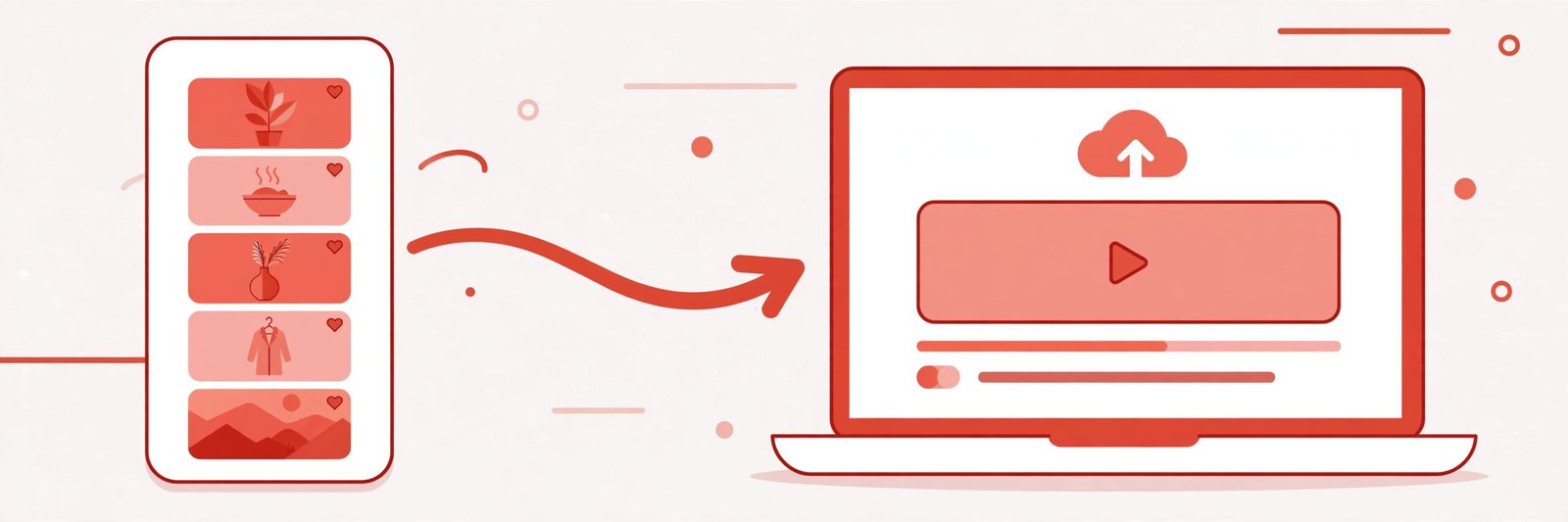
If you want to save Pinterest videos to YouTube, here is the short version: there is no button for it. Pinterest will not send a video to YouTube, and YouTube has no “import from Pinterest” option. What you do instead takes about five minutes once you know the steps. You download the video as an MP4, check that it fits YouTube’s rules for a Short or a regular video, then upload it in YouTube Studio. I did the download half this morning with a real Pin and timed it: copy the link, get the file, 4.2 seconds end to end. The rest of this guide is the detail — the exact clicks, the format YouTube actually wants in 2026, the copyright line you do not want to cross, and what to do when the upload does not behave the way you expected.
I keep writing these guides because the same scene keeps playing out in my own feeds. Someone finds a video on Pinterest — a thirty-second recipe, a DIY build, a workout, a clip that explains something better than any article — and they want it on YouTube, where their audience already is. So they search for a way to move it, and what they find is a mess: downloader pages that stop the moment the file lands on their computer, Shorts guides that never mention Pinterest, and copyright articles that never mention a single click. Nobody writes the whole journey. This guide does, because I went and did each step myself and wrote down what actually happened, including the numbers.
One thing before the steps, because it decides everything else: this guide is about moving videos you have the right to move. Your own Pinterest videos, videos the creator said you can reuse, and clips you are genuinely transforming with your own commentary or teaching. Re-uploading someone else’s video as-is to your channel is a different thing, and it is the fastest way to earn a copyright strike. I will show you exactly where that line sits, because half the guides I read while researching this one never mention it at all.
Before You Start: Whose Video Is This?
Every video on Pinterest belongs to whoever made it. Pinterest hosts it; the downloader fetches it; neither of those facts gives you ownership. That is the whole copyright question in one sentence, and everything else in this section is just working out what follows from it.
There are three buckets, and your video falls into exactly one of them.
Bucket one: it is your video. You filmed it, you posted it to Pinterest, now you want it on YouTube too. This is the clean case. You can download it, upload it, monetize it, do whatever you like with it. If that is your situation, skip the rest of this section — the steps below are all you need.
Bucket two: someone else made it, and they said yes. Maybe they wrote “free to reuse” in the Pin description, maybe the video is under a Creative Commons licence, maybe you asked them in a comment or a DM and they agreed. This is also fine, with two conditions: keep the proof, and respect whatever they asked for — usually credit, sometimes no commercial use, sometimes no edits. A screenshot of their permission is worth more than a memory of it. Note that a creator saying yes to you using their clip does not automatically settle YouTube’s monetization question, which I cover below — YouTube asks what you added, not just whether you were allowed to borrow it.
Bucket three: someone else made it, and you have no permission. This is where people get hurt. Downloading it for yourself to watch offline is the lowest-risk thing you can do with a video, and rights holders almost never pursue it. Uploading it to your YouTube channel is redistribution, and that is where creators file takedowns. Crediting the creator in your description does not fix this — credit is good manners, not permission. Neither does trimming a few seconds off, flipping the video, or speeding it up. YouTube’s own help pages are blunt about the outcome: if the owner sends a valid takedown notice, the video comes down and you get a copyright strike. Three strikes within 90 days and YouTube terminates the channel, videos and all.
There is one more distinction that trips people up, because it sounds like a loophole and is not one. A Content ID claim is not a strike. Content ID is YouTube’s automated system matching your upload against material rights holders have registered. A claim usually means the owner takes the revenue, or the video gets blocked in some places. A strike means a human owner filed a formal takedown and the video was removed. You can collect claims without ever getting a strike, and you can get a strike on a video that never had a claim. Both matter, and I deal with each one in the copyright section near the end.
If you are in bucket three and still want the video on YouTube, the honest options are: ask the creator (many say yes to a one-line request), use only a short excerpt inside your own commentary or teaching, or find a licensed alternative. What you should not do is upload the whole thing and hope nobody notices. Hope is not a strategy, and the detection is automated.
Method 1: Save Pinterest Videos to YouTube the Free Manual Way
This is the method I recommend to almost everyone. It costs nothing, it takes about five minutes, and you stay in control of every step — the file, the title, the description, the privacy setting. It has four steps: copy the Pin link, download the MP4, check the file, upload it in YouTube Studio.
Step 1: Copy the link to the Pinterest video
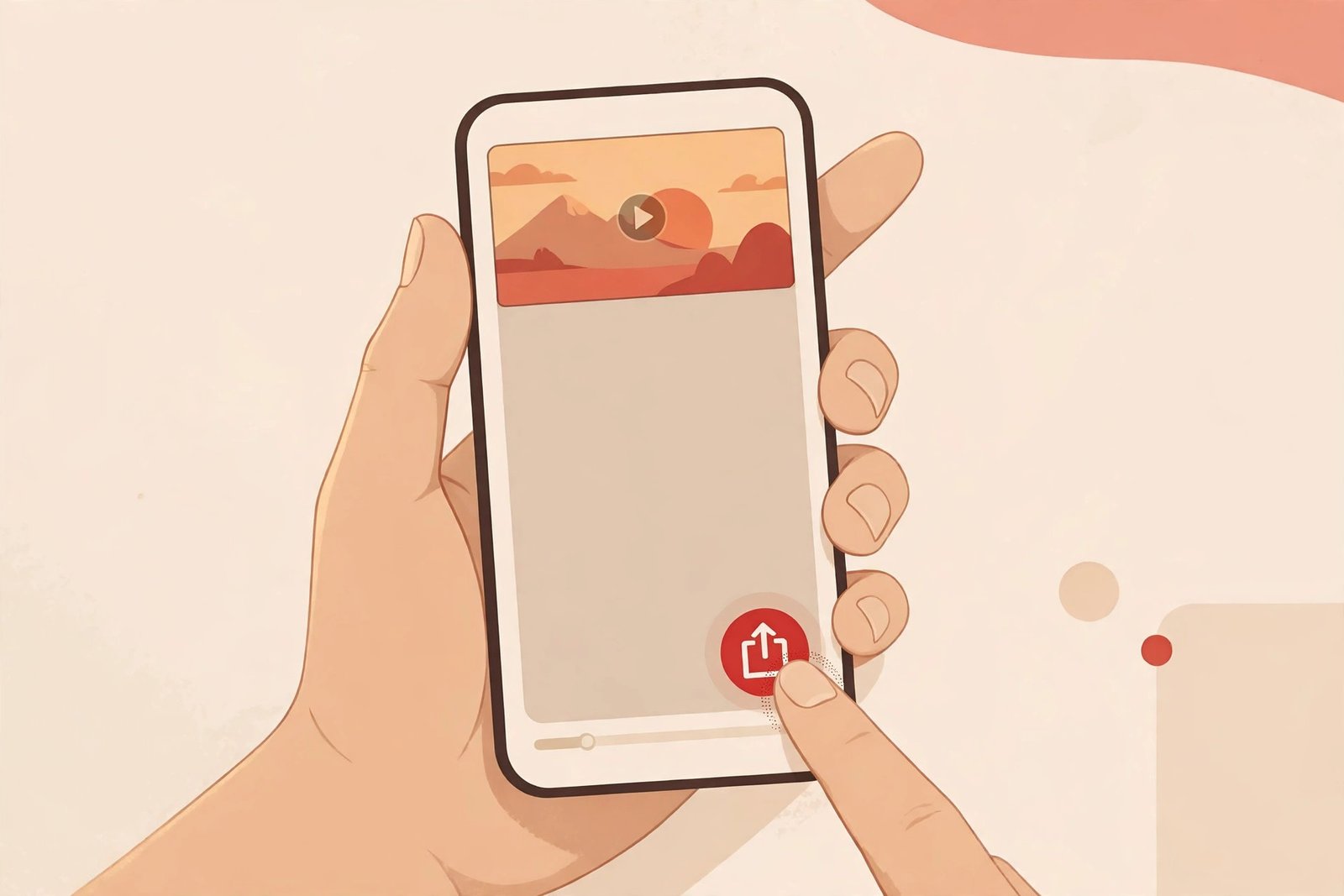
Open Pinterest and find the video Pin you want to move. On the Pinterest app, tap the share icon under the video and choose “Copy link”. On the Pinterest website, open the Pin and copy the URL from your browser’s address bar. Either way you end up with a link that looks like pinterest.com/pin/ followed by a long number, or a short pin.it link — both work.
Two things worth checking at this point. First, the Pin has to be public. Private boards and secret Pins cannot be downloaded by any tool, including this one, because Pinterest does not serve the file to anyone who is not logged in as the owner. Second, if the Pin has a native download button — some creators enable one — use that instead. It is the clearest possible signal that the creator is fine with you saving the file.
Step 2: Download the video as an MP4 with PintoDownload
Go to PintoDownload, paste the link you just copied into the box on the homepage, and hit download. No account, no sign-up, no Pinterest login. The tool fetches the video from Pinterest’s own servers and hands you an MP4 file. That is the whole interaction, and it is the same tool I have used for every guide in this series.
I tested it this morning, 21 November 2026, with a real public video Pin, and I timed each part so you know what to expect instead of taking a marketing page’s word for it. The extractor answered in 2.59 seconds and returned the video file. The file itself downloaded in 1.62 seconds. End to end — paste the link, file on disk — about 4.2 seconds. The file was 720 by 1440 pixels, vertical 9:16, H.264 video with AAC audio, 29.23 seconds long, 3.9 MB. No watermark was added, and nothing asked me to log in anywhere. That 720p file is the largest MP4 Pinterest serves for this particular Pin; other Pins may come back at 1080p if the creator uploaded at higher quality.
The important detail in those numbers is the shape: 720 by 1440, nine-sixteen vertical. Most Pinterest videos are vertical, and that is exactly the shape YouTube wants for a Short. It also means this particular clip needed no conversion at all before uploading — it was already in the right aspect ratio, the right container, and under the length limit. If your video comes back horizontal or square, the next section tells you what YouTube does with each shape.
Step 3: Check the file before you upload it
Thirty seconds here saves you a failed upload and a confusing error message later. Open the file and check four things: it plays, it has sound, it is the right way up, and it is the length you think it is. On a phone, your gallery app shows all of this. On a computer, right-click the file, open Properties or Get Info, and look at the dimensions and duration.
What you are really checking is whether the file already matches YouTube’s rules, because a file that matches needs no editing at all. The rules for a Short are simple, and they come from YouTube’s own help pages: a square or vertical video, up to three minutes long, uploaded at up to 1080p. My test file — 29 seconds, vertical, 720p — passes all three without touching it. If your file is longer than three minutes, or horizontal, or in an odd format, you have a decision to make, and the next section walks through it.
One more check, and it matters more than the technical ones: watch the whole clip once. Not skimmed, watched. I have seen re-uploaded videos where the last ten seconds were a different clip entirely, or the audio cut out halfway, or a watermark from another downloader sat in the corner. You are about to put your channel’s name on this. A full watch-through is the cheapest quality control there is.
Step 4: Upload the video in YouTube Studio
Sign in to YouTube Studio on your computer, click CREATE in the top-right corner, then “Upload videos”, and select the MP4 file you just downloaded. That is the entire upload flow. YouTube does not have a separate Shorts uploader or a Shorts toggle — the file’s shape and length decide what it becomes, and I explain that decision in the next section.
While the file uploads, YouTube asks for the details. The title can be up to 100 characters; keep it under 60 so it does not truncate on phones, where most Shorts get watched. Add #Shorts to the title or description if the video is meant to be a Short — YouTube classifies it automatically anyway, but the tag still helps it land in the right feed cleanly. Write a description in your own words: what the video shows, why it is worth thirty seconds of someone’s time, and credit to the original creator if it is not your own footage. Then comes the audience question — “Is this made for kids?” — answer it honestly, because getting it wrong carries its own penalties. Pick your visibility: Public, Unlisted, or Private. You can also schedule it from this same screen, which I cover near the end.
On your phone the flow is nearly identical. Open the YouTube app, tap the plus button, choose “Upload a video”, pick the file from your gallery. If the video is square or vertical and three minutes or under, the app shows a trim editor and treats it as a Short. If it is longer than three minutes, the app offers “Edit into a Short”, which trims it down for you. You can also record directly in the app’s Shorts camera, but for a video you already have as a file, the upload route is faster and gives you a cleaner result.
Upload limits are generous enough that you will probably never hit them: YouTube caps uploads at 256 GB or 12 hours, whichever comes first, and you can select up to 15 short videos at a time from a computer. A Pinterest clip is a few megabytes. The limit that actually bites people is not size but shape, which is the next section.
Will Your Video Become a Short? The Rule YouTube Actually Uses
Here is the question that confuses almost everyone, and the answer is shorter than you would expect. YouTube decides whether your upload is a Short from two things only: the shape of the video and how long it is. There is no toggle, no checkbox, no setting you pick at upload. If the file is square or vertical and three minutes or under, it becomes a Short. If it is horizontal, or longer than three minutes, it stays a regular video. That is the whole test, straight from YouTube’s help pages.
The three-minute figure surprises people, because half the internet still says sixty seconds. YouTube raised the cap from 60 seconds to three minutes on 15 October 2024, and plenty of guides — including some I read this morning while researching this article — were never updated. If you follow a guide that tells you to trim everything to under a minute, you are working from a rule that expired two years ago. The sixty-second number still matters in one specific place, and it is worth knowing: if your Short is over a minute long and carries an active Content ID claim, YouTube blocks it worldwide. Under a minute, the same claim changes nothing. So the practical advice is simple: keep it under three minutes to qualify, and keep it under sixty seconds if it contains any music or footage you did not create yourself.
| Requirement | What YouTube wants |
|---|---|
| Maximum length | 3 minutes (raised from 60 seconds on 15 October 2024) |
| Minimum length | None published by YouTube — the “15 second minimum” is a myth from the old Shorts camera |
| Aspect ratio | Square (1:1) or vertical (9:16 is standard); horizontal 16:9 never becomes a Short |
| Resolution | Up to 1080p — 1080 by 1920 pixels at 9:16 |
| Format | MP4 with H.264 video and AAC audio, which is exactly what PintoDownload returns |
| Title length | Up to 100 characters (keep it under 60 to avoid truncation on mobile) |
| Batch upload | Up to 15 Shorts at a time from a computer |
| File cap | 256 GB or 12 hours, whichever is less |
Two edge cases catch people out. The first is the upload date. Videos uploaded before 15 October 2024 keep their original classification even if they would qualify as Shorts today — a vertical two-minute video from 2023 is still a long-form video, and it will not migrate on its own. Re-uploading it would reclassify it, at the cost of starting its view count from zero. The second is accidental classification: a two-minute vertical clip you meant as a regular video will land in the Shorts feed whether you wanted it there or not, and it enters the Shorts revenue model too. If you want a video to stay long-form, export it at 16:9. The aspect ratio you export at is the decision, not a setting you pick afterwards.
Custom thumbnails deserve a mention because they work differently for Shorts than for regular videos. You can pick any frame from the Short as its thumbnail before or after upload, and add text and filters. A custom uploaded thumbnail is a desktop-only job in YouTube Studio, your account has to be verified, and the image should be 9:16 at 2160 by 3840 pixels. Give a vertical video a 16:9 thumbnail and YouTube replaces it with an automatic 4:5 crop on some pages, which looks sloppy — match the tall frame.
Short or Long-Form: Which Should You Pick?
Most Pinterest videos are short and vertical, so most of them will become Shorts automatically, and for most people that is the right outcome. But it is worth making the choice deliberately, because Shorts and long-form videos do different jobs for a channel, and the numbers are not what most creators assume.
The best real-world data I found while researching this came from Neal Schaffer, who published the numbers from 182 Shorts on his own channel. Shorts under 40 seconds held a median of 70% of the video watched; Shorts over two minutes held 22%. Everything between 40 seconds and two minutes clustered in the mid-fifties. His conclusion is blunt and I agree with it: pick the shortest duration that finishes your idea, because length correlates with retention only weakly — content does most of the work, and shortening a weak Short will not save it. A separate study of over 13 million videos found the same shape: videos under a minute averaged a 52% engagement rate.
The surprise in his numbers is the subscriber trade-off. His Shorts held far more of each viewer’s attention than his long-form videos — 59.7% average watched against 18.9% — yet long-form turned engaged viewers into subscribers at roughly twice the rate: 56 subscribers from long-form against 20 from Shorts. Shorts are a discovery format. They earn attention efficiently and convert subscribers inefficiently. If your goal is to be found, Shorts are the tool. If your goal is to build a subscriber base that comes back, a Short should point at a longer video, not replace it.
There is also a measurement trap worth knowing about before you read your own analytics. On 31 March 2025 YouTube changed how Shorts views are counted: a view now registers every time a Short starts to play or replays, with no minimum watch time. The stricter original metric survives in YouTube Analytics under the name “Engaged views”. On Schaffer’s channel the gap was large — 14,816 views against 8,153 engaged views, meaning 45% of views never became engaged views. If you report Shorts performance to anyone, know which of the two numbers you are quoting. And if a Short over a minute long picks up a Content ID claim from music you did not make, remember it gets blocked globally until the claim clears — another reason to keep borrowed-music Shorts under sixty seconds.
So the practical rule: if the Pinterest video is vertical and under three minutes, let it be a Short and let YouTube’s feed do the discovery work. If the video is longer, or horizontal, or it is a tutorial that needs room to breathe, upload it as a regular video and give it a proper title and description. And if you are moving a whole series of Pinterest videos, do not put them all up as identical Shorts on the same day — YouTube’s monetization reviewers look at the channel as a whole, and a wall of near-identical re-uploads is exactly the pattern that gets flagged.
Method 2: Automate It — Pinterest to YouTube Shorts Without the Manual Steps
If you post your own Pinterest videos regularly and want each one to appear on YouTube without you doing the download-upload dance every time, automation is the honest alternative. The tool I found that actually does this is Nuelink, and it is worth understanding precisely because it is not a downloader — it is a crossposting service.
The setup takes under two minutes, according to Nuelink’s own page: connect your Pinterest and YouTube accounts, go to Automations, click Crossposting, pick Pinterest as the source and your YouTube channel as the destination, and choose a board. From then on, every time you publish a video Pin to that board, Nuelink checks your account every 30 minutes and shares the video to YouTube Shorts, immediately or after a delay you set. You can add hashtag rules — for example, only crosspost Pins whose description contains #shorts-ready — and drop the videos into a Collection that schedules when each Short goes live. You can also attach a follow-up comment to the Short automatically, and Nuelink pulls your YouTube analytics into the same dashboard.
There are limits, and they matter. It only works for Pins published directly on Pinterest; if you schedule a Pin through Nuelink itself, it will not auto-share unless the Pin was posted natively first. It only watches one board per automation, so multiple boards need multiple automations. Changes you make after crossposting are not synced — edit or delete the Pin and you have to manually update or delete the Short. And it is a paid tool: the Standard plan starts at $12 a month billed yearly, and the number of channels and automations depends on the plan. There is a free trial, so you can test it against a real board before paying.
Automation makes sense in exactly one situation: the videos are yours, you publish them to Pinterest first, and you want YouTube to mirror them. It makes no sense for someone else’s videos, because automating a re-upload does not make the re-upload legal — it just gets you struck faster, at scale. It also makes no sense if you only move a video occasionally, because the manual method above is free and takes five minutes.
Method 3: Edit First, Then Publish Straight to YouTube
Sometimes the video needs work before it goes on YouTube. Maybe it is horizontal and you need it vertical. Maybe it is two minutes of a four-minute clip and you want the best thirty seconds. Maybe it has no captions and you want them. For that, an editor with a built-in downloader and a publish button is the middle path between the manual method and full automation.
Flixier is the clearest example I found. It runs entirely in your browser — no install, no account needed to start. You click Get Started, paste the Pinterest link into the Import menu, and the video appears in your library after a few seconds of processing. Drag it to the timeline, trim it, convert it from landscape to portrait with the canvas settings, add stock music, transitions, or animated text, and generate subtitles automatically in over thirty languages. When you are done, click Export, then Export and Download — and the file comes back as an MP4. The useful part for this guide is that Flixier also lets you publish straight to YouTube from the editor, with a title, description, and thumbnail, alongside TikTok, Instagram, and Facebook.
Two honest notes. First, Flixier itself warns you to have the original author’s permission if you plan to share or upload the result anywhere — the editing does not change whose video it is. Second, the free tier is a starting point, not a studio: exports are watermarked on some plans and the cloud rendering queue can be slow at busy times. For a quick crop-and-upload job it is good; for a daily pipeline, the manual method plus a proper editor is cheaper and more predictable.
The deeper point about editing is not the tool, it is what the editing does for you legally. A video you trimmed, reframed, captioned, and narrated over is a different thing from a video you re-uploaded untouched. It is still not a free pass — a thirty-second clip with your voiceover explaining it is in a much stronger position than the same thirty seconds reposted silently — and the copyright section below explains why that difference matters to both YouTube’s Content ID system and its monetization reviewers.
The Three Methods Compared
| Method | Cost | Speed | Control | Best for |
|---|---|---|---|---|
| Manual (PintoDownload + YouTube Studio) | Free | ~5 minutes per video (my test: 4.2 seconds to download) | Full — every title, description, and setting is yours | Almost everyone; one-off moves and small batches |
| Edit first (Flixier) | Free to start; paid tiers for full exports | 10–20 minutes per video | High — trim, crop, captions, music, publish in one place | Videos that need reframing to 9:16 or real editing |
| Automation (Nuelink) | From $12/month billed yearly; free trial | Set up once; then automatic (checks every 30 minutes) | Low — rules and schedules, not per-video choices | Creators mirroring their own Pinterest board to YouTube |
My recommendation is simple. Start with the manual method. It is free, it is fast — genuinely fast, I timed it — and it teaches you the two platforms’ rules by making you touch each one. Move to an editor when a specific video needs a crop or a trim. Pay for automation only when you are mirroring your own content every week and the manual steps have become a chore. No tool in this list makes a video yours. The method changes the workflow, not the ownership.
The Copyright Rules Nobody Tells You Before Uploading
Most guides treat copyright as a paragraph at the end. For this topic it is the whole subject, because the download is the easy half and the upload is where the consequences live. Here is what I found, checked against YouTube’s own help pages and the clearest independent write-ups I could find.
Claims, strikes, and the reused-content rule are three different things
People use these words as if they were one thing. They are three separate systems, and confusing them is how creators make decisions they regret.
A Content ID claim is automated. YouTube scans your upload against a database of material rights holders have registered. If it matches, the owner can take the revenue, track the video, or block it. A claim carries no channel penalty, and it is not a strike. The one hard edge: any Short over a minute long with an active claim — manual claims included — is blocked worldwide until the claim clears.
A copyright strike is formal. The owner files a DMCA takedown notice, YouTube removes the video, and a strike lands on your channel. Three strikes within 90 days and YouTube terminates the channel. Strikes expire after 90 days if you stay clean and complete any copyright training YouTube requires. If you realize your mistake quickly, deleting the video yourself before a takedown notice arrives does not result in a strike — that is the single most useful fact in this whole section.
The reused-content policy is about money, not removal. It lives in YouTube’s channel monetization policies, and it decides whether your channel gets into the Partner Program. A channel built mostly on other people’s material, without meaningful commentary or changes of your own, can be kept out — even if nobody ever files a takedown. The eligibility thresholds are 1,000 subscribers plus either 4,000 valid public watch hours in the last 12 months or 10 million valid public Shorts views in the last 90 days, and then a human reviews the channel. Getting permission to use a clip does not settle this question either: the reviewer asks what you added, not whether you were allowed to borrow it. Compilations with little or no narration, re-uploads even trimmed or sped up, and clips with a caption on top and nothing else all land on the wrong side. Commentary where your voice and your argument carry the video, reactions where your reaction is the content, and your own long videos cut down into Shorts all land on the right side.
The fair-use checklist, honestly applied
Fair use in the US — fair dealing in the UK, Canada, and Australia — can protect commentary, criticism, parody, and education. It is a defence, not a permission, and the rules differ by country. Before you upload someone else’s Pinterest video, run through this checklist and be honest with yourself about each answer.
- Are you adding something? Your own opinions, analysis, critique, or teaching — not just the video with a new title on it.
- Are you using only what you need? The minimum portion that makes your point, not the whole video because it was convenient.
- Does your use harm the original? If someone watches your upload instead of the creator’s, you are competing with them, and that counts against you.
- Did you transform it? A new context, a new argument, a new explanation — something that makes the result a different work, not a copy with a filter on it.
- Would you defend it in writing? If the creator asked you to take it down tomorrow, could you explain in two sentences why your upload is fair use? If not, do not upload it.
And a note on the two excuses I see most often. “I credited the creator” is not a defence — credit is good practice, but it does not replace permission. “There was no watermark” is not a defence either — the absence of a watermark does not mean the absence of copyright. The video belongs to someone whether or not they stamped their name on it.
If something goes wrong after you upload
If you get a Content ID claim, open it in YouTube Studio and read what it actually says before doing anything. If the claim is on music, you can trim that section out, replace the song, or mute it, and the claim usually clears. If you believe the claim is wrong — it is your own video, or you have a licence — dispute it with the evidence attached. If you get a strike, delete the video immediately to limit further access, read the strike notice carefully, and either ask the claimant for a retraction or file a counter-notification if you genuinely believe the takedown was a mistake. Do not re-upload the same video while a strike is active. And if your Partner Program application is rejected for reused content, the videos are not deleted — you change the channel, add original work, and reapply after the waiting period. The system punishes patterns, not single mistakes, but it remembers patterns for a long time.
How to Schedule Your YouTube Upload
You do not have to publish the moment the upload finishes. YouTube Studio has a Schedule option built into the same upload flow: on the visibility step, click the Schedule card, set the date, time, and time zone, and click Schedule. The video stays private until that time and sits on the Content page in YouTube Studio, where you can change the time later by keeping it private, clicking Edit draft, and picking a new time. A short vertical video scheduled this way still goes out as a Short.
A scheduler tool fits when YouTube is one of several networks. If the same vertical video also goes to TikTok, Instagram, and Facebook, a tool like Pubblica lets you upload it once, write one caption or one per network, set a single time, and have it go out as a Short, a Reel, and a TikTok at the same hour. It publishes through YouTube’s official Data API, connects through Google’s own sign-in, and never sees your password. The free plan includes YouTube with a limited number of posts a month and no card. If YouTube is your only network, YouTube Studio’s own Schedule option already covers everything you need, and paying for a scheduler buys you nothing.
One scheduling tip from the data in this article: the best-performing Shorts in the research I read were under 40 seconds, and the Shorts that held people past halfway were the ones with a clear idea finished quickly. Scheduling a batch of them for the same week is fine; scheduling twenty identical re-uploads for the same afternoon is how a channel starts to look mass-produced, and that is the pattern YouTube’s inauthentic-content rule is written to catch.
Troubleshooting: When Saving Pinterest Videos to YouTube Goes Wrong
| Problem | Likely cause | Fix |
|---|---|---|
| The video did not become a Short | It is horizontal 16:9, or longer than 3 minutes | Re-export at 9:16 vertical, or trim it under 3 minutes and re-upload |
| The video became a Short and you did not want it to | Square or vertical and under 3 minutes — YouTube classifies automatically | Export at 16:9 to keep it long-form; there is no toggle to override it |
| Upload blocked with a Content ID claim | Music or footage matched a rights holder’s registration; over a minute long, so blocked worldwide | Remove or replace the claimed audio, cut the Short under 60 seconds, or resolve the claim in Studio |
| The download failed or returned no file | Private Pin, deleted Pin, or a bad link (often a pin.it short link that expired) | Open the Pin in Pinterest first to confirm it plays; copy the full pinterest.com link from the address bar and try again |
| The downloaded video has no sound | The original Pin had no audio track, or the audio is in an unsupported codec | Play the Pin on Pinterest — if it is silent there, the file is fine; add your own audio in an editor if the Short needs it |
| The video looks blurry after upload | Pinterest serves a compressed stream; you cannot download more quality than the Pin carries | Download at the highest quality offered, upload at 1080p, and avoid re-compressing it through another tool first |
| You got a copyright strike | The owner filed a DMCA takedown on a video you did not have the right to upload | Delete the video immediately, read the strike notice, and ask the claimant for a retraction or file a counter-notification if the takedown was wrong |
| The Short has views but no subscribers | Normal — Shorts convert subscribers at about half the rate of long-form video | Point Shorts viewers at a longer video on the same topic; check “engaged views” in Analytics, not raw views |
Frequently Asked Questions
Can I save Pinterest videos to YouTube for free?
Yes. The manual method costs nothing: copy the Pin link, download the MP4 with a free tool like PintoDownload, and upload it in YouTube Studio, which is also free. My test this morning took 4.2 seconds for the download half, and the upload half is just filling in a title and description. Paid tools only make sense if you are automating a regular pipeline of your own videos.
How long can a Pinterest video be to upload as a YouTube Short?
Up to three minutes. YouTube raised the Shorts limit from 60 seconds on 15 October 2024, and a square or vertical video up to three minutes long becomes a Short automatically. Keep it under 60 seconds if it contains music or footage you did not create, because a Short over a minute with an active Content ID claim gets blocked worldwide.
Is it legal to upload Pinterest videos to YouTube?
It depends on whose video it is. Your own videos are fine. Videos the creator gave you permission to reuse are fine, if you follow their conditions. Re-uploading someone else’s video without permission is copyright infringement: the owner can file a takedown, the video comes down, and you get a strike — three strikes in 90 days ends the channel. Crediting the creator does not replace permission. For the full picture, read my guide on whether downloading Pinterest videos is legal.
Will YouTube pay me for Pinterest videos I re-upload?
Almost certainly not. YouTube’s reused-content policy keeps channels built mostly on other people’s material out of the Partner Program, even when no one files a takedown. The reviewer asks what you added — commentary, teaching, a real transformation — not whether you were allowed to borrow the clip. Re-uploads with a thin voiceover on top land on the wrong side of that line.
What format should the video be in for YouTube?
MP4 with H.264 video and AAC audio, which is exactly what Pinterest downloaders return. For a Short, export vertical 9:16 at 1080 by 1920 pixels, up to three minutes. For a regular video, 16:9 at 1080p is the safe default. YouTube accepts other formats, but MP4 is the one that never causes a problem.
Can I save Pinterest videos to YouTube on my phone?
Yes, the whole flow works on a phone. Copy the Pin link in the Pinterest app, download the MP4 in your mobile browser, then open the YouTube app, tap the plus button, choose “Upload a video”, and pick the file from your gallery. A vertical clip under three minutes shows a trim editor and uploads as a Short. The same steps work on Android and iPhone, and if you want the phone-specific download steps in more detail, see my guide on downloading Pinterest videos on PC and the rest of the series — the TikTok guide and the Instagram guide cover the same download-first pattern for other platforms.
The Bottom Line
To save Pinterest videos to YouTube, download the video first and upload it second. Copy the Pin link, paste it into PintoDownload, save the MP4 — my test this morning took 4.2 seconds end to end, and the file came back vertical, 720p, ready for YouTube with no conversion — then upload it in YouTube Studio, where a square or vertical clip under three minutes becomes a Short automatically. That is the whole mechanical job, and it is genuinely a five-minute task.
The part that decides whether it was a good idea is not mechanical at all. It is the question I opened with: whose video is this, and what did you add to it? Your own videos, and videos you have permission to reuse, belong on YouTube. Someone else’s video re-uploaded as-is does not, no matter how many tools promise to move it in one click, and the consequences — a Content ID claim, a strike, a monetization rejection months later when you apply for the Partner Program — arrive quietly and stay for a long time. The downloaders will keep working either way. The difference between a channel that grows and a channel that gets terminated is the decision you make before you paste the link.
If you want to save Pinterest videos somewhere else after YouTube, the same download-first pattern works everywhere: the image side of the same tool is the Pinterest image downloader, and the rest of this series covers each destination step by step. Start with the video that is yours, get the first Short up, watch the engaged-views number rather than the raw view count, and build from there.