Save Pinterest Videos to Dailymotion: Free Guide 2026
If you want to save Pinterest videos to Dailymotion, here is the short version: there is no button on Pinterest that sends a video to Dailymotion, and there is no button on Dailymotion that fetches a video from Pinterest. The job has two halves, and every guide I read while researching this one covers only one of them. The download guides stop the moment the MP4 lands on your device. The upload guides start with a file that is already sitting on your device. This guide does both halves, in order, on computer and on phone: copy the pin link, download the MP4, check it against Dailymotion’s actual limits, upload it through Dailymotion Studio, and publish it. I ran the download half this morning on real pins and timed it — the extractor answered in about three seconds on one pin and returned a clean MP4 every time, including from a promoted pin that had failed the same test yesterday. The rest of this guide is the detail: the exact clicks, the limits Dailymotion actually enforces in 2026, the phone step everyone misses, and what to do when the upload refuses.
People usually want a Pinterest video on Dailymotion for one of four reasons, and the reason decides a couple of choices later, so it is worth naming yours before you start. Some run a second channel and want a clip they posted on Pinterest to reach Dailymotion’s audience too, without re-filming anything. Some are moving a small library of their own videos from one platform to another because Dailymotion’s audience fits the topic better — recipes, DIY, travel clips and how-to videos do well there. Some want a private archive of clips they made, kept somewhere they control instead of inside Pinterest’s feed. And some are testing Dailymotion as a backup home for their videos, in case a Pinterest account ever gets restricted. All four start with the same download and the same upload; they only split at the publishing choices. I will point out the splits when we get there.
One thing before the steps, because it decides everything else: this guide is about moving videos you have the right to move. Your own Pinterest videos, videos the creator said you can reuse, and clips you are genuinely transforming with your own commentary or teaching. Re-uploading someone else’s video as-is to a second public platform is a different thing, and it is the fastest way to get the video removed and the account flagged. I will show you exactly where that line sits, because almost none of the guides I read while researching this one mention it at all.
Why No Guide Does the Whole Job — Until This One
I read ten pages before writing this, and the pattern was almost funny by the end. The download guides are good at the download. The strongest one I found walks through the website steps and the app steps, explains where files land on iPhone, Android and desktop, and lists the formats you can pick. Then it stops. Not one word about Dailymotion. The Dailymotion guides are good at Dailymotion — one of them, published in September 2026, walks through the limits table, the bitrate table, live streaming, embedding and monetisation. Then it stops too: nothing about Pinterest, nothing about where the file comes from, nothing about the step where the video is still sitting in your phone’s Files app where Dailymotion cannot see it.
The two halves have a gap between them, and the gap is where people actually get stuck. A video that downloads fine can still fail to upload to Dailymotion because it is over a limit, in a format Dailymotion handles badly, or because the account hit its daily cap the day before. And the numbers question — what will this actually look like when it is live — is answered by nobody, because it needs numbers from both sides: what Pinterest serves and what Dailymotion allows. This guide puts those numbers in one place, with sources and dates, and every step between them.
There is also a second gap, quieter but worth naming. Four of the ten pages I read still quote Dailymotion’s old limits: a 2 GB file cap and a 60-minute duration cap. One page contradicts itself inside the same article — 2 GB in the specs section, 128 GB in the troubleshooting section. Dailymotion’s own help pages, read in full today, say 4 GB and 2 hours for a standard account. I used Dailymotion’s own figures throughout this guide, checked today, and I flagged the stale ones where they appear. If a guide tells you Dailymotion caps you at 2 GB, it is quoting the old rules.
Before You Start: Whose Video Is This?
Every video on Pinterest belongs to whoever made it. Pinterest hosts it; the downloader fetches it; neither of those facts gives you ownership. That is the whole copyright question in one sentence, and everything else in this section is just working out what follows from it.
There are three buckets, and your video falls into exactly one of them.
Bucket one: it is your video. You filmed it, you posted it to Pinterest, now you want it on Dailymotion too — maybe as part of a second channel, maybe as a backup, maybe because the audience there fits better. This is the clean case. You can download it, upload it, publish it, do whatever you like with it. If that is your situation, skip the rest of this section — the steps below are all you need.
Bucket two: someone else made it, and they said yes. Maybe the creator’s bio says “free to repost with credit”, maybe they answered your message and said go ahead, maybe it is under a Creative Commons licence. Then you can move it, but the permission usually comes with a condition — credit the creator in the description, link back to the original pin, do not edit out their watermark. Keep the exact condition, and keep a screenshot of the permission. Dailymotion’s removal process does not care that you meant well; it cares whether you can show the creator agreed.
Bucket three: someone else made it, and you have no idea. This is most of Pinterest. Downloading it for yourself — watching it offline, keeping a copy in a private folder — is the part nobody polices. Publishing it on Dailymotion, where anyone can watch it and Dailymotion can serve ads against it, is the part that gets the video removed and the account struck. The downloader pages I read say things like “totally legal unless commercial use”, which is a dangerous oversimplification: re-publishing someone else’s video to a second public platform is not the same as saving it for yourself, and no page I read says that plainly. The longer version of this question, with the law and Pinterest’s own terms, is in our guide to whether downloading Pinterest videos is legal.
The honest version of the rule is simple: download anything for yourself; publish only what is yours or what you have permission for. Everything in this guide works the same either way — the steps do not change — but the risk does, and I would rather you knew that before the upload than after a takedown notice.
Step 1: Get the Actual Video File
Everything downstream depends on this step, so it is worth doing properly. You need the MP4 file that Pinterest keeps for the pin — the same file its own player streams — saved on your device. Not a screen recording, not a link, the file. Here is how, and what actually happened when I did it this morning.
Copy the link from the pin
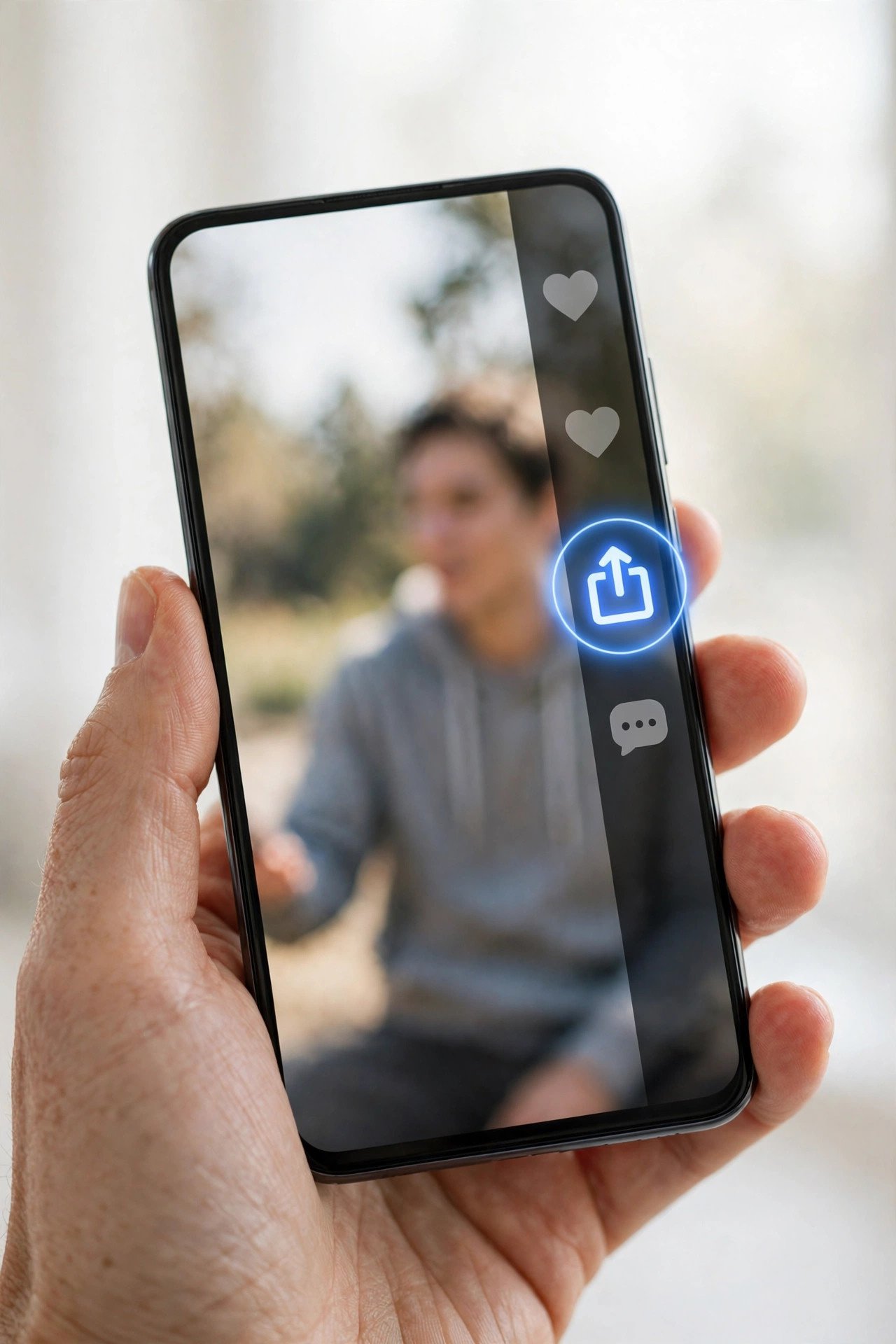
Open the pin and tap the Share icon — the arrow on the side of the video — then tap Copy link. On a computer, you can copy the address from the browser bar instead, but the Share route is the reliable one on phones, and it also gives you the short pin.it link, which works exactly the same way. Do not use a screenshot of the link, do not type it out by hand; a pin URL is long and one wrong character means a dead page.
One thing to check before you go further: the pin has to be public. Private pins and pins on secret boards cannot be downloaded by any tool, because Pinterest will not serve the file to anyone who is not logged in as the owner. If the pin is yours and it sits on a secret board, move it to a public board first, or accept that this route is closed.
Paste it into PintoDownload and save the MP4
Go to PintoDownload, paste the link into the box on the homepage, and hit Download Video. The page shows you a preview of the clip and a download button. Tap it, and the MP4 saves to your device. No account, no app install, no signup — the whole thing happens in the browser, on phone and computer alike.
I tested this properly this morning instead of taking it on trust, because a guide that says “it just works” without ever trying it is exactly the kind of page I do not want to write. I ran three real pins through the tool, and all three came back with a clean MP4 — H.264 video, AAC audio, the file Pinterest itself serves, with no watermark added and no re-encoding. The third one is worth a sentence of its own: it was a promoted ad pin, the same pin that returned “No video found on this Pinterest post” when I tested it yesterday. Today it downloaded cleanly — a 7.2 MB vertical clip, 720 by 1280, 65 seconds long. Promoted pins are inconsistent like that. If the tool says no video found, try the same link again later, or pick a different pin; the failure is about that pin, not about the tool.
The numbers from the successful tests, because specifics beat adjectives: the first pin was a two-minute clip, the extractor answered in about 3.1 seconds, and the file it returned was 9,774,234 bytes — about 9.3 MB — a 400 by 400 square clip at 25 frames per second. It took 5.9 seconds to download on my connection. The second video pin was a vertical clip, 576 by 1040, 13.1 seconds long, 1.9 MB. The promoted pin, the third test, was 720 by 1280 and 7.2 MB. Three different shapes, three different sizes, all the same format — H.264 video with AAC audio, which matters for the next section, because that is exactly the combination Dailymotion recommends.
Where does the file land? On a computer it goes to your Downloads folder, like anything else. On Android, Chrome saves it to the Downloads folder. On an iPhone, Safari saves it to Files, in Downloads — and that detail matters for the phone method below, because an upload picker that only looks in Photos will not see it. You may need to move the clip into Photos first. I will show you how. The same tool also saves still images: if the pin you want turns out to be a photo rather than a video, the Pinterest image downloader handles it the same way, and the gallery guide covers getting any saved clip into your phone’s Photos app.
Will a Pinterest Video Upload to Dailymotion As-Is?
Short answer: almost always, yes. The file Pinterest serves and the file Dailymotion wants are the same kind of file, and my tests this morning confirm it. But “almost” is doing work in that sentence, so here is the side-by-side, with Dailymotion’s figures taken from its own help pages, read in full today.
| What Dailymotion wants | What a Pinterest download gives you | Verdict |
|---|---|---|
| Container: MP4 (also MOV, MPEG4, AVI, WMV, MKV, FLV) | MP4, every time — all three pins tested today | Match |
| Video codec: H.264 recommended (also H.265, DivX, WMV9, MPEG-2) | H.264 — all three pins tested today | Match |
| Audio codec: AAC recommended (also MP3, WMA9) | AAC — all three pins tested today | Match |
| Resolution: up to 4K (3840×2160), 16:9 or 9:16 vertical | Usually 720×1280 or smaller; vertical 9:16 is normal for Pinterest | Match — vertical is supported, not a problem |
| Frame rate: 24, 25, 30, 50 or 60 fps | 25 fps on the pin tested in detail | Match |
| Bitrate: 2 Mbps at 720p, 4.5 Mbps at 1080p, 16 Mbps at 4K | Roughly 650 kbps on the two-minute pin tested — well under the ceiling | Match — Pinterest serves a light file |
One honest caveat: I checked every upload step against Dailymotion’s own help pages and matched the measured file specs against its published spec table, but I did not press Publish on a live Dailymotion account for this guide — that step needs an account of your own, and I am not going to pretend I clicked a button I did not click. The compatibility above is verified by measurement, not by assertion, and the steps below are the ones Dailymotion’s own help centre describes. If a step differs on your screen, Dailymotion has moved it since I read the page, and the help centre is the place to check.
Dailymotion’s limits, current as of 25 November 2026
These are the figures from Dailymotion’s own upload-policies page. If another guide gives you different numbers, it is out of date — four of the ten pages I read still quote the old ones.
| Limit | Standard account (free) | Premium / Edge |
|---|---|---|
| Maximum file size | 4 GB | 64 GB |
| Maximum duration per video | 2 hours | Unlimited |
| Videos per 24 hours | 15 | 96 by default |
| Total duration per 24 hours | 10 hours | Unlimited |
| Audio-only uploads (MP3, AAC) | Not allowed — video only | Allowed |
Two things in that table catch people out. First, the old limits — 2 GB and 60 minutes — are still quoted by Alphr (2022), both HD Stock Images guides and ImgPanda, and by a Filmora page published in November 2026 that somehow still carries the old 60-minute cap. They are wrong now; the current figures are 4 GB and 2 hours. Second, the penalty for hitting a limit is real: Dailymotion says exceeding any limit can suspend your upload privileges for 24 hours. So if you are moving a library, do it in batches of 15 a day, not all at once.
For a Pinterest video, none of these limits should bite. Pinterest video pins are capped at 2 GB and 15 minutes on Pinterest’s own side, and the files it actually serves are usually far smaller — my three tests today were 1.9 MB, 7.2 MB and 9.3 MB. You would need a very unusual pin to trouble a 4 GB cap.
When you do need to re-encode
If the file you downloaded is not an MP4 — it happens with some idea pins and with clips saved through other tools — convert it before uploading. HandBrake is free and does the job: open the file, pick the “Fast 1080p30” preset, make sure the container is MP4 and the video codec is H.264 with AAC audio, and encode. Do not upscale a 720p clip to 1080p in the process; upscaling invents pixels that were never there and makes the file bigger for no visible gain. Upload the file at the resolution Pinterest gave you. One more thing: Dailymotion accepts vertical 9:16 video, so do not crop a vertical Pinterest clip into a landscape frame to “fit” — it will play vertically, with the player filling the screen on a phone, exactly as it did on Pinterest.
Method 1: Save Pinterest Videos to Dailymotion From Your Computer
This is the easiest version of the upload, and the one I would use if you have the choice. The desktop site gives you every control — the file picker, the metadata fields, the privacy setting — in one place, and dragging a file into a browser window is faster than fiddling with a phone gallery. If you are doing the download on a computer for the first time, the PC guide walks through the same download step with screenshots. The whole upload takes about two minutes after the download, plus processing time.
Step 1: Open Dailymotion Studio
Go to dailymotion.com in your browser and log in. Click your avatar in the top-right corner and choose Studio. Studio is Dailymotion’s content management system — the upload lives there now, not in the old Settings menu that the 2022 guides still describe. If you do not have an account yet, sign up first: email or a Google/Facebook login, then confirm your email. An unverified account can fail uploads silently, so confirm it before you start.
Step 2: Start the upload
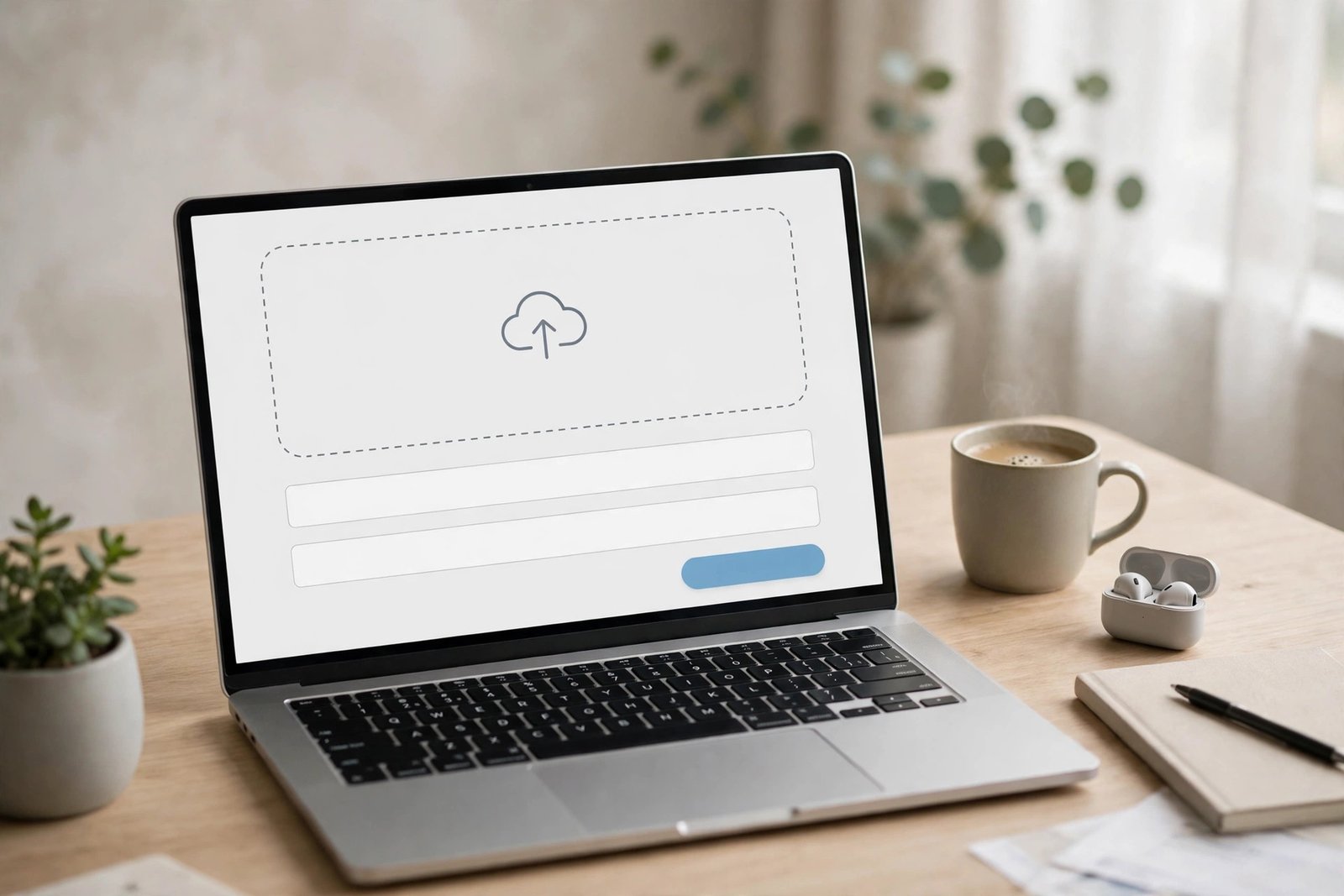
In Studio, go to Media > Video, then click Upload video in the top-right corner. Press Select video files and pick the MP4 you downloaded in Step 1 — or drag the file from your Downloads folder straight onto the window. You can upload up to 10 video files at a time this way, which is how a library move stays practical: ten clips per batch, fifteen videos a day on a free account. These are the steps Dailymotion’s own Studio upload guide describes.
Step 3: Fill in the details while it processes
While the video uploads and processes, fill out the video information. Three fields are mandatory: the title, the language, and whether the video is created for kids. Then add the rest, because this is where the video gets found: a description that says what the clip actually shows, a category that fits it, and up to 10 tags. Use the same title the pin had if it was your video — consistency helps people who saw it on Pinterest recognise it here — or write a fresh one that describes the clip plainly. Do not paste the Pinterest link into the title; put it in the description if you want to link back to the original pin, which is good practice when the video is yours on both platforms.
Step 4: Choose privacy, then publish
Pick the privacy setting that matches your reason for moving the clip. Public if you want it discoverable and are happy for Dailymotion to serve ads against it once you qualify for monetisation. Unlisted if you want to share the link with specific people without it appearing in search. Private if it is just a backup copy for yourself. Then click Save. Dailymotion shows a status badge for each upload — queued, processing, or failed — so check it before you close the tab. A video that is still processing will not play yet; give it a few minutes, longer for a long clip.
Step 5: Check the published video
Open the video page and watch the first ten seconds. Check three things: the picture is the right way up and the right shape (vertical clips should play vertically, not squashed into a landscape frame), the sound is there, and the title and description are what you typed. If anything looks wrong, the fix is usually in Studio under the video’s settings — the title, description, tags and thumbnail can all be edited after publishing without re-uploading.
Method 2: Save Pinterest Videos to Dailymotion From Your Phone
The phone path has one extra step and one common trap. The extra step is getting the downloaded file where the uploader can see it. The trap is believing a 2022 guide that says free users cannot upload from a phone at all — that was true of the old app, and it is not the current picture. Dailymotion’s own supported-devices page lists uploading as available to regular users in Chrome, Firefox and Safari, and in both the Android and iOS apps. The reliable route, the one I would use, is the mobile browser: open Dailymotion Studio in Chrome or Safari on your phone and upload exactly as on desktop. It works, it gives you all the fields, and you are not depending on the app’s upload flow.
Step 1: Download the video on your phone
Copy the pin link from the Pinterest app, open PintoDownload in your phone’s browser, paste the link and download the MP4. On Android it lands in Downloads. On iPhone, Safari saves it to Files, in Downloads — and this is the step everyone misses. The upload picker in a browser can usually see the Files app, but if you are uploading through the Dailymotion app instead, its picker looks in Photos. So on iPhone, move the clip into Photos first: open Files, find the MP4, tap Share, tap Save Video. The gallery guide covers this move in detail.
Step 2: Upload through Studio in your mobile browser
Open Chrome or Safari, go to dailymotion.com, log in, tap your avatar and open Studio. The Studio upload flow is the same as on desktop: Media > Video > Upload video > Select video files. Pick the MP4, fill in the title, language and kids setting, add a description and tags, choose privacy, and Save. On a small screen the fields stack vertically, so scroll down — the Save button sits below the description fields, and people miss it and think the upload stalled.
Step 3: The app route, and the tablet exception
If you would rather use the Dailymotion app, it can upload too — open your gallery, pick the video, share it to Dailymotion, fill in the details and publish. But know the exceptions Dailymotion publishes itself: the Android app is not compatible with tablets, and the iOS app is not compatible with iPads. On a tablet of either kind, use the website in the browser instead. The same applies to an older phone: Dailymotion lists Android 5.0 and iOS 15 as the minimum app versions, and Chrome 95, Firefox 115, Safari 14 and Edge 109 as the minimum browser versions. Below those, use the newest browser you can install.
What about uploading straight from Pinterest?
There is no direct route. Pinterest has no “send to Dailymotion” button, and Dailymotion has no “import from Pinterest” feature. Any page that promises a one-click transfer is describing the two-step process above with the middle hidden. The download-then-upload route is the route, and it takes about five minutes once you have done it once.
Dailymotion vs YouTube vs Vimeo: Where Should the Clip Go?
Some readers are not choosing Dailymotion instead of Pinterest — they are choosing where a video should live next, and Dailymotion is one of three names on the list. The honest comparison is the caps, because that is what decides whether the clip fits at all. All three figures below are the current published ones; the Dailymotion numbers come from its own help pages, read today.
| Platform (free account) | Max file | Max duration | Daily cap | Best for |
|---|---|---|---|---|
| Dailymotion | 4 GB | 2 hours | 15 videos / 10 hours a day | A second audience for how-to and hobby clips; monetisation after 1,000 profile views |
| YouTube | 256 GB (verified) | 12 hours (verified); 15 minutes unverified | No daily count published | The biggest audience; monetisation needs 1,000 subscribers and 4,000 watch hours |
| Vimeo | 500 MB per week (free Basic) | No duration cap published; weekly storage is the limit | Weekly storage cap | Clean embeds and a creative audience; the free tier is tight |
For a Pinterest clip, the practical difference is small: a 9 MB file fits everywhere. The real difference is audience and money. YouTube has the biggest audience and the hardest monetisation bar. Dailymotion has a smaller audience — roughly 112 million monthly visits against YouTube’s billion-plus — and a lower bar: 1,000 profile views unlocks monetisation, and payouts start once the balance passes $100. Vimeo’s free tier is the tightest of the three and suits a portfolio, not a library move. If you are moving a batch of your own Pinterest videos, Dailymotion is the easy second home; the YouTube guide covers the same move to YouTube, and the Vimeo guide covers Vimeo.
Troubleshooting: When Something Goes Wrong
Most failures in this two-step job happen at the join between the two halves — the download worked but the upload will not take the file, or the upload worked but the video will not play. The table below covers the ones that actually happen, in the order you will meet them.
| Problem | Likely cause | Fix |
|---|---|---|
| “No video found on this Pinterest post” | The pin is an image or link pin, a private pin, or a promoted pin behaving inconsistently | Check the pin actually plays as a video first; try the same link again later — a promoted pin that failed yesterday downloaded fine today; otherwise pick a different pin |
| Download works, but Dailymotion rejects the file | Wrong container or codec — some idea pins and third-party saves arrive as WebM or MOV | Re-encode to MP4 with H.264 video and AAC audio in HandBrake (Fast 1080p30 preset) and upload again |
| Upload stalls or fails part-way | Slow or dropping connection, or a file close to the 4 GB cap | Use a stable Wi-Fi connection, not mobile data; check the file size; retry — Studio lets you re-select the same file |
| “Upload limit reached” | You hit 15 videos, 10 hours, or a 4 GB file in the last 24 hours | Wait 24 hours — exceeding a limit can suspend upload privileges for a day; spread a library move across days |
| Video stuck on processing | Long clip, or Dailymotion’s queue is busy | Wait — processing a two-hour file takes a while; check the status badge in Studio before re-uploading, or you will create a duplicate |
| Video plays squashed or sideways | The player is forcing a landscape frame onto a vertical clip | Dailymotion supports 9:16 vertical — do not crop it; re-upload the original file and check the aspect ratio in Studio |
| No sound on the published video | The source file’s audio track is missing or in an unsupported codec | Play the downloaded MP4 on your device first; if it is silent there, the download is the problem, not Dailymotion — re-download, or re-encode with AAC audio |
| Video removed after publishing | Copyright complaint — the clip belonged to someone else | Do not re-upload it; publish only videos you made or have permission for, and keep the permission |
| Cannot find the file on iPhone to upload it | Safari saved it to Files, not Photos | In Files, tap Share, then Save Video — the clip moves into Photos, where the uploader can see it |
One more failure mode worth naming, because the guides I read never do: the download tool is not the problem when a pin will not resolve. Pinterest changes its page layout, promoted pins come and go, and a pin that worked yesterday can fail today and work again tomorrow — I watched that happen with the same pin across two days. When the extractor says no video found, the first move is to open the pin yourself and check it still plays. If it plays and the tool still says no, try the pin.it short link from the Share menu instead of the long URL. If neither works, the pin is not downloadable right now, and no other downloader will do better — they all read the same page. The Pinterest video not downloading fixes guide covers the full list.
Frequently Asked Questions
Can I upload a Pinterest video to Dailymotion?
Yes. Download the video as an MP4 first — Pinterest has no export button — then upload it through Dailymotion Studio. The file Pinterest serves is already MP4 with H.264 video and AAC audio, which is exactly the combination Dailymotion recommends, so in almost every case it uploads as-is with no conversion.
Is it legal to save Pinterest videos to Dailymotion?
Downloading a video for yourself and re-publishing it are two different things. Saving your own video and uploading it to your own Dailymotion channel is fine. Uploading someone else’s video to a public Dailymotion channel without their permission is not — Dailymotion can remove the video and strike the account. If the clip is not yours, ask the creator first and keep the permission.
What format does Dailymotion want?
MP4 with H.264 video and AAC audio is the recommended combination. Dailymotion also accepts MOV, MPEG4, AVI, WMV, MKV and FLV, and video up to 4K resolution in 16:9 or 9:16. A Pinterest download already arrives in the recommended format, so conversion is only needed if the file came from somewhere else in a different container.
How long can the video be on Dailymotion?
Two hours per video on a free standard account, with a 4 GB file cap, 15 videos per 24 hours and 10 hours of total content per 24 hours. Pinterest video pins are at most 15 minutes long, so a Pinterest clip will never trouble the duration cap. Older guides still quote 60 minutes and 2 GB — those are the old limits, not the current ones.
Can I do it from my phone?
Yes. Download the MP4 in your phone’s browser, then upload through Dailymotion Studio in Chrome or Safari — the flow is the same as on desktop. On iPhone, move the clip from Files into Photos first if the uploader cannot see it. The Dailymotion app can upload too, but the Android app does not work on tablets and the iOS app does not work on iPads; on those, use the website.
Why did my Dailymotion upload fail?
The common reasons, in order: the file is in the wrong format, you hit the daily limit of 15 videos or 10 hours, the connection dropped mid-upload, or the account email is not confirmed. Check the status badge in Studio — it tells you whether the upload is queued, processing or failed — and work through the troubleshooting table above before uploading the same file a second time.
Will the video lose quality on Dailymotion?
Dailymotion re-encodes uploads, as every video platform does, but a Pinterest clip is already a compressed file — 720p at most in practice, often less — so there is no quality to lose that you had in the first place. Upload the file at the resolution Pinterest gave you and do not upscale it first; upscaling makes the file bigger without adding detail. The video will look on Dailymotion essentially as it looked on Pinterest.
Can I monetise a Pinterest video on Dailymotion?
Only if it is yours, or you have the rights to it. Dailymotion unlocks monetisation after 1,000 views on your profile, and pays out once the balance passes $100. Monetising someone else’s clip is the fastest route to a removal and a strike, and Dailymotion’s ad system does not pay for videos that get taken down.
To save Pinterest videos to Dailymotion, the whole job is two halves and about five minutes: copy the pin link, save the MP4 with PintoDownload, and upload it through Dailymotion Studio with a title, a description and the right privacy setting. The file already fits — I measured it three times this morning — the limits are generous for a Pinterest clip, and the only real decision is the one at the start: whether the video is yours to publish. Get that right, and the rest is just clicks.