How to Download Pinterest Story Pins (2026 Step-by-Step Guide)
Story Pins are some of the most engaging content on Pinterest — multi-page, vertical Pins packed with images, videos, text overlays, and music that you tap through like a story. The only problem? Pinterest never gave users a straightforward way to save them offline. If you’ve ever wanted to download Pinterest Story Pins for offline viewing, mood boards, or inspiration, this guide shows you exactly how to do it in 2026, on any device, with no extra app to install.
PintoDownload is a free online tool that lets you download Pinterest Story Pins, video Pins, GIFs, and images directly to your device. Below, we’ll walk through three proven methods — the online tool method, a mobile-specific workflow, and a desktop workflow — plus troubleshooting tips and the answers to the most common questions.
What Are Pinterest Story Pins?
Story Pins were Pinterest’s answer to Instagram Stories and TikTok: vertical, multi-page Pins where creators combine several images, short video clips, text pages, stickers, and music into one swipe-through experience. Instead of a single image linking to a website, a Story Pin was a self-contained piece of content you viewed right inside Pinterest.
The format went through a few name changes that can be confusing, so here’s the short version:
- Story Pins — the original name, launched around 2020 for creators to share step-by-step or narrative-style content.
- Idea Pins — in 2021, Pinterest renamed Story Pins to Idea Pins, opening them up to more accounts and adding features like links (for all accounts from May 2023).
- Unified Pin format (2024–2025) — Pinterest retired Idea Pins as a separate creation format and folded their multi-page, multimedia features into the standard Pin creation flow. Pinterest announced that already-published Idea Pins would be converted into video Pins over time.
What does that mean for you in 2026? Millions of these multi-page, story-style Pins are still live and fully viewable across Pinterest. You may see them called Story Pins in older guides and Idea Pins in newer interfaces, but they’re the same idea: tappable, multi-page content. And whether it’s labeled a Story Pin or an Idea Pin, the download method is identical — grab the Pin’s link and run it through a downloader like PintoDownload.
Why Pinterest Has No Built-in Download Button for Story Pins
Unlike a regular image Pin — where Pinterest sometimes shows a “Download image” option in the three-dot menu — story-style Pins have no native download option. There are a few reasons:
- Multi-page structure: A Story Pin isn’t one file; it’s a sequence of slides, each of which can be an image, a video, or a text card. There’s no single “save” action for a slideshow.
- Video processing: Pinterest converts uploads for playback, so the source files live on Pinterest’s servers (CDN) in versions that aren’t exposed through the interface.
- Creator protection: Keeping content view-only inside the app encourages users to stay on Pinterest and protects creators’ work from being reposted without credit.
That’s exactly the gap third-party downloaders fill: they fetch the original-resolution files (JPG for images, MP4 for videos and converted GIFs) straight from Pinterest’s CDN and let you save them locally.
Before You Start: What You’ll Need
Good news — almost nothing: the link to the Story Pin, any browser (Chrome, Safari, Edge, Firefox), and PintoDownload — free, no account, no app installation. That’s it.
Method 1: Download Story Pins With PintoDownload (Easiest)
This is the fastest, most reliable method and it works identically on Android, iPhone, Windows, and Mac — all you need is the Pin’s link and any browser. Follow these steps:
Step 1: Open the Story Pin
Open Pinterest (the app or pinterest.com) and find the Story Pin you want to save. Tap or click it so it’s open in full view — make sure you’re looking at the individual Pin, not a board page or your home feed.
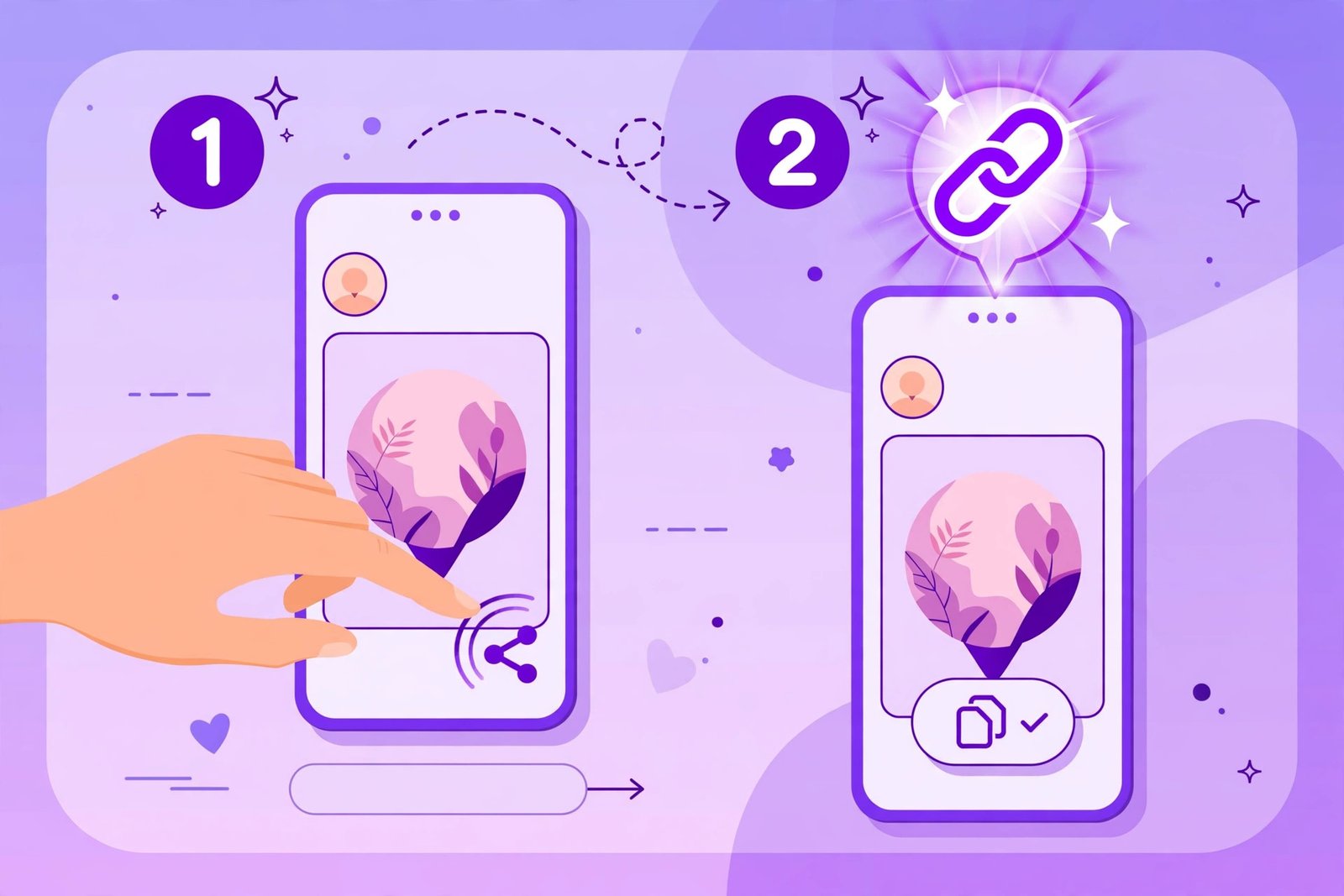
Step 2: Copy the Pin’s link
On the Pinterest app: Tap the Share icon (the paper-plane or share arrow), then tap “Copy link.” Pinterest may give you a short pin.it/xxxx link — that’s fine, it works the same way.
On desktop: With the Pin open, simply copy the URL from your browser’s address bar. It will look like pinterest.com/pin/1234567890/.
If you want the full walkthrough of copying links for every Pin type, check our guide on how to download Pinterest videos — the link-copying steps are the same.
Step 3: Paste the link into PintoDownload
Open PintoDownload in your browser. You’ll see a single input field on the page. Paste the link you copied (on mobile, long-press and tap “Paste”; on desktop, press Ctrl+V or Cmd+V), then hit the Download button.

Step 4: Choose quality and download
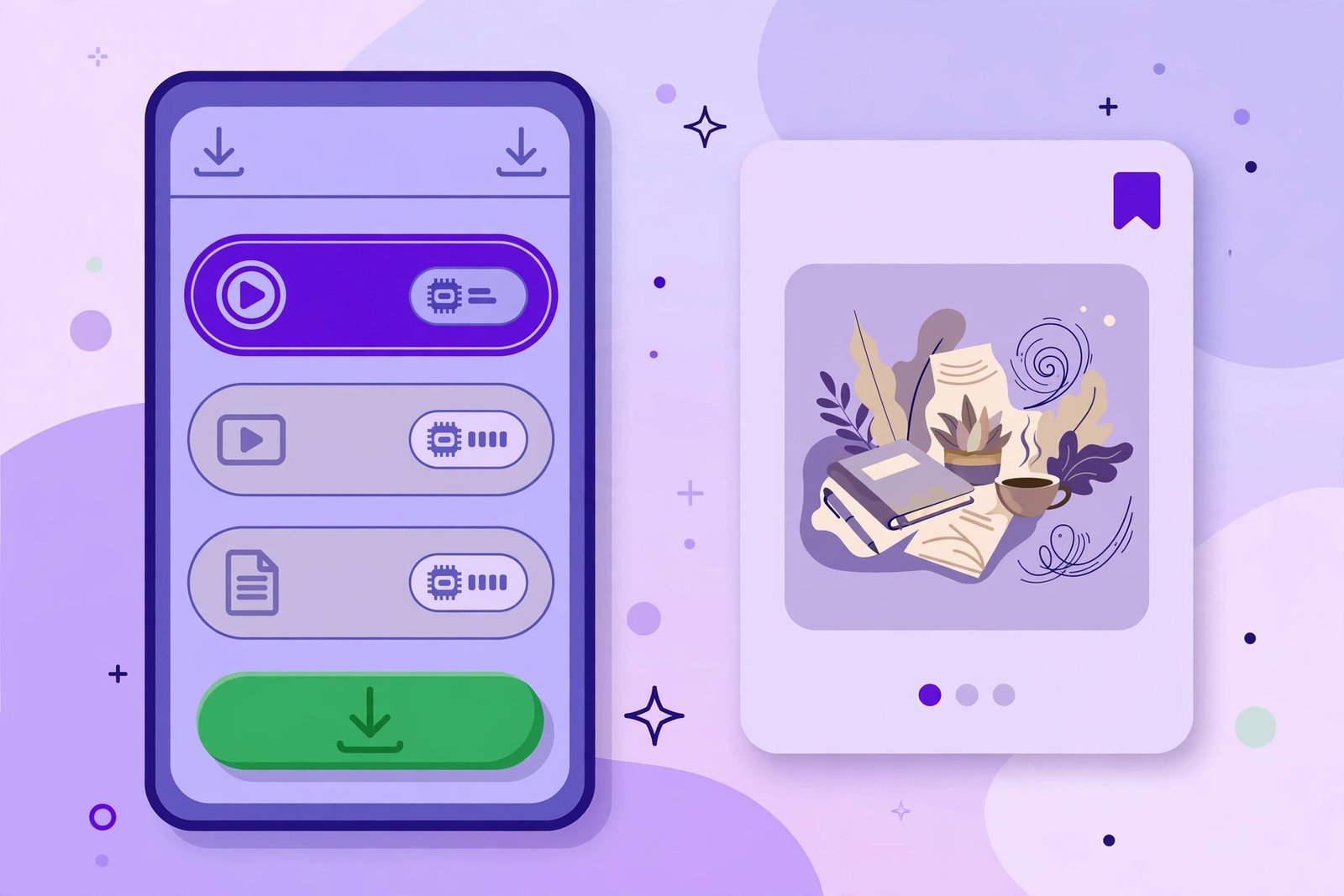
PintoDownload fetches the Story Pin and shows you the available media. Because a Story Pin is multi-page, you’ll typically see each slide listed — image slides as JPG files and video slides as MP4 files. Where multiple resolutions are available, pick the highest-quality option, then tap the download button under each slide you want to save.
Step 5: Find your files
- Android: Downloads land in the Downloads folder and usually appear in your Gallery too.
- iPhone/iPad: Safari saves to Files → Downloads first; from there you can move videos or images into Photos. Chrome on iOS behaves the same way.
- Windows/Mac: Check your browser’s Downloads folder.
Method 2: Download Story Pins on Mobile (Android & iPhone)
Prefer doing everything from your phone? Here’s the mobile-optimized workflow:
- Open the Pinterest app and locate the Story Pin.
- Tap the Share icon → Copy link. (On some versions, the share icon is a paper plane; on others it’s an arrow.)
- Switch to your mobile browser (Chrome on Android, Safari on iPhone) and go to pintodownload.com.
- Paste the link — long-press the input box and choose Paste.
- Tap Download, then tap the download button next to each slide/quality option you want.
- Confirm the save:
- Android: Most browsers save automatically to Downloads; your Gallery app may pick the files up right away. For a deeper device-specific walkthrough, see our Android download guide.
- iPhone: If the video plays instead of downloading, use the Share button in the video player and choose “Save to Files,” then move it to Photos.
Method 3: Download Story Pins on Desktop (Windows & Mac)
The desktop workflow is even simpler since you’re already in a browser:
- Open pinterest.com and find the Story Pin.
- Click the Pin to open it in the close-up viewer.
- Copy the URL from the address bar (
pinterest.com/pin/…). - Open a new tab and go to pintodownload.com.
- Paste the URL, click Download, and save each slide you want.
- Files go to your browser’s default Downloads folder — and that’s the whole process.
Troubleshooting: Common Issues and Fixes
“Invalid link” or “Pin not found” error
This usually means the link points to something other than a single Pin — a board, a profile, or a search page. Make sure the Pin is open in full view before copying the link, and try copying again. Short pin.it links are fine and don’t need to be expanded.
The video won’t play after downloading
Story Pin video slides download as MP4, which plays on virtually every device. If a file won’t open, re-download it — the first attempt may have been interrupted by a flaky connection.
Only some slides downloaded
Each slide of a Story Pin is a separate file, and you download them one at a time. If you only saved the first slide, go back to the results page and download the remaining slides individually.
Quality options look low
PintoDownload returns the best version Pinterest currently makes available for that Pin. Pinterest compresses uploads, so the downloadable file matches Pinterest’s processed version — typically HD or 1080p — rather than the creator’s original camera file. No downloader can upscale a 1080p source into fake 4K.
GIF slides save as video
Pinterest converts uploaded GIFs into MP4 for bandwidth reasons. If a Story Pin contains GIF-style slides, they’ll download as short MP4 clips. You can convert them back to GIF with any free converter if you need the GIF format. See our dedicated Pinterest GIF downloader guide for details.
Private or deleted Pins won’t download
Only public, published Pins can be downloaded. Content from private boards, restricted accounts, or Pins the creator deleted will return an error — no tool can access those.
Comparison: All Methods at a Glance
| Method | Devices | Speed | Quality | App needed? | Best for |
|---|---|---|---|---|---|
| PintoDownload (online tool) | Android, iPhone, Windows, Mac | ~10 seconds per Pin | Best available (HD/1080p) | No | Everyone — fastest, simplest |
| Mobile app workflow | Android, iPhone | ~1 minute | Same as above | Pinterest app + browser | Phone-only users |
| Desktop workflow | Windows, Mac | ~30 seconds | Same as above | None | Bulk downloading, large files |
| Screenshot / screen recording | Any | Slow, manual | Low (screen resolution) | None | Quick captures only — not recommended |
The online-tool method wins for almost everyone: fastest, works on every device, and preserves the best quality Pinterest offers.
Legal and Safe Use: What You Can (and Can’t) Do With Downloads
Downloading a Story Pin for personal use — offline viewing, mood boards, or backing up your own content — is generally fine. But there are boundaries:
- Only download content you have the right to use — your own Pins, public-domain content, or content the creator allows you to reuse.
- Don’t repost without permission. Republishing someone else’s Story Pin without consent can violate Pinterest’s Terms of Service and copyright law.
- Commercial use almost always requires the creator’s explicit permission or a license.
For the full picture, read our guide on whether downloading Pinterest videos is legal and safe.
Frequently Asked Questions
Can I download Pinterest Story Pins directly from the Pinterest app?
No — Pinterest doesn’t offer a built-in download button for Story Pins (or Idea Pins). The app’s download option, where it exists, only covers static images. To save a Story Pin, copy its link and use an online downloader like PintoDownload.
Are Story Pins and Idea Pins the same thing?
Essentially, yes. Story Pins were renamed to Idea Pins in 2021, and in 2024–2025 Pinterest folded the format into its unified Pin creation flow. Older guides say “Story Pins,” newer ones say “Idea Pins” — the download steps are identical for both.
Can I still view old Story Pins in 2026?
Yes. Millions of published Story Pins and Idea Pins remain live and viewable on Pinterest, and Pinterest has said previously published Idea Pins will be converted into video Pins. You can open them, copy their links, and download them with the steps above.
Do downloaded Story Pins have a watermark?
Files downloaded through PintoDownload carry no added watermark. If the creator baked a watermark (like a TikTok or Instagram handle) into the original video or image, that will remain — no downloader can remove it.
What’s the best quality I can get?
PintoDownload returns the highest-resolution version Pinterest currently hosts — often HD or 1080p for video slides and full resolution for image slides. The exact quality depends on what the creator uploaded and how Pinterest processed it. For more on stills, see our HD image download guide.
Final Thoughts
With the link-copy trick and PintoDownload, you can save any public Story Pin — every slide, in the best quality available — in under a minute, on any device, with nothing to install.