Save Pinterest Videos to iCloud: Free Guide 2026
Here is the confusion that wastes most people’s afternoon: Pinterest has a Save button, your iPhone has iCloud, and yet somehow the video you “saved” is in neither place you can actually use. Pinterest’s Save button pins the video to a board — inside Pinterest. iCloud, meanwhile, is not one thing but two, and the video lands in a different one depending on which button you tap. If you want to save Pinterest videos to iCloud so they survive a phone upgrade, a factory reset, or just a brutal storage cleanup, you need the actual video file in a cloud folder you control. This guide walks the whole route: get the file, put it in the right part of iCloud, and make sure it is still there next year.
Short answer: copy the video pin’s link, download the MP4 with PintoDownload (free, no signup, no watermark), then send that file to iCloud Drive through the Files app — or save it to Photos with iCloud Photos switched on. Both work, they are not the same thing, and picking the wrong one is how videos quietly disappear. The rest of this guide explains the difference, then gives you every method step by step.
First, the iCloud Confusion Nobody Explains
Ask three iPhone owners where their videos “go” in iCloud and you will get three answers, all partly wrong. Apple sells you one storage bucket — 5 GB free with every Apple Account, shared across everything — but two different doors into it. iCloud Photos keeps your whole photo and video library in sync and shows it in the Photos app. iCloud Drive stores files and folders and shows them in the Files app. A video saved to Photos does not appear in Drive, and a video dropped in Drive does not appear in Photos. Both draw from the same 5 GB, so filling one fills the other, but they are separate rooms and most guides never say so.
The second misunderstanding is worse, because it costs people videos. iCloud Photos and iCloud Drive are sync services, not backups. That distinction sounds academic until the day you delete a video from your phone to free space and discover it has vanished from iCloud too — because sync means every device mirrors the same library, deletions included. Deleted items sit in a Recently Deleted folder for 30 days, and then they are gone. Apple’s own device backup (the nightly snapshot when your phone charges on Wi-Fi) is a genuine backup; Photos and Drive sync are not. So the rule for anything you actually care about: iCloud is your everywhere-access copy, and the file on a computer or an external drive is your real backup. I will come back to this, because it decides which method below you should pick.
Step 1: Get the Actual Video File First
Nothing else in this guide works until you have the MP4 file itself, and Pinterest will not hand it to you directly. The app sometimes offers a download on a pin, but that version carries a watermark with the creator’s username baked in, and plenty of pins offer no download at all. The clean route is a browser downloader, and it is the same on every device:
- Open the Pinterest app or website and open the video pin you want to keep.
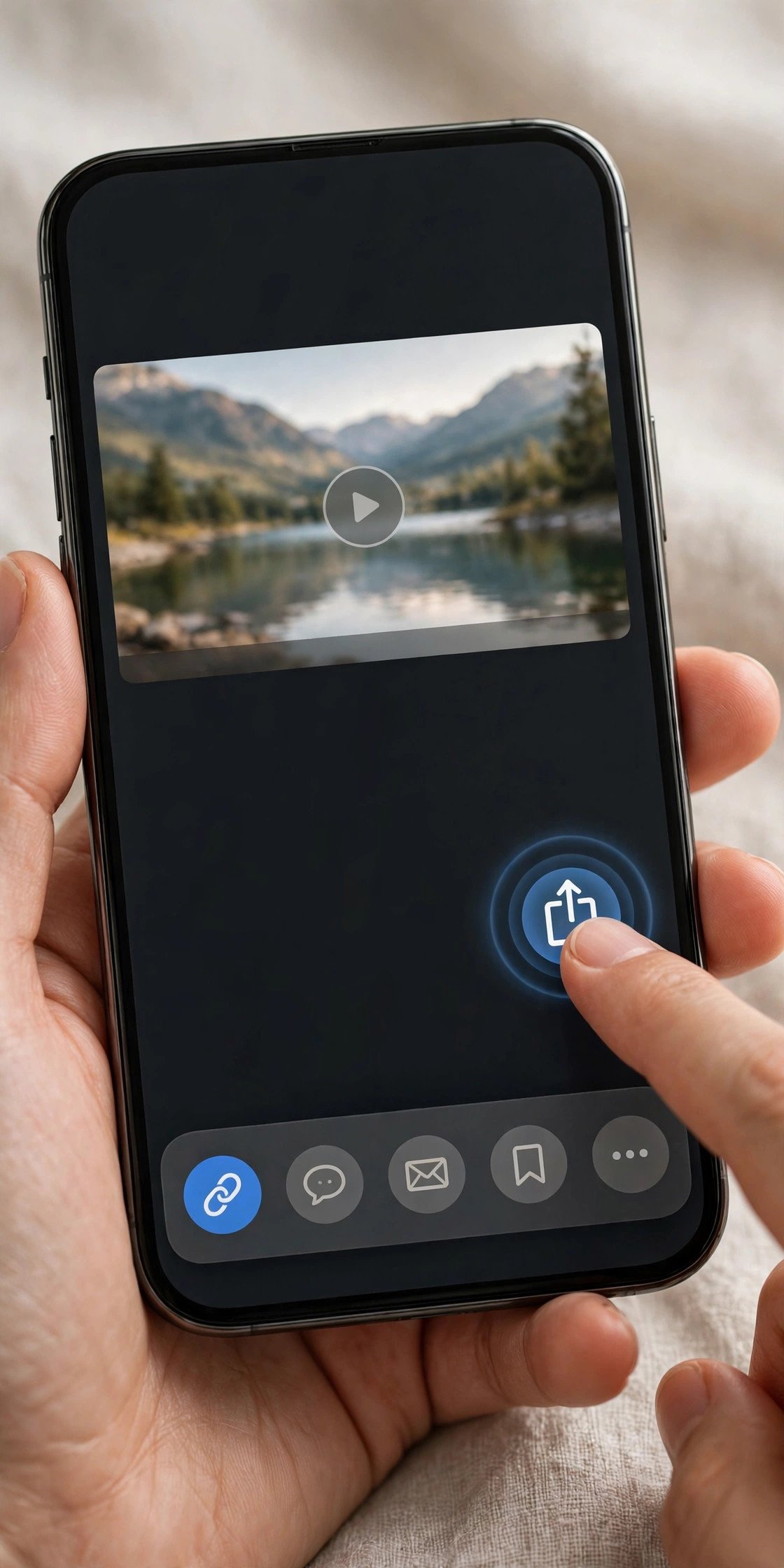
- Tap the Share icon (the arrow) and choose Copy link. On a computer, copy the address from the browser’s address bar instead. You will get a pinterest.com/pin/ link or a short pin.it link — both work.
- Open PintoDownload in your browser, paste the link into the box, and tap Download.
- Pick the highest quality offered — HD or Full HD (1080p) if it is there — and save the MP4. I checked the tool’s own homepage while writing this: it advertises HD, Full HD, and 4K downloads as MP4 or WebM, with no account and no app needed, and that matches what it delivers on public pins.
Two things worth knowing before you move on. First, this only works for public pins. A video on a secret board, or a pin whose creator restricted it, cannot be reached by any outside downloader — that is a Pinterest limitation, not a tool failure, and any tool that claims otherwise should not be trusted. Second, rename the file now, while you still know what it is. Downloads arrive with names like video_382910.mp4, and six months from now you will have no idea what that was. “morning-yoga-flow.mp4” or “small-bathroom-ideas.mp4” takes three seconds and makes the file findable in iCloud search later. If a download fails at this stage — a link that will not parse, a file that arrives with no sound — my Pinterest video not downloading fixes guide walks through the causes I actually see, in the order worth checking them.
Method 1: Save Pinterest Videos to iCloud Drive via the Files App
This is the method I recommend for most people, because it keeps the video as a file with a name in a folder you control — the thing you can find, move, share, or download again later. On an iPhone, Safari downloads land in the Files app, not in Photos, and that is exactly where you want them for this route.
- Download the MP4 in Safari as in Step 1. When it finishes, tap the download icon in Safari’s address bar and open the file.
- Tap the Share button, then choose Save to Files.
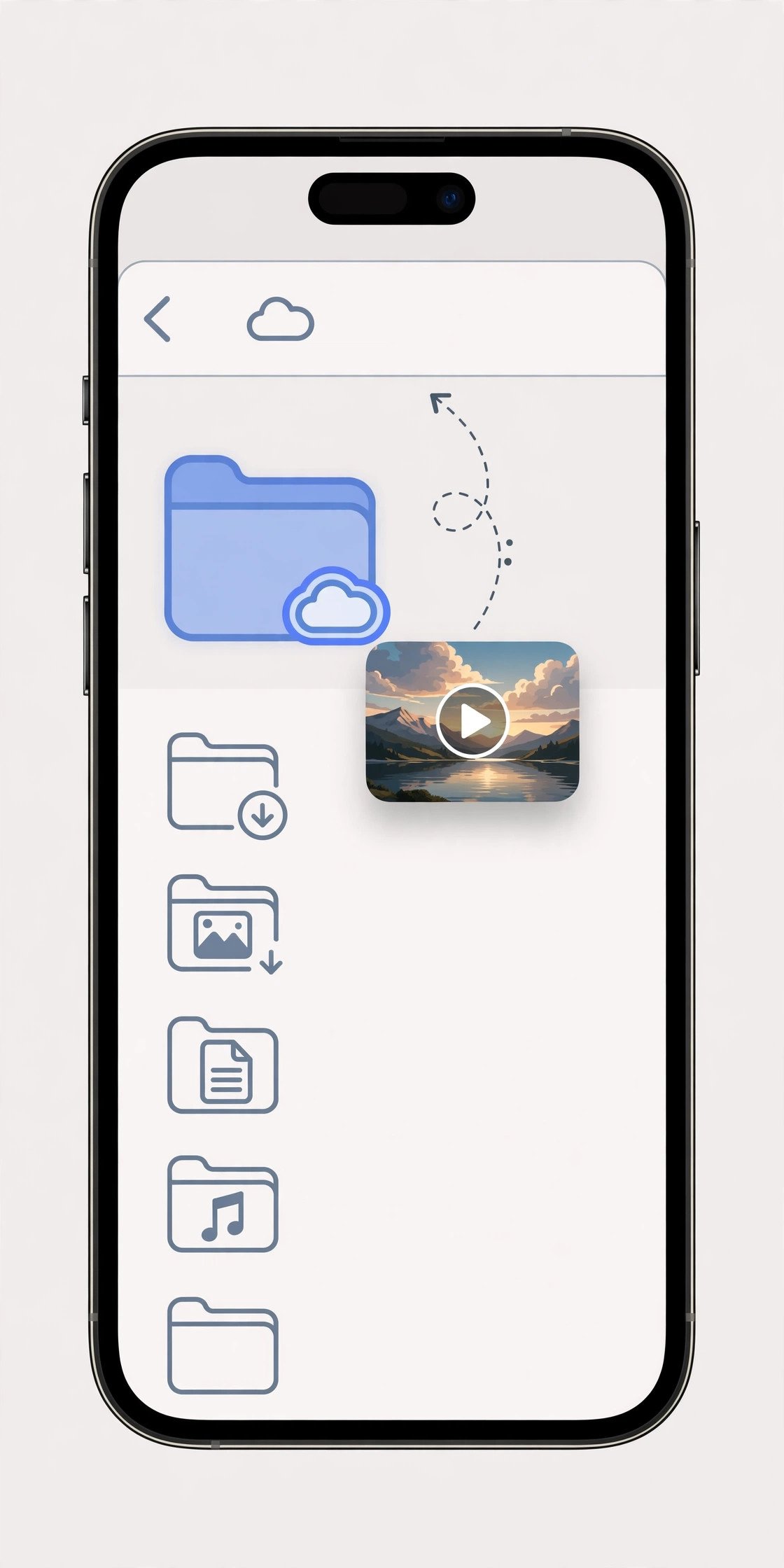
- Under Locations, pick iCloud Drive, open (or create) a folder called “Pinterest Videos”, and tap Save. If you do not see iCloud Drive in the list, go to Settings, tap your name, tap iCloud, and make sure iCloud Drive is switched on — it is off by default for some people after a fresh setup, and that one toggle is the cause of half the “where did it go” complaints I hear.
- Wait for the upload to finish before you delete anything. In the Files app, a file still uploading shows a small cloud icon with a downward arrow; a file that has finished shows no such badge. On mobile data, leave it until you are on Wi-Fi — a minute of 1080p video is a large file, and ten pins will eat a data allowance fast.
Once the file is in iCloud Drive, it is available on every device signed into the same Apple Account: your iPad’s Files app, your Mac’s Finder sidebar, and even a Windows PC or Android phone through a browser at iCloud.com. You can also share it from Drive with a link, which is handy when a friend asks for the recipe video you saved last month. And if you ever leave the Apple ecosystem, Drive files are ordinary MP4s — you can download the whole folder and walk away, which is not true of everything in Apple’s world.
One habit that pays off: keep one folder per theme, not one giant “Pinterest Videos” dump. Recipes, workouts, home ideas, wedding mood boards — four folders now beats scrolling through two hundred files later. Drive’s search works on filenames, which is another reason the rename habit from Step 1 matters.
Method 2: Save Pinterest Videos to iCloud via Photos
If you mostly watch saved videos in the Photos app and you already use iCloud Photos, this route is simpler — but it comes with the sync trap from the introduction, so read the warning at the end of this section before you choose it.
- Download the MP4 in Safari as in Step 1.
- Tap the download icon in Safari’s address bar, open the file, and tap the Share button.
- Choose Save Video. The clip lands in your Photos library, in Recents.
- Make sure iCloud Photos is actually on: Settings, then your name, then iCloud, then Photos, and switch on Sync this iPhone. Without that toggle, the video sits only on this phone, and nothing about iCloud is involved at all.
- Optional but worth it: in Settings, then Photos, choose Optimize iPhone Storage. Your phone then keeps smaller, screen-sized versions of your videos and pulls down the full-resolution original only when you open or edit one. This is the single setting that stops a video collection from eating your phone’s storage alive.
The trade-off, stated plainly: with iCloud Photos on, deleting the video from your phone deletes it from iCloud and from every other device on the account. That is by design — it is a synced library, not a vault. So if you save a video to Photos and later delete it from Photos to free space, do not be surprised when it is gone everywhere. If a video is precious, keep the Drive copy from Method 1 as well, or keep a copy on a computer. I keep irreplaceable clips in both places, and I have never regretted the duplication.
Method 3: Download on Your Mac, Let iCloud Do the Rest
Sometimes the phone is the wrong tool. If you are collecting a lot of videos at once — say, building a mood board for a renovation — doing it on a Mac is faster, and iCloud carries the result to your phone for free.
- On your Mac, copy the pin link from Pinterest in your browser and download the MP4 with PintoDownload, exactly as in Step 1.
- Move the file into a folder in iCloud Drive — either through Finder, where iCloud Drive sits in the sidebar, or by dragging it onto the iCloud Drive folder. If you use Desktop and Documents sync, any folder on your Desktop is already in iCloud Drive, so dropping the file on your Desktop works too.
- Give it a few minutes on Wi-Fi, then open the Files app on your iPhone, go to iCloud Drive, and the video is there. If you also want it in Photos, open it in Files, tap Share, and choose Save Video.
This route has a bonus: the Mac is also where you make your real backup. A folder of saved videos on a Mac gets swept up by Time Machine or copied to an external drive, and that copy does not change when you delete something from your phone. That is the difference between sync and backup, made concrete — and it is why the Mac route is my default for anything I would be annoyed to lose. If you do not own a Mac, the same trick works from a Windows PC through iCloud.com in a browser: upload the MP4 to iCloud Drive there, and it appears in Files on your iPhone.
iCloud Photos vs iCloud Drive vs Google Drive vs Dropbox: Which Fits Pinterest Videos?
There is no single right answer, but there is a wrong one for each use case, so here is the comparison I wish someone had handed me before I scattered videos across four services.
| Option | Where the video lives | Free storage | Best for | Watch out for |
|---|---|---|---|---|
| iCloud Photos | Photos app, synced library | 5 GB shared | Watching clips alongside your own photos | Deleting on one device deletes everywhere |
| iCloud Drive | Files app, folders you name | 5 GB shared | Organized collections you control as files | Same 5 GB bucket as Photos — they share it |
| Google Drive | Drive app, folders you name | 15 GB shared | Big collections, sharing with non-Apple users | Separate account and app from your iPhone’s Photos |
| Dropbox | Dropbox app, folders you name | 2 GB free | Sharing links with anyone, any device | Smallest free tier of the four |
My honest take: if you live inside Apple’s world, iCloud Drive is the sweet spot for saved Pinterest videos — it is a file you can find, it shows up on every Apple device, and it does not mix with your personal photo library. If your collection is large, Google Drive’s 15 GB free tier (three times Apple’s) is the pragmatic choice, and I covered that route in my guide to saving Pinterest videos to Google Drive. Dropbox’s 2 GB free tier fills up after a handful of HD clips, so it only makes sense if you already pay for it. For the phone-side basics — getting videos into your gallery in the first place — my save Pinterest videos to gallery guide covers Android and iPhone side by side, and if you are specifically on an iPhone, the iPhone guide and the Safari on iPhone guide go deeper on the browser quirks.
The 5 GB Problem (and What It Actually Costs to Fix)
Apple gives every Apple Account 5 GB of iCloud storage free. That number has not changed since iCloud launched in 2011, when the base iPhone held 16 GB; today’s base iPhone holds 256 GB, so the free tier is now about 2 percent of the phone. In practice, 5 GB is already mostly spoken for before you save a single Pinterest video — device backups, messages, and your existing photos all draw from the same bucket. Add a few dozen HD clips and you will meet the “iCloud Storage Is Full” warning, usually right in the middle of an upload.
Before you save anything, check where you stand: Settings, then your name, then iCloud, and you will see a storage bar showing what Photos, Backups, and everything else are using. If you are close to full, you have two honest options. Free up space: delete old device backups you no longer need, clear the Recently Deleted folders in Photos and Files, and turn off iCloud sync for apps whose data you do not need everywhere. Or buy more: iCloud+ in the US costs $0.99 a month for 50 GB, $2.99 for 200 GB, and $9.99 for 2 TB, with larger tiers up to 12 TB. Two details people get wrong: plans replace each other rather than stacking (moving from 200 GB to 2 TB gives you 2 TB total, not 2.2 TB), and Apple charges monthly with no annual discount, unlike Google One. You can upgrade from the same iCloud screen — Apple documents the path as Settings, then your name, then iCloud, then Manage Plan — and the new allowance applies immediately. For the official pricing and upgrade steps, see Apple Support’s iCloud+ page.
My rule of thumb: 50 GB at $0.99 is enough for one phone with a modest video collection; 200 GB at $2.99 is the right tier once you have an iPad or a Mac in the mix, and it is shareable with family. Do not pay for 2 TB because of Pinterest videos alone — you would need thousands of HD clips to get there.
When It Goes Wrong: Fixes for the Failures I Actually See
The upload stalls at “Waiting” or never finishes. Almost always storage. Check the iCloud storage bar first, then check you are on Wi-Fi — iOS will pause large uploads on mobile data depending on your settings. If both look fine, try again from Files: the upload sometimes needs the app open and in the foreground to complete.
The video is in iCloud Drive but not on my Mac (or the reverse). Sign-in mismatch is the usual culprit — two Apple Accounts in one household will do this silently. Check that both devices show the same account under Settings (or System Settings on Mac), then iCloud. Also confirm iCloud Drive itself is switched on on both devices; it is a separate toggle from iCloud Photos, and having one on does not switch on the other.
Safari downloaded the video but I cannot find it. On iPhone, Safari downloads go to the Files app under Downloads (or the folder you set in Settings, then Safari, then Downloads), not to Photos. Open Files, tap Browse, and look in Downloads — or in iCloud Drive if you chose that as the download location. From there, Share and Save Video puts it in Photos if that is where you wanted it.
The pin has no download option and the downloader says it cannot fetch it. That pin is restricted, private, or embedded from another platform like YouTube rather than hosted on Pinterest. No downloader can reach it, and that is a Pinterest limit, not a bug in your process. Move on to a different pin rather than installing a sketchy app that promises otherwise.
The downloaded video has no sound. This one is rare but real: some pins are silent by design, and some downloaders grab a muted preview stream. Re-download at the highest quality offered and play the file before you upload it to iCloud — catching a silent file now beats discovering it months later when the original pin is gone.
One Legal Note, Because It Matters
Saving a video for your own offline viewing — the recipe you want to try, the workout you follow at home — is the normal, personal use these tools exist for. Reposting someone else’s video as your own content, or using it commercially without permission, is a different act entirely, and the creator’s permission is what separates the two. I go through the full picture, including when fair use actually applies, in my guide to whether downloading Pinterest videos is legal. If you plan to share a saved video publicly, read that first.
Frequently Asked Questions
Can I save Pinterest videos directly to iCloud without downloading them first?
No. Pinterest has no “save to iCloud” button, and iCloud cannot fetch a video from a Pinterest link on its own. You always download the MP4 file first — with a tool like PintoDownload — and then move that file into iCloud Drive or Photos. The whole process takes about two minutes per video once you have done it once.
Should I save Pinterest videos to iCloud Photos or iCloud Drive?
Use iCloud Drive if you want an organized collection of files you control, in folders you name — that is the method I recommend. Use iCloud Photos if you mainly watch clips inside the Photos app and already sync your library. Remember both share the same 5 GB free allowance, and Photos sync means deleting on one device deletes everywhere.
How much iCloud storage do Pinterest videos use?
Every free Apple Account gets 5 GB shared across Photos, Drive, backups, and mail, and that fills fast once you add video. Short clips are small, but HD clips add up quickly. If you hit the limit, iCloud+ costs $0.99 a month for 50 GB, $2.99 for 200 GB, or $9.99 for 2 TB in the US, and the upgrade applies immediately from Settings, then your name, then iCloud, then Manage Plan.
Will my saved Pinterest videos appear on my Mac and iPad automatically?
Yes, if everything is signed into the same Apple Account with the right toggle on. Videos in iCloud Drive appear in Finder on your Mac and in the Files app on your iPad. Videos saved to Photos with iCloud Photos on appear in the Photos app on both. If a video is missing on one device, check the account and the iCloud Drive or Photos toggle on that device first.
Does iCloud back up my saved Pinterest videos?
Not in the way people usually mean. iCloud Photos and iCloud Drive sync your files across devices, so deleting a video on your phone deletes it everywhere, with a 30-day Recently Deleted window to recover it. For anything irreplaceable, keep a second copy on a computer or external drive — that copy does not change when you delete from your phone.
Can I save Pinterest videos to iCloud from a Windows PC or Android phone?
Yes. Download the MP4 on the PC, then upload it to iCloud Drive through iCloud.com in a browser, and it appears in the Files app on your iPhone. Android works the same way through iCloud.com, though you cannot use the iPhone’s Files-app flow directly on Android.
Bottom Line
To save Pinterest videos to iCloud without the usual mess: download the real MP4 file, rename it while you know what it is, and put it in an iCloud Drive folder you named yourself. Turn on iCloud Photos only if you understand the sync trade-off, check your 5 GB before a big batch, and keep a second copy of anything you would hate to lose. Done that way, your saved videos are actually yours — on your phone, your iPad, and your Mac, long after the original pin disappears. And if you want the same treatment for images too, Pinterest Image Downloader on the homepage toolset handles pictures the same way, in HD, with no signup.