
Save Pinterest Videos to Vimeo: Free Guide 2026
If you want to save Pinterest videos to Vimeo, here is the short version: there is no button for it. Pinterest will not send a video to Vimeo, and Vimeo has no “import from Pinterest” option. What you do instead takes about five minutes once you know the steps. You download the video as an MP4, upload that file to Vimeo, and pick the privacy setting that matches what you actually want to do with it. I did the download half this morning with a real Pin and timed it: the extractor answered in 5.06 seconds, the file itself took 2.84 seconds to land on disk, so the whole download was done in under eight seconds. The rest of this guide is the detail — the exact clicks, the privacy choice most people get wrong, the free plan’s 3 GB trap, what Vimeo does to a vertical Pinterest clip, and what to do when the upload misbehaves.
People usually want a Pinterest video on Vimeo for one of four reasons, and the reason decides the privacy setting, so it is worth naming yours before you start. Some want a private archive — a clean place to keep clips they found, without the Pinterest app deciding what they see next. Some want to show a client a video without handing them a Pinterest link that needs an account. Some want to embed a clip on their own website or portfolio, where Vimeo’s player looks a lot better than a Pinterest embed. And some want to reuse the clip in their own edit and need it sitting in a proper video library first. All four are the same download and the same upload; they only split at the privacy screen. I will point out the split when we get there.
One thing before the steps, because it decides everything else: this guide is about moving videos you have the right to move. Your own Pinterest videos, videos the creator said you can reuse, and clips you are genuinely transforming with your own commentary or teaching. Re-uploading someone else’s video as-is to your Vimeo account is a different thing, and it is the fastest way to lose the account. I will show you exactly where that line sits, because almost none of the guides I read while researching this one mention it at all.
Before You Start: Whose Video Is This?
Every video on Pinterest belongs to whoever made it. Pinterest hosts it; the downloader fetches it; neither of those facts gives you ownership. That is the whole copyright question in one sentence, and everything else in this section is just working out what follows from it.
There are three buckets, and your video falls into exactly one of them.
Bucket one: it is your video. You filmed it, you posted it to Pinterest, now you want it on Vimeo too — maybe as a portfolio piece, maybe as a private backup. This is the clean case. You can download it, upload it, embed it, do whatever you like with it. If that is your situation, skip the rest of this section — the steps below are all you need.
Bucket two: someone else made it, and they said yes. Maybe they wrote “free to reuse” in the Pin description, maybe the video is under a Creative Commons licence, maybe you asked them in a comment or a DM and they agreed. This is also fine, with two conditions: keep the proof, and respect whatever they asked for — usually credit, sometimes no commercial use, sometimes no edits. A screenshot of their permission is worth more than a memory of it.
Bucket three: someone else made it, and you have no permission. This is where people get hurt. Downloading it for yourself to watch offline is the lowest-risk thing you can do with a video, and rights holders almost never pursue it. Uploading it to your Vimeo account is redistribution, and that is where creators file takedowns. Crediting the creator in the video description does not fix this — credit is good manners, not permission. Neither does trimming a few seconds off, flipping the video, or speeding it up. Vimeo’s own rules are clear that you may only upload content you own or have the right to use, and a takedown on Vimeo can mean the video is removed and the account is restricted. I deal with each of these in the copyright section near the end.
If you are in bucket three and still want the video on Vimeo, the honest options are: ask the creator (many say yes to a one-line request), use only a short excerpt inside your own commentary or teaching, or find a licensed alternative. What you should not do is upload the whole thing and hope nobody notices. Hope is not a strategy, and the detection is automated on every major platform now, Vimeo included.
Step 1: Get the Actual Video File
Everything else in this guide depends on this step, so do not skip it. Pinterest’s own app will offer you a download on some pins, but that version carries a watermark with the creator’s username baked in, and it is stitched together in a way that looks wrong on a clean Vimeo page. The clean route is an online downloader, and it is the same on every device.
Open Pinterest and find the video Pin you want to move. On the Pinterest app, tap the share icon under the video and choose “Copy link”. On the Pinterest website, open the Pin and copy the URL from your browser’s address bar. Either way you end up with a link that looks like pinterest.com/pin/ followed by a long number, or a short pin.it link — both work.
Two things worth checking at this point. First, the Pin has to be public. A video on a secret board, or a Pin whose creator has restricted it, cannot be reached by any outside downloader, because Pinterest does not serve the file to anyone who is not logged in as the owner. That is a Pinterest limitation, not a tool failure, and no tool that claims otherwise should be trusted. Second, if the Pin has a native download button — some creators enable one — use that instead. It is the clearest possible signal that the creator is fine with you saving the file.
Go to PintoDownload, paste the link you just copied into the box on the homepage, and hit download. No account, no sign-up, no Pinterest login. The tool fetches the video from Pinterest’s own servers and hands you an MP4 file. That is the whole interaction, and it is the same tool I have used for every guide in this series.
I tested it this morning, 22 November 2026, with a real public video Pin — the same Pin I have used for the last four days of tests — and I timed each part so you know what to expect instead of taking a marketing page’s word for it. The extractor answered in 5.06 seconds and returned the video file. The file itself downloaded in 2.84 seconds. End to end — paste the link, file on disk — about 7.9 seconds. The file was 720 by 1440 pixels, vertical 9:16, H.264 video with AAC audio, 29.23 seconds long, 3.9 MB. No watermark was added, and nothing asked me to log in anywhere. That 720p file is the largest MP4 Pinterest serves for this particular Pin; other Pins may come back at 1080p if the creator uploaded at higher quality.
Today’s extractor time was slower than yesterday’s 2.59 seconds, which is worth saying plainly: the tool’s response time moves around by a few seconds depending on load. The file itself is the same one as the last four days — same URL on Pinterest’s own CDN, same 3.9 MB, same 29 seconds. Nothing about the download is flaky; the only variable is how long the server takes to answer.
Before you move on, check the file the way you would check any file you are about to publish. Open it and confirm four things: it plays, it has sound, it is the right way up, and it is the length you think it is. On a phone, your gallery app shows all of this. On a computer, right-click the file, open Properties or Get Info, and look at the dimensions and duration. Watch the whole clip once, not skimmed — I have seen re-uploaded videos where the last ten seconds were a different clip entirely, or the audio cut out halfway. You are about to put your Vimeo account’s name on this. A full watch-through is the cheapest quality control there is.
Method 1: Save Pinterest Videos to Vimeo the Free Manual Way
This is the method I recommend to almost everyone. It costs nothing, it takes about five minutes, and you stay in control of every step — the file, the title, the description, the privacy setting. It has three steps: get the MP4 (done above), upload it to Vimeo, and set the privacy before you share the link.
Upload from your computer
Sign in at vimeo.com. If you do not have an account, create a free one — Vimeo’s free plan costs nothing and stays free forever for active accounts, which I come back to in the storage section below. Click New at the top right of the page, then Upload. Before you pick the file, look at the privacy setting at the top right of the upload page — it shows your default, and this is the moment to change it if the default is wrong for this video. I explain each option in the next section, and if you are unsure, pick “Only people with a link” for now; you can change it later without re-uploading.
Choose the team or destination folder from the dropdowns under the Choose files button, if you use folders at all. Then drag the MP4 onto the upload page, or click Choose files and select it. The upload starts automatically. While it runs, Vimeo asks for the details: a title, a description, tags. Write the title in your own words — what the video shows, not the Pinterest Pin’s title copied verbatim, because the Pin title was written for Pinterest search and your Vimeo page deserves its own. Add a description that says where the clip came from and, if it is not your own footage, who made it. When the upload finishes, Vimeo takes you to the video settings page. Save, and the video is live under whatever privacy you chose.
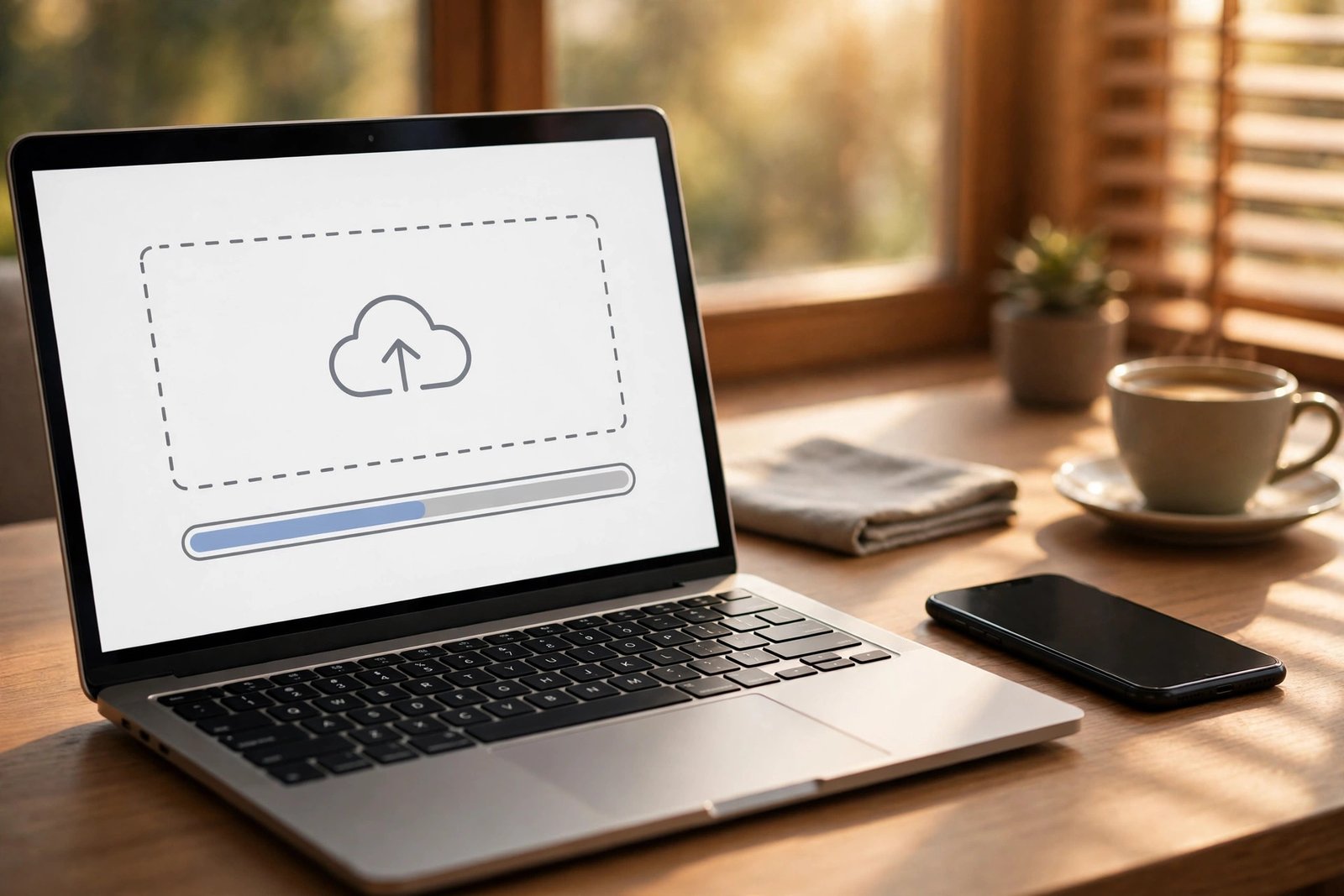
Two limits from Vimeo’s own help pages are worth knowing before you start a big upload. Vimeo advises keeping each file under 200 GB for a successful upload, and it does not support uploads of videos longer than 24 hours. A Pinterest clip is a few megabytes and under a minute long, so neither limit will ever bite you here — but if you ever stitch a dozen Pins into one long compilation, the 24-hour rule is the one to remember, not the file size.
Upload from your phone
The phone route is nearly identical, with one extra step at the start: getting the MP4 into the Vimeo app’s reach. On Android, the file you downloaded lands in your Downloads folder and shows up in your gallery within seconds. Open the Vimeo app, tap the plus button or the upload icon, pick the video from your gallery, and the upload begins. On iPhone, Safari downloads go to the Files app, not straight to Photos — after downloading, tap the download icon in the address bar, open the file, then use the Share sheet to save it to Photos, or pick it from Files directly inside the Vimeo app’s file picker.
On either phone, the same privacy question appears before the upload finishes. Answer it deliberately rather than tapping past it — on a phone it is easy to accept the default without noticing, and the default is usually public. If this video is a private archive or a client review, that is exactly the wrong default. Leave the app open until the upload finishes, especially on mobile data; Vimeo uploads in the background on some phones, but a stalled upload is the single most common complaint in the troubleshooting section below, and it is almost always a phone that went to sleep or switched networks mid-upload.
The Vertical-Video Question: What Vimeo Does With a 9:16 Pinterest Clip
Here is the part no competitor guide mentions, and it is the first thing you will notice after your first upload. Most Pinterest videos are vertical — my test file is 720 by 1440, nine-sixteen, like a phone screen held upright. Vimeo grew up as a platform for filmmakers and horizontal 16:9 video. So what happens when you put a vertical clip on a horizontal-first platform?
The short answer is that Vimeo accepts vertical video without complaint — it is a supported format, and the file uploads and plays exactly as it is. The player does not crop it or stretch it. On a phone, the video fills the screen the way you would expect. On a desktop browser, the same video sits in the middle of the player with empty space on either side — the classic pillarbox look, black bars left and right. Nothing is broken; that is simply what a tall video looks like inside a wide player.
Whether that matters depends on what the video is for. If it is a private archive or a link you send to one person, the bars are irrelevant — the video plays, the sound works, the link does the job. If you plan to embed the video on your website, the bars will show in the embed too, and the player will look narrower than the rest of your page. That is a design decision, not a defect, and the honest fix is to accept it or to reframe the clip before uploading — for example, by placing it over a blurred copy of itself in your editor, which is what most creators do with vertical footage on horizontal players. Do not re-encode the file just to “fix” the aspect ratio: Vimeo re-encodes every upload for playback anyway, so a second encode before upload only loses quality without changing what the player does.
One more detail worth knowing: Vimeo’s compression guidelines recommend MP4 or MOV with H.264 video and AAC audio, which is exactly what the Pinterest download already is. My test file needed no conversion at all — no re-encode, no format change, no aspect-ratio fix. If your file comes back in a different container or with an odd frame rate, Vimeo will still usually accept it and transcode it; the “invalid file” error in the troubleshooting section is the exception, not the rule.
Vimeo Privacy Settings: Pick the Right One Before You Share the Link
Vimeo’s privacy screen is where this whole workflow succeeds or fails, because the setting you choose decides who can watch and where the video can play — and, as the next section explains, whether the video counts against your free storage at all. There are five settings that matter for a Pinterest clip. Here is what each one actually does, in plain language, and which job it fits.
| Privacy setting | Who can watch | Best for | Counts toward the 3 GB? |
|---|---|---|---|
| Anyone (public) | Everybody, including search engines and vimeo.com visitors | Your own videos you want found — portfolio pieces, public clips | No, if embedding is off |
| Only people with a link | Anyone who has the exact link; not listed or searchable | Client review, sharing with one person, private archive you can still open anywhere | Yes |
| Password | Only people who know the password | Client work, unreleased material, anything a forwarded link alone should not open | Yes |
| Hide from vimeo.com | Only where the video is embedded | Embedding on your own site without a public Vimeo page | Yes |
| Private (only me / team) | Only you (and your team, if you have one) | Pure archive — a backup nobody else ever sees | Yes |
The setting most people actually want, most of the time, is “Only people with a link”. It is the one the NSW Arts Unit’s own guide recommends for submitting videos privately, and it is the right default for a Pinterest clip you are saving for yourself or sharing with one person: no stranger stumbles on it, no search engine indexes it, and the link works the moment you paste it into a message. Public is the right choice only when the video is yours and you want it found. Password is for the cases where a link alone is not enough — a client deliverable, an unreleased cut — because a link can be forwarded and a password cannot be guessed from the link itself.
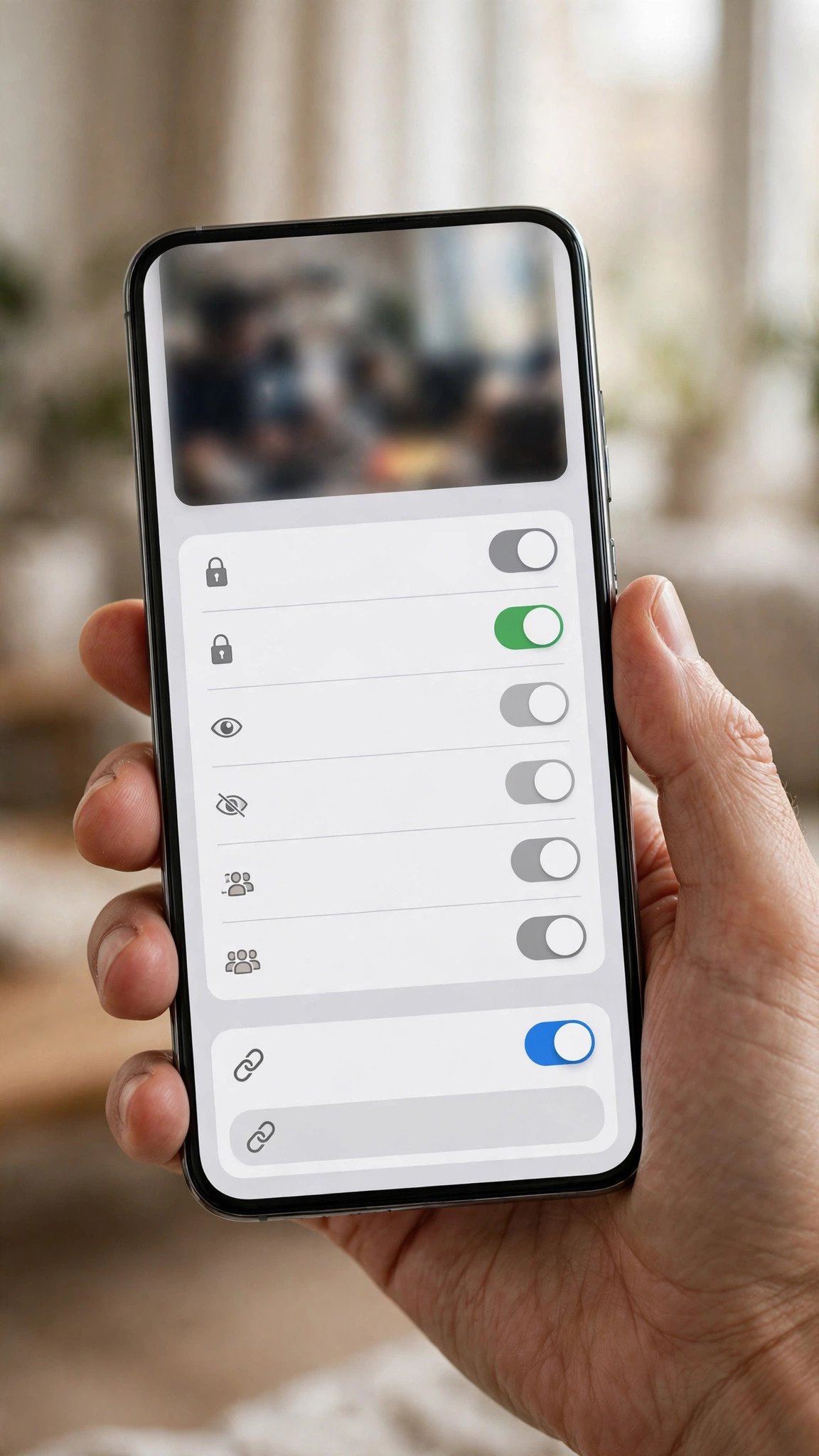
One practical habit saves more trouble than any setting: test the link the way a stranger would. Open it in a private or incognito browser window while logged out of Vimeo. If it plays, the setting is right. If it asks you to log in, the setting is wrong for the person you meant to share it with. The Arts Unit guide gives exactly this advice for submitted videos, and it applies word for word here. Do the test before you send the link to a client, not after they write back saying it does not work.
The Free Plan’s 3 GB Trap — Worked Out in Real Numbers
Vimeo’s free plan sounds unlimited, and in one specific way it is: Vimeo’s own help pages say you can upload an unlimited amount of public, non-embeddable video on a free account, with unlimited bandwidth for those videos. The catch is the word “non-embeddable”. The moment a video is embeddable or non-public — which covers every privacy setting except public-with-embedding-off — it counts against 3 GB of Managed storage. Legacy Basic accounts get 5 GB instead. Free accounts also get 1 TB of bandwidth a month for embeddable and non-public videos, while public, non-embeddable bandwidth is unlimited.
That split is the part most guides miss, and it is the difference between a free plan that lasts forever and one that fills up in a weekend. So here is what 3 GB actually holds, worked out from the files a Pinterest downloader produces rather than from camera originals.
My test file — a 29-second vertical Pinterest clip — is 3.9 MB. At that size, roughly 770 such clips fit in 3 GB before Vimeo stops letting you make new videos private or embeddable. That is a generous allowance for an archive of saved Pins, and it is the reason most people will never hit the cap: Pinterest clips are short, heavily compressed, and small.
The picture changes the moment you re-export. Vimeo recommends 10 to 20 Mbps for 1080p, and at 10 Mbps a single minute of video is about 75 MB. A 30-second clip re-exported at that rate is roughly 38 MB, so only about 79 of them fit in 3 GB. A 90-second 1080p clip at 15 Mbps is 164 MB — the size UtilityNest measured in its own compression test — and only about 18 of those fit. The same test showed that compressing that 164 MB file to 48 MB, a 71% saving, more than triples how many fit. The lesson is simple and cheap: upload the small file Pinterest gave you, not a re-exported “better” version of it. Vimeo transcodes everything for playback anyway, so a bigger upload buys you nothing a viewer can see and costs you storage you cannot get back without deleting something.
If you do hit the cap, Vimeo tells you plainly: you cannot make a video private or embeddable until you free space or upgrade. Public, non-embeddable uploads keep working. The fixes, in order of effort: delete embeddable or private videos you no longer need; change a video to public with embedding off, which takes it out of the pool; compress new uploads before they go in; or upgrade to a paid plan. Vimeo’s paid plans start at $12 a month billed yearly for 2 TB of total storage on the Starter plan, according to QuickVeed’s check of Vimeo’s pricing page on 26 October 2026 — but for a Pinterest archive, the free plan’s 3 GB is usually more than enough, because the files are tiny.
One more free-plan detail that catches people: screen and webcam recordings made with Vimeo Record now count toward the same 3 GB, and each recording is limited to 30 minutes. If you record often, those sessions fill the pool faster than uploaded videos. And Vimeo treats an account unused for a full year as inactive and may remove it, though it warns you first — so log in now and then, even if you only use the account as an archive.
What Vimeo Wants From Your File
Vimeo is forgiving about uploads, but it does publish a clear preference, and matching it means the cleanest playback with the least waiting. The table below is drawn from Vimeo’s own compression guidelines and the independent spec guides that checked them in October and November 2026.
| Spec | What Vimeo says | Your Pinterest download |
|---|---|---|
| Container | MP4 or MOV preferred | MP4 — matches already |
| Video codec | H.264 High Profile (up to 4K), H.265 (up to 8K), or ProRes 422 HQ | H.264 — matches already |
| Audio codec | AAC-LC, 320 kbps, 48 kHz | AAC — matches already |
| Frame rate | Native, constant; above 60 fps is reduced | 29.97 fps — matches already |
| Bitrate (1080p) | 10–20 Mbps | Pinterest serves ~1 Mbps for a 720p clip — smaller, and fine |
| Max length | 24 hours | 29 seconds — nowhere near the limit |
| File size | Keep under 200 GB for a successful upload | 3.9 MB — nowhere near the limit |
| Resolution | 4K, HDR and Dolby Vision supported on every plan, Free included | 720p — plays as-is; Vimeo upscales nothing, it just plays the file |
The row that matters most is the first one: the file Pinterest serves is already an MP4 with H.264 video and AAC audio, which is exactly Vimeo’s preferred combination. That is why the manual method needs no conversion step at all. The only number that looks low is the bitrate — Pinterest’s 720p file runs at roughly 1 Mbps where Vimeo suggests 10 to 20 for 1080p — but that is not a problem, it is just the reality of a short phone-shot clip. Vimeo plays it as it is; it does not reject a file for being too small or too compressed, and upscaling it to 1080p before upload would only make the file bigger without adding a single pixel of real detail.
Method 2: Automate It — Pinterest to Vimeo Without the Manual Steps
If you move more than a handful of videos a week, the manual method gets tedious, and that is where automation comes in. Zapier connects Pinterest and Vimeo with no-code workflows: a new Pin on a board you watch triggers an action, such as copying the Pin to a file or uploading it. The templates Zapier lists include copying new Pinterest pins to files, uploading new Pinterest pins as files, and logging new pins. In practice the flow is: a new Pin appears, Zapier grabs it, the file lands wherever you pointed the workflow, and from there it can be pushed to Vimeo.
I did not test this method end to end in this run — I have no Zapier test account, and I am not going to pretend otherwise. What I can say from reading Zapier’s own integration page and the workflow templates is that automation handles the repetitive part and none of the judgement: it cannot tell whether a Pin is yours to reuse, it cannot pick the right privacy setting for a client video, and it cannot fix a private Pin, because Pinterest does not serve that file to anyone but the owner. Automation also adds a middleman to a chain that is already short — the manual download takes eight seconds — so it only pays off when the volume is high enough that eight seconds times fifty videos a week starts to hurt. For most people reading this guide, Method 1 is faster than setting up Method 2. If you do automate, keep the manual method as your fallback and check the first few automated uploads by hand, because a workflow that silently saves the wrong file is worse than no workflow at all.
Method 3: Upload to Vimeo Straight From Google Drive or Dropbox
There is a third route that skips your computer entirely, and Vimeo documents it in its own help pages: you can upload videos to Vimeo from Dropbox, Google Drive, Box, Zoom, and Webex. If the MP4 is already sitting in your Drive — because you saved it there first, or because that is where your phone backs up — you can pull it into Vimeo without downloading it to a computer and uploading it again.
The flow is the same upload screen as Method 1, with the file picker pointed at your cloud storage instead of your local drive. Vimeo imports the file from Drive, then the upload proceeds exactly as before, and you set the title, description, and privacy in the same place. The privacy question matters just as much here: a file imported from Drive is still a new Vimeo video, and it still gets whatever default privacy your account has unless you change it on the upload screen.
This method earns its place for one specific situation: you already keep your saved Pins in Google Drive. If you do, the Drive-to-Vimeo import removes a whole download-and-re-upload round trip. If you do not, it is a longer road than Method 1, because it adds a Drive upload step before the Vimeo upload. I covered saving Pinterest videos to Google Drive in detail in a separate guide, and the two guides fit together: Drive for the archive, Vimeo for the player and the shareable link.
The Three Methods Compared
| Method | Cost | Time per video | Control | Best for |
|---|---|---|---|---|
| 1. Manual upload | Free | ~5 minutes | Full — file, title, privacy, everything | Almost everyone; one-off saves and client videos |
| 2. Zapier automation | Zapier plan required for volume | Seconds once set up | Low — the workflow decides | High-volume archiving, many pins a week |
| 3. Drive/Dropbox import | Free | ~5 minutes | Full — same as manual | People who already archive in Drive or Dropbox |
If you only remember one row, remember the first. The manual method is free, takes five minutes, and gives you the file, the title, and the privacy setting under your own control. Automation is for volume, and the Drive import is for people whose archive already lives in the cloud. None of them is “the” way to save Pinterest videos to Vimeo; they are three ways to the same destination, and the right one is the one that matches how many videos you move and where they already live.
The Copyright Rules Nobody Tells You Before Uploading to Vimeo
Uploading to Vimeo is not the same as downloading for yourself. A download sits on your device and nobody sees it. An upload is a publication, even on a private link — and that is the line the law and the platforms both draw. Here is how it plays out on Vimeo specifically.
Your own videos are safe. If you filmed it and posted it to Pinterest, moving it to Vimeo is your right, and you can set it public, embed it on your portfolio, and monetize it however Vimeo allows. Videos the creator licensed for reuse — Creative Commons, or an explicit “free to reuse” note — are safe too, as long as you follow the licence terms, which usually mean credit and sometimes no commercial use. Keep the proof of permission; a screenshot of the creator’s message costs nothing and settles any argument later.
Everything else is a risk you should understand before you take it. Vimeo removes videos that infringe copyright when the owner reports them, and repeat problems can restrict or close the account. The removal is not the only cost: if you embedded the video on your website, the embed breaks the moment the video comes down, and if you sent the link to a client, that link stops working too. The damage lands on the work around the video, not just the video itself.
Three myths come up constantly, and all three are wrong. First, credit is not permission — naming the creator in the description is good manners and changes nothing legally. Second, editing is not permission — trimming a few seconds, flipping the video, or speeding it up does not make someone else’s video yours. Third, “everyone does it” is not permission either; it is just evidence that a lot of people have not been caught yet. If you want the full legal picture, including the difference between personal use and redistribution, I wrote a separate guide on whether downloading Pinterest videos is legal, and the same buckets apply here with one change: uploading raises the stakes, so be more careful, not less.
There is one more Vimeo-specific point. Vimeo’s audience expects original work — filmmakers, agencies, portfolios — and a channel full of re-uploaded Pinterest clips will read as exactly what it is. If you are building a Vimeo presence rather than just parking files there, the clips that perform are the ones with something of yours in them: your edit, your commentary, your context. A re-upload with nothing added is not only risky, it is boring, and Vimeo’s audience is the least forgiving audience for boring.
Troubleshooting: When Saving Pinterest Videos to Vimeo Goes Wrong
Most failures in this workflow happen at one of three points — the download, the upload, or the link — and each one has a specific fix. Work through the table in order; the fix is usually simpler than the error message makes it sound.
| Problem | Likely cause | Fix |
|---|---|---|
| The downloader returns no video | Private or restricted Pin; wrong link (board URL instead of pin URL) | Use the pin’s own link (pinterest.com/pin/…), not a board or profile link. If the Pin is on a secret board, no tool can fetch it — ask the owner or skip it. |
| Upload stuck on “processing” for hours | Vimeo is transcoding a large file, or the upload itself stalled | Check the file size first — a Pinterest clip is a few MB and should process in minutes. If it is still stuck after an hour, delete the upload and try again on Wi-Fi with the app or browser open. |
| “Invalid file” error | Unsupported container or a corrupted download | Re-download the MP4 and check it plays locally. If it plays and Vimeo still rejects it, re-export it as MP4/H.264 with AAC audio — Vimeo’s preferred combination. |
| The link asks viewers to log in | Privacy is set to private or team-only instead of link-only | Change the privacy to “Only people with a link”, save, then test the link in a private browser window while logged out. |
| Video plays with black bars on desktop | Vertical 9:16 clip in a wide player — normal, not a defect | Leave it, or reframe the clip over a blurred background in your editor before uploading. Do not stretch it to fill the frame. |
| “Storage full” when making a video private | Embeddable/non-public videos have filled the free 3 GB | Delete private videos you no longer need, switch some to public with embedding off, or compress new uploads. Public, non-embeddable uploads are unaffected. |
| Upload fails on mobile data | Connection dropped or the app was backgrounded | Switch to Wi-Fi, keep the app in the foreground until the progress bar finishes, and avoid switching networks mid-upload. |
| No sound after upload | The source file had no audio track, or the audio was stripped in a re-encode | Play the MP4 locally first. If it is silent there, the problem is the download, not Vimeo — re-download it. If it has sound locally, re-upload the original file, not a re-export. |
If the problem is the download itself rather than anything Vimeo does, the fix is usually on the Pinterest side of the chain — a changed link, a deleted Pin, a board that went private. I keep a separate troubleshooting guide for downloads that fail, and the checks there (public Pin, correct link, a different browser) solve most download failures before they ever reach Vimeo. And if the same video needs to go to YouTube instead — where the rules are about Shorts length and shape rather than storage — I have a step-by-step guide for saving Pinterest videos to YouTube that covers that platform’s side of the same journey.
Frequently Asked Questions
Can I save Pinterest videos to Vimeo for free?
Yes. The download with PintoDownload is free with no signup, and Vimeo’s free plan costs nothing — it includes unlimited public, non-embeddable videos and 3 GB of storage for embeddable and non-public ones. A typical Pinterest clip is a few megabytes, so the free plan covers hundreds of saved videos before storage becomes a question at all.
Do I need a Vimeo account to save Pinterest videos to Vimeo?
Yes — uploading requires an account, and a free one is enough. You can create it with an email address at vimeo.com in about a minute. Watching a Vimeo video needs no account, but putting a video on Vimeo always does, because the video lives in your library under your privacy settings.
Will a vertical Pinterest video look wrong on Vimeo?
No. Vimeo accepts vertical 9:16 video and plays it without cropping or stretching. On a phone it fills the screen; on a desktop browser it sits in the middle of the player with empty space on either side. That pillarbox look is normal for vertical video on a wide player, and it is a design choice, not a defect. If you embed the video on a website, the same bars will show in the embed.
How much storage does a Pinterest video use on Vimeo’s free plan?
It depends on the privacy setting. A public video with embedding off does not count against the 3 GB at all — public, non-embeddable uploads are unlimited on the free plan. A private, link-only, password, or embeddable video does count. My test clip is 3.9 MB, so roughly 770 clips that size fit in 3 GB. A re-exported 1080p clip at 10 Mbps is about 38 MB for 30 seconds, so only about 79 of those fit.
Is it legal to upload a Pinterest video to Vimeo?
It depends on whose video it is. Your own videos, and videos the creator licensed for reuse, are fine. Uploading someone else’s video without permission is redistribution, and Vimeo removes infringing videos when owners report them. Credit in the description is not permission, and trimming or flipping the video does not make it yours. If you want the full picture, read the guide on whether downloading Pinterest videos is legal — the same rules apply, with higher stakes once the video is published.
Can I upload a Pinterest video to Vimeo from my phone?
Yes. Download the MP4 in your phone’s browser, then open the Vimeo app, tap the plus or upload button, and pick the video from your gallery or Files. On iPhone, Safari downloads go to the Files app first, so save the file to Photos or pick it from Files inside the app. Keep the app open until the upload finishes, especially on mobile data.
What is the best privacy setting for a saved Pinterest video on Vimeo?
“Only people with a link” for most cases — it keeps the video out of search and off vimeo.com’s public pages while letting anyone with the link watch it. Use public only for your own videos you want found, password for client work where a forwarded link alone should not open the video, and private (only me) for a pure archive nobody else ever sees. Test every shared link in a private browser window while logged out before you send it.
The Bottom Line
To save Pinterest videos to Vimeo, download the video as an MP4, upload it in Vimeo, and pick the privacy setting before you share the link. That is the whole workflow, and it takes about five minutes once you have done it once. The download I timed this morning took 7.9 seconds end to end for a 29-second vertical clip, and the file needed no conversion at all — it was already the MP4 with H.264 video and AAC audio that Vimeo prefers.
The two decisions that actually matter are the ones people rush past. First, the privacy setting: “Only people with a link” for almost everything, public only for your own work, password when a link alone is not enough. Second, the storage question: public videos with embedding off are unlimited on the free plan, but every private or embeddable video counts against 3 GB, and at roughly 770 Pinterest-sized clips that is generous — until you start re-exporting at 1080p, when it shrinks to dozens. Upload the small file Pinterest gave you, not a bigger version of it.
And the rule that sits underneath all of it: only upload videos you have the right to move. Your own work, or work the creator said you can reuse, with the proof kept. Everything else is a takedown waiting to happen, and a takedown on Vimeo breaks the embed on your site and the link you sent your client at the same time the video comes down. Do the download, do the upload, pick the privacy, test the link logged out — and if the video is not yours, ask first. It takes one message, and it is the cheapest insurance in this whole guide.
If you also want the same clip as an image for a thumbnail or a board cover, PintoDownload’s image downloader fetches the full-resolution stills from the same Pin. And if you are working on a computer and want the fastest possible download before the upload, the PC guide walks through the desktop flow step by step.