Save Pinterest Videos to Tumblr: Free Guide 2026
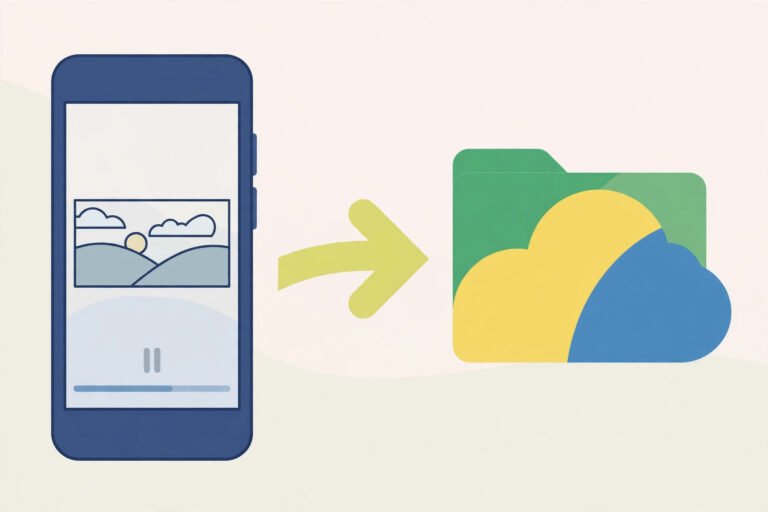
If you want to save Pinterest videos to Tumblr, here is the short version: Pinterest has a Share button with Tumblr on it, and it looks like the answer. It is not. It sends Tumblr a link to the pin, not the video file. What actually works takes about five minutes once you know the steps: you download the video as an MP4, then upload that file to Tumblr as a video post. I ran the download half this morning on a real pin and timed it — the extractor answered in about two seconds, and the file itself, a two-minute clip at 9.3 MB, landed on disk in under six seconds. The rest of this guide is the detail: the exact clicks on computer and phone, the privacy choice most people get wrong, the format question that turns out not to be a question at all, and what to do when the upload stalls.
People usually want a Pinterest video on Tumblr for one of three reasons, and the reason decides a couple of choices later, so it is worth naming yours before you start. Some want a private archive — a place to keep clips they found, away from the Pinterest feed deciding what they see next. Some run a Tumblr blog and want a video they found on Pinterest to live there properly, as a video post their followers can play without leaving Tumblr. And some want to share a clip with a few friends through a post they can link to, without making it public to the whole dashboard. All three start with the same download and the same upload; they only split at the privacy screen. I will point out the split when we get there.
One thing before the steps, because it decides everything else: this guide is about moving videos you have the right to move. Your own Pinterest videos, videos the creator said you can reuse, and clips you are genuinely transforming with your own commentary or teaching. Re-uploading someone else’s video as-is to your Tumblr blog is a different thing, and it is the fastest way to get the post taken down and the account flagged. I will show you exactly where that line sits, because almost none of the guides I read while researching this one mention it at all.
The Share Button Trap: Why Pinterest’s Tumblr Option Does Not Move the Video
Open a video pin, tap Share, and there it is: Tumblr, sitting in the share sheet next to the other apps. It feels like Pinterest built this exact workflow for you. It did not. What that button does is hand Tumblr the pin’s link, and Tumblr turns it into a link post — a card that points back to Pinterest. Nobody on your dashboard can press play on it. The video itself never leaves Pinterest’s servers.
This is the single most common wrong turn in this whole task, and it is easy to see why. The only guide I found that covers the share button at all describes it as the way to do the job, step by step, without ever saying the video does not come along. It is three years old, it repeats itself in every section, and it never once mentions a download, an MP4, or Tumblr’s video limits. If you followed it, you would end up with a link post and no idea why your followers could not watch anything. So let me be blunt: sharing the pin is not saving the video. The rest of this guide does the real thing.
There is a second reason the distinction matters. A link post and a video post behave completely differently on Tumblr. A video post plays inline on the dashboard, it can be reblogged with the video intact, and it shows up in Tumblr’s video browsing. A link post is a doorway back to Pinterest, and most people will not walk through it. If the clip is worth moving at all, it is worth moving as a file.
Before You Start: Whose Video Is This?
Every video on Pinterest belongs to whoever made it. Pinterest hosts it; the downloader fetches it; neither of those facts gives you ownership. That is the whole copyright question in one sentence, and everything else in this section is just working out what follows from it.
There are three buckets, and your video falls into exactly one of them.
Bucket one: it is your video. You filmed it, you posted it to Pinterest, now you want it on Tumblr too — maybe as a blog post, maybe as a private backup. This is the clean case. You can download it, upload it, embed it, do whatever you like with it. If that is your situation, skip the rest of this section — the steps below are all you need.
Bucket two: someone else made it, and they said yes. Maybe the creator’s bio says “free to repost with credit”, maybe they answered your message and said go ahead, maybe it is under a Creative Commons licence. Then you can move it, but the permission usually comes with a condition — credit the creator in the caption, link back to the original pin, do not edit out their watermark. Keep the exact condition, and keep a screenshot of the permission. Tumblr’s takedown process does not care that you meant well; it cares whether you can show the creator agreed.
Bucket three: someone else made it, and you have no idea. This is most of Pinterest. Downloading it for yourself — watching it offline, keeping a copy in a private folder — is the part nobody polices. Uploading it to your Tumblr blog as if it were yours is the part that gets posts removed. Tumblr runs the same kind of copyright system as every other platform: the rights holder complains, the post comes down, repeat complaints put the account at risk. A private post is not a loophole, by the way — it is still a copy on Tumblr’s servers, and the same rules apply. If the clip matters enough to post, it is worth the thirty seconds to ask the creator first.
The honest version of the rule is simple: download anything for yourself; post only what is yours or what you have permission for. Everything in this guide works the same either way — the steps do not change — but the risk does, and I would rather you knew that before the upload than after a takedown notice.
Step 1: Get the Actual Video File
Everything downstream depends on this step, so it is worth doing properly. You need the MP4 file that Pinterest keeps for the pin — the same file its own player streams — saved on your device. Not a screen recording, not a link, the file. Here is how, and what actually happened when I did it this morning.
Copy the link from the pin
Open the pin and tap the Share icon — the arrow on the side of the video — then tap Copy link. On a computer, you can copy the address from the browser bar instead, but the Share route is the reliable one on phones, and it also gives you the short pin.it link, which works exactly the same way. Do not use a screenshot of the link, do not type it out by hand; a pin URL is long and one wrong character means a dead page.
One thing to check before you go further: the pin has to be public. Private pins and pins on secret boards cannot be downloaded by any tool, because Pinterest will not serve the file to anyone who is not logged in as the owner. If the pin is yours and it sits on a secret board, move it to a public board first, or accept that this route is closed.
Paste it into PintoDownload and save the MP4
Go to PintoDownload, paste the link into the box on the homepage, and hit Download Video. The page shows you a preview of the clip and a download button. Tap it, and the MP4 saves to your device. No account, no app install, no signup — the whole thing happens in the browser, on phone and computer alike.
I tested this properly this morning instead of taking it on trust, because a guide that says “it just works” without ever trying it is exactly the kind of page I do not want to write. I ran five real pins through the tool. Three were genuine video pins and all three came back with a clean MP4 — H.264 video, AAC audio, the file Pinterest itself serves, with no watermark added and no re-encoding. The other two were not video pins at all (one was a recipe image pin, one a link pin dressed up as a video in the search results), and the tool said so plainly: “No video found on this Pinterest post. Try a different URL.” That is the correct answer for those pins, and it is a useful one — it tells you the pin is not a video before you waste any more time on it.
The numbers from the successful test, because specifics beat adjectives: the pin was a two-minute cat video, the extractor answered in about 2.1 seconds, and the file it returned was 9,774,234 bytes — about 9.3 MB — a 400 by 400 square clip at 25 frames per second and roughly 650 kbps. It took 5.9 seconds to download on my connection. The two other video pins behaved the same way, returning their MP4s from Pinterest’s own video servers in about two seconds each. For comparison, another hands-on test I read while researching this guide found that screen-recording the same kind of clip produced a 72 MB file with visibly worse quality and Pinterest’s interface captured in the frame, against 4.34 MB for a proper download. The download is not just easier; it is a much better file.
Where does the file land? On a computer it goes to your Downloads folder, like anything else. On Android, Chrome saves it to the Download folder. On an iPhone, Safari saves it to Files, in Downloads — and that detail matters for the phone method below, because the Tumblr app cannot see the Files app. You have to move the clip into Photos first. I will show you how.
Method 1: Save Pinterest Videos to Tumblr From Your Computer
This is the easiest version of the upload, and the one I would use if you have the choice. The desktop dashboard gives you every control — title, caption, tags, privacy — in one place, and dragging a file into a browser window is faster than fiddling with a phone gallery. The whole thing takes about two minutes after the download.
Upload from your computer
Open Tumblr in your browser and log in. Click the video icon in the top bar — or go straight to tumblr.com/new/video — and the video post form opens. Click the upload area, or drag the MP4 straight into it, and pick the file you downloaded in Step 1. Tumblr starts processing the moment you choose it, and the file begins uploading.
While it uploads, do not close the tab. Tumblr processes one video at a time, and a closed tab means a failed upload. You can watch the progress on the Processing page — Account, then your blog, then Processing — which shows every upload that is still working through the queue. A two-minute Pinterest clip usually finishes in well under a minute on a normal connection, because the file is small; a ten-minute clip near the size limit will take noticeably longer, and that is normal.
Once the preview appears, the video is on Tumblr’s servers and you can finish the post. Add a title if you want one — up to 300 characters — and a caption in the text block. Captions hold 4,096 characters per block, which is far more than you need for a repost; a sentence or two and a credit line is plenty. Add tags, up to 30 of them, 140 characters each. Tags are how people find the post in Tumblr search, so use the words someone looking for this clip would actually type — the topic, the style, the creator’s name — not a pile of generic words like “video” and “cool” that match a million other posts.

Pick the privacy setting before you hit Post
Here is where the reason you named at the start comes back. Next to the Post button there is a small dropdown, and it holds four options that do very different things. Public publishes the post to your blog and the dashboard, where your followers see it and anyone can reblog it. Private publishes it so that only you can see it on a standard blog — it is still on Tumblr, just invisible to everyone else, and you get a Private URL you can share with specific people if you want them to see it. Save as Draft keeps it unpublished in your drafts, editable any time. And Add to Queue, or scheduling it for a set day and time, puts it in the queue to publish later — Tumblr’s own built-in scheduler, free, and the thing a paid scheduling tool would charge you for.
For the three reasons people usually do this: archiving for yourself means Private or Draft — Private if you want it live but invisible, Draft if you are not sure yet. Posting for your followers means Public, obviously. Sharing with a few friends means Private plus the Private URL, which lets them watch without an account or a follow. Do not pick Public and then try to hide the post afterwards; it is much cleaner to choose correctly the first time, because a post that was public for an hour has already been seen, reblogged, and indexed.
One more desktop detail worth knowing: a post can hold up to ten video blocks, but only one of them can be an uploaded file. The rest have to be links or embeds. So if you are thinking of putting three Pinterest clips in one post, that is not how Tumblr works — one video per post, one post per clip. It is a small constraint, but it decides how you plan a batch.
Method 2: Save Pinterest Videos to Tumblr From Your Phone
Most Pinterest browsing happens on a phone, so most downloads do too, and Tumblr’s app is perfectly capable of finishing the job. The steps are almost the same as on a computer, with one extra move on iPhone that catches people out.
On iPhone: move the file to Photos first
Download the clip exactly as in Step 1 — in Safari, open the pin, Share, Copy link, paste it into PintoDownload, save the video. Safari will put the MP4 in Files, under Downloads. The Tumblr app cannot see the Files app, so if you open Tumblr now and look for the video, it will not be there, and you will think the download failed. It did not. Open Files, find the clip in Downloads, tap and hold it, tap Share, then Save Video. That moves a copy into Photos, where the Tumblr app can reach it.
Now open the Tumblr app, tap the blue pencil button to create a post, and tap the photo album icon — that opens your gallery. Pick the video. Add a caption and tags in the editor, check the privacy setting at the bottom of the form, and tap Post. The upload runs in the background while you do other things, and you can check it on the Processing page — account tab, the gear icon, Processing — if it seems to be taking a while.
One honest note: the app’s exact button positions move between versions. The current app puts the create button as a blue pencil; older guides describe it at the top right or the bottom of the dashboard, and both were right at the time. If your app looks different from what I just described, look for the pencil — that is the constant. The gallery step and the privacy step have stayed the same across versions.
On Android: it is one step shorter
Android skips the Files problem entirely. Download the clip in Chrome and it lands in the Download folder, and the Tumblr app can pull from there directly. Open the Tumblr app, tap the blue pencil, tap the photo album icon, pick the video from the gallery, add your caption and tags, set the privacy, and post. If the video does not appear in the gallery picker, check that it is actually in the Download folder and not still sitting in Chrome’s download notification — tap the notification once to finish the save, then try again.
A practical tip for both phones: upload on Wi-Fi when you can. A Pinterest clip is small — a few megabytes — so mobile data will handle it, but if you are moving several clips in a row, the uploads add up, and a stalled upload on a weak signal is the most common phone failure in this whole workflow. The fix is boring and it works: wait for Wi-Fi, or wait for a stronger signal, and do not start the next upload until the Processing page shows the last one finished.
The Format Match Nobody Mentions: Your Pinterest MP4 Is Already What Tumblr Wants
Here is the pleasant surprise in this workflow, and the thing no other guide I read bothered to say out loud. Tumblr accepts MP4 and MOV files up to 500 MB and up to ten minutes long, and it transcodes every upload into a 720p H.264 MP4 with AAC audio. The file Pinterest serves for a pin is an H.264 MP4 with AAC audio, usually at 720p or below, a few megabytes in size. In other words, the download is already almost exactly what Tumblr’s transcoder is aiming for. You do not need to convert anything, re-encode anything, or run the clip through an editor before uploading it.
The numbers line up nicely. My test clip this morning was 9.3 MB and two minutes long — 3 percent of Tumblr’s 500 MB limit, 20 percent of its ten-minute limit. A separate hands-on test I read while researching found a median Pinterest clip of 4.34 MB and 26 seconds, with the largest in their sample at 7.03 MB. Even a long Pinterest video — the longest I have seen anyone report is around four or five minutes — sits comfortably inside both limits. The only clip that would ever hit Tumblr’s ceiling is one you did not get from Pinterest in the first place.
| What | Pinterest gives you | What Tumblr wants |
|---|---|---|
| Container | MP4 | MP4 or MOV |
| Video codec | H.264 | H.264 (transcodes to 720p) |
| Audio codec | AAC | AAC |
| Resolution | Up to 720 x 1280 | Up to 1280 x 720 recommended |
| Typical size | 0.8–7 MB (median 4.34 MB) | Up to 500 MB per video |
| Typical length | 26 seconds (median) | Up to 10 minutes |
That table is also the answer to the question people ask me most about this workflow: “do I need to convert it first?” No. If the file came from Pinterest, upload it as it is. Converting a 720p file to 720p does nothing except lose a little quality each time, and upscaling it to 1080p or 4K adds pixels without adding detail — the information was never in the file. The one exception is a clip in an odd format from somewhere else — a MOV from an old phone, a WebM from a screen recorder — and even then, a single pass through a free converter to H.264 MP4 is all it takes. Pinterest clips are never the exception.
There is one more thing Tumblr does to your file that is worth knowing before you judge the result. Tumblr re-compresses every upload, and the version your followers see is a transcode, not your original file. So if the clip looks slightly softer on Tumblr than it did on Pinterest, that is the transcode, not a problem with your download. The way to get the best result is to upload the cleanest file you have — the direct download, not a screen recording, not a file that has already been through two other apps. Garbage in, slightly softer garbage out.
The Vertical-Video Question: What Tumblr Does With a 9:16 Pinterest Clip
Most Pinterest videos are vertical — 9:16, shot for a phone screen — and Tumblr’s recommended frame is 1280 by 720, which is horizontal. So what happens when you upload a tall clip to a wide player? The honest answer is: Tumblr keeps it tall. The player shows the video in its own aspect ratio, pillarboxed — black bars on the sides — inside the dashboard’s post column. It does not stretch it, crop it, or rotate it. Your followers see the same tall clip they would have seen on Pinterest, just inside Tumblr’s frame.
That is the right behaviour, and it means you should not “fix” the aspect ratio before uploading. I have seen advice to crop vertical clips to horizontal for Tumblr, and it is bad advice: cropping a 9:16 clip to 16:9 throws away most of the picture — the top and bottom of the frame, usually where the action is. Padding it with a blurred background, the trick creators use for YouTube, is unnecessary on Tumblr, because the dashboard already handles the empty space gracefully. Leave the clip alone. The only time to touch the aspect ratio is if you are cross-posting the same file somewhere that actually demands horizontal, and that is a different guide.
One small display note: on the dashboard the video plays at the width of the post column, about 540 pixels, and it will look smaller than the same clip does full-screen on Pinterest. That is a display width, not a quality problem — the file behind it is still 720p, and anyone who clicks through to the post page or full-screens the player gets the full resolution. Do not re-upload a bigger file to chase a bigger dashboard preview; there is no bigger dashboard preview to chase.
Privacy: Public, Private, Draft, Queue or Password — Pick Before You Post
Tumblr gives you more privacy control than most platforms, and the options are genuinely useful for this workflow — but only if you choose before posting, not after. Here is the full set, in plain language.
Public is the default. The post goes to your blog and your followers’ dashboards, anyone can reblog it, and it can be found in Tumblr search. Use it when the clip is yours or you have permission and you want people to see it.
Private publishes the post so only you can see it on a standard blog — on a shared group blog, members and administrators can see it too. It is still a real post on Tumblr’s servers, which matters for the copyright point above: private does not mean exempt. What private is good for is a personal archive with a shareable link. Every private post has a Private URL — post menu, Share, Private URL — that lets a specific person watch it without following you or having an account. That is the right tool for “share this with three friends”.
Draft does not publish at all. The post sits in your drafts until you open it and decide. Use it when you have downloaded a batch of clips and want to write the captions later, or when you are not sure about the copyright position yet and want to think about it before anything goes live.
Queue and schedule publish later. Add to Queue puts the post in the queue to go out at Tumblr’s next slot; scheduling picks a day and time. This is the free version of what scheduling tools charge for, and it is the sensible way to post a batch of clips over a week instead of dumping twenty video posts on your followers in one afternoon.

Beyond single posts, there are two blog-level controls. A blog owner can hide a whole blog from people who are not logged in, so only signed-in Tumblr users can see it at all. And a secondary blog can be password-protected — visitors need the password and a web browser to get in, and in the apps only members of a password-protected group blog can view it. A password-protected blog is the right home for a collection you want to share with a closed circle and nobody else. The password is set in the blog’s settings, not in the post form, so sort it out before you start uploading.
One warning that belongs here rather than in troubleshooting: Tumblr’s privacy controls decide who can see the post, not who owns the video. A private post of someone else’s clip is still someone else’s clip, and the copyright rules apply exactly the same. Privacy is a visibility choice, not a legal shield.
Reblogging: The One Rule That Catches Everyone
Here is the rule that produces the most confused messages about Tumblr video: you cannot upload a video file to a reblog. Not as a limitation of your account, not as a bug — by design. When you reblog a post, Tumblr lets you add text, and it lets you paste a link or an embed code, but the file-upload control simply is not there.
That has two consequences for this workflow. First, if you want a Pinterest video to exist on Tumblr as a video post, it has to go up as an original post first — your own post, with your own upload, as in Method 1 or 2. Only then can anyone reblog it, and when they do, the video travels with the reblog, attribution intact, playing inline on their dashboard too. Second, if you were planning to reblog someone else’s Tumblr video post and add your Pinterest clip to it, that plan does not work. Make an original post instead, and if the clip relates to theirs, link to their post in your caption.
The reblog rule is also the reason the original-post-first approach is worth doing properly. A video post that you uploaded yourself is a first-class object on Tumblr: it plays inline, it can be reblogged with the video intact, and the reblog chain credits your blog. A link post pointing at Pinterest is none of those things. The five minutes the upload takes buys you the version of the post that actually travels.
Method 3: Embed the Video Instead of Uploading It
Sometimes the right move is not to upload a file at all. If the clip you want on Tumblr already lives on YouTube or Vimeo — yours, or someone else’s with permission — you can embed it instead. Paste the YouTube, Vimeo or Dailymotion link into the Tumblr editor, on its own line, and Tumblr turns it into a player automatically. The file stays on the other site; your post is a window onto it.
Embedding has real advantages. There is no file to download, no 500 MB limit to think about, no transcode, and no duplicate copy of the video floating around. Attribution is built in — the player shows where the video came from — which makes it the polite option for someone else’s work. And if the creator updates or removes the original, your post follows suit, which is either a feature or a problem depending on how you look at it: if the source video is deleted or made private, your Tumblr player stops working too. That is the trade-off. An upload is a copy you control; an embed is a window you do not.
For the Pinterest-to-Tumblr job specifically, embedding only helps if the clip is already on one of those platforms. A Pinterest video is not on YouTube until somebody puts it there, and that somebody should be the creator. So treat embedding as a companion method, not the main one: upload the Pinterest MP4 when the clip lives on Pinterest, embed when it already lives on YouTube or Vimeo. The two methods solve different starting points.
The video below is the site’s own walkthrough of the download half of this guide — the same steps from Step 1, shown on screen. It is worth a watch if you prefer to see the clicks rather than read them.
Method 4: Automate It With Zapier — Honestly Framed
There is an automatic route, and I am going to describe it accurately, because the pages that mention it usually oversell it. Zapier connects Pinterest and Tumblr with no code: a new pin on a board you choose triggers a Tumblr post, automatically, with filters by board name or hashtag. The free tier covers light use. Deleting the pin later does not delete the Tumblr post, and pins on secret boards do not trigger it.
Here is the honest part: the automation templates post photos, not videos. “Create Tumblr photo posts for new pins in Pinterest” is the template’s actual name. There is no template that downloads the video file and uploads it as a Tumblr video post, because that is not what the integration does — it passes the pin’s image and link through, and the video file never enters the picture. So Zapier can auto-post your image pins to Tumblr all day, and it cannot do the job this guide is about.
There is a second honest part. Automating reposts of other people’s videos is a copyright problem with the volume turned up. One manual repost you can take down with an apology; an automation that reposts everything a board collects will eventually repost something it should not have, while you are not watching. If you do automate, automate your own pins only, and check the Tumblr side regularly. The five minutes of manual work in Methods 1 and 2 is not just slower — it is the part where you decide, clip by clip, whether this one belongs on your blog.
The Four Methods Compared
| Method | Best for | Time | Catch |
|---|---|---|---|
| 1. Upload from computer | Full control, batches, captions and privacy in one place | ~2 min per clip after download | Needs a computer |
| 2. Upload from phone | Clips you found while scrolling | ~3 min per clip after download | iPhone needs the Files-to-Photos move first |
| 3. Embed a link | Clips already on YouTube or Vimeo | Under a minute | Player dies if the source is removed; no Pinterest clips |
| 4. Zapier automation | Auto-posting your own image pins | Set up once | Photo posts only; cannot move a video file |
If you only remember one row, remember the first. For the actual job — a Pinterest video becoming a Tumblr video post — the computer upload is the fastest, the most controllable, and the least likely to go wrong. The phone method is the same job with a smaller screen. The other two are answers to different questions.
The Daily-Cap Arithmetic: How Many Clips Can You Actually Move?
Tumblr caps video uploads at 20 videos and 60 minutes of video per account per day. For Pinterest-sized files, the two limits are not even close to each other, and it is worth seeing which one actually binds.
Take the median Pinterest clip from the hands-on test I cited earlier: 4.34 MB and 26 seconds. Twenty of those is 8.7 minutes of video — far under the 60-minute cap — and 87 MB of uploads. Or take my test clip from this morning: 9.3 MB and two minutes. Twenty of those is 40 minutes, still under the cap, and 186 MB. To hit the 60-minute limit with Pinterest clips you would need to be moving hour-long compilations, and Pinterest barely has those. To hit the 500 MB per-file limit you would need a single clip of half a gigabyte, which Pinterest does not serve.
So the binding limit is the count: 20 video posts a day, full stop. If you are moving a backlog — say, a board full of clips you have collected over months — that is the number to plan around. Twenty a day, queued a few hours apart so your followers are not buried, clears a hundred-clip backlog in five days. The queue is your friend here: upload twenty, schedule them across the week, and let Tumblr publish them while you get on with other things. What you cannot do is bulk-upload fifty clips in an afternoon and expect Tumblr to accept them. It will stop at twenty, and the twenty-first upload will wait until tomorrow.
You can check how much of your daily allowance is left on the web by clicking the small question mark in a video post, which shows your remaining minutes. It is a small, easy-to-miss control, and it is the only place Tumblr surfaces the number. If an upload ever refuses to start for no visible reason, that is the first thing to check — you may simply be out of videos for the day.
Troubleshooting: When Saving Pinterest Videos to Tumblr Goes Wrong
Most failures in this workflow have one of six causes, and five of them are diagnosable in under a minute. Work through the table before you re-upload anything — re-uploading the same file into the same problem just wastes your daily allowance.
| Problem | Likely cause | Fix |
|---|---|---|
| “No video found on this Pinterest post” | The pin is an image or link pin, not a video pin — or it is private | Check the pin actually plays a video on Pinterest. Private and secret-board pins cannot be downloaded; move the pin to a public board first. I hit this twice this morning on pins that looked like videos in search results and were not. |
| Upload stalls or never finishes | Tumblr processes one video at a time, or the connection dropped | Check the Processing page (Account > blog > Processing on web; account tab > gear > Processing in the app). Wait for the previous upload to finish before starting another. On a phone, switch to Wi-Fi and try again. |
| “File too large” or the upload is refused | Over 500 MB, over 10 minutes, or not MP4/MOV | A real Pinterest clip will not hit either limit — if yours does, the file did not come from Pinterest. Check the file’s size and format; a screen recording or a phone export is the usual culprit. Convert to H.264 MP4 and trim under ten minutes. |
| Video looks soft or grainy on Tumblr | Tumblr’s transcode, or a low-quality source file | Upload the direct download, not a screen recording — the test I cited found a recorded clip at 72 MB looked worse than a 4.34 MB proper download. If it is still soft, the source pin was low quality and no upload setting will fix that. Tumblr’s own help pages are the authority on current limits: Tumblr Help Center. |
| Post shows only a link, no player | You pasted a link where a file upload was needed — or the embed did not resolve | For a Pinterest clip, upload the MP4 as a video post; a pasted Pinterest link will never become a player. For an embed, paste the URL on its own line, wait for the preview to appear before posting, and try the desktop dashboard if the app leaves it as plain text. |
| Reblog will not take the video file | By design — reblogs accept links and embeds only | Make an original video post first, then reblog that. There is no setting that changes this; it is how Tumblr works. A detailed walkthrough of Tumblr video errors is on GetInDevice’s Tumblr video troubleshooting guide. |
| Upload refuses to start at all | Daily cap reached — 20 videos or 60 minutes | Check remaining minutes via the question mark in a video post on the web. If you are at the cap, queue the rest for tomorrow; nothing you do to the file will help today. |
| Video missing from the Tumblr app gallery (iPhone) | Safari saved it to Files, and the app cannot see Files | Files > Downloads, long-press the clip, Share > Save Video. It appears in Photos, and the Tumblr app can then pick it up. |
If you run into a download problem rather than an upload problem — the extractor timing out, or a pin that used to work suddenly failing — the fixes that have worked for this site before are in our guide to Pinterest videos not downloading. And if you want the same workflow aimed at a different destination, the YouTube version is Save Pinterest Videos to YouTube and the Vimeo version is Save Pinterest Videos to Vimeo — the download half is identical, only the upload and the privacy choices change.
Frequently Asked Questions
Can I save Pinterest videos to Tumblr for free?
Yes. The download through PintoDownload is free with no signup, and uploading a video to Tumblr is free too — there is no paid tier involved at any point in this guide. The only costs are your time, about five minutes per clip, and your daily upload allowance of 20 videos. Nothing in this workflow needs a subscription, a paid app, or a premium account on either side.
Do I need a Tumblr account to save Pinterest videos to Tumblr?
Yes — you need a Tumblr account and a blog to post to, because the video has to live somewhere on Tumblr. Creating an account is free and takes a couple of minutes. If you only want to keep a clip for yourself and never post it, you do not need Tumblr at all; just download the MP4 and keep it in a folder. Tumblr only enters the picture when you want the clip to be a Tumblr post.
Will a vertical Pinterest video look wrong on Tumblr?
No. Tumblr keeps the clip’s own aspect ratio, so a 9:16 vertical video plays tall with black bars on the sides in the dashboard. It does not stretch or crop it. Do not convert it to horizontal before uploading — cropping throws away most of the picture. The dashboard preview is about 540 pixels wide, which is a display size, not a quality problem; the file behind it is still 720p.
How much of Tumblr’s daily limit does a Pinterest video use?
Very little. The cap is 20 videos and 60 minutes per day, and a typical Pinterest clip is a few megabytes and under a minute long — the median in one hands-on test was 4.34 MB and 26 seconds. My own test clip this morning was 9.3 MB and two minutes. At that size, the video count is the binding limit, not the minutes: twenty clips is only about nine to forty minutes of video, well inside the cap.
Is it legal to upload a Pinterest video to Tumblr?
It depends on whose video it is. Your own video: yes, without qualification. Someone else’s video with their permission: yes, on the conditions they set. Someone else’s video without permission: downloading it for yourself is generally tolerated, but posting it to your blog is a copy on Tumblr’s servers and can be taken down on the creator’s complaint. Our full treatment of the question is Is It Legal to Download Pinterest Videos? — the short version is, ask first when the clip matters.
Can I upload a Pinterest video to Tumblr from my phone?
Yes, from both iPhone and Android. Download the clip in your phone browser, then open the Tumblr app, tap the blue pencil, tap the photo album icon, and pick the video. The one iPhone wrinkle is that Safari saves to Files, so you have to move the clip into Photos first — Files, long-press, Share, Save Video. Android saves straight to the Download folder and the app picks it up from there. If you want to save the clip to your phone’s gallery as a first step rather than posting it anywhere, the steps are in How to Save Pinterest Videos to Gallery.
What is the best privacy setting for a saved Pinterest video on Tumblr?
It depends on the audience. Public if it is yours or you have permission and you want followers to see and reblog it. Private if you want a personal archive with a shareable Private URL for a few specific people. Draft if you are not decided yet. Queue or schedule if you are posting a batch and want it spread across the week. If you mostly save images rather than videos, the same privacy thinking applies — and the tool for that half of the job is the Pinterest Image Downloader. And if the download itself is giving you trouble on a computer, the PC walkthrough is How to Download Pinterest Videos on PC.
The Bottom Line
Save Pinterest videos to Tumblr the boring way, because the boring way is the one that works: download the MP4, upload the MP4. Pinterest’s Share button with Tumblr on it is a link, not a transfer, and the guides that treat it as the answer will leave you with a post nobody can play. The download takes seconds — about two for the extractor to answer, about six for a two-minute clip to land — and the file it gives you is already in the format Tumblr wants, H.264 MP4 at up to 720p, a few megabytes, well inside every limit Tumblr sets. Upload it from your computer if you can, from your phone if you cannot, pick the privacy setting that matches why you are doing this, and leave reblogging for after the original post exists.
Do the copyright check before the upload, not after. Your own clips and clips you have permission for are the whole game; everything else is a private copy at best and a takedown at worst. And if you are moving a backlog, remember the only number that matters is twenty — twenty video posts a day, queued across the week, will clear a hundred-clip board in five days without ever touching a limit. That is the whole workflow. Five minutes a clip, twenty clips a day, and a Tumblr blog that actually plays the videos instead of linking back to Pinterest.