
Save Pinterest Videos to Telegram: Free Guide 2026
Save Pinterest Videos to Telegram: Free Guide 2026
Here is the habit that quietly eats most people’s Pinterest collections: you tap Save on a video, feel organised, and move on — but you have not saved anything you can actually use. Pinterest’s Save button pins the video to a board inside Pinterest, behind your login. The day the creator deletes that pin, your “saved” video goes with it, and there is no folder on your phone to show for all that collecting. If you want to save Pinterest videos to Telegram instead, you get something genuinely different: the real MP4 file, sitting in a chat that syncs to every device you own, with no total storage cap and no monthly fee. This guide walks through the whole move — get the file out of Pinterest, put it in Telegram the right way, and get it back out again whenever you need it.
Short answer: copy the video pin’s link, download the MP4 with PintoDownload (free, no signup, no watermark, HD where the pin offers it), then send that file to your own Saved Messages chat in Telegram. The first video takes about three minutes; after that, each one takes under a minute. The rest of this guide explains the one choice that decides your video quality, the three places you can keep videos inside Telegram, and the catches nobody mentions — including why a random downloader bot is the worst way to do this.
Why Telegram Is a Weirdly Good Video Library
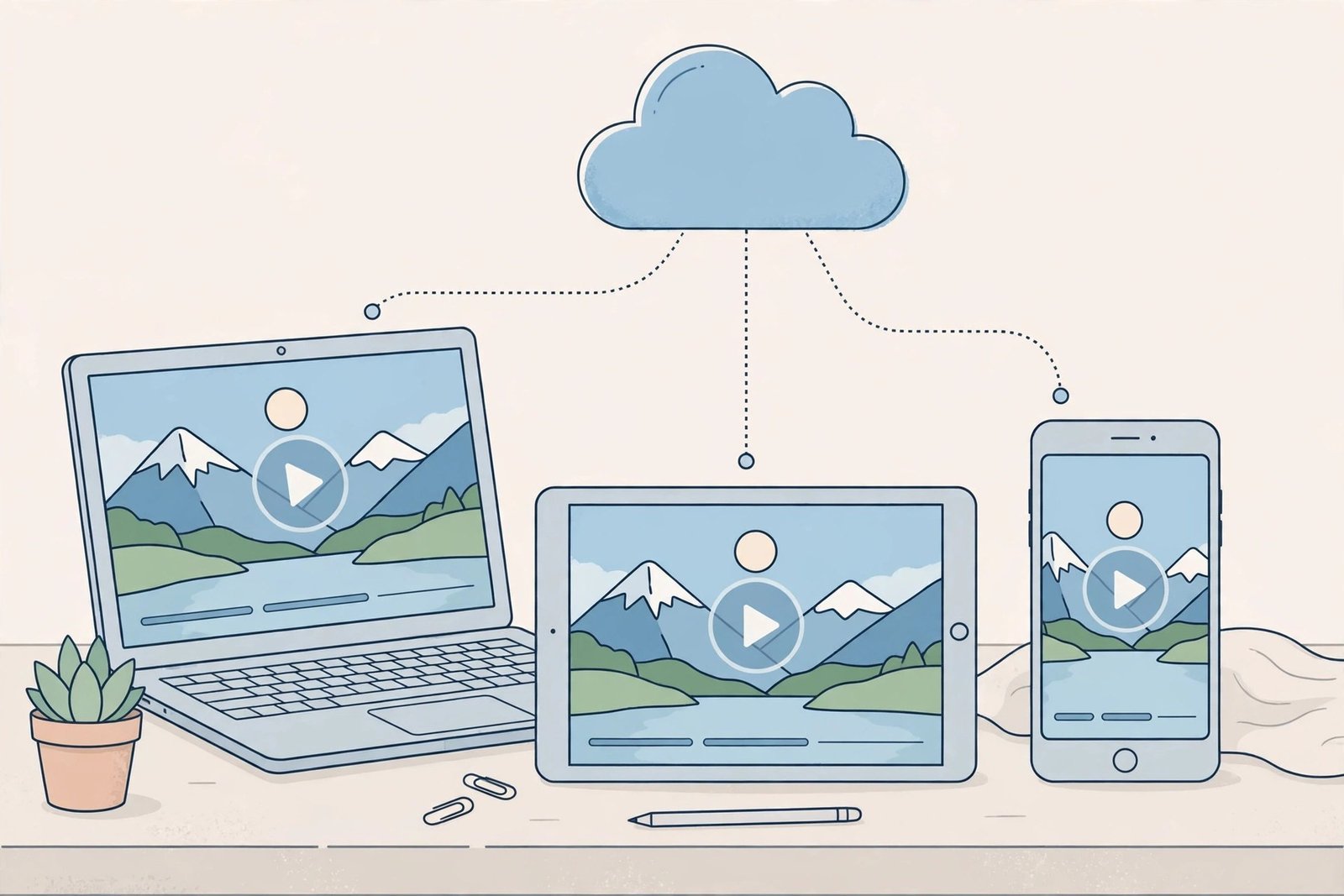
Telegram was never sold as a cloud drive, which is exactly why most people miss it. Open Telegram on any device and you will find a chat called Saved Messages — it looks like a conversation with yourself, and that is essentially what it is: a private cloud folder disguised as a chat. Anything you send there is stored on Telegram’s servers and synced to your phone, tablet, laptop, and the web version, all at once. Delete the app from your phone and reinstall it, and everything is still there.
The numbers are what make it interesting for video collectors. A free Telegram account can send files up to 2 GB each, and there is no cap on how many files you send or on your total storage. Compare that with the usual suspects: Google Drive gives you 15 GB shared across Gmail and Photos, iCloud gives you 5 GB, Dropbox gives you 2 GB, and OneDrive gives you 5 GB — all free tiers that a serious video collection eats in a weekend. A single Pinterest video is usually 5 to 50 MB, so Telegram’s per-file limit never gets in your way, and the unlimited total means you stop doing the monthly “which videos do I delete” dance. I have written the same style of guide for Google Drive, iCloud, Dropbox, and OneDrive — Telegram is the only one of the five where the free tier never fills up.
There is one honest downside, and it shapes everything below: Telegram is a chat app, not a file manager. There are no folders inside Saved Messages. You get a search box, a scrollable history, and whatever organisation you impose yourself with captions and hashtags. If you can live with that — and this guide shows you how — it is the most generous free video shelf on the internet.
How to Save Pinterest Videos to Telegram in 4 Steps
Step 1: Copy the video pin’s link
Open the video pin in the Pinterest app or on pinterest.com. Tap the share icon (the arrow on mobile, the share button on desktop) and choose Copy link. You should end up with a link that looks like pinterest.com/pin/ followed by a long number. If the share sheet offers “Send to Telegram” directly, ignore it for now — sending the link into Telegram only shares a link back to Pinterest, which is the bookmark trap all over again. You want the file, not a pointer to it.

One reality check before you go further: link-based tools only fetch public pins. If the pin sits on a secret board, comes from a private account, or the creator has already deleted it, no downloader can reach it — that is a Pinterest restriction, not a broken tool. If you hit that wall, the pin itself has to become public, or you need access to it another way. Our troubleshooting section covers the exact error cases.
Step 2: Download the actual MP4 with PintoDownload
Open PintoDownload in your browser — no app to install, no account to create — paste the copied link into the box, and hit download. Pick the highest quality the pin offers (HD or Full HD where available) and save the MP4 to your device. On a phone, the file lands in Downloads; on a computer, wherever your browser saves files. This is the step most Telegram guides skip entirely, and it is the step that makes the whole thing work: Telegram can only store what you actually send it, and Pinterest will not hand Telegram the file directly.
Take two seconds to check the file before you send it. Play it once. Make sure the sound is there and the video is not a two-second preview clip — some pins are slideshows or teaser cuts, and it is much easier to re-download now than to discover the problem six months later in your archive. If the download fails outright, our guide to fixing Pinterest videos that will not download covers the usual causes, from copied links with extra characters to pins that have gone private.
Step 3: Send the file to Saved Messages
Open Telegram and find Saved Messages — tap the search bar and type “Saved Messages,” or find it in the main menu on Android and desktop, or under Settings on iPhone. Tap the attachment (paperclip) icon, choose File, and pick the MP4 you just downloaded. Do not pick it from the photo gallery picker if you can avoid it — and here is why, because this is the single most important detail in this guide.

Send as a file, not as a video. When Telegram sends something “as a video,” it may compress it to stream faster — smaller file, softer picture, and you can never get the original back. When you send it “as a file” (the paperclip → File route), Telegram stores the exact MP4 you downloaded, byte for byte, and hands you back that exact file whenever you download it later. For an archive, that difference is everything. Always send as a file.
While it uploads, you will see a progress ring. A typical 20 MB Pinterest video uploads in seconds on Wi-Fi; a longer 200 MB clip can take a minute or two. Let it finish — if you close Telegram mid-upload on a slow connection, the message may sit there half-sent, and you will have to send it again.
Step 4: Add a caption you can search later
Before you hit send — or by editing the message right after — add a short caption: what the video is, plus a hashtag or two. Something like “Sourdough folding technique #recipes #bread” beats “video” every time, because six months from now you will search for “sourdough,” not scroll through three hundred messages. Telegram’s search inside Saved Messages is fast and matches captions, so this one habit is your entire filing system. The organising section below builds this into a proper routine.
Send as Video vs Send as File: Pick Right Every Time
This choice confuses almost everyone, because Telegram offers both and never explains the trade-off. Here is the plain version:
| Choice | What happens | Use it when |
|---|---|---|
| Send as video | Plays inline in the chat, may be compressed to a smaller size | Sharing a quick clip with a friend who just wants to watch it |
| Send as file | Original MP4 preserved exactly, downloads as a file | Archiving, editing later, or any video you want to keep |
Rule of thumb: if the video is going into your own archive, it is always a file. If you are forwarding something to a friend for a laugh, video is fine. Mixing the two up is how people end up with a “saved” collection of soft, compressed copies and no way back to the originals.
Three Places to Keep Videos Inside Telegram
Saved Messages is the obvious home, but it is not the only one, and for a big collection it is not always the best one. Here are the three setups that actually work:
| Home | How it works | Best for |
|---|---|---|
| Saved Messages | Your private chat with yourself; searchable, synced everywhere | Everyday saving; small to medium collections |
| Private channel (only you) | Create a channel, set it to private, never add anyone; one channel per topic | Big collections split by topic — recipes, workouts, DIY |
| Group with only you | Create a group, add nobody (or add then remove a friend); same idea as a channel but with a chat feel | People who prefer groups; also lets you use pinned messages per topic |
The private channel is the trick that turns Telegram from a pile into a library. A channel called “Recipes — Videos” and another called “Home DIY — Videos” gives you the folders Telegram refuses to build in. Nothing is public unless you add subscribers, and a private channel with only you in it is exactly as private as Saved Messages. The group-of-one works the same way; channels are slightly cleaner because there is no “someone joined” noise and no member list to think about.
Whichever home you choose, the rules are identical: send as a file, caption everything, and never use a secret chat for storage — secret chats live only on the two devices in the conversation and do not sync to Telegram’s cloud at all, so a lost phone means a lost collection.
Telegram vs the Cloud Drives: The Honest Comparison
Since this site now has a full save-to-cloud series, here is the head-to-head that matters — free tiers only, because that is what most people actually use:
| Service | Free storage | Per-file cap (free) | The catch |
|---|---|---|---|
| Telegram | Unlimited total | 2 GB | No folders; chat layout; account tied to your phone number |
| Google Drive | 15 GB shared | 5 TB (effectively none) | Quota shared with Gmail and Google Photos |
| iCloud | 5 GB | — | Shared with device backups and photos; fills fast |
| Dropbox | 2 GB | — | Smallest free tier of the lot |
| OneDrive | 5 GB shared | 250 GB | Shared with Outlook attachments |
Telegram wins on capacity and loses on structure. A real drive gives you folders, file names, and proper sorting; Telegram gives you infinite room and a search box. For a video collection that you mostly search rather than browse — “that sourdough video,” “the bookshelf build” — Telegram’s trade is a good one. For a collection you need to present or share as a tidy folder, a drive still wins, and you can always move a video from Telegram to a drive later; that is the next section.
Getting a Video Back Out of Telegram
Storing is only half the job. Sooner or later you will want a video in your gallery, in an editing app, or on a computer — and this is where Telegram trips people up. Playing a video inside Telegram does not put a file on your device. It streams or caches it inside Telegram, and clearing Telegram’s cache can wipe that local copy (the cloud copy stays safe, but you have to download it again). To actually own the file on the device, use the explicit save command:
- Android: open the video, tap the three-dot menu, and choose Save to Gallery (for a gallery copy) or Save to Downloads (for a file copy). If you sent it as a file, look for the download arrow on the message, then find it in Downloads.
- iPhone / iPad: open the video, tap Share, and choose Save Video to put it in Photos, or Save to Files to pick a folder in the Files app. Browser-downloaded videos on iOS land in Files first — that is normal, not an error.
- Desktop (Windows / Mac / Linux): right-click the message or file and choose Save As, then pick your folder. This is the most reliable route for big files and for editing.
- Telegram Web: click the download arrow on the message; the file goes to your browser’s download folder.
After saving, verify it the boring way: open Photos, Files, or your chosen folder and confirm the video is actually there and plays with sound. “It played in Telegram” is not verification. This one check prevents the classic complaint — “I saved it but it is not in my gallery” — which almost always means the video was only ever cached inside Telegram. If you keep your archive mainly in Telegram, this export step is also your backup routine: every few months, export anything irreplaceable to a drive or an external disk as well. Telegram is generous, but it is still one company’s servers, tied to one phone number.
Organising So You Can Find Things in Six Months
With no folders, your captions do all the work. A system that holds up past a hundred videos has four parts, and none of them takes more than a few seconds per video:
- Caption every video on arrival. What it is, in words you would actually search: “Sourdough folding technique” not “video_042.mp4.”
- Use one or two hashtags per video. #recipes, #diy, #workout — Telegram treats hashtags as tappable, so tapping one filters your whole history to that tag.
- Split big topics into private channels. One channel per topic beats one endless Saved Messages scroll once you pass a few hundred videos.
- Pin your index. In a private channel or group, pin one message listing your hashtags and what each one means. Future-you will be grateful.
Search is substring-based: it matches words in captions and messages, not the content of the video itself. A video with no caption is effectively invisible to search, no matter how good it is. That is the whole system, and it is the difference between a library and a junk drawer.
The Catches Nobody Mentions
Downloader bots are the worst route, not the shortcut. Plenty of guides tell you to paste your Pinterest link into a Telegram bot and wait for the video. There are two problems. First, privacy: you are handing your link — and, for your own pins, a signal about what you collect — to whoever runs that bot. Second, size: bots running on Telegram’s standard Bot API can only download files up to 20 MB and send files up to 50 MB, so longer or higher-quality videos fail or come back compressed. The copy-link → PintoDownload → send-as-file route has neither problem, and it takes about the same time.
Restricted content stays restricted. Some private channels and groups turn on “Restrict Saving Content,” which blocks saving, forwarding, and screenshots through normal Telegram features. That is a creator-protection setting, and this guide does not cover bypassing it — if a video will not save from such a place, that is the setting working as intended, and you should respect it.
Your account is the archive. Telegram can delete an account that sits inactive for the period set in its self-destruct setting (configurable from one month to twelve months), and the cloud files go with it. If Telegram is your only copy of something irreplaceable, log in regularly and keep a second copy somewhere else. Losing access to your phone number is the same risk — Telegram accounts are tied to a number, so keep that number active.
Compression is silent. Nothing warns you when a video is sent compressed. The only protection is the habit from step 3: always send as a file, and spot-check a downloaded copy against the original size at least once. If the file you pull back out is much smaller than the one you sent, it went as a video somewhere along the way.
Telegram is not a backup service. It has no version history, no recycle bin for deleted messages worth relying on, and no folder export. Treat it as a wonderfully roomy shelf, not as the only copy of anything you cannot afford to lose. The 3-2-1 version of this: Telegram plus one real drive plus, for the truly irreplaceable, an external disk.
Troubleshooting: When Saving to Telegram Goes Wrong
| Problem | Likely cause | Fix |
|---|---|---|
| PintoDownload finds no video | Private, secret-board, or deleted pin; or a copied link with extra text | Re-copy the clean link; confirm the pin is public and still live |
| Bot returns nothing or a tiny file | Bot API 20/50 MB limits, or the bot is down | Skip bots; use the PintoDownload + send-as-file route |
| Video plays in Telegram but is not in my gallery | It is only cached inside Telegram | Use Save to Gallery / Save Video / Save to Files explicitly, then verify |
| Downloaded-back file is much smaller | It was sent as a video and compressed | Re-send the original as a file (paperclip → File) |
| Upload stalls or fails | File over 2 GB (free) or a flaky connection | Pinterest videos are rarely near 2 GB; retry on Wi-Fi, or split the file |
| Save option is missing entirely | “Restrict Saving Content” on that channel/group | Respect the restriction; it cannot be bypassed through normal features |
Is It Legal to Save Pinterest Videos to Telegram?
Short version: downloading a video for your own personal, offline viewing is the use case these tools are built for, and keeping it in your own private Telegram chat is personal storage, not publication. The line you should not cross is redistribution — forwarding someone else’s video to a public channel, reposting it as your own, or using it commercially without the creator’s permission. That is where personal use ends and infringement begins. Our full guide on whether downloading Pinterest videos is legal walks through the details, including what changes when a video is used in a business. When in doubt, keep it private, keep it personal, and ask the creator before you share their work anywhere public.
Frequently Asked Questions
Can I save Pinterest videos to Telegram for free?
Yes. Downloading the MP4 with PintoDownload is free with no signup, and Telegram’s Saved Messages storage is free with no total cap. The only limits are 2 GB per file on a free Telegram account and the usual rule that the pin must be public.
Does Telegram compress videos I save?
Only if you send them as videos. Send the MP4 as a file (paperclip → File) and Telegram stores and returns the exact original, with no compression. This is the single most important habit in this guide.
How much can I store in Telegram Saved Messages?
There is no total storage cap. You can send an unlimited number of files, each up to 2 GB on a free account (4 GB with Telegram Premium). That makes it far roomier than the free tiers of Google Drive, iCloud, Dropbox, or OneDrive.
Can I watch my saved Pinterest videos on another device?
Yes. Anything in Saved Messages or a private channel syncs to every device where you are logged into Telegram — phone, tablet, desktop, and Telegram Web. Open the chat, tap the file, and it plays or downloads there.
Why is a video in Telegram not showing in my phone gallery?
Because playing a video inside Telegram only caches it in the app. To get a gallery copy, use the explicit save command: Save to Gallery on Android, Save Video on iPhone, or Save to Files if you want a file location instead of Photos. Then check the gallery to confirm it actually landed.
The Bottom Line
To save Pinterest videos to Telegram well, remember four things: the file, not the link, is what you are saving; send it as a file, never as a video; caption it the day you save it or you will never find it again; and keep a second copy of anything irreplaceable somewhere that is not Telegram. Do those four and you get the most generous free video shelf available — unlimited room, synced everywhere, no monthly fee, and a collection that survives the day a creator deletes the original pin. If you also want your videos in a proper folder structure, start with our gallery guide or the Pinterest image downloader for stills — and for everything else, Telegram will hold it.