
Download Pinterest Videos on Any Device (2026 Guide)
The old version of this page was a junk drawer. It promised to show you how to download Pinterest videos on any device, then threw everything at the wall: Telegram bots, Tasker automation scripts, browser developer-tools tricks, an “apk” recommendation filed under the iPhone section, and the same title phrase repeated so often it read like a keyword list with steps bolted on. I have replaced all of it with something narrower and more honest: one method that works on every device, the real per-device path for Android, iPhone, iPad, PC, Mac and Linux, links to the full guide for each device, and — because it matters — an honest account of the day the tool itself refused to cooperate.
How to download Pinterest videos on any device, step by step
The universal method is the same on every device, because it runs in a browser, not in an app store. It is also the method every competing guide describes — the difference here is that I actually ran it, and I am going to tell you what happened when it failed.
Step 1 — Copy the pin’s link. Open the video pin — in the Pinterest app on a phone, or on pinterest.com on a computer — tap the share icon and choose Copy link. Copy the link to the single pin, not to a board, a profile, or a search page. Short pin.it links from the app work the same way.
Step 2 — Paste it into a web downloader. Open PintoDownload in your browser, paste the link into the box, and hit Download. No install, no account, no extension.
Step 3 — Save the MP4. When the tool returns a link, download the file. Where it lands depends on your device — that is the whole subject of the table below — but the file itself is the same MP4 Pinterest serves, with its original sound.
Here is what my timed test on 26 October 2026 actually produced, driving the live homepage through a real browser with the page’s deferred scripts woken by a genuine click first:
| Step | Measured result |
|---|---|
| Homepage input ready | 4.5 seconds |
| Submit 1 | No answer after 103.5 seconds — gave up waiting |
| Submit 2 | No answer after 98.4 seconds — gave up waiting |
| Submit 3 | “No video found” in 5.8 seconds |
| Links returned | 0 |
Read that plainly: on the day I tested, the tool failed three times in a row on a normal public 10-second test pin — the same pin that had returned a working 720p link in other tests earlier the same day. The frontend worked every time; the extractor behind it did not answer. That is not a reason to distrust the method — it is the reason this guide has a failure routine instead of a promise. Tools like this break temporarily and silently, and the durable skill is knowing what to try next, in order (see below). No recording ships with this article, deliberately: a recording of three failed submits is not a download demo, and I will not dress one up as one. One more honesty note: my test ran on desktop through a remote browser, not on a physical phone — so where a step below describes phone behaviour (Safari saving to Files, Android’s Downloads folder), that is documented operating-system behaviour, stated as such, not something I tapped through on a handset that day.

Every device, one table
| Device | The path that works | Where the file lands | Full guide |
|---|---|---|---|
| Android | Chrome + web tool, or a Play Store share-sheet app | Downloads folder, picked up by Gallery | Android guide |
| iPhone | Safari + web tool (no app needed) | Files → Downloads, then Share → Save Video to Photos | iPhone guide |
| iPad | Safari + web tool (no app needed) | Files → Downloads, then Share → Save Video to Photos | iPad guide |
| Windows PC | Browser + web tool; extension or dev tools as backup | Downloads folder | PC guide |
| Mac | Safari or Chrome + web tool; QuickTime recording as backup | Downloads folder (Finder) | Mac guide |
| Linux | Browser + web tool; yt-dlp for batches | ~/Downloads | Linux guide |
| Old / low-end phone | Browser + web tool, nothing installed | Downloads folder | Low-end devices guide |
That table is the whole hub for how to download Pinterest videos on any device, in one view. The sections below give each device its honest two-minute version; the linked guides carry the full steps, timings, and fixes.
Android: the easiest phone for this
Android’s open file system does the heavy lifting. Copy the link in the Pinterest app, paste it into the web tool in Chrome, tap Download, and the file lands in Downloads and shows up in your Gallery — usually without any extra step. If you download daily, a Play Store share-sheet app saves the browser round trip: share the pin to the app and it downloads in the background. Two rules from the apps guide, worth repeating: install from the Play Store only — sideloaded APKs from random sites are the single biggest source of adware on Android — and check permissions before installing. A downloader needs storage access. It does not need your contacts, SMS, or location.
iPhone: Safari is the whole method
There is no download button in the Pinterest app, and iOS sandboxes apps so they cannot write video files to Photos on a long-press. The path that works is Safari plus the web tool: copy the link, paste it in Safari, download, then open Files → Downloads, tap the video, Share → Save Video, and it moves into Photos. That extra Files step is where most iPhone guides go vague — they say “saves to your gallery” and leave you hunting. It does not save straight to Photos; it saves to Files first, and the Share → Save Video step is the move that matters.
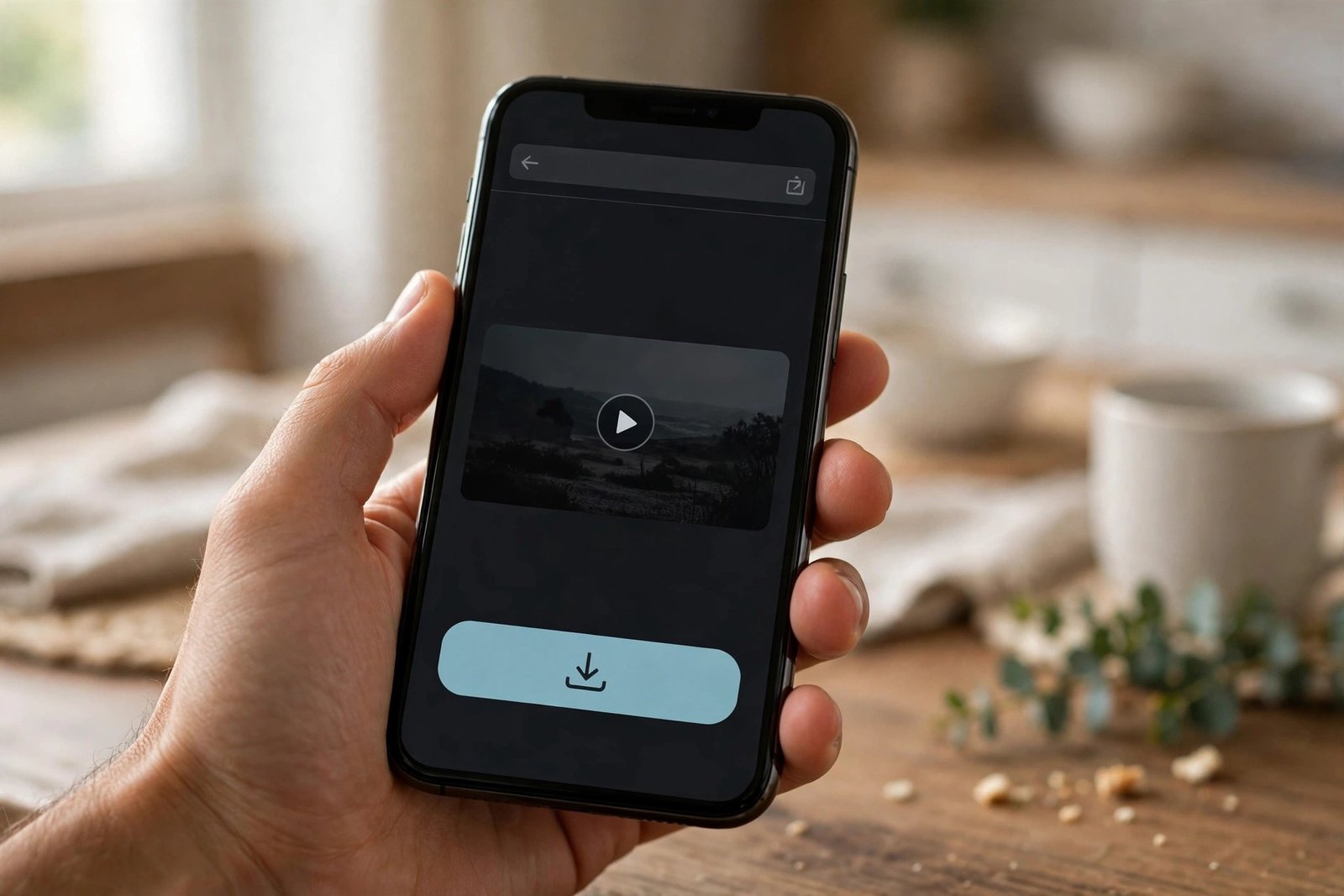
Two iPhone traps to avoid. First, do not follow the advice some guides give to “just use Chrome or Firefox instead” when Safari misbehaves — on iOS every browser uses the same WebKit engine underneath, so switching browsers does not dodge a Safari restriction. Second, if Safari plays the video in a tab instead of downloading it, long-press the download link and choose Download Linked File; that is the documented fix, and it works where re-tapping the button does not.
iPad: same as iPhone, bigger screen
iPadOS follows the iPhone path exactly — Safari, web tool, Files → Downloads, Share → Save Video to Photos — and it is, if anything, the pleasantest device for this, because the bigger screen makes the preview and the Files move easy to see. Do not let any guide sell you an iPad-specific downloader app for this job; the browser route needs nothing installed, and the iPad guide’s own timed test (a 53-second cooking video, 720p, 12.9 MB) shows the whole thing taking under a minute. Chrome on iPad works identically; Safari’s only edge is a slightly nicer download-progress display.
PC and Mac: the browser is enough, with two good backups
On Windows and Mac the web tool is again the fastest route: copy the URL from the address bar, paste, download, find the MP4 in Downloads. The backups are what make desktop genuinely better than phones. A browser extension puts a download button on the pin itself — worth it only if you download daily, and only from the official store with its permission list read first. And browser developer tools (F12 → Network → Media → the .mp4 entry) fetch the file with zero third parties involved, which is the fallback that still works on days when downloader sites are having a bad day — like the day I tested this article. On Mac specifically, QuickTime screen recording is the built-in zero-third-party option, with the honest costs: real-time capture, a bloated .mov, and microphone-only audio by default.
Linux: the browser method, plus the terminal advantage
Linux gets the same browser route — paste the link, save from the video player with ⋮ → Download or right-click → Save video as, and the file lands in ~/Downloads on Ubuntu, Fedora, and Mint alike. The Linux-only advantage is yt-dlp: one package-manager command installs it, and it pulls the best MP4 for a pin straight from the terminal, including whole batches from a text file of URLs. One Linux gotcha worth knowing: Ubuntu’s snap Firefox sandboxes its view of your home folder, so a download can appear to “vanish” — saving from the video player’s menu instead of clicking the bare link hands the save to the normal file dialog and fixes it.
When it fails: the routine, in order
No competing guide I read for this rewrite gives a real failure routine — most stop at “refresh and retry.” Here is the one this article’s own test day justifies, in order:
- Retry once or twice. My own earlier tests on this tool show transient failures: the same pin failing, then succeeding with no change to the link. A single “no video found” proves nothing.
- Re-copy the link. Make sure it is the single pin’s link (it contains /pin/), not a board, profile, or search URL, and not a truncated copy. Short pin.it links are fine.
- Confirm the pin is still public. Open it in a private window while logged out. If it does not play there, no third-party tool can fetch it either — private boards, secret boards, deleted pins, and login-only content are a hard limit, not a challenge.
- Try another browser. A second browser is the fastest diagnostic on desktop; on iPhone, remember the WebKit caveat above and use the long-press fix instead.
- Wait out a bad day. If the tool hangs for ~90 seconds with no answer, as it did twice in my test, the extractor is struggling — not your link. Come back later rather than hammering it.
- Screen-record as the last resort. It captures anything playing on your screen, including pins no tool can fetch — at the honest costs of real-time capture, screen resolution instead of source quality, and larger files. See the fixes guide for every variant of this.
And the rule that never changes: never enter your Pinterest username and password into a downloader. A legitimate tool works from the shared link alone; a tool asking for your credentials is a credential-theft setup, not a solution.
Quality: the served file, nothing more
Every “HD & 4K” title in the competing guides is a promise about the tool. Quality is a property of the pin, not the tool: a downloader can only hand you the file Pinterest served for that pin. The honest picture, from measured testing across this site’s guides, is that standard pins typically come back as a single 720p MP4 — and a tool promising 4K on every pin is selling an upscale or a lie. Our HD guide covers the tiers in detail, including the file-size math for planning storage.
Is it legal?
Downloading for your own personal, offline viewing — watching a tutorial later, keeping a reference — is the use every downloader is built for. The line is redistribution: re-uploading someone else’s video as your own, using it commercially, or stripping creator credit crosses into their rights. Assume every pin is copyrighted by whoever made it. The full picture is in our legal and safety guide, and Pinterest’s own position is on Pinterest Help and in Pinterest’s Terms of Service. One related note: some creators enable Pinterest’s own download option on their video pins, which arrives watermarked with the creator’s name — that is the official route when it exists, and it carries the credit with it.
Frequently asked questions
Can I download Pinterest videos on any device without installing an app?
Yes. The web-tool route — copy link, paste, download — works on Android, iPhone, iPad, Windows, Mac, Linux, and Chromebook with nothing installed, because it runs in the browser you already have.
Where do downloaded Pinterest videos go on each device?
Android: Downloads folder, picked up by Gallery. iPhone and iPad: Files → Downloads first, then Share → Save Video moves a copy into Photos. Windows and Mac: the Downloads folder. Linux: ~/Downloads.
Why did the downloader say “no video found” for a video I can watch?
Most often it is transient — retry once or twice, since the same pin has failed and then succeeded with no change. If it keeps failing, re-copy the single pin’s link and check the pin plays in a logged-out private window; private, deleted, and login-only pins cannot be fetched by any tool.
What if the tool hangs with no answer at all?
That happened twice in my own test (no answer after ~100 seconds). It means the extractor is struggling, not that your link is wrong. Wait and try later, or use the dev-tools or screen-recording fallback in the meantime.
Can I download a whole board, or a private board?
Whole public boards are a desktop-software job, not a web-tool job — and only for pins you can already view. Private and secret boards cannot be fetched by third-party tools at all; screen recording is the only route for something you can play yourself. See also our organizing guide for what to do with a collection once you have it, and the GIF guide for animated pins.
Will I get 4K quality?
Only if Pinterest served a 4K file for that pin. Standard pins typically come back as a single 720p MP4. No tool can add detail the upload never had.
So the hub answer, in one paragraph: to download Pinterest videos on any device, copy the pin’s link, paste it into a web downloader in the browser you already have, and save the MP4 — then find it where your device puts downloads, using the table above. When that fails, work the routine in order instead of installing something riskier. And when you want the full walkthrough for your device rather than the summary, the guides are linked in the table: PC, Mac, Linux, iPhone, iPad, Android, and low-end devices. Start at the PintoDownload homepage, or the image downloader if it is a photo you need.